2016 CHEVROLET MALIBU buttons
[x] Cancel search: buttonsPage 172 of 420
Chevrolet Malibu Owner Manual (GMNA-Localizing-U.S./Canada/Mexico-
9087641) - 2016 - crc - 9/3/15
Infotainment System 171
.Turn to highlight menu
items or to set values while
in a menu.
. Turn to manually select
radio stations.
9. Preset Buttons 1−4 .Press and hold to store a
station.
. Press to go to a preset
favorite station.
10. FAV .Press to go to a
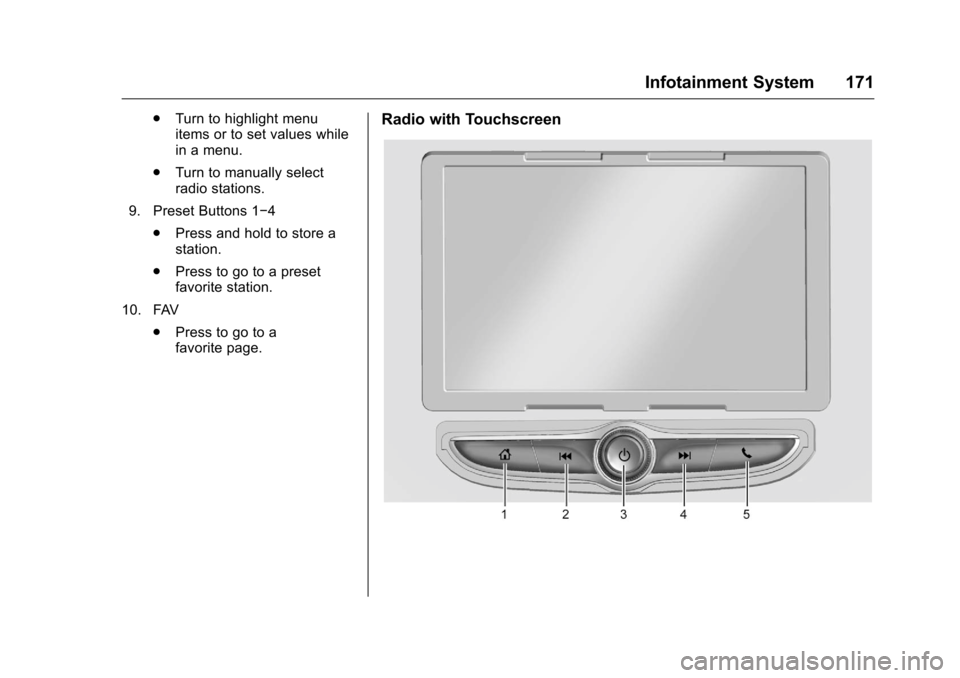
favorite page.Radio with Touchscreen
Page 173 of 420
Chevrolet Malibu Owner Manual (GMNA-Localizing-U.S./Canada/Mexico-
9087641) - 2016 - crc - 9/3/15
172 Infotainment System
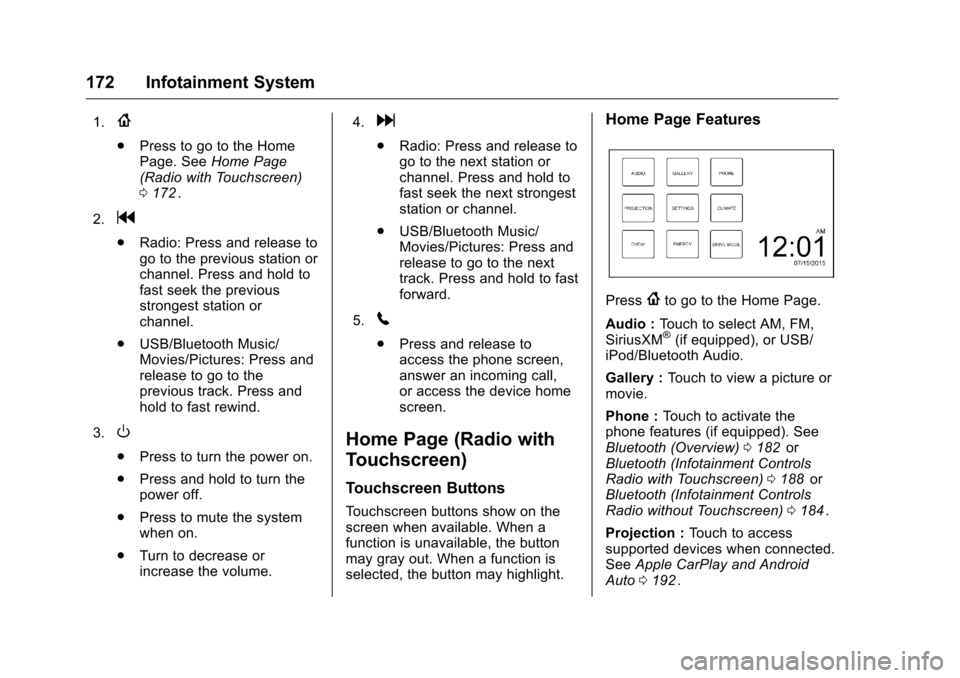
1.{
.Press to go to the Home
Page. See Home Page
(Radio with Touchscreen)
0 172
ii.
2.
g
. Radio: Press and release to
go to the previous station or
channel. Press and hold to
fast seek the previous
strongest station or
channel.
. USB/Bluetooth Music/
Movies/Pictures: Press and
release to go to the
previous track. Press and
hold to fast rewind.
3.
O
. Press to turn the power on.
. Press and hold to turn the
power off.
. Press to mute the system
when on.
. Turn to decrease or
increase the volume. 4.
d
.
Radio: Press and release to
go to the next station or
channel. Press and hold to
fast seek the next strongest
station or channel.
. USB/Bluetooth Music/
Movies/Pictures: Press and
release to go to the next
track. Press and hold to fast
forward.
5.
5
. Press and release to
access the phone screen,
answer an incoming call,
or access the device home
screen.
Home Page (Radio with
Touchscreen)
Touchscreen Buttons
Touchscreen buttons show on the
screen when available. When a
function is unavailable, the button
may gray out. When a function is
selected, the button may highlight.
Home Page Features
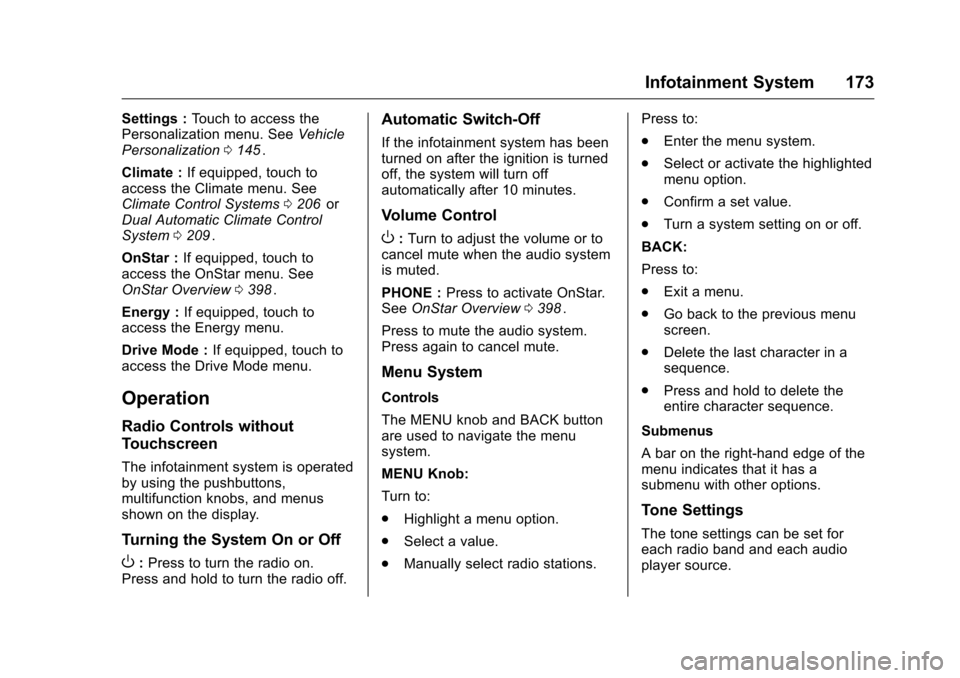
Press{to go to the Home Page.
Audio : Touch to select AM, FM,
SiriusXM
®(if equipped), or USB/
iPod/Bluetooth Audio.
Gallery : Touch to view a picture or
movie.
Phone : Touch to activate the
phone features (if equipped). See
Bluetooth (Overview) 0182
iior
Bluetooth (Infotainment Controls
Radio with Touchscreen) 0188
iior
Bluetooth (Infotainment Controls
Radio without Touchscreen) 0184
ii.
Projection : Touch to access
supported devices when connected.
See Apple CarPlay and Android
Auto 0192
ii.
Page 174 of 420
Chevrolet Malibu Owner Manual (GMNA-Localizing-U.S./Canada/Mexico-
9087641) - 2016 - crc - 9/3/15
Infotainment System 173
Settings :Touch to access the
Personalization menu. See Vehicle
Personalization 0145
ii.
Climate : If equipped, touch to
access the Climate menu. See
Climate Control Systems 0206
iior
Dual Automatic Climate Control
System 0209
ii.
OnStar : If equipped, touch to
access the OnStar menu. See
OnStar Overview 0398
ii.
Energy : If equipped, touch to
access the Energy menu.
Drive Mode : If equipped, touch to
access the Drive Mode menu.
Operation
Radio Controls without
Touchscreen
The infotainment system is operated
by using the pushbuttons,
multifunction knobs, and menus
shown on the display.
Turning the System On or Off
O: Press to turn the radio on.
Press and hold to turn the radio off.
Automatic Switch-Off
If the infotainment system has been
turned on after the ignition is turned
off, the system will turn off
automatically after 10 minutes.
Volume Control
O: Turn to adjust the volume or to
cancel mute when the audio system
is muted.
PHONE : Press to activate OnStar.
See OnStar Overview 0398
ii.
Press to mute the audio system.
Press again to cancel mute.
Menu System
Controls
The MENU knob and BACK button
are used to navigate the menu
system.
MENU Knob:
Turn to:
. Highlight a menu option.
. Select a value.
. Manually select radio stations. Press to:
.
Enter the menu system.
. Select or activate the highlighted
menu option.
. Confirm a set value.
. Turn a system setting on or off.
BACK:
Press to:
. Exit a menu.
. Go back to the previous menu
screen.
. Delete the last character in a
sequence.
. Press and hold to delete the
entire character sequence.
Submenus
A bar on the right-hand edge of the
menu indicates that it has a
submenu with other options.
Tone Settings
The tone settings can be set for
each radio band and each audio
player source.
Page 175 of 420
Chevrolet Malibu Owner Manual (GMNA-Localizing-U.S./Canada/Mexico-
9087641) - 2016 - crc - 9/3/15
174 Infotainment System
Adjusting the Bass, Midrange,
Treble, Fader, and Balance1. Press MENU.
2. Turn MENU to Settings.
3. Press MENU.
4. Turn MENU to Tone Settings.
5. Press MENU.
6. Turn MENU to the desired tone.
7. Press MENU to select the desired tone.
8. Turn MENU to adjust the desired tone.
9. Press MENU to save the setting.
10. Press BACK to go back to the Tone Settings menu.
Adjusting the EQ (Equalizer) 1. Press MENU.
2. Turn MENU to Settings.
3. Press MENU.
4. Turn MENU to Tone Settings.
5. Press MENU. 6. Turn MENU to EQ.
7. Press MENU.
8. Turn MENU to the desired
setting, then press MENU to
select it.
9. Continue pressing BACK to go back to the Tone
Settings menu.
System Settings
Configuring the Number of
Favorite Pages
Up to six favorite pages can be
saved, and each page can store up
to four radio stations.
To configure the number of available
favorite pages:
1. Press MENU.
2. Turn MENU to Set Number of Favorites Pages.
3. Press MENU.
4. Turn MENU to the desired number of pages.
5. Press MENU to select the desired number of pages.
6. Press BACK to exit. Auto Volume Control
This feature automatically adjusts
the radio volume to compensate for
road and wind noise.
The level of volume compensation
can be selected, or the feature can
be turned off.
1. Press MENU.
2. Turn MENU to Settings.
3. Press MENU.
4. Turn MENU to Auto Volume Control.
5. Press MENU.
6. Select the desired setting.
7. Press BACK to exit.
Radio Controls with
Touchscreen
The infotainment system is operated
by using the pushbuttons, menus
shown on the display, and steering
wheel controls.
Turning the System On or Off
O: Press to turn the radio on.
Press and hold to turn the radio off.
Page 176 of 420
Chevrolet Malibu Owner Manual (GMNA-Localizing-U.S./Canada/Mexico-
9087641) - 2016 - crc - 9/3/15
Infotainment System 175
Automatic Switch-Off
If the infotainment system has been
turned on after the ignition is turned
off, the system will turn off
automatically after 10 minutes.
Volume Control
O:Turn to increase or decrease.
O:Press when the system is on to
mute and unmute the system.
System Settings
Auto Volume
This feature automatically adjusts
the radio volume to compensate for
road and wind noise.
The level of volume compensation
can be selected, or the feature can
be turned off.
1. Touch MENU from a source screen.
2. Select Auto Volume.
3. Select the desired setting.
4. Touch
3to go back to the
source screen. Tone Settings
The tone settings can be set for
each radio band and each audio
player source.
Preset Tone Settings
1. Touch MENU.
2. Touch Tone Settings.
3. Select a preset tone setting.
Custom Tone Settings 1. Touch MENU.
2. Touch Tone Settings.
3. Touch Custom. .Bass, Midrange, or Treble:
Touch −or +.
. Fader or Balance: Adjust
the front/rear or left/right
speakers by dragging the
dot in the vehicle image on
the screen.
4. Touch
3to go back to the
source screen.
Radio
AM-FM Radio
Playing the Radio without
Touchscreen
Audio Source Menu
O: Press to turn the system on and
off. Turn to increase or decrease the
volume or to cancel mute when the
audio system is muted.
MENU : Turn to change the radio
station.
RADIO : Press to select AM
and FM.
7or6: Press to seek the
previous or next station.
Press and hold to quick seek a
station.
FAV : Press to open the favorites
list and select a favorite page or
view the radio station and current
song playing information.
Preset Buttons 1–4 : Press to
select preset stations.
Page 179 of 420
Chevrolet Malibu Owner Manual (GMNA-Localizing-U.S./Canada/Mexico-
9087641) - 2016 - crc - 9/3/15
178 Infotainment System
Storing a Station as a Favorite
Stations from all bands can be
stored in any order in the favorite
pages.
Up to 25 stations can be stored.
Storing Stations
To store the station to a position in
the list, touch the corresponding
button 1−5 until a beep is heard.1. Select the desired station.
2. Touch
SorTto select the
desired page of saved
favorites.
3. Touch and hold any of the preset buttons to save the
current radio station to that
button of the selected
favorites page.
To change a preset button, tune to
the new desired radio station and
touch and hold the preset button.
Satellite Radio
If equipped, vehicles with an SXM
Satellite Radio tuner and a valid
SiriusXM
®Satellite Radio
subscription can receive SiriusXM
programming.
SiriusXM Satellite Radio
Service
SiriusXM is a satellite radio service
based in the 48 contiguous United
States and 10 Canadian provinces.
SiriusXM Satellite Radio has a wide
variety of programming and
commercial-free music, coast to
coast, and in digital-quality sound.
During your trial or when you
subscribe, you will get unlimited
access to SiriusXM Radio Online for
when you are not in the vehicle.
A service fee is required to receive
the SiriusXM service. If SiriusXM
service needs to be reactivated, the
radio will display "No Subscription
Please Renew" on channel XM1.
For more information, contact
SiriusXM at www.siriusxm.com or
1-866-635-2349 (U.S.), and
www.xmradio.ca or 1-877-209-0079
(Canada).
Listening to SiriusXM Radio
1. Press{.
2. Touch AUDIO.
3. Touch Source.
4. Touch SXM and the most recent listened to SiriusXM
channel will display.
Selecting a Category
From Menu, touch Categories, then
touch the desired category or from
Categories, touch
QorRto find the
desired channel. Touch the channel
to select it.
Selecting a Channel
Pressgordto seek the previous
or next channel.
Using the Preset Buttons
Up to five favorites pages can be
saved, and each page can store up
to five channels.
To change a preset button, tune to
the new desired channel and hold
the button.
Page 184 of 420
Chevrolet Malibu Owner Manual (GMNA-Localizing-U.S./Canada/Mexico-
9087641) - 2016 - crc - 9/3/15
Infotainment System 183
.See “Deleting a Bluetooth
Device” under“Bluetooth
(Infotainment Controls)” in
Bluetooth (Overview) 0182
iior
Bluetooth (Infotainment Controls
Radio with Touchscreen) 0188
iior Bluetooth (Infotainment
Controls Radio without
Touchscreen) 0184
ii.
{Warning
When using a cell phone, it can
be distracting to look too long or
too often at the screen of the
phone or the infotainment system.
Taking your eyes off the road too
long or too often could cause a
crash resulting in injury or death.
Focus your attention on driving.
Vehicles with a Bluetooth system
can use a Bluetooth-capable cell
phone with a Hands-Free Profile to
make and receive phone calls. The
infotainment system is used to
control the system. The system can
be used while in ACC/ACCESSORY
or ON/RUN. See Retained
Accessory Power (RAP) 0231
ii. Not all phones support all functions and
not all phones work with the
Bluetooth system. See
www.gm.com/bluetooth for more
information about compatible
phones.
The Bluetooth system range can be
up to 9.1 m (30 ft).
There may be restrictions on using
Bluetooth wireless technology in
some locations.
Due to the variety of Bluetooth
devices and their firmware versions,
the device may respond differently
when performing over Bluetooth.
On a current phone call, an image
of the current contact from the
phone's contact list may be
displayed. Not all phones are
compatible with this feature.
Refer to the cell phone
manufacturer
’s user guide for
questions about the phone's
Bluetooth functionality.
Bluetooth Controls
If equipped with Bluetooth capability,
use the buttons on the infotainment
system and the steering wheel to
operate the system.
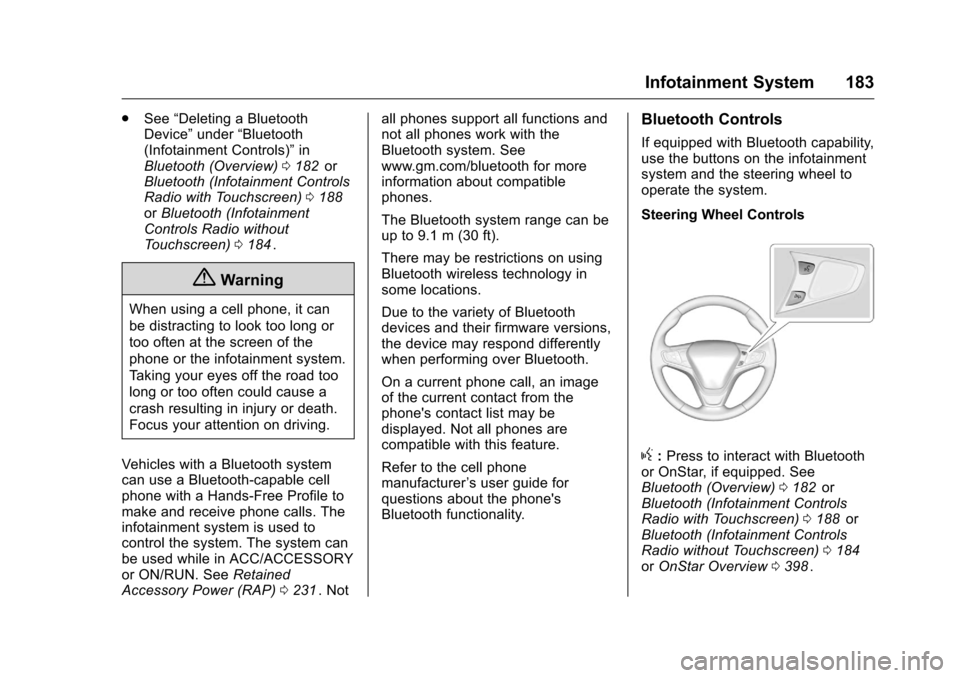
Steering Wheel Controls
g: Press to interact with Bluetooth
or OnStar, if equipped. See
Bluetooth (Overview) 0182
iior
Bluetooth (Infotainment Controls
Radio with Touchscreen) 0188
iior
Bluetooth (Infotainment Controls
Radio without Touchscreen) 0184
iior OnStar Overview 0398ii.
Page 194 of 420
Chevrolet Malibu Owner Manual (GMNA-Localizing-U.S./Canada/Mexico-
9087641) - 2016 - crc - 9/3/15
Infotainment System 193
Hands-Free Phone Controls
Use the buttons on the infotainment
system and the steering wheel to
operate the Hands-Free Phone
system.
Steering Wheel Controls
Steering wheel controls can be
used to:
.Answer incoming calls.
. Confirm system information.
. End a call.
. Decline a call.
. Cancel an operation.
. Make outgoing calls using the
call list.
g:Press to answer incoming calls.
c:Press to end a call, decline a
call, or cancel an operation.
Making a Call by Entering a Phone
Number
. Press
5on the faceplate
. Press
{, then touch PHONE on
the screen. .
Press
gon the steering wheel.
If a wrong number is entered,
touch
}to delete the number one
digit at a time, or touch and hold
}
to delete all digits of the number.
Switching a Call to the Cell Phone
(Private Mode)
To switch the call from the cell
phone to hands-free:
1. Touch
0.
2. Touch
0again to switch back
to hands-free.
Turning the Microphone On
and Off
Touch
3to turn the microphone on
or off.
Calling by Redial
To call by using redial:
. Press
gon the steering wheel
controls to display the redial
guidance screen.
. Touch
5on the phone screen. Redialing is not possible when there
is no call history.
Taking Calls
When a phone call comes through
the connected Bluetooth cell phone,
the audio system will be muted or
paused and the phone will ring with
the relevant information displayed.
To accept the call, press
gon the
steering wheel controls, touch
5on
the screen, or press
5on the
faceplate.
To decline the call, press
con the
steering wheel controls or touch
Reject on the screen.
Using the Contacts Menu
1. Touch Contacts on the phone screen.
2. Touch
QorRto scroll through
the list.
3. Touch the phone book entry to call.
4. Touch the number to dial.