2016 BUICK ENVISION Start
[x] Cancel search: StartPage 174 of 432

Buick Envision Owner Manual (GMNA-Localizing-U.S./Canada/Mexico-
8534310) - 2016 - crc - 2/29/16
Infotainment System 173
Timeshifting and Station/Channel
Lists
If browsing a station/channel list is
started while listening to the
timeshift content, the list content is
shown in live time, not
buffered time.
Skipping Back in a Broadcast
For programs with metadata,
touching the previous button less
than five seconds into a program
will make the system skip to the
beginning of the previous program.
If more than five seconds into the
current song/program, the system
starts at the beginning of the current
program. If no metadata is available,
the system skips back 30 seconds.
Reaching the End of the Buffer
If the audio is paused and the
25-minute buffer is reached, the
buffer continues recording content
on a first-in, first-out basis. When
playback is started, the content
played will be the last 25 minutes in
the buffer.HD Radio Technology
If equipped, HD Radio™Technology
is a free service with features such
as static-free sound, more
programming choices on local FM
HD2, HD3, and higher, and
on-screen information such as artist
and song title.
Channel Access
To access HD Radio channels:
1. Tune the radio to the channel. HD Radio must be turned on in
the Menu. If the channel is
broadcasting HD Radio
Technology, the radio will
automatically switch to digital
audio, indicated with an HD
Radio Technology logo.
2. Touch
gordto tune to the
previous or next HD Radio
channel.
There may be a delay before the
channel starts playing.
The HD Radio channel number is
indicated next to the logo.
See AM-FM Radio 0170. For a list of all channels, see
www.hdradio.com.
Troubleshooting
Digital Audio Delay :
Wait for the
signal to process. This can take
several seconds.
Volume Change, Audio Skip,
Echo, Digital Audio Lost : Channel
signal strength may be weak or the
channel is out of range. Verify
proper reception on another
channel.
If the HD Radio signal loses
reception while listening to channel
HD1, the radio will go back to the
main non-HD Radio channel.
If the HD Radio signal loses
reception while listening to channels
HD2 to HD8, the radio mutes until
the signal can be recovered or until
the channel is changed.
HD can be disabled if driving in a
weak signal area. Touch Menu from
the AM/FM screens, then touch HD
Radio to toggle HD on and off.
Page 178 of 432
Buick Envision Owner Manual (GMNA-Localizing-U.S./Canada/Mexico-
8534310) - 2016 - crc - 2/29/16
Infotainment System 177
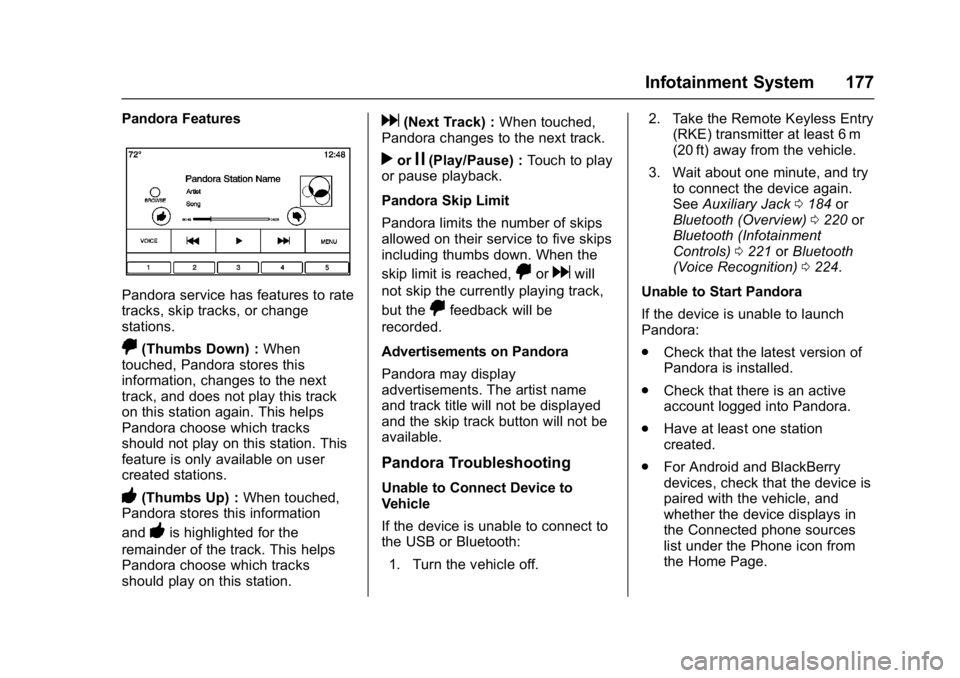
Pandora Features
Pandora service has features to rate
tracks, skip tracks, or change
stations.
,(Thumbs Down) :When
touched, Pandora stores this
information, changes to the next
track, and does not play this track
on this station again. This helps
Pandora choose which tracks
should not play on this station. This
feature is only available on user
created stations.
-(Thumbs Up) : When touched,
Pandora stores this information
and
-is highlighted for the
remainder of the track. This helps
Pandora choose which tracks
should play on this station.
d(Next Track) : When touched,
Pandora changes to the next track.
rorj(Play/Pause) : Touch to play
or pause playback.
Pandora Skip Limit
Pandora limits the number of skips
allowed on their service to five skips
including thumbs down. When the
skip limit is reached,
,ordwill
not skip the currently playing track,
but the
,feedback will be
recorded.
Advertisements on Pandora
Pandora may display
advertisements. The artist name
and track title will not be displayed
and the skip track button will not be
available.
Pandora Troubleshooting
Unable to Connect Device to
Vehicle
If the device is unable to connect to
the USB or Bluetooth:
1. Turn the vehicle off. 2. Take the Remote Keyless Entry
(RKE) transmitter at least 6 m
(20 ft) away from the vehicle.
3. Wait about one minute, and try to connect the device again.
See Auxiliary Jack 0184 or
Bluetooth (Overview) 0220 or
Bluetooth (Infotainment
Controls) 0221 orBluetooth
(Voice Recognition) 0224.
Unable to Start Pandora
If the device is unable to launch
Pandora:
. Check that the latest version of
Pandora is installed.
. Check that there is an active
account logged into Pandora.
. Have at least one station
created.
. For Android and BlackBerry
devices, check that the device is
paired with the vehicle, and
whether the device displays in
the Connected phone sources
list under the Phone icon from
the Home Page.
Page 181 of 432

Buick Envision Owner Manual (GMNA-Localizing-U.S./Canada/Mexico-
8534310) - 2016 - crc - 2/29/16
180 Infotainment System
less than five seconds, it seeks
to the previous track. If longer
than five seconds, the current
track starts from the beginning.
. Press and hold to fast reverse
through a track. Release the
button to return to playing
speed. Elapsed time displays.
u(Next/Fast Forward) :
. Press to seek to the next track.
. Press and hold to fast forward
through a track. Release the
button to return to playing
speed. Elapsed time displays.
Storing Media Favorites
To store media favorites, touch and
hold a favorite button to display a
list of media types for the currently
playing item. Select from this list.
The lists that may display are:
Genres : Touch to store the current
genre as a favorite. Touch a screen
button in the favorite area to recall a
favorite genre. The first song of the
genre begins to play. Artists :
Touch to store the current
artist as a favorite. Touch a screen
button in the favorite area to recall a
favorite artist. The first song in the
artist list begins to play.
Albums : Touch to store the current
album as a favorite. Touch a screen
button in the favorite area to recall a
favorite album. The first song in the
album list begins to play.
Playlists : Touch a screen button in
the favorite area to recall a favorite
playlist. The first song in the playlist
begins to play.
Songs : Touch to store the current
song as a favorite. Touch a screen
button in the favorite area to recall a
favorite song.
Podcasts or Podcast Episode :
Touch and hold a screen button to
store the current podcast as a
favorite. Touch a screen button in
the favorite area to recall a favorite
podcast or podcast episode. The
podcast or podcast episode begins
to play. Audiobooks :
Touch and hold a
screen button to save the current
audiobook as a favorite. Touch a
screen button in the favorite area to
recall a favorite audiobook. The first
chapter begins to play.
Videos : Touch and hold a screen
button to store the current video as
a favorite. Touch a screen button in
the favorite area to recall a favorite
video.
Error Messages
If Disc Error displays and/or the disc
comes out, it could be for one of the
following reasons:
. The disc has an invalid or
unknown format.
. The road is very rough. Try the
disc again when the road is
smoother.
. The disc is dirty, scratched, wet,
or upside down.
. The air is very humid. Try the
disc again later.
. There was a problem while
burning the disc.
Page 183 of 432

Buick Envision Owner Manual (GMNA-Localizing-U.S./Canada/Mexico-
8534310) - 2016 - crc - 2/29/16
182 Infotainment System
USB Port
This vehicle is equipped with one or
more USB ports. The USB port(s)
are in the center console. The
system is optimized to support two
connected devices with a total of
15,000 songs.
Playing from a USB
A USB mass storage device can be
connected to the USB port.
Gracenote
®
When plugging in a USB device,
Gracenote service builds voice tags
for music. Voice tags allow artists,
albums with hard to pronounce
names, and nicknames to be used
to play music through voice
recognition.
While indexing, infotainment
features are available.
My Media Library
The infotainment system allows
access to content from all indexed
media sources. Touch the MEDIA
screen button to scroll through theoptions until My Media is selected.
Use gestures or screen buttons to
scroll through the content.
USB MP3 Player and USB Drives
.
The USB MP3 players and USB
drives connected must comply
with the USB Mass Storage
Class specification (USB MSC).
. Hard disk drives are not
supported.
. The following restrictions apply
for the data stored on a USB
MP3 player or USB device:
‐Maximum folder structure
depth is 11 levels.
‐ Applicable audio extensions
are mp3, wma, aac, m4a,
and aif.
‐ WMA and Apple lossless files
are not supported.
‐ Supported file systems are
FAT32 and NTFS.
To play a USB device, do one of the
following:
. Connect the USB. .
Press MEDIA until the
connected device is shown.
Use the following when playing an
active USB source:
r(Play) : Press to play the current
media source.
j(Pause) : Press to pause play of
the current media source.
t(Previous/Reverse) :
. Press to seek to the beginning of
the current or previous track.
If the track has been playing for
less than five seconds, the
previous track plays. If playing
longer than five seconds, the
current track restarts.
. Press and hold to reverse
quickly through playback.
Release to return to playing
speed. Elapsed time displays.
u(Next/Forward) :
. Press to seek to the next track.
. Press and hold to advance
quickly through playback.
Release to return to playing
speed. Elapsed time displays.
Page 187 of 432

Buick Envision Owner Manual (GMNA-Localizing-U.S./Canada/Mexico-
8534310) - 2016 - crc - 2/29/16
186 Infotainment System
Auto Volume (If Equipped) :This
feature adjusts the volume based on
the speed of the vehicle. See
AM-FM Radio 0170.
Bose AudioPilot Noise
Compensation Technology (If
Equipped) : This feature adjusts the
volume based on the noise in the
vehicle and the speed. See AM-FM
Radio 0170.
Manage Bluetooth Devices :
Touch to go to the Bluetooth page to
add or delete devices.
When selecting Bluetooth Audio, the
radio may not be able to launch the
audio player on the connected
device to start playing. When the
vehicle is not moving, choose the
connected device to begin playback. All devices launch audio differently.
When selecting Bluetooth Audio as
a source, the radio may show as
paused on the screen. Press play
on the device or press
rto begin
playback.
Some phones support sending
Bluetooth music information to
display on the radio. When the radio
receives this information, it will
check to see if any is available and
display it. For more information
about supported Bluetooth features
in U.S. and Canada, see
www.gm.com/bluetooth.
OnStar System
OnStar®with 4G LTE
If equipped with OnStar 4G LTE, up
to seven devices, such as
smartphones, tablets, and laptops,
can be connected to high-speed
Internet through the vehicle’s built-in
Wi-Fi hotspot.
Page 195 of 432

Buick Envision Owner Manual (GMNA-Localizing-U.S./Canada/Mexico-
8534310) - 2016 - crc - 2/29/16
194 Infotainment System
Scroll Features
.To scroll within the map, touch
anywhere on the map screen.
. Nudge or slide a finger on the
map; the map moves in the
direction of the finger.
. Fling a finger on the map; the
map will start scrolling in a short
continuous scroll.
. Touch a finger on the location on
the map; the map recenters to
the location that was
touched on.
. Touch a finger twice on a
location on the map; the map
zooms in one level to the
location that was touched
twice on. .
When the map is recentered
away from being locked to the
vehicle position, the crosshairs
will show in the center of the
map. As the map continues to
be recentered, the crosshairs
will remain on the screen. When
the crosshairs are shown on the
screen, a callout with more
information displays. If the map
is moved from the current
location, the crosshairs will
disappear along with the callout.
. Touch a finger on the callout
next to the crosshairs and the
destination details view displays.
From this view, route guidance
can be received or saved to the
vehicle's contact list.
. When the map is recentered, the
straight-line distance from the
vehicle to the selected point is
displayed in the callout. In
addition, a heading direction in
the form of an arrow is displayed
to indicate the direction. The
arrow is shown in relation to the
current vehicle heading. .
Touch a finger on a POI icon
shown on the map; the name of
the POI is shown in the address
callout, along with the city name
and state. If the callout is
selected, the destination details
view for the POI shown.
. After panning the map away
from the vehicle, touch RESET
to return the map back to the
current position.
. Touch the Overview button to
quickly get a view of the entire
route. The route Overview button
takes the place of the RESET
button while under route
guidance. Touch the RESET
button to return the map to the
current position.
Page 202 of 432

Buick Envision Owner Manual (GMNA-Localizing-U.S./Canada/Mexico-
8534310) - 2016 - crc - 2/29/16
Infotainment System 201
Trips from Contacts can be saved
and recalled. The order is based on
when the trip was last used. When
the trips are saved, they are given a
default title of the final destination
name. If there are no saved trips,
this list item is hidden.
Favorite Destinations
.Destinations can be saved as
Favorites for recall later.
Depending on the favorite, when
an address or POI favorite is
recalled, the Destination Details
View is shown.
. When a favorite address is being
routed to, it is shown active.
Touch on the active favorite to
suspend that route.
. Save locations as Favorites for
recall later in the Destination
Details View.
. Save trips from the
Address Book. Storing Favorites from the Contact
Details List
A contact name or any of the
contact’
s information such as phone
number or address from Contact
Details can be stored as a Favorite.
. Touch and hold on the favorite
location while viewing a contact
on the Contact Details List. The
contact name and all contact
information can be stored.
. Touch to save as a Favorite. The
favorite label will be the name of
the contact.
. Touch on the Favorite to display
the destination view.
Storing Favorites from MapFavorite locations can be stored
from the Map View.
If not under route guidance, the
current vehicle location will be
saved as a Favorite. If under route
guidance, the final destination will
be saved.
Route Guidance
. Touch GO to go to the main
navigation view and to start
route guidance.
. If the system has an active
route, a pop-up will display,
“What would you like to do with
this destination?” The options
are: Add As Waypoint, Set New
Destination, or Cancel.
Page 204 of 432

Buick Envision Owner Manual (GMNA-Localizing-U.S./Canada/Mexico-
8534310) - 2016 - crc - 2/29/16
Infotainment System 203
list. When entering a turn list, the
next maneuver instruction is
spoken.
. The turn list title is the name or
address of the destination.
Touch on the information button
next to the name of the
destination to display the
destination information.
. The turn list is sorted in order
with the next maneuver at the
top of the list and the
subsequent maneuvers listed
below it. The next maneuver is
always highlighted upon entry
into the Turn List to quickly show
what the next maneuver is.
. Each maneuver indicates the
distance between it and the
previous maneuver or the
vehicle’s current location. The
next maneuver at the top will
count down until the maneuver
is reached, and then the next
maneuver will begin to
count down.
. Each maneuver has an
estimated time of arrival based
on the current driving conditions. Saved Trips
Waypoint trips can be saved for
later recall. Touch the Add button in
the waypoints list to save the trip to
the Saved Trips list in the vehicle’s
contacts list. When trips are saved,
they are given a default title of the
final destination. Saved trips can be
edited by selecting the Edit list item
button to access the edit screen for
the saved entry. The only field that
can be edited is the name field.
Touch on the name field to access
the keyboard view. Type the name
change. This change is
automatically saved when executed
by the keyboard.
The saved trip can also be deleted
from the edit mode. Touch the
delete button and a delete
confirmation pop-up will display.
Waypoints
.
When under a waypoint trip,
touch on the next turn indicator
to bring up the waypoint list. The
last waypoint view is shown,
which could be Waypoints, Turn
List, or Edit.
. The waypoint list is sorted in
order with the next waypoint at
the top of the list. Each waypoint
is indicated with a numbered
icon, starting with the next
waypoint.
. To indicate what segment of the
route is for the next waypoint,
and what is for the remainder of
the route, they appear in
different colors.