2015 VOLVO V60 center console
[x] Cancel search: center consolePage 183 of 414

04 Driver support
Pedestrian and Cyclist Detection with Full Auto Brake*
04
}}
* Option/accessory, for more information, see Introduction.181
Operation
Settings are made by pressing MY CAR on
the center console control panel and using the menus displayed.
Activating/deactivating both warning
signals
To switch the system's audible and visual
signals on or off at the same time, press MY
CAR on the center console control panel and
go to
SettingsCar settingsDriver
support systems
Collision Warning. If
Pedestrian and Cyclist Detection with Full Auto Brake is on, the system will perform aself-test each time the engine is started bybriefly illuminating the warning light. See page219 for a description of the menu system. When the engine is switched on, the system setting that was being used when it wasswitched off will be the default setting.
NOTE
The auto-brake and pedestrian/cyclist detection features are always on, even ifthe audible and visual warning signalshave been deactivated.
Activating/deactivating the audible warning signal only
The audible warning signal can be activated/ deactivated by pressing MY CAR on the cen-
ter console control panel and going to
SettingsCar settingsDriver support
systems
Warning sound if risk of
collision.
Setting a warning distanceThis setting determines the distance at which the visual and audible warnings are triggered. Select
Long, Normal or Short by pressing
MY CAR on the center console control panel
and going to
SettingsCar settings
Driver support systemsCollision
Warning
Warning distance.
The warning distance determines the level of sensitivity used by the system. The warning distance
Long provides an earlier warning.
Begin by using Long and if the system gives
too many warnings, try changing to Normal.
WARNING
• The setting Short should only be used
in situations where traffic is light and moving at low speeds.
• Pedestrian and Cyclist Detection withFull Auto Brake alerts the driver to therisk of a collision but this function can-not reduce the driver’s reaction time.
• For the system to be as effective aspossible, it is recommended that Dis-tance Alert be set to 4 or 5, seepage 170.
NOTE
•When Adaptive Cruise Control is used, the warning light and signal will beused by that function, even if thewarnings provided by Pedestrian andCyclist Detection with Full Auto Brakehave been deactivated by the driver.
• In situations where traffic is moving atconsiderably different speeds, or if thevehicle ahead brakes suddenly, warn-ings may be considered to be late, even if the setting
Long has been
selected.
Checking settingsThe current system settings can be checked by pressing MY CAR on the center console
Page 192 of 414

04 Driver support
Driver Alert System*
04
190* Option/accessory, for more information, see Introduction.
Operating DACSettings are made using menu system and the display in the center console. See page219 for more information on the menu sys-tem.
On/OffTo put Driver Alert in standby mode:
• In the
MY CAR menu, scroll to
Car
settings
Driver support systemsDriver Alert and check the box. If the box
is not checked, the function is off.
FunctionDriver Alert is activated when the vehicle exceeds a speed of 40 mph (65 km/h) and willremain active as long as the speed is overapprox. 37 mph (60 km/h).
If the vehicle is being driven errati-cally, the driver will be alerted by anaudible signal and the message
Driver Alert Time for a break is
displayed. The warning will be repeated after a short time if the driving pattern remains thesame.
Press the OK button to erase a message.
WARNING
• An alert should be taken seriously since it is sometimes difficult for adriver to realize that he/she is fatigued.
• In the event of a warning or if thedriver feels fatigued, stop as soon aspossible in a safe place and rest.
Symbols and messages
Instrument panel
SymbolMessageDescription
Driver Alert Time for a breakThe vehicle has been driven erratically. The driver receives an audible signal and a text message.
Windscreen Sensors blockedThe camera is temporarily not functioning, due to snow, ice, or dirt on the windshield. Clean the area of the windshield in front of the camera. See page 183 for information on the camera’s limitations.
Driver Alert Sys Service requiredThe system is not functioning. Contact a trained and qualified Volvo service technician if the message remains in the display.
Page 193 of 414

04 Driver support
Driver Alert System*
04
}}
* Option/accessory, for more information, see Introduction.191
Center console display
SymbolMessageDescription
-Driver Alert OFFThe function is not switched on.
-Driver Alert AvailableThe function is active.
-Driver Alert Standby <65 km/hThe function has gone into standby mode because the vehicle's speed is below 40 mph (65 km/h).
-Driver Alert UnavailableThe camera is temporarily not functioning, due to snow, ice, or dirt on the windshield. Clean the area of the windshield in front of the camera. See page 183 for information on the camera’s limita-tions.
Lane Departure Warning (LDW) 1
Your vehicle may be equipped with Lane Departure Warning (LDW) or Lane KeepingAid (LKA), depending on your choice of engine.
If you are uncertain as to which of
these optional systems is in your vehicle:
• Press the
MY CAR button on the center
console to open the menu system. Scroll to
SettingsDriver support system.
The system in your vehicle (Lane
Departure Warning or Lane Keeping
Aid) will be displayed there.
If your vehicle is equipped with Lane Keeping Aid (LKA), see page 194 for detailed informa-tion.The illustration is generic
LDW is designed to help reduce the risk of accidents in situations where the vehicle unintentionally leaves its lane and there is arisk of driving off the road or into the oppositelane. It uses the camera located at the center,upper edge of the windshield to monitor theroad's/lane’s side marker lines. If the vehiclecrosses a side marker line or the road’s cen-ter dividing line, the driver will be alerted byan audible signal.
1
Models with 5- or 6-cylinder engines only.
Page 194 of 414

04 Driver support
Driver Alert System*
04
192* Option/accessory, for more information, see Introduction.
WARNING
This feature is only intended to assist the driver and does not function in all driving,weather, traffic or road conditions. As the driver, you have full responsibility for operating the vehicle in a safe manner.
Operation and function
LDW can be switched on or off by pressing the button on the center console. A light inthe button illuminates when the function ison. This is supplemented by graphic displaysin the instrument panel, for example:
LDW displayed in the instrument panel
• The LDW symbol has
white side marker
lines: the function is active and "sees" one or both of the road's side markerlines.
• The LDW symbol has
gray side marker
lines: the function is active but cannot"see" one or both of the road's sidemarker lines.
or
• The LDW symbol has
gray side marker
lines: the function is in standby modebecause the vehicle's speed is below40 mph (65 km/h).
• The LDW symbol has
no side marker
lines: – the function is deactivated.
WARNING
The driver will only be warned once for each time the wheels cross a marker line.No alarm will be given if a marker line isbetween the wheels.
LimitationsThe camera used by LDW has the same limi- tations as the human eye. See page 183 formore information about the camera's limita-tions.
NOTE
No warning signal will be given in the cer-
tain situations, such as:
• If the turn signal is being used
• The driver’s foot is on the brake pedal 3
• The accelerator pedal is pressed quickly 3
• If the steering wheel is moved quickly 3
• In sharp turns that cause the vehicle’s body to sway
SettingsSettings for Lane Departure Warning can be made in the menu system by pressing
My
3
When Increased sensitivity has been selected, a warning will be issued if a side marker line is crossed in this situation.
Page 197 of 414
04 Driver support
Driver Alert System*
04
}}
* Option/accessory, for more information, see Introduction.195
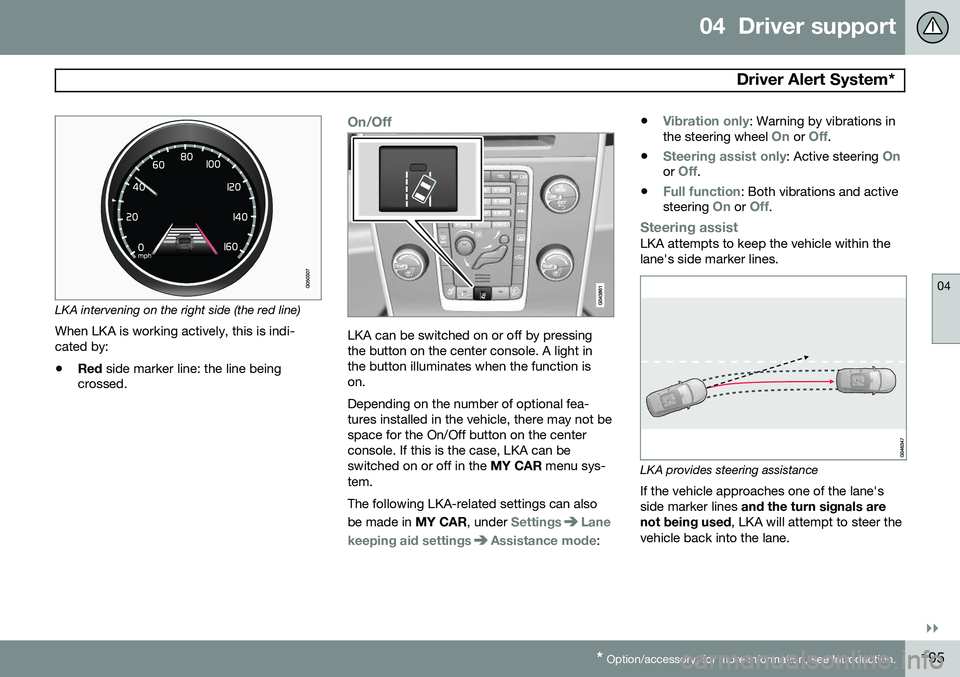
LKA intervening on the right side (the red line)
When LKA is working actively, this is indi- cated by:
• Red
side marker line: the line being
crossed.
On/Off
LKA can be switched on or off by pressing the button on the center console. A light inthe button illuminates when the function ison. Depending on the number of optional fea- tures installed in the vehicle, there may not bespace for the On/Off button on the centerconsole. If this is the case, LKA can beswitched on or off in the MY CAR menu sys-
tem. The following LKA-related settings can also be made in MY CAR, under
SettingsLane
keeping aid settings
Assistance mode: •
Vibration only: Warning by vibrations in
the steering wheel On or Off.
•
Steering assist only: Active steering Onor Off.
•
Full function: Both vibrations and active
steering On or Off.
Steering assistLKA attempts to keep the vehicle within the lane's side marker lines.
LKA provides steering assistance
If the vehicle approaches one of the lane's side marker lines and the turn signals are
not being used , LKA will attempt to steer the
vehicle back into the lane.
Page 200 of 414

04 Driver support
Park assist*
04
198* Option/accessory, for more information, see Introduction.
Introduction
The park assist system is designed to assist you when driving into parking spaces,garages, etc. It utilizes ultrasound sensors inthe front bumper and rear bumper(s) to meas-ure the distance to a vehicle or an object thatmay be close to the front or rear of your vehi-cle. An audible signal and symbols in theaudio system’s display indicate the distanceto the object.
NOTE
A trailer hitch whose wiring is integrated with the vehicle's electrical system will beincluded in the measurement of the availa-ble space behind the vehicle.
WARNING
Park Assist is an information system, NOT a safety system. This system is designedto be a supplementary aid when parkingthe vehicle. It is not, however, intended toreplace the driver's attention and judge-ment.
Function
Park assist and CTA* button
The system is activated automatically when the vehicle is started. The indicator light in thebutton in the center console illuminates whenthe system is on.
• The front park assist system is active from the time the engine is started untilthe vehicle exceeds a speed of approxi-mately 6 mph (10 km/h). It is also activewhen the vehicle is backing up.
• Rear park assist is active when the engineis running and reverse gear has beenselected.
Activating/deactivatingThe system is activated automatically when the vehicle is started.
–Press the Park assist button on the center console to temporarily deactivate the sys-tem(s).
> The indicator light in the button will go
out when the system has been deacti- vated.
Park assist will be automatically reactivatedthe next time the engine is started, or if thebutton is pressed (the indicator light in thebutton will illuminate).
NOTE
Park assist is disengaged automatically when the parking brake is applied.
Page 204 of 414
04 Driver support
Rear Park Assist Camera (PAC)*
04
202* Option/accessory, for more information, see Introduction.
Introduction
The Park Assist Camera (PAC) uses the dis- play in the center console to show the areabehind the car while you are backing up. PAC also shows guiding lines in the on- screen image to indicate the direction that thevehicle will take as it moves rearward, whichhelps simplify parallel parking, backing into atight space or when attaching a trailer to thevehicle. The images of vehicles in this section are generic and may not depict your specificmodel.
NOTE
A trailer hitch whose wiring is integrated with the vehicle's electrical system will beincluded in the measurement of the availa-ble space behind the vehicle.
WARNING
• PAC is designed to be a supplemen- tary aid when parking the vehicle. It isnot, however, intended to replace thedriver’s attention and judgment.
• The camera has blind spots where itcannot detect objects or peoplebehind the vehicle.
• Pay particular attention to people oranimals that are close to the vehicle.
• Objects seen on the screen may becloser than they appear to be.
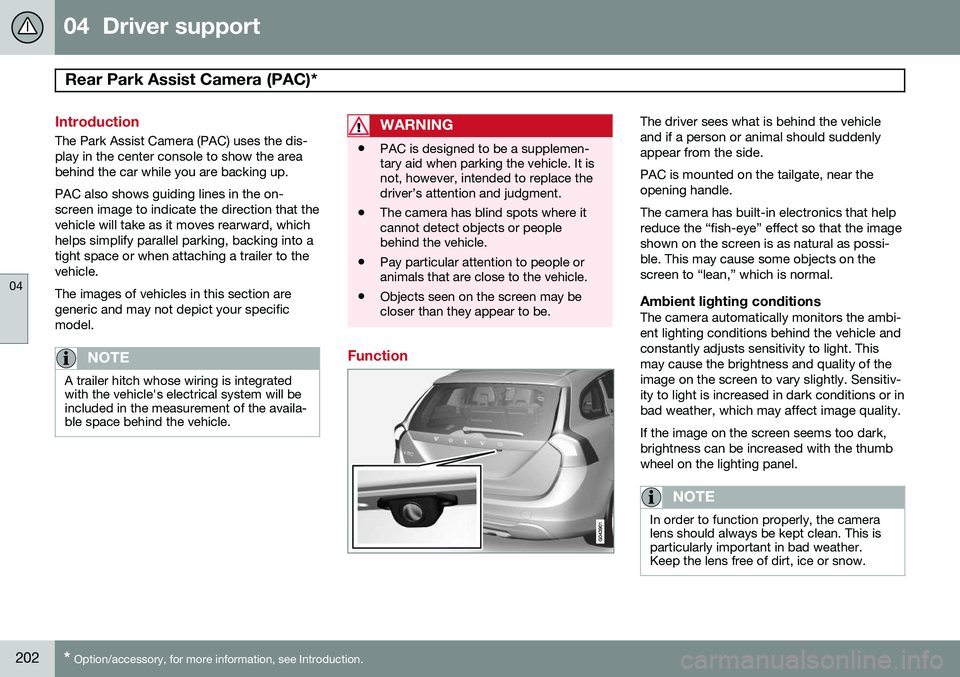
Function
The driver sees what is behind the vehicle and if a person or animal should suddenlyappear from the side. PAC is mounted on the tailgate, near the opening handle. The camera has built-in electronics that help reduce the “fish-eye” effect so that the imageshown on the screen is as natural as possi-ble. This may cause some objects on thescreen to “lean,” which is normal.
Ambient lighting conditionsThe camera automatically monitors the ambi-ent lighting conditions behind the vehicle andconstantly adjusts sensitivity to light. Thismay cause the brightness and quality of theimage on the screen to vary slightly. Sensitiv-ity to light is increased in dark conditions or inbad weather, which may affect image quality. If the image on the screen seems too dark, brightness can be increased with the thumbwheel on the lighting panel.
NOTE
In order to function properly, the camera lens should always be kept clean. This isparticularly important in bad weather.Keep the lens free of dirt, ice or snow.
Page 205 of 414

04 Driver support
Rear Park Assist Camera (PAC)*
04
}}
* Option/accessory, for more information, see Introduction.203
Using PAC
Activation
PAC is activated when the gear selector is moved to R if the system is selected in the
MY CAR menu system or by pressing the
CAM button in the center console. See page
219 for a description of the menu system. PAC will automatically override the view cur- rently displayed on the screen and display thecamera's view behind the vehicle.
ZoomThe camera can be useful when attaching atrailer. Press CAM to zoom in on the trailer
hitch (and press this button again to return tothe normal camera view). With the camera zoomed in on the trailerhitch, a guiding line showing the hitch's pathtoward the trailer will be projected. This fea-ture can be activated in the
MY CAR menu.
See page 219 for a description of the menusystem. The guiding lines for the wheels (seethe following section "Guiding lines") and forthe trailer hitch cannot be displayed at thesame time. If the camera shows an enlarged (zoomed) image, turn TUNE, or press CAM to return to
a normal view.
DeactivationMove the gear selector from R to another
gear. The camera remains active for approx.5 seconds after the gear selector has beenmoved from R or until the vehicle's forward
speed exceeds 6 mph (10 km/h)(21 mph/35 km/h in reverse). The screen willthen revert to the view that was displayedbefore R was selected.
NOTE
If any button on the center console control panel is pressed, the camera image willdisappear from the display. Pressing CAM
will return the camera image to the display.
Guiding lines
The lines on the screen are projected as if they were a path on the ground behind thevehicle and are directly affected by the way inwhich the steering wheel is turned. This ena-bles the driver to see path the vehicle willtake, even if he/she turns the steering wheelwhile backing up.
NOTE
When backing up with a trailer, the guiding lines show the path that the vehicle will
take, not the trailer.