Page 110 of 354
110
3. MEDIA OPERATION
SIENNA_Navi+MM_01999-08003_(U)
14.06.02 18:35
■CONTROL PANEL
No.Function
Select to display the audio source selection screen.
Displays Bluetooth® device condition.
Select to display the sound settings screen.
Select to play/pause.
Shows progress
Select to set repeat playback.
Select to set random playback.
Select to display the track list screen.
Select to display the portable device connection screen.
Displays cover art
Select to display a track list.
Press to play/pause.
Press to select a track.
Press and hold to fast forward/rewind.
Turn to select a track.
Turn to move up/down the list. Also, the knob can be used to enter selections on the
list screens by pressing it.
Page 111 of 354

111
3. MEDIA OPERATION
SIENNA_Navi+MM_01999-08003_(U)
14.06.02 18:35
AUDIO/VISUAL SYSTEM
3
Turn to adjust volume.
Press to turn the audio system on/off.
Press and hold to restart the audio system.
WA R N I N G
● Do not operate the player’s controls or connect to the Bluetooth® audio system while driv-
ing.
● Your audio unit is fitted with Bluetooth
® antennas. People with implantable cardiac pace-
makers, cardiac resynchronization therapy-pacemakers or implantable cardioverter
defibrillators should maintain a reasonable distance between themselves and the
Bluetooth
® antennas. The radio waves may affect the operation of such devices.
● Before using Bluetooth
® devices, users of any electrical medical device other than
implantable cardiac pacemakers, cardiac resynchronization therapy-pacemakers or
implantable cardioverter defibrillators should consult the manufacturer of the device for
information about its operation under the influence of radio waves. Radio waves could
have unexpected effects on the operation of such medical devices.
NOTICE
● Do not leave your portable player in the vehicle. In particular, high temperatures inside
the vehicle may damage the portable player.
No.Function
Page 112 of 354

112
3. MEDIA OPERATION
SIENNA_Navi+MM_01999-08003_(U)
14.06.02 18:35
INFORMATION
●Depending on the Bluetooth® device that is connected to the system, the music may start
playing when selecting while it is paused. Conversely, the music may pause when
selecting while it is playing.
● In the following conditions, the system may not function:
• The Bluetooth
® device is turned off.
• The Bluetooth
® device is not connected.
• The Bluetooth
® device has a low battery.
● It may take time to connect the phone when Bluetooth
® audio is being played.
● For operating the portable player, see the instruction manual that comes with it.
● If the Bluetooth
® device is disconnected due to poor reception from the Bluetooth® net-
work when the engine switch is in the follow ing, the system will automatically reconnect
to the portable player.
Vehicles without a smart key system
The engine switch is turned to the “ACC” or “ON” position.
Vehicles with a smart key system
The engine switch is turned to ACCESSORY or IGNITION ON mode.
●If the Bluetooth® device is disconnected on purpose, such as it was turned off, this does
not happen. Reconnect the portable player manually.
● Bluetooth
® device information is registered when the Bluetooth® device is connected to
the Bluetooth® audio system. When selling or disposing of the vehicle, remove the
Bluetooth® audio information from the system. ( P. 6 5 )
Page 113 of 354
113
3. MEDIA OPERATION
SIENNA_Navi+MM_01999-08003_(U)
14.06.02 18:35
AUDIO/VISUAL SYSTEM
3
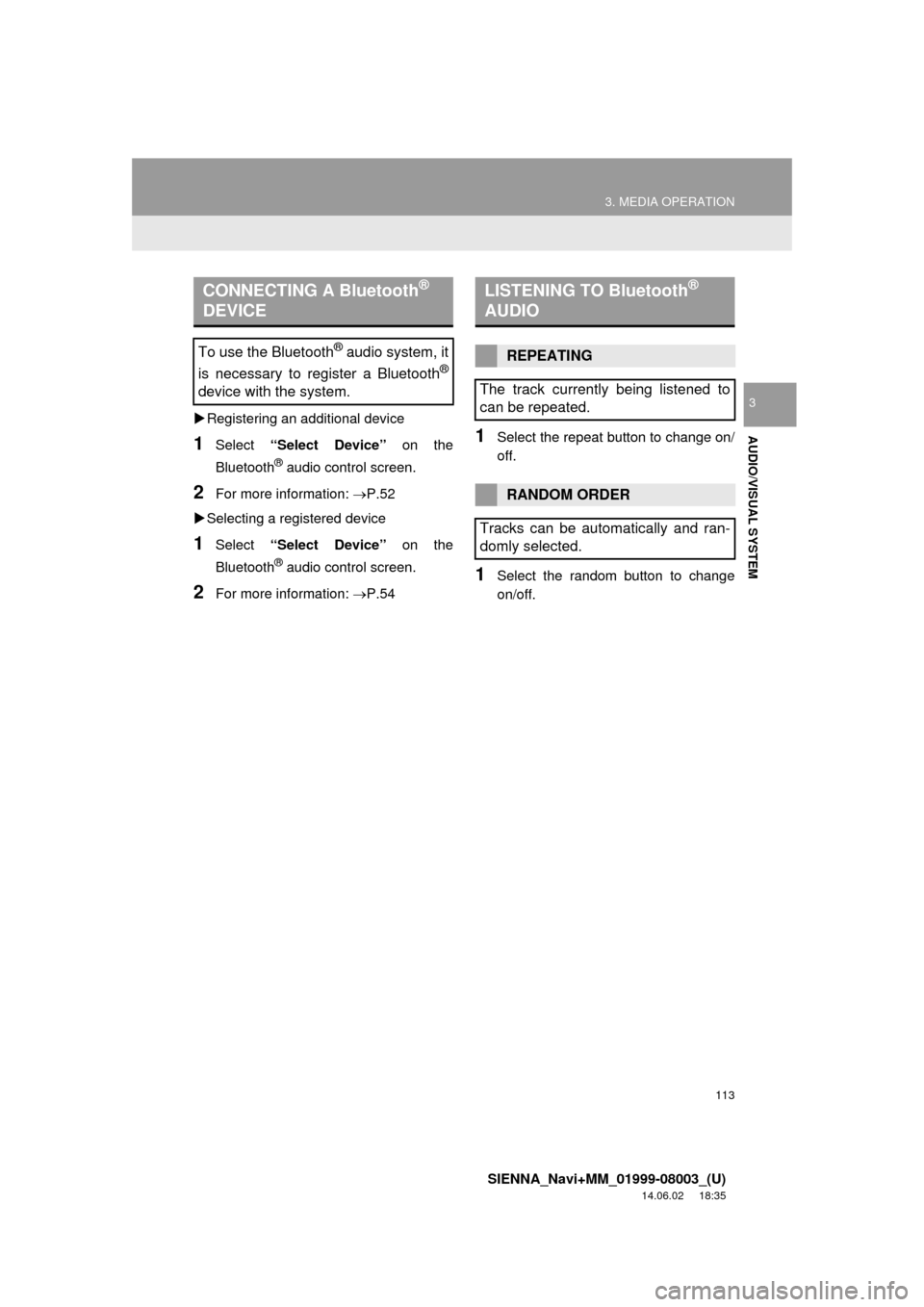
Registering an additional device
1Select “Select Device” on the
Bluetooth
® audio control screen.
2For more information: P.52
Selecting a registered device
1Select “Select Device” on the
Bluetooth
® audio control screen.
2For more information: P.54
1Select the repeat button to change on/
off.
1Select the random button to change
on/off.
CONNECTING A Bluetooth®
DEVICE
To use the Bluetooth® audio system, it
is necessary to register a Bluetooth
®
device with the system.
LISTENING TO Bluetooth®
AUDIO
REPEATING
The track currently being listened to
can be repeated.
RANDOM ORDER
Tracks can be automatically and ran-
domly selected.
Page 190 of 354

190
SIENNA_Navi+MM_01999-08003_(U)
14.06.02 18:35
1. USEFUL INFORMATION
1. RECEIVING WEATHER INFORMATION
1Press the “APPS” button.
2Select “Weather” .
3Check that the “Weather” screen is dis-
played.
Without navigation function
Weather information can be received
via the HD Radio broadcast.
With navigation function
Weather information can be received
via the HD Radio broadcast or by the
Entune App Suite application on a
Bluetooth
® phone. For details about
the Entune App Suite application:
P.327
DISPLAYING WEATHER
INFORMATION
No.Function
Select to display the weather of the
current location. ( P.191)
Select to display the weather of a
desired location in the recently
checked locations list.
Select to display the weather of a
desired location in the national cities
list.
Select to display the weather of a
desired location in the other local cit-
ies list.
*Select to display weather informa-
tion over the map.
*: With navigation function
INFORMATION
● Weather information is available in the
48 states, D.C. and Alaska of the United
States.
Page 193 of 354

193
1. USEFUL INFORMATION
SIENNA_Navi+MM_01999-08003_(U)
14.06.02 18:35
INFORMATION
5
3. DATA SERVICES SETTINGS*
1Press the “APPS” button.
2Select “Setup” .
3Select “HD Data” .
4Select the desired item to be set.
Select a checkbox on the right to set.
SETTING DOWNLOAD
METHODS
Data service information, which is
comprised of traffic information and
weather information, can be received
via HD Radio broadcast and by the
Entune App Suite application on a
Bluetooth
® phone. The receiving meth-
od can be set to both or only via HD
Radio broadcast. For details about the
Entune App Suite application: P.327
*: With navigation function
No.Function
Select to receive data service infor-
mation via both HD Radio broadcast
and the Entune App Suite applica-
tion on a Bluetooth
® phone. When
both methods are available, HD Ra-
dio broadcast will be selected.
Select to receive data only via HD
Radio broadcast.
INFORMATION
● These settings are available in the 48
states, D.C. and Alaska of the United
States.
Page 201 of 354

201
1. REAR VIEW MONITOR SYSTEM (WITH GUIDE FUNCTION)
SIENNA_Navi+MM_01999-08003_(U)
14.06.02 18:35
PERIPHERAL MONITORING SYSTEM
6
2. ESTIMATED COURSE LINE DISPLAY MODE
SCREEN DESCRIPTION
No.DisplayFunction
Vehicle width guide line
Displays a guide path when the vehicle is being backed
straight up.
The displayed width is wider than the actual vehicle
width.
These guide lines align with the estimated course lines
when the vehicle is going straight ahead.
Estimated course linesShows an estimated course when the steering wheel is
turned.
Distance guide lines
Shows distance behind the vehicle when the steering
wheel is turned.
The guide lines move in conjunction with the estimated
course lines.
The guide lines display points approximately 1.5 ft.
(0.5m) (red) and approximately 3ft. (1m) (yellow) from
the centre of the edge of the bumper.
Distance guide lineShows distance behind the vehicle.
Displays a point approximately 1.5 ft. (0.5m) (blue)
from the edge of the bumper.
Vehicle center guide lineThis line indicates the estimated vehicle center on the
ground.
WA R N I N G
● If the steering wheel is straight and the vehicle width guide lines and the estimated
course lines are not in alignment, have the vehicle inspected by your Toyota dealer.
Page 213 of 354

7
213
SIENNA_Navi+MM_01999-08003_(U)
14.06.02 18:35
1
2
3
4
5
6
7
8
9
1. QUICK REFERENCE ................... 214
2. SOME BASICS ............................ 215
REGISTERING/CONNECTING A Bluetooth® PHONE ........................... 216
USING THE PHONE SWITCH/ MICROPHONE ................................. 216
VOICE COMMAND SYSTEM .............. 217
ABOUT THE CONTACTS IN THE CONTACT LIST ................................ 218
WHEN SELLING OR DISPOSING OF THE VEHICLE............................. 218
3. CALLING ON THE Bluetooth®
PHONE....................................... 219
BY FAVORITES LIST .......................... 220
BY CALL HISTORY ............................. 220
BY CONTACTS LIST .......................... 221
BY DIAL PAD ...................................... 223
BY OFF HOOK SWITCH ..................... 223
BY “Home” SCREEN ........................... 223
4. RECEIVING ON THE Bluetooth®
PHONE ...................................... 225
INCOMING CALLS .............................. 225
5. TALKING ON THE Bluetooth®
PHONE ...................................... 226
INCOMING CALL WAITING ................ 228
6. Bluetooth® PHONE MESSAGE
FUNCTION ...... ....................... ... 229
RECEIVING A MESSAGE ................... 230
CHECKING MESSAGES ..................... 231
REPLYING TO A MESSAGE
(QUICK REPLY) ................................ 232
CALLING THE MESSAGE SENDER ........................................... 233
1. PHONE/MESSAGE SETTINGS ................................. 234
PHONE/MESSAGE SETTINGS
SCREEN ........................................... 234
“Sound Settings” SCREEN .................. 235
“Contact/Call History Settings” SCREEN ........................................... 236
“Messaging Settings” SCREEN ........... 244
“Phone Display Settings” SCREEN ..... 245
1. TROUBLESHOOTING ................ 246
1
PHONE OPERATION
(HANDS-FREE SYSTEM
FOR CELLULAR PHONES)
2SETUP
3WHAT TO DO IF...
PHONE