Page 341 of 732
RAV4_OM_OM42A78U_(U)
3415-2. Using the audio system
5
Interior features
Press ( ).
Press the “TEXT” button to display or hide the album title.
If there are continuing texts, is displayed.
Press and hold the button to display the remaining texts.
■About iPod
●“Made for iPod” and “Made for iPhone” mean that an electronic accessory
has been designed to connect specifically to iPod, or iPhone, respectively,
and has been certified by the developer to meet Apple performance stan-
dards.
● Apple is not responsible for the operation of this device or its compliance
with safety and regulatory standards. Please note that the use of this acces-
sory with iPod or iPhone may affect wireless performance.
● iPhone, iPod, iPod classic, iPod nano , iPod shuffle, and iPod touch are
trademarks of Apple Inc., registered in the U.S. and other countries.
Playing and pausing tracks
Switching the display
Page 342 of 732

342
RAV4_OM_OM42A78U_(U)
5-2. Using the audio system
■iPod functions
●When an iPod is connected and the audio source is changed to iPod mode,
the iPod will resume play from the same point in which it was last used.
● Depending on the iPod that is connected to the system, certain functions
may not be available. Disconnecting the device and reconnecting it once
again may resolve some malfunctions.
● While connected to the system, the iPod cannot be operated with its own
controls. It is necessary to use the controls of the vehicle’s audio system
instead.
■ iPod problems
To resolve most problems encountered when using your iPod, disconnect
your iPod from the vehicle iPod connection and reset it.
For instructions on how to reset your iPod, refer to your iPod Owner’s Man-
ual.
■ Display
P. 327
■ Error messages
“ERROR”:
This indicates a problem in the iPod or its connection.
“NO SONGS”:
This indicates that there is no music data in the iPod.
“NO PLAYLIST”:
This indicates that some available songs are not found in a selected playlist.
“UPDATE YOUR iPod”:
This indicates that the version of the iPod is not compatible. Upgrade your
iPod software to the latest version.
Page 343 of 732
RAV4_OM_OM42A78U_(U)
3435-2. Using the audio system
5
Interior features
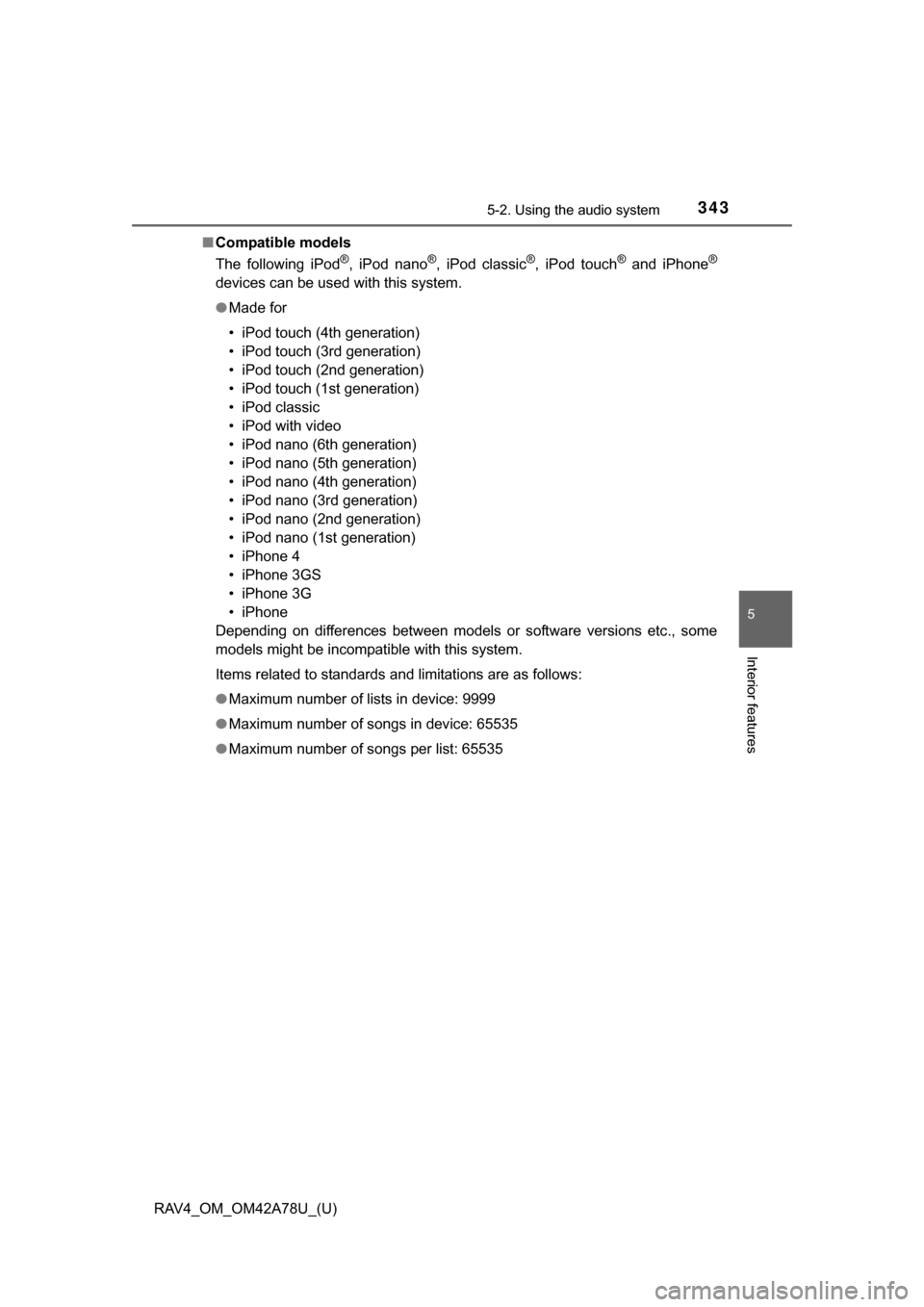
■Compatible models
The following iPod
®, iPod nano®, iPod classic®, iPod touch® and iPhone®
devices can be used with this system.
●Made for
• iPod touch (4th generation)
• iPod touch (3rd generation)
• iPod touch (2nd generation)
• iPod touch (1st generation)
• iPod classic
• iPod with video
• iPod nano (6th generation)
• iPod nano (5th generation)
• iPod nano (4th generation)
• iPod nano (3rd generation)
• iPod nano (2nd generation)
• iPod nano (1st generation)
• iPhone 4
• iPhone 3GS
• iPhone 3G
• iPhone
Depending on differences between models or software versions etc., some
models might be incompatible with this system.
Items related to standards and limitations are as follows:
● Maximum number of lists in device: 9999
● Maximum number of songs in device: 65535
● Maximum number of songs per list: 65535
Page 344 of 732
344
RAV4_OM_OM42A78U_(U)
5-2. Using the audio system
CAUTION
■While driving
Do not connect iPod or operate the controls. Doing so may cause an acci-
dent, resulting in death or serious injury.
NOTICE
■To prevent damage to iPod or its terminal
● Do not leave iPod in the vehicle. The temperature inside the vehicle may
become high.
● Do not push down on or apply unnecessary pressure to the iPod while it is
connected.
● Do not insert foreign objects into the port.
Page 345 of 732
345
RAV4_OM_OM42A78U_(U)
5-2. Using the audio system
5
Interior features
Operating a USB memor y
■Connecting a USB memoryOpen the cover and connect
a USB memory.
Turn on the power of the USB
memory if it is not turned on.
Press the “MEDIA” button repea tedly until “USB” is displayed.
: If equipped
Connecting a USB memory enables you to enjoy music from the
vehicle speakers.
1
2
Page 346 of 732
346
RAV4_OM_OM42A78U_(U)
5-2. Using the audio system
■Control panel
Power
Vo l u m e
Selecting a file or displaying
folder list
Searching playback
Next commands, random play
or back button
Repeat playFast-forwarding, rewinding or
selecting a folder
Changing the audio source/
playback
Playback/pause
Previous commands
Selecting a file
Displaying text message1
2
3
4
5
6
7
8
9
10
11
12
Page 347 of 732

RAV4_OM_OM42A78U_(U)
3475-2. Using the audio system
5
Interior features
■Selecting folders one at a time
Press () to select the desired
folder.
Press (MORE>) to display the commands.
■
Selecting a folder and file from folder list Press the “TUNE•SCROLL” knob.
The folder list will be displayed.
Turn and press the knob to select a folder and file.
To return to the previous display, press (BACK).
■
Returning to the first folder
Press and hold (
Press and hold the “SCAN” button until you hear a beep.
The first 10 seconds of the first file in each folder will be played.
To cancel, press the button again.
When the desired folder is reached, press the button again.
Turn the “TUNE•SCROLL” knob or press “ ” or “ ” on the “SEEK/
TRACK” button to select the desired file.
Press the “SCAN” button.
The first 10 seconds of each file will be played.
To cancel, press the button again.
When the desired file is reac hed, press the button again.
Press ( ) or ( ).
Press (
Selecting a folder
Scanning a folder
Selecting a file
Scanning the files in a folder
Fast-forwarding and rewinding files
1
2
1
2
1
2
Page 348 of 732
348
RAV4_OM_OM42A78U_(U)
5-2. Using the audio system
Pressing (RDM) changes modes in the following order:
Folder randomAll folder random Off
Press (MORE>) to display the command.
Pressing (RPT) changes modes in the following order:
File repeat Folder repeat
*Off
*: Available except when RDM (random play) is selected
Press (MORE>) to display the command.
Press ( ).
Press (
Press the “TEXT” button to display or hide the album title.
If there are continuing texts, is displayed.
Press and hold the button to display the remaining texts.
Random play
Repeat play
Playing and pausing tracks
Switching the display