2015 TOYOTA LAND CRUISER light
[x] Cancel search: lightPage 265 of 427
265
1. AUDIO/VIDEO SYSTEM OPERATION
5
AUDIO/VIDEO SYSTEM
L/C200_Navi_OM60M04U_(U)
14.05.28 15:38
CAUTION
●When the rear seat entertainment sys-
tem is not used
• Keep the display closed. In the event
of an accident, sudden braking or
sudden swerving, the opened display
may hit an occupant’s body, resulting
in injury.
● While driving
• Do not use headphones. Doing so
may cause an accident, resulting in
death or serious injury.
● To prevent accidents and electric shock
• Do not disassemble or modify the
remote control.
● When the remote control is not used
• Stow the remote control. Injuries may
result in the event of sudden braking,
sudden swerving or an accident.
● When you close the display
• Never use any part of your body to
intentionally activate the jam protec-
tion function.
● Conversational speech on some DVDs
is recorded at a low volume to empha-
size the impact of sound effects. If you
adjust the volume assuming that the
conversations represent the maximum
volume level that the DVD will play, you
may be startled by louder sound effects
or startled when you change to a differ-
ent audio source. The louder sounds
may have a significant impact on the
human body or pose a driving hazard.
Keep this in mind when you adjust the
volume.
● Removed battery and other parts:
• Keep away from children. These
parts are small and if swallowed by a
child they can cause choking. Failure
to do so could result in death or seri-
ous injury.
NOTICE
● Cleaning the display
• Wipe the display with a dry soft cloth.
• If the screen is wiped with a rough
cloth, the surface of the screen may
be scratched.
● To prevent damage to the remote control
• Keep the remote control away from
direct sunlight, temperature heat and
high humidity.
• Do not drop or knock the remote con- trol against hard objects.
• Do not sit on or place heavy objects on the remote control.
● Closing the display
• Do not close the display using your
hand. Doing so may result in a mal-
function.
● For normal operation after replacing the
battery, observe the following precau-
tions to prevent accidents:
• Always work with dry hands. Moisture
may cause the battery to rust.
• Do not touch or move any other com- ponents inside the remote control.
• Do not bend either of the battery ter- minals.
Page 266 of 427

266
1. AUDIO/VIDEO SYSTEM OPERATION
L/C200_Navi_OM60M04U_(U)
14.05.28 15:38
1Press the “AUDIO” button.
2Touch the “Rear” tab or press the
“AUDIO” button repeatedly until the
“Rear” tab is selected.
3Touch the desired button. The selected
button indicator is highlighted.
1Select radio mode on the source
screen to display the control screen.
1Press the “” or “” button of
“FOL/CH” until the desired station/
channel band appears on the
screen.
OPERATION FROM THE
FRONT SEATS
The rear seat display can be operated
from the front seats.
No.Function
Turns the rear display open or close.
Locks the system so passengers in
the rear seats cannot operate the
rear entertainment system.
Enables the front speakers to output
the front audio system’s audio
source.
USING THE RADIO
When a different audio source is se-
lected at the front seats, radio mode
cannot be selected at the rear seats.
SELECTING A PRESET
STATION/CHANNEL
Page 278 of 427

278
1. AUDIO/VIDEO SYSTEM OPERATION
L/C200_Navi_OM60M04U_(U)
14.05.28 15:38
1Press the “SOURCE” button, or select
“A/V” on the source screen to change
to video mode.
1Press the “SETTING” button.
2Turn “PAL VIDEO” on when PAL for-
mat equipment is connected to the A/V
input port.
The “PAL VIDEO” indicator is highlighted.
1Press the “SETTING” button.
2Select “LCD AI” .
The “LCD AI” indicator is highlighted.
SELECTING THE VIDEO MODE
CHANGING SETTINGS
CHANGING TO PAL FORMAT
SETTING LCD AI
Automatically determines the tone of
the video image and sets the contrast
to an optimum level, displaying a sharp
image.
INFORMATION
● Because the image quality is automati-
cally adjusted when the “LCD AI” indi-
cator is on, brightness and contrast
adjustment becomes less effective.
Page 284 of 427

284
1. AUDIO/VIDEO SYSTEM OPERATION
L/C200_Navi_OM60M04U_(U)
14.05.28 15:38
Fading: AM broadcasts are reflected by
the upper atmosphere — especially at
night. These reflected signals can interfere
with those received directly from the radio
station, causing the radio station to sound
alternately strong and weak.
Station interference: When a reflected sig-
nal and a signal received directly from a ra-
dio station are very nearly the same
frequency, they can interfere with each
other, making it difficult to hear the broad-
cast.
Static: AM is easily affected by external
sources of electrical noise, such as high
tension power lines, lightening or electrical
motors. This results in static.
Cargo loaded on the roof luggage carrier,
especially metal objects, may adversely
affect the reception of XM Satellite Radio.
Alternation or modifications carried out
without appropriate authorization may
invalidate the user’s right to operate the
equipment.
“Made for iPod” and “Made for iPhone”
mean that an electronic accessory has
been designed to connect specifically to
iPod, or iPhone, respectively, and has
been certified by the developer to meet
Apple performance standards.
Apple is not responsible for the operation
of this device or its compliance with safety
and regulatory standards. Please note
that the use of this accessory with iPod or
iPhone may affect wireless performance.
iPhone, iPod, iPod classic, iPod nano and
iPod touch are trademarks of Apple Inc.,
registered in the U.S. and other countries.
AM
XM
iPod
Page 287 of 427

287
1. AUDIO/VIDEO SYSTEM OPERATION
5
AUDIO/VIDEO SYSTEM
L/C200_Navi_OM60M04U_(U)
14.05.28 15:38
Handle discs carefully, especially when
inserting them. Hold them on the edge
and do not bend them. Avoid getting fin-
gerprints on them, particularly on the shiny
side.
Dirt, scratches, warping, pin holes or other
disc damage could cause the player to
skip or to repeat a section of a track. (To
see a pin hole, hold the disc up to the
light.)
Remove discs from the players when not
in use. Store them in their plastic cases
away from moisture, heat and direct sun-
light.
To clean a disc : Wipe it with a soft, lint-
free cloth that has been dampened with
water. Wipe in a straight line from the cen-
ter to the edge of the disc (not in circles).
Dry it with another soft, lint-free cloth. Do
not use a conventional record cleaner or
anti-static device.
MP3 (MPEG Audio Layer 3) and WMA
(Windows Media Audio) are audio com-
pression standards.
The MP3/WMA player can play MP3 and
WMA files on CD-ROM, CD-R and CD-
RW discs.
The unit can play disc recordings compati-
ble with ISO 9660 level 1 and level 2 and
with the Romeo and Joliet file system.
When naming an MP3 or WMA file, add
the appropriate file extension (.mp3 or
.wma).
The MP3/WMA player plays back files
with .mp3 or .wma file extensions as MP3
or WMA files. To prevent noise and play-
back errors, use the appropriate file exten-
sions.
The MP3/WMA player can play only the
first session when using multi-session
compatible CDs.
NOTICE
● Do not use special shaped, transparent/
translucent, low quality or labeled discs
such as those shown in the illustrations.
The use of such discs may damage the
player, or it may be impossible to eject
the disc.
● This system is not designed for use of
Dual Discs. Do not use Dual Discs
because they may cause damage to the
player.
● Do not use discs with a protection ring.
The use of such discs may damage the
player, or it may be impossible to eject
the disc.
● Do not use printable discs. The use of
such discs may damage the player, or it
may be impossible to eject the disc.
Correct Wrong
MP3/WMA FILES
Page 289 of 427

289
1. AUDIO/VIDEO SYSTEM OPERATION
5
AUDIO/VIDEO SYSTEM
L/C200_Navi_OM60M04U_(U)
14.05.28 15:38
The play order of the compact disc with
the structure shown above is as follows:
MP3/WMA player: It is possible to play up
to 192 folders or 255 files on one disc.
USB memory: It is possible to play up to
3000 folders, 255 files per folder or 9999
files in the device.
The order changes depending on the per-
sonal computer and MP3/WMA encoding
software you use.
CD-R/CD-RW discs that have not been
subject to the “finalizing process” (a pro-
cess that allows discs to be played on a
conventional CD player) cannot be
played.
It may not be possible to play CD-R/CD-
RW discs recorded on a music CD
recorder or a personal computer because
of disc characteristics, scratches or dirt on
the disc, or dirt, condensation, etc. on the
lens of the unit.
It may not be possible to play discs
recorded on a personal computer depend-
ing on the application settings and the
environment. Record with the correct for-
mat. (For details, contact the appropriate
application manufacturers of the applica-
tions.)
CD-R/CD-RW discs may be damaged by
direct exposure to sunlight, high tempera-
tures or other storage conditions. The unit
may be unable to play some damaged
discs.
If you insert a CD-RW disc into the MP3/
WMA player, playback will begin more
slowly than with a conventional CD or CD-
R disc.
Recordings on CD-R/CD-RW cannot be
played using the DDCD (Double Density
CD) system.
This is a general term that describes the
process of writing data on-demand to CD-
R, etc., in the same way that data is writ-
ten to floppy or hard discs.
This is a method of embedding track-
related information in an MP3 file. This
embedded information can include the
track title, the artist’s name, the album
title, the music genre, the year of produc-
tion, comments and other data. The con-
tents can be freely edited using software
with ID3 tag editing functions. Although
the tags are restricted to a number of
characters, the information can be viewed
when the track is played back.
WMA files can contain a WMA tag that is
used in the same way as an ID3 tag. WMA
tags carry information such as track title
and artist name.
CD-R AND CD-RW DISCS
001.mp3
002.wma
Folder 1003.mp3
Folder 2
004.mp3
005.wma
Folder 3006.mp3
001.mp3 002.wma . . . 006.mp3TERMS
PACKET WRITE
ID3 TAG
WMA TAG
Page 299 of 427
299
1. AIR CONDITIONING SYSTEM OPERATION
6
AIR CONDITIONING
L/C200_Navi_OM60M04U_(U)
14.05.28 15:38
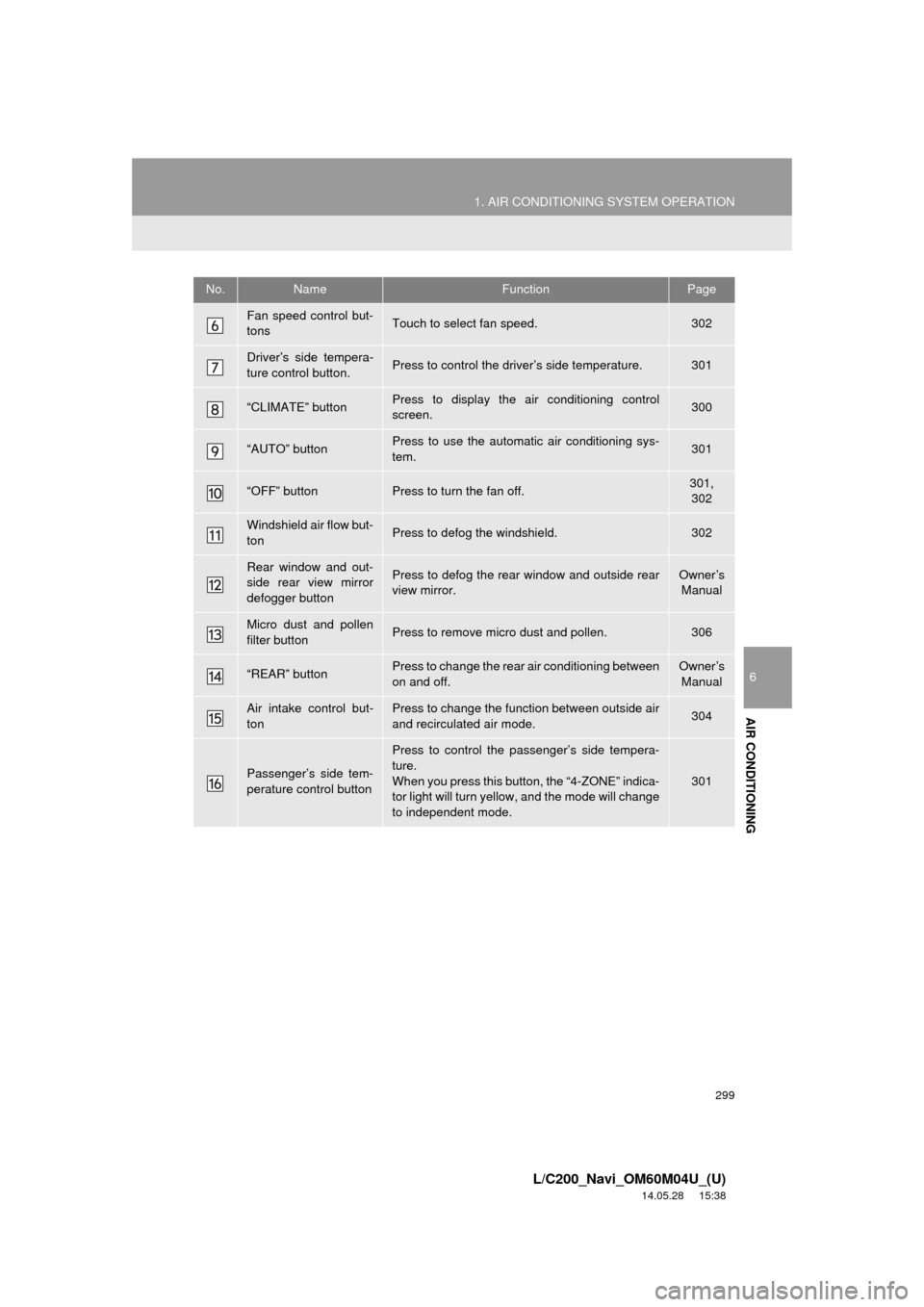
Fan speed control but-
tonsTouch to select fan speed.302
Driver’s side tempera-
ture control button.Press to control the driver’s side temperature.301
“CLIMATE” buttonPress to display the air conditioning control
screen.300
“AUTO” buttonPress to use the automatic air conditioning sys-
tem.301
“OFF” buttonPress to turn the fan off.301, 302
Windshield air flow but-
tonPress to defog the windshield.302
Rear window and out-
side rear view mirror
defogger buttonPress to defog the rear window and outside rear
view mirror.Owner’s
Manual
Micro dust and pollen
filter buttonPress to remove micro dust and pollen.306
“REAR” buttonPress to change the rear air conditioning between
on and off.Owner’s Manual
Air intake control but-
tonPress to change the function between outside air
and recirculated air mode.304
Passenger’s side tem-
perature control button
Press to control the passenger’s side tempera-
ture.
When you press this button, the “4-ZONE” indica-
tor light will turn yellow, and the mode will change
to independent mode.
301
No.NameFunctionPage
Page 343 of 427

343
3. XM FUNCTION OPERATION
8
INFORMATION
L/C200_Navi_OM60M04U_(U)
14.05.28 15:38
4This screen is displayed.
Guidance route traffic information is dis-
played on the screen. Touch “Detail” to
display detailed traffic event information.
1Touch “Show on Map” .
2Touch “Traffic In formation” .
The “Traffic Information” indicator is
highlighted.
3XM NavTraffic® information is dis-
played on the map screen.
On the map screen
On the freeway information screen
SHOW XM NavTraffic®
INFORMATION