2015 SKODA OCTAVIA audio
[x] Cancel search: audioPage 46 of 268

MemoryFig. 31
Memory display: MAXI DOT dis-
play (
)/segment display (
)
Read and observe on page 41 first.
Following driving data is stored in three locations.
▶ Average fuel consumption.
▶ Distance driven.
▶ Average speed.
▶ Driving time.
Display of the selected memory in the display at position
A
» Fig. 31 .
Since start
(
) Or “1” (
)
The memory collates the driving information from the moment the ignition is
switched on until it is switched off.
New data will also flow into the calculation of the current driving information if
the trip is continued within 2 hours after switching off the ignition.
If the trip is interrupted for more than 2 hours, the memory is automatically
erased.
Long-term
( ) And “2” (
)
The memory gathers driving information from any number of individual jour-
neys up to a total of 99 hours and 59 minutes driving or 9999 kilometres driv-
en.
The indicator is automatically set back to zero if one of the indicated values is
exceeded.
Since refuel
( ) or “3” (
)
The memory gathers driving information since the last refuelling.
The memory is erased automatically the next time you fill up.
Select memory
▶ Select the driving data information desired.
▶ Confirm details again to select the desired memory.
Resetting ▶ Select the driving data information desired.
▶ Select the desired memory.
▶ Reset the selected memory with a long acknowledgement (holding pressed).
Note
Disconnecting the vehicle battery will delete all memory data.
MAXI DOT display
Introduction
This chapter contains information on the following subjects:
Main menu
45
Operation using the operating lever
45
Operation using the multifunction steering wheel
46
Menu item
Navigation46
Menu item
Audio47
Menu item
Telephone47
Menu item
Assist systems48
Menu item
Lap timer
(Stop watch)
48
Compass point display
49
Eco-tips
49
The MAXI DOT display (hereinafter referred to as display) is a user interface
which, depending on the equipment configuration, delivers information about
the Infotainment, the multifunction display, the assistance systems, etc.
WARNINGConcentrate fully at all times on your driving! As the driver, you are fully re-
sponsible for the operation of your vehicle.44Using the system
Page 47 of 268

Main menuRead and observe
on page 44 first.
Call up the main menu
›
Press and hold the button
A
on the operating lever » Fig. 32 on page 45 .
or
›
Press and hold the dial
G
on the multifunction steering wheel » Fig. 33 on
page 46 .
Main menu items (depending on vehicle equipment) ■
Driving data
» page 41
■
Assist systems
» page 48
■
Navigation
» page 46
■
Audio
» page 47
■
Telephone
» page 47 ;
■
Vehicle
» page 40 , Auto-check control
■
Lap timer
» page 48 , Menu item
Lap timer
(Stop watch)
The menus can be opened using the buttons on the control lever » Fig. 32 on
page 45 or on the multi-function steering wheel » Fig. 33 on page 46 .
Note
■
If warning messages are displayed, these messages must first be confirmed
to access the main menu.■
For vehicles with Infotainment, the language of the MAXI DOT display can be
set in the Infotainment » Owner´s Manual Infotainment , chapter Device set-
tings (SETUP key) .
■
For vehicles without infotainment, the language of the MAXI DOT displays
can only be adjusted by a specialist garage.
Operation using the operating leverFig. 32
Buttons: on the operating lever
Read and observe on page 44 first.
Description of the operation by means of the buttons on the operating lever
ButtonActionOperationABriefly press at the top or bottomSwitch between menu items / menusPress top
or bottomDisplay main menuBPress brieflyConfirm menu item / menu45Information system
Page 49 of 268
Then turn dial G » Fig. 33 on page 46 on the multifunction steering wheel to
display the Last destinations
menu.
The menu shows the
Home address
menu item and a list of recent destinations.
When you select one of the menu items, the destination name and the follow-
ing items are displayed.
■
OK
- Start navigation
■
Cancel
- Return to the Navigation menu – the compass/vehicle symbol will be
displayed
If the home address is not defined when the menu item
Home address
is selec-
ted, the following message appears:
Please enter the home address on the infotain-ment system.
Menu item
Audio
Read and observe on page 44 first.
Select menu item
Audio›
Select and confirm
Audio
in the main menu.
The following information can be displayed in the display.
■ Radio
■ Currently played station (name/frequency)
■ The selected frequency range (e.g. FM) optionally with the number of the
station button (e.g. FM3), if the station is stored in the memory list
■ List of available station (if more than 5 stations can be received)
■ TP traffic announcements.
■ Media
■ Name of the track being played, if necessary, further information regarding
title (e.g. artist, album name), if this information is stored as a so called ID3
tag on the audio source.
Menu item
Telephone
Read and observe on page 44 first.
Select menu item
Telephone›
Select and confirm
Telephone
in the main menu.
›
Turn the dial
G
» Fig. 33 on page 46 .
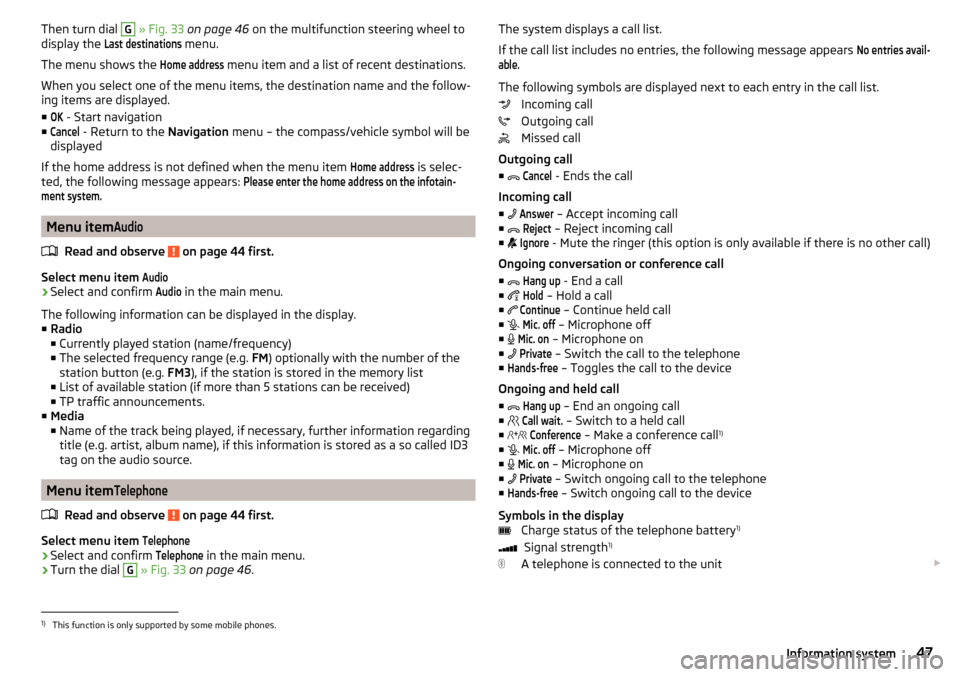
The system displays a call list.
If the call list includes no entries, the following message appears No entries avail-able.
The following symbols are displayed next to each entry in the call list. Incoming call
Outgoing call
Missed call
Outgoing call
■
Cancel
- Ends the call
Incoming call
■
Answer
– Accept incoming call
■
Reject
– Reject incoming call
■
Ignore
- Mute the ringer (this option is only available if there is no other call)
Ongoing conversation or conference call
■
Hang up
- End a call
■
Hold
– Hold a call
■
Continue
– Continue held call
■
Mic. off
– Microphone off
■
Mic. on
– Microphone on
■
Private
– Switch the call to the telephone
■
Hands-free
– Toggles the call to the device
Ongoing and held call ■
Hang up
– End an ongoing call
■
Call wait.
– Switch to a held call
■
Conference
– Make a conference call 1)
■
Mic. off
– Microphone off
■
Mic. on
– Microphone on
■
Private
– Switch ongoing call to the telephone
■
Hands-free
– Switch ongoing call to the device
Symbols in the display Charge status of the telephone battery 1)
Signal strength 1)
A telephone is connected to the unit
1)
This function is only supported by some mobile phones.
47Information system
Page 257 of 268
Luggage compartment lid59
Luggage net104
Luggage storage Multi-function pocket
107
M
Main beam
69
Warning light37
Maintenance see vehicle care
183
Manual air conditioning Air distribution control
115
Controls113
Manual gear changing see gear changing
128
Manually adjusting seats
82
Manually adjusting seats82
MAXI DOT display44
Lap timer48
Main menu45
Menu item assist systems48
Menu item Audio47
Menu item navigation46
Menu item telephone47
Operation45, 46
Stop watch48
MAXI DOT see MAXI DOT display
44
Maximum permissible weights
236
MCB138
Mechanical window lifter open and close
62
Mechanical window lifters61
Media AUX
99
see Infotainment4
USB99
Memory44
Memory Function for the seat84
Mirror Exterior mirrors
80
Interior mirror79
Make-up76
MODE button see driving mode selection
157
Modifications178
Modifications and technical alterations Airbags
180
Service179
Spoiler180
Multi-function display operation
42
Multi-function pocket107
Multi collision brake (MCB)138
Multifunction display Functions
41
Information42
Memory44
Multifunction steering wheel Operation
46
Multimedia AUX
99
USB99
Multimedia holder94
Handling99
N
N1
107
Nameplate236
Natural gas operation Warning light
37
Navigation see Infotainment
4
Net partition109
behind the front seats109
behind the rarer seats109
Removing and refitting the housing110
Nets102
NGVs see CNG
193
Notes for driving with a repaired tyre219
Notes on using wheels205
O
OFF ROAD
138
ABS140
EDS140
ESC140
hill descent assistant139
operation139
TCS140
OFF ROAD mode warning light
40
Oil See Engine oil
198
Warning messages38
Oil pressure Warning messages
38
On-board computer see multifunction display
41
Operating weight237
Operation in winter Diesel fuel
191
Vehicle battery202
Original accessories179
Overview Engine compartment
196
Warning lights31
255Index