Page 125 of 348
In this case, the light will remain on until the condition
has been corrected. If the problem is related to the brake
booster, the ABS pump will run when applying the brake
and a brake pedal pulsation may be felt during each stop.
The dual brake system provides a reserve braking capac-
ity in the event of a failure to a portion of the hydraulic
system. A leak in either half of the dual brake system is
indicated by the Brake Warning Light, which will turn on
when the brake fluid level in the reservoir has dropped
below a specified level.
The light will remain on until the cause is corrected.
NOTE:The light may flash momentarily during sharp
cornering maneuvers, which change fluid level condi-
tions. The vehicle should have service performed, and
the brake fluid level checked.
If brake failure is indicated, immediate repair is neces-
sary.WARNING!
Driving a vehicle with the red brake light on is
dangerous. Part of the brake system may have failed.
It will take longer to stop the vehicle. You could have
a collision. Have the vehicle checked immediately.
Vehicles equipped with the Anti-Lock Brake System
(ABS), are also equipped with Electronic Brake Force
Distribution (EBD). In the event of an EBD failure, the
Brake Warning Light will turn on along with the ABS
Light. Immediate repair to the ABS system is required.
Operation of the Brake Warning Light can be checked by
turning the ignition switch from the OFF position to the
ON/RUN position. The light should illuminate for ap-
proximately two seconds. The light should then turn off
unless the parking brake is applied or a brake fault is
detected. If the light does not illuminate, have the light
inspected by an authorized dealer.
4
UNDERSTANDING YOUR INSTRUMENT PANEL 123
Page 126 of 348
The light also will turn on when the parking brake is
applied with the ignition switch in the ON/RUN posi-
tion.
NOTE:This light shows only that the parking brake is
applied. It does not show the degree of brake application.
30. Anti-Lock Brake (ABS) Light
This light monitors the Anti-Lock Brake System
(ABS). The light will turn on when the ignition
switch is turned to the ON/RUN position and
may stay on for as long as four seconds.If the ABS light remains on or turns on while driving, it
indicates that the Anti-Lock portion of the brake system
is not functioning and that service is required. However,
the conventional brake system will continue to operate
normally if the BRAKE warning light is not on.
If the ABS light is on, the brake system should be serviced
as soon as possible to restore the benefits of Anti-Lock
brakes. If the ABS light does not turn on when the
ignition switch is turned to the ON/RUN position, have
the light inspected by an authorized dealer.
124 UNDERSTANDING YOUR INSTRUMENT PANEL
Page 127 of 348
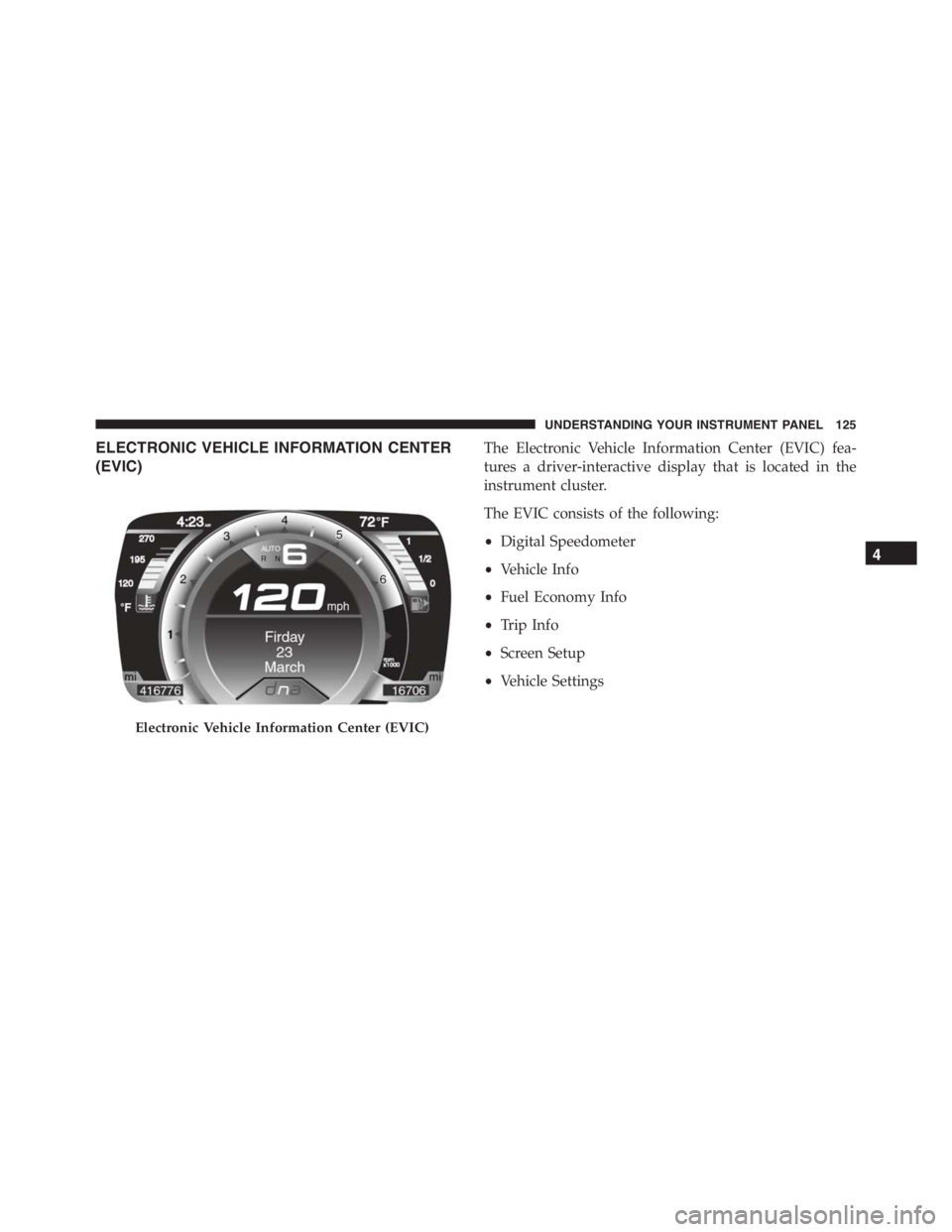
ELECTRONIC VEHICLE INFORMATION CENTER
(EVIC)The Electronic Vehicle Information Center (EVIC) fea-
tures a driver-interactive display that is located in the
instrument cluster.
The EVIC consists of the following:
•Digital Speedometer
•Vehicle Info
•Fuel Economy Info
•Trip Info
•Screen Setup
•Vehicle Settings
Electronic Vehicle Information Center (EVIC)
4
UNDERSTANDING YOUR INSTRUMENT PANEL 125
Page 128 of 348
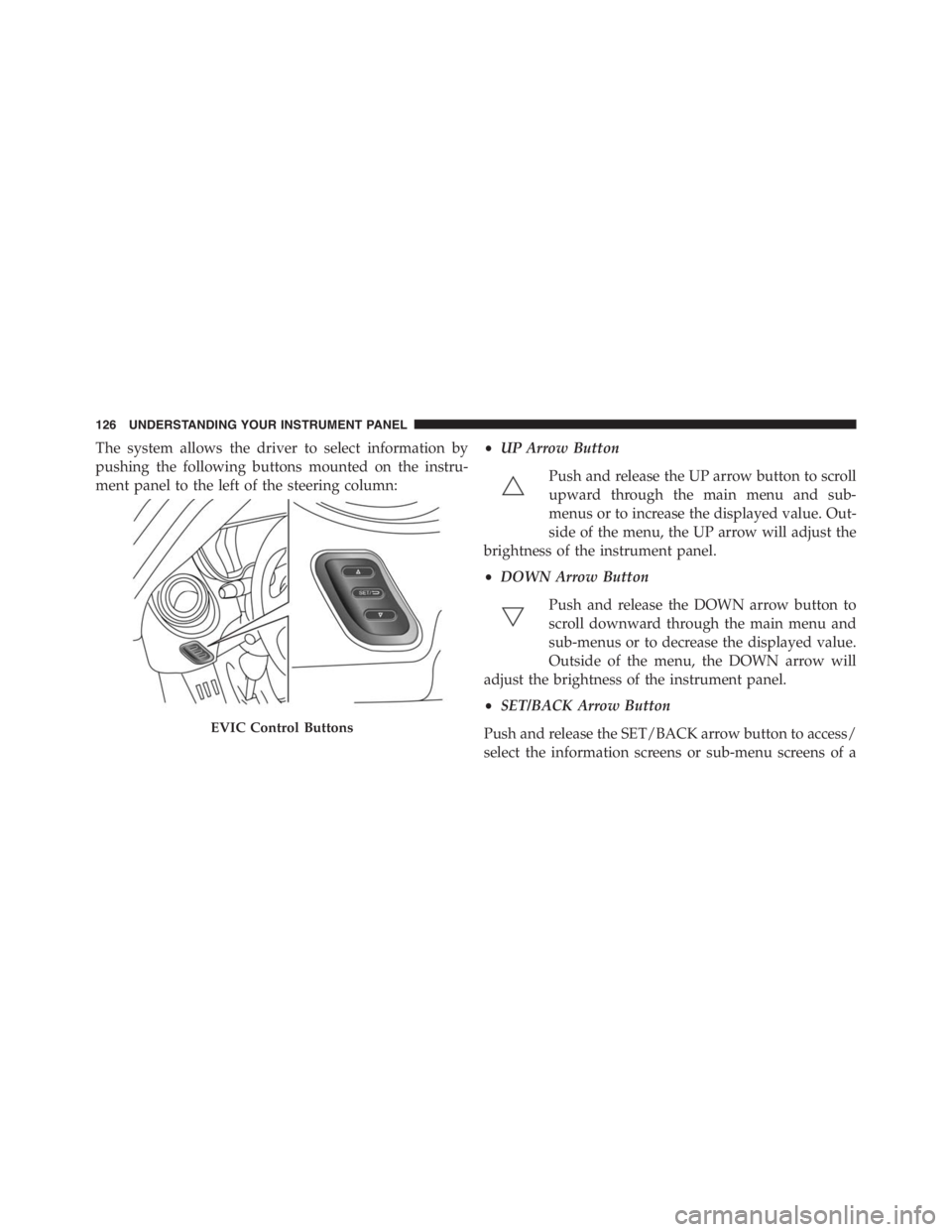
The system allows the driver to select information by
pushing the following buttons mounted on the instru-
ment panel to the left of the steering column:•UP Arrow Button
Push and release the UP arrow button to scroll
upward through the main menu and sub-
menus or to increase the displayed value. Out-
side of the menu, the UP arrow will adjust the
brightness of the instrument panel.
•DOWN Arrow Button
Push and release the DOWN arrow button to
scroll downward through the main menu and
sub-menus or to decrease the displayed value.
Outside of the menu, the DOWN arrow will
adjust the brightness of the instrument panel.
•SET/BACK Arrow Button
Push and release the SET/BACK arrow button to access/
select the information screens or sub-menu screens of a
EVIC Control Buttons
126 UNDERSTANDING YOUR INSTRUMENT PANEL
Page 129 of 348
main menu item. Push and hold the SET/BACK arrow
button to return to the main menu from an info screen or
sub-menu item.
Electronic Vehicle Information Center (EVIC)
Setup Menu
The menu comprises a series of functions arranged in a
cycle. Push the UP
and DOWNbuttons to access
the different options and settings (setup).
The setup menu can be activated by pushing theSET/
BACKbutton. Single push on the UP
or DOWN
buttons will scroll through the setup menu op-
tions. The menu includes the following functions:
•Menu
•Speed Buzzer
•Trip B/Data
•Set Time•Set Date
•Autoclose
•Units
•Language
•Buzzer Volume
•Service
•Daylights (D.R.L.) – If Equipped
•Exit Menu
Selecting An Option Of The Main Menu Without
Submenu
1. Briefly push theSET/BACKbutton to select the main
menu option to set.
2. Push the UP
or DOWNbutton (by a single
push) to select the new setting.
4
UNDERSTANDING YOUR INSTRUMENT PANEL 127
Page 130 of 348
3. Briefly push theSET/BACKbutton to store the new
setting and go back to the main menu option previ-
ously selected.
Selecting An Option Of The Main Menu With Sub-
menu
1. Briefly push theSET/BACKbutton to display the first
submenu option.
2. Push the UP
or DOWNbutton (by a single
push) to scroll through all the submenu options.
3. Briefly push theSET/BACKbutton to select the dis-
played submenu option and to open the relevant setup
menu.
4. Push the UP
or DOWNbutton (by a single
push) to select the new setting for this submenu
option.
5. Briefly push theSET/BACKbutton to store the new
setting and go back to the previously selected sub-
menu option.
6. Push and hold theSET/BACKbutton to return to the
main menu (short hold) or the main screen (longer
hold).
Speed Buzzer (Speed Limit)
With this function, it is possible to set the car speed limit
(mph or km/h) to immediately alert the driver when the
set limit is exceeded.
To set the speed limit, proceed as follows:
1. Briefly push theSET/BACKbutton. The display will
show the message (Speed Buzzer).
2. Push and release the UP
or DOWNbutton to
select speed limit activation (On) or deactivation
(Off).
128 UNDERSTANDING YOUR INSTRUMENT PANEL
Page 131 of 348
3. When the function is activated (On), briefly push the
SET/BACKbutton to display the previously set speed.
Pushing the UP
or DOWNbuttons selects the
speed limit. PushSET/BACKto confirm selection.
NOTE:The setting can be increased or decreased by
5 mph or km/h each time the UP/DOWN button is
pushed for speed settings above 20 mph (32 km/h). To
increase or decrease the set speed rapidly, push and hold
the UP/DOWN button. Save the setting by briefly push-
ing the button when you approach the required setting.
•Briefly push theSET/BACKbutton to go back to the
menu screen, or push and hold theSET/BACKbutton
(approximately one second) to go back to the main
screen without storing the settings.
To cancel the setting, proceed as follows:
1. Briefly push theSET/BACKbutton. “On” will display.2. Push and release the DOWN
button. “Off” will
display.
3. Briefly push theSET/BACKbutton to go back to the
menu screen, or push and hold theSET/BACKbutton
(approximately one second) to go back to the main
screen without storing the settings.
Trip B Activation
Through this option, it is possible to activate (On) or
deactivate (Off) the Trip B (partial trip) display.
For further information see “Trip Computer.”
For activation / deactivation, proceed as follows:
1. Briefly push theSET/BACKbutton. “On” or “Off”
will display in the EVIC (according to previous set-
ting).
4
UNDERSTANDING YOUR INSTRUMENT PANEL 129
Page 132 of 348

2. Push and release the UPor DOWNbutton to
select the setting and once selected a beep will
occur to signal the setting is saved.
3. Briefly push theSET/BACKbutton to go back to the
menu screen, or push and hold theSET/BACKbutton
(approximately one second) to go back to the main
screen without storing the settings.
Set Time
This function may be used to set the clock through two
sub-menu items: “Time” and “Mode.”
Proceed as follows:
1. Briefly push theSET/BACKbutton. The display will
show the two sub-menu items “Time” and “Mode.”
2. Push and release the UP
or DOWNbutton to
navigate the two sub-menu items.
3. Select the required option and then prush theSET/
BACKbutton.
4. When accessing the “Time” sub-menu item, briefly
push theSET/BACKbutton and “hours” will flash on
the display.
5. Push and release the UP
or DOWNbutton for
setting.
6. Briefly push theSET/BACKbutton and “minutes”
will flash on the display.
7. Push and release the UP
or DOWNbutton for
setting.
130 UNDERSTANDING YOUR INSTRUMENT PANEL