Page 303 of 389
04
301
4008_en_Chap10c_Mitsu5_ed01-2014
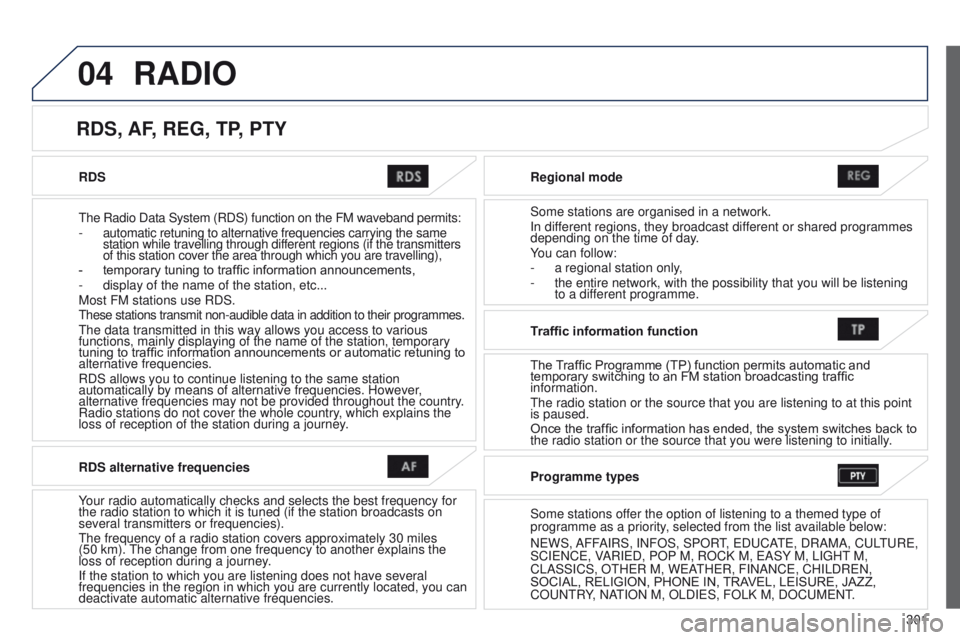
RDS
t
he Radio Data System (RDS) function on the FM waveband permits:
-
automatic retuning to alternative frequencies carrying the same
station while travelling through different regions (if the transmitters
of this station cover the area through which you are travelling),
-
temporary tuning to traffic information announcements,
-
display of the name of the station, etc...
Most FM stations use RDS.
these stations transmit non-audible data in addition to their programmes.\
the data transmitted in this way allows you access to various
functions, mainly displaying of the name of the station, temporary
tuning to traffic information announcements or automatic retuning to
alternative frequencies.
RDS allows you to continue listening to the same station
automatically by means of alternative frequencies. However
,
alternative frequencies may not be provided throughout the country.
Radio stations do not cover the whole country, which explains the
loss of reception of the station during a journey. Regional mode
Some stations are organised in a network.
In different regions, they broadcast different or shared programmes
depending on the time of day.
You can follow:
-
a regional station only
,
-
the entire network, with the possibility that you will be listening
to a dif
ferent programme.
RDS, AF, REG, TP, PTY
RADIO
RDS alternative frequencies
Your radio automatically checks and selects the best frequency for
the radio station to which it is tuned (if the station broadcasts on
several transmitters or frequencies).
t
he frequency of a radio station covers approximately 30 miles
(50
km).
t
he change from one frequency to another explains the
loss of reception during a journey.
If the station to which you are listening does not have several
frequencies in the region in which you are currently located, you can
deactivate automatic alternative frequencies. Traffic information function
The Traf
fi c Programme (TP) function permits automatic and
temporary switching to an FM station broadcasting traffic
information.
t
he radio station or the source that you are listening to at this point
is paused.
Once the traffic information has ended, the system switches back to
the radio station or the source that you were listening to initially.
Programme types
Some stations offer the option of listening to a themed type of
programme as a priority, selected from the list available below:
N
e WS, AFFAIRS, INFOS, SPOR
t,
e D u CA
te
, DRAMA, C u L
tu
R e ,
SCI
e NC e , VARI e D, POP M, ROCK M, e ASY M, LI g H t
M,
CLASSICS, O
t H e R M, W e A
t
H e R, FINANC e , CHILDR e N,
SOCIAL, RELIGION, PHONE IN, TRAVEL, LEISURE, JAZZ,
CO
u N t RY, NA
t
ION M, OLDI e S, FOLK M, DOC u M e N t
.
Page 305 of 389
05
303
4008_en_Chap10c_Mitsu5_ed01-2014
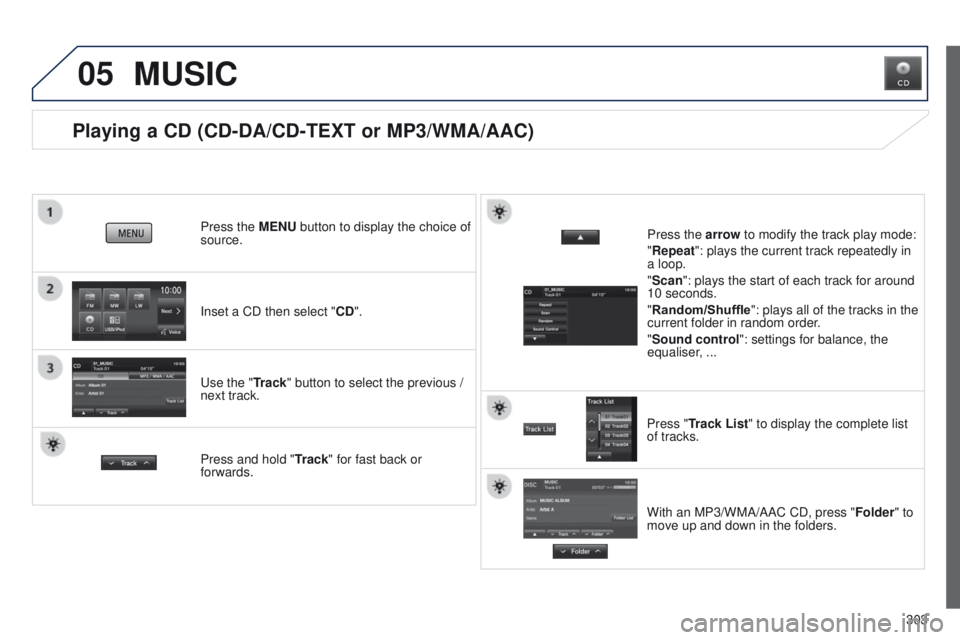
Playing a CD (CD-DA/CD-TEXT or MP3/WMA/AAC)
Inset a CD then select "CD". Press the MENU button to display the choice of
source.
u
se the "Track" button to select the previous /
next track.
MUSIC
Press and hold " Track" for fast back or
forwards. Press the arrow to modify the track play mode:
"Repeat": plays the current track repeatedly in
a loop.
"Scan": plays the start of each track for around
10 seconds.
"Random/Shuffle
": plays all of the tracks in the
current folder in random order.
"Sound control ": settings for balance, the
equaliser, ...
Press "Track List" to display the complete list
of tracks.
With an MP3/WMA/AAC CD, press "Folder" to
move up and down in the folders.
Page 308 of 389
05
306
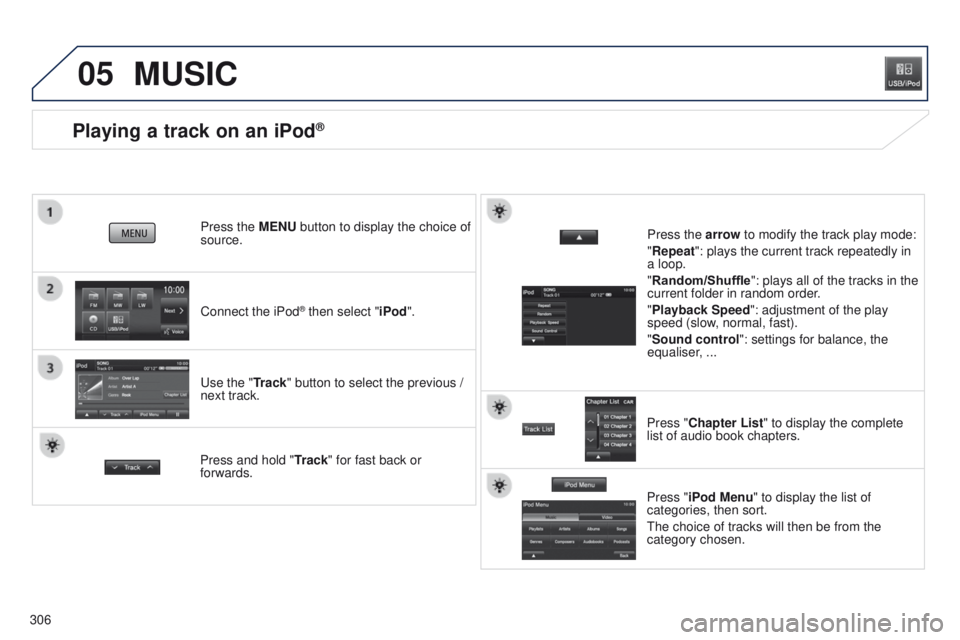
Playing a track on an iPod®
Connect the iPod® then select "iPod".
Press the MENU button to display the choice of
source.
u
se the "Track" button to select the previous /
next track.
MUSIC
Press and hold " Track" for fast back or
forwards. Press the arrow to modify the track play mode:
"Repeat": plays the current track repeatedly in
a loop.
"Random/Shuffle
": plays all of the tracks in the
current folder in random order.
"Playback Speed": adjustment of the play
speed (slow, normal, fast).
"Sound control ": settings for balance, the
equaliser, ...
Press "Chapter List" to display the complete
list of audio book chapters.
Press "iPod Menu " to display the list of
categories, then sort.
t
he choice of tracks will then be from the
category chosen.
Page 309 of 389
05
307
4008_en_Chap10c_Mitsu5_ed01-2014
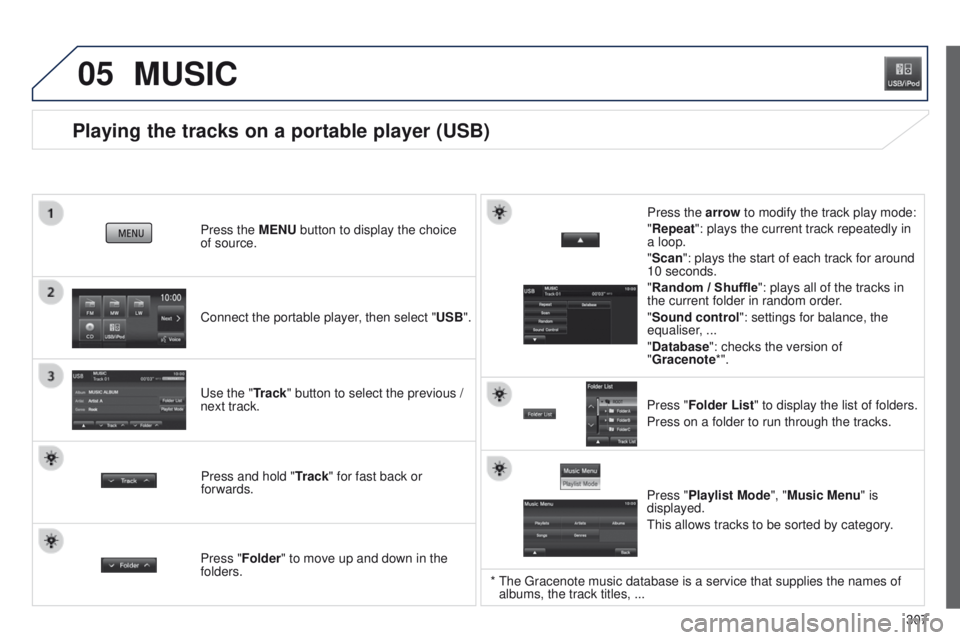
Playing the tracks on a portable player (USB)
Connect the portable player, then select "USB". Press the MENU button to display the choice
of source.
u
se the "Track" button to select the previous /
next track.
MUSIC
Press and hold " Track" for fast back or
forwards. Press the arrow to modify the track play mode:
"Repeat": plays the current track repeatedly in
a loop.
"Scan": plays the start of each track for around
10 seconds.
"Random / Shuffle
": plays all of the tracks in
the current folder in random order.
"Sound control ": settings for balance, the
equaliser, ...
"Database ": checks the version of
"Gracenote*".
Press "Folder List " to display the list of folders.
Press on a folder to run through the tracks.
Press "Folder" to move up and down in the
folders. Press "Playlist Mode", "Music Menu" is
displayed.
t
his allows tracks to be sorted by category.
* the g racenote music database is a service that supplies the names of
albums, the track titles, ...
Page 310 of 389
06
308
BLUETOOTH® TELEPHONE
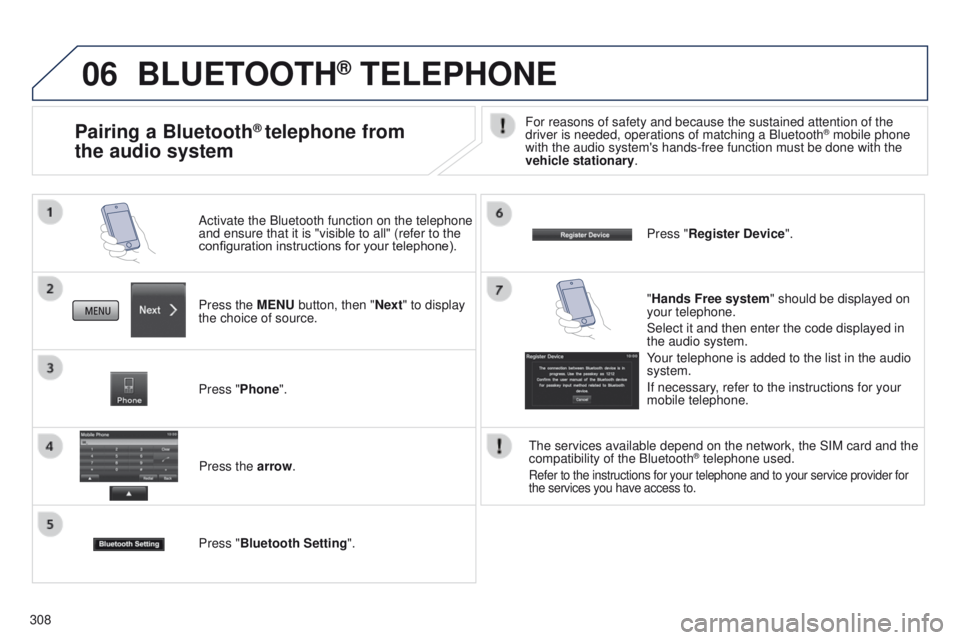
Press the MENU button, then "Next" to display
the choice of source. Activate the Bluetooth function on the telephone
and ensure that it is "visible to all" (refer to the
configuration instructions for your telephone).
Press "Phone".Press the arrow.
Press "Bluetooth Setting ". Press "Register Device
".
Pairing a Bluetooth® telephone from
the audio systemFor reasons of safety and because the sustained attention of the
driver is needed, operations of matching a Bluetooth® mobile phone
with the audio system's hands-free function must be done with the
vehicle stationary.
"Hands Free system " should be displayed on
your telephone.
Select it and then enter the code displayed in
the audio system.
Your telephone is added to the list in the audio
system.
If necessary, refer to the instructions for your
mobile telephone.
t
he services available depend on the network, the SIM card and the
compatibility of the Bluetooth
® telephone used.
Refer to the instructions for your telephone and to your service provide\
r for
the services you have access to.
Page 311 of 389
06
309
4008_en_Chap10c_Mitsu5_ed01-2014
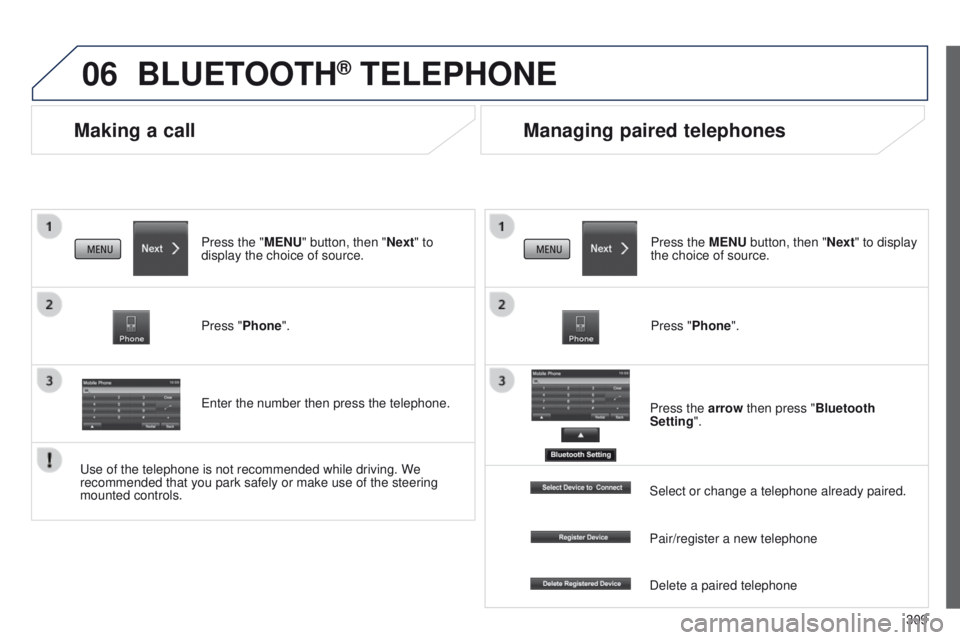
Making a call
BLUETOOTH® TELEPHONE
Press the "MENU" button, then "Next" to
display the choice of source.
Press "Phone".
e
nter the number then press the telephone.
Managing paired telephones
Press the MENU button, then "Next" to display
the choice of source.
Press "Phone".
Press the arrow then press "Bluetooth
Setting".
u
se of the telephone is not recommended while driving. We
recommended that you park safely or make use of the steering
mounted controls. Select or change a telephone already paired.
Pair/register a new telephone
Delete a paired telephone
Page 314 of 389
01
312
4008_en_Chap10d_Mitsu4_ed01-2014
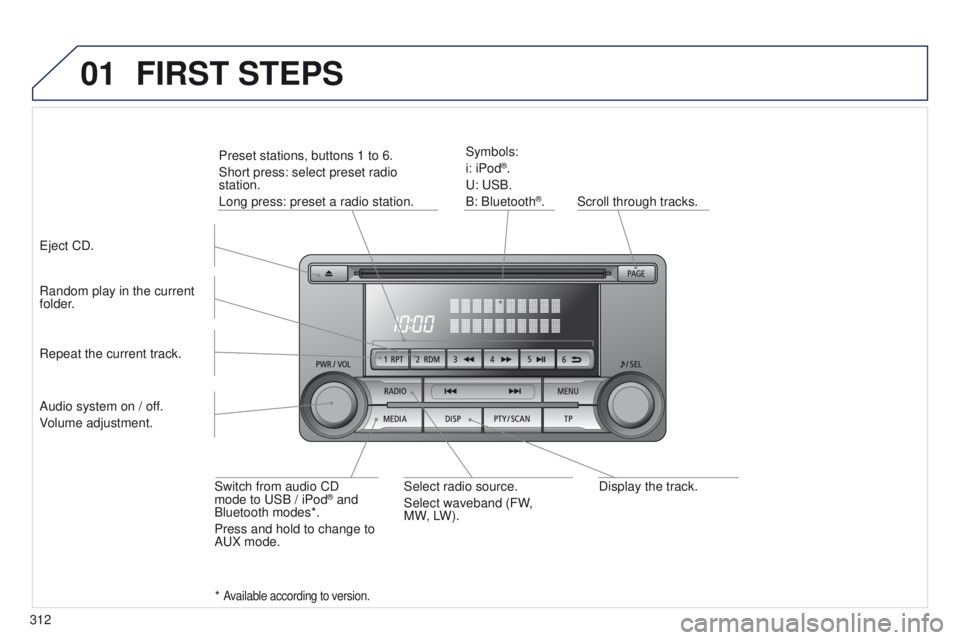
Display the track.
Scroll through tracks.
Symbols:
i: iPod
®.
u
:
u
SB.
B: Bluetooth
®.
Random play in the current
folder.
Switch from audio CD
mode to
u
SB / iPod
® and
Bluetooth modes*.
Press and hold to change to
A
u
X mode.
Repeat the current track.
FIRST STEPS
Audio system on / off.
Volume adjustment.
Select radio source.
Select waveband (FW,
MW,
LW).
*
Available according to version.
eject CD. Preset stations, buttons 1 to 6.
Short press: select preset radio
station.
Long press: preset a radio station.
Page 321 of 389
04
319
4008_en_Chap10d_Mitsu4_ed01-2014
RADIO
the "Radio Data System" (RDS) function on the FM waveband
permits:
-
access to the display of information, such as the name of the
station, ...
-
listening to the same station while travelling through dif
ferent
regions,
-
temporary tuning to traffic information announcements.
Most FM stations use RDS.
t
hese stations transmit non-audible
data in addition to their programmes.
t
he data transmitted in this way allows you access to various
functions, mainly displaying of the name of the station, automatic
retuning to alternative frequencies or temporary retuning to traffic
information announcements.
RDS allows you to continue listening to the same station by means
of alternative frequencies that carry the same station. However, in
certain conditions, RDS alternative frequencies may not be provided
throughout the country. Radio stations do not cover the whole country,
which explains the loss of reception of the station during a journey. "AF" alternative frequencies
Your radio automatically checks and selects the best frequency for
the radio station to which it is tuned (if the station broadcasts on
several transmitters or frequencies).
t
he frequency of a radio station covers approximately 30 miles
(50 km).
t
he change from one frequency to another explains the
temporary loss of reception during a journey.
If the station to which you are listening does not have several
frequencies in the region in which you are currently located, you can
deactivate alternative frequencies.
Some stations are organised in a network.
In different regions, they broadcast different or shared programmes
depending on the time of day.
You can follow:
-
a regional station only
,
-
the entire network, with the possibility that you will be listening
to a dif
ferent programme.
REG regional mode
On long distance journeys, when the stored station becomes weak,
the radio searches first for another frequency for the same station
(AF).
t
hen, if this fails, it searches for a frequency broadcasting the
regional programme (R
eg ). If this also fails, the radio returns to the
stored station.
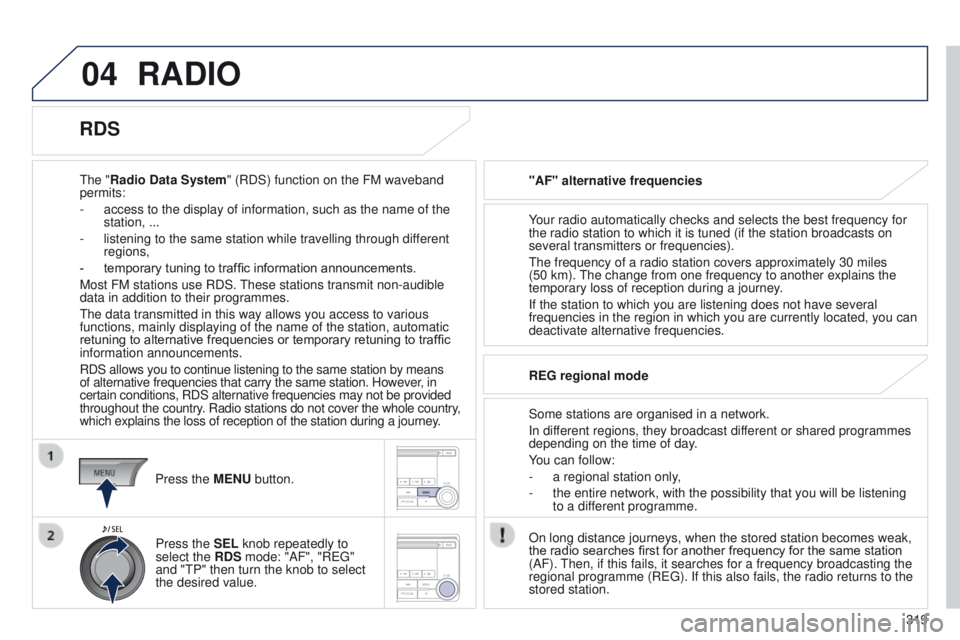
RDS
Press the MENU button.
Press the SEL knob repeatedly to
select the RDS mode: "AF", "R
eg "
and "
t P" then turn the knob to select
the desired value.