Page 189 of 416

187
308_en_Chap05_visibilite_ed01-2015
to make your approach to the vehicle easier,
these illuminate:
-
t
he zones facing the driver’s and
passenger’s doors,
-
t
he zones for ward of the door mirrors and
rear ward of the front doors.
Mirror spotlamps
Switching on
the spotlamps come on:
- w hen you unlock the vehicle,
-
w
hen you switch off the ignition,
-
w
hen you open a door,
-
w
hen you use the remote control to locate
the vehicle.
Switching off
they are timed to go off automatically.
Exterior welcome lighting
the remote switching on of the lighting makes your approach to the vehicle easier in poor light. It is
activated when the lighting control is in the " AUTO" position and the level of light detected by the
sunshine sensor is low.
Switching on
F Press the open padlock on the remote control or one of the front
door handles with Keyless
e
n
try
and Starting.
t
h
e dipped beam headlamps
and the sidelamps come on; your
vehicle is also unlocked.
Switching off
the exterior welcome lighting switches off
automatically after a set time, when the ignition
is switched on or on locking the vehicle.
Programming
the activation, deactivation and choice of
welcome lighting duration are done in the
" Driving assistance " menu then "Vehicle
settings ".
5
Visibility
Page 192 of 416

190
308_en_Chap05_visibilite_ed01-2015
Rear wiper
If a significant accumulation of snow or
ice is present, or when using a bicycle
carrier on the boot, deactivate the
automatic rear wiper.
Park.
Intermittent wipe.
Wash-wipe (set duration). F
P
ull the windscreen wiper stalk towards
you. t
he
screenwash then the wipers
operate for a fixed period.
th
e headlamp wash is only activated if the
dipped headlamps are on and the vehicle is
moving .
With daytime running lamps, to activate the
headlamp wash, position the lighting stalk in
the dipped beam position.
Windscreen and headlamp
wash
On vehicles fitted with digital air
conditioning, any action on the
windscreen wash control results in
temporary closing of the air intake to
avoid odours inside the passenger
compartment.
Rear wiper selection ring:
th
is function is activated by default.
F
I
n the secondary page, press "
Vehicle
settings ".
F
Sel
ect the "
Driving assistance "
menu.
Reverse gear
When reverse gear is engaged, the rear wiper
will come into operation automatically if the
windscreen wipers are operating.
Activation or deactivation of this automatic
function can be set in the touch screen.
Visibility
Page 319 of 416
04
317
RADIO
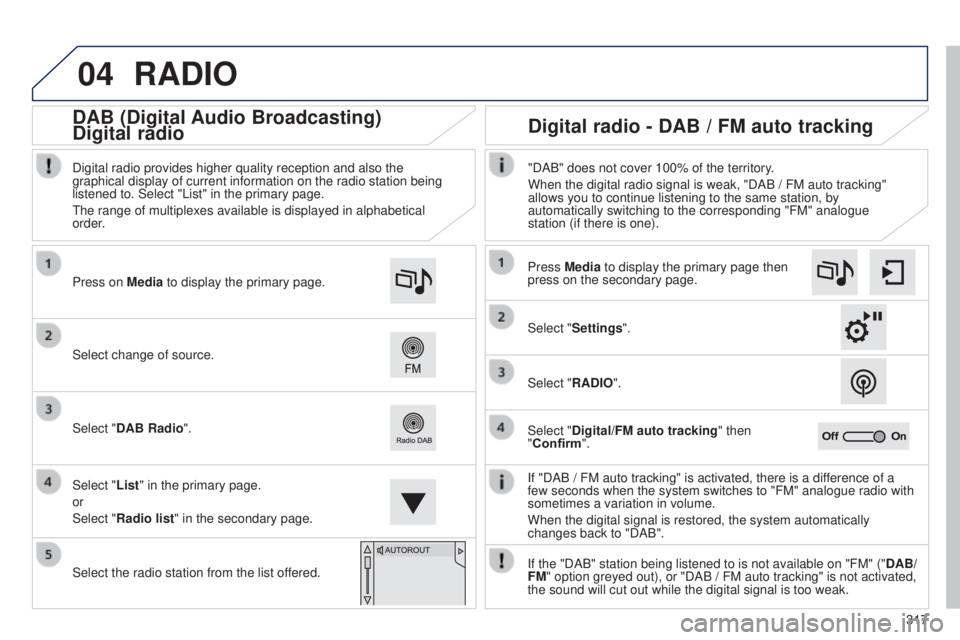
If "DAB / FM auto tracking" is activated, there is a difference of a
few seconds when the system switches to "FM" analogue radio with
sometimes a variation in volume.
When the digital signal is restored, the system automatically
changes back to "DAB".
Select change of source. Press on
Media to display the primary page.
Select "DAB Radio".
Select "List" in the primary page.
or
Select "Radio list" in the secondary page.
Select the radio station from the list offered. Digital radio provides higher quality reception and also the
graphical display of current information on the radio station being
listened to. Select "List" in the primary page.
t
he range of multiplexes available is displayed in alphabetical
order.
Press Media to display the primary page then
press on the secondary page.
Select "Settings".
Select "RADIO".
Select "Digital/FM auto tracking" then
"Confirm". "DAB" does not cover 100% of the territory.
When the digital radio signal is weak, "DAB / FM auto tracking"
allows you to continue listening to the same station, by
automatically switching to the corresponding "FM" analogue
station (if there is one).
If the "DAB" station being listened to is not available on "FM" (" DAB/
FM" option greyed out), or "DAB / FM auto tracking" is not activated,
the sound will cut out while the digital signal is too weak.
Digital radio - DAB / FM auto tracking
DAB (Digital Audio Broadcasting)
Digital radio
Page 327 of 416
325
308_en_Chap10c_SMegplus_ed01-2015
Level 1Level 2 Level 3 Comments
Navigation Settings
Navigation Enter destination
Display recent destinations.
Calculatory criteria
Fastest
Choose the navigation criteria.
t
he map displays the route chosen according to these
criteria.
Shortest
time/distance
e
cological
tolls
Ferries
Strict - Close
Show route on map
Display the map and start navigation.
ConfirmSave the options.
SaveSave the current address.
Stop navigationDelete the navigation information.
VoiceChoose the volume for voice and announcement of street
names.
DiversionDetour from your initial route by a certain distance.
Navigation
Display in text mode.
Zoom in.
Zoom out.
Display in full screen mode.
u
se the arrows to move the map.
Switch to 2D map.
Page 332 of 416
05
330Towards a new destination
Choosing a new destination
Select "Enter destination".
Select "Save" to save the address entered as a
contact entry.
t
he system allows up to 200 entries. Select "Confirm" or press "Show route on
map" to start navigation guidance.
Select "Address".
Select the "Country:" from the list offered then
in the same way:
the "City:" or its post code, the "Road:", the
"N°:". Confirm each time. Select "Navigate to".
Choose the restriction criteria: "
Include
tollroads", "Include ferries", "Traffic", "Strict",
"Close". Choose the navigation criteria: " Fastest" or
"Shortest" or "Time/distance" or "Ecological ".
to delete navigation information, press on
"
Settings" then "Stop navigation".
to restore the navigation information press on
"
Settings" then "Resume navigation".
Press on Navigation to display the primary
page then go to the secondary page.
NAVIGATION - GUIDANCE
Page 337 of 416
05
335
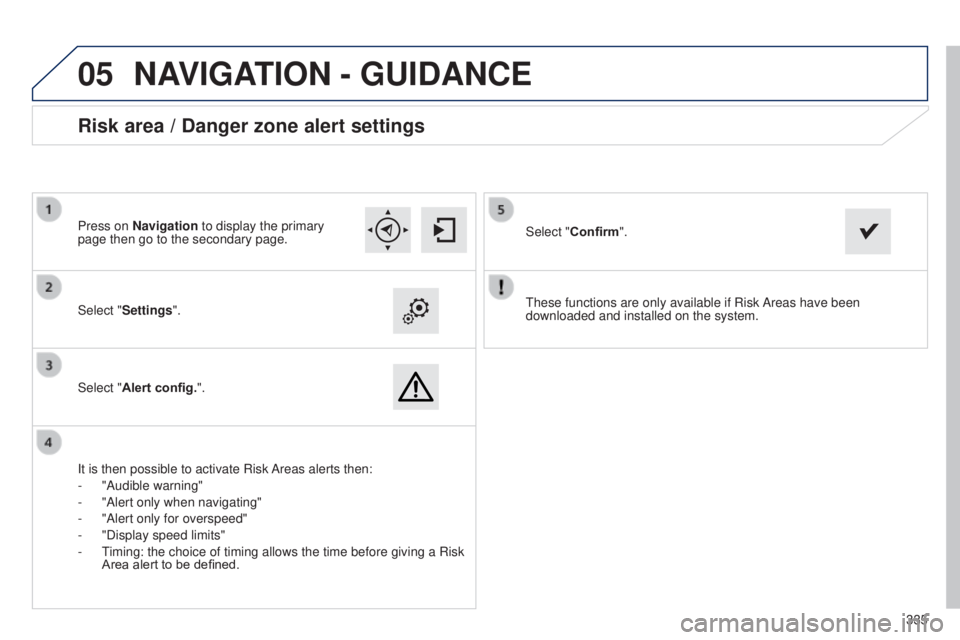
t
hese functions are only available if Risk Areas have been
downloaded and installed on the system.
Select "Settings".
Select "Alert config.".
Risk area / Danger zone alert settings
It is then possible to activate Risk Areas alerts then:
-
"Audible warning"
-
"Alert only when navigating"
-
"Alert only for overspeed"
-
"Display speed limits"
-
t
iming: the choice of timing allows the time before giving a Risk
Area alert to be defined. Select "
Confirm".
Press on Navigation to display the primary
page then go to the secondary page.
NAVIGATION - GUIDANCE
Page 339 of 416
05
337
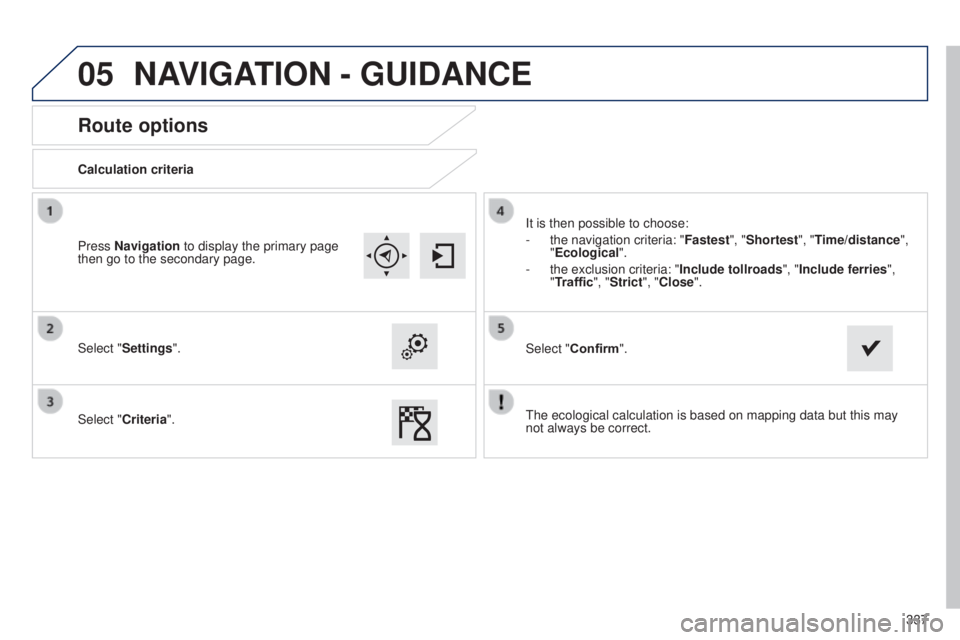
Route options
Calculation criteria
Select "Settings".
Select "Criteria".It is then possible to choose:
-
the navigation criteria: "Fastest
", "Shortest", "Time/distance",
"Ecological ".
-
the exclusion criteria: "Include tollroads", "
Include ferries",
"Traffic", "Strict", "Close".
Select "Confirm".
Press Navigation to display the primary page
then go to the secondary page.
NAVIGATION - GUIDANCE
the ecological calculation is based on mapping data but this may
not always be correct.
Page 340 of 416
05
338
Traffic information
Select "Traffic messages".
Press on Navigation to display the primary
page then go to the secondary page.
Select the message from the list offered.
Select the magnifying glasses to have the
information spoken. Set the "On the route
", "Around", "Near
destination " filters to fine-tune the list.
Press again to remove the filter. Select "Settings".
Select:
-
"Warn of new messages",
-
"Speak messages",
Then enter the filter radius. Press on Navigation to display the primary
page then go to the secondary page.
Display of messages
Setting filters
We recommend a filter radius of:
-
12 miles (20 km) in urban areas,
-
30 miles (50 km) on motorways.
TMC (T
raffic Message Channel) messages on GPS-Navigation
contain traffic information transmitted in real time. Select "Confirm".
TRAFFIC
Select "Info option
".