Page 42 of 416

40
308_en_Chap01_controle-de-marche_ed01-2015
use this button to go to the
secondary page.
us
e this button to return to the
primary page.
us
e this button for access to
additional information and to the
settings for certain functions.
us
e this button to confirm.
us
e this button to quit.
Principles
use the buttons on either side of the touch
screen for access to the menus, then press the
virtual buttons in the touch screen.
ea
ch menu is displayed over one or two pages
(primary page and secondary page).
After a few moments with no action on
the secondary page, the primary page
is displayed automatically. Air conditioning
.
Allows adjustment of the various
settings for temperature, air flow...
See the sections on "Heating",
"Manual air conditioning" and "Digital
air conditioning".
Touch screen menus
Driving assistance .
Allows certain functions to be switched
on and off and their settings adjusted. Telephone
.
See the "Audio equipment and telematics" section.Media.See the "Audio equipment and telematics" section.
Navigation .
Depending on trim level, navigation can
be not available, an option or standard.
See the "Audio equipment and
telematics" section. Configuration
.
Allows configuration of the display
and the system.
Connected services .
these services can be not available, an option or
standard.
See the "Audio equipment and telematics" section.
1. Volume / mute.See the "Audio equipment and telematics" section.
Monitoring
Page 44 of 416

42
308_en_Chap01_controle-de-marche_ed01-2015
ButtonCorresponding function Comments
Vehicle settings Access to other functions with settings that can be adjusted.
t
h
e functions are grouped
together under three tabs:
-
"Driving assistance "
-
"
[Automatic rear wiper in reverse]" (Activation of rear wiper coupled to reverse gear;
see the "[Visibility]" section)
-
"
[Collision risk alert]" (Activation of the collision risk alert system; see the "[Driving]
section")
-
"[ Lighting ]"
-
"
[
gu
ide-me-home lighting]" (Automatic guide me home lighting; see the "[ Visibility]"
section),
-
"
[Welcome lighting]" (
ex
terior welcome lighting; see the "[ Visibility]" section),
-
"
[Mood lighting]" (Interior mood lighting; see the "[ Visibility]" section).
-
"Vehicle access "
-
"
[Driver plip action]" (Selective unlocking of the driver's door; see the "[Access]"
section).
-
"
[
un
locking boot]" (Selective unlocking of the boot; see the "[Access]" section).
Select or deselect the tabs at the bottom of the screen to display the functions required.
Diagnostic List of current alerts.
Parking sensors Activation/Deactivation of the function.
Active cruise control Choice of the standard cruise control or the active cruise control.
th
e choice of active cruise control is retained on condition that the steering mounted control
thumb wheel is on the "CR
uI
S
e" p
osition.
Monitoring
Page 46 of 416
44
308_en_Chap01_controle-de-marche_ed01-2015
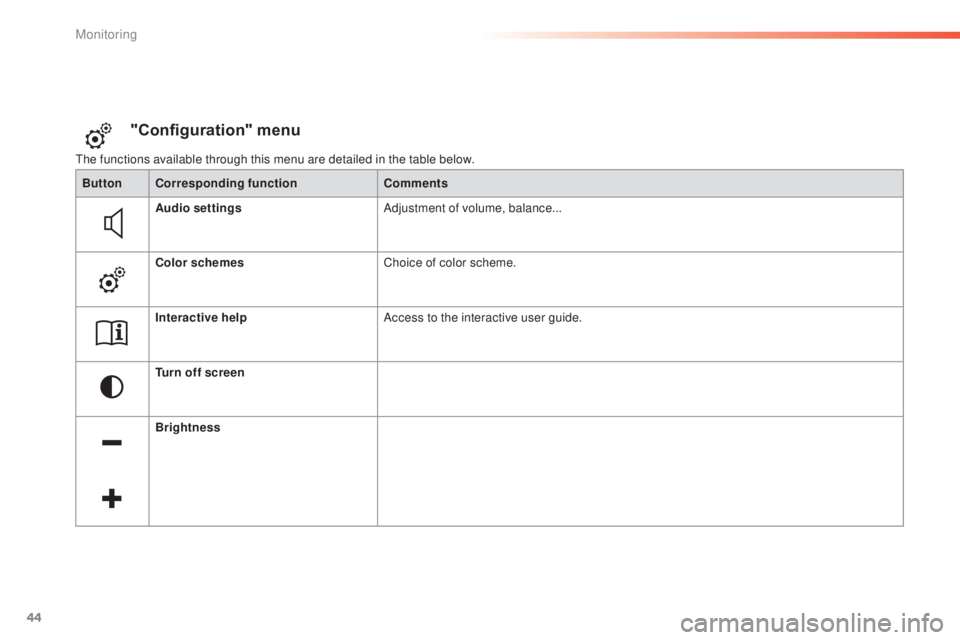
the functions available through this menu are detailed in the table below.
"Configuration" menu
ButtonCorresponding function Comments
Audio settings Adjustment of volume, balance...
Color schemes Choice of color scheme.
Interactive help Access to the interactive user guide.
Turn off screen
Brightness
Monitoring
Page 47 of 416
45
308_en_Chap01_controle-de-marche_ed01-2015
ButtonCorresponding function Comments
System Settings Choice of units:
-
t
emperature (°Celsius or °Fahrenheit)
-
d
istance and fuel consumption (l/100 km, mpg or km/l).
Time/Date Setting the date and time.
Languages Choice of language used: French,
e
n
glish, Italian, Spanish, g
e
rman, Dutch, Portuguese,
Polish,
t
u
rkish, Russian.
Screen settings Adjustment of the display settings (scrolling of text, animations...).
Calculator
Calendar
1
Monitoring
Page 48 of 416
46
308_en_Chap01_controle-de-marche_ed01-2015
Touch screen
Setting the date and time
F In the secondary page, press on "Time/
Date ".
F
Sel
ect the " Configuration "
menu.th
is function is accessible in the touch screen.
F Sel ect "Adjust time " or "Adjust date"
and modify the settings using the number
keypad, then confirm.
F
P
ress "Confirm " to quit.
Monitoring
Page 49 of 416
47
308_en_Chap01_controle-de-marche_ed01-2015
For more information on the
Multimedia menu, refer to the "Audio
equipment and telematics" section.
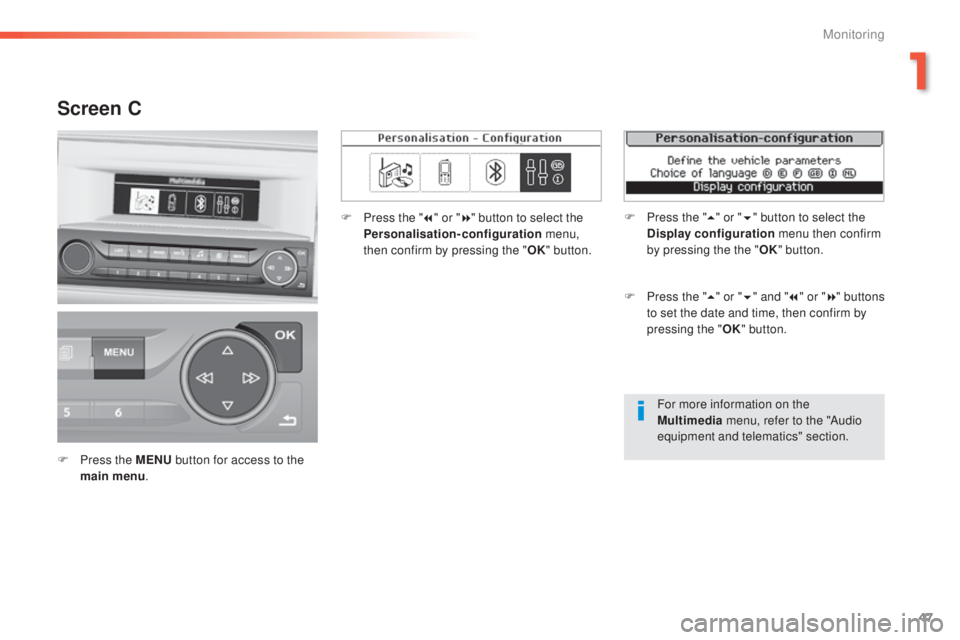
Screen C
F Press the MENU button for access to the
main menu . F
P
ress the "
7" or " 8" button to select the
Personalisation-configuration menu,
then confirm by pressing the " OK" button.
F
P
ress the "
5" or " 6" and " 7" or " 8" buttons
to set the date and time, then confirm by
pressing the " OK" button.
F
P
ress the "
5" or " 6" button to select the
Display configuration menu then confirm
by pressing the the " OK" button.
1
Monitoring
Page 50 of 416
48
308_en_Chap01_controle-de-marche_ed01-2015
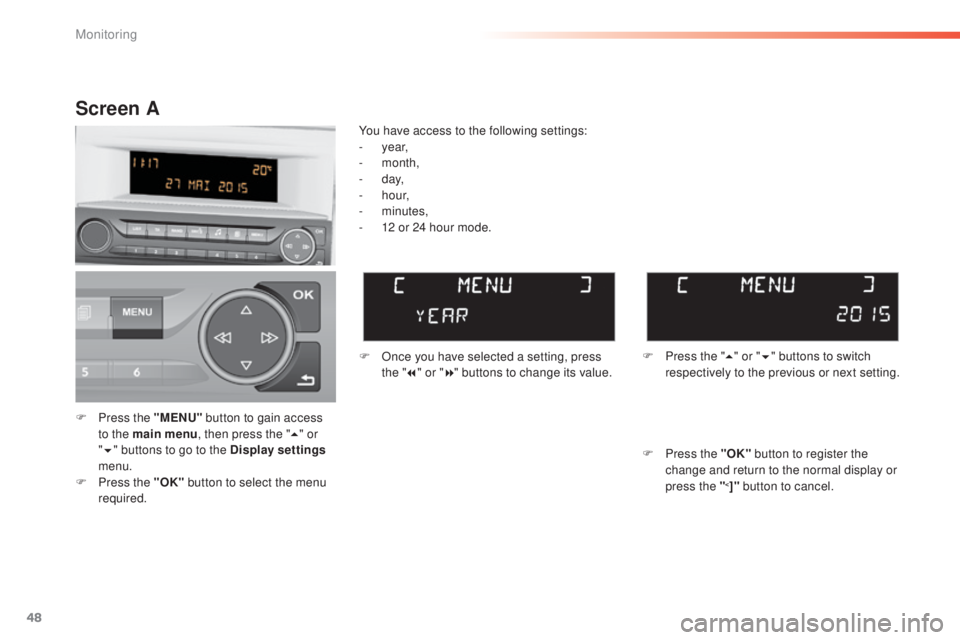
F Press the "MENU" button to gain access
to the main menu , then press the "5" or
" 6 " buttons to go to the Display settings
menu.
F
P
ress the "OK" button to select the menu
required. F
O
nce you have selected a setting, press
the " 7" or " 8" buttons to change its value.
You have access to the following settings:
-
year,
-
month,
-
d ay,
-
h o u r,
-
minutes,
-
1
2 or 24 hour mode.
Screen A
F Press the " 5" or " 6" buttons to switch
respectively to the previous or next setting.
F
P
ress the "OK" button to register the
change and return to the normal display or
press the "
<]" button to cancel.
Monitoring
Page 51 of 416
49
308_en_Chap01_controle-de-marche_ed01-2015
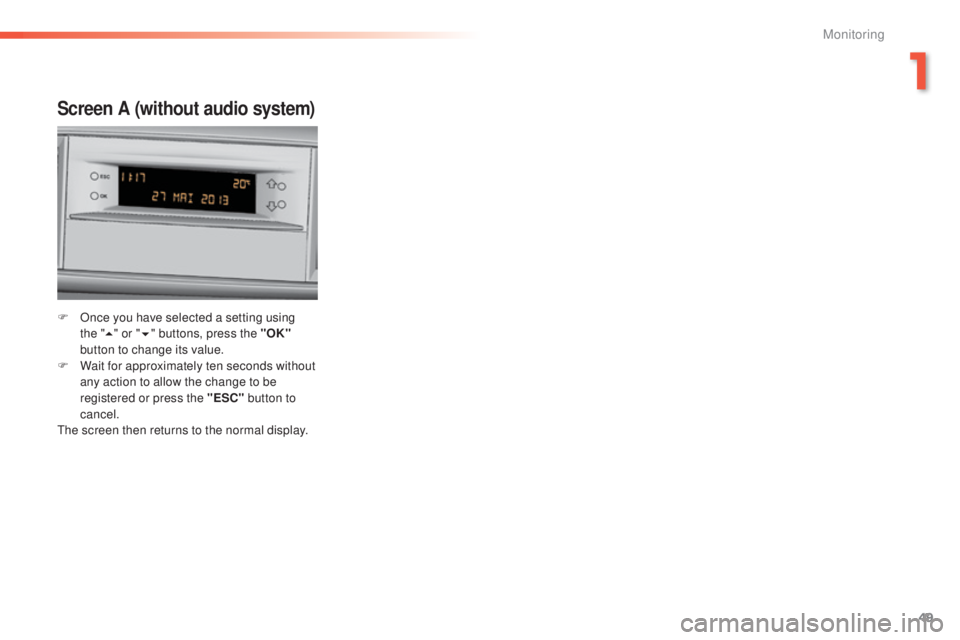
Screen A (without audio system)
F Once you have selected a setting using the "5 " or " 6" buttons, press the "OK"
button to change its value.
F
W
ait for approximately ten seconds without
any action to allow the change to be
registered or press the "ESC" button to
cancel.
th
e screen then returns to the normal display.
1
Monitoring