Page 347 of 416
345
308_en_Chap10c_SMegplus_ed01-2015
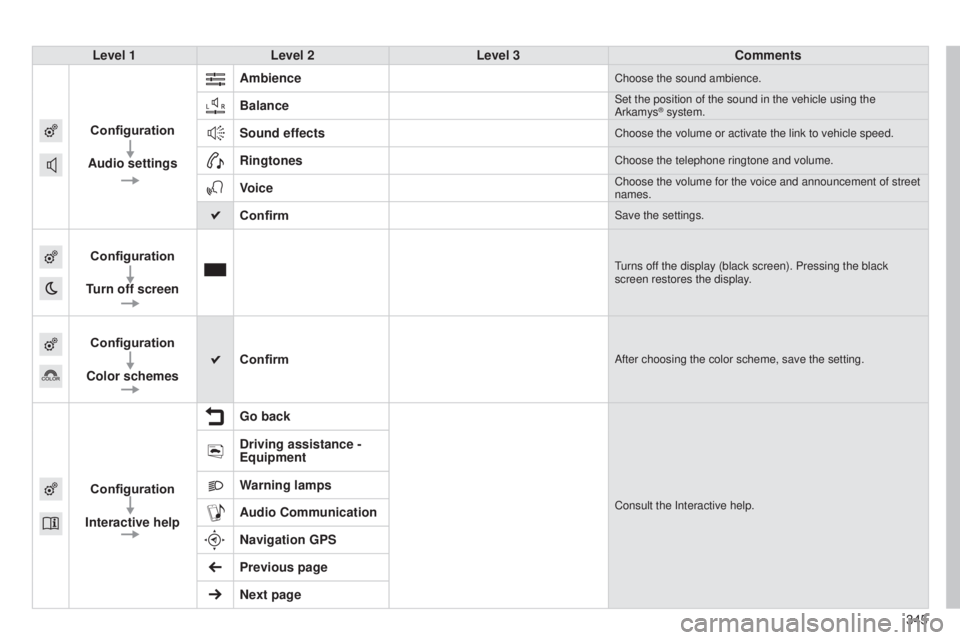
Level 1Level 2 Level 3 Comments
Configuration
Audio settings Ambience
Choose the sound ambience.
BalanceSet the position of the sound in the vehicle using the
Arkamys® system.
Sound effectsChoose the volume or activate the link to vehicle speed.
RingtonesChoose the telephone ringtone and volume.
VoiceChoose the volume for the voice and announcement of street
names.
ConfirmSave the settings.
Configuration
Turn off screenturns off the display (black screen). Pressing the black
screen restores the display.
Configuration
Color schemes ConfirmAfter choosing the color scheme, save the setting.
Configuration
Interactive help Go backConsult the Interactive help.
Driving assistance -
Equipment
Warning lamps
Audio Communication
Navigation GPS
Previous page
Next page
Page 348 of 416
06
346
CONFIGURATION
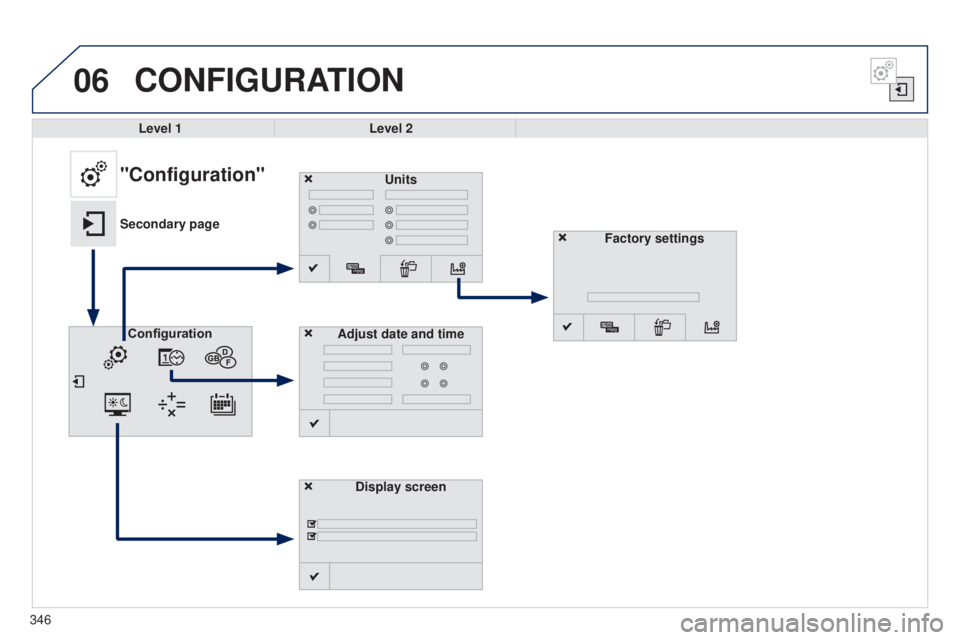
Level 1Level 2
Units
Display screen
Configuration
Adjust date and time
"Configuration"
Secondary page
Factory settings
Page 349 of 416
347
308_en_Chap10c_SMegplus_ed01-2015
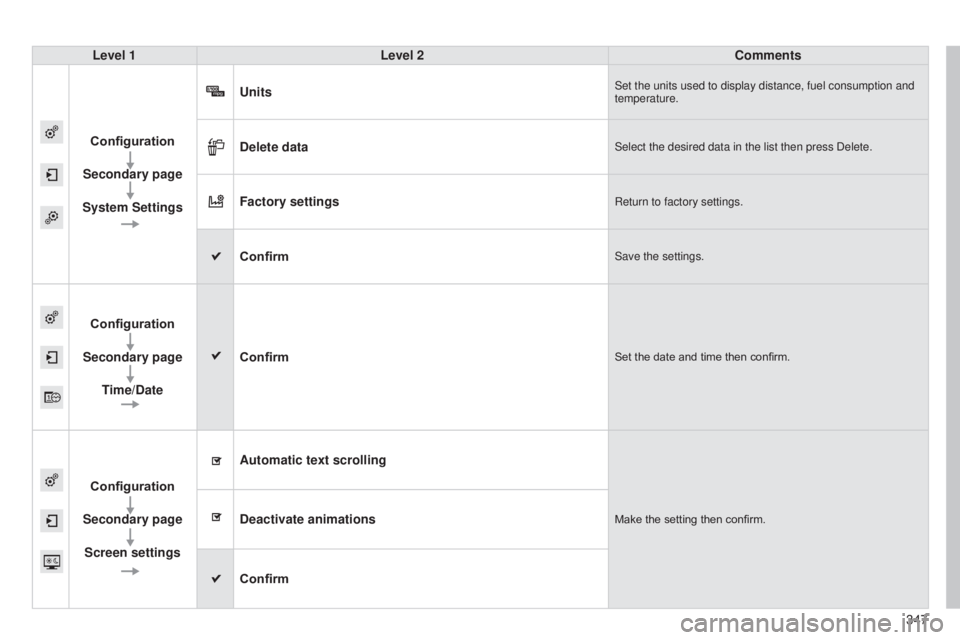
Level 1Level 2 Comments
Configuration
Secondary page
System Settings Units
Set the units used to display distance, fuel consumption and
temperature.
Delete dataSelect the desired data in the list then press Delete.
Factory settingsReturn to factory settings.
ConfirmSave the settings.
Configuration
Secondary page Time/Date Confirm
Set the date and time then confirm.
Configuration
Secondary page Screen settings Automatic text scrolling
Make the setting then confirm.Deactivate animations
Confirm
Page 352 of 416
06CONFIGURATION
- "Ambience" (choice of 6 musical ambiences)
- "Bass "
-
"Treble"
-
"Loudness" (Activate/Deactivate)
-
"Balance" ("Driver ", "All passengers", "Front only ")
-
"Audio setting on touch screen "
-
"Volume linked to vehicle speed: " (Activate/Deactivate)
t
he audio settings ( Ambience, Bass, Treble and Loudness) are
different and independent for each sound source.
t
he settings for distribution and balance are common to all
sources.
t
he distribution (or spatialisation using the Arkamys
© system)
of sound is an audio process that allows the audio quality to be
adapted to the number of listeners in the vehicle.
Available only with the 6-speaker configuration. On-board audio: Arkamys
© Sound Staging.
With Sound Staging, the driver and passengers are immersed in an
"audio scene" recreating the natural atmosphere of an auditorium:
truly a part of the scene and its surroundings.
t
his new sensation is made possible by software in the audio
system which processes the digital signals from the media players
(radio, CD, MP3…) without changing the audio settings.
t
his
processing takes account of the characteristics of the passenger
compartment to produce optimum results.
t
he Arkamys
© software installed in your audio system processes
the digital signal from the media players (radio, CD, MP3, ...) and
recreates a natural musical scene, with harmonious placement of
instruments and voices in the space in front of passengers, level with
the windscreen.
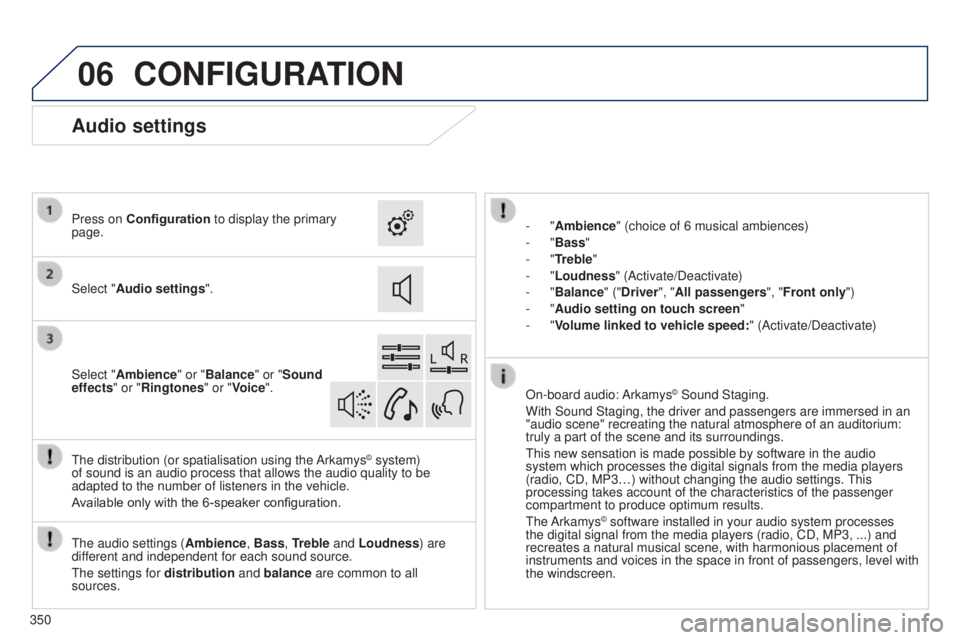
Audio settings
Select "Audio settings ".
Press on Configuration
to display the primary
page.
Select "Ambience" or "Balance" or "Sound
effects " or "Ringtones" or "Voice".
350
Page 353 of 416
06CONFIGURATION
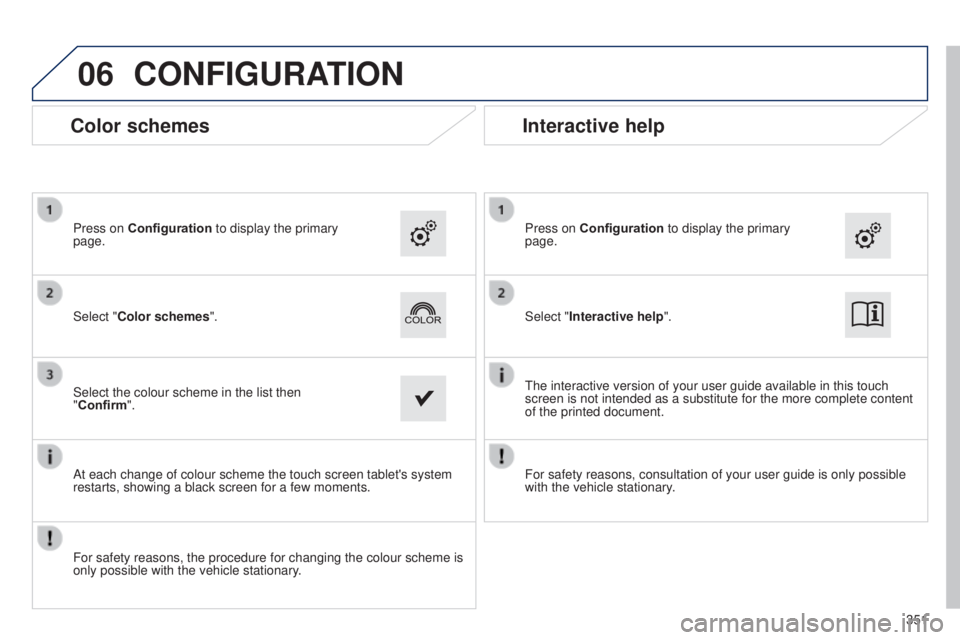
Color schemes
Select "Color schemes". Press on Configuration to display the primary
page.
Select the colour scheme in the list then
"Confirm".
At each change of colour scheme the touch screen tablet's system
restarts, showing a black screen for a few moments.
For safety reasons, the procedure for changing the colour scheme is
only possible with the vehicle stationary. Select "Interactive help". Press on Configuration
to display the primary
page.
t
he interactive version of your user guide available in this touch
screen is not intended as a substitute for the more complete content
of the printed document.
Interactive help
For safety reasons, consultation of your user guide is only possible
with the vehicle stationary.
351
Page 354 of 416
06
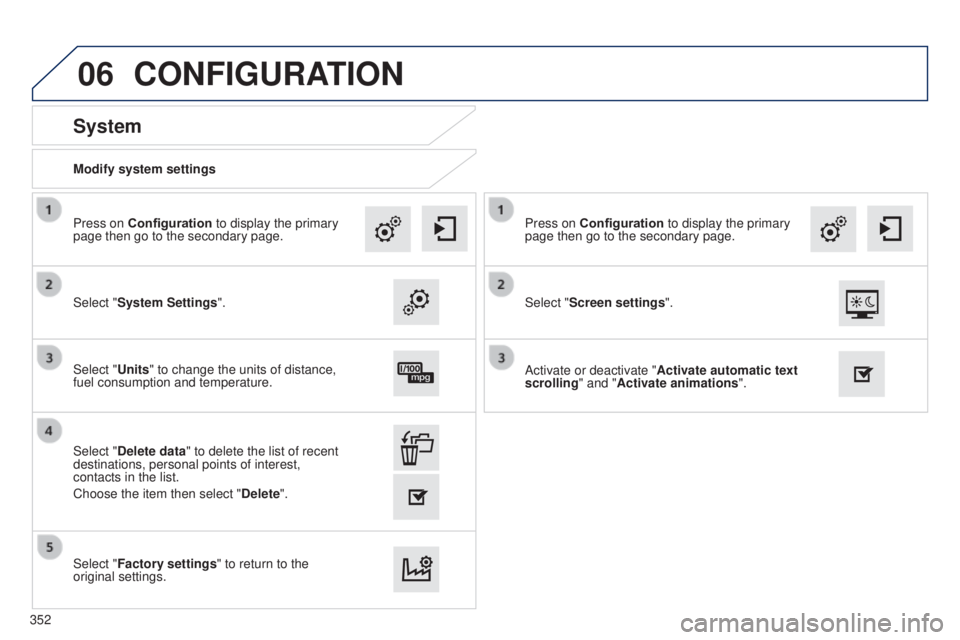
Modify system settings
System
Select "System Settings". Press on Configuration to display the primary
page then go to the secondary page.
Select "Units" to change the units of distance,
fuel consumption and temperature.
Select "Factory settings" to return to the
original settings. Select "Delete data" to delete the list of recent
destinations, personal points of interest,
contacts in the list.
Choose the item then select " Delete".
CONFIGURATION
Select "Screen settings". Press on Configuration to display the primary
page then go to the secondary page.
Activate or deactivate "Activate automatic text
scrolling " and "Activate animations".
352
Page 357 of 416
07PEUGEOT CONNECT APPS
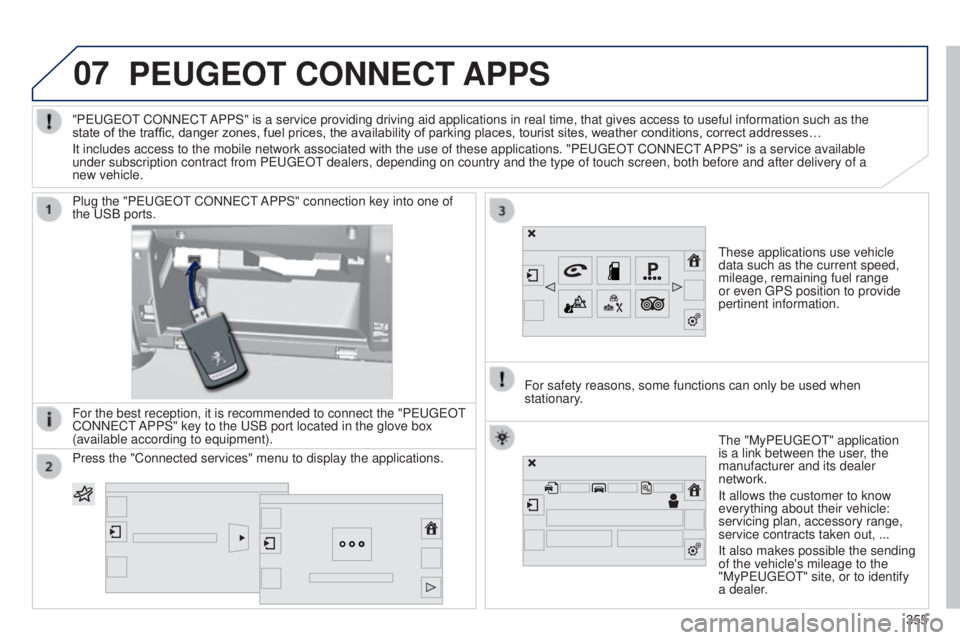
these applications use vehicle
data such as the current speed,
mileage, remaining fuel range
or even
g PS position to provide
pertinent information.
Plug the "P
euge
O
t
CONN
e
C
t
APPS" connection key into one of
the
u
SB ports.
For the best reception, it is recommended to connect the "P
euge
O
t
CONN
e
C
t
APPS" key to the
u
SB port located in the glove box
(available according to equipment).
t
he "MyPeuge O t" application
is a link between the user, the
manufacturer and its dealer
network.
It allows the customer to know
everything about their vehicle:
servicing plan, accessory range,
service contracts taken out, ...
It also makes possible the sending
of the vehicle's mileage to the
"MyPeuge
O t" site, or to identify
a dealer.
"P
euge
O
t
CONN
e
C
t
APPS" is a service providing driving aid applications in real time, that\
gives access to useful information such as the
state of the traffic, danger zones, fuel prices, the availability of parking places, tourist sites, weather conditions, correct addresses…
It includes access to the mobile network associated with the use of thes\
e applications. "P
euge
O
t
CONN
e
C
t
APPS" is a service available
under subscription contract from P
euge
O
t
dealers, depending on country and the type of touch screen, both before\
and after delivery of a
new vehicle.
For safety reasons, some functions can only be used when
stationary
.
Press the "Connected services" menu to display the applications.
355
Page 364 of 416
08
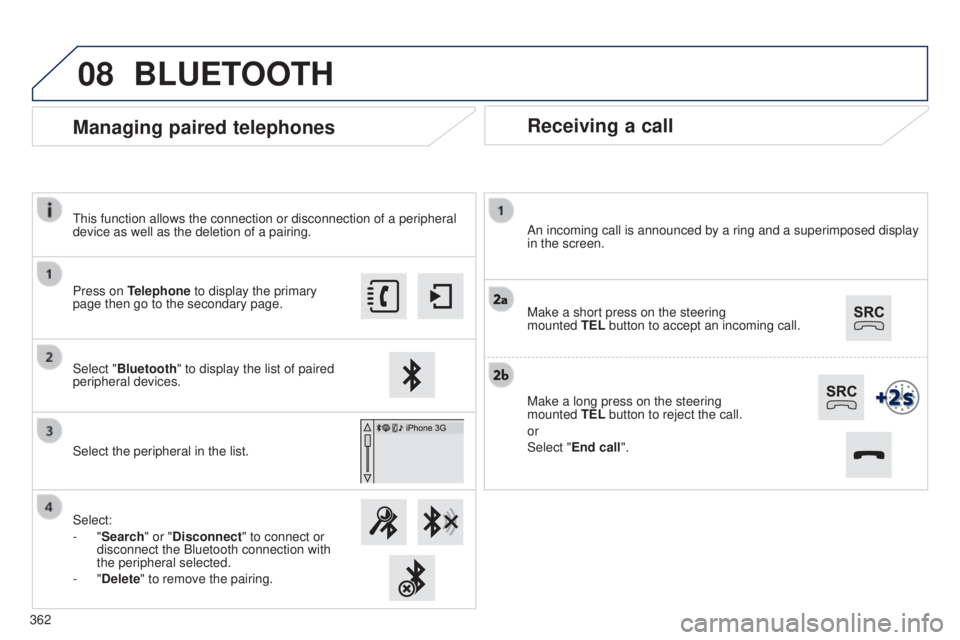
Receiving a call
An incoming call is announced by a ring and a superimposed display
in the screen.
Make a short press on the steering
mounted TEL button to accept an incoming call.
Make a long press on the steering
mounted
TEL button to reject the call.
or
Select "End call".
Managing paired telephones
Press on Telephone to display the primary
page then go to the secondary page.
Select "Bluetooth" to display the list of paired
peripheral devices.
Select the peripheral in the list.
Select:
-
"Search" or "Disconnect" to connect or
disconnect the Bluetooth connection with
the peripheral selected.
-
"Delete" to remove the pairing.
BLUETOOTH
this function allows the connection or disconnection of a peripheral
device as well as the deletion of a pairing.
362