Page 288 of 340
286
2008_en_Chap12b_SMEGplus_ed01-2015
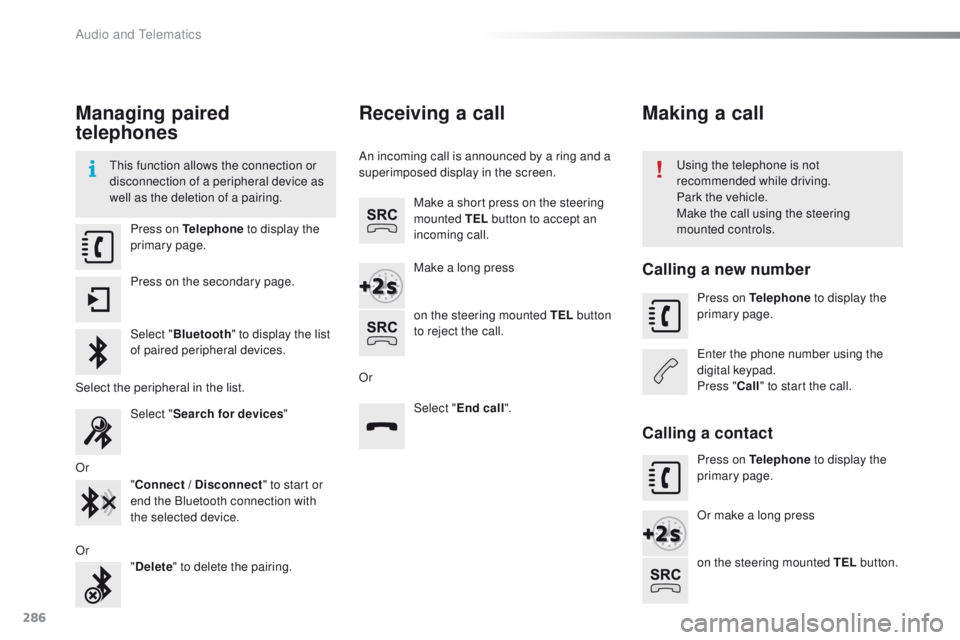
Managing paired
telephones
This function allows the connection or
disconnection of a peripheral device as
well as the deletion of a pairing.Using the telephone is not
recommended while driving.
Park the vehicle.
Make the call using the steering
mounted controls.
Press on Telephone
to display the
primary page.
Press on the secondary page.
Select " Bluetooth " to display the list
of paired peripheral devices.
Select the peripheral in the list. Select "Search for devices "
Or "Connect / Disconnect " to start or
end the Bluetooth connection with
the selected device.
Or "Delete " to delete the pairing.
Receiving a call
An incoming call is announced by a ring and a
superimposed display in the screen.
Make a short press on the steering
mounted TEL button to accept an
incoming call.
Make a long press
on the steering mounted TEL button
to reject the call.
Or Select "End call".
Making a call
Calling a new number
Press on Telephone to display the
primary page.
Enter the phone number using the
digital keypad.
Press " Call" to start the call.
Calling a contact
Press on Telephone to display the
primary page.
Or make a long press
on the steering mounted TEL button.
Audio and Telematics
Page 289 of 340
287
2008_en_Chap12b_SMEGplus_ed01-2015
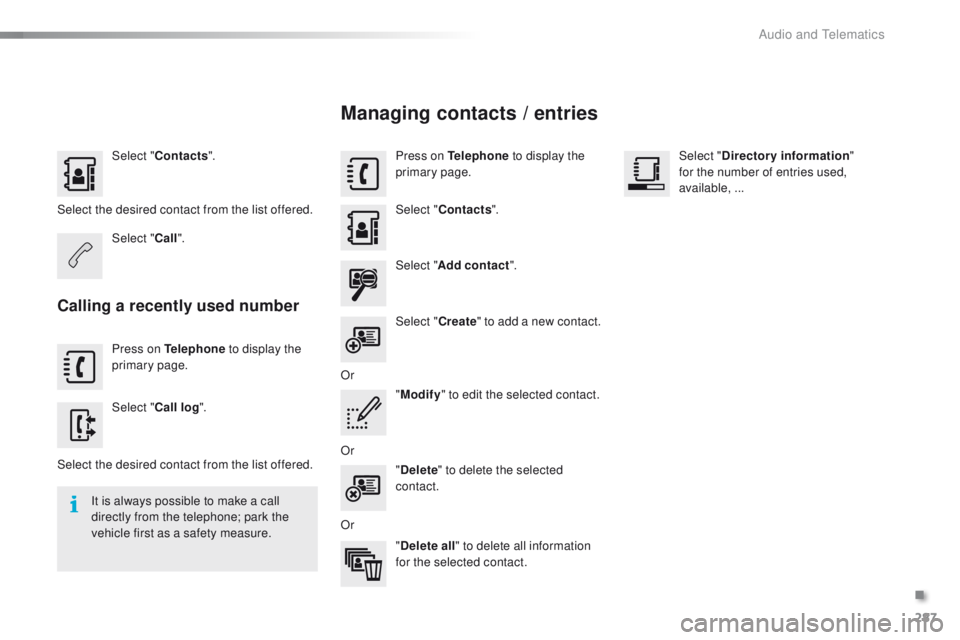
Select "Contacts ".
Select the desired contact from the list offered. Select "Call".
Calling a recently used number
Press on Telephone to display the
primary page.
Select " Call log ".
Select the desired contact from the list offered. It is always possible to make a call
directly from the telephone; park the
vehicle first as a safety measure.
Managing contacts / entries
Press on Telephone to display the
primary page.
Select " Contacts ".
Select " Add contact ".
Select " Create" to add a new contact.
Or "Modify " to edit the selected contact.
Or "Delete " to delete the selected
contact.
Or "Delete all " to delete all information
for the selected contact. Select "
Directory information "
for the number of entries used,
available,
...
.
Audio and Telematics
Page 291 of 340
289
2008_en_Chap12b_SMEGplus_ed01-2015
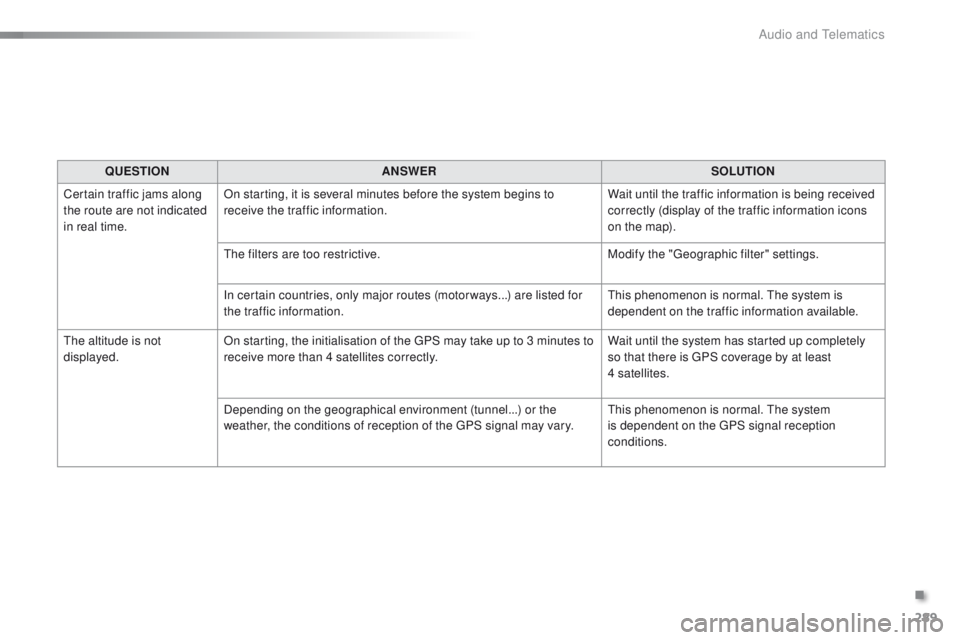
QUESTIONANSWER SOLUTION
Certain traffic jams along
the route are not indicated
in real time. On starting, it is several minutes before the system begins to
receive the traffic information.
Wait until the traffic information is being received
correctly (display of the traffic information icons
on the map).
The filters are too restrictive. Modify the "Geographic filter" settings.
In certain countries, only major routes (motor ways...) are listed for
the traffic information. This phenomenon is normal. The system is
dependent on the traffic information available.
The altitude is not
displayed. On starting, the initialisation of the GPS may take up to 3 minutes to
receive more than 4 satellites correctly. Wait until the system has started up completely
so that there is GPS coverage by at least
4
satellites.
Depending on the geographical environment (tunnel...) or the
weather, the conditions of reception of the GPS signal may vary. This phenomenon is normal. The system
is dependent on the GPS signal reception
conditions.
.
Audio and Telematics
Page 292 of 340
290
2008_en_Chap12b_SMEGplus_ed01-2015
Radio
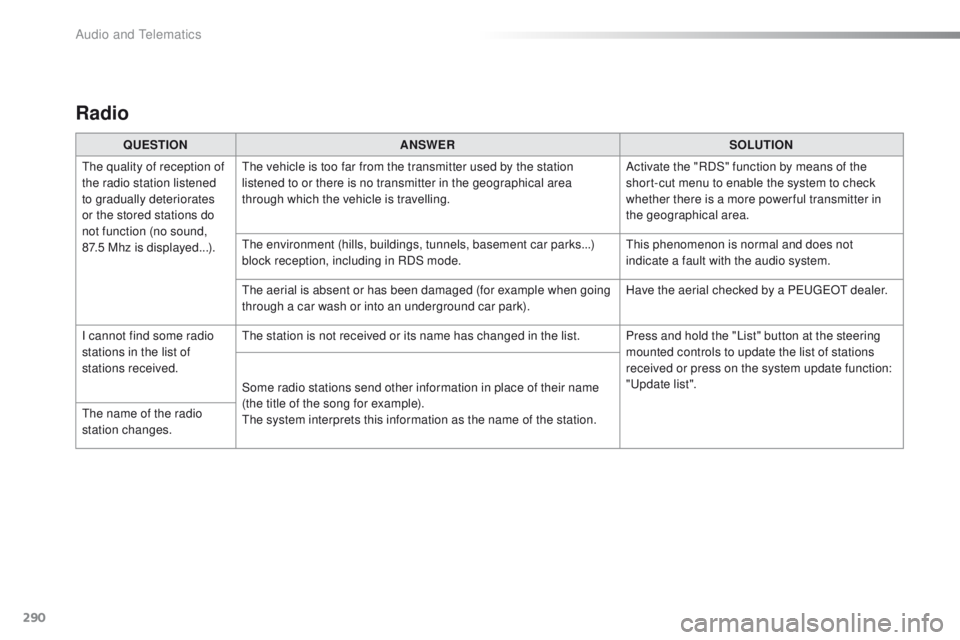
QUESTIONANSWER SOLUTION
The quality of reception of
the radio station listened
to gradually deteriorates
or the stored stations do
not function (no sound,
87.5
Mhz is displayed...). The vehicle is too far from the transmitter used by the station
listened to or there is no transmitter in the geographical area
through which the vehicle is travelling.
Activate the "RDS" function by means of the
short-cut menu to enable the system to check
whether there is a more power ful transmitter in
the geographical area.
The environment (hills, buildings, tunnels, basement car parks...)
block reception, including in RDS mode. This phenomenon is normal and does not
indicate a fault with the audio system.
The aerial is absent or has been damaged (for example when going
through a car wash or into an underground car park). Have the aerial checked by a PEUGEOT dealer.
I cannot find some radio
stations in the list of
stations received. The station is not received or its name has changed in the list. Press and hold the "List" button at the steering
mounted controls to update the list of stations
received or press on the system update function:
"Update list".
Some radio stations send other information in place of their name
(the title of the song for example).
The system interprets this information as the name of the station.
The name of the radio
station changes.
Audio and Telematics
Page 294 of 340
292
2008_en_Chap12b_SMEGplus_ed01-2015
QUESTIONANSWER SOLUTION
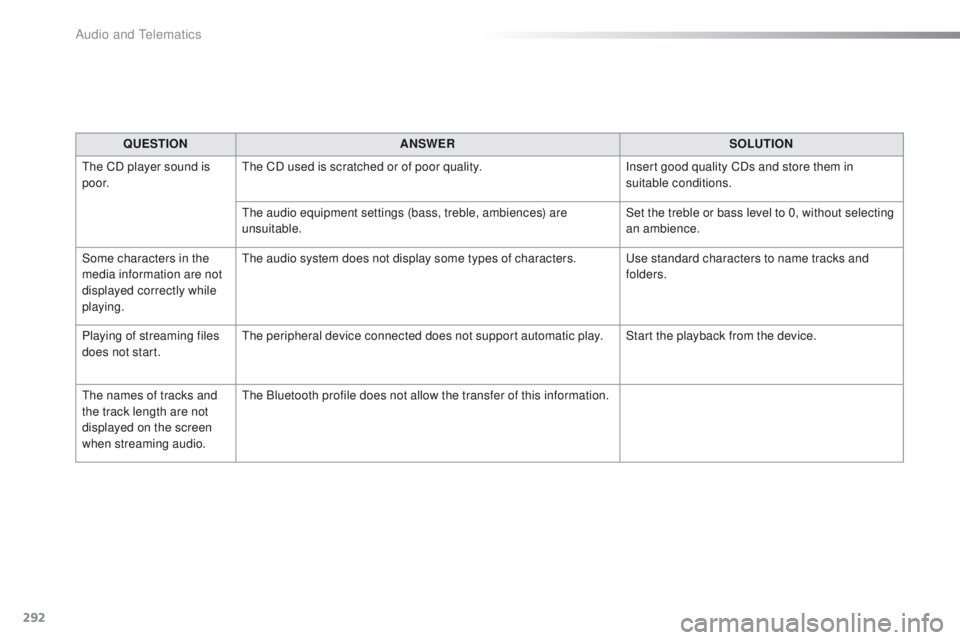
The CD player sound is
p o o r. The CD used is scratched or of poor quality.
Insert good quality CDs and store them in
suitable conditions.
The audio equipment settings (bass, treble, ambiences) are
unsuitable. Set the treble or bass level to 0, without selecting
an ambience.
Some characters in the
media information are not
displayed correctly while
playing. The audio system does not display some types of characters.
Use standard characters to name tracks and
folders.
Playing of streaming files
does not start. The peripheral device connected does not support automatic play. Start the playback from the device.
The names of tracks and
the track length are not
displayed on the screen
when streaming audio. The Bluetooth profile does not allow the transfer of this information.
Audio and Telematics
Page 297 of 340
295
2008_en_Chap12b_SMEGplus_ed01-2015
QUESTIONANSWER SOLUTION
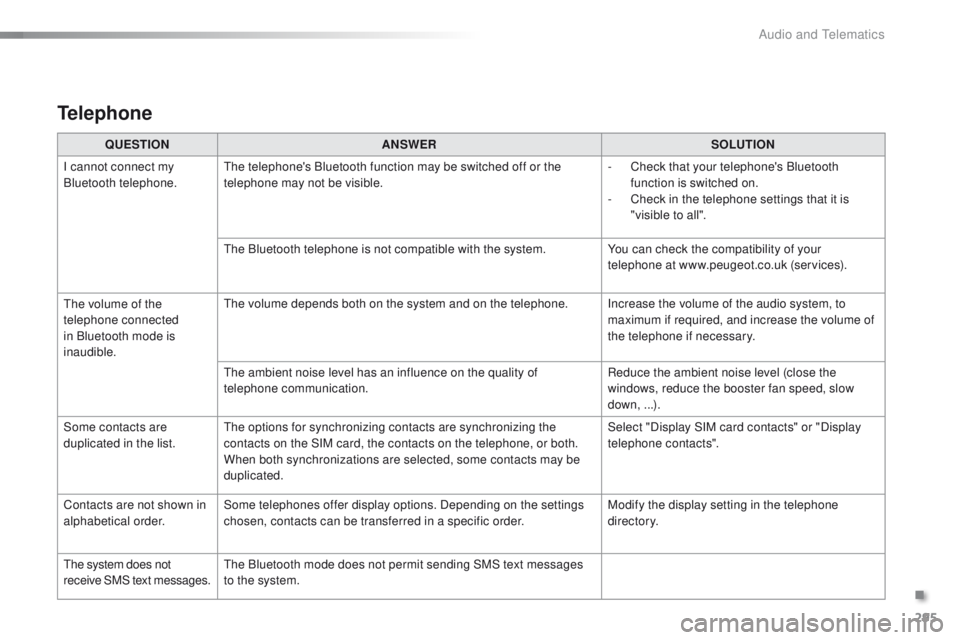
I cannot connect my
Bluetooth telephone. The telephone's Bluetooth function may be switched off or the
telephone may not be visible. -
C
heck that your telephone's Bluetooth
function is switched on.
-
C
heck in the telephone settings that it is
"visible to all".
The Bluetooth telephone is not compatible with the system. You can check the compatibility of your
telephone at www.peugeot.co.uk (services).
The volume of the
telephone connected
in Bluetooth mode is
inaudible. The volume depends both on the system and on the telephone. Increase the volume of the audio system, to
maximum if required, and increase the volume of
the telephone if necessary.
The ambient noise level has an influence on the quality of
telephone communication. Reduce the ambient noise level (close the
windows, reduce the booster fan speed, slow
down, ...).
Some contacts are
duplicated in the list. The options for synchronizing contacts are synchronizing the
contacts on the SIM card, the contacts on the telephone, or both.
When both synchronizations are selected, some contacts may be
duplicated. Select "Display SIM card contacts" or "Display
telephone contacts".
Contacts are not shown in
alphabetical order. Some telephones offer display options. Depending on the settings
chosen, contacts can be transferred in a specific order. Modify the display setting in the telephone
di r e c to r y.
The system does not
receive SMS text messages. The Bluetooth mode does not permit sending SMS text messages
to the system.
Telephone
.
Audio and Telematics
Page 300 of 340
298
2008_en_Chap12c_RDE2_ed01-2015
First steps
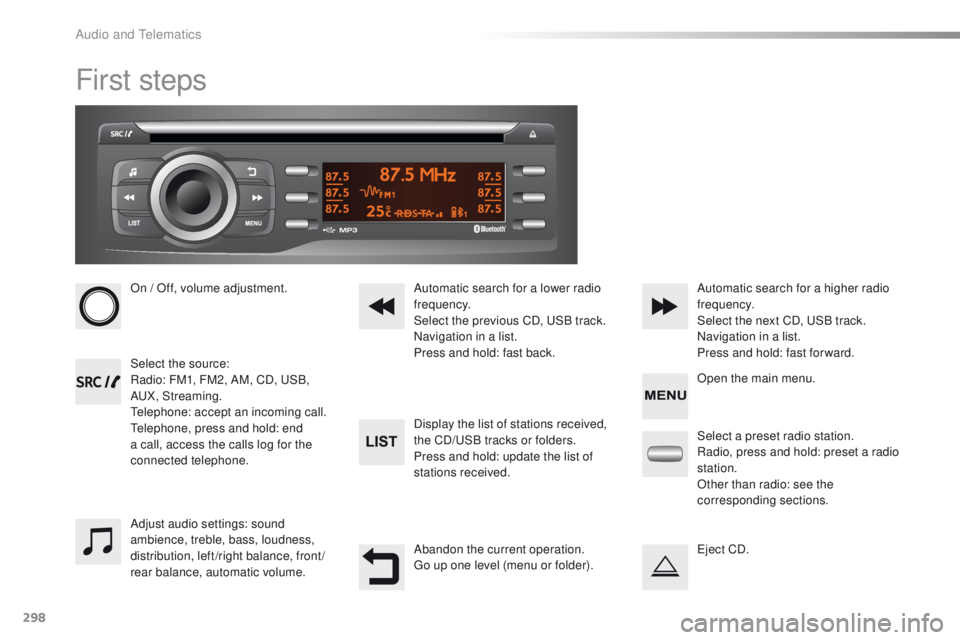
On / Off, volume adjustment.
Select the source:
Radio: FM1, FM2, AM, CD, USB,
AUX, Streaming.
Telephone: accept an incoming call.
Telephone, press and hold: end
a call, access the calls log for the
connected telephone.Display the list of stations received,
the CD/USB tracks or folders.
Press and hold: update the list of
stations received. Automatic search for a lower radio
frequency.
Select the previous CD, USB track.
Navigation in a list.
Press and hold: fast back.Automatic search for a higher radio
frequency.
Select the next CD, USB track.
Navigation in a list.
Press and hold: fast for ward.
Adjust audio settings: sound
ambience, treble, bass, loudness,
distribution, left/right balance, front/
rear balance, automatic volume. Abandon the current operation.
Go up one level (menu or folder).Select a preset radio station.
Radio, press and hold: preset a radio
station.
Other than radio: see the
corresponding sections.
Eject CD. Open the main menu.
Audio and Telematics
Page 302 of 340
300
2008_en_Chap12c_RDE2_ed01-2015
Radio
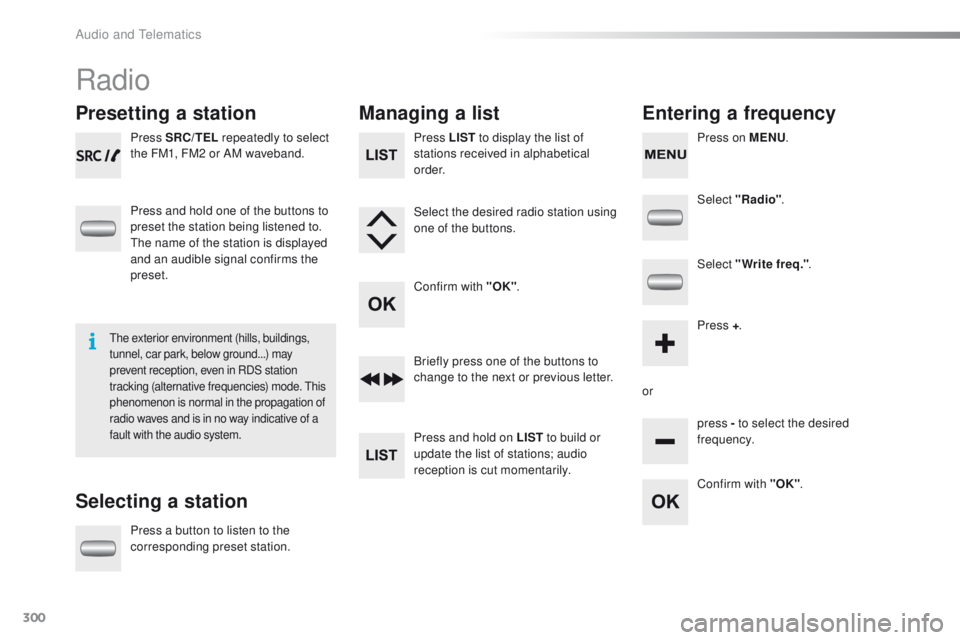
Presetting a station
Selecting a stationManaging a list
Entering a frequency
Press SRC/TEL repeatedly to select
the FM1, FM2 or AM waveband.
Press and hold one of the buttons to
preset the station being listened to.
The name of the station is displayed
and an audible signal confirms the
preset.
Press a button to listen to the
corresponding preset station. Select "Radio"
.
Select "Write freq." .
Press + .
or press - to select the desired
frequency.
Briefly press one of the buttons to
change to the next or previous letter.
Press and hold on LIST
to build or
update the list of stations; audio
reception is cut momentarily. Press LIST to display the list of
stations received in alphabetical
o r d e r.
Select the desired radio station using
one of the buttons.
Confirm with "OK" .
Confirm with "OK".
The exterior environment (hills, buildings,
tunnel, car park, below ground...) may
prevent reception, even in RDS station
tracking (alternative frequencies) mode. This
phenomenon is normal in the propagation of
radio waves and is in no way indicative of a
fault with the audio system.
Press on MENU.
Audio and Telematics