2015 NISSAN ROGUE reset
[x] Cancel search: resetPage 235 of 440
SEEK tuning
When in FM or AM mode, press the
orseek buttons to tune from low to high or
high to low frequencies and to stop at the next
broadcasting station.
When in SXM mode, press the
orseek buttons to change the category.
1 to 6 Station memory operations
Twelve stations can be set for the FM band (six for
FM1, six for FM2) and six stations can be set for
the AM band. Eighteen stations can be set for the
SXM band (six for SXM1, six for SXM2, six for
SXM3) .1. Choose the radio band AM, FM1 or FM2 using the FM·AM select button or choose
the radio band SXM1, SXM2, SXM3 using
the SXM button.
2. Tune to the desired station using manual or seek tuning. Touch and hold any of the de-
sired station memory keys (1 – 6) until a
beep sound is heard. 3. The channel indicator will then come on and
the sound will resume. Programming is now
complete.
4. Other keys can be set in the same manner.
If the battery cable is disconnected or if the fuse
opens, the radio memory will be canceled. In that
case, reset the desired stations.
Presets can also be selected by touching the
desired preset number on the screen.
LHA2899
4-56Monitor, climate, audio, phone and voice recognition systems
Page 236 of 440
Smart Favorites Preset Setup (if so
equipped):
The Smart Favorites feature allows the user to
designate presets, within the SXM1, SXM2 and
SXM3 bands, as their Smart Favorites. When any
of the Smart Favorite presets are selected, the
current track on that station will play from the
beginning of the song.To program a Smart Favorite preset:
1. Press the SXM button.
2. Touch the “Setup” key.
3. Touch the “Tune Start” key to activate (ON) or deactivate (OFF) Smart Favorites.
4. Touch the “Add Preset” key to select an available preset.
For additional information, refer to “1 to 6 station
memory operations” in this section regarding pre-
set memory options.
NOTE:
• Smart Favorites will start functioning only
after the audio unit is turned on for a few
minutes.
• Tune Start is supported for music chan-
nels only. Replay Screen
The Replay Screen gives the user the ability to
replay, skip, pause or rewind the currently aired
track.
When the “Replay” key is touched, the Replay
Screen is prompted.
LHA3085LHA3087
Monitor, climate, audio, phone and voice recognition systems4-57
Page 249 of 440
BLUETOOTH® STREAMING AUDIO
WITHOUT NAVIGATION SYSTEM (if
so equipped)
If you have a compatible Bluetooth® audio de-
vice that is capable of playing audio files, the
device can be connected to the vehicle’s audio
system so that the audio files on the device play
through the vehicle’s speakers.
Connecting Bluetooth® audio
To connect your Bluetooth® audio device to the
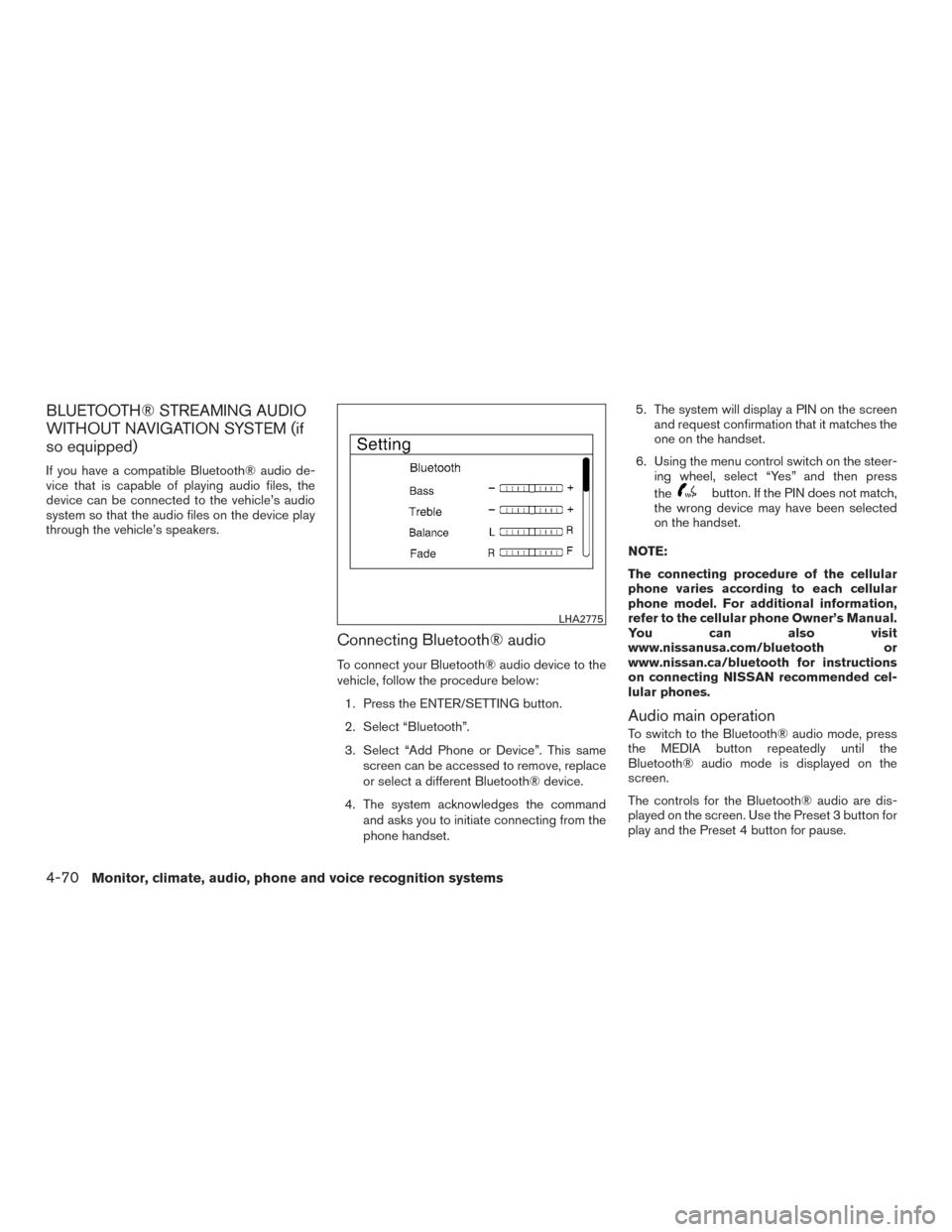
vehicle, follow the procedure below:1. Press the ENTER/SETTING button.
2. Select “Bluetooth”.
3. Select “Add Phone or Device”. This same screen can be accessed to remove, replace
or select a different Bluetooth® device.
4. The system acknowledges the command and asks you to initiate connecting from the
phone handset. 5. The system will display a PIN on the screen
and request confirmation that it matches the
one on the handset.
6. Using the menu control switch on the steer- ing wheel, select “Yes” and then press
the
button. If the PIN does not match,
the wrong device may have been selected
on the handset.
NOTE:
The connecting procedure of the cellular
phone varies according to each cellular
phone model. For additional information,
refer to the cellular phone Owner’s Manual.
You can also visit
www.nissanusa.com/bluetooth or
www.nissan.ca/bluetooth for instructions
on connecting NISSAN recommended cel-
lular phones.
Audio main operation
To switch to the Bluetooth® audio mode, press
the MEDIA button repeatedly until the
Bluetooth® audio mode is displayed on the
screen.
The controls for the Bluetooth® audio are dis-
played on the screen. Use the Preset 3 button for
play and the Preset 4 button for pause.
LHA2775
4-70Monitor, climate, audio, phone and voice recognition systems
Page 252 of 440
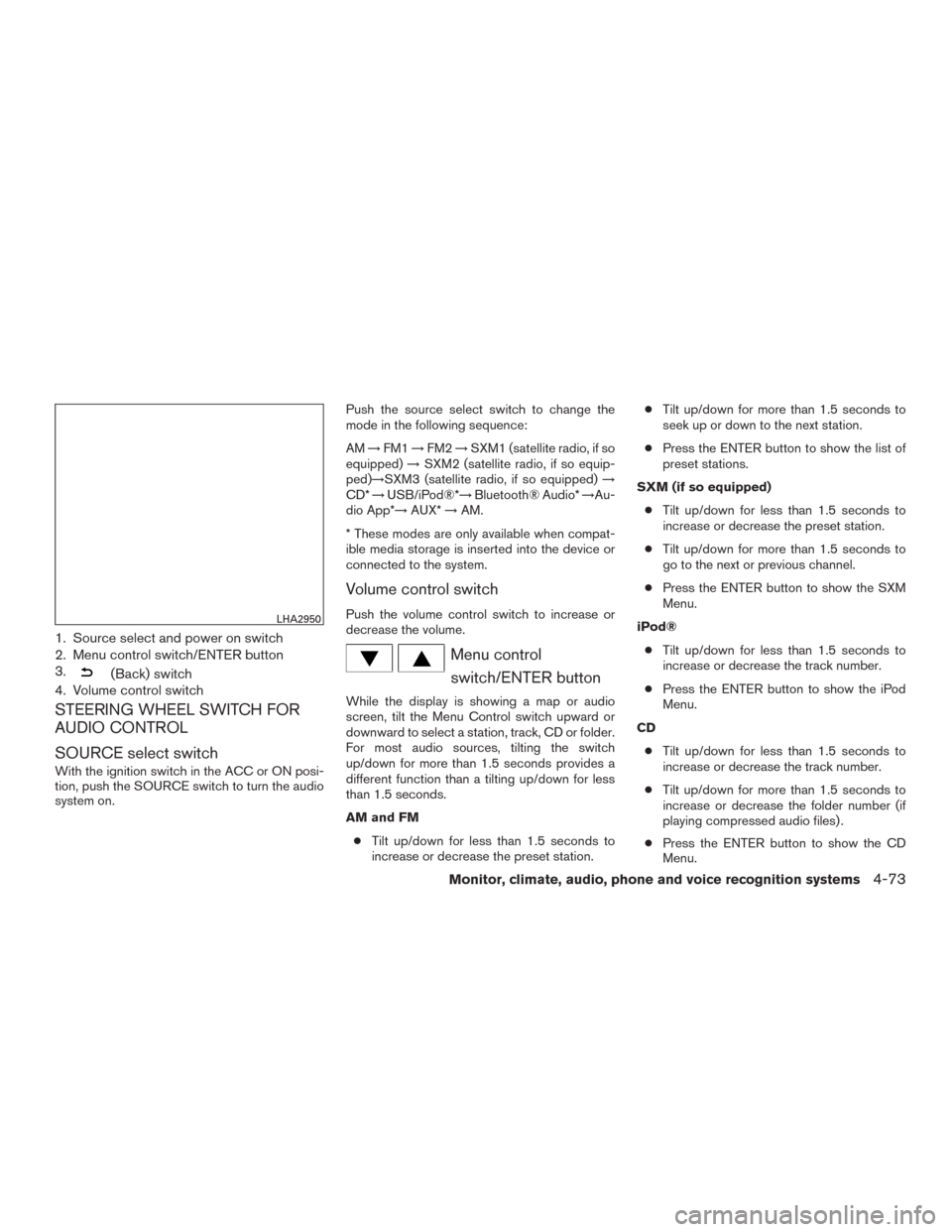
1. Source select and power on switch
2. Menu control switch/ENTER button
3.
(Back) switch
4. Volume control switch
STEERING WHEEL SWITCH FOR
AUDIO CONTROL
SOURCE select switch
With the ignition switch in the ACC or ON posi-
tion, push the SOURCE switch to turn the audio
system on. Push the source select switch to change the
mode in the following sequence:
AM
→FM1 →FM2 →SXM1 (satellite radio, if so
equipped) →SXM2 (satellite radio, if so equip-
ped)→SXM3 (satellite radio, if so equipped) →
CD* →USB/iPod®*→ Bluetooth® Audio* →Au-
dio App*→ AUX*→AM.
* These modes are only available when compat-
ible media storage is inserted into the device or
connected to the system.
Volume control switch
Push the volume control switch to increase or
decrease the volume.
Menu control switch/ENTER button
While the display is showing a map or audio
screen, tilt the Menu Control switch upward or
downward to select a station, track, CD or folder.
For most audio sources, tilting the switch
up/down for more than 1.5 seconds provides a
different function than a tilting up/down for less
than 1.5 seconds.
AM and FM
● Tilt up/down for less than 1.5 seconds to
increase or decrease the preset station. ●
Tilt up/down for more than 1.5 seconds to
seek up or down to the next station.
● Press the ENTER button to show the list of
preset stations.
SXM (if so equipped) ● Tilt up/down for less than 1.5 seconds to
increase or decrease the preset station.
● Tilt up/down for more than 1.5 seconds to
go to the next or previous channel.
● Press the ENTER button to show the SXM
Menu.
iPod® ● Tilt up/down for less than 1.5 seconds to
increase or decrease the track number.
● Press the ENTER button to show the iPod
Menu.
CD ● Tilt up/down for less than 1.5 seconds to
increase or decrease the track number.
● Tilt up/down for more than 1.5 seconds to
increase or decrease the folder number (if
playing compressed audio files) .
● Press the ENTER button to show the CD
Menu.
LHA2950
Monitor, climate, audio, phone and voice recognition systems4-73
Page 286 of 440
●When a spare tire is mounted or a wheel
is replaced, tire pressure will not be
indicated, the TPMS will not function
and the low tire pressure warning light
will flash for approximately 1 minute.
The light will remain on after 1 minute.
Contact a NISSAN dealer as soon as
possible for tire replacement and/or
system resetting.
● Replacing tires with those not originally
specified by NISSAN could affect the
proper operation of the TPMS.
● Do not inject any tire liquid or aerosol
tire sealant into the tires, as this may
cause a malfunction of the tire pressure
sensors.
CAUTION
● The TPMS may not function properly
when the wheels are equipped with tire
chains or the wheels are buried in snow.
● Do not place metalized film or any
metal parts (antenna, etc.) on the win-
dows. This may cause poor reception of
the signals from the tire pressure sen-
sors, and the TPMS will not function
properly. Some devices and transmitters may temporarily
interfere with the operation of the TPMS and
cause the low tire pressure warning light to illu-
minate.
Some examples are:
– Facilities or electric devices using similar radio
frequencies are near the vehicle.
– If a transmitter set to similar frequencies is being used in or near the vehicle.
– If a computer (or similar equipment) or a DC/AC converter is being used in or near the
vehicle.
FCC Notice:
For USA:
This device complies with Part 15 of the
FCC Rules. Operation is subject to the fol-
lowing two conditions: (1) This device may
not cause harmful interference, and (2) this
device must accept any interference re-
ceived, including interference that may
cause undesired operation. NOTE:
Changes or modification not expressly ap-
proved by the party responsible for compli-
ance could void the user’s authority to op-
erate the equipment.
For Canada:
This device complies with Industry Canada
license-exempt RSS standard(s) . Opera-
tion is subject to the following two condi-
tions: (1) this device may not cause inter-
ference, and (2) this device must accept any
interference, including interference that
may cause undesired operation of the de-
vice.
TPMS with Easy Fill Tire Alert
When adding air to an under-inflated tire, the
TPMS with Easy Fill Tire Alert provides visual and
audible signals outside the vehicle to help you
inflate the tires to the recommended COLD tire
pressure.
Vehicle set-up
1. Park the vehicle in a safe and level place.
2. Apply the parking brake and place the shift lever to the P (Park) position.
3. Place the ignition switch to the ON position. Do not start the engine.
Starting and driving5-5
Page 311 of 440
PRECAUTIONS ON CRUISE
CONTROL
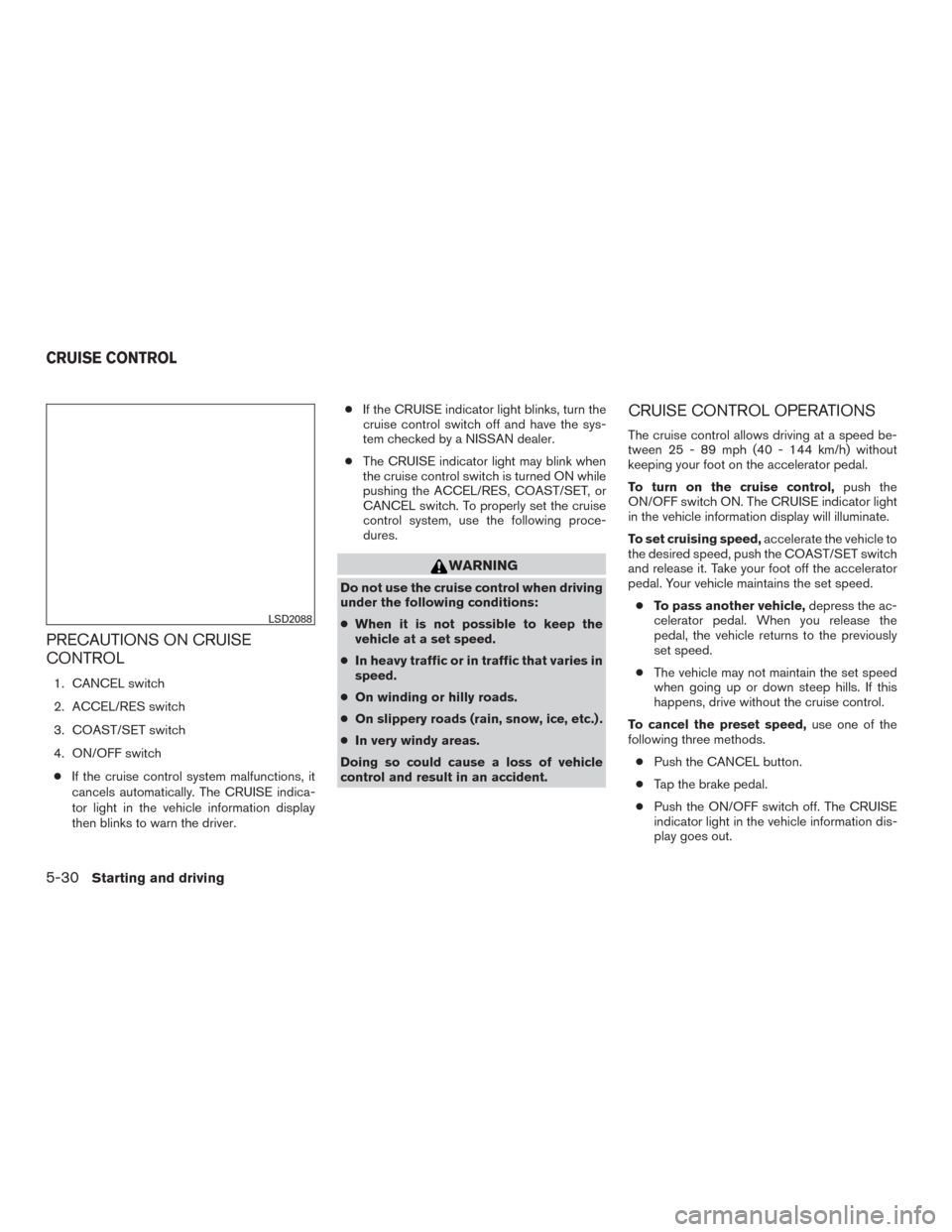
1. CANCEL switch
2. ACCEL/RES switch
3. COAST/SET switch
4. ON/OFF switch● If the cruise control system malfunctions, it
cancels automatically. The CRUISE indica-
tor light in the vehicle information display
then blinks to warn the driver. ●
If the CRUISE indicator light blinks, turn the
cruise control switch off and have the sys-
tem checked by a NISSAN dealer.
● The CRUISE indicator light may blink when
the cruise control switch is turned ON while
pushing the ACCEL/RES, COAST/SET, or
CANCEL switch. To properly set the cruise
control system, use the following proce-
dures.
WARNING
Do not use the cruise control when driving
under the following conditions:
● When it is not possible to keep the
vehicle at a set speed.
● In heavy traffic or in traffic that varies in
speed.
● On winding or hilly roads.
● On slippery roads (rain, snow, ice, etc.) .
● In very windy areas.
Doing so could cause a loss of vehicle
control and result in an accident.
CRUISE CONTROL OPERATIONS
The cruise control allows driving at a speed be-
tween 25 - 89 mph (40 - 144 km/h) without
keeping your foot on the accelerator pedal.
To turn on the cruise control, push the
ON/OFF switch ON. The CRUISE indicator light
in the vehicle information display will illuminate.
To set cruising speed, accelerate the vehicle to
the desired speed, push the COAST/SET switch
and release it. Take your foot off the accelerator
pedal. Your vehicle maintains the set speed.
● To pass another vehicle, depress the ac-
celerator pedal. When you release the
pedal, the vehicle returns to the previously
set speed.
● The vehicle may not maintain the set speed
when going up or down steep hills. If this
happens, drive without the cruise control.
To cancel the preset speed, use one of the
following three methods.
● Push the CANCEL button.
● Tap the brake pedal.
● Push the ON/OFF switch off. The CRUISE
indicator light in the vehicle information dis-
play goes out.
LSD2088
CRUISE CONTROL
5-30Starting and driving
Page 312 of 440
The cruise control is automatically canceled if:● you depress the brake pedal while pushing
the ACCEL/RES or SET/COAST switch.
The preset speed is deleted from memory.
● the vehicle slows down more than 8 mph
(13 km/h) below the set speed.
● you move the shift lever to N (Neutral) .
To reset at a faster cruising speed, use one of
the following three methods.
● Depress the accelerator pedal. When the
vehicle attains the desired speed, push and
release the COAST/SET switch.
● Push and hold the ACCEL/RES switch.
When the vehicle attains the speed you de-
sire, release the switch.
● Push and release the ACCEL/RES switch.
Each time you do this, the set speed in-
creases by about 1 mph (1.6 km/h).
To reset at a slower cruising speed, use one
of the following three methods.
● Lightly tap the brake pedal. When the ve-
hicle attains the desired speed, push the
COAST/SET switch and release it.
● Push and hold the COAST/SET switch. Re-
lease the switch when the vehicle slows to
the desired speed. ●
Push and release the COAST/SET switch.
Each time you do this, the set speed de-
creases by about 1 mph (1.6 km/h).
To resume the preset speed, push and re-
lease the ACCEL/RES switch. The vehicle re-
turns to the last set cruising speed when the
vehicle speed is over 25 mph (40 km/h).
To turn off the cruise control, use one of the
following three methods.
● Push the CANCEL button.
● Tap the brake pedal.
● Push the ON/OFF switch off. The CRUISE
indicator light in the vehicle information dis-
play goes out. The Forward Collision Warning (FCW) system
will warn the driver by flashing the FCW indicator
light and providing a warning chime when your
vehicle is getting close to the vehicle ahead in the
traveling lane.
The FCW system will function when your vehicle
is driven at speeds of approximately 10 MPH
(15 km/h) and above.
FORWARD COLLISION WARNING
(FCW) SYSTEM (if so equipped)
Starting and driving5-31
Page 325 of 440
The Vehicle Dynamic Control (VDC) system uses
various sensors to monitor driver inputs and ve-
hicle motion. Under certain driving conditions,
the VDC System helps to perform the following
functions:● Controls brake pressure to reduce wheel
slip on one slipping drive wheel so power is
transferred to a non slipping drive wheel on
the same axle.
● Controls brake pressure and engine output
to reduce drive wheel slip based on vehicle
speed (traction control function) .
● Controls brake pressure at individual wheels
and engine output to help the driver maintain
control of the vehicle in the following condi-
tions:
– understeer (vehicle tends to not follow the steered path despite increased steer-
ing input)
– oversteer (vehicle tends to spin due to certain road or driving conditions)
The VDC system can help the driver to maintain
control of the vehicle, but it cannot prevent loss of
vehicle control in all driving situations.
When the VDC system operates, the
indi-
cator in the instrument panel flashes so note the
following: ●
The road may be slippery or the system may
determine some action is required to help
keep the vehicle on the steered path.
● You may feel a pulsation in the brake pedal
and hear a noise or vibration from under the
hood. This is normal and indicates that the
VDC system is working properly.
● Adjust your speed and driving to the road
conditions.
For additional information, refer to “Slip indicator
light” and ”Vehicle Dynamic Control (VDC) OFF
indicator light” in the ”Instruments and controls”
section of this manual.
If a malfunction occurs in the system, the
andindicator lights come on in the instru-
ment panel. The VDC system automatically turns
off when these indicator lights are on.
The VDC OFF switch is used to turn off the VDC
system. The
indicator illuminates to indi-
cate the VDC system is off.
When the VDC switch is used to turn off the
system, the VDC system still operates to prevent
one drive wheel from slipping by transferring
power to a non slipping drive wheel. The
indicator flashes if this occurs. All other VDC
functions are off and the
indicator will not
flash. The VDC system is automatically reset to on
when the ignition switch is placed in the OFF
position then back to the ON position.
The computer has a built in diagnostic feature
that tests the system each time you start the
engine and move the vehicle forward or in reverse
at a slow speed. When the self-test occurs, you
may hear a clunk noise and/or feel a pulsation in
the brake pedal. This is normal and is not an
indication of a malfunction.
WARNING
●
The VDC system is designed to help the
driver maintain stability but does not
prevent accidents due to abrupt steer-
ing operation at high speeds or by care-
less or dangerous driving techniques.
Reduce vehicle speed and be especially
careful when driving and cornering on
slippery surfaces and always drive
carefully.
VEHICLE DYNAMIC CONTROL (VDC)
SYSTEM
5-44Starting and driving