2015 NISSAN ARMADA ECO mode
[x] Cancel search: ECO modePage 274 of 510
AUX button
When the AUX button is pressed with the system
off and the iPod® connected, the system will turn
on. If another audio source is playing and the
iPod® is connected, press the AUX button re-
peatedly until the center display changes to the
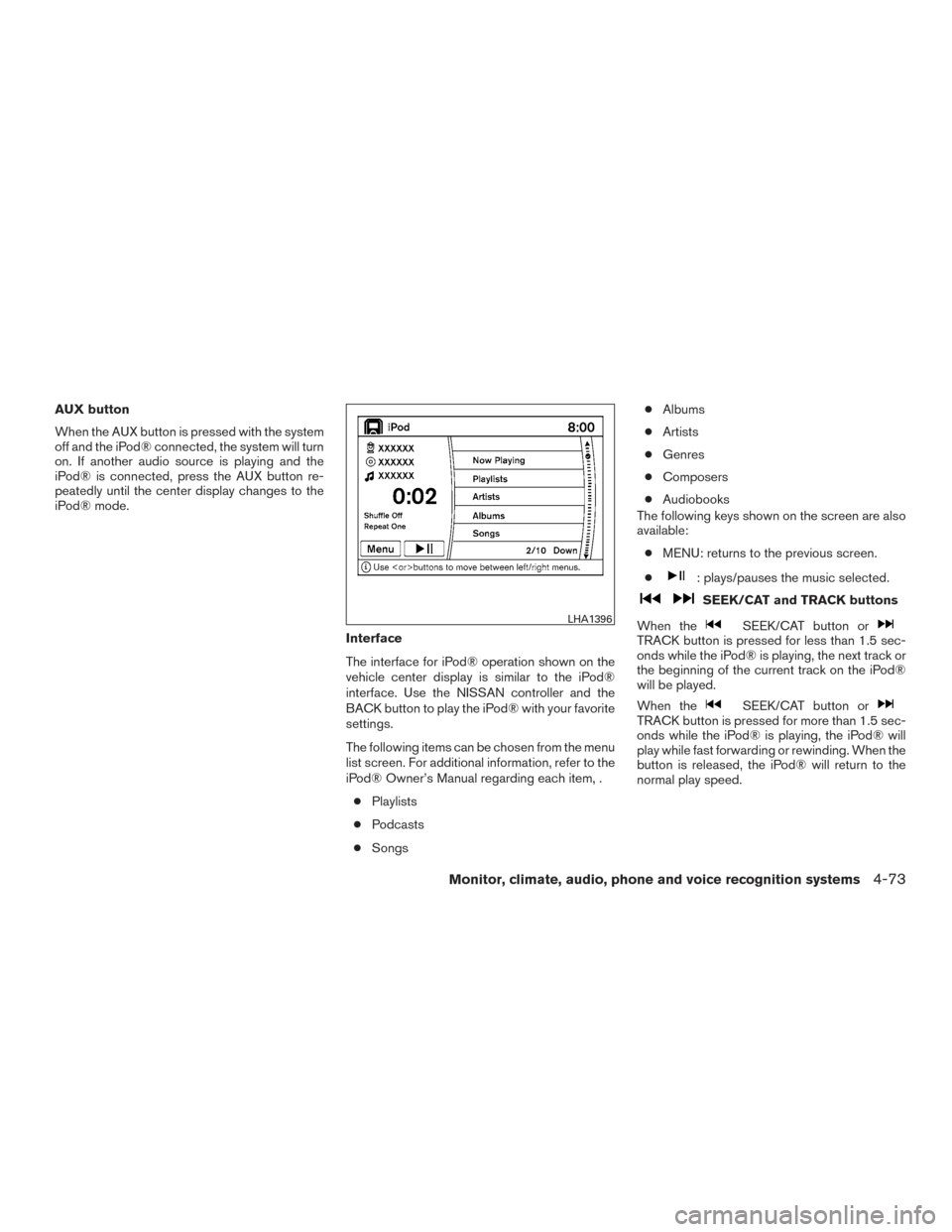
iPod® mode.Interface
The interface for iPod® operation shown on the
vehicle center display is similar to the iPod®
interface. Use the NISSAN controller and the
BACK button to play the iPod® with your favorite
settings.
The following items can be chosen from the menu
list screen. For additional information, refer to the
iPod® Owner’s Manual regarding each item, .● Playlists
● Podcasts
● Songs ●
Albums
● Artists
● Genres
● Composers
● Audiobooks
The following keys shown on the screen are also
available:
● MENU: returns to the previous screen.
●
: plays/pauses the music selected.
SEEK/CAT and TRACK buttons
When the
SEEK/CAT button orTRACK button is pressed for less than 1.5 sec-
onds while the iPod® is playing, the next track or
the beginning of the current track on the iPod®
will be played.
When the
SEEK/CAT button orTRACK button is pressed for more than 1.5 sec-
onds while the iPod® is playing, the iPod® will
play while fast forwarding or rewinding. When the
button is released, the iPod® will return to the
normal play speed.
LHA1396
Monitor, climate, audio, phone and voice recognition systems4-73
Page 275 of 510
iPod®* PLAYER OPERATION WITH
NAVIGATION SYSTEM
Connecting iPod®
WARNING
Do not connect, disconnect or operate the
USB device while driving. Doing so can be
a distraction. If distracted you could lose
control of your vehicle and cause an acci-
dent or serious injury.
CAUTION
●Do not force the USB device into the
USB port. Inserting the USB device
tilted or up-side-down into the port may
damage the port. Make sure that the
USB device is connected correctly into
the USB port.
● Do not grab the USB port cover (if so
equipped) when pulling the USB device
out of the port. This could damage the
port and the cover.
● Do not leave the USB cable in a place
where it can be pulled unintentionally.
Pulling the cable may damage the port.
For additional information, refer to your device
manufacturer’s owner information regarding the
proper use and care of the device.
To connect an iPod® to the vehicle so that the
iPod® can be controlled with the audio system
controls and display screen, use the USB port
located in the center console. Connect the
iPod®-specific end of the cable to the iPod®
and the USB end of the cable to the USB port on
the vehicle. If your iPod® supports charging via a
USB connection, its battery will be charged while
connected to the vehicle with the ignition switch
in the ACC or ON position. While connected to the vehicle, the iPod® can
only be operated by the vehicle audio controls.
To disconnect the iPod® from the vehicle, re-
move the USB end of the cable from the USB
port on the vehicle, then remove the cable from
the iPod®.
* iPod® is a trademark of Apple Inc., registered in
the U.S. and other countries.
Compatibility
The following models are compatible:
● iPod® 5th Generation (firmware version
1.2.3 or later)
● iPod® Classic (firmware version 1.1.1 or
later)
● iPod® Touch (firmware version 2.0.0 or
later)*
● iPod® nano - 1st generation (firmware ver-
sion 1.3.1 or later)
● iPod® nano - 2nd generation (firmware ver-
sion 1.1.3 or later)
● iPod® nano - 3rd generation (firmware ver-
sion 1.1.3 or later)
LHA2455
4-74Monitor, climate, audio, phone and voice recognition systems
Page 276 of 510
●iPod® nano - 4th generation (firmware ver-
sion 1.0.4 or later)
● iPod® nano - 5th generation (firmware ver-
sion 1.0.1 or later)
* Some features of this iPod® may not be fully
functional.
Make sure that your iPod® firmware is updated to
the version indicated above.
Audio main operation
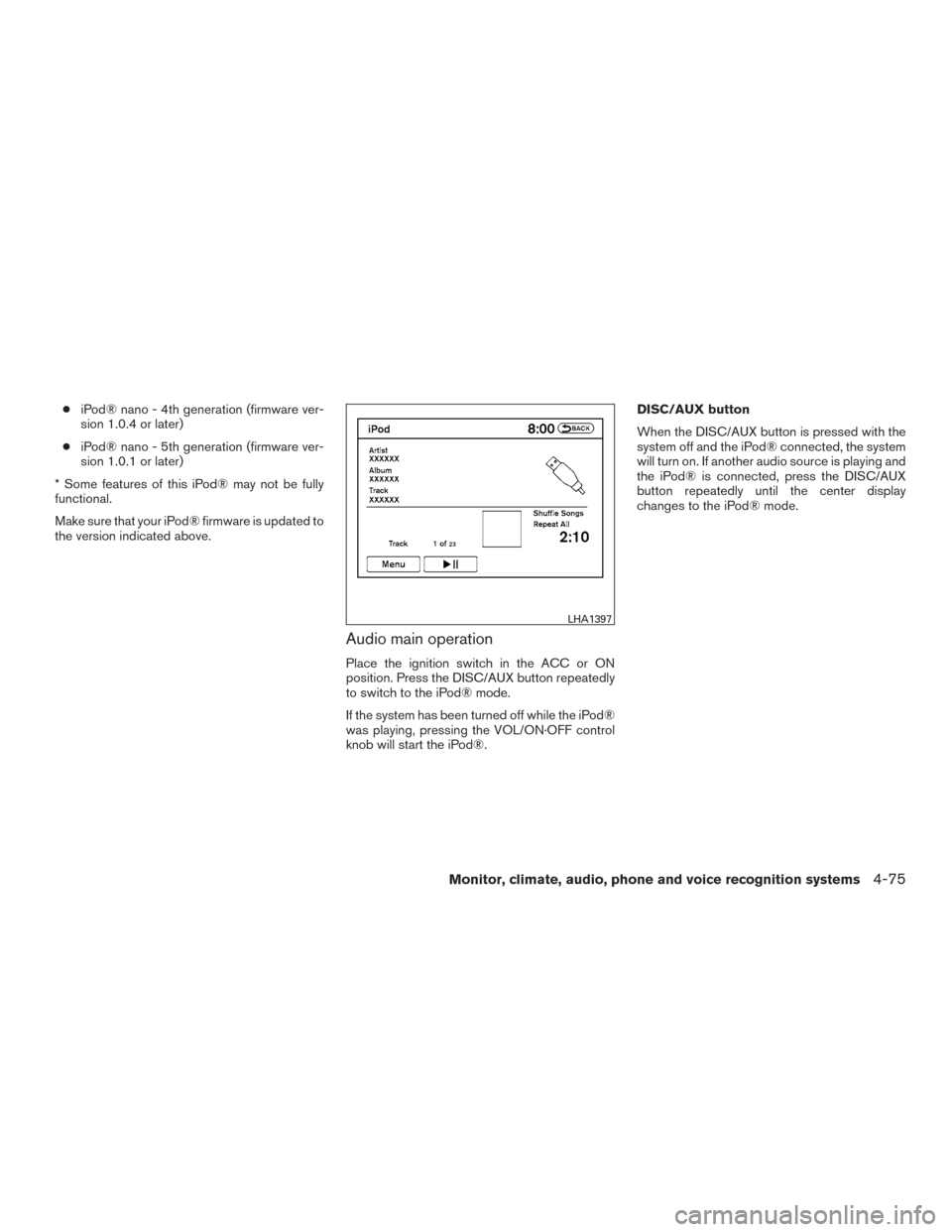
Place the ignition switch in the ACC or ON
position. Press the DISC/AUX button repeatedly
to switch to the iPod® mode.
If the system has been turned off while the iPod®
was playing, pressing the VOL/ON·OFF control
knob will start the iPod®. DISC/AUX button
When the DISC/AUX button is pressed with the
system off and the iPod® connected, the system
will turn on. If another audio source is playing and
the iPod® is connected, press the DISC/AUX
button repeatedly until the center display
changes to the iPod® mode.
LHA1397
Monitor, climate, audio, phone and voice recognition systems4-75
Page 277 of 510
Interface
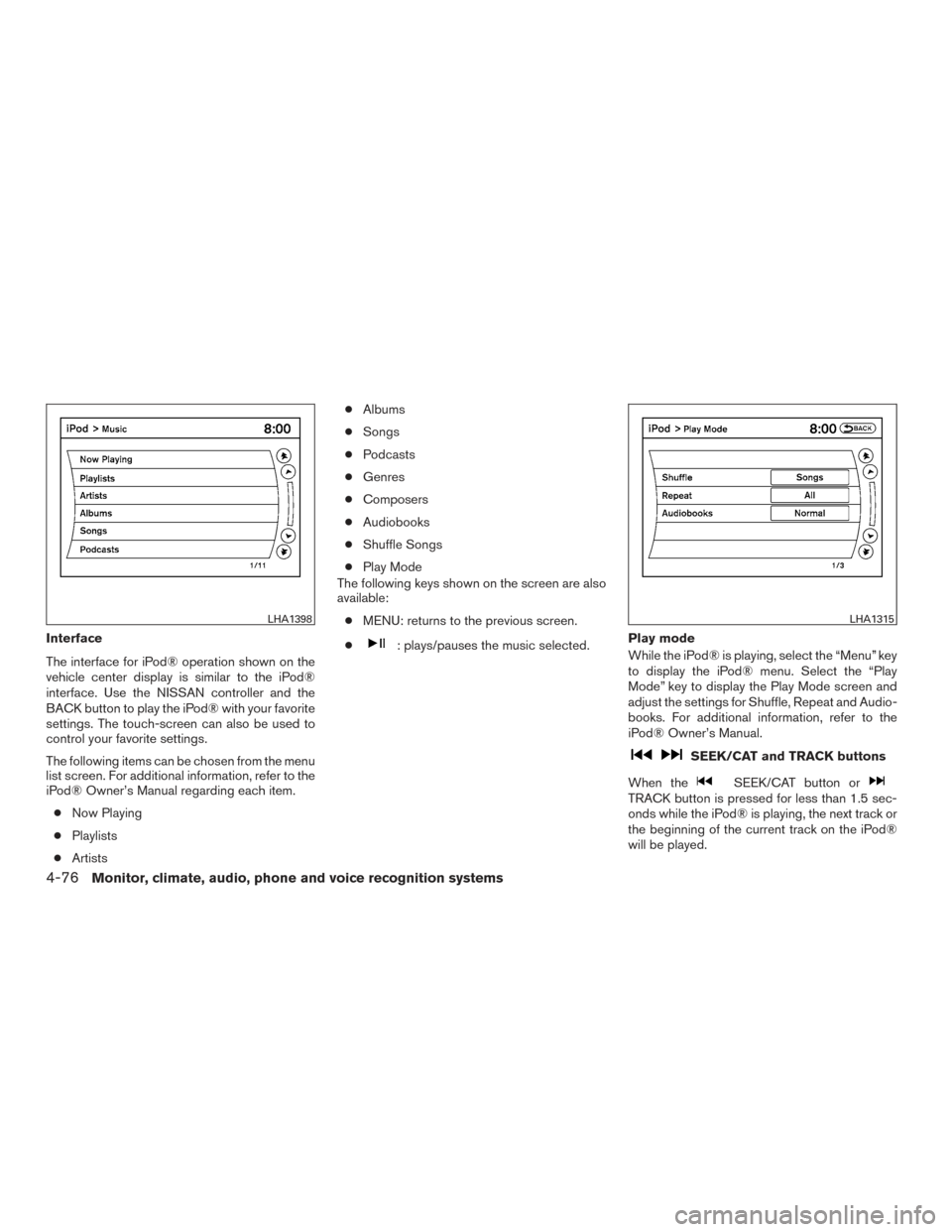
The interface for iPod® operation shown on the
vehicle center display is similar to the iPod®
interface. Use the NISSAN controller and the
BACK button to play the iPod® with your favorite
settings. The touch-screen can also be used to
control your favorite settings.
The following items can be chosen from the menu
list screen. For additional information, refer to the
iPod® Owner’s Manual regarding each item.● Now Playing
● Playlists
● Artists ●
Albums
● Songs
● Podcasts
● Genres
● Composers
● Audiobooks
● Shuffle Songs
● Play Mode
The following keys shown on the screen are also
available:
● MENU: returns to the previous screen.
●: plays/pauses the music selected. Play mode
While the iPod® is playing, select the “Menu” key
to display the iPod® menu. Select the “Play
Mode” key to display the Play Mode screen and
adjust the settings for Shuffle, Repeat and Audio-
books. For additional information, refer to the
iPod® Owner’s Manual.
SEEK/CAT and TRACK buttons
When the
SEEK/CAT button orTRACK button is pressed for less than 1.5 sec-
onds while the iPod® is playing, the next track or
the beginning of the current track on the iPod®
will be played.
LHA1398LHA1315
4-76Monitor, climate, audio, phone and voice recognition systems
Page 278 of 510
When theSEEK/CAT button orTRACK button is pressed for more than 1.5 sec-
onds while the iPod® is playing, the iPod® will
play while fast forwarding or rewinding. When the
button is released, the iPod® will return to the
normal play speed.
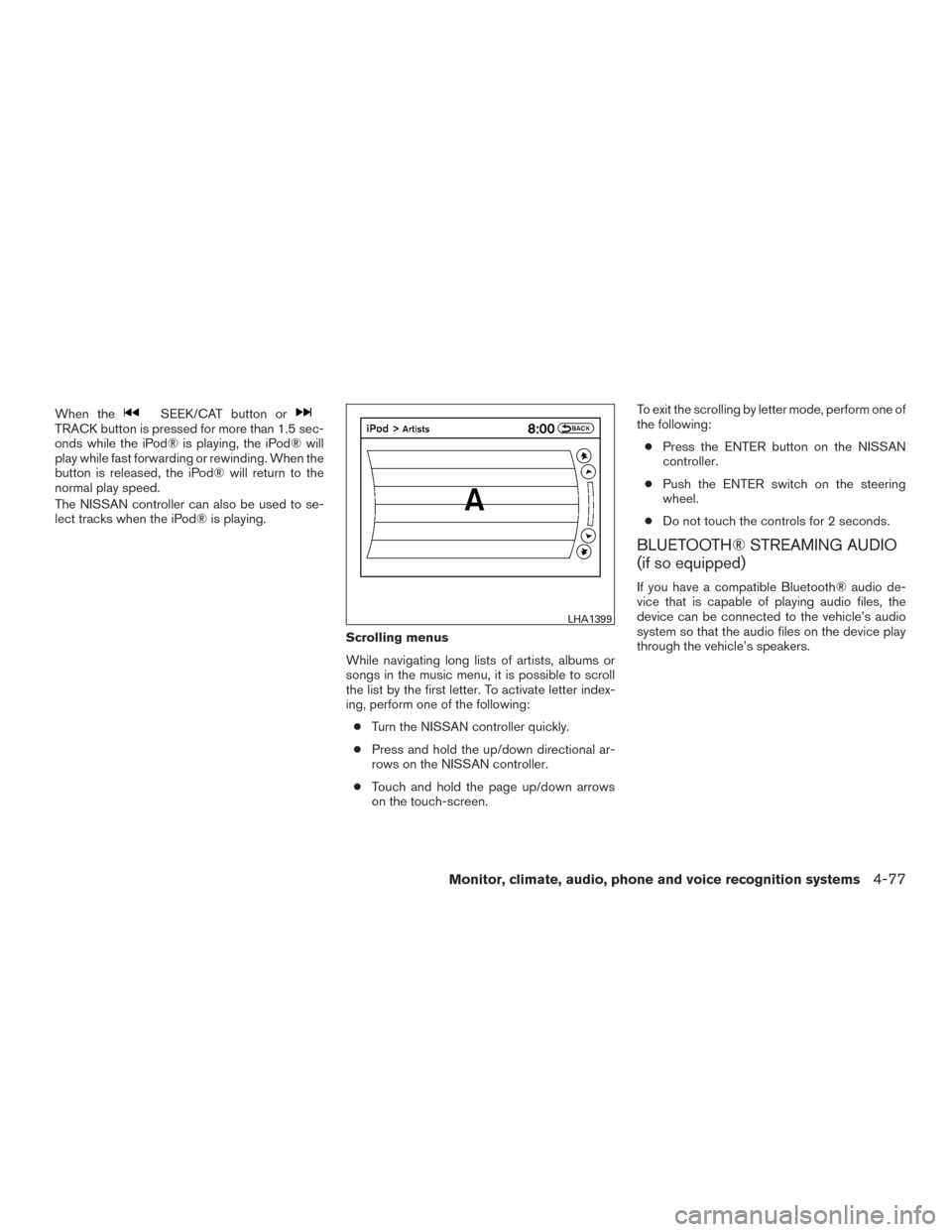
The NISSAN controller can also be used to se-
lect tracks when the iPod® is playing.Scrolling menus
While navigating long lists of artists, albums or
songs in the music menu, it is possible to scroll
the list by the first letter. To activate letter index-
ing, perform one of the following:● Turn the NISSAN controller quickly.
● Press and hold the up/down directional ar-
rows on the NISSAN controller.
● Touch and hold the page up/down arrows
on the touch-screen. To exit the scrolling by letter mode, perform one of
the following:
● Press the ENTER button on the NISSAN
controller.
● Push the ENTER switch on the steering
wheel.
● Do not touch the controls for 2 seconds.
BLUETOOTH® STREAMING AUDIO
(if so equipped)
If you have a compatible Bluetooth® audio de-
vice that is capable of playing audio files, the
device can be connected to the vehicle’s audio
system so that the audio files on the device play
through the vehicle’s speakers.
LHA1399
Monitor, climate, audio, phone and voice recognition systems4-77
Page 280 of 510
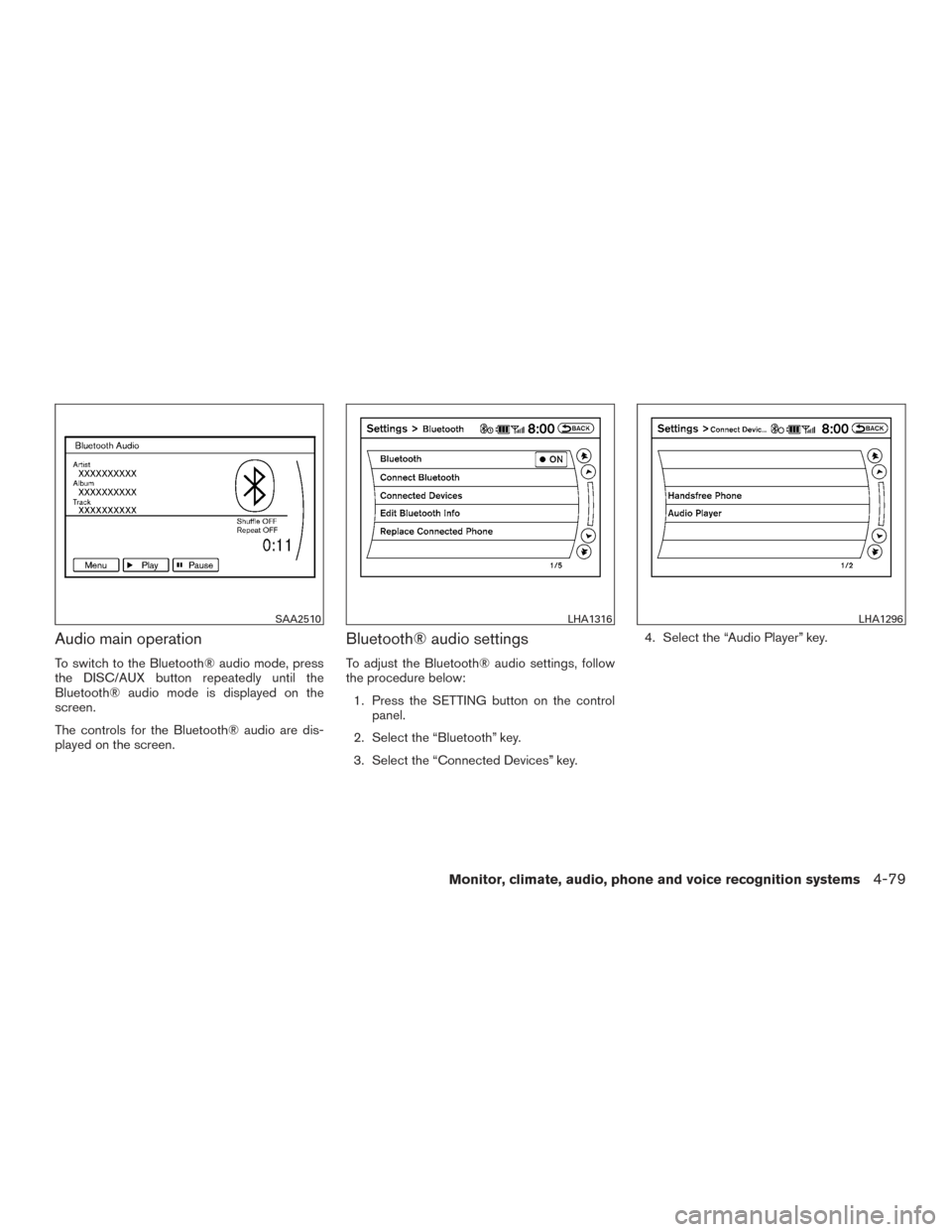
Audio main operation
To switch to the Bluetooth® audio mode, press
the DISC/AUX button repeatedly until the
Bluetooth® audio mode is displayed on the
screen.
The controls for the Bluetooth® audio are dis-
played on the screen.
Bluetooth® audio settings
To adjust the Bluetooth® audio settings, follow
the procedure below:1. Press the SETTING button on the control panel.
2. Select the “Bluetooth” key.
3. Select the “Connected Devices” key. 4. Select the “Audio Player” key.
SAA2510LHA1316LHA1296
Monitor, climate, audio, phone and voice recognition systems4-79
Page 282 of 510
●A new disc may be rough on the inner and
outer edges. Remove the rough edges by
rubbing the inner and outer edges with the
side of a pen or pencil as illustrated.
STEERING WHEEL SWITCH FOR
AUDIO CONTROL
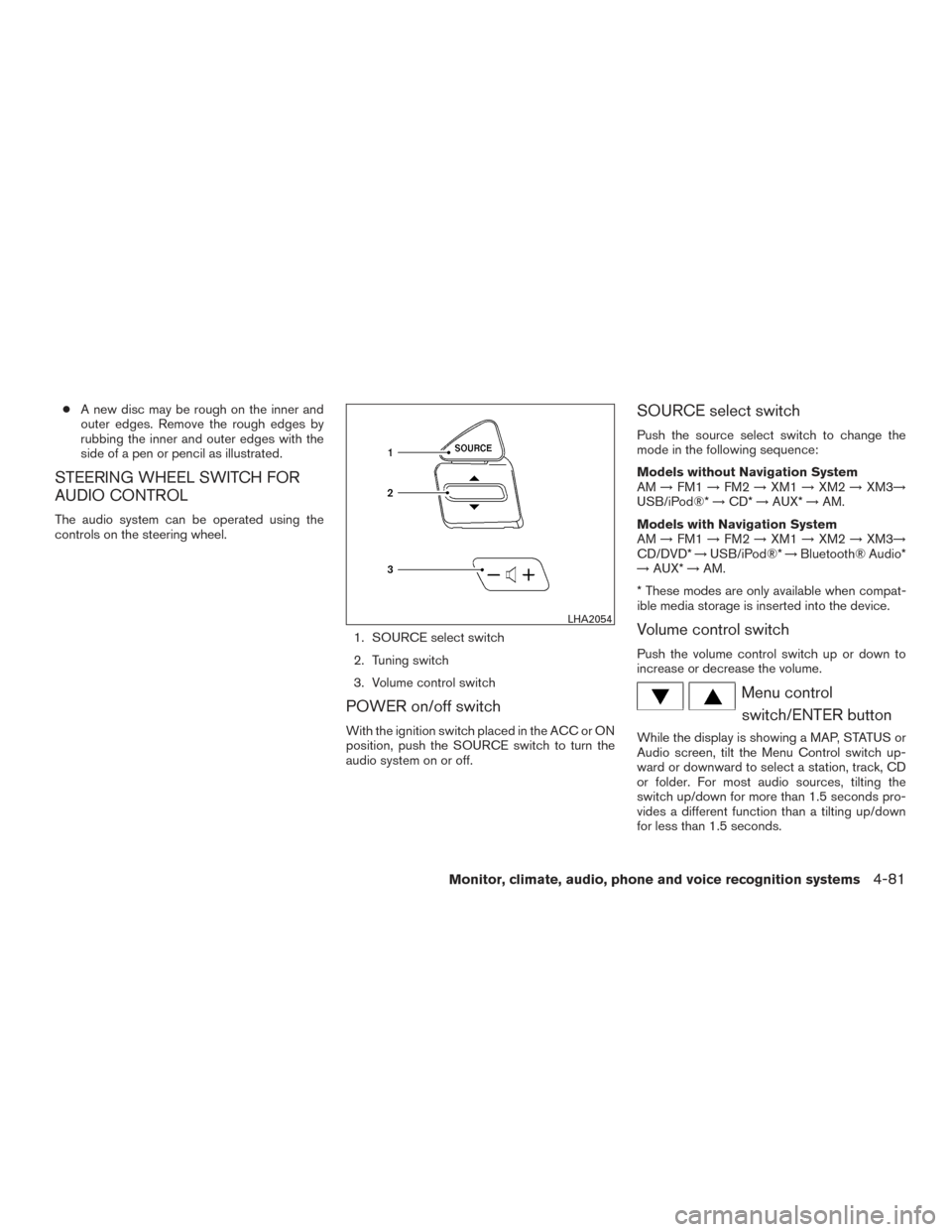
The audio system can be operated using the
controls on the steering wheel.
1. SOURCE select switch
2. Tuning switch
3. Volume control switch
POWER on/off switch
With the ignition switch placed in the ACC or ON
position, push the SOURCE switch to turn the
audio system on or off.
SOURCE select switch
Push the source select switch to change the
mode in the following sequence:
Models without Navigation System
AM→FM1 →FM2 →XM1 →XM2 →XM3→
USB/iPod®* →CD* →AUX* →AM.
Models with Navigation System
AM →FM1 →FM2 →XM1 →XM2 →XM3→
CD/DVD* →USB/iPod®* →Bluetooth® Audio*
→ AUX* →AM.
* These modes are only available when compat-
ible media storage is inserted into the device.
Volume control switch
Push the volume control switch up or down to
increase or decrease the volume.
Menu control switch/ENTER button
While the display is showing a MAP, STATUS or
Audio screen, tilt the Menu Control switch up-
ward or downward to select a station, track, CD
or folder. For most audio sources, tilting the
switch up/down for more than 1.5 seconds pro-
vides a different function than a tilting up/down
for less than 1.5 seconds.
LHA2054
Monitor, climate, audio, phone and voice recognition systems4-81
Page 291 of 510
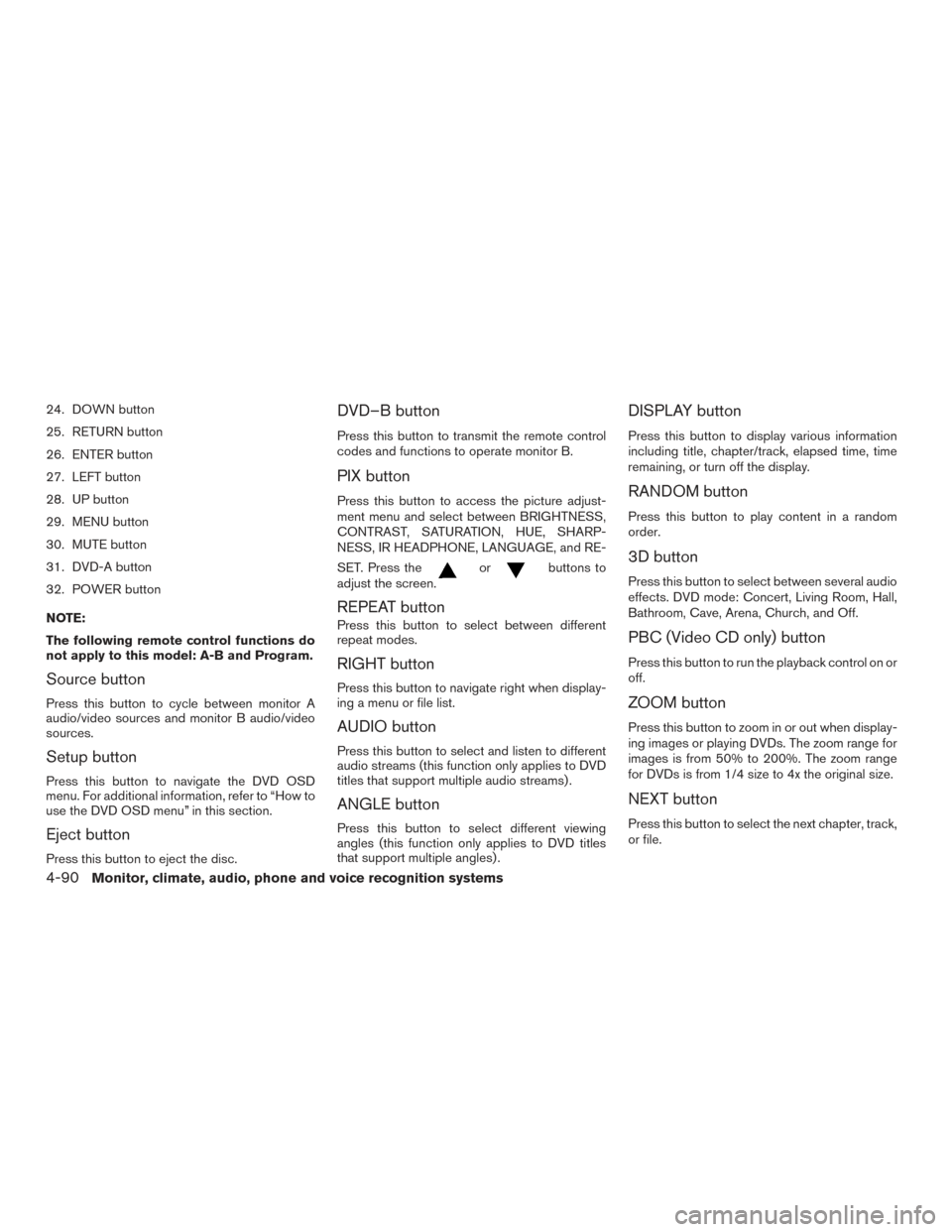
24. DOWN button
25. RETURN button
26. ENTER button
27. LEFT button
28. UP button
29. MENU button
30. MUTE button
31. DVD-A button
32. POWER button
NOTE:
The following remote control functions do
not apply to this model: A-B and Program.
Source button
Press this button to cycle between monitor A
audio/video sources and monitor B audio/video
sources.
Setup button
Press this button to navigate the DVD OSD
menu. For additional information, refer to “How to
use the DVD OSD menu” in this section.
Eject button
Press this button to eject the disc.
DVD–B button
Press this button to transmit the remote control
codes and functions to operate monitor B.
PIX button
Press this button to access the picture adjust-
ment menu and select between BRIGHTNESS,
CONTRAST, SATURATION, HUE, SHARP-
NESS, IR HEADPHONE, LANGUAGE, and RE-
SET. Press the
orbuttons to
adjust the screen.
REPEAT button
Press this button to select between different
repeat modes.
RIGHT button
Press this button to navigate right when display-
ing a menu or file list.
AUDIO button
Press this button to select and listen to different
audio streams (this function only applies to DVD
titles that support multiple audio streams) .
ANGLE button
Press this button to select different viewing
angles (this function only applies to DVD titles
that support multiple angles) .
DISPLAY button
Press this button to display various information
including title, chapter/track, elapsed time, time
remaining, or turn off the display.
RANDOM button
Press this button to play content in a random
order.
3D button
Press this button to select between several audio
effects. DVD mode: Concert, Living Room, Hall,
Bathroom, Cave, Arena, Church, and Off.
PBC (Video CD only) button
Press this button to run the playback control on or
off.
ZOOM button
Press this button to zoom in or out when display-
ing images or playing DVDs. The zoom range for
images is from 50% to 200%. The zoom range
for DVDs is from 1/4 size to 4x the original size.
NEXT button
Press this button to select the next chapter, track,
or file.
4-90Monitor, climate, audio, phone and voice recognition systems