2015 NISSAN ARMADA ECO mode
[x] Cancel search: ECO modePage 336 of 510
NISSAN Voice Recognition allows hands-free
operation of the systems equipped on this ve-
hicle, such as phone and vehicle information.
There are two voice recognition modes of opera-
tion available. They are:● Standard Mode
● Alternate Command Mode
In Standard Mode (the factory default setting) ,
commands that are available are always shown
on the display and announced by the system. You
can complete your desired operation by simply
following the prompts given by the system. Not all
NISSAN Voice Recognition options are available
while in Standard Mode.
For advanced operation, you can change to an
Alternate Command Mode that enables the op-
eration of the display and audio system through
NISSAN Voice Recognition. When this mode is
active, an expanded list of commands can be
spoken after pressing the
button on the
steering wheel, and the voice command menu
prompts are turned off.
In Alternate Command Mode the recognition
success rate may be affected because the num-
ber of available commands and the ways of
speaking each command are increased. For ad- ditional information, refer to “NISSAN Voice Rec-
ognition Alternate Command Mode” in this sec-
tion.
To improve the recognition success rate when
Alternate Command Mode is active, try using the
Speaker Adaptation Function available in that
mode. For additional information, refer to
“Speaker Adaptation Function” in this section.
Otherwise, it is recommended that Alternate
Command Mode be turned off and Standard
Mode be used for the best recognition perfor-
mance.
While using the NISSAN Voice Recognition sys-
tem for certain Phone and Navigation features,
you can switch to using manual controls (touch-
screen, NISSAN controller, steering wheel con-
trols) and the information you have already en-
tered by voice control will be retained. To switch
to manual controls, select the “Manual Controls”
key on the display when it appears. The system
will respond by speaking “Changing to manual
operation. Please use manual controls to con-
tinue.”
For the voice commands for the navigation sys-
tem, refer to the Navigation System Owner’s
Manual of your vehicle.
For vehicles in the U.S., the factory default setting
is the Standard Mode. For additional information,
refer to “NISSAN Voice Recognition StandardMode” in this section. For vehicles in Canada, the
factory default setting is the Alternate Command
Mode. For additional information, refer to “Alter-
nate Command Mode” in this section.
NISSAN VOICE RECOGNITION
STANDARD MODE
The Standard Mode enables control of naviga-
tion, phone and vehicle information. With this
setting active, commands that are available are
always shown on the display and announced by
the system.
Displaying user guide
If you use the NISSAN Voice Recognition system
for the first time or you do not know how to
operate it, you can display the User Guide for
confirmation.
You can confirm how to use voice commands by
accessing a simplified User Guide, which con-
tains basic instructions and tutorials for several
voice commands.
1. Press the INFO button on the control panel.
2. Select the “Voice Recognition” key.
3. Select the “User Guide” key.
4. Select an item.
NISSAN VOICE RECOGNITION
SYSTEM (if so equipped)
Monitor, climate, audio, phone and voice recognition systems4-135
Page 338 of 510
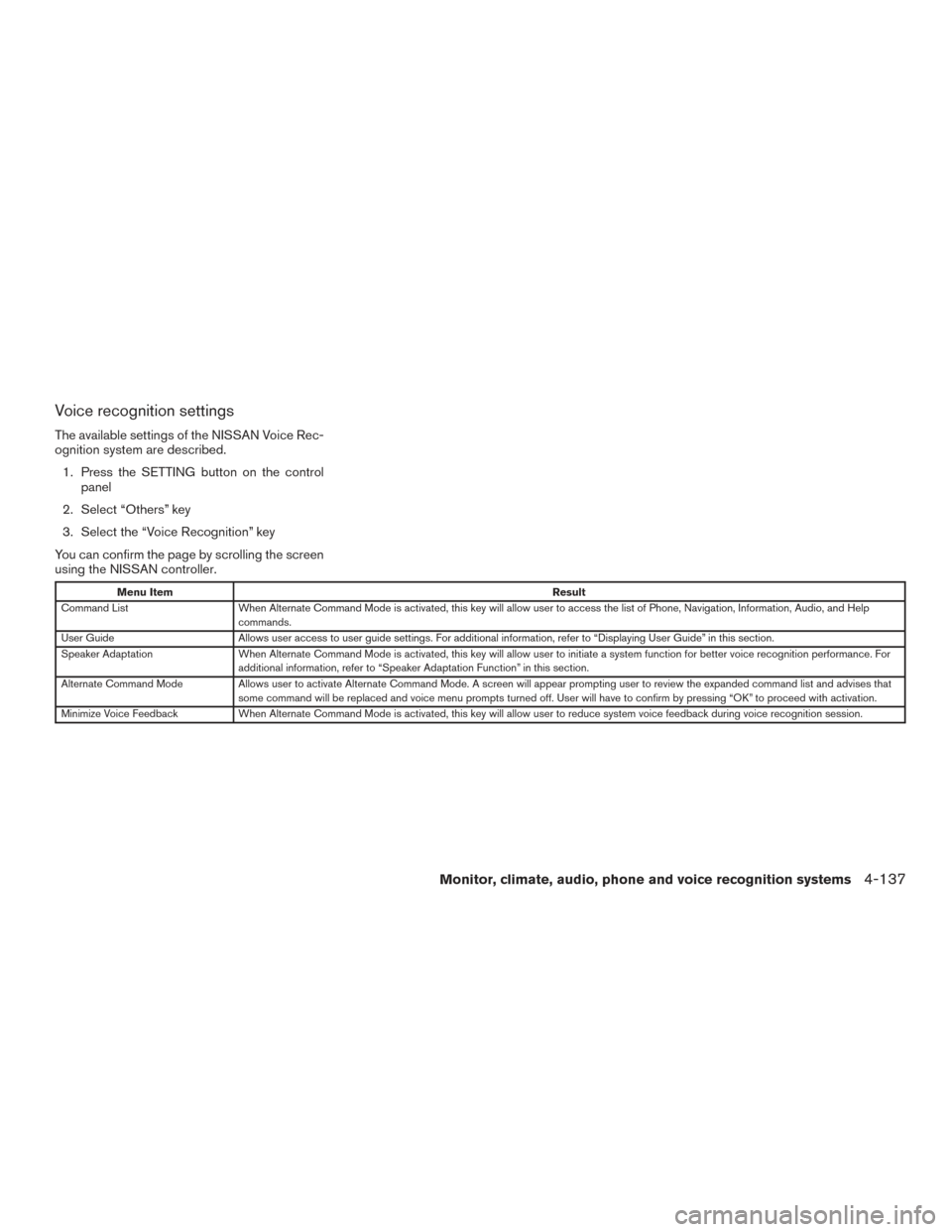
Voice recognition settings
The available settings of the NISSAN Voice Rec-
ognition system are described.1. Press the SETTING button on the control panel
2. Select “Others” key
3. Select the “Voice Recognition” key
You can confirm the page by scrolling the screen
using the NISSAN controller.
Menu Item Result
Command List When Alternate Command Mode is activated, this key will allow user to access the list of Phone, Navigation, Information, Audio, and Help
commands.
User Guide Allows user access to user guide settings. For additional information, refer to “Displaying User Guide” in this section.
Speaker Adaptation When Alternate Command Mode is activated, this key will allow user to initiate a system function for better voice recognition performance. For
additional information, refer to “Speaker Adaptation Function” in this section.
Alternate Command Mode Allows user to activate Alternate Command Mode. A screen will appear prompting user to review the expanded command list and advises that
some command will be replaced and voice menu prompts turned off. User will have to confirm by pressing “OK” to proceed with activation.
Minimize Voice Feedback When Alternate Command Mode is activated, this key will allow user to reduce system voice feedback during voice recognition session.
Monitor, climate, audio, phone and voice recognition systems4-137
Page 341 of 510
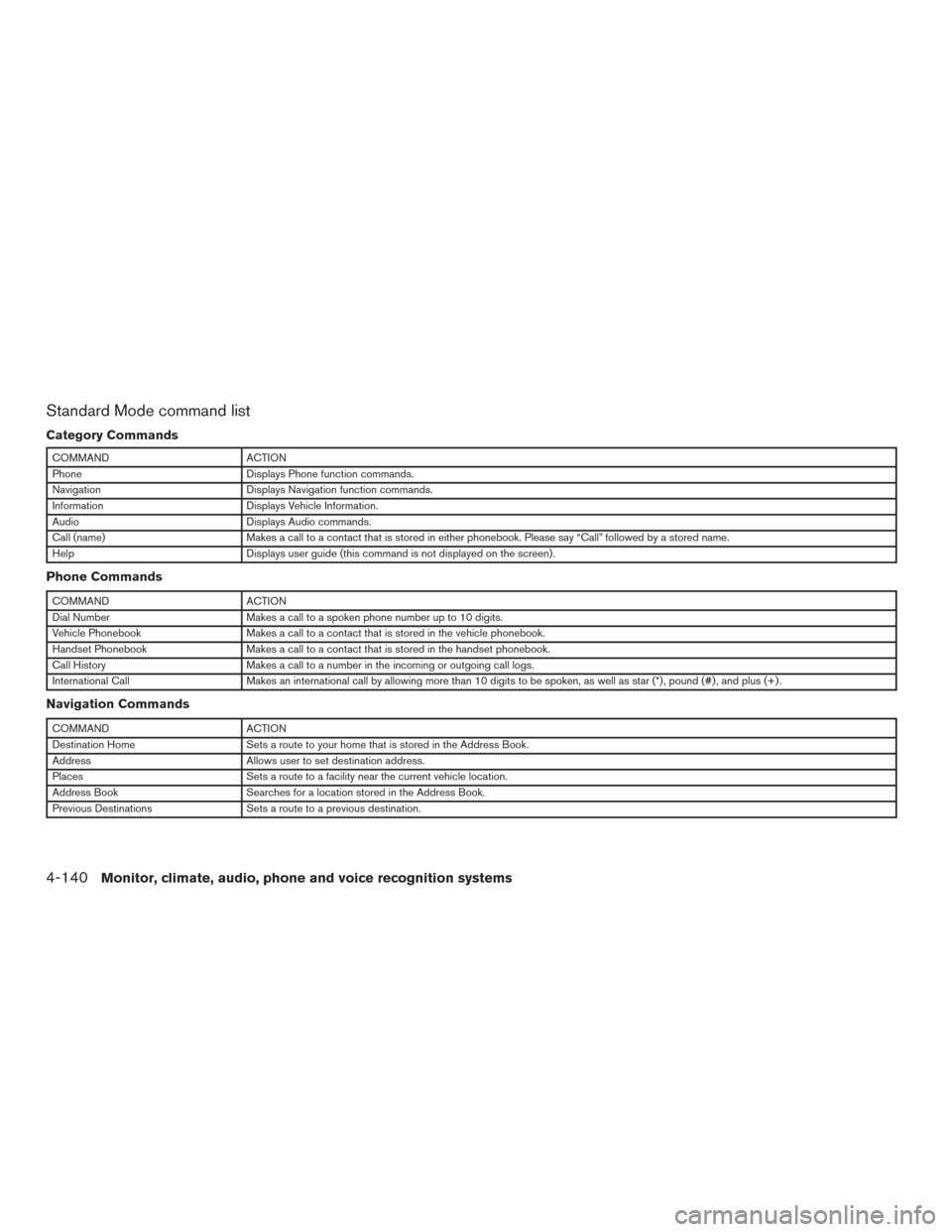
Standard Mode command list
Category Commands
COMMANDACTION
Phone Displays Phone function commands.
Navigation Displays Navigation function commands.
Information Displays Vehicle Information.
Audio Displays Audio commands.
Call (name) Makes a call to a contact that is stored in either phonebook. Please say “Call” followed by a stored name.
Help Displays user guide (this command is not displayed on the screen) .
Phone Commands
COMMANDACTION
Dial Number Makes a call to a spoken phone number up to 10 digits.
Vehicle Phonebook Makes a call to a contact that is stored in the vehicle phonebook.
Handset Phonebook Makes a call to a contact that is stored in the handset phonebook.
Call History Makes a call to a number in the incoming or outgoing call logs.
International Call Makes an international call by allowing more than 10 digits to be spoken, as well as star (*) , pound (#) , and plus (+) .
Navigation Commands
COMMANDACTION
Destination Home Sets a route to your home that is stored in the Address Book.
Address Allows user to set destination address.
Places Sets a route to a facility near the current vehicle location.
Address Book Searches for a location stored in the Address Book.
Previous Destinations Sets a route to a previous destination.
4-140Monitor, climate, audio, phone and voice recognition systems
Page 342 of 510
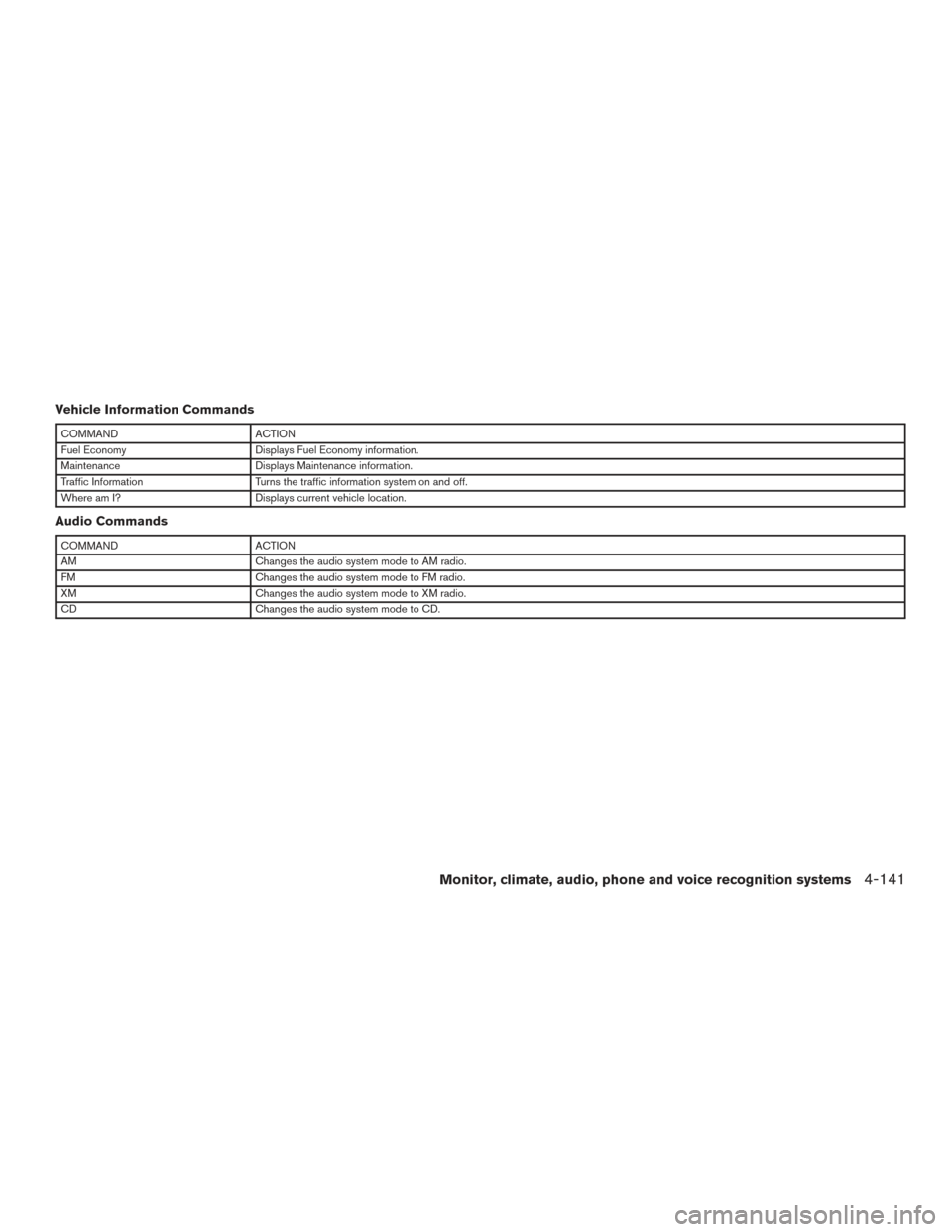
Vehicle Information Commands
COMMANDACTION
Fuel Economy Displays Fuel Economy information.
Maintenance Displays Maintenance information.
Traffic Information Turns the traffic information system on and off.
Where am I? Displays current vehicle location.
Audio Commands
COMMANDACTION
AM Changes the audio system mode to AM radio.
FM Changes the audio system mode to FM radio.
XM Changes the audio system mode to XM radio.
CD Changes the audio system mode to CD.
Monitor, climate, audio, phone and voice recognition systems4-141
Page 344 of 510
●If the system does not recognize your com-
mand, please try repeating the command
using a natural voice. Speaking too slowly or
too loudly may further decrease recognition
performance.
Example 2 — Placing an international call
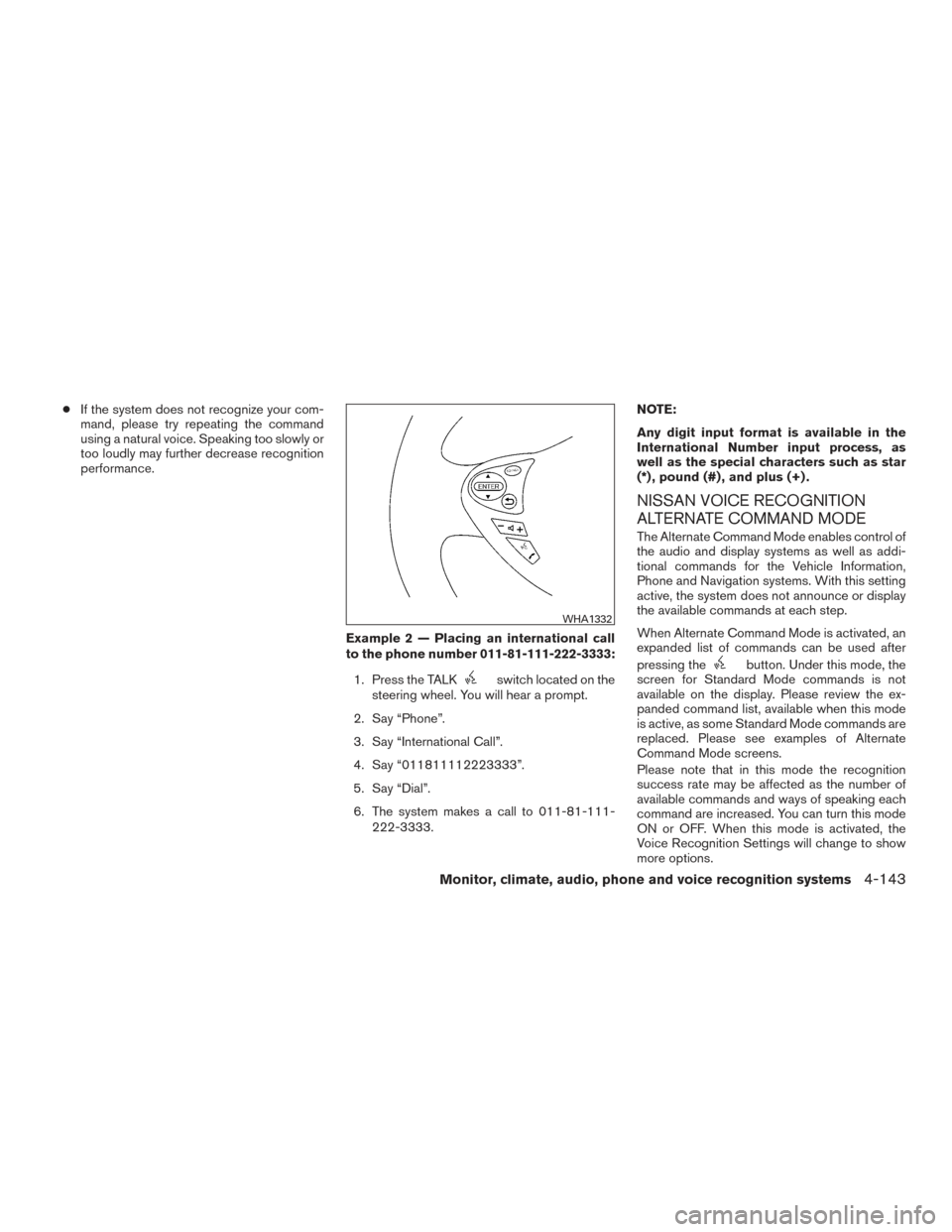
to the phone number 011-81-111-222-3333:1. Press the TALK
switch located on the
steering wheel. You will hear a prompt.
2. Say “Phone”.
3. Say “International Call”.
4. Say “011811112223333”.
5. Say “Dial”.
6. The system makes a call to 011-81-111- 222-3333. NOTE:
Any digit input format is available in the
International Number input process, as
well as the special characters such as star
(*) , pound (#) , and plus (+) .
NISSAN VOICE RECOGNITION
ALTERNATE COMMAND MODE
The Alternate Command Mode enables control of
the audio and display systems as well as addi-
tional commands for the Vehicle Information,
Phone and Navigation systems. With this setting
active, the system does not announce or display
the available commands at each step.
When Alternate Command Mode is activated, an
expanded list of commands can be used after
pressing the
button. Under this mode, the
screen for Standard Mode commands is not
available on the display. Please review the ex-
panded command list, available when this mode
is active, as some Standard Mode commands are
replaced. Please see examples of Alternate
Command Mode screens.
Please note that in this mode the recognition
success rate may be affected as the number of
available commands and ways of speaking each
command are increased. You can turn this mode
ON or OFF. When this mode is activated, the
Voice Recognition Settings will change to show
more options.
WHA1332
Monitor, climate, audio, phone and voice recognition systems4-143
Page 345 of 510

Activating Alternate Command Mode
1. Press the SETTING button on the controlpanel.
2. Select the “Others” key on the display.
3. Select the “Voice Recognition” key.
4. Select the “Alternate Command Mode” key.
5. The confirmation message is displayed on the screen. Select the “OK” key to activate
the Alternate Command Mode.
6. Alternate Command Mode is activated and the setting menu is expanded to include the
Alternate Command Mode options. For ad-
ditional information, refer to “Voice Recogni-
tion Settings” in this section for an explana-
tion of the options.
Displaying the command list
If you are controlling the system by voice com-
mands for the first time or do not know the
appropriate voice command, perform the follow-
ing procedure for displaying the voice command
list (available only in Alternate Command Mode) .
Press the
switch, listen for the tone and
say, “Help”. The system will respond by display-
ing the command list main menu.
Only manual controls such as the touch-screen
can navigate the command list menu.
As an alternative to the voice command “Help”,
you may access the command list using the fol-
lowing steps:
1. Press the SETTING button on the control panel.
2. Select the “Others” key using the NISSAN controller.
3. Select the “Voice Recognition” key using the NISSAN controller. NOTE:
You can skip steps 1 to 3 if you say “Help”.
4. Select the “Command List” key using the NISSAN controller.
5. Select a category using the NISSAN con- troller. The command list for the category
selected is shown.
6. If necessary, scroll the screen using the NISSAN controller to view the entire list.
7. Press the BACK button to return to the previous screen.
4-144Monitor, climate, audio, phone and voice recognition systems
Page 346 of 510
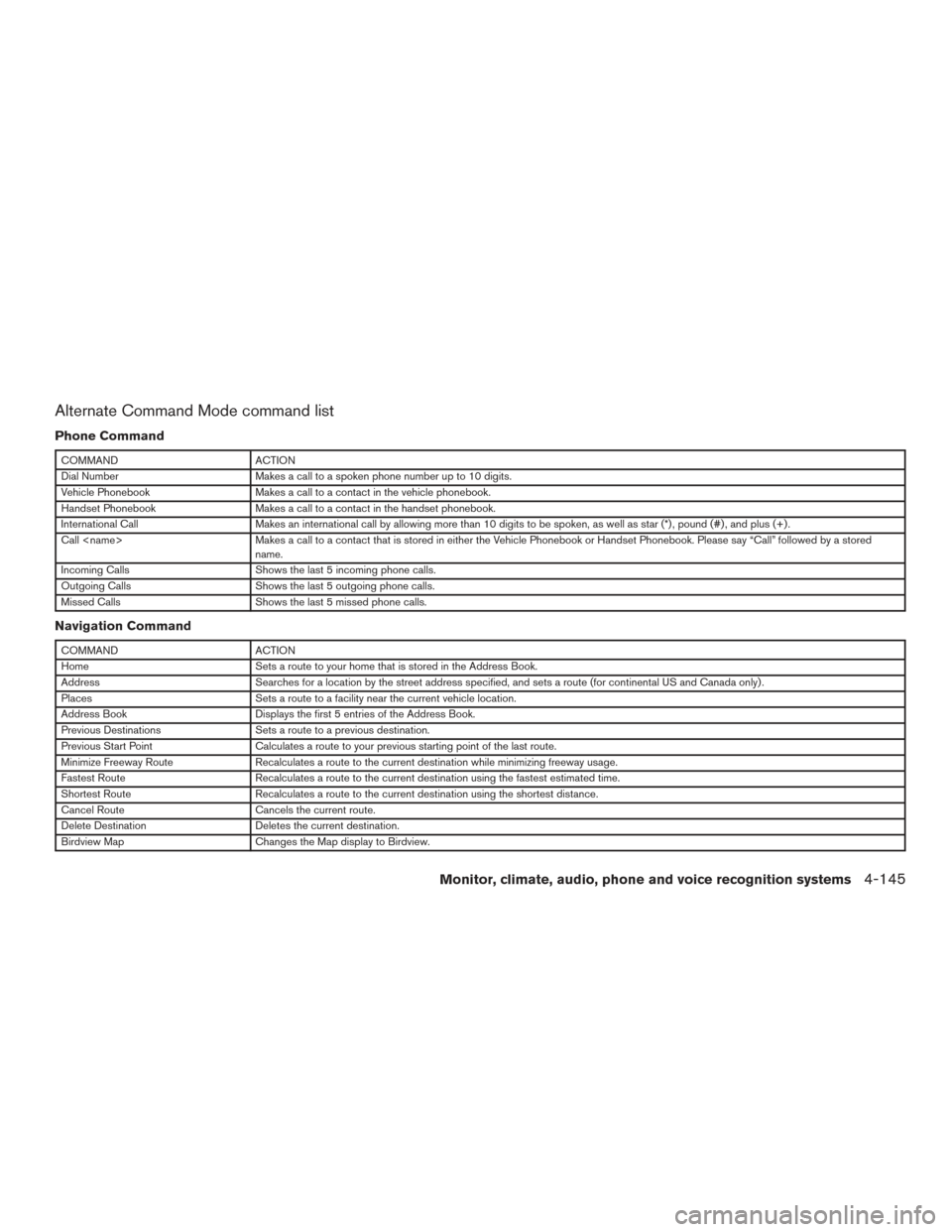
Alternate Command Mode command list
Phone Command
COMMANDACTION
Dial Number Makes a call to a spoken phone number up to 10 digits.
Vehicle Phonebook Makes a call to a contact in the vehicle phonebook.
Handset Phonebook Makes a call to a contact in the handset phonebook.
International Call Makes an international call by allowing more than 10 digits to be spoken, as well as star (*) , pound (#) , and plus (+) .
Call
name.
Incoming Calls Shows the last 5 incoming phone calls.
Outgoing Calls Shows the last 5 outgoing phone calls.
Missed Calls Shows the last 5 missed phone calls.
Navigation Command
COMMANDACTION
Home Sets a route to your home that is stored in the Address Book.
Address Searches for a location by the street address specified, and sets a route (for continental US and Canada only) .
Places Sets a route to a facility near the current vehicle location.
Address Book Displays the first 5 entries of the Address Book.
Previous Destinations Sets a route to a previous destination.
Previous Start Point Calculates a route to your previous starting point of the last route.
Minimize Freeway Route Recalculates a route to the current destination while minimizing freeway usage.
Fastest Route Recalculates a route to the current destination using the fastest estimated time.
Shortest Route Recalculates a route to the current destination using the shortest distance.
Cancel Route Cancels the current route.
Delete Destination Deletes the current destination.
Birdview Map Changes the Map display to Birdview.
Monitor, climate, audio, phone and voice recognition systems4-145
Page 349 of 510
USING THE SYSTEM
Initialization
When the ignition switch is placed in the ON
position, NISSAN Voice Recognition is initialized,
which takes a few seconds. When completed,
the system is ready to accept voice commands. If
the
switch is pressed before the initializa-
tion completes, the display will show the mes-
sage: “System not ready.” or a beep sounds.
Before starting
To get the best performance from NISSAN Voice
Recognition, observe the following:
● Keep the interior of the vehicle as quiet as
possible. Close the windows to eliminate the
surrounding noises (traffic noises, vibration
sounds, etc.) , which may prevent the system
from recognizing the voice commands cor-
rectly.
● When the climate control is in the AUTO
mode, the fan speed decreases automati-
cally for easy recognition.
● Wait until a tone sounds before speaking a
command.
● Speak in a natural voice without pausing
between words.
Giving voice commands
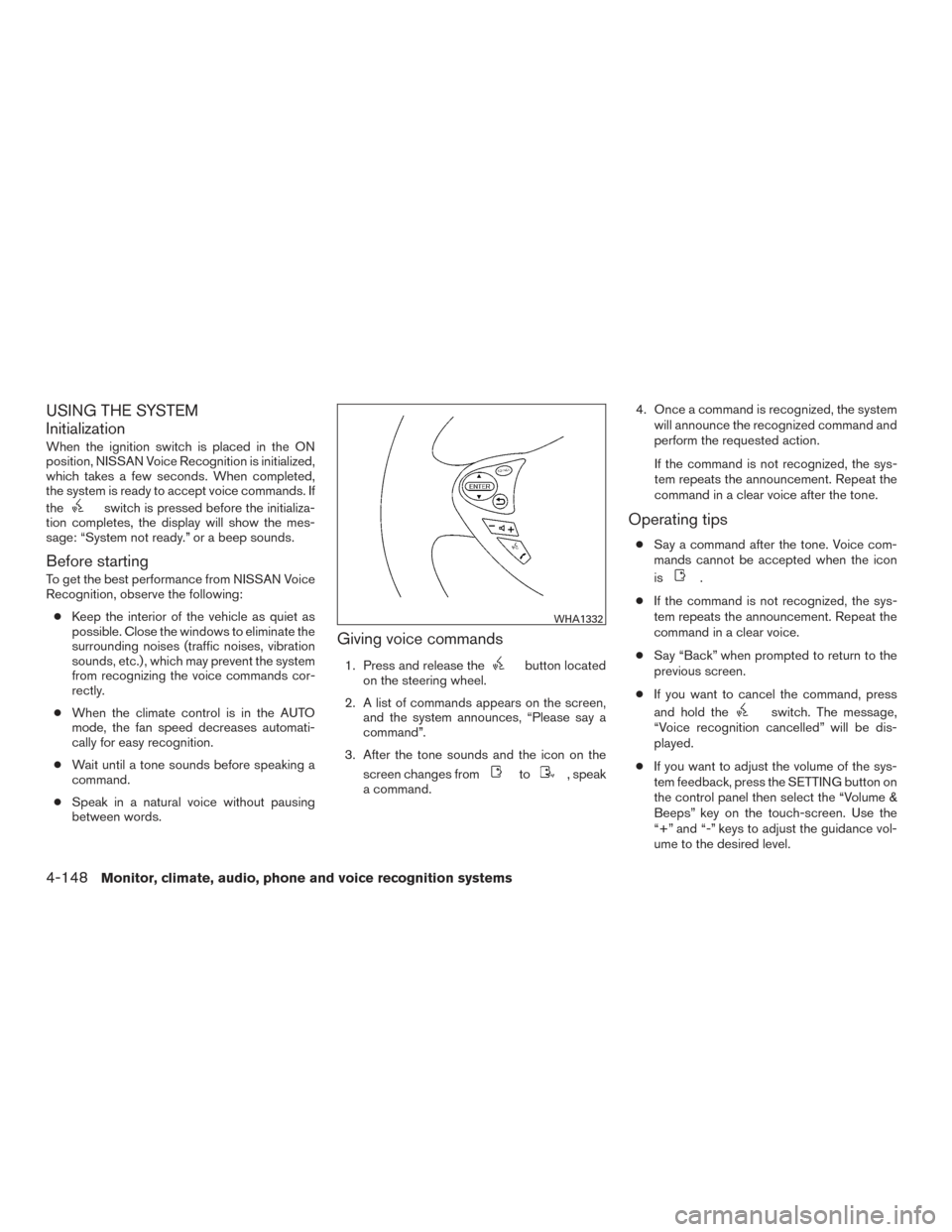
1. Press and release thebutton located
on the steering wheel.
2. A list of commands appears on the screen, and the system announces, “Please say a
command”.
3. After the tone sounds and the icon on the screen changes from
to, speak
a command. 4. Once a command is recognized, the system
will announce the recognized command and
perform the requested action.
If the command is not recognized, the sys-
tem repeats the announcement. Repeat the
command in a clear voice after the tone.
Operating tips
● Say a command after the tone. Voice com-
mands cannot be accepted when the icon
is
.
● If the command is not recognized, the sys-
tem repeats the announcement. Repeat the
command in a clear voice.
● Say “Back” when prompted to return to the
previous screen.
● If you want to cancel the command, press
and hold the
switch. The message,
“Voice recognition cancelled” will be dis-
played.
● If you want to adjust the volume of the sys-
tem feedback, press the SETTING button on
the control panel then select the “Volume &
Beeps” key on the touch-screen. Use the
“+” and “-” keys to adjust the guidance vol-
ume to the desired level.
WHA1332
4-148Monitor, climate, audio, phone and voice recognition systems