2015 NISSAN ARMADA audio
[x] Cancel search: audioPage 214 of 510
Touch-screen maintenance
If you clean the display screen, use a dry, soft
cloth. If additional cleaning is necessary, use a
small amount of neutral detergent with a soft
cloth. Never spray the screen with water or de-
tergent. Dampen the cloth first, then wipe the
screen.
HOW TO SELECT MENUS ON THE
SCREEN
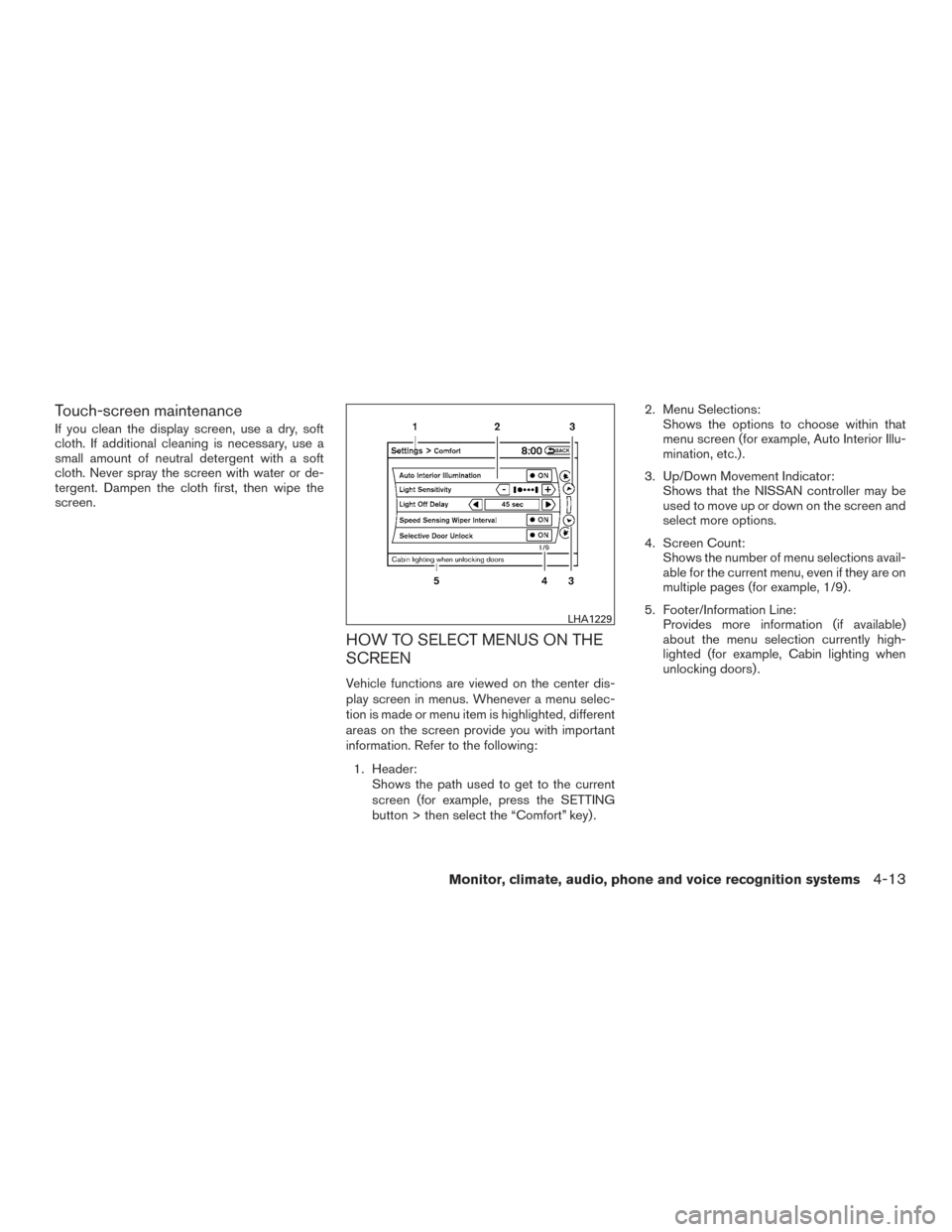
Vehicle functions are viewed on the center dis-
play screen in menus. Whenever a menu selec-
tion is made or menu item is highlighted, different
areas on the screen provide you with important
information. Refer to the following:1. Header: Shows the path used to get to the current
screen (for example, press the SETTING
button > then select the “Comfort” key) . 2. Menu Selections:
Shows the options to choose within that
menu screen (for example, Auto Interior Illu-
mination, etc.) .
3. Up/Down Movement Indicator: Shows that the NISSAN controller may be
used to move up or down on the screen and
select more options.
4. Screen Count: Shows the number of menu selections avail-
able for the current menu, even if they are on
multiple pages (for example, 1/9) .
5. Footer/Information Line: Provides more information (if available)
about the menu selection currently high-
lighted (for example, Cabin lighting when
unlocking doors) .
LHA1229
Monitor, climate, audio, phone and voice recognition systems4-13
Page 215 of 510
HOW TO USE THE STATUS
BUTTON
The STATUS button is used to display system
information. Three different split screens of infor-
mation are available. Press the STATUS button
multiple times to cycle through these screens as
follows:
Audio with Turn Information for Navigation→
Audio with Fuel Economy Information →Audio
with Climate Control Information →Audio with
Turn Information for Navigation
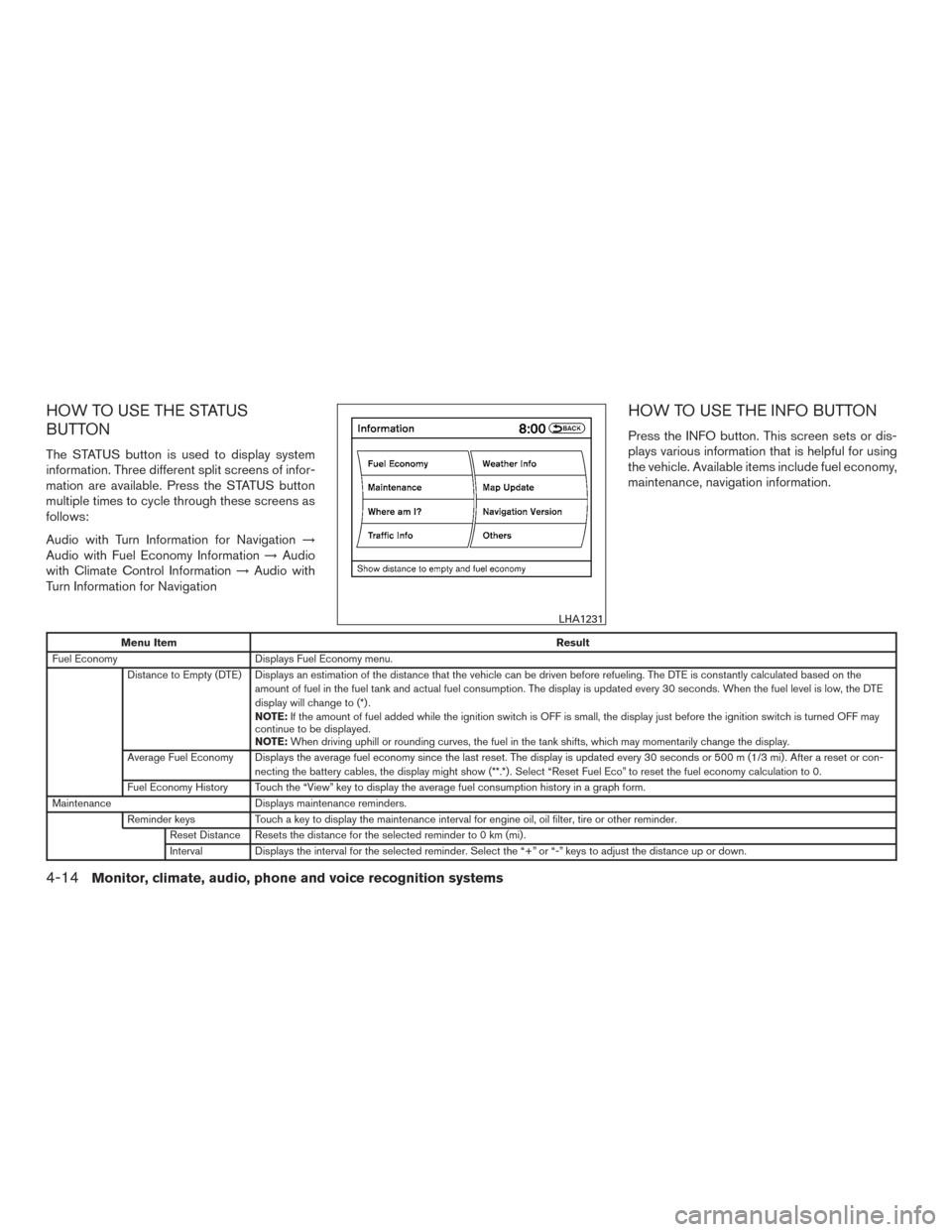
HOW TO USE THE INFO BUTTON
Press the INFO button. This screen sets or dis-
plays various information that is helpful for using
the vehicle. Available items include fuel economy,
maintenance, navigation information.
Menu Item Result
Fuel Economy Displays Fuel Economy menu.
Distance to Empty (DTE) Displays an estimation of the distance that the vehicle can be driven before refueling. The DTE is constantly calculated based on the amount of fuel in the fuel tank and actual fuel consumption. The display is updated every 30 seconds. When the fuel level is low, the DTE
display will change to (*) .
NOTE:If the amount of fuel added while the ignition switch is OFF is small, the display just before the ignition switch is turned OFF may
continue to be displayed.
NOTE: When driving uphill or rounding curves, the fuel in the tank shifts, which may momentarily change the display.
Average Fuel Economy Displays the average fuel economy since the last reset. The display is updated every 30 seconds or 500 m (1/3 mi) . After a reset or con- necting the battery cables, the display might show (**.*) . Select “Reset Fuel Eco” to reset the fuel economy calculation to 0.
Fuel Economy History Touch the “View” key to display the average fuel consumption history in a graph form.
Maintenance Displays maintenance reminders.
Reminder keys Touch a key to display the maintenance interval for engine oil, oil filter, tire or other reminder.
Reset Distance Resets the distance for the selected reminder to 0 km (mi) .
Interval Displays the interval for the selected reminder. Select the “+” or “-” keys to adjust the distance up or down.
LHA1231
4-14Monitor, climate, audio, phone and voice recognition systems
Page 216 of 510
Menu ItemResult
Interval Re-
minder Displays status of the selected interval reminder. Select to toggle on or off. If set to “On”, the maintenance notice screen will be displayed
once the interval is met and the ignition switch is placed in the OFF and then ON position.
Where am I? For additional information, refer to the separate Navigation System Owner’s Manual regarding this item.
Traffic Info For additional information, refer to the separate Navigation System Owner’s Manual regarding this item.
Weather Info For additional information, refer to the separate Navigation System Owner’s Manual regarding this item.
Map Update For additional information, refer to the separate Navigation System Owner’s Manual regarding this item.
Navigation Version For additional information, refer to the separate Navigation System Owner’s Manual regarding this item.
GPS Position For additional information, refer to the separate Navigation System Owner’s Manual regarding this item.
Others Touch the “Others” key to display additional categories.
Monitor, climate, audio, phone and voice recognition systems4-15
Page 217 of 510
HOW TO USE THE SETTING
BUTTON
Press the SETTING button. This screen displays
and adjusts various settings and functions that
are available for your vehicle. When the amber
indicator next to an item is illuminated, the feature
is enabled.
Menu ItemResult
Navigation For additional information, refer to the separate Navigation System Owner’s Manual regarding this item.
Audio For additional information, refer to “Audio system” in this section.
Phone For additional information, refer to “Bluetooth® Hands-Free Phone System with Navigation System” in this section.
Bluetooth For additional information, refer to “Bluetooth® Hands-Free Phone System with Navigation System” in this section.
Volume & Beeps Adjusts the volume and beep settings.
Audio Volume Adjusts the audio volume.
Guidance Volume Adjusts the guidance voice volume.
Ringtone Adjusts the ringtone volume.
Incoming Call Adjusts the incoming call volume.
Outgoing Call Adjusts the outgoing call volume.
Switch Beeps on/off Toggles on or off the beep sound that is heard when a control panel button is pressed.
Guidance Voice on/off Toggles the Navigation System voice on or off.
LHA1236
4-16Monitor, climate, audio, phone and voice recognition systems
Page 218 of 510
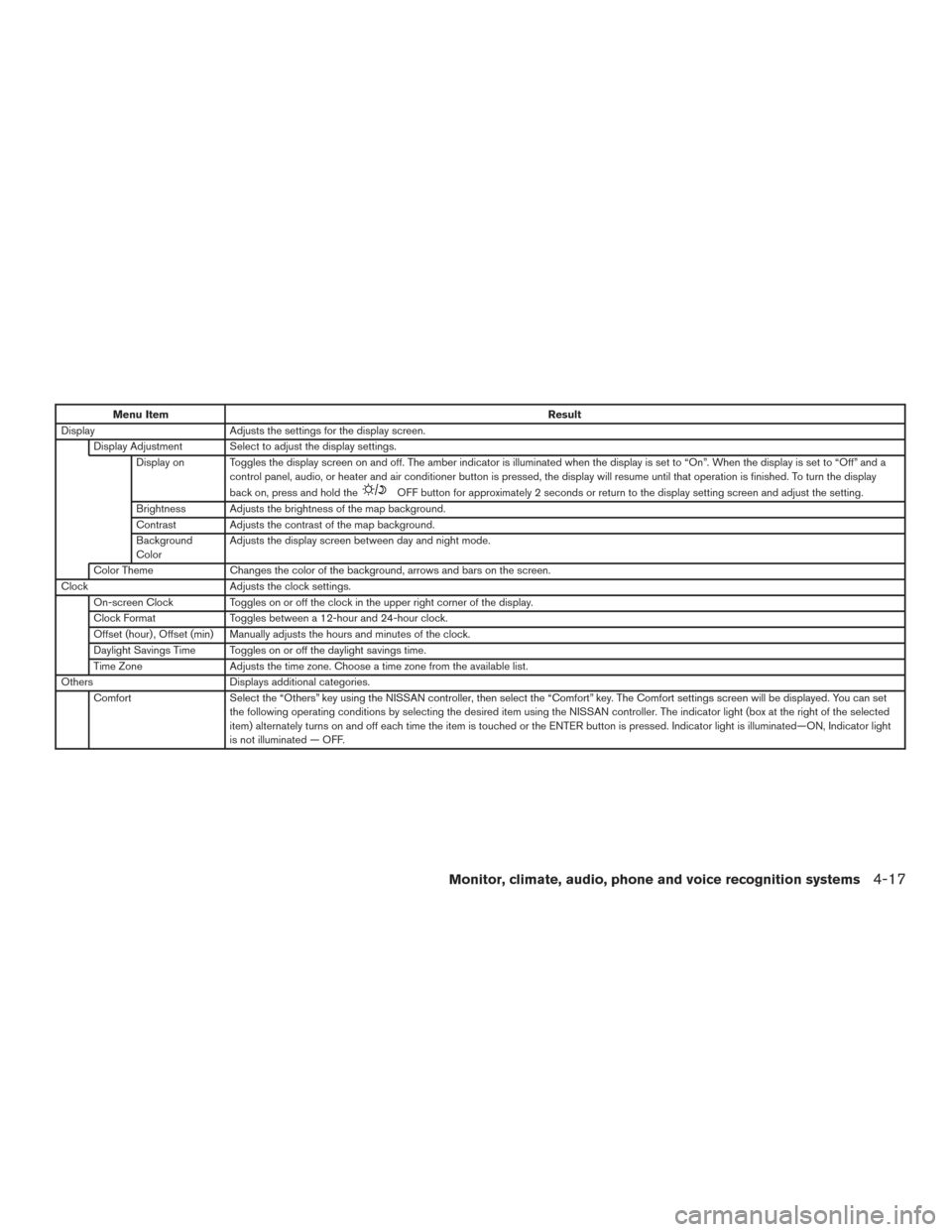
Menu ItemResult
Display Adjusts the settings for the display screen.
Display Adjustment Select to adjust the display settings. Display on Toggles the display screen on and off. The amber indicator is illuminated when the display is set to “On”. When the display is set to “Off” and a control panel, audio, or heater and air conditioner button is pressed, the display will resume until that operation is finished. To turn the display
back on, press and hold the
OFF button for approximately 2 seconds or return to the display setting screen and adjust the setting.
Brightness Adjusts the brightness of the map background.
Contrast Adjusts the contrast of the map background.
Background
Color Adjusts the display screen between day and night mode.
Color Theme Changes the color of the background, arrows and bars on the screen.
Clock Adjusts the clock settings.
On-screen Clock Toggles on or off the clock in the upper right corner of the display.
Clock Format Toggles between a 12-hour and 24-hour clock.
Offset (hour) , Offset (min) Manually adjusts the hours and minutes of the clock.
Daylight Savings Time Toggles on or off the daylight savings time.
Time Zone Adjusts the time zone. Choose a time zone from the available list.
Others Displays additional categories.
Comfort Select the “Others” key using the NISSAN controller, then select the “Comfort” key. The Comfort settings screen will be displayed. You can set
the following operating conditions by selecting the desired item using the NISSAN controller. The indicator light (box at the right of the selected
item) alternately turns on and off each time the item is touched or the ENTER button is pressed. Indicator light is illuminated—ON, Indicator light
is not illuminated — OFF.
Monitor, climate, audio, phone and voice recognition systems4-17
Page 219 of 510
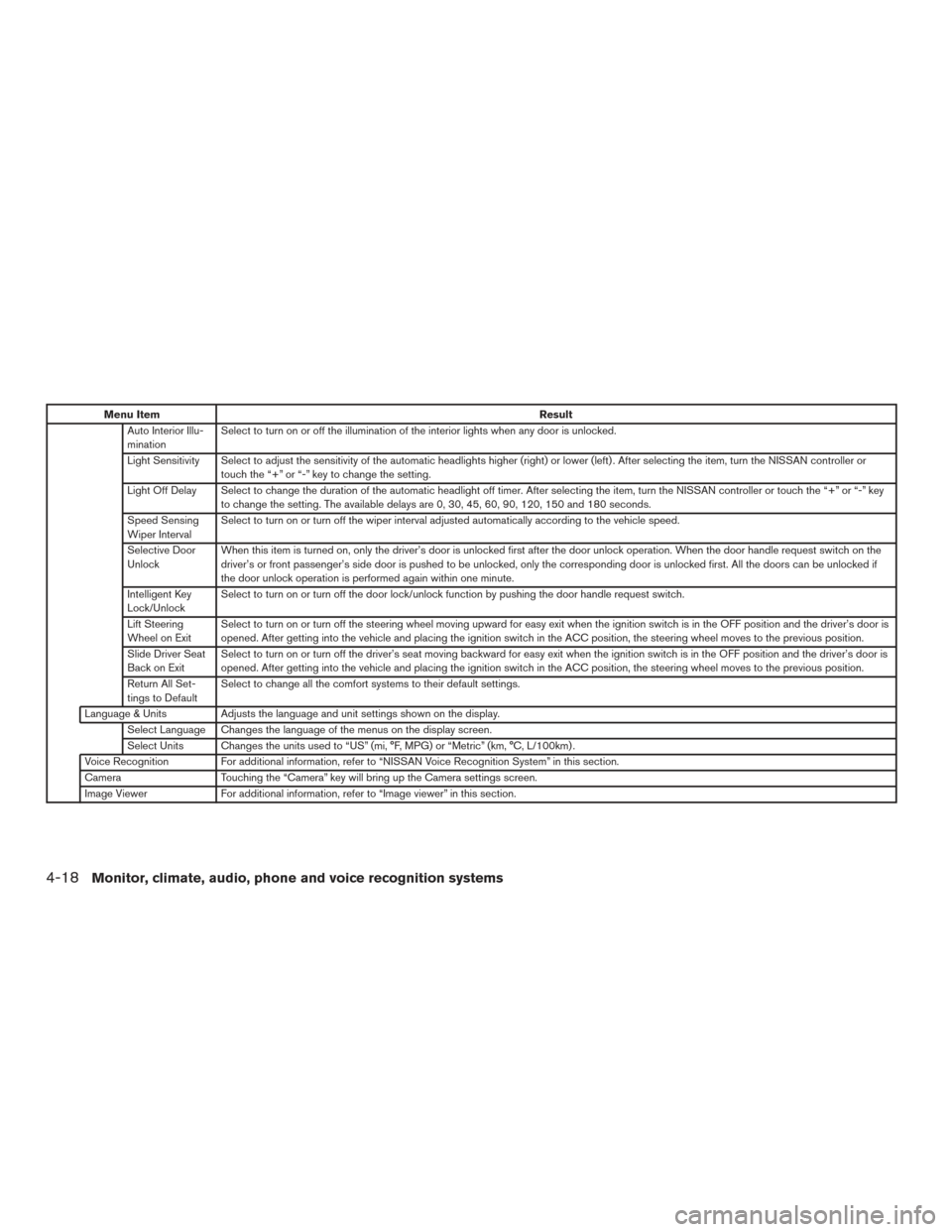
Menu ItemResult
Auto Interior Illu-
mination Select to turn on or off the illumination of the interior lights when any door is unlocked.
Light Sensitivity Select to adjust the sensitivity of the automatic headlights higher (right) or lower (left) . After selecting the item, turn the NISSAN controller or touch the “+” or “-” key to change the setting.
Light Off Delay Select to change the duration of the automatic headlight off timer. After selecting the item, turn the NISSAN controller or touch the “+” or “-” key to change the setting. The available delays are 0, 30, 45, 60, 90, 120, 150 and 180 seconds.
Speed Sensing
Wiper Interval Select to turn on or turn off the wiper interval adjusted automatically according to the vehicle speed.
Selective Door
Unlock When this item is turned on, only the driver’s door is unlocked first after the door unlock operation. When the door handle request switch on the
driver’s or front passenger’s side door is pushed to be unlocked, only the corresponding door is unlocked first. All the doors can be unlocked if
the door unlock operation is performed again within one minute.
Intelligent Key
Lock/Unlock Select to turn on or turn off the door lock/unlock function by pushing the door handle request switch.
Lift Steering
Wheel on Exit Select to turn on or turn off the steering wheel moving upward for easy exit when the ignition switch is in the OFF position and the driver’s door is
opened. After getting into the vehicle and placing the ignition switch in the ACC position, the steering wheel moves to the previous position.
Slide Driver Seat
Back on Exit Select to turn on or turn off the driver’s seat moving backward for easy exit when the ignition switch is in the OFF position and the driver’s door is
opened. After getting into the vehicle and placing the ignition switch in the ACC position, the steering wheel moves to the previous position.
Return All Set-
tings to Default Select to change all the comfort systems to their default settings.
Language & Units Adjusts the language and unit settings shown on the display. Select Language Changes the language of the menus on the display screen.
Select Units Changes the units used to “US” (mi, °F, MPG) or “Metric” (km, °C, L/100km) .
Voice Recognition For additional information, refer to “NISSAN Voice Recognition System” in this section.
Camera Touching the “Camera” key will bring up the Camera settings screen.
Image Viewer For additional information, refer to “Image viewer” in this section.
4-18Monitor, climate, audio, phone and voice recognition systems
Page 220 of 510
OFF BUTTON
To change the display brightness, press
the
OFF button. Pressing the button again
will change the display to the day
or the
night
display. The brightness can then be
adjusted using the NISSAN controller.
If no operation is performed within 5 seconds, the
display will return to the previous display.
Press and hold the
OFF button for more
than 2 seconds to turn the display off. Press the
button again to turn the display on.
USING THE IMAGE VIEWER
When a compatible portable storage device is
plugged into the USB connection port located in
the center console, compatible image files stored
on the device can be viewed on the control panel
display.
Connecting the portable storage
device
To connect a portable storage device to the sys-
tem so that images stored on it can be viewed,
insert the device into the USB connection port
located in the center console.
Viewing images
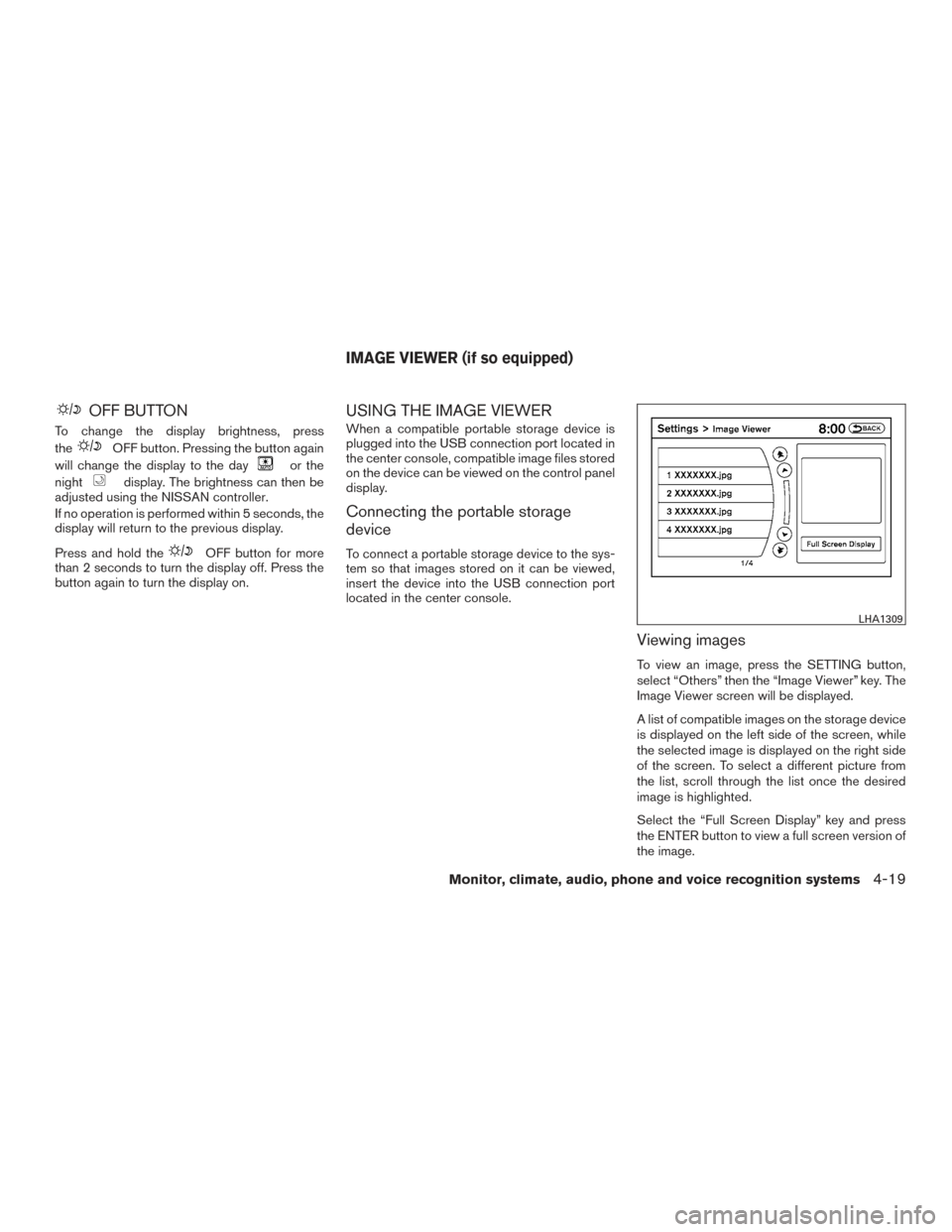
To view an image, press the SETTING button,
select “Others” then the “Image Viewer” key. The
Image Viewer screen will be displayed.
A list of compatible images on the storage device
is displayed on the left side of the screen, while
the selected image is displayed on the right side
of the screen. To select a different picture from
the list, scroll through the list once the desired
image is highlighted.
Select the “Full Screen Display” key and press
the ENTER button to view a full screen version of
the image.
LHA1309
IMAGE VIEWER (if so equipped)
Monitor, climate, audio, phone and voice recognition systems4-19
Page 221 of 510
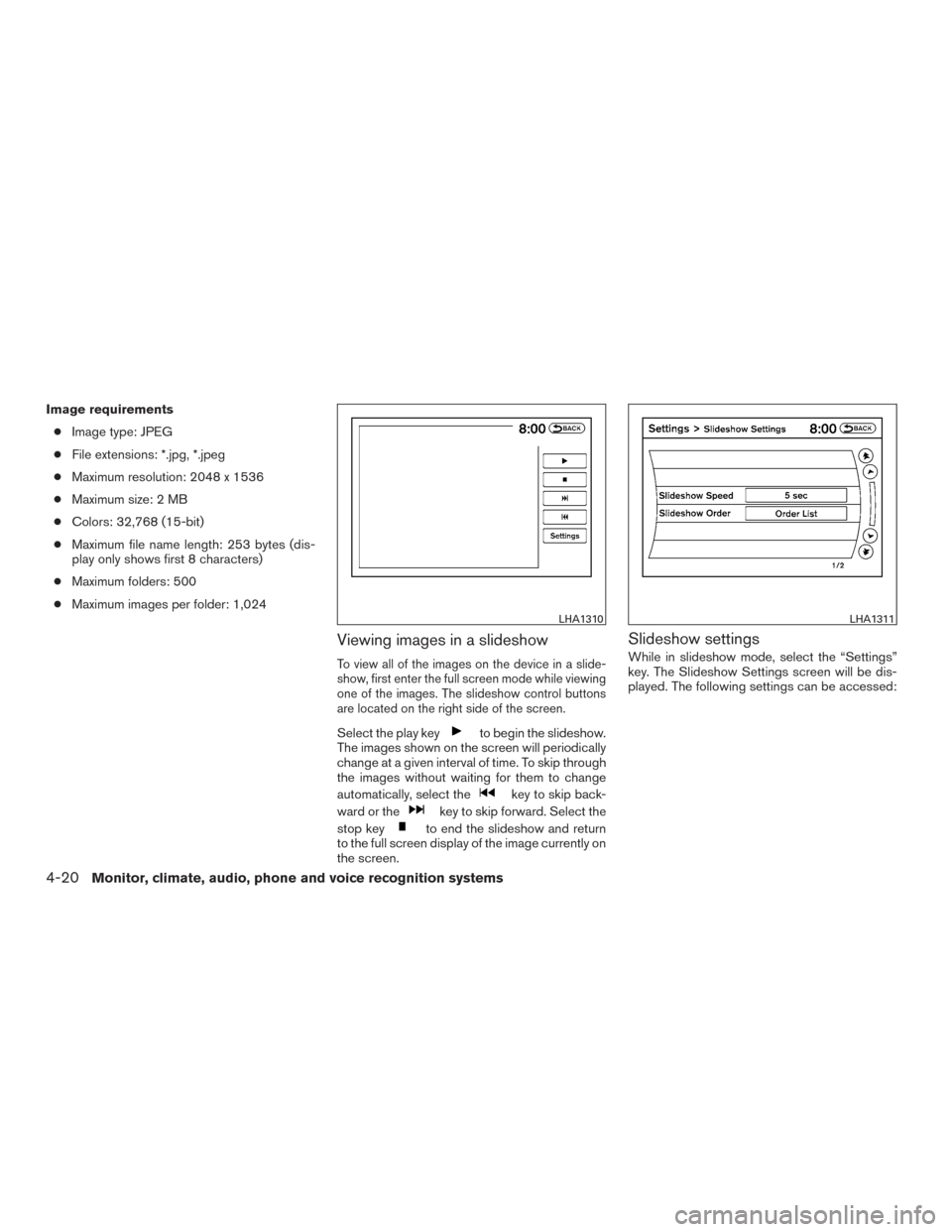
Image requirements● Image type: JPEG
● File extensions: *.jpg, *.jpeg
● Maximum resolution: 2048 x 1536
● Maximum size: 2 MB
● Colors: 32,768 (15-bit)
● Maximum file name length: 253 bytes (dis-
play only shows first 8 characters)
● Maximum folders: 500
● Maximum images per folder: 1,024
Viewing images in a slideshow
To view all of the images on the device in a slide-
show, first enter the full screen mode while viewing
one of the images. The slideshow control buttons
are located on the right side of the screen.
Select the play keyto begin the slideshow.
The images shown on the screen will periodically
change at a given interval of time. To skip through
the images without waiting for them to change
automatically, select the
key to skip back-
ward or the
key to skip forward. Select the
stop key
to end the slideshow and return
to the full screen display of the image currently on
the screen.
Slideshow settings
While in slideshow mode, select the “Settings”
key. The Slideshow Settings screen will be dis-
played. The following settings can be accessed:
LHA1310LHA1311
4-20Monitor, climate, audio, phone and voice recognition systems