2015 NISSAN ARMADA ignition
[x] Cancel search: ignitionPage 259 of 510
XM band select
Press the XM button to change the band as
follows:
XM1*→XM2* →XM3* →XM1*
When the XM button is pressed with the ignition
switch in the ACC or ON position, the radio will
come on at the station last played.
The last station played will also come on when
the ON·OFF button is pressed ON.
*When the XM button is pressed, the satellite
radio mode will not be available unless an op-
tional satellite receiver and antenna are installed
and a SiriusXM® Satellite Radio service sub-
scription is active. Satellite radio is not available
in Alaska, Hawaii and Guam.
If a compact disc is playing when the XM button
is pressed, the compact disc will automatically be
turned off and the last radio station played will
come on.
Manual tuning
To manually tune the radio, turn the TUNE/FLDR
knob to the right or left or use the
TUNE
and FLDR
buttons.
SEEK/CAT and TRACK
tuning buttons
For AM or FM:
Press the SEEK/CAT
button or the
TRACK
button to tune from high to low or
low to high frequencies and stop at the next
broadcasting station.
For XM:
Press the SEEK/CAT
button or the
TRACK
button to go to the first channel of
the previous or next category.
SCAN tuning
Press the SCAN button to stop at each broad-
casting station for 5 seconds. Pressing the
SCAN button again during this 5 second period
will stop scan tuning and the radio will remain
tuned to that station. If the SCAN button is not
pressed within 5 seconds, scan tuning moves to
the next station.
1 to 6 Station memory operations
Six stations can be set for the AM band. Twelve
stations can be set for the FM band (six for FM1,
six for FM2) . Eighteen channels can be set for the
SAT radio (six for XM1, six for XM2, six for XM3 –
if so equipped) . 1. Choose the radio band AM, FM1 or FM2
using the AM·FM button, or choose the sat-
ellite band XM1, XM2 or XM3 using the SAT
button.
2. Tune to the desired station using manual, SEEK or SCAN tuning. Press and hold any
of the desired station memory buttons (1 –
6) until the preset number is updated on the
display and the sound is briefly muted.
3. The channel indicator will then come on and the sound will resume. Programming is now
complete.
4. Other buttons can be set in the same man- ner.
If the battery cable is disconnected, or if the fuse
opens, the radio memory will be canceled. In that
case, reset the desired stations.
List (AM and FM)
Select the “List” key using the NISSAN controller
or touch-screen to see a list of the presets in the
AM, FM1 or FM2 preset banks.
4-58Monitor, climate, audio, phone and voice recognition systems
Page 260 of 510
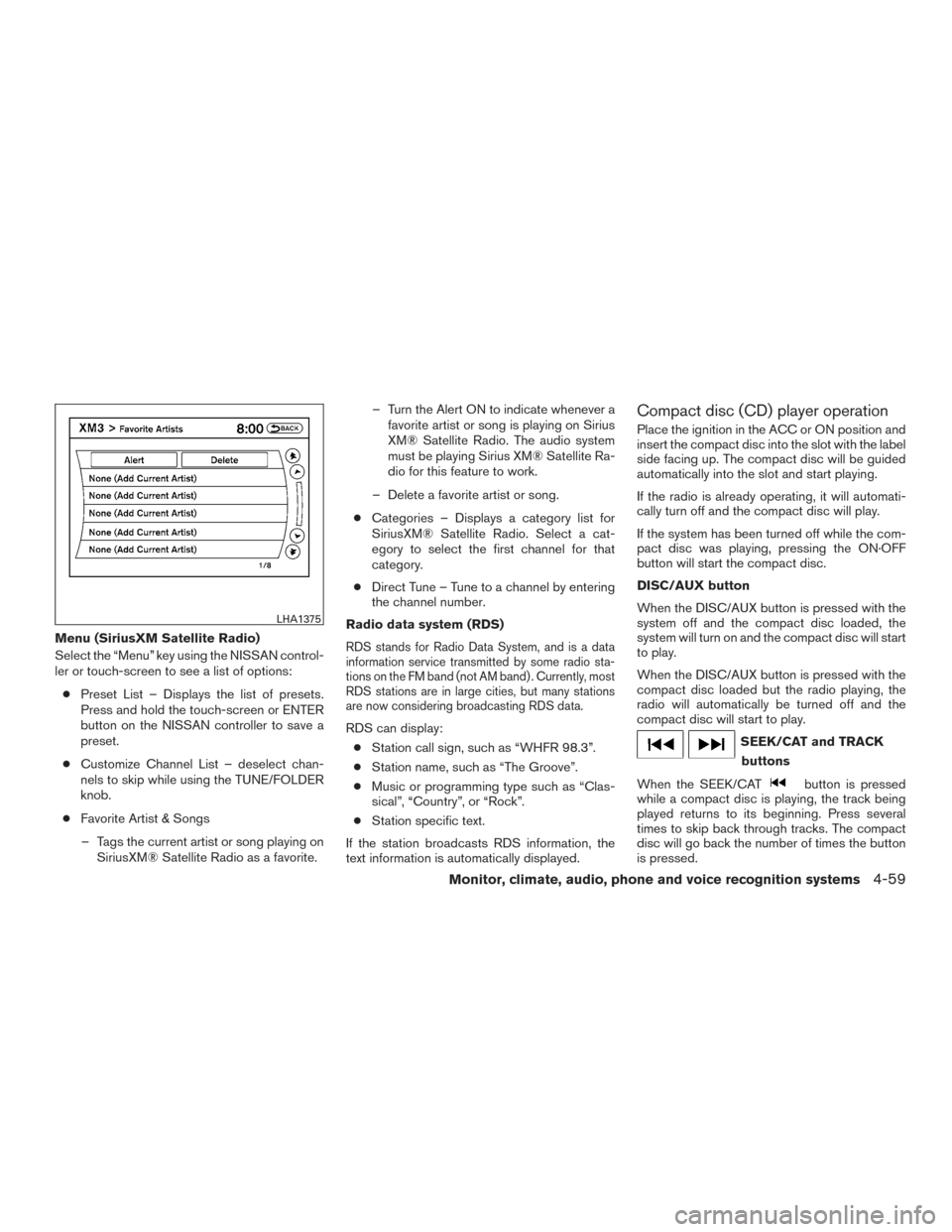
Menu (SiriusXM Satellite Radio)
Select the “Menu” key using the NISSAN control-
ler or touch-screen to see a list of options:● Preset List – Displays the list of presets.
Press and hold the touch-screen or ENTER
button on the NISSAN controller to save a
preset.
● Customize Channel List – deselect chan-
nels to skip while using the TUNE/FOLDER
knob.
● Favorite Artist & Songs
– Tags the current artist or song playing on SiriusXM® Satellite Radio as a favorite. – Turn the Alert ON to indicate whenever a
favorite artist or song is playing on Sirius
XM® Satellite Radio. The audio system
must be playing Sirius XM® Satellite Ra-
dio for this feature to work.
– Delete a favorite artist or song.
● Categories – Displays a category list for
SiriusXM® Satellite Radio. Select a cat-
egory to select the first channel for that
category.
● Direct Tune – Tune to a channel by entering
the channel number.
Radio data system (RDS)RDS stands for Radio Data System, and is a data
information service transmitted by some radio sta-
tions on the FM band (not AM band) . Currently, most
RDS stations are in large cities, but many stations
are now considering broadcasting RDS data.
RDS can display: ● Station call sign, such as “WHFR 98.3”.
● Station name, such as “The Groove”.
● Music or programming type such as “Clas-
sical”, “Country”, or “Rock”.
● Station specific text.
If the station broadcasts RDS information, the
text information is automatically displayed.
Compact disc (CD) player operation
Place the ignition in the ACC or ON position and
insert the compact disc into the slot with the label
side facing up. The compact disc will be guided
automatically into the slot and start playing.
If the radio is already operating, it will automati-
cally turn off and the compact disc will play.
If the system has been turned off while the com-
pact disc was playing, pressing the ON·OFF
button will start the compact disc.
DISC/AUX button
When the DISC/AUX button is pressed with the
system off and the compact disc loaded, the
system will turn on and the compact disc will start
to play.
When the DISC/AUX button is pressed with the
compact disc loaded but the radio playing, the
radio will automatically be turned off and the
compact disc will start to play.
SEEK/CAT and TRACK buttons
When the SEEK/CAT
button is pressed
while a compact disc is playing, the track being
played returns to its beginning. Press several
times to skip back through tracks. The compact
disc will go back the number of times the button
is pressed.
LHA1375
Monitor, climate, audio, phone and voice recognition systems4-59
Page 267 of 510
USB (Universal Serial Bus)
CONNECTION PORT (models
without Navigation System)
Connecting a device to the USB
Connection Port
WARNING
Do not connect, disconnect, or operate the
USB device while driving. Doing so can be
a distraction. If distracted you could lose
control of your vehicle and cause an acci-
dent or serious injury.
CAUTION
●To avoid damage and loss of function
when using a USB device, note the fol-
lowing precautions.
● Do not force the USB device into the
USB port. Inserting the USB device
tilted or up-side-down into the port may
damage the port. Make sure that the
USB device is connected correctly into
the USB port.
● Do not grab the USB port cover (if so
equipped) when pulling the USB device
out of the port. This could damage the
port and the cover.
● Do not leave the USB cable in a place
where it can be pulled unintentionally.
Pulling the cable may damage the port.
Refer to your device manufacturer’s owner infor-
mation regarding the proper use and care of the
device.
The USB connection port is located in the center
console. Insert the USB device into the connec-
tion port.
When a compatible storage device is plugged
into the connection port, compatible audio files
on the storage device can be played through the
vehicle’s audio system.
Audio file operation
AUX button:
Place the ignition switch in the ON or ACC
position and press the AUX button to switch to
the USB input mode. If another audio source is
playing and a USB connection port is inserted,
press the AUX button repeatedly until the center
display changes to the USB memory mode.
If the system has been turned off while the USB
memory was playing, push the ON-OFF button to
restart the USB memory.
SEEK/CAT and TRACK (Reverse or Fast Forward)
buttons
Press and hold the SEEK/CAT
(rewind)
button or TRACK
(fast forward) button for
1.5 seconds while an audio file on the USB
device is playing to reverse or fast forward the
track being played. The track plays at an in-
creased speed while reversing or fast forwarding.
When the button is released, the audio file re-
turns to normal play speed.
LHA2455
4-66Monitor, climate, audio, phone and voice recognition systems
Page 269 of 510
CAUTION
●To avoid damage and loss of function
when using a USB device, note the fol-
lowing precautions.
● Do not force the USB device into the
USB port. Inserting the USB device
tilted or up-side-down into the port may
damage the port. Make sure that the
USB device is connected correctly into
the USB port.
● Do not grab the USB port cover (if so
equipped) when pulling the USB device
out of the port. This could damage the
port and the cover.
● Do not leave the USB cable in a place
where it can be pulled unintentionally.
Pulling the cable may damage the port.
Refer to your device manufacturer’s owner infor-
mation regarding the proper use and care of the
device.
The USB port is located in the center console.
Insert the USB device into the connection port.
When a compatible storage device is plugged
into the connection port, compatible audio files
on the storage device can be played through the
vehicle’s audio system.
Audio file operation
DISC/AUX button:
Place the ignition switch in the ON or ACC
position and press the DISC/AUX button to
switch to the USB input mode. If another audio
source is playing and a USB connection port is
inserted, press the DISC/AUX button repeatedly
until the center display changes to the USB
memory mode.
If the system has been turned off while the USB
memory was playing, push the ON-OFF button to
restart the USB memory.
SEEK/CAT and TRACK (Reverse or Fast Forward)
buttons
Press and hold the SEEK/CAT
(rewind)
button or TRACK
(fast forward) button for
1.5 seconds while an audio file on the USB
device is playing to reverse or fast forward the
track being played. The track plays at an in-
creased speed while reversing or fast forwarding.
When the button is released, the audio file re-
turns to normal play speed.
SEEK/CAT and TRACK
buttons
Press the SEEK/CAT button
while an au-
dio file on the USB device is playing to return to
the beginning of the current track. Press the
SEEK/CAT button
several times to skip
backward several tracks.
Press the TRACK button
while an audio
file on the USB device is playing to advance one
track. Press the TRACK button
several
times to skip forward several tracks. If the last
track in a folder on the USB device is skipped, the
first track of the next folder is played.
Folder selection
To change to another folder in the USB memory,
turn the TUNE/FLDR knob or choose a folder
displayed on the screen.
This can also be performed using the
TUNE and FLDRbuttons.
RDM (random) button
When the RDM button is pressed while an audio
file on the USB device is playing, the play pattern
can be changed as follows:
All Random →1 Folder Random →OFF
All Random: all tracks on the USB device will be
played randomly.
4-68Monitor, climate, audio, phone and voice recognition systems
Page 273 of 510
CAUTION
●Do not force the USB device into the
USB port. Inserting the USB device
tilted or up-side-down into the port may
damage the port. Make sure that the
USB device is connected correctly into
the USB port.
● Do not grab the USB port cover (if so
equipped) when pulling the USB device
out of the port. This could damage the
port and the cover.
● Do not leave the USB cable in a place
where it can be pulled unintentionally.
Pulling the cable may damage the port.
For additional information, refer to your device
manufacturer’s owner information regarding the
proper use and care of the device.
To connect an iPod® to the vehicle so that the
iPod® can be controlled with the audio system
controls and display screen, use the USB port
located in the center console. Connect the
iPod®-specific end of the cable to the iPod®
and the USB end of the cable to the USB port on
the vehicle. If your iPod® supports charging via a
USB connection, its battery will be charged while
connected to the vehicle with the ignition switch
in the ACC or ON position. While connected to the vehicle, the iPod® can
only be operated by the vehicle audio controls.
To disconnect the iPod® from the vehicle, re-
move the USB end of the cable from the USB
port on the vehicle, then remove the cable from
the iPod®.
* iPod® is a trademark of Apple Inc., registered in
the U.S. and other countries.
Compatibility
The following models are compatible:
● iPod® 5th Generation - version 1.2.1
● iPod® Classic - version 1.1
● iPod® Touch - version 2.1.0
● iPod® Nano - 1st generation version 1.3.1
● iPod® Nano - 2nd generation version 1.1.3
● iPod® Nano - 3rd generation version 1.0.2
Make sure that your iPod® firmware is updated to
the version indicated above.
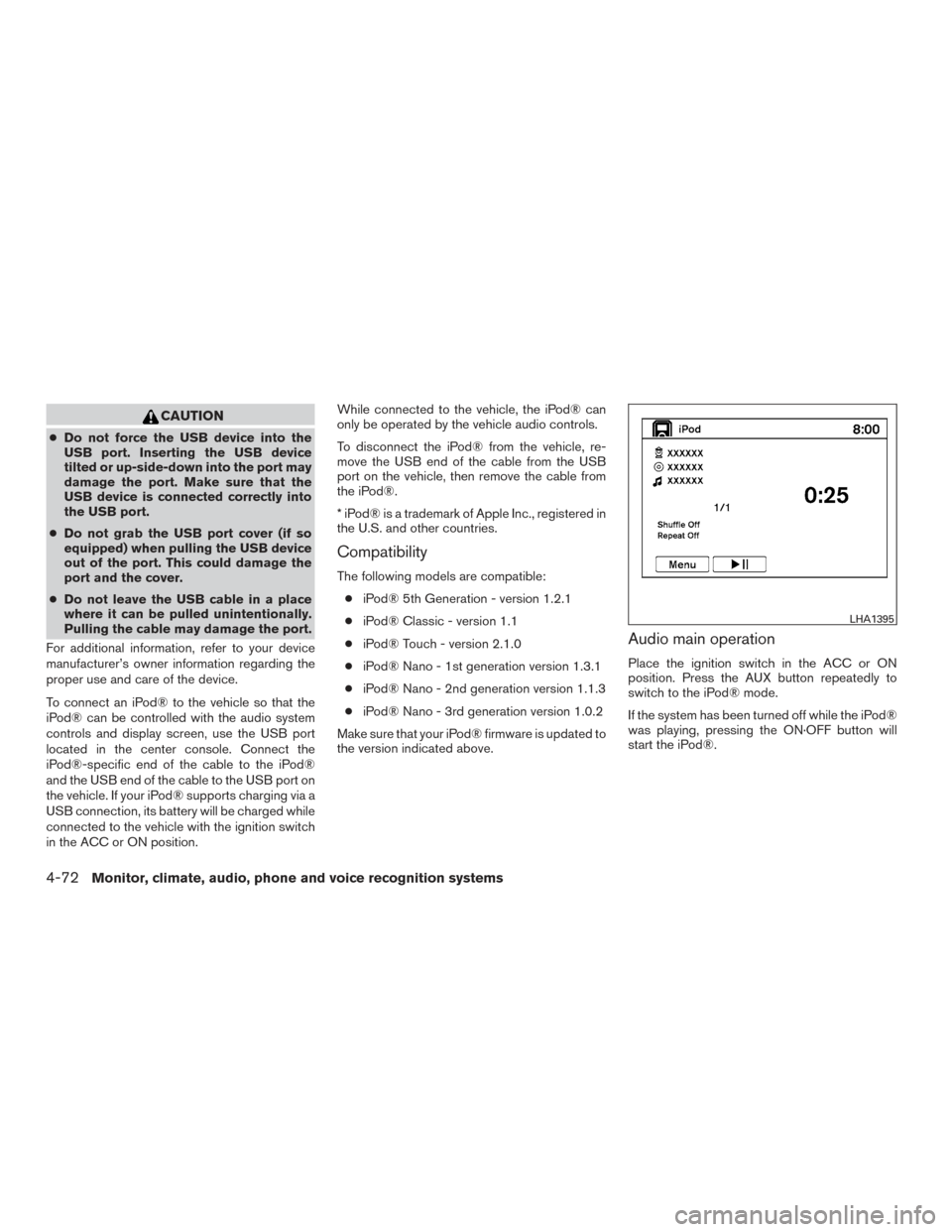
Audio main operation
Place the ignition switch in the ACC or ON
position. Press the AUX button repeatedly to
switch to the iPod® mode.
If the system has been turned off while the iPod®
was playing, pressing the ON·OFF button will
start the iPod®.
LHA1395
4-72Monitor, climate, audio, phone and voice recognition systems
Page 275 of 510
iPod®* PLAYER OPERATION WITH
NAVIGATION SYSTEM
Connecting iPod®
WARNING
Do not connect, disconnect or operate the
USB device while driving. Doing so can be
a distraction. If distracted you could lose
control of your vehicle and cause an acci-
dent or serious injury.
CAUTION
●Do not force the USB device into the
USB port. Inserting the USB device
tilted or up-side-down into the port may
damage the port. Make sure that the
USB device is connected correctly into
the USB port.
● Do not grab the USB port cover (if so
equipped) when pulling the USB device
out of the port. This could damage the
port and the cover.
● Do not leave the USB cable in a place
where it can be pulled unintentionally.
Pulling the cable may damage the port.
For additional information, refer to your device
manufacturer’s owner information regarding the
proper use and care of the device.
To connect an iPod® to the vehicle so that the
iPod® can be controlled with the audio system
controls and display screen, use the USB port
located in the center console. Connect the
iPod®-specific end of the cable to the iPod®
and the USB end of the cable to the USB port on
the vehicle. If your iPod® supports charging via a
USB connection, its battery will be charged while
connected to the vehicle with the ignition switch
in the ACC or ON position. While connected to the vehicle, the iPod® can
only be operated by the vehicle audio controls.
To disconnect the iPod® from the vehicle, re-
move the USB end of the cable from the USB
port on the vehicle, then remove the cable from
the iPod®.
* iPod® is a trademark of Apple Inc., registered in
the U.S. and other countries.
Compatibility
The following models are compatible:
● iPod® 5th Generation (firmware version
1.2.3 or later)
● iPod® Classic (firmware version 1.1.1 or
later)
● iPod® Touch (firmware version 2.0.0 or
later)*
● iPod® nano - 1st generation (firmware ver-
sion 1.3.1 or later)
● iPod® nano - 2nd generation (firmware ver-
sion 1.1.3 or later)
● iPod® nano - 3rd generation (firmware ver-
sion 1.1.3 or later)
LHA2455
4-74Monitor, climate, audio, phone and voice recognition systems
Page 276 of 510
●iPod® nano - 4th generation (firmware ver-
sion 1.0.4 or later)
● iPod® nano - 5th generation (firmware ver-
sion 1.0.1 or later)
* Some features of this iPod® may not be fully
functional.
Make sure that your iPod® firmware is updated to
the version indicated above.
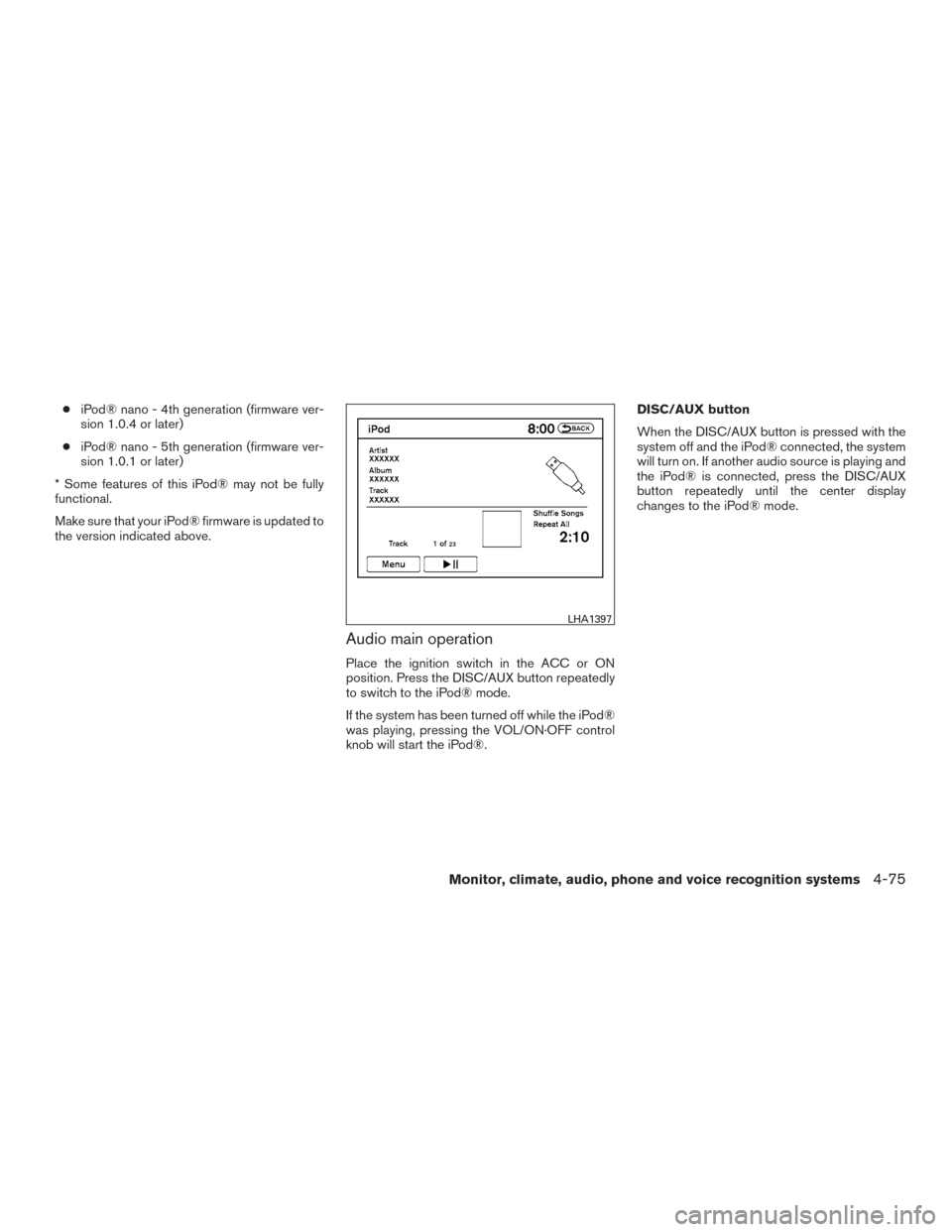
Audio main operation
Place the ignition switch in the ACC or ON
position. Press the DISC/AUX button repeatedly
to switch to the iPod® mode.
If the system has been turned off while the iPod®
was playing, pressing the VOL/ON·OFF control
knob will start the iPod®. DISC/AUX button
When the DISC/AUX button is pressed with the
system off and the iPod® connected, the system
will turn on. If another audio source is playing and
the iPod® is connected, press the DISC/AUX
button repeatedly until the center display
changes to the iPod® mode.
LHA1397
Monitor, climate, audio, phone and voice recognition systems4-75
Page 282 of 510
●A new disc may be rough on the inner and
outer edges. Remove the rough edges by
rubbing the inner and outer edges with the
side of a pen or pencil as illustrated.
STEERING WHEEL SWITCH FOR
AUDIO CONTROL
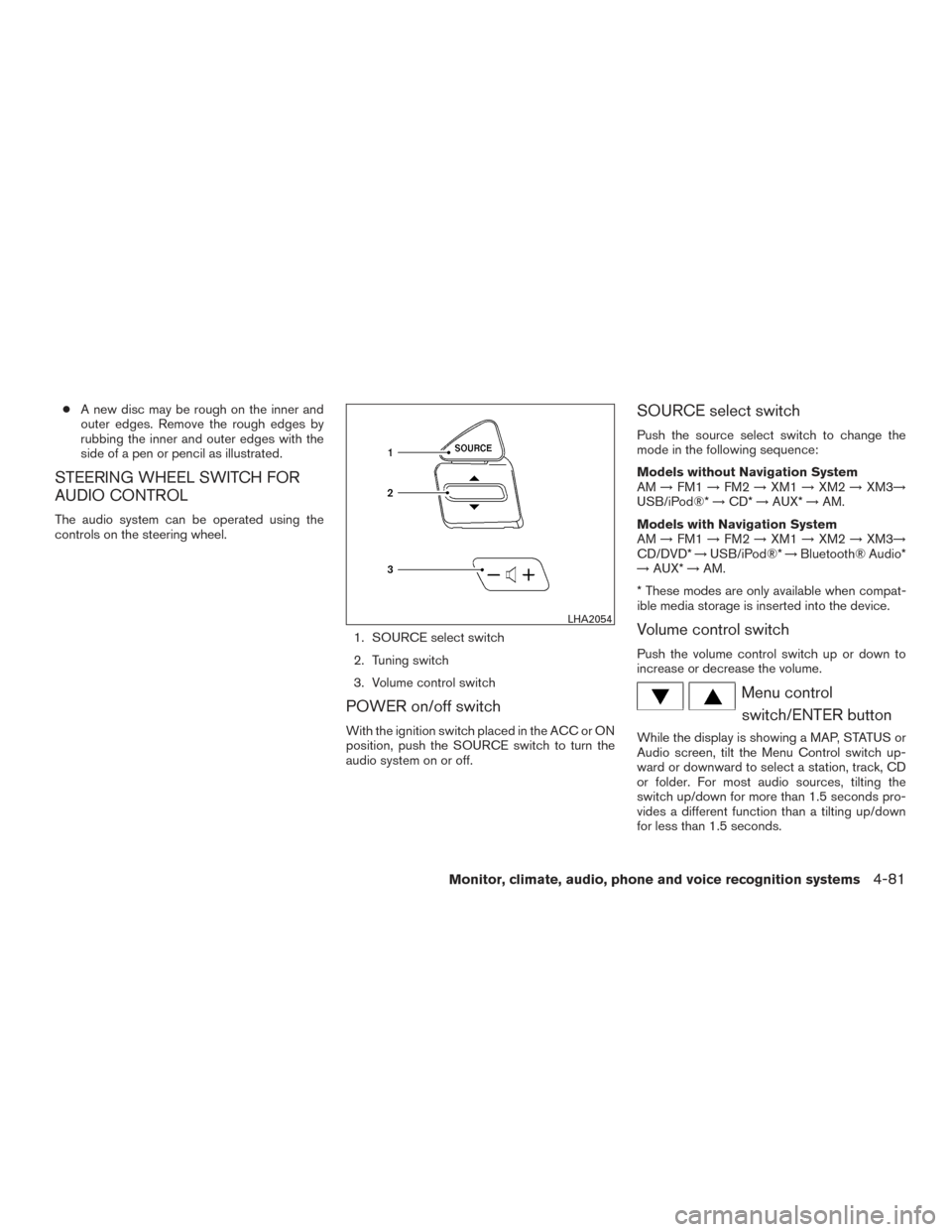
The audio system can be operated using the
controls on the steering wheel.
1. SOURCE select switch
2. Tuning switch
3. Volume control switch
POWER on/off switch
With the ignition switch placed in the ACC or ON
position, push the SOURCE switch to turn the
audio system on or off.
SOURCE select switch
Push the source select switch to change the
mode in the following sequence:
Models without Navigation System
AM→FM1 →FM2 →XM1 →XM2 →XM3→
USB/iPod®* →CD* →AUX* →AM.
Models with Navigation System
AM →FM1 →FM2 →XM1 →XM2 →XM3→
CD/DVD* →USB/iPod®* →Bluetooth® Audio*
→ AUX* →AM.
* These modes are only available when compat-
ible media storage is inserted into the device.
Volume control switch
Push the volume control switch up or down to
increase or decrease the volume.
Menu control switch/ENTER button
While the display is showing a MAP, STATUS or
Audio screen, tilt the Menu Control switch up-
ward or downward to select a station, track, CD
or folder. For most audio sources, tilting the
switch up/down for more than 1.5 seconds pro-
vides a different function than a tilting up/down
for less than 1.5 seconds.
LHA2054
Monitor, climate, audio, phone and voice recognition systems4-81