2015 MERCEDES-BENZ S-Class AUX
[x] Cancel search: AUXPage 73 of 298

Switching the ionization on/off
This setting is made in the main area of the
climate control menu.
The ionization has a cleansing effect on the air in the vehicle interior. Further information
(see the vehicle Operator's Manual).
X Call up the climate control menu
(Y page 68).
X To select Ionization Ionization: turn and press the
controller.
The setting element is active.
X To switch the ionization on/off: press the
controller.
Exiting a menu X Press the 0038button.
Auxiliary heating This setting is made in the main area of the
climate control menu.
You can pre-set three departure times for
automatic activation of the auxiliary heating. Selecting the pre-set time:
X Call up the climate control menu
(Y page 68).
X To select Auxiliary Heating
Auxiliary Heating: turn and
press the controller.
X Turn the controller.
Changing the pre-set time:
X Call up the climate control menu
(Y page 68).
X To select Auxiliary Heating Auxiliary Heating: turn and
press the controller.
X To select the departure time that will be
changed: turn and press the controller.
A menu for changing the time opens. X
To select the required setting element (ana-
log clock, hours or minutes): slide 5and
9 the controller.
X To change the setting: turn the controller.
X To exit the menu: press the controller. Climate control settings
71Vehicle functions
Page 211 of 298

Your COMAND equipment
................210
Activating media mode ....................210
Audio/video mode ............................212
Media search ..................................... 220
Media Register .................................. 223
Bluetooth ®
audio mode .................... 228
Operation with the Media Interface ..234
Audio AUX mode ............................... 237
Video AUX mode ............................... 239
Video DVD mode ............................... 240
Picture viewer ................................... 246 209Media
Page 212 of 298

Your COMAND equipment
These operating instructions describe all
standard and optional equipment available
for your COMAND system at the time of pur-
chase. Country-specific differences are pos-
sible. Please note that your COMAND system may not be equipped with all the features
described. This also applies to safety-relevant
systems and functions. Therefore, the equip-
ment on your COMAND system may differ
from that in the descriptions and illustrations. Should you have any questions concerning
equipment and operation, please consult an
authorized Mercedes-Benz Center. Activating media mode
General notes
There are several ways to activate media
sources using COMAND.
The relevant sections of the Operator's Man-
ual describe the simplest way to activate a
media source.
This section describes all options for activat-
ing media sources. Using the MEDIA button
X Press the 00FDbutton.
The menu appears with the available media sources.
X To select media sources: turn the controller
until the desired media source is in the
center. Press the controller.
The media sources appear in the following
order:
R CD/DVD
R Memory card
R Media Register
R Vehicles without Media Interface: USB 1
and USB 2
R Vehicles with Media Interface: Media
Interface 1 and Media Interface 2 R
BT audio
R TV (if your vehicle is equipped with a TV)
R AUX
If playable music files are found, they will be played by COMAND.
X To display the function bars: slide 00520064the
controller. Switching on automatically
After an external media source has been con-
nected, COMAND will only activate the cor-
responding media mode automatically in the
case of CDs and SD cards. When using USB
devices, depending on the vehicle's equip-
ment, the relevant Media Interface 1, 2 or
USB 1, 2 basic display must already be acti-
vated.
External media sources:
R Apple devices (e.g. iPhone ®
)
R USB devices (e.g. USB stick, MP3 player)
R CD
R DVD
R SD cards
R via AUX cable (automatic activation
depends on the device connected)
R via devices connected by Bluetooth ®
If playable music files are found, they will be
played by COMAND.
i If a media function is already switched on
in COMAND, this will be interrupted and the
basic display of the newly connected
device will appear.
If another function, such as navigation, is
operating, the basic display will not change.
Only the music from the newly connected
media source will play 210
Activa
ting media modeMedia
Page 225 of 298

They can be accepted directly and dis-
played in the search result.
X
Select one entry, e.g. Artists
Artists.
Albums and covers (if available) are shown.
COMAND searches all media sources.
X Select an album.
The tracks are listed. X
Select a track.
The basic display appears and playback
starts. Media Register
General notes
i Keep your original music files, photos and
video files in a secure location. A malfunc-
tion in COMAND may result in the loss of
music files stored in the MEDIA REGISTER.
Mercedes-Benz is not liable for any loss of
data.
You can store music files, photos or video files in the MEDIA REGISTER. The memory has a
capacity of 10 GB. Switching on the MEDIA REGISTER
X Press the 00FDbutton.
The menu appears with the available media
sources.
X To select Media Register Media Register: turn the con-
troller until Media Register
Media Register is in the
center. Press the controller.
The media sources appear in the following
order:
R Disc Disc;
R Memory Card
Memory Card;
R Media Register
Media Register;
R USB 1
USB 1 (vehicles without Media Interface)
R Media Interface 1
Media Interface 1 (vehicles with
Media Interface)
R USB 2
USB 2 (vehicles without Media Interface)
R Media Interface 2
Media Interface 2 (vehicles with
Media Interface)
R Bluetooth Audio
Bluetooth Audio;
R Aux
Aux.
Playback begins at the point last listened to.
If there are no files, you will see a message to
this effect.
Further options for switching on:
R Using the number keypad: (Y page 211)
R Using the main function bar: (Y page 211)
R Using the device list: (Y page 211)
R Using the 00FDbutton: (Y page 210) Media Register
223Media Z
Page 236 of 298

Information on audio AUX mode
(Y
page 237). Operation with the Media Interface
Prerequisite
Media Interface is a universal interface for the connection of mobile audio and video devi-
ces. Media Interface in COMAND has two
USB connections.
The USB connection sockets are located in
the stowage compartment under the armrest. 234
Operation with the Media InterfaceMedia
Page 239 of 298
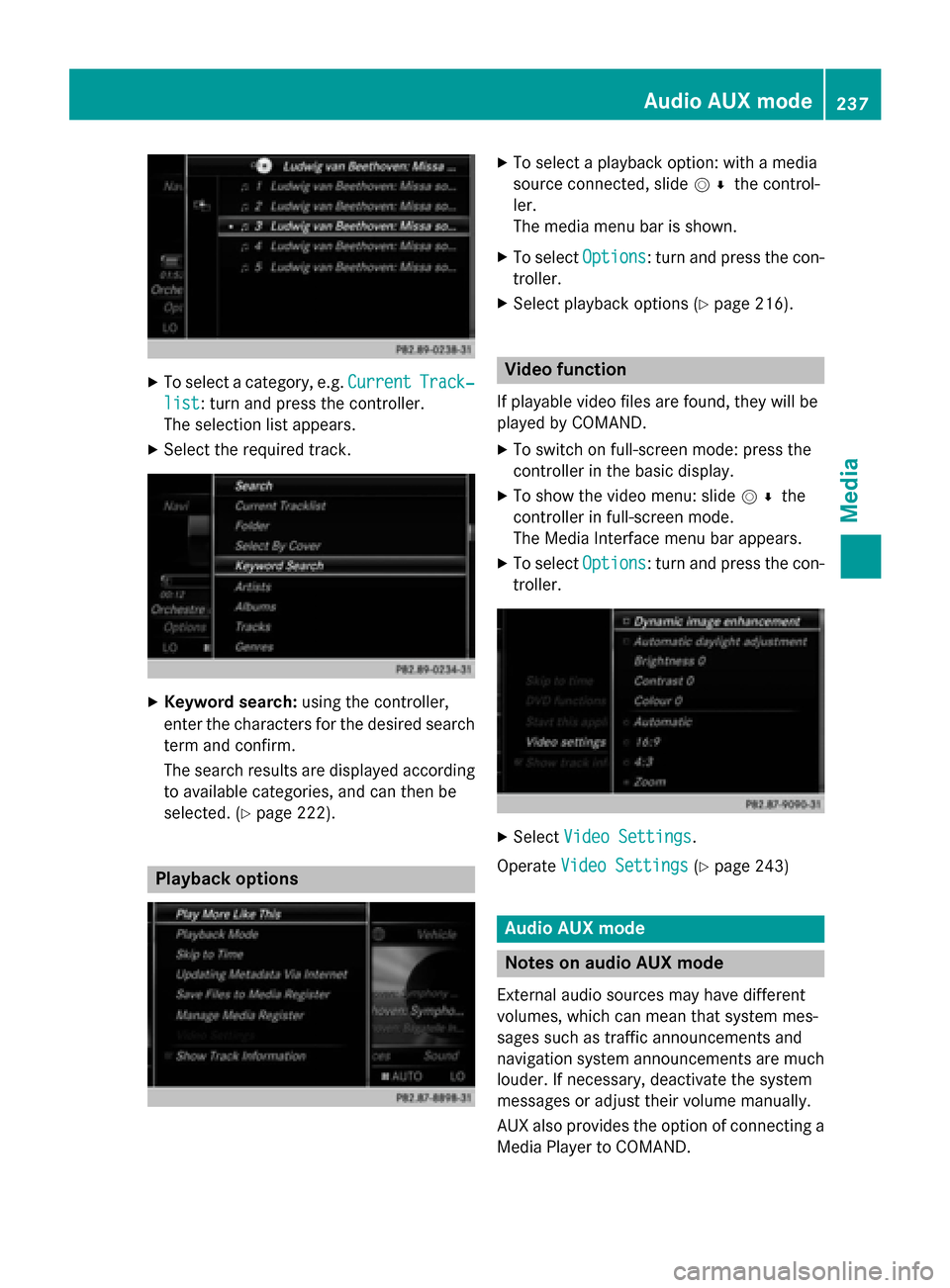
X
To select a category, e.g. Current
CurrentTrack‐
Track‐
list
list: turn and press the controller.
The selection list appears.
X Select the required track. X
Keyword search: using the controller,
enter the characters for the desired search
term and confirm.
The search results are displayed according to available categories, and can then be
selected. (Y page 222). Playback options X
To select a playback option: with a media
source connected, slide 005200C5the control-
ler.
The media menu bar is shown.
X To select Options Options: turn and press the con-
troller.
X Select playback options (Y page 216). Video function
If playable video files are found, they will be
played by COMAND. X To switch on full-screen mode: press the
controller in the basic display.
X To show the video menu: slide 005200C5the
controller in full-screen mode.
The Media Interface menu bar appears.
X To select Options Options: turn and press the con-
troller. X
Select Video Settings
Video Settings.
Operate Video Settings
Video Settings (Ypage 243) Audio AUX mode
Notes on audio AUX mode
External audio sources may have different
volumes, which can mean that system mes-
sages such as traffic announcements and
navigation system announcements are much louder. If necessary, deactivate the system
messages or adjust their volume manually.
AUX also provides the option of connecting aMedia Player to COMAND. Audio AUX mode
237Media Z
Page 240 of 298

To connect an external audio source to the
audio AUX, you will require an audio AUX
cable.
i You will find further information online at
http://www.mbusa-mobile.com. Or call
the Mercedes-Benz Customer Assistance
Center at 1-800-FOR-MERCedes
(1-800-367-6372) (for the USA) or Cus-
tomer Relations at 1-800-387-010 0(for
Canada). Switching to audio AUX mode
X
Connect an external audio source.
The socket for the audio AUX jack is located
in the stowage compartment in the center
console.
The audio AUX is not selected automati-
cally.
X Press the 00FDbutton.
The menu for the last accessed media
source appears.
X To select Media
Media from the main function bar:
turn and press the controller.
You will see the menu.
X Select Aux Aux.
The audio AUX menu appears. The medium is played if the audio source is switched on
and playback is activated.
Please see the respective operating instruc-
tions for how to operate the external audio
source. Setting the audio AUX options
X
To select Options
Optionsin the menu bar: slide
005200C5 and press the controller.
A menu appears. You can set Mono/Stereo
Mono/Stereo
and Volume
Volume.
Mono/stereo: X To select Mono/Stereo
Mono/Stereo: turn and press the
controller.
A menu appears.
X Select Mono MonoorStereo
Stereo.
The 003Bdot indicates the current setting.
Volume:
X To select Volume
Volume: turn and press the con-
troller.
X Select Standard
Standard orBoost
Boost .
Standard
Standard: the volume of the external audio
source is adjusted to a standard value.
Boost Boost : the volume of the external audio
source is raised by approximately 10 dB.
The 003Bdot indicates the current setting.
Traffic announcement:
A device which is connected as an external
audio source may seem quieter or louder in
the vehicle, or the usual maximum volume
cannot be achieved. On some devices, it is
possible to adjust the volume separately. In
this case, start at a medium volume and
increase it gradually. This enables you to
determine whether the system is able to play the music at high volume without distorting it. 238
Audio AUX modeMedia
Page 241 of 298
Video AUX mode
Connecting external video sources
G
WARNING
External video sources may have different vol-
umes, which can mean that system messages such as traffic announcements and navigation
system announcements are much louder. If
necessary, please deactivate the system mes- sages or adjust their volume manually.
Video AUX is another option for showing vid- eos using COMAND.
To connect an external video source to the
video AUX, you will require a video AUX cable.
i If you only use an audio AUX cable, you
will only be able to hear the sound from the
video being played.
Videos cannot be shown on the driver's
side while the vehicle is in motion. Switching to AUX video mode
X Connect the external video source.
The socket for the video AUX jack is located
in the stowage compartment in the center
console.
The video AUX is not selected automati-
cally.
X Press the 00FDbutton.
The menu for the last accessed media
source appears.
X To select Media
Media from the main function bar:
turn and press the controller.
You will see the menu.
X Select Aux
Aux .
The AUX video menu appears.
X To select Audio/Video Audio/Video in the menu bar:
slide 005200C5 and press the controller.
A Source Type Selection
Source Type Selection menu
appears.
X Select Video
Video.
The 003Bdot indicates the current setting. If the video source is connected and play-
back selected, the image from the external
video source will appear if Video
Videois
selected.
Please see the corresponding device operat-
ing instructions for information on how to
operate the external video source.
Information about sound settings
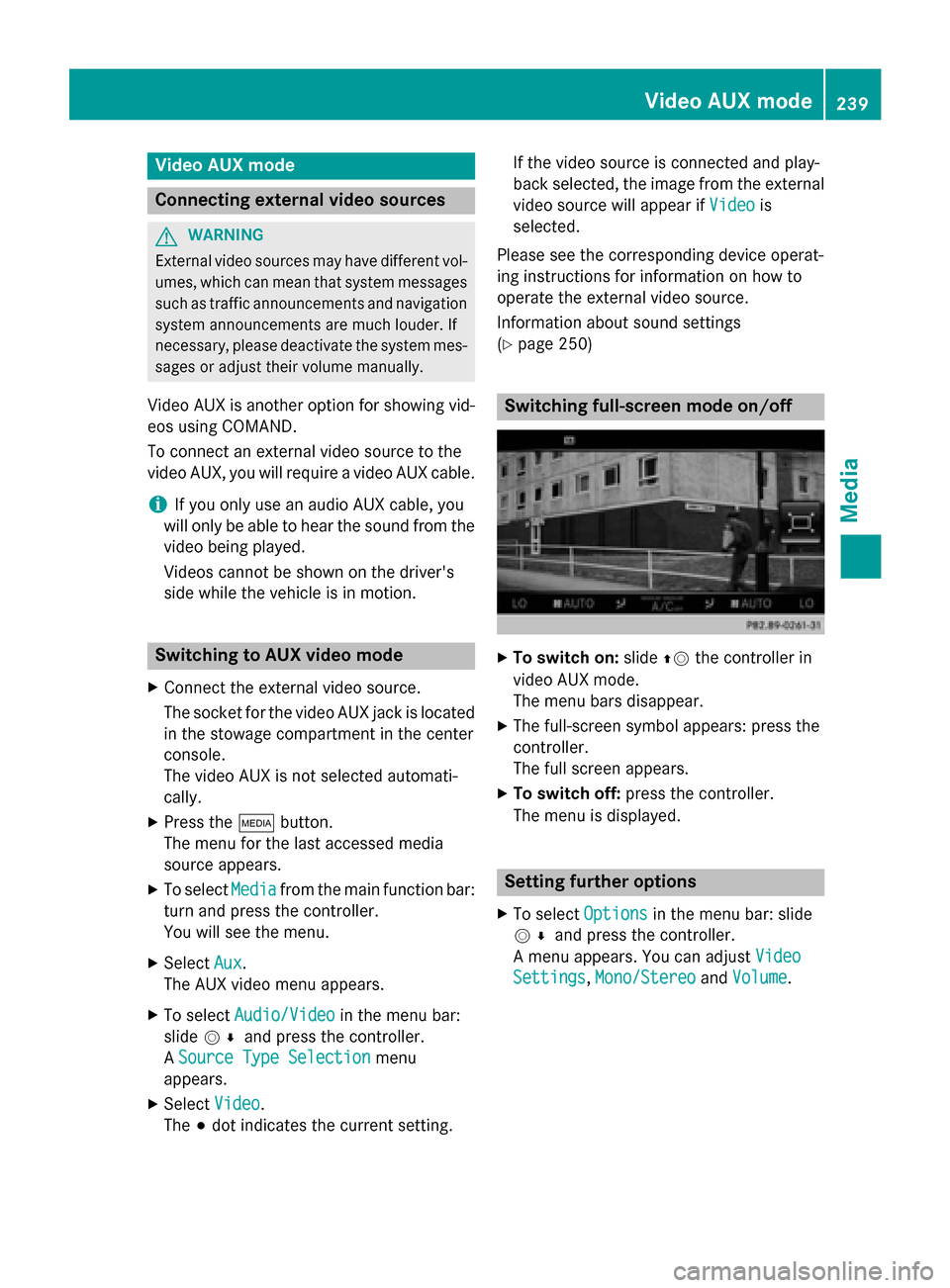
(Y page 250) Switching full-screen mode on/off
X
To switch on: slide00970052the controller in
video AUX mode.
The menu bars disappear.
X The full-screen symbol appears: press the
controller.
The full screen appears.
X To switch off: press the controller.
The menu is displayed. Setting further options
X To select Options Optionsin the menu bar: slide
005200C5 and press the controller.
A menu appears. You can adjust Video
Video
Settings
Settings, Mono/Stereo
Mono/Stereo andVolume
Volume . Video AUX mode
239Media Z