2015 MERCEDES-BENZ M-Class telephone
[x] Cancel search: telephonePage 24 of 270

Menu overview
Navi Audio Telephone Video System
Symbol
00A7
00A7 Route settings FM/AM
radio (using
HD Radio™) Telephone Video DVD Calls up the
system
menu Calls up the
Digital
Operator's
Manual
(available
depending
on the vehi-
cle model)
Map settings Satellite
radio Address
book AUX Calls up
COMAND
and Internet
Personal POIs Disc Calls up the
weather
service SIR-
IUS
Weather
Messages
(street name
announcements,
acoustic informa-
tion during calls,
audio fadeout,
reserve fuel level) Memory
card Calls up the
Mercedes-
Benz Mobile
website 0073
Activates/
deactivates alter-
native routes MUSIC
REGISTER
Avoids an area USB stor-
age device
SIRIUS service Bluetooth
Audio
Map version Media Inter-
face
AUX22
COMAND operating systemAt a glance
Page 27 of 270

COMAND control panel
Function Page
0043
Switches to radio mode 186
Switches wavebands 187
Switches to satellite radio 191
0044
Switches to navigation
mode 61
Shows the menu system 61
0087
Press
003Arepeatedly • Switches to audio CD and
MP3 mode 197
• Switches to memory card
mode 197
• Switches to MUSIC REG-
ISTER
207
• Switches to USB storage
device mode
197
• Switches to Media Inter-
face or audio AUX mode
218
• Switches to Bluetooth
®
audio mode 215
0085
Calls up the telephone
basic menu: • Telephony via the Blue-
tooth ®
interface 131
0083
Load/eject button 196 Function Page
0084
Selects stations via the sta-
tion search function 188
Rewinds 200
Selects the previous track 199
006B
Disc slot
• To insert CDs/DVDs 196
• To remove CDs/DVDs 196
• Updates the digital map 118
006C
Selects stations via the sta-
tion search function 188
Fast forward 200
Selects the next track 199
006D
Clear button
• Deletes characters 36
• Deletes an entry 36COMAND operating system
25At a glance
Page 28 of 270

Function Page
006E
Number pad
• Selects stations via the
station presets
188
• Stores stations manually 188
• Mobile phone authoriza-
tion 128
• Telephone number entry 132
• Sends DTMF tones 134
• Character entry 35
• Selects a location for the
weather forecast from the
memory 261
0090
Displays the current
track being played 201
007D
Selects stations by
entering the frequency
manually 188
007D
Selects a track 199
006F
Switches COMAND on/off 29
Adjusts the volume 29 Function Page
0070
SD memory card slot 196
0071
Calls up the system menu 42
0072
Accepts a call 132
Dials a number 132
Redial 133
Accepts a waiting call 134
0073
Switches the sound on or
off
29
Switches the microphone
on/off
134
Cancels the text message
read-aloud function
145
Switches off navigation
announcements
29
0074
Rejects a call 132
Ends an active call 135
Rejects a waiting call 134
COMAND controller
Overview 0043
COMAND controller
You can use the COMAND controller to select
the menu items in the COMAND display. You can:
R call up menus or lists
R scroll within menus or lists and
R exit menus or lists
Operation Example: operating the COMAND controller26
COMAND operating systemAt a glance
Page 30 of 270

Using COMAND
Selecting a main function
Address entry menu
0043
Main function bar
Situation: switching from navigation mode
(address entry menu) to the system settings.
X To switch on navigation mode: press the
00BE function button.
X To show the menu: press0098the COMAND
controller.
X Select Destination
Destination by sliding00520064and
turning 00790052007Athe COMAND controller and
press 0098to confirm.
X Select Address Entry Address Entry and press0098to
confirm.
The address entry menu appears.
X Slide 00970052the COMAND controller and
switch to main function bar 0043.
X Select System
System in the main function bar by
turning 00790052007Athe COMAND controller and
press 0098to confirm.
The system menu appears. Selecting the menu of a main function
Example display for audio CD mode and audio
menu (below)
0043
Calls up the audio menu
If one of the navigation, audio, telephone or
video main functions is switched on, trian-
gle 0043appears next to the entry in the main
function bar. You can now select an associ-
ated menu.
The example describes how to call up the
audio menu from audio CD mode (an audio
CD is playing).
X Select Audio Audioin the main function bar by
sliding 00970052and turning 00790052007Athe COMAND
controller and press 0098to confirm.
The Audio menu appears.
The 003Bdot indicates the currently selected
audio mode.
X Select another audio mode, e.g. Radio Radio, by
turning 00790052007Athe COMAND controller and
press 0098to confirm.
Radio mode is activated. 28
Using COMANDAt a glance
Page 32 of 270
Adjusting the volume for phone calls
You can adjust the volume for hands-free
mode during a telephone call.
X Turn the 0043control knob.
or X Press the 0081or0082 button on the mul-
tifunction steering wheel. Adjusting the sound settings
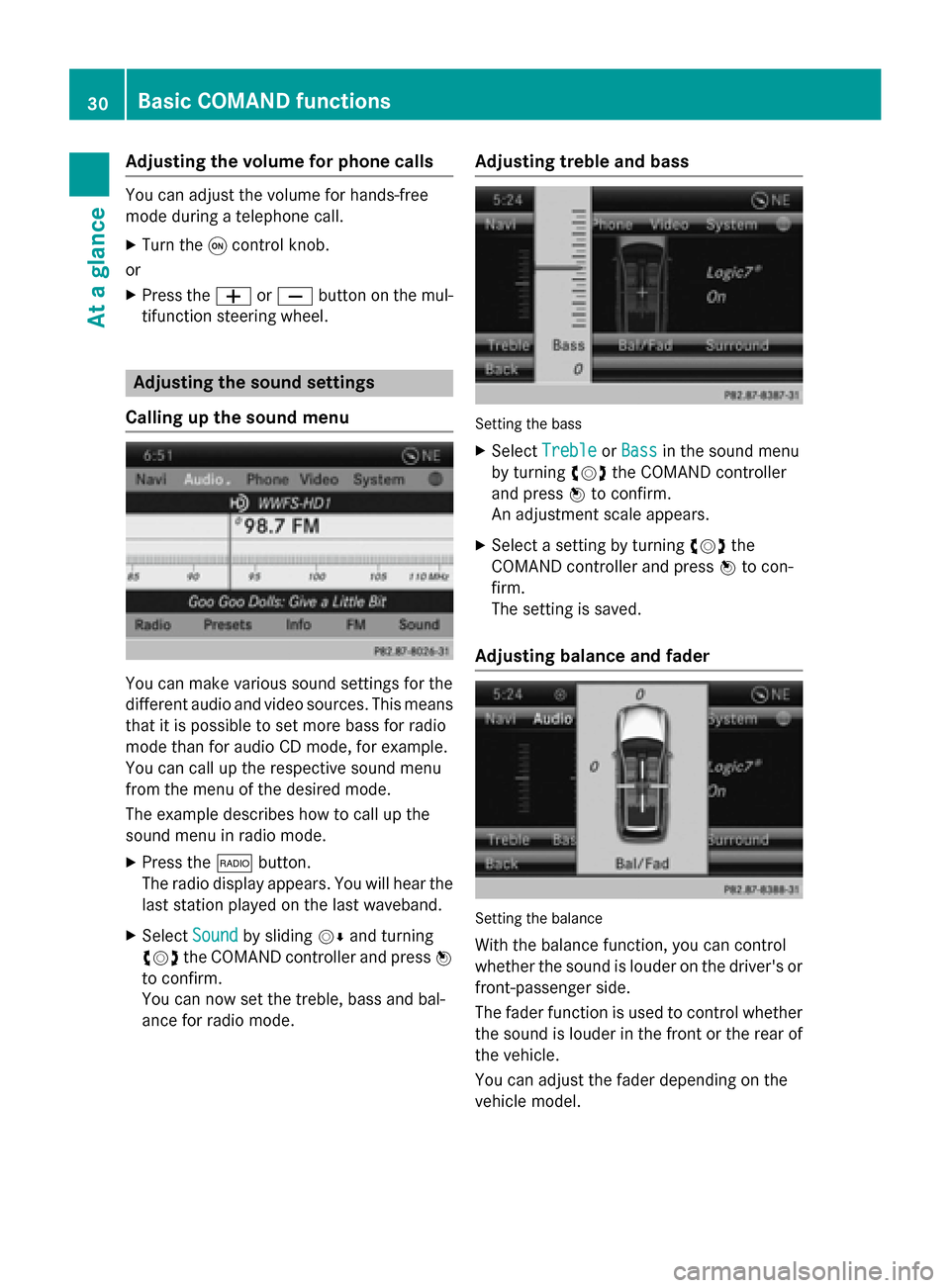
Calling up the sound menu You can make various sound settings for the
different audio and video sources. This means
that it is possible to set more bass for radio
mode than for audio CD mode, for example.
You can call up the respective sound menu
from the menu of the desired mode.
The example describes how to call up the
sound menu in radio mode.
X Press the 002Abutton.
The radio display appears. You will hear the
last station played on the last waveband.
X Select Sound
Sound by sliding 00520064and turning
00790052007A the COMAND controller and press 0098
to confirm.
You can now set the treble, bass and bal-
ance for radio mode. Adjusting treble and bass Setting the bass
X Select Treble Treble orBass
Bass in the sound menu
by turning 00790052007Athe COMAND controller
and press 0098to confirm.
An adjustment scale appears.
X Select a setting by turning 00790052007Athe
COMAND controller and press 0098to con-
firm.
The setting is saved.
Adjusting balance and fader Setting the balance
With the balance function, you can control
whether the sound is louder on the driver's or front-passenger side.
The fader function is used to control whether
the sound is louder in the front or the rear of the vehicle.
You can adjust the fader depending on the
vehicle model. 30
Basic COMAND functionsAt a glance
Page 40 of 270

To do so, use the special cordless head-
phones (Y page 239). Using the headphones
on the correct sides ensures an optimal
sound.
You can connect your own headphones to a
special headphones jack. You can use the
remote control to operate them. Points to remember
R You can only adjust the volume for the
headphones supplied, directly on the head-
phones.
R Only entertainment functions, i.e. audio,
TV, video and Internet, for example, may be used with SPLITVIEW.
R Different media can be used on the driver
and front-passenger sides as long as they
use different media sources. Example: if a
medium from the single DVD drive is being
played on the driver's side, then another
medium that is also played from the single
DVD drive cannot be played separately on
the front-passenger side. However, other
media can be used at the same time on the
front-passenger side, including radio,
memory card, MUSIC REGISTER, Media
Interface, USB or AUX.
R If you use the same medium on both sides,
you can both carry out the respective set-
tings.
R Internet use is only available at any one
time to the driver or the front passenger.
A corresponding message appears on the
display.
R Internet can only be used, if it is set and
connected via a telephone on the driver's
side.
R The multifunction steering wheel can only
be used for functions which relate to the
driver's side. Switching SPLITVIEW on/off
Switching on SPLITVIEW
X Select System System in the main function bar by
turning 00790052007Athe COMAND controller and
press 0098to confirm.
X Select 0044in the menu bar and confirm.
SPLITVIEW symbol 0043appears in the dis-
play and display 0044switches to Off
Off .
The front passenger sees the display of the
function last activated. If the switch-on
time was longer than 30 minutes previ-
ously, the display from the driver's side is
shown.
The front passenger can now call up the
COMAND functions with the remote con-
trol.
Switching off SPLITVIEW X Select 0044in the menu bar by turning 00790052007A
the COMAND controller and press 0098to
confirm.
SPLITVIEW symbol 0043disappears from the
display. Display 0044switches to On
On.
i If COMAND has already been switched
on, you can also use the remote control to
switch SPLITVIEW on and off. Make sure
that the SPLITVIEW symbol is set on the
remote control thumbwheel (Y page 237).
The SPLITVIEW display remains on for approx-
imately 30 minutes after the SmartKey has
been turned to position 0in the ignition lock.
After this time or after the SmartKey has been
removed, the settings on the front-passenger side are saved for approximately 30 minutes 38
SPLITVIEWAt a glance
Page 77 of 270

X
To display the details: selectDetails
Details by
turning 00790052007Athe COMAND controller and
press 0098to confirm.
X To make a call: selectCall
Callwith the
COMAND controller and press 0098to con-
firm. COMAND switches to telephone
mode (Y page 132).
i This menu item is available if the way
point has a telephone number and if a
mobile phone is connected to COMAND
(Y page 126).
X To call up the map: selectMap Mapwith the
COMAND controller and press 0098to con-
firm.
X You can move the map and select the des-
tination.
X To store the way point in the destina-
tion memory: selectPresets
Presets with the
COMAND controller and press 0098to con-
firm (Y page 105). Way point menu with two way point entries
Editing way points Way points can be:
R changed
R changed in sequence in the way point menu
R deleted
To change the sequence, at least one way
point and the destination must be entered. X
Select a way point in the way point menu by
turning 00790052007Athe COMAND controller and
press 0098to confirm.
A menu appears. X
To change a way point: selectEdit
Editfrom
the menu and press 0098to confirm.
X Change the address, e.g. the city and
street, and confirm with OK OK.
The way point menu appears and displays
the modified way point. You can change the sequence of the way
points and the destination. Destination entry
75Navigation Z
Page 82 of 270

The search results display the following infor-
mation:
R an arrow that shows the linear direction to
the point of interest
R the linear distance to the POI
R the name of the POI
i The arrow and linear distance to the des-
tination are not visible if you have entered a POI after entering another city.
The arrow is also not shown when search-
ing for a POI in the vicinity of the destina-
tion.
Depending on the POI selected, COMAND
uses different reference points in deter-
mining the linear distance to the destina-
tion:
R vicinity of current position: the linear dis-
tance is the distance of the point of inter-
est from the current vehicle position.
R vicinity of destination: the linear distance
is the distance from the destination
entered to the point of interest.
Selecting a POI 0043
Point of interest with address
0044 To start route calculation
0087 To store an address in the destination
memory
0085 To display details
0083 To make a call (when available)
0084 To cancel selection
006B To display a point of interest's position on
the map Further information on searching via POI cat-
egories (Y page 79).
X Select the POI in the POI list by turning
00790052007A the COMAND controller and press 0098
to confirm.
The complete address of the point of inter-
est selected is shown.
X To start route calculation: select
Start
Start 0044and press 0098to confirm.
X To store an address in the destination
memory: selectSave Save0087and press 0098to
confirm. You can now select storing
options (Y page 105).
X To show the detailed view: select
Details
Details 0085and press 0098to confirm.
X To make a call: selectCall
Call0083 and press
0098 to confirm. COMAND switches to tele-
phone mode (Y page 132).
i This menu item is available if the POI has
a telephone number and a mobile phone is
connected to COMAND (Y page 126).
X To call up the map: selectMap
Map006B and
press 0098to confirm.
X You can move the map and select the des-
tination (Y page 71).
POI list with character bar Search by name in the vicinity of the destination
(example)
If you have selected Search By Name Search By Namein the
POI menu and then defined the position for
the search (Y page 78), the POI list with char-
acter bar appears. 80
Entering a POINavigation