Page 184 of 270

Editing favorites in the Favorites menu
X Call up the menu (Y page 179).
X Select Display Favorites
Display Favorites by turning
00790052007A the COMAND controller and press 0098
to confirm.
The favorite is displayed.
X Press 0098the COMAND controller.
The favorites menu appears.
X Select Edit
Edit by turning 00790052007Aor sliding 009700520064
the COMAND controller and press 0098to
confirm.
or
X Press the 007Dbutton on the number key-
pad (this function is not available if you are using the telephone at the same time).
An input menu appears.
X Enter the web address (URL) and name
using either the character bar or the num-
ber keypad. Character entry (Y page 33).
Other functions in the favorites menu Opening current favorites
X Call up the Favorites menu (Y page 181).
X Confirm Open Openby pressing 0098the COMAND
controller.
Opens the current favorites in a new window.
Opening in a new window
X Call up the Favorites menu (Y page 181).
X Select Open In A New Window
Open In A New Window by turning
00790052007A or sliding 009700520064the COMAND control-
ler and press 0098to confirm.
Calling up details X Call up the Favorites menu (Y page 181).
X Select Details
Details by turning 00790052007Aor sliding
009700520064 the COMAND controller and press 0098
to confirm.
or
X Press the 0090button on the number key-
pad (this function is not available if you are using the telephone at the same time).
The detailed view appears. Exiting
X Call up the Favorites menu (Y page 181).
X Select Exit
Exit by turning 00790052007Aor sliding 009700520064
the COMAND controller and press 0098to
confirm.
or
X Press the 003Dback button on the left next
to the COMAND controller.
The Favorites menu closes.
Deleting favorites Deleting favorites in the carousel view
X Call up the carousel view (Y page 176).
X Select Delete Delete by sliding 00520064and turning
00790052007A the COMAND controller and press 0098
to confirm.
A prompt appears.
X Select Yes
Yes and press 0098to confirm.
The favorite is deleted.
If you select No No, the process will be can-
celed.
Deleting favorites in the Favorites menu X Select Delete
Delete by turning 00790052007Aor sliding
009700520064 the COMAND controller and press 0098
to confirm.
or
X Press the 0084button to the right of the
COMAND controller.
The favorite is deleted. 182
InternetOnline and Internet functions
Page 214 of 270
X
Activate Bluetooth ®
and Bluetooth ®
visibil-
ity on the Bluetooth ®
audio device. Preconditions in COMAND
X Activate the Bluetooth ®
function in
COMAND (Y page 45). Connecting Bluetooth
®
audio devices
General information Before using your Bluetooth
®
audio device
with COMAND for the first time, you will need to authorize it.
When you authorize a new Bluetooth ®
audio
device, it is connected automatically. Con-
nection involves first searching for a Blue-
tooth ®
audio device and then authorizing it.
You can authorize up to fifteen Bluetooth ®
devices.
i If you authorize a mobile phone that sup-
ports Bluetooth ®
audio, the A2DP and
AVRCP Bluetooth ®
audio profiles are con-
nected automatically.
The mobile phone is then entered:
R in the Bluetooth ®
telephone list
(Y page 128)
R in the Bluetooth ®
device list
(Y page 212).
Mercedes-Benz recommends authorizing a
mobile phone in Bluetooth ®
telephony
(Y page 128). Searching for and authorizing a Blue-
tooth
®
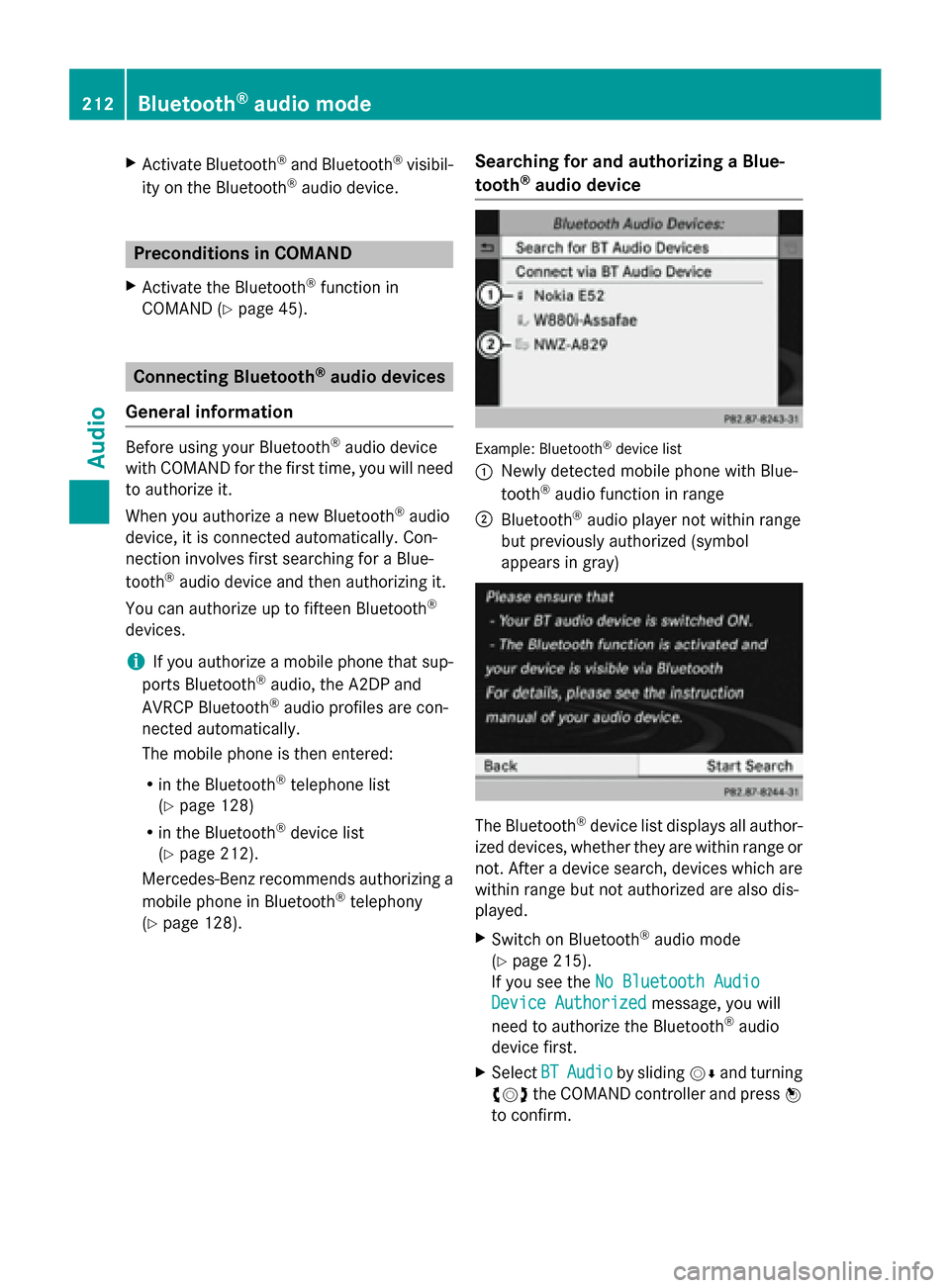
audio device Example: Bluetooth
®
device list
0043 Newly detected mobile phone with Blue-
tooth ®
audio function in range
0044 Bluetooth ®
audio player not within range
but previously authorized (symbol
appears in gray) The Bluetooth
®
device list displays all author-
ized devices, whether they are within range or
not. After a device search, devices which are within range but not authorized are also dis-
played.
X Switch on Bluetooth ®
audio mode
(Y page 215).
If you see the No Bluetooth Audio No Bluetooth Audio
Device Authorized
Device Authorized message, you will
need to authorize the Bluetooth ®
audio
device first.
X Select BT
BTAudio
Audio by sliding 00520064and turning
00790052007A the COMAND controller and press 0098
to confirm. 212
Bluetooth ®
audio modeAudio
Page 216 of 270
Reconnecting a Bluetooth
®
audio
device The Bluetooth
®
audio profiles are connected
automatically under the following circum-
stances:
R one of the last two mobile phones to have
been connected has also been used as a
Bluetooth ®
audio player (if this function is
supported by the mobile phone).
R the mobile phone takes over the automatic
connection itself.
A Bluetooth ®
audio player without telephone
functions is not automatically reconnected,
even if it was the last device connected.
If the No Bluetooth Audio Device Con‐
No Bluetooth Audio Device Con‐
nected nected message appears, you have two
options to connect a Bluetooth ®
audio
device:
Connecting last device
X Confirm Connect Last Device
Connect Last Device in the
basic display by pressing 0098the COMAND
controller.
If COMAND can locate the Bluetooth ®
audio device, it will be connected and start
playing.
i With some Bluetooth ®
audio devices,
playback must first be started on the device itself so that COMAND can play the audio
files.
Connecting a device from a list
X Select BT Audio BT Audio by turning 00790052007Athe
COMAND controller and press 0098to con-
firm.
X Confirm Bluetooth Audio Device List
Bluetooth Audio Device List
by pressing 0098the COMAND controller.
X Select a Bluetooth ®
audio device by turning
00790052007A the COMAND controller and press 0098
to confirm.
If COMAND can locate the Bluetooth ®
audio device, it will be connected and start
playing.
i With some Bluetooth ®
audio devices,
playback must be initially started on the device itself so that COMAND can play the
audio files.
Bluetooth ®
audio device and simultane-
ous search for mobile phones During the search for mobile phones, the con-
nection with the Bluetooth ®
audio device is
terminated (Y page 127). In the Bluetooth ®
audio basic display, you will see the No NoBlue‐
Blue‐
tooth Audio Device Connected
tooth Audio Device Connected message
and the Connect Last Device
Connect Last Device menu item
cannot be selected.
Displaying details X
Select a Bluetooth ®
audio device in the
Bluetooth ®
device list.
X Select the symbol to the right of the Blue-
tooth ®
audio device by sliding 00520096the
COMAND controller and press 0098to con-
firm.
X Select Details Details and press 0098to confirm.
The following information concerning the
selected mobile phone is shown:
R Bluetooth ®
name
R Bluetooth ®
address
R availability status (shown after an
update)
R authorization status
X To close the detailed view: turn00790052007A or
slide 009500520096 the COMAND controller.
De-authorizing (deregistering) a Blue-
tooth ®
audio device X
Select a Bluetooth ®
audio device in the
Bluetooth ®
device list.
X Select the symbol to the right of the Blue-
tooth ®
audio device by sliding 00520096the
COMAND controller and press 0098to con-
firm. 214
Bluetooth ®
audio modeAudio