2015 MERCEDES-BENZ GLC SUV bluetooth
[x] Cancel search: bluetoothPage 326 of 497
R
USB storage device
R Bluetooth ®
capable audio device
Please observe further information on media
support and media operation in the separate
Audio 20 or COMAND Online operating
instructions.
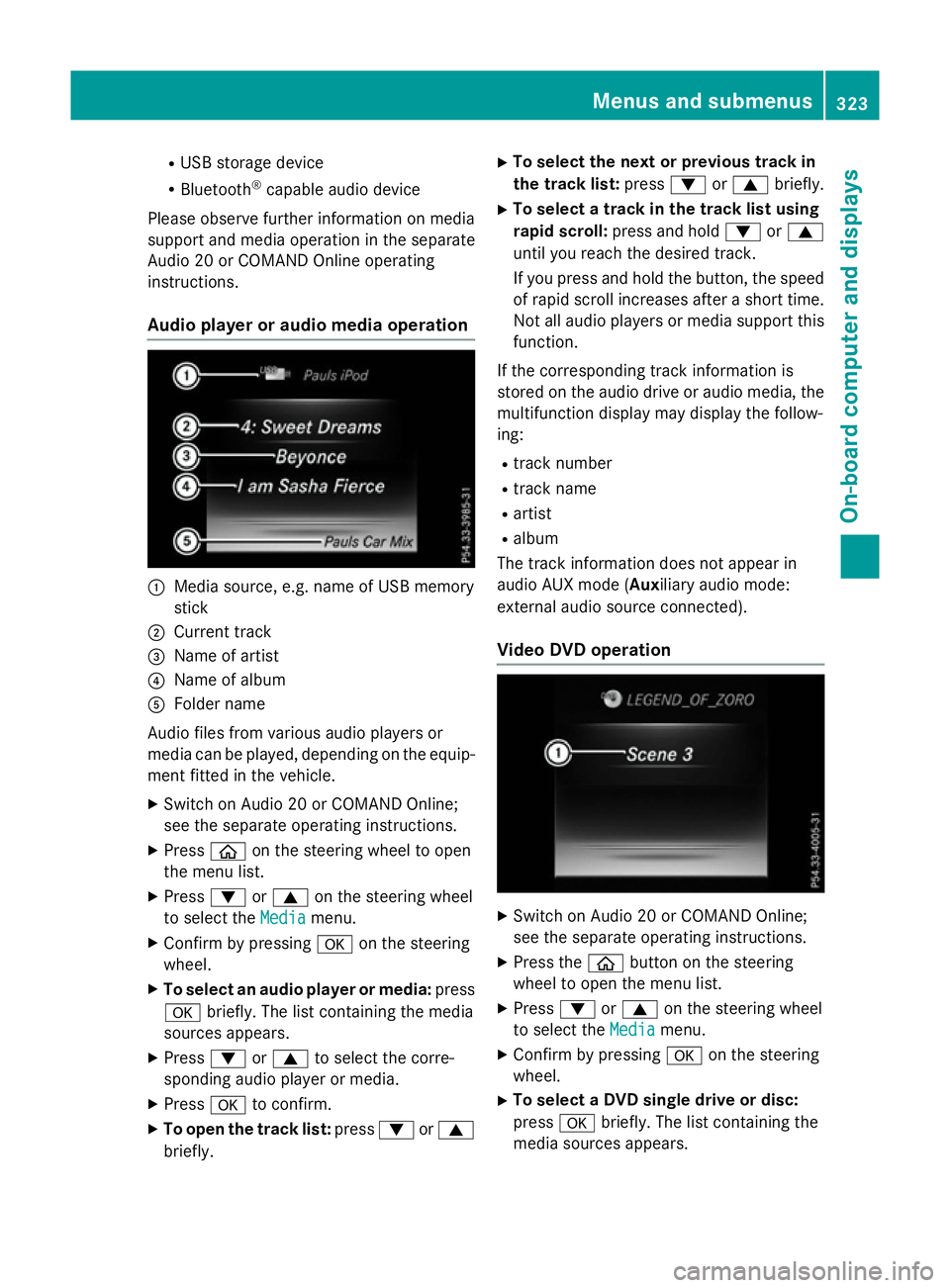
Audio player or audio media operation :
Media source, e.g. name of USB memory
stick
; Current track
= Name of artist
? Name of album
A Folder name
Audio files from various audio players or
media can be played, depending on the equip-
ment fitted in the vehicle.
X Switch on Audio 20 or COMAND Online;
see the separate operating instructions.
X Press òon the steering wheel to open
the menu list.
X Press :or9 on the steering wheel
to select the Media Mediamenu.
X Confirm by pressing aon the steering
wheel.
X To select an audio player or media: press
a briefly. The list containing the media
sources appears.
X Press :or9 to select the corre-
sponding audio player or media.
X Press ato confirm.
X To open the track list: press:or9
briefly. X
To select the next or previous track in
the track list: press:or9 briefly.
X To select a track in the track list using
rapid scroll: press and hold :or9
until you reach the desired track.
If you press and hold the button, the speed of rapid scroll increases after a short time.Not all audio players or media support this
function.
If the corresponding track information is
stored on the audio drive or audio media, the multifunction display may display the follow-
ing:
R track number
R track name
R artist
R album
The track information does not appear in
audio AUX mode (Aux iliary audio mode:
external audio source connected).
Video DVD operation X
Switch on Audio 20 or COMAND Online;
see the separate operating instructions.
X Press the òbutton on the steering
wheel to open the menu list.
X Press :or9 on the steering wheel
to select the Media
Media menu.
X Confirm by pressing aon the steering
wheel.
X To select a DVD single drive or disc:
press abriefly. The list containing the
media sources appears. Menus and submenus
323On-board computer and displays Z
Page 327 of 497
X
Press :or9 to select the corre-
sponding DVD single drive or disc.
X Press ato confirm.
X To open the scene list: press:or
9 briefly.
X To select the next or previous scene in
the scene list: press:or9 briefly.
X To select a scene in the scene list using
rapid scroll: press and hold :or9
until desired scene :has been reached.
X Press ato confirm your selection.
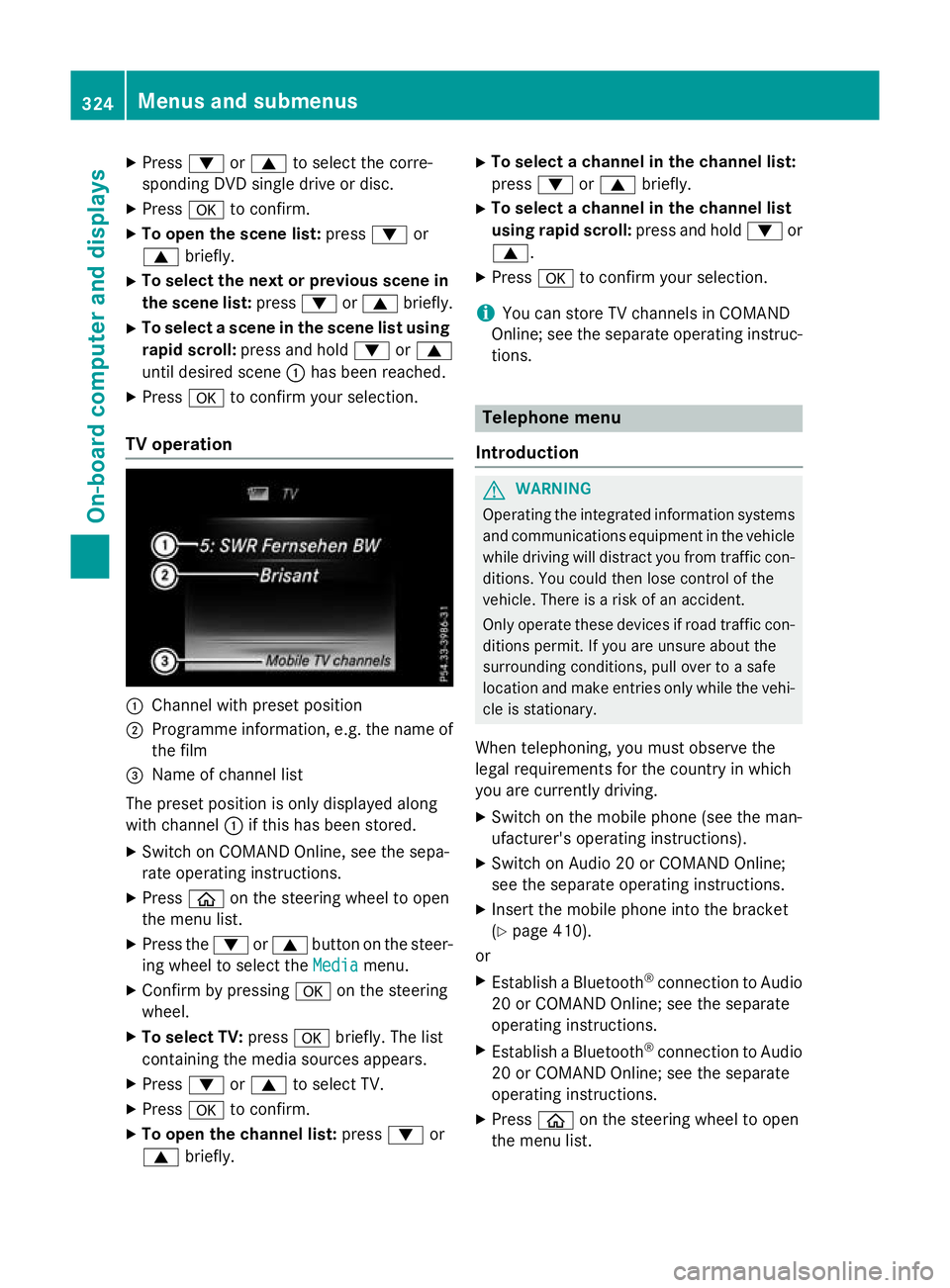
TV operation :
Channel with preset position
; Programme information, e.g. the name of
the film
= Name of channel list
The preset position is only displayed along
with channel :if this has been stored.
X Switch on COMAND Online, see the sepa-
rate operating instructions.
X Press òon the steering wheel to open
the menu list.
X Press the :or9 button on the steer-
ing wheel to select the Media
Media menu.
X Confirm by pressing aon the steering
wheel.
X To select TV: pressabriefly. The list
containing the media sources appears.
X Press :or9 to select TV.
X Press ato confirm.
X To open the channel list: press:or
9 briefly. X
To select a channel in the channel list:
press :or9 briefly.
X To select a channel in the channel list
using rapid scroll: press and hold:or
9.
X Press ato confirm your selection.
i You can store TV channels in COMAND
Online; see the separate operating instruc-
tions. Telephone menu
Introduction G
WARNING
Operating the integrated information systems and communications equipment in the vehicle
while driving will distract you from traffic con-
ditions. You could then lose control of the
vehicle. There is a risk of an accident.
Only operate these devices if road traffic con-
ditions permit. If you are unsure about the
surrounding conditions, pull over to a safe
location and make entries only while the vehi-
cle is stationary.
When telephoning, you must observe the
legal requirements for the country in which
you are currently driving.
X Switch on the mobile phone (see the man-
ufacturer's operating instructions).
X Switch on Audio 20 or COMAND Online;
see the separate operating instructions.
X Insert the mobile phone into the bracket
(Y page 410).
or
X Establish a Bluetooth ®
connection to Audio
20 or COMAND Online; see the separate
operating instructions.
X Establish a Bluetooth ®
connection to Audio
20 or COMAND Online; see the separate
operating instructions.
X Press òon the steering wheel to open
the menu list. 324
Menus and submenusOn-board computer and displays
Page 328 of 497
X
Press :or9 on the steering wheel
to select the Telephone Telephonemenu.
X Confirm by pressing aon the steering
wheel.
You will see one of the following display mes- sages in the multifunction display:
R Telephone ready Telephone ready or the name of the net-
work provider: the mobile phone has found a network and is ready to receive.
R Telephone No service
Telephone No service: there is no net-
work available or the mobile phone is
searching for a network.
i You can obtain further information about
suitable mobile phones and connecting
mobile phones via Bluetooth ®
:
R at any Mercedes-Benz Service Centre
R on the Internet at http://
www.mercedes-benz.com/connect
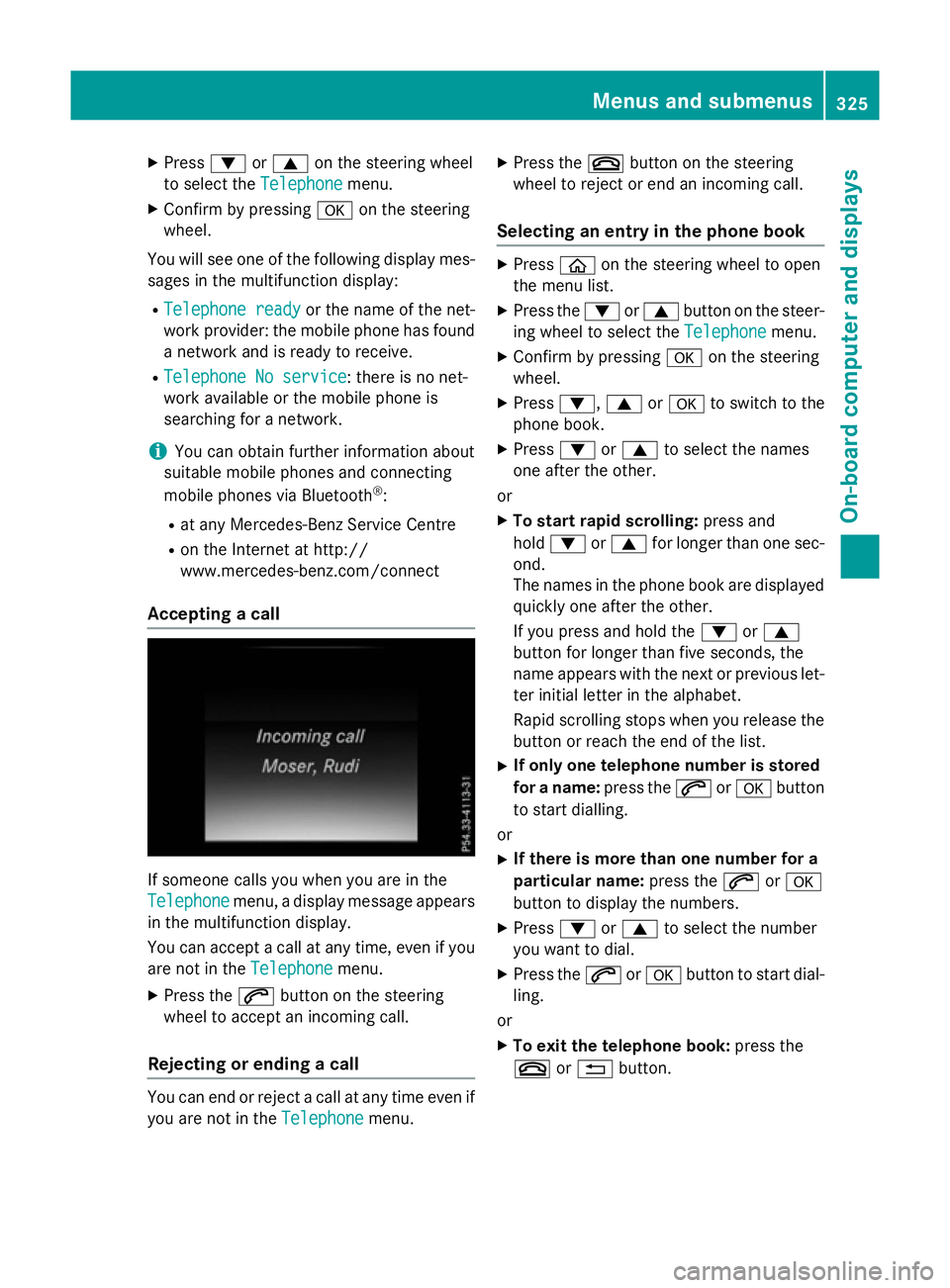
Accepting a call If someone calls you when you are in the
Telephone
Telephone menu, a display message appears
in the multifunction display.
You can accept a call at any time, even if you
are not in the Telephone
Telephone menu.
X Press the 6button on the steering
wheel to accept an incoming call.
Rejecting or ending a call You can end or reject a call at any time even if
you are not in the Telephone Telephonemenu. X
Press the ~button on the steering
wheel to reject or end an incoming call.
Selecting an entry in the phone book X
Press òon the steering wheel to open
the menu list.
X Press the :or9 button on the steer-
ing wheel to select the Telephone
Telephonemenu.
X Confirm by pressing aon the steering
wheel.
X Press :, 9ora to switch to the
phone book.
X Press :or9 to select the names
one after the other.
or
X To start rapid scrolling: press and
hold : or9 for longer than one sec-
ond.
The names in the phone book are displayed quickly one after the other.
If you press and hold the :or9
button for longer than five seconds, the
name appears with the next or previous let-
ter initial letter in the alphabet.
Rapid scrolling stops when you release the button or reach the end of the list.
X If only one telephone number is stored
for a name: press the6ora button
to start dialling.
or X If there is more than one number for a
particular name: press the6ora
button to display the numbers.
X Press :or9 to select the number
you want to dial.
X Press the 6ora button to start dial-
ling.
or X To exit the telephone book: press the
~ or% button. Menus and submenus
325On-board computer and displays Z
Page 413 of 497
Mobile phone
Important safety notes G
WARNING
Operating mobile communications equip-
ment while driving distracts you from paying
attention to traffic conditions. This could also cause you to lose control of the vehicle. There
is a risk of an accident.
Use this device only when the vehicle is sta-
tionary.
You must observe the legal requirements for
the country in which you are currently driving when operating mobile communications
equipment in the vehicle.
If it is permitted by law to operate communi-
cations equipment while the vehicle is in
motion, you may only do so if the traffic sit-
uation permits. You may otherwise be dis-
tracted from the traffic conditions, cause an
accident and injure yourself and others.
Excessive levels of electromagnetic radiation
may cause damage to your health and to the
health of others. The use of an exterior aerial
takes into consideration the scientific discus- sion surrounding the possible health risk
posed by electromagnetic fields.
Mercedes-Benz recommends the use of an
approved exterior aerial. This ensures:
R optimal mobile phone reception quality in
the vehicle
R that mutual interference between the vehi-
cle electronics and mobile phones is mini-
mised
An exterior aerial has the following advan-
tages:
R it conducts the electromagnetic fields gen-
erated by a wireless device to the exterior
R the field strength in the vehicle interior is
lower than in a vehicle that does not have
an exterior aerial
Information on retrofitting two-way radios
and mobile phones (RF transmitters)
(Y page 478). General notes Depending on the vehicle equipment, there
are various mobile phone brackets that may
be fitted in your vehicle; in some cases, these
are country-specific.
More information on suitable mobile phones,
mobile phone brackets and on connecting
Bluetooth ®
-capable mobile phones to
COMAND Online/Audio 20 can be obtained:
R at your Mercedes-Benz Service Centre
R on the Internet at http://www.mercedes-
benz.com/connect
The functions and services available when
you use the phone depend on your mobile
phone model and service provider.
Using a mobile phone To connect a mobile phone to the exterior
aerial and charge it, insert it into the mobile
phone bracket.
X Open the telephone compartment
(Y page 392).
X Place the mobile phone bracket into the
pre-installed fitting; see the separate instal- lation instructions for the mobile phone fit-
ting.
X Insert the mobile phone into the mobile
phone bracket; see the separate installa-
tion instructions for the mobile phone fit-
ting.
i The mobile phone can also be operated
without being in the bracket. However, the charging function and aerial function are
not available.
In order to use Bluetooth ®
(SAP profile) on
your telephone module, you must first insert
the telephone module into the pre-installed
fitting. This connects it to the exterior aerial.
If you wish to charge the mobile phone, then
you must connect it to a USB port.
Further information on the telephone module
with Bluetooth ®
(SAP profile) can be found in
the Digital Owner's Manual. 410
FeaturesStowing and features