2015 MERCEDES-BENZ GLC SUV reset
[x] Cancel search: resetPage 216 of 497
Reset the building's circuit breaker. Other-
wise, the charging process cannot be contin- ued.
General information on the charging
process Observe the "Important safety notes"
(Y page 210).
The vehicle socket is located in the rear
bumper on the right below the tail lamp.
The charge socket flap and the vehicle are
centrally locked or unlocked simultaneously. Charging the high-voltage battery via
the mains socket
Charging cable for mains sockets Important safety notes
! Only use the charging cable to charge the
high-voltage battery. Do not use the charg-
ing cable for other purposes. It may other-
wise be damaged.
The vehicle is supplied with a charging cable
for connection to a mains socket. Only use
the charging cable supplied with the vehicle
or a charging cable approved for the vehicle.
i The charging process can vary depending
on the mains power supply. Therefore,
always observe the local information.
i For short charge times (charging with 16
A), connect the fast-charging cable to the
wallbox or charging station. You can also
use the optionally available charging cable
with the CE plug.
Information about charging from a wallbox
can be found at (Y page 216).
Information about charging at a charging sta-
tion can be found at (Y page 217).
Stowing the charging cable
The charging cable can be stowed in the bag
supplied in the luggage compartment of the vehicle and held in place with the Velcro fas-
tener.
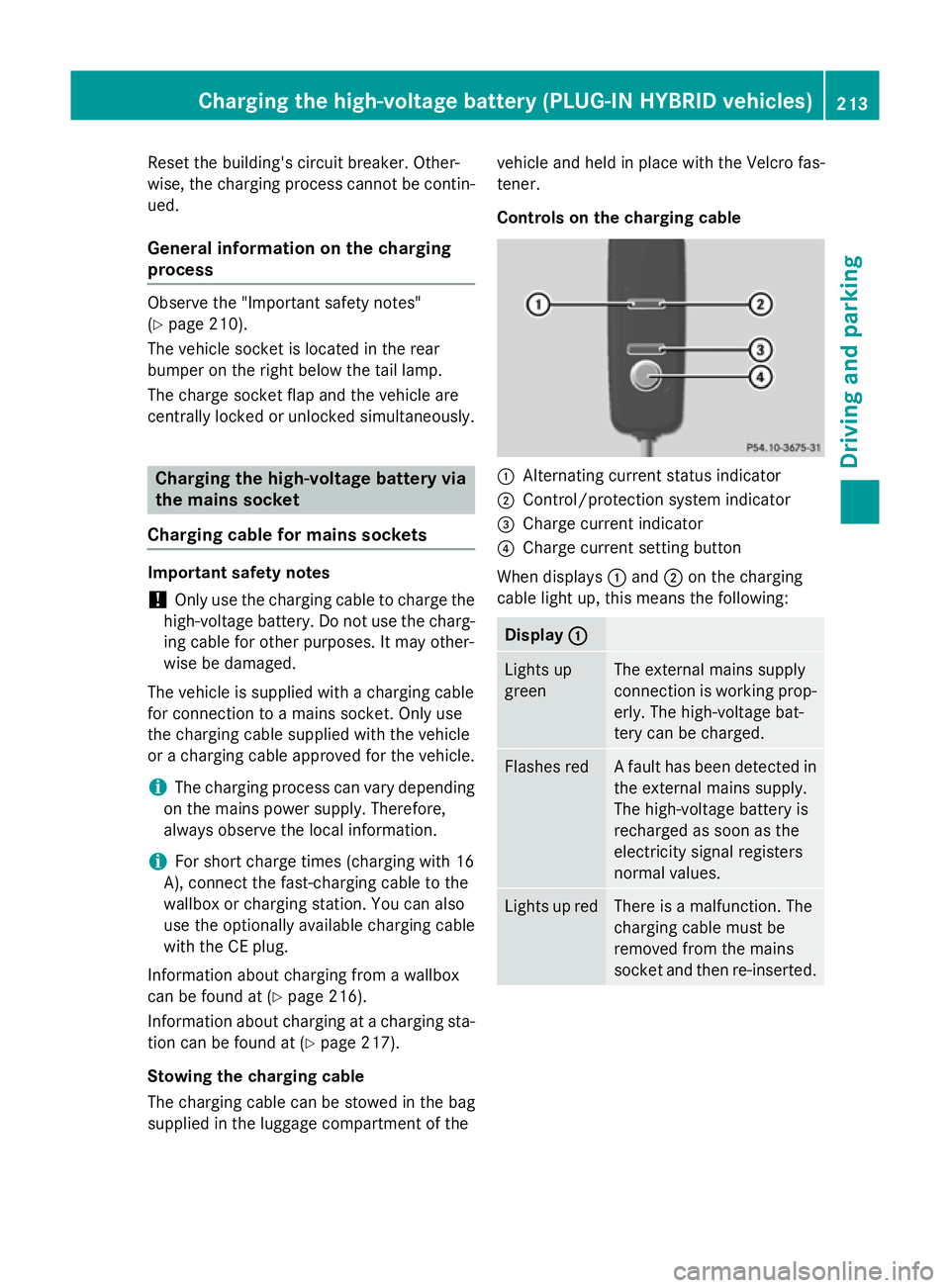
Controls on the charging cable
:
Alternating current status indicator
; Control/protection system indicator
= Charge current indicator
? Charge current setting button
When displays :and ;on the charging
cable light up, this means the following: Display
:
: Lights up
green The external mains supply
connection is working prop-
erly. The high-voltage bat-
tery can be charged. Flashes red A fault has been detected in
the external mains supply.
The high-voltage battery is
recharged as soon as the
electricity signal registers
normal values. Lights up red There is a malfunction. The
charging cable must be
removed from the mains
socket and then re-inserted.Cha
rging the high-voltage battery (PLUG-IN HYBRI D vehicles)
213Driving and parking Z
Page 217 of 497
Display
;
; Lights up
green There are no faults. The
high-voltage battery can be
charged.
Lights up red An impermissible current is
being supplied to the con-
trol unit. The high-voltage
battery cannot be charged.
i
Information on problems relating to the
charging process (Y page 218).
Setting the maximum charge current G
WARNING
If the charge current draw via a mains socket is too high during the charging process, the
external mains supply may overheat. There is a risk of fire.
Before charging, check the maximum permis-
sible charge current available at the location.
If necessary, contact a qualified specialist
company for assistance.
Adjust your vehicle's settings, if necessary.
! If the charge current is too high, the fuse
could be tripped or the external mains sup-
ply could overheat. Check if the external
mains supply is equipped to handle the pro- grammed charge current. If necessary,
reduce the programmed charge current or
use a different mains socket.
You can set a limit for the values of the charge
current used in charging the high-voltage bat- tery. This acts as a means of preventing the
mains supply from overloading. You can set
this limit by using the controls on the charging
cable or in the on-board computer's menu.
Only set the maximum charge current in the
on-board computer menu if there are no
charge current settings on the charging
cable.
The default value in the vehicle corresponds
to the maximum charge value.
The default value on the charging cable is the
minimum setting. This corresponds to the minimum available charge current from the
mains supply. The value on the charging cable
can be increased and is described below.
i The value of the maximum setting and the
adjustment value may vary depending on
the country.
Before charging the high-voltage battery,
check the maximum permissible charge cur-
rent for the relevant power socket.
X To adjust the setting: press button?
repeatedly until the desired setting is selec- ted in display =.
R Two LEDs are flashing: minimum setting
R All LEDs are flashing: maximum setting
If, after the charging process, the charging
cable is:
R left connected to the power socket, the
currently selected values will be used for
the next charging process.
R removed from the power socket, the values
will be reset to the minimum setting for the next charging process. You may then need
to reset the values of the maximum charge current.
i If the vehicle requires more time than
usual when charging, check the maximum
charge current settings using the controls
on the charging cable or in the on-board
computer's menu.
Indicator lamps on the vehicle socket
When the indicator lamps on the vehicle
socket light up, this means the following: Left indica-
tor lamp
Ì Ì
Lights up
white The charging cable can be
removed or connected.
Flashes
white The charging cable connec-
tor has been connected
incorrectly. 214
Cha
rging the high-voltage battery (PLUG-IN HYBRI D vehicles)Driving and parking
Page 227 of 497
time, the driver has adopted the most eco-
nomical driving style for the selected settings
and prevailing conditions. The ECO display
border lights up.
The ECO display does not indicate the actual fuel consumption. The additionally achieved
range displayed under Bonus fr. start
Bonus fr. start
does not indicate a fixed consumption reduc-
tion.
In addition to driving style, the actual con-
sumption is affected by other factors, such
as:
R load
R tyre pressure
R cold start
R choice of route
R the use of electrical consumers
These factors are not included in the ECO dis-
play.
An economical driving style involves driving at a moderate engine speed.
To achieve a higher value in the categories
"acceleration" and "smooth driving":
R observe the gearshift recommendation
R drive the vehicle in drive program E
On long journeys at a constant speed, e.g. on the motorway, only the outer area for "con-
stant" will change.
The ECO display summarises the driving style
from the start of the journey to its completion. Therefore, there are more marked changes in
the outer areas at the start of a journey. Dur- ing a prolonged driving time, these changes
are smaller. For more marked changes, per-
form a manual reset (Y page 319).
Further information on the ECO display
(Y page 318). Brakes
Important safety notes G
WARNING
If you shift down on a slippery road surface in an attempt to increase the engine's braking
effect, the drive wheels could lose their grip.
This increases the risk of skidding and having
an accident.
Do not shift down for additional engine brak-
ing on a slippery road surface.
Downhill gradients Change into a lower gear in good time on long
and steep downhill gradients. Take particular note of this when driving a laden vehicle and
when towing a trailer.
This also applies if cruise control, DISTRONIC
PLUS or SPEEDTRONIC are activated.
This will use the braking effect of the engine,
so less braking will be required to maintain
vehicle speed. This relieves the load on the
brake system and prevents the brakes from
overheating and wearing too quickly.
Heavy and light loads G
WARNING
The braking system can overheat if you leave your foot on the brake pedal while driving.
This increases the braking distance and could
even cause the braking system to fail. There is
a risk of an accident.
Never use the brake pedal as a footrest. Do
not simultaneously depress both the brake
pedal and the accelerator pedal while driving.
! Depressing the brake pedal constantly
results in excessive and premature wear to
the brake pads.
If heavy demands are made on the brakes, do not park the vehicle immediately. Drive on for
a short while. This allows the airflow to cool
the brakes more quickly. 224
Driving
tipsDriving an d parking
Page 298 of 497
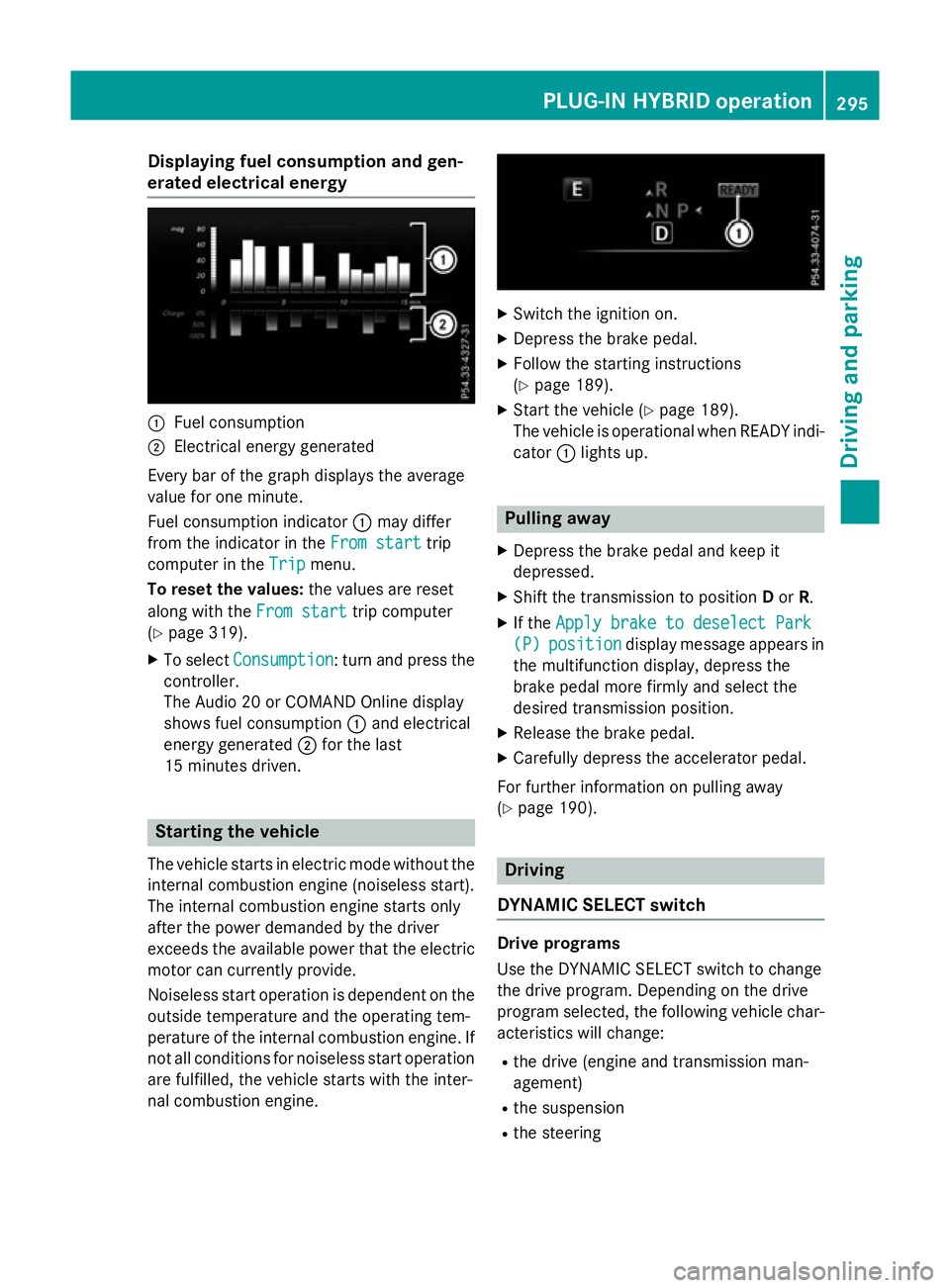
Displaying fuel consumption and gen-
erated electrical energy :
Fuel consumption
; Electrical energy generated
Every bar of the graph displays the average
value for one minute.
Fuel consumption indicator :may differ
from the indicator in the From start From starttrip
computer in the Trip
Trip menu.
To reset the values: the values are reset
along with the From start
From starttrip computer
(Y page 319).
X To select Consumption
Consumption: turn and press the
controller.
The Audio 20 or COMAND Online display
shows fuel consumption :and electrical
energy generated ;for the last
15 minutes driven. Starting the vehicle
The vehicle starts in electric mode without the
internal combustion engine (noiseless start).
The internal combustion engine starts only
after the power demanded by the driver
exceeds the available power that the electric
motor can currently provide.
Noiseless start operation is dependent on the
outside temperature and the operating tem-
perature of the internal combustion engine. If
not all conditions for noiseless start operation are fulfilled, the vehicle starts with the inter-
nal combustion engine. X
Switch the ignition on.
X Depress the brake pedal.
X Follow the starting instructions
(Y page 189).
X Start the vehicle (Y page 189).
The vehicle is operational when READY indi-
cator :lights up. Pulling away
X Depress the brake pedal and keep it
depressed.
X Shift the transmission to position Dor R.
X If the Apply brake to deselect Park
Apply brake to deselect Park
(P) (P) position
position display message appears in
the multifunction display, depress the
brake pedal more firmly and select the
desired transmission position.
X Release the brake pedal.
X Carefully depress the accelerator pedal.
For further information on pulling away
(Y page 190). Driving
DYNAMIC SELECT switch Drive programs
Use the DYNAMIC SELECT switch to change
the drive program. Depending on the drive
program selected, the following vehicle char-
acteristics will change:
R the drive (engine and transmission man-
agement)
R the suspension
R the steering PLUG
‑IN HYBRID ope ration
295Driving an d parking Z
Page 321 of 497
Trip menu
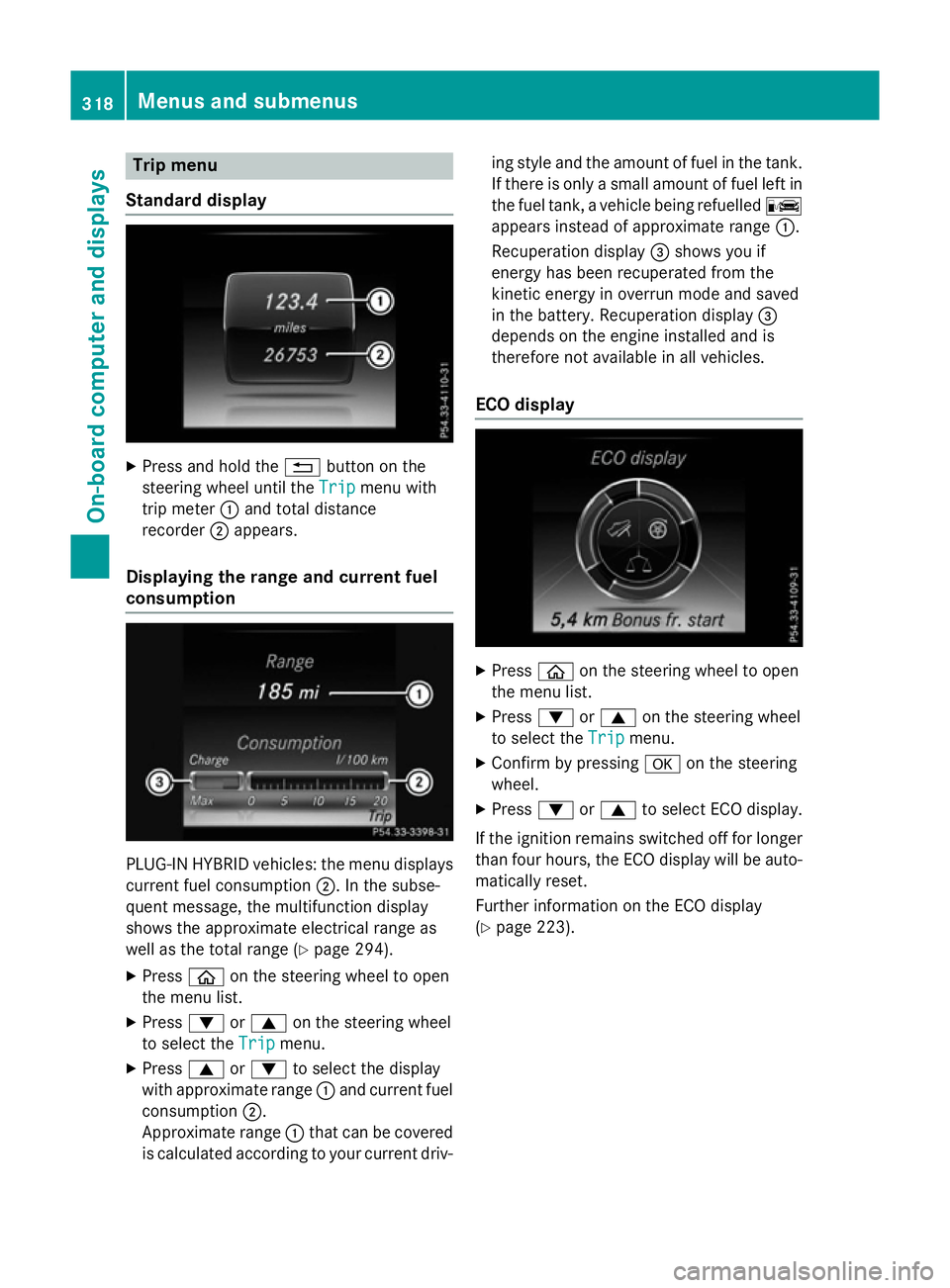
Standard display X
Press and hold the %button on the
steering wheel until the Trip
Tripmenu with
trip meter :and total distance
recorder ;appears.
Displaying the range and current fuel
consumption PLUG-IN HYBRID vehicles: the menu displays
current fuel consumption ;. In the subse-
quent message, the multifunction display
shows the approximate electrical range as
well as the total range (Y page 294).
X Press òon the steering wheel to open
the menu list.
X Press :or9 on the steering wheel
to select the Trip
Trip menu.
X Press 9or: to select the display
with approximate range :and current fuel
consumption ;.
Approximate range :that can be covered
is calculated according to your current driv- ing style and the amount of fuel in the tank.
If there is only a small amount of fuel left in
the fuel tank, a vehicle being refuelled C
appears instead of approximate range :.
Recuperation display =shows you if
energy has been recuperated from the
kinetic energy in overrun mode and saved
in the battery. Recuperation display =
depends on the engine installed and is
therefore not available in all vehicles.
ECO display X
Press òon the steering wheel to open
the menu list.
X Press :or9 on the steering wheel
to select the Trip Tripmenu.
X Confirm by pressing aon the steering
wheel.
X Press :or9 to select ECO display.
If the ignition remains switched off for longer than four hours, the ECO display will be auto-
matically reset.
Further information on the ECO display
(Y page 223). 318
Menus and submenusOn-board computer and displays
Page 322 of 497
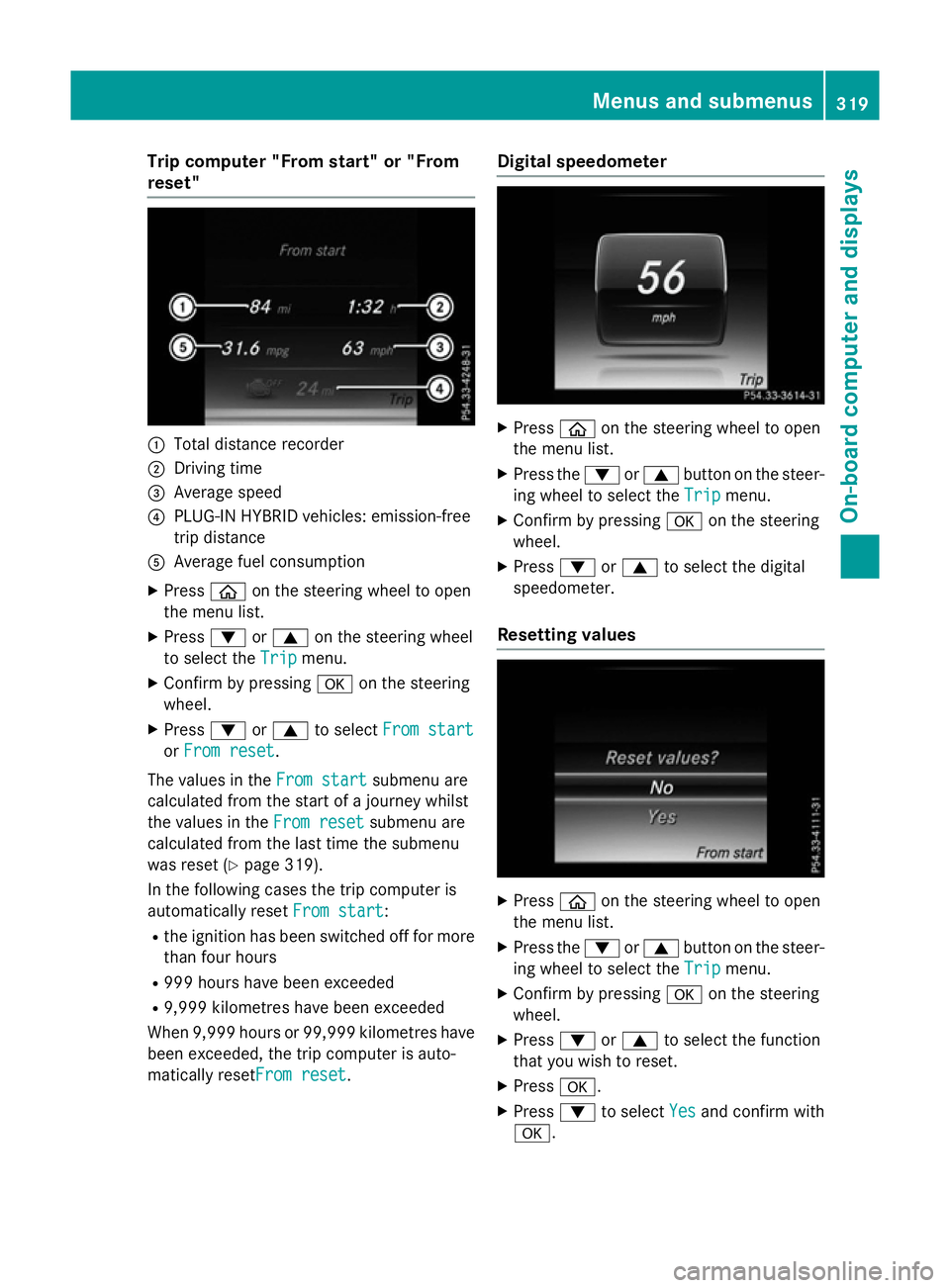
Trip computer "From start" or "From
reset" :
Total distance recorder
; Driving time
= Average speed
? PLUG-IN HYBRID vehicles: emission-free
trip distance
A Average fuel consumption
X Press òon the steering wheel to open
the menu list.
X Press :or9 on the steering wheel
to select the Trip
Trip menu.
X Confirm by pressing aon the steering
wheel.
X Press :or9 to select From start
From start
or From reset
From reset.
The values in the From start
From startsubmenu are
calculated from the start of a journey whilst
the values in the From reset From resetsubmenu are
calculated from the last time the submenu
was reset (Y page 319).
In the following cases the trip computer is
automatically reset From start
From start:
R the ignition has been switched off for more
than four hours
R 999 hours have been exceeded
R 9,999 kilometres have been exceeded
When 9,999 hours or 99,999 kilometres have been exceeded, the trip computer is auto-
matically resetFrom reset From reset. Digital speedometer
X
Press òon the steering wheel to open
the menu list.
X Press the :or9 button on the steer-
ing wheel to select the Trip Tripmenu.
X Confirm by pressing aon the steering
wheel.
X Press :or9 to select the digital
speedometer.
Resetting values X
Press òon the steering wheel to open
the menu list.
X Press the :or9 button on the steer-
ing wheel to select the Trip
Tripmenu.
X Confirm by pressing aon the steering
wheel.
X Press :or9 to select the function
that you wish to reset.
X Press a.
X Press :to select Yes
Yesand confirm with
a. Menus and submenus
319On-board computer and displays Z
Page 323 of 497
You can reset the values of the following func-
tions:
R Trip meter
R "From start" trip computer
R "From reset" trip computer
R ECO display
If you reset the values in the "ECO display",
the values in the "From start" trip computer
are also reset. If you reset the values in the
"From start" trip computer, the values in the
"ECO display" are also reset. Navigation menu
Displaying navigation instructions In the
Navi Navimenu, the multifunction display
shows navigation instructions.
Further information on navigation can be
found in the separate Audio 20 or COMAND
Online operating instructions.
X Switch on Audio 20 or COMAND Online;
see the separate operating instructions.
X Press òon the steering wheel to open
the menu list.
X Press :or9 on the steering wheel
to select the Navi
Navi menu.
X Confirm by pressing aon the steering
wheel.
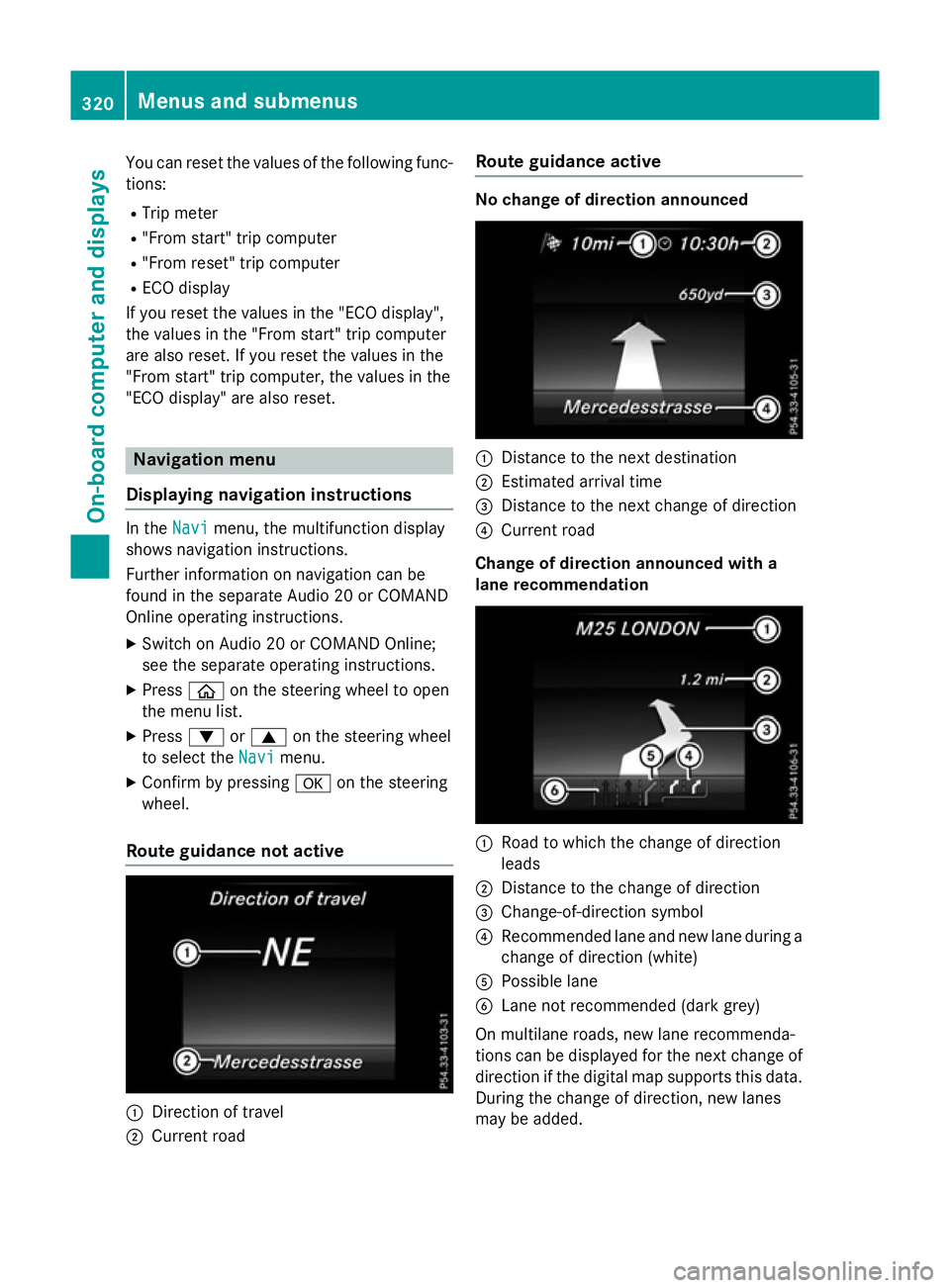
Route guidance not active :
Direction of travel
; Current road Route guidance active No change of direction announced
:
Distance to the next destination
; Estimated arrival time
= Distance to the next change of direction
? Current road
Change of direction announced with a
lane recommendation :
Road to which the change of direction
leads
; Distance to the change of direction
= Change-of-direction symbol
? Recommended lane and new lane during a
change of direction (white)
A Possible lane
B Lane not recommended (dark grey)
On multilane roads, new lane recommenda-
tions can be displayed for the next change of
direction if the digital map supports this data.
During the change of direction, new lanes
may be added. 320
Menus and submenusOn-board computer and displays
Page 325 of 497
You have reached the destination or an
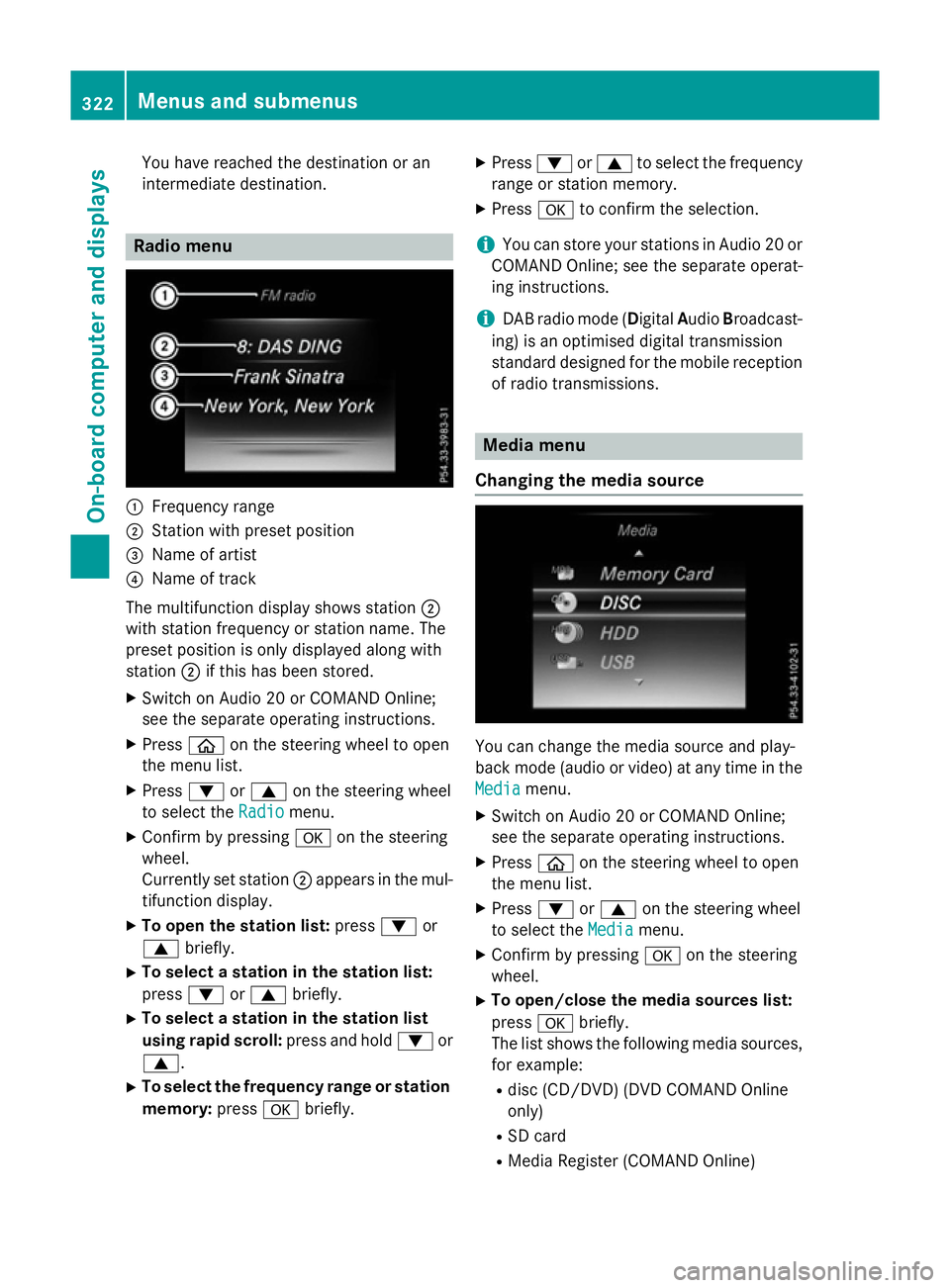
intermediate destination. Radio menu
:
Frequency range
; Station with preset position
= Name of artist
? Name of track
The multifunction display shows station ;
with station frequency or station name. The
preset position is only displayed along with
station ;if this has been stored.
X Switch on Audio 20 or COMAND Online;
see the separate operating instructions.
X Press òon the steering wheel to open
the menu list.
X Press :or9 on the steering wheel
to select the Radio Radiomenu.
X Confirm by pressing aon the steering
wheel.
Currently set station ;appears in the mul-
tifunction display.
X To open the station list: press:or
9 briefly.
X To select a station in the station list:
press :or9 briefly.
X To select a station in the station list
using rapid scroll: press and hold:or
9.
X To select the frequency range or station
memory: pressabriefly. X
Press :or9 to select the frequency
range or station memory.
X Press ato confirm the selection.
i You can store your stations in Audio 20 or
COMAND Online; see the separate operat-
ing instructions.
i DAB radio mode (Digital
AudioBroadcast-
ing) is an optimised digital transmission
standard designed for the mobile reception
of radio transmissions. Media menu
Changing the media source You can change the media source and play-
back mode (audio or video) at any time in the
Media Media menu.
X Switch on Audio 20 or COMAND Online;
see the separate operating instructions.
X Press òon the steering wheel to open
the menu list.
X Press :or9 on the steering wheel
to select the Media Mediamenu.
X Confirm by pressing aon the steering
wheel.
X To open/close the media sources list:
press abriefly.
The list shows the following media sources,
for example:
R disc (CD/DVD) (DVD COMAND Online
only)
R SD card
R Media Register (COMAND Online) 322
Menus and submenusOn-board computer and displays