2015 MERCEDES-BENZ E-CLASS SALOON audio
[x] Cancel search: audioPage 254 of 497
X
Press the Øbutton in the centre con-
sole.
The vehicle menu appears.
X Select 360° camera
360° camera and press7to con-
firm.
The following appears depending on
whether transmission position Dor Ris
selected:
R as plit-screen with top view and the
image from the frontc amera or
R as plit-screen with top view and the
image from the reversin gcamera
Activating the 360° camera using
reverse gear You can show images from the 360° camera
automatically by engaging reverse gear.
X Make sure that the key is in position 2in the
ignition lock.
X Make sure that the ActivationbyR
Activatio nbyR
gear
gear function is selected in COMAND
Online/Audio 20 (see the separate
COMAND Online/Audio 20 operating
instructions).
X To show the 360° camera image: engage
reverse gear.
The area behind the vehicle is shown in the
COMAND/Audio 20 display in split-screen
mode. You see the top view of the vehicle
and the image from the reversin gcamera.
Selecting the split-screen and full
screen displays Switching between split screen views
X To switch to the line with the vehicle icons:
slide 5the controller.
X To select one of the vehicle icons: turn
3 the controller.
X To switch to 180° view
180° view: turn3 the
controller to select 180° view 180° viewand press
7 to confirm.
i The
180° view
180° view option is only availabl ein
the following views: R
Top view with image from the reversing
camera
R Top view with image from the frontc am-
era
Displays in the COMAND/Audio 20 dis-
play Important safety notes
The camera system may show
adistorted
view of obstacles or show them incorrectly or
not at all. Obstacles are not shown by the
system in the following locations:
R under the fronta nd rear bumpers
R very close to the fronta nd rear bumpers
R in the area immediately above the tailgate
handle/boot lid handle
R very close to the exterior mirrors
R in the transitional areas between the vari-
ous cameras in the virtual top view
! Objects not at ground level may appear to
be further away than they actually are, e.g.:
R the bumper of aparked vehicle
R the drawbar of atrailer
R the ball coupling of atrailer tow hitch
R the rear section of an HGV
R as lanted post
Use the guidelines only for orientation.
Approach object snofurther than the bot-
tom-most guideline. Driving systems
251Driving and parking Z
Page 256 of 497
This view assists you in estimatin
gthe dis-
tancetot he vehicle behind you.
i This setting can also be selected as an
enlarged frontv iew.
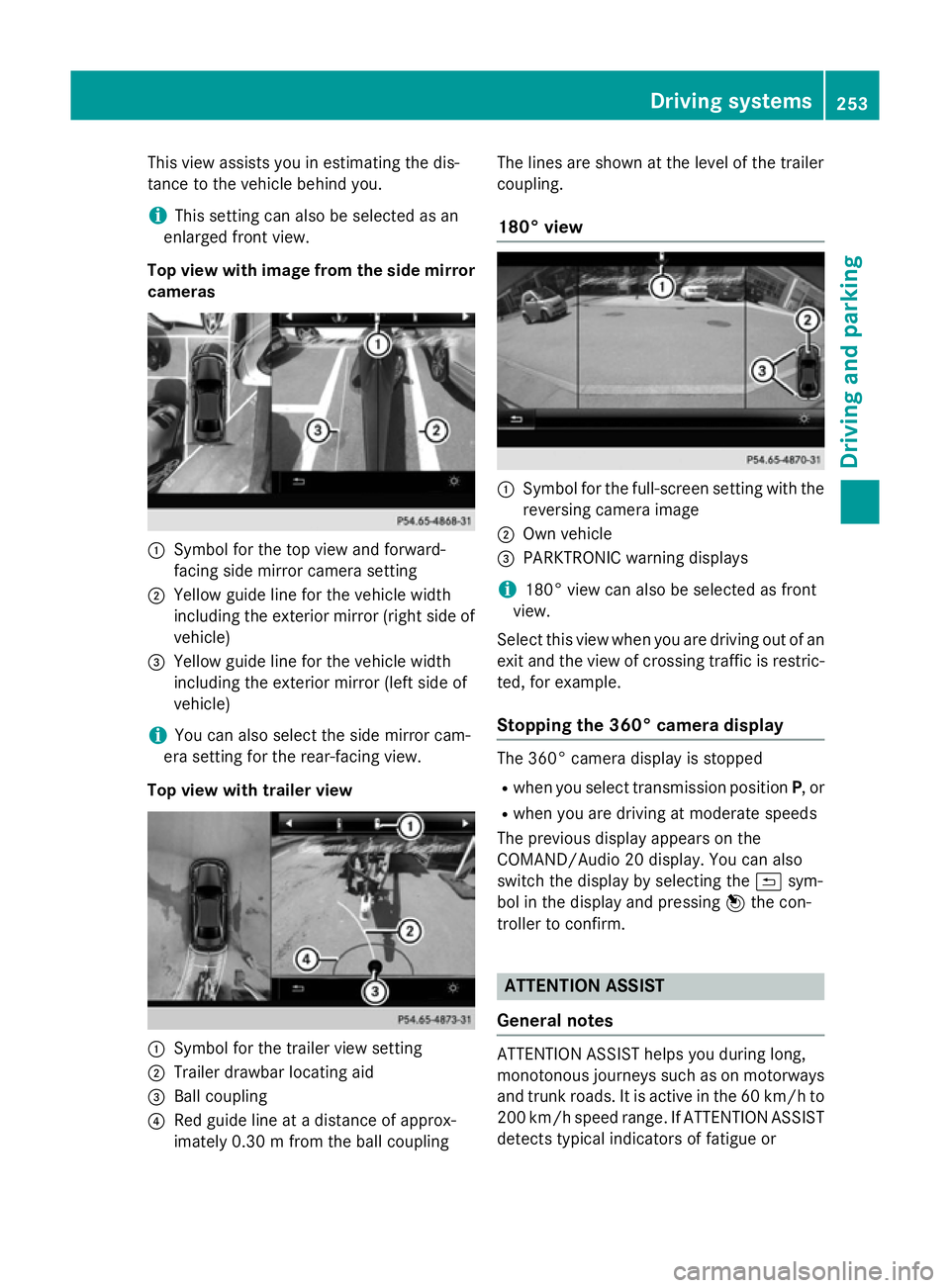
Top view with image from the side mirror cameras :
Symbol for the top view and forward-
facing side mirror camera setting
; Yellow guide line for the vehicle width
including the exterior mirror (right side of vehicle)
= Yellow guide line for the vehicle width
including the exterior mirror (left side of
vehicle)
i You can also select the side mirror cam-
era setting for the rear-facing view.
Top view with trailer view :
Symbol for the trailer view setting
; Trailer drawbar locating aid
= Ball coupling
? Red guide line at adistanc eofapprox-
imately 0.30m from the ball coupling The lines are shown at the level of the trailer
coupling.
180° view :
Symbol for the full-screen setting with the
reversin gcamera image
; Own vehicle
= PARKTRONIC warning displays
i 180° view can also be selected as front
view.
Select this view when you are driving out of an
exit and the view of crossin gtraffic is restric-
ted, for example.
Stopping the 360° camera display The 360° camera display is stopped
R when you select transmission position P,or
R when you are driving at moderate speeds
The previous display appears on the
COMAND/Audio 20 display .You can also
switch the display by selectin gthe & sym-
bol in the display and pressing 7the con-
troller to confirm. ATTENTION ASSIST
General notes ATTENTION ASSIST helps you during long,
monotonous journeys such as on motorways
and trunk roads. It is active in the 60 km/hto
200 km/h spee drange .IfATTENTION ASSIST
detects typical indicators of fatigue or Driving systems
253Driving and parking Z
Page 280 of 497
Outsid
etemperature display
You should pay special attention to road con-
ditions when temperatures are around the
freezing point.
Bear in mind that the outside temperature
display indicates the temperature measured
and does not recor dthe road temperature.
The outside temperature display is in the mul- tifunction display (Y page 279).
Changes in the outside temperature are dis-
played after ashort delay. Speedometer with segments
The segments in the speedometer indicate
which speed range is available.
R Cruise control activated (Y page 212):
The segments light up from the stored
speed to the maximum speed.
R Variable SPEEDTRONIC activated
(Y page 215):
The segments light up from the start of the
scale to the selected limit speed.
R DISTRONIC PLUS activated (Y page 217):
One or two segments in the set speed
range light up.
R DISTRONIC PLUS detects avehicle in front:
The segments between the speed of the
vehicle in fron tand the stored speed light
up. Operating the on-board computer
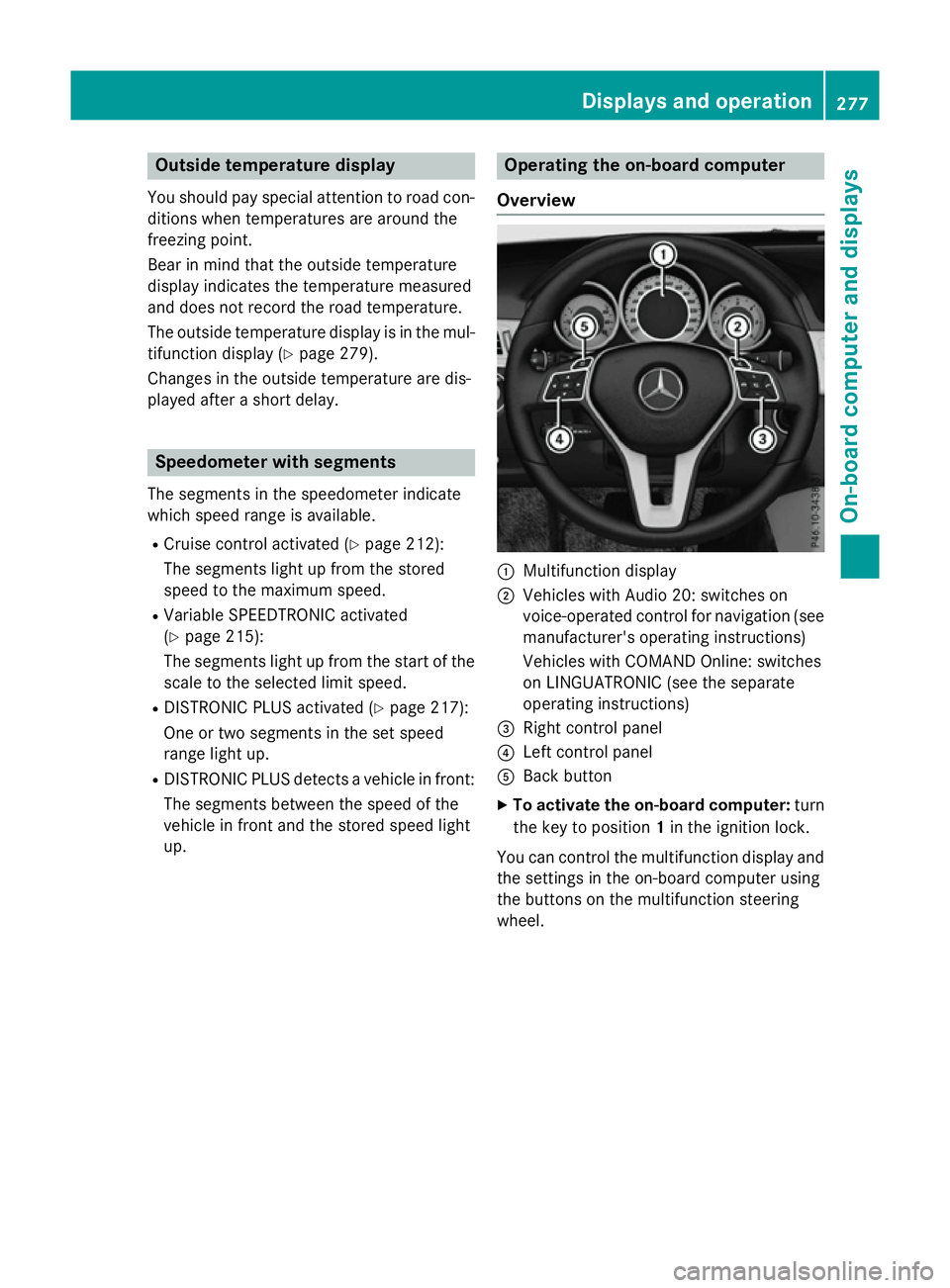
Overview :
Multifunction display
; Vehicles with Audio 20: switches on
voice-operated control for navigation (see
manufacturer's operatin ginstructions)
Vehicles with COMAND Online: switches
on LINGUATRONIC (see the separate
operatin ginstructions)
= Right control panel
? Left control panel
A Back button
X To activate the on-board computer: turn
the key to position 1in the ignition lock.
You can control the multifunction display and
the settings in the on-board computer using
the button sonthe multifunction steering
wheel. Displays and operation
277On-boardcomputer and displays Z
Page 281 of 497
Left control panel
=
; R
Calls up th emenua nd men ubar 9
: Press briefly:
R Scrolls through lists
R Select sasubmenu or function
R Vehicles with Audio 20 :inthe
Audio Audio menu, selects th eprevi-
ous or nex tstored station, when
th ep reset list or statio nlist is
active, or an audio track
R Vehicles with COMAND Online:
in the Audio
Audio menu, selects the
previous or nex tstation, when
th ep reset list or statio nlist is
active, or an audio track or video
scene
R In the Tel Tel(telephone) menu:
switche stothephon ebook and
selects anam eort elephone
number 9
: Press and hold:
R Vehicles with Audio 20 :inthe
Audio Audio menu, selects th eprevi-
ous or nex tstation, when the
preset list or statio nlist is active,
selects an audio track using
rapid scrolling, or selects avideo
scene
R Vehicles with COMAND Online:
in the Audio Audio menu, selects apre-
set list or statio nlist in the
desired frequency range or an
audio track or video scene using
rapid scrolling
R In the Tel Tel(Telephone) menu:
start srapid scrollin gifthephone
book is open a R
Confirm sthe selectio nordisplay
message
R In the Tel
Tel(Telephone) menu:
switche stothetelephone book
and start sdiallin gthe selected
number Righ
tcontrol panel ~ R
Reject sorendsac all
R Exits th etelephone book/redial
memory 6 R
Makes or accept sacall
R Switche stotheredial memory W
X R
Adjust sthe volume 8 R
Mute 278
Displays and operationOn-boar
dcomputer and displays
Page 282 of 497
Back button
% Press briefly:
R Back
R Vehicles with Audio 20:
Switches off voice-operated con-
trol for navigatio n(seem anufac-
turer's operating instructions)
R Vehicles with COMAND Online:
Switches off LINGUATRONIC
(se ethe separate operating
instructions)
R Hides display messages or calls
up the last Trip Tripmenu function
used
R Exits the telephone book/redial
memory % Press and hold:
R Call supt he standard display in
the Trip
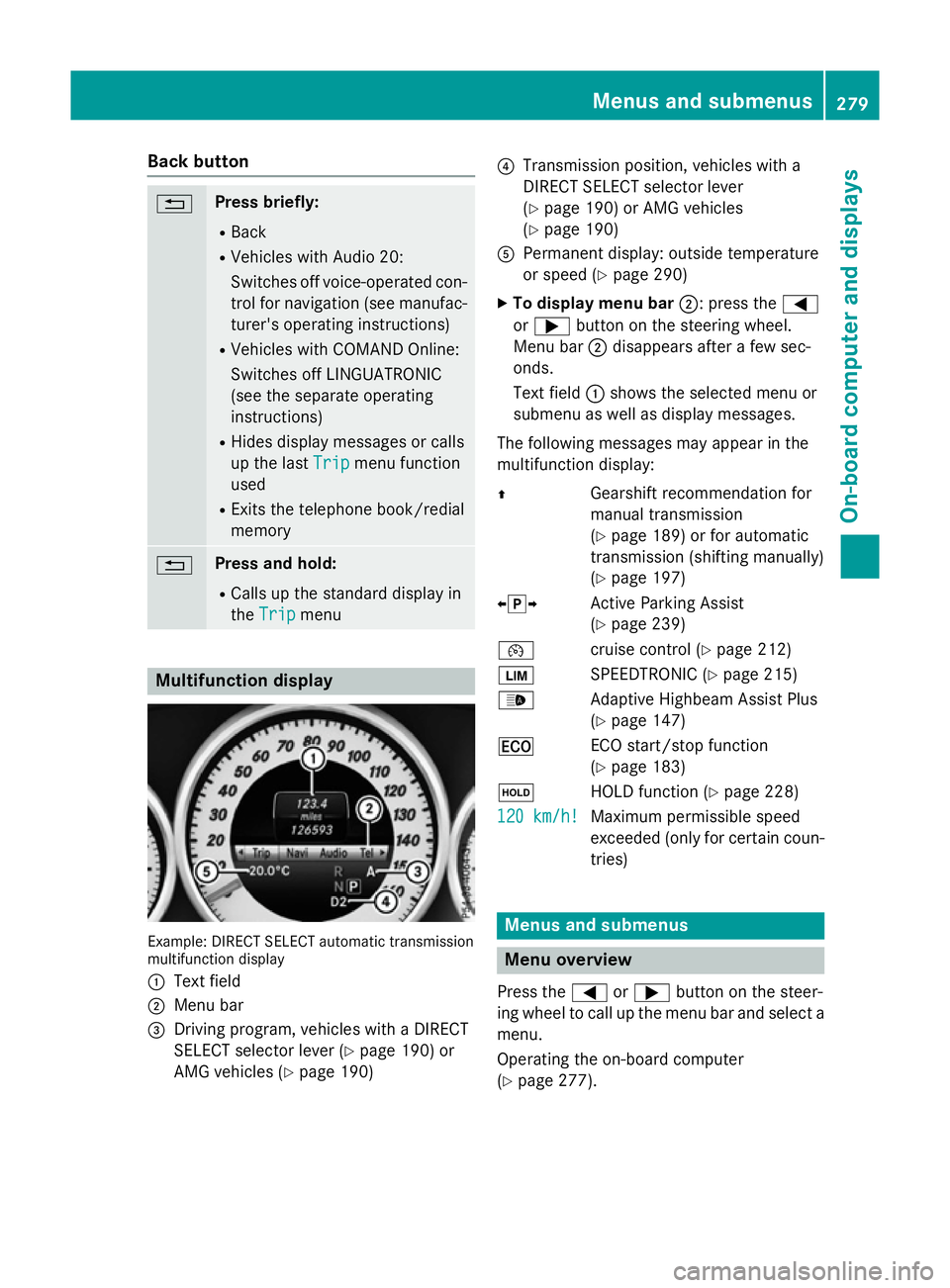
Trip menu Multifunctio
ndisplay Example: DIRECT SELEC
Tautomatic transmission
multifunctio ndisplay
: Text field
; Menu bar
= Driving program, vehicles with aDIRECT
SELECT selector lever (Y page 190)or
AMG vehicles (Y page 190) ?
Transmission position, vehicles with a
DIRECT SELECT selector lever
(Ypage 190 )orAMG vehicles
(Y page 190)
A Permanent display :outsid etemperature
or speed (Y page 290)
X To display men ubar;:p ress the =
or ; button on the steering wheel.
Menu bar ;disappears afte rafew sec-
onds.
Text field :shows the selecte dmenu or
submenu as well as display messages.
The following messages ma yappea rinthe
multifunctio ndisplay:
Z Gearshift recommendatio nfor
manua ltransmission
(Y page 189 )orfor automatic
transmission (shifting manually)
(Y page 197)
XjY Active Parking Assist
(Ypage 239)
¯ cruisecontro l(Ypage 212)
È SPEEDTRONIC (Y page 215)
_ Adaptive Highbeam Assist Plus
(Ypage 147)
¤ ECO start/sto pfunction
(Y page 183)
ë HOLD functio n(Ypage 228)
120 km/h! 120 km/h! Maximu
mpermissibl espeed
exceeded (only for certain coun-
tries) Menus and submenus
Men
uoverview
Press the =or; button on the steer-
ing whee ltocallupt he menu ba rand select a
menu.
Operating the on-boar dcomputer
(Y page 277). Menus and submenus
279On-board computer and displays Z
Page 283 of 497
Depending on the equipment fitte
dinthe
vehicle, yo ucan cal lupthe following menus:
R Trip
Trip menu (Y page 280)
R Navi
Navi menu (navigatio ninstructions)
(Y page 281)
R Audio
Audio menu (Y page 283)
R Tel
Tel menu (telephone )(Ypage 284)
R Assist.
Assist. menu (assistance) (Y page 286)
R Serv.
Serv. menu (Y page 288)
R Settings
Settings menu (settings )(Y page 289)
R AMG
AMG menu in AMG vehicles (Y page 296)
The Audio
Audio, Navi
NaviandTel
Tel menu sdiffe rs ligh tly
in vehicles with Audio 20 and in vehicles with
COMAND Online .The examples given in this
Owner' sManualapply to vehicles equipped
with COMAND Online. Trip menu
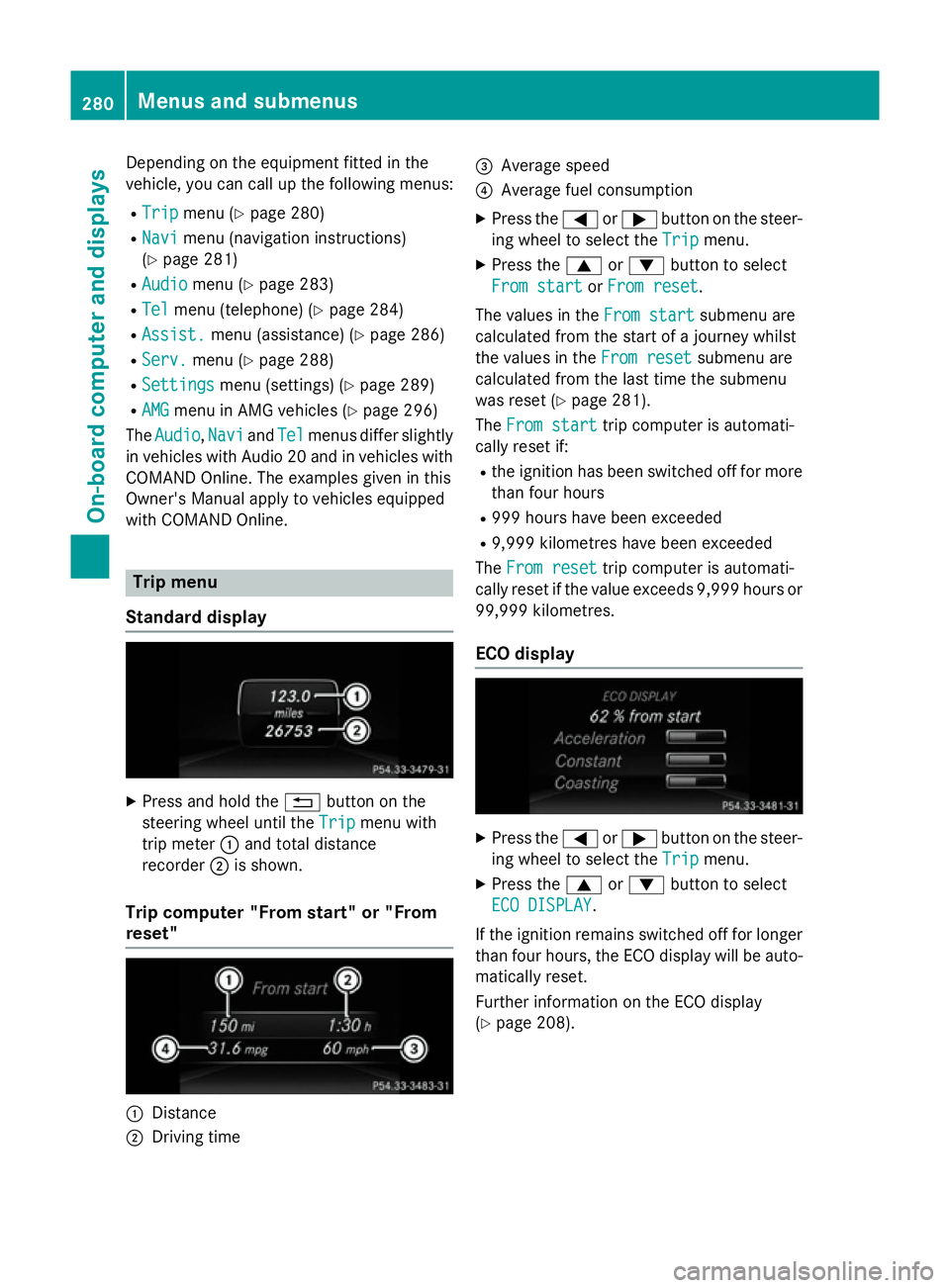
Standard display X
Press and hold the %button on the
steering whee lunti lthe Trip Trip menu with
tri pm eter :and tota ldistance
recorder ;is shown.
Trip compute r"From start" or "From
reset" :
Distance
; Driving time =
Averag espeed
? Averag efuelconsumption
X Press the =or; button on the steer-
ing whee ltoselect theTrip Trip menu.
X Press the 9or: button to select
Fro mstart
Fro mstart orFro mreset
Fro mreset.
Th ev alues in the Fromstart
Fro mstart submenu are
calculate dfromt he start of ajourney whilst
the values in the Fromreset
Fro mreset submenu are
calculate dfromt he last tim ethe submenu
wa sreset (Y page 281).
The Fromstart
Fro mstart tripc ompute risautomati-
cally reset if:
R the ignition ha sbeens witched off for more
tha nfourh ours
R 999 hour shaveb eene xceeded
R 9,999 kilometres have been exceeded
The Fromreset
Fro mreset tripc ompute risautomati-
cally reset if the valu eexceed s9,999 hour sor
99,999 kilometres.
EC Od isplay X
Press the =or; button on the steer-
ing whee ltoselect theTrip Trip menu.
X Press the 9or: button to select
ECO DISPLAY
ECO DISPLAY.
If the ignition remains switched off for longer
tha nfourh ours, the ECO displa ywillbea uto-
maticall yreset.
Furthe rinformation on the ECO display
(Y page 208). 280
Menus and submenusOn-board computer and displays
Page 284 of 497
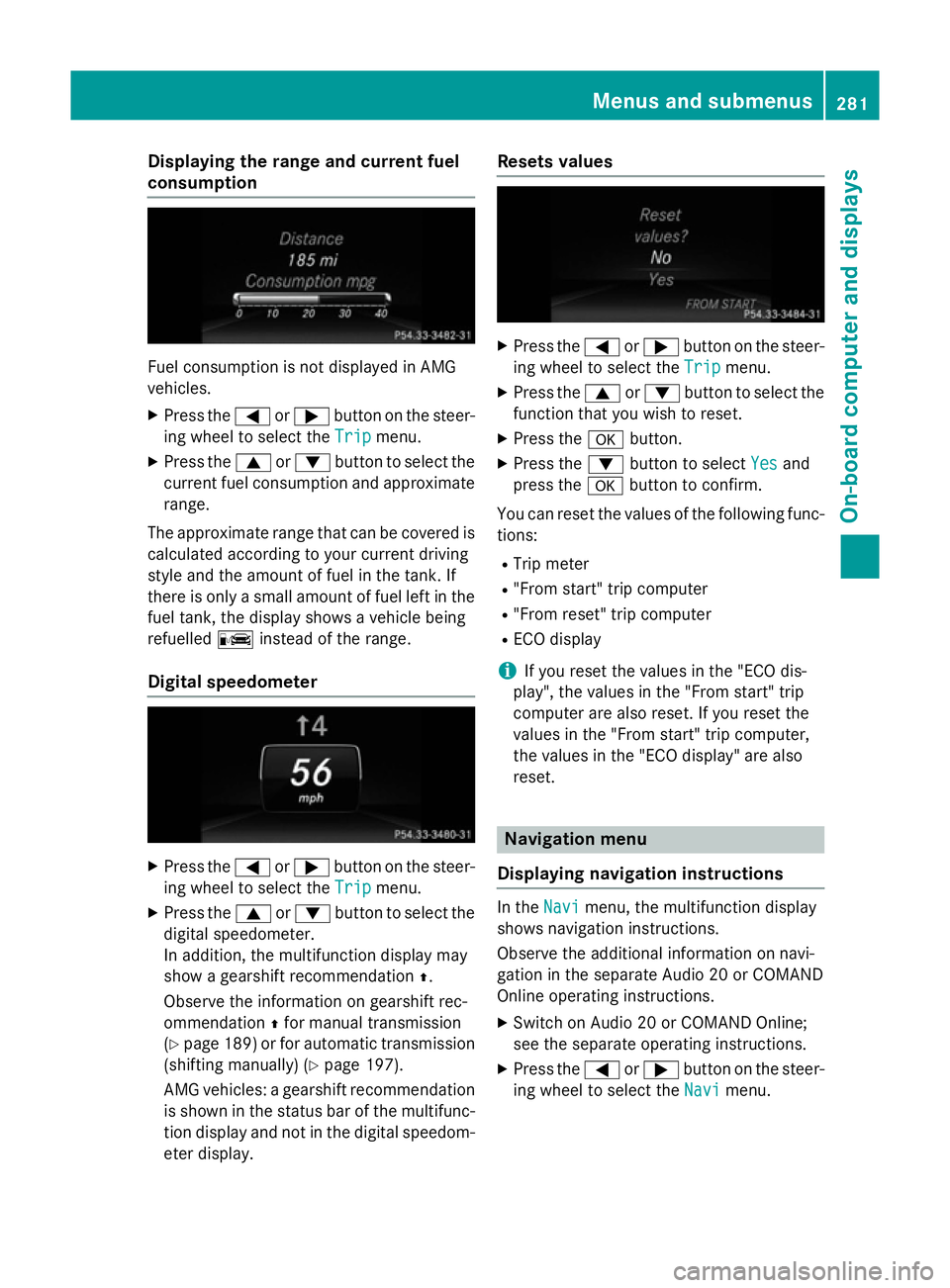
Displaying th
erange an dcurrent fuel
consumption Fue
lconsu mption is no tdisplayed in AMG
vehicles.
X Press the =or; buttononthesteer-
in gw hee ltos elec tthe Trip
Trip menu.
X Press the 9or: buttontoselectthe
curren tfue lconsu mption and approximate
range.
The approximat erange that can be covered is
calculated accordin gtoyour curren tdriving
style and th eamount of fue linthetank .If
there is only asma ll amount of fue llef tint he
fue ltank, thed isplay shows avehicle being
refuelled Cinstead of th erange.
Digital speedometer X
Press the =or; buttononthesteer-
in gw hee ltos elec tthe Trip
Trip menu.
X Press the 9or: buttontoselectthe
digita lspeedometer.
In addition ,the multifunction display may
sho wag earshift recommendation Z.
Observ ethe information on gearshift rec-
ommendation Zfo rm anual transmission
(Y page 189) or fo rautomatic transmission
(shiftin gmanually) (Y page 197).
AM Gvehicles :agearshift recommendation
is shown in th estatu sbar of th emultifunc-
tion display and no tinthedigita lspeedom-
eter display. Reset
svalues X
Press the =or; buttononthesteer-
in gw hee ltos elec tthe Trip
Trip menu.
X Press the 9or: buttontoselectthe
function that you wish to reset.
X Press the abutton.
X Press the :buttontos electYes
Yesand
press the abuttontoc onfirm.
You can reset th evalues of th efollowing func-
tions:
R Trip meter
R "From start "tripc om puter
R "From reset "tripc om puter
R EC Od isplay
i If you reset th
evalues in th e"EC Od is-
play", th evalues in th e"From start "trip
compute rare also reset .Ifyou reset the
values in th e"From start "tripc om puter,
th ev alues in th e"EC Od isplay" are also
reset. Navigation menu
Displaying navigation instructions In the
Navi
Navimenu, th emultifunction display
shows navigation instructions.
Observ ethe additional information on navi-
gation in th eseparat eAudio 20 or COMAND
Onlin eoperatin ginstructions.
X Switc honA udio 20 or COMAN DOnline;
see th eseparat eoperatin ginstructions.
X Press the =or; buttononthesteer-
in gw hee ltos elec tthe Navi Navi menu. Menus an
dsubmenus
281On-boardcompu tera nd displays Z
Page 286 of 497
An
ew route is calculated.
R Roa dnot mapped
Roa dnot mapped
The vehicl eposit ioni sinsid ethe area of the
digital ma pbutthe roa disnot recognised,
e.g .new roads ,car parks or private land.
R No route
No route
No route could be calculate dtothe selec-
ted destination.
R O:y ouhave reache dthe destination or an
intermediate destination. Audio menu
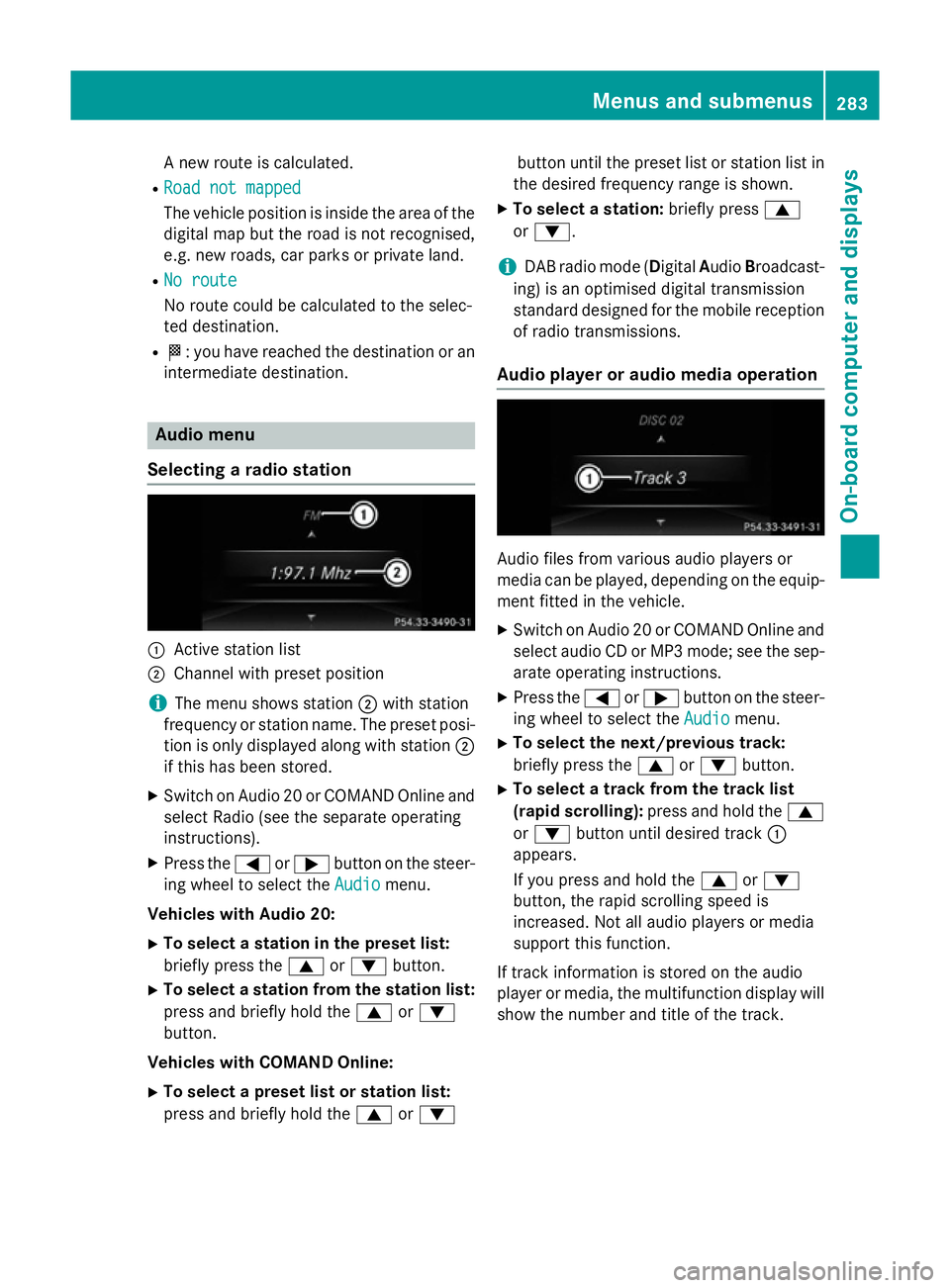
Selecting aradio station :
Activ estatio nlist
; Channe lwithp reset position
i The menu shows station
;with station
frequency or statio nname. The preset posi-
tio niso nlyd isplayed along with station ;
if thi shasbeen stored.
X Switch on Audio 20 or COMAND Online and
select Radi o(seet he separate operating
instructions).
X Press the =or; button on the steer-
ing whee ltoselect the Audio Audiomenu.
Vehicle swithA udio 20:
X To select astation in the preset list:
briefl ypress the 9or: button.
X To select astation from the station list:
press and briefl yholdt he 9 or:
button.
Vehicle swithC OMAN DOnline:
X To select apreset list or station list:
press and briefl yholdt he 9 or: button unti
lthe preset list or statio nlistin
the desired frequency range is shown.
X To select astation: brieflypress 9
or :.
i DAB radi
omode(Digit alAudio Broadcast-
ing )isano ptimised digital transmission
standard designe dfor the mobil ereception
of radi otransmissions.
Audio player or audi omediaoperation Audio files fro
mvarious audi oplayer sor
media can be played ,depen ding on the equip-
ment fitte dinthe vehicle.
X Switch on Audio 20 or COMAND Online and
select audi oCDorMP3 mode; see the sep-
arate operating instructions.
X Press the =or; button on the steer-
ing whee ltoselect the Audio
Audiomenu.
X To select the next/previous track:
briefl ypress the 9or: button.
X To select atrack fro mthe track list
(rapi dscrolling): press and hol dthe 9
or : button unti ldesir ed track :
appears.
If yo upress and hol dthe 9 or:
button, the rapi dscrolling spee dis
increased .Not al laudio players or media
support thi sfun ction.
If track informatio niss tored on the audio
player or media ,the multifunctio ndisplay will
sho wthe numbe rand titl eofthe track. Menus and submenus
283On-board computer and displays Z