Page 474 of 886

4743-3. Using the Lexus Display Audio system
When this screen is displayed,
input the passcode displayed on
the screen into your Bluetooth
device. For the operation of the
Bluetooth ®
device, see the manual
that comes with your Bluetooth ®
device.
Depending on the type of phone,
further phone operations may be
required after inputting the pass-
code (for example to confirm if
connection is to be received or
not) when registering a phone.
Passcodes are not required for SSP
(Secure Simple Pairing)
compatible Bluetooth ®
devices.
Depending on the phone, you may
need to select “Yes” to register, or
“No” to cancel on your mobile
phone.
If you want to cancel it, select
“Cancel”.
If a completion message is
displayed, registration is complete.
If an error message is displayed,
follow the guidance on the screen
to try again.
■ Removing a Bluetooth
device
Display the “Bluetooth
* Settings” screen. ( P. 4 7 2 )
Select “Registered Devices” on the “Bluetooth
* Settings” screen.
* : Bluetooth is a registered tr ademark of Bluetooth SIG. Inc.STEP 4
STEP 1
STEP 2
Page 476 of 886
4763-3. Using the Lexus Display Audio system
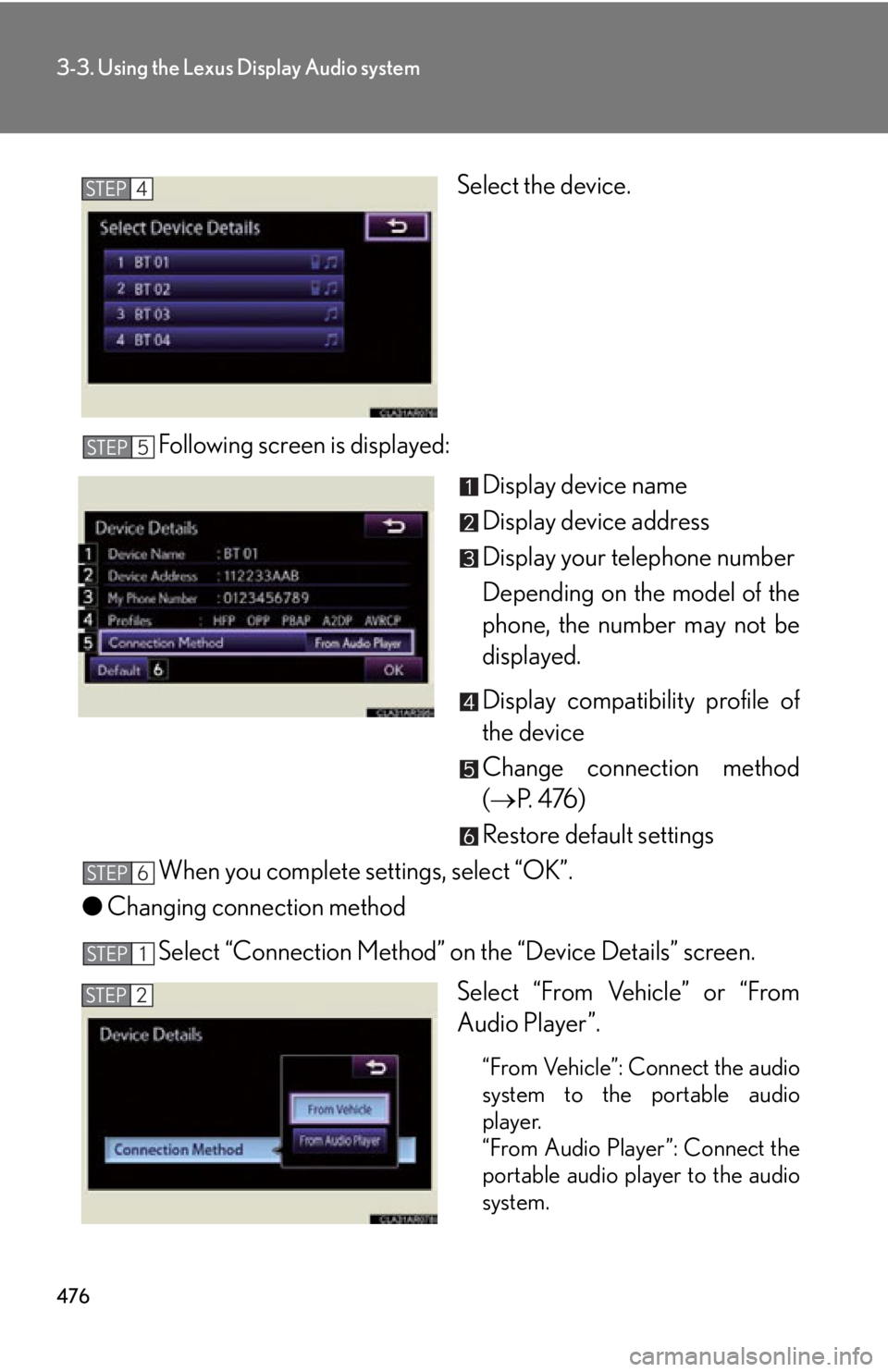
Select the device.
Following screen is displayed:
Display device name
Display device address
Display your telephone number
Depending on the model of the
phone, the number may not be
displayed.
Display compatibility profile of
the device
Change connection method
( P. 4 76 )
Restore default settings
When you complete settings, select “OK”.
● Changing connection method
Select “Connection Method” on the “Device Details” screen.
Select “From Vehicle” or “From
Audio Player”.
“From Vehicle”: Connect the audio
system to the portable audio
player.
“From Audio Player”: Connect the
portable audio player to the audio
system.STEP 4
STEP 5
STEP 6
STEP 1
STEP 2
Page 477 of 886

4773-3. Using the Lexus Display Audio system
3
Interior features Selecting the Bluetooth
phone
If multiple Bluetooth
devices are registered, follow the procedure
below to select the Bluetooth
device to be used. You may only use one
device at a time.
Display the “Bluetooth
* Settings” screen. ( P. 4 7 2 )
Select “Connect Phone” on the “Bluetooth
* Settings” screen.
Select the device to connect. “Add New”: Registering a
Bluetooth
device. ( P. 4 7 3 )
The selection indicator is displayed
on left side of the selected device
name.
The Bluetooth
mark is displayed
when you connected the device.
Selecting the audio player
If multiple Bluetooth
devices are registered, follow the procedure
below to select the Bluetooth
device to be used. You may only use one
device at a time.
Display the “Bluetooth
* Settings” screen. ( P. 4 7 2 )
Select “Connect Audio Player” on the “Bluetooth
* Settings”
screen.
Select the device to connect.
“Add New”: Registering a
Bluetooth
device. ( P. 4 7 3 )
The selection indicator is displayed
on left side of the selected device
name.
The Bluetooth
mark is displayed
when you connected the device.
* : Bluetooth is a registered tr ademark of Bluetooth SIG. Inc.STEP 1
STEP 2
STEP 3
STEP 1
STEP 2
STEP 3
Page 478 of 886
4783-3. Using the Lexus Display Audio system
Detailed Bluetooth
settings
You can confirm and change the detailed Bluetooth
settings.
Display the “Bluetooth
* Settings” screen. ( P. 4 7 2 )
Select “Detailed Bluetooth
* Settings” on the “Bluetooth
*Settings” screen.
Following screen is displayed:
Change Bluetooth
power on/
off You can change Bluetooth
func-
tion to “On” or “Off”
Display device name
Change passcode ( P. 4 7 9 )
Display device address
Restore default settings
Display compatibility profile of
the system
Change displaying telephone
status on/off You can set the system to show the
status confirmation display when
connecting telephone
Change displaying audio player
status on/off
You can set the system to show the
status confirmation display when
connecting audio player
When you complete settings, select “Save”.
* : Bluetooth is a registered tr ademark of Bluetooth SIG. Inc.STEP 1
STEP 2
STEP 3
STEP 4
Page 479 of 886
4793-3. Using the Lexus Display Audio system
3
Interior features ■ Editing the passcode
You can change the passcode that you use to register your Bluetooth
device in the system.
Select “Passcode” on the “Detailed Bluetooth
* Settings” screen.
Input a passcode, and select “OK”. To delete the inputted phone
number, select .
* : Bluetooth is a registered tr ademark of Bluetooth SIG. Inc.STEP 1
STEP 2
Page 481 of 886
4813-4. Using the audio system
3
Interior features CD player with a changer and AM/FM radio (type B)
Ti t l e Pa g e
Using the radio P. 4 8 3
Using the CD player P. 4 9 2
Playing MP3 and WMA discs P. 5 0 1
Operating an iPod P. 5 1 0
Operating a USB memory P. 5 2 0
Bluetooth ®
audio system P. 5 3 0
Optimal use of the audio system P. 5 5 2
Using the AUX port P. 5 5 4
Using the steering wheel audio switches P. 5 5 6
Hands-free system for mobile phones P. 5 6 0
Page 482 of 886
4823-4. Using the audio system
■
Using mobile phones
Interference may be heard through the audio system’s speakers if a mobile phone is
being used inside or close to the vehi cle while the audio system is operating.
CAUTION■
Certification ●
Pa r t 1 5 o f t h e F CC Ru l e s
FCC Warning:
Any unauthorized changes or modifications to this equipment will void the user’s
authority to operate this device.●
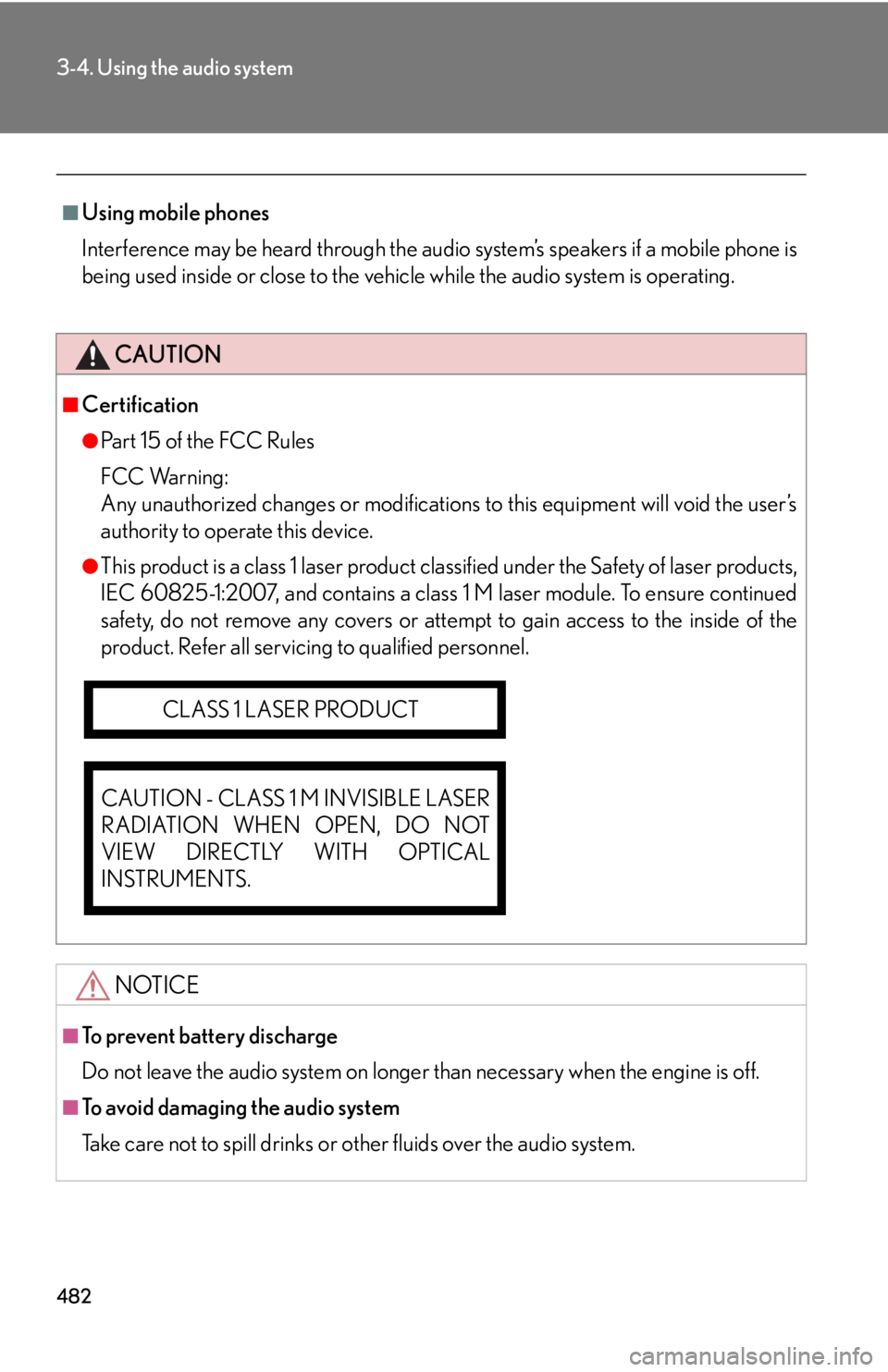
This product is a class 1 laser product clas sified under the Safety of laser products,
IEC 60825-1:2007, and contains a class 1 M laser module. To ensure continued
safety, do not remove any covers or atte mpt to gain access to the inside of the
product. Refer all servicing to qualified personnel.
NOTICE■
To prevent battery discharge
Do not leave the audio system on longer than necessary when the engine is off.
■
To avoid damaging the audio system
Take care not to spill drinks or other fluids over the audio system.CLASS 1 LASER PRODUCT
CAUTION - CLASS 1 M INVISIBLE LASER
RADIATION WHEN OPEN, DO NOT
VIEW DIRECTLY WITH OPTICAL
INSTRUMENTS.
Page 516 of 886
5163-4. Using the audio system
Adjusting sound quality and volume balance
Press to enter iPod menu mode.
Pressing changes sound modes. ( P. 5 5 2 )■
About iPod
●
“Made for iPod” and “Made for iPhone” me an that an electronic accessory has
been designed to connect specifically to iPod, or iPhone, respectively, and has
been certified by the developer to meet Apple performance standards.●
Apple is not responsible for the operation of this device or its compliance with
safety and regulatory standards. Please note that the use of this accessory with
iPod or iPhone may affect wireless performance.●
iPhone, iPod, iPod classic, iPod nano and iPod touch are trademarks of Apple
Inc., registered in the U.S. and other countries.STEP 1
STEP 2