Page 495 of 886
4953-4. Using the audio system
3
Interior features Ejecting CDs
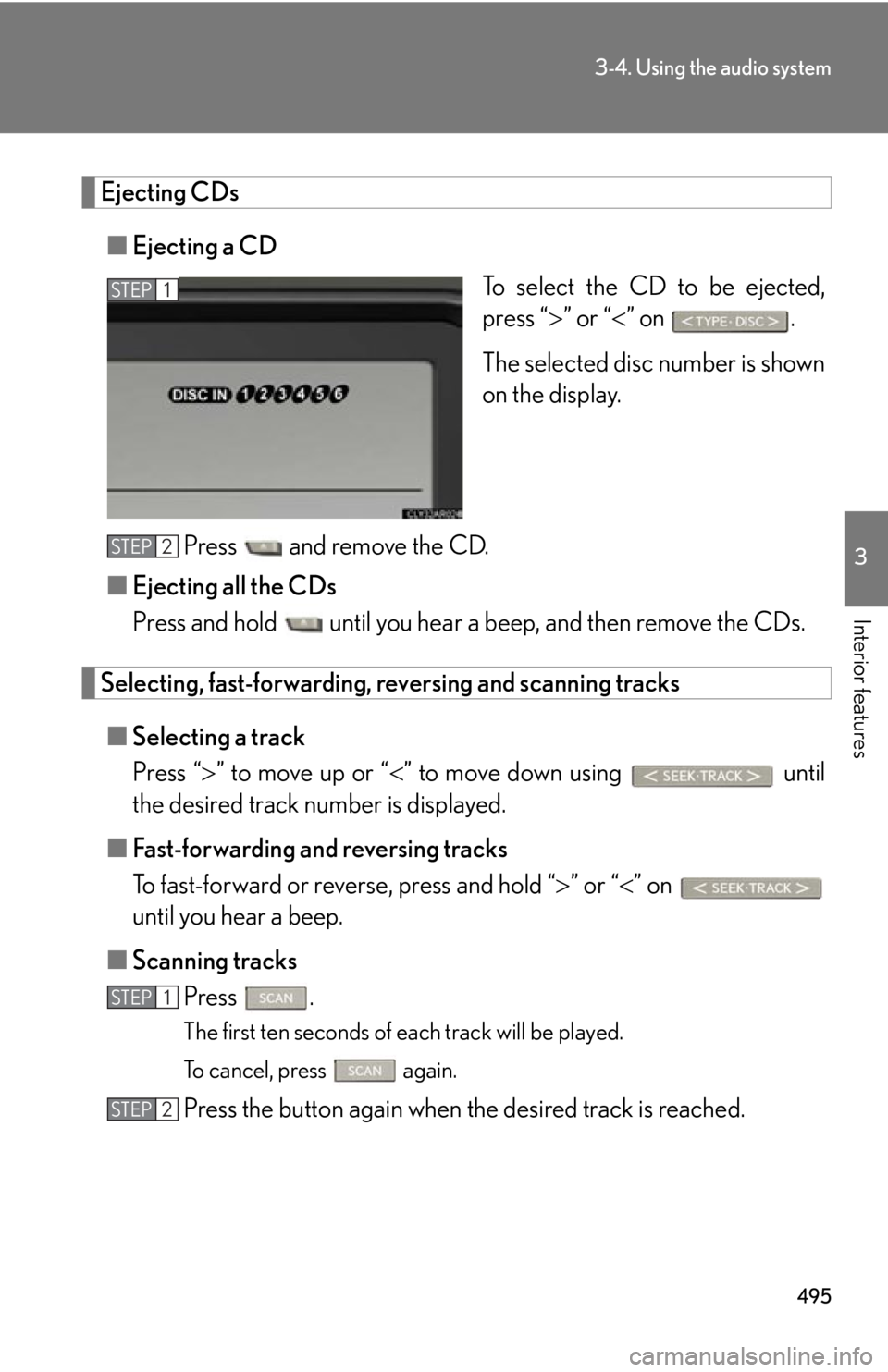
■ Ejecting a CD
To select the CD to be ejected,
press “ ” or “ ” on .
The selected disc number is shown
on the display.
Press and remove the CD.
■ Ejecting all the CDs
Press and hold until you hear a beep, and then remove the CDs.
Selecting, fast-forwarding, re versing and scanning tracks
■ Selecting a track
Press “ ” to move up or “ ” to move down using until
the desired track number is displayed.
■ Fast-forwarding and reversing tracks
To fast-forward or reverse, press and hold “ ” or “ ” on
until you hear a beep.
■ Scanning tracks
Press .
The first ten seconds of each track will be played.
To cancel, press again.
Press the button again when the desired track is reached.STEP 1
STEP 2
STEP 1
STEP 2
Page 497 of 886
4973-4. Using the audio system
3
Interior features Repeat play
■ Repeating a track
Press . To cancel, press again.
■ Repeating all of the tracks on a CD
Press and hold until you hear a beep. To cancel, press again.
Switching the display
Press . Each time the button is pressed, the display changes in the following order:
Elapsed time CD title Track title■
CD player protection feature
To protect the internal components, play back is automatically stopped when a
problem is detected.■
Display
Up to 12 characters can be displayed at a time.
If there are 13 or more characters, pr essing and holding until you hear a
beep enables to display the remaining characters.
A maximum of 24 characters can be displayed.
If is pressed until you hear a beep again or has not been operated for more
than 6 seconds, the display will return to the first 12 characters.
Depending on the contents recorded, the characters may not be displayed prop-
erly or may not be displayed at all.
Page 498 of 886
4983-4. Using the audio system
■
When “ERROR” or “WAIT” is shown on the display
“ERROR”: This indicates a problem either in the CD or inside the player. The CD
may be dirty, damaged, or inserted up-side down.
“WAIT”: This indicates that operation is stopped due to a high temperature inside
the player. Wait for a while and then press . If the CD still cannot
be played back, contact your Lexus dealer.■
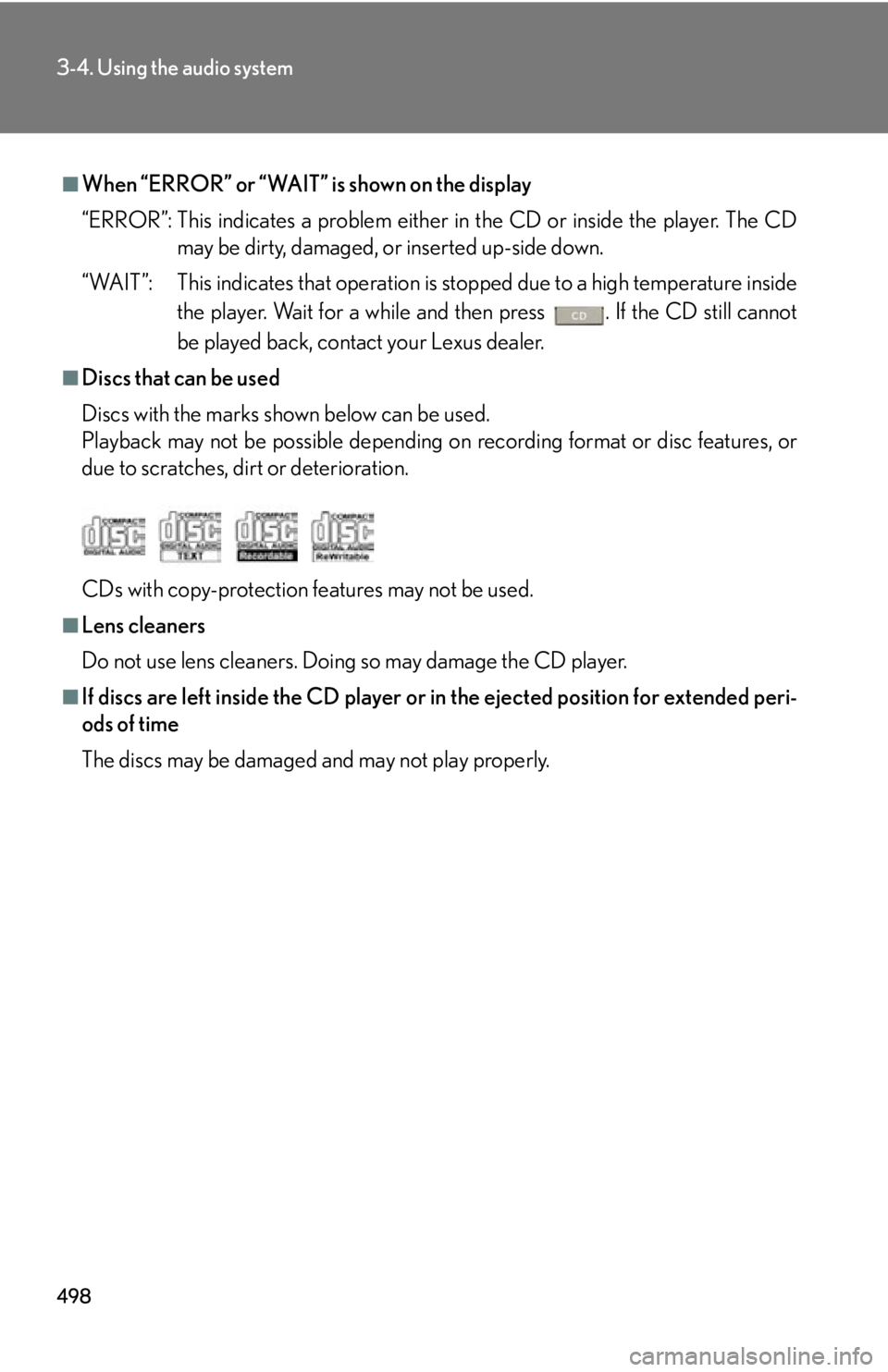
Discs that can be used
Discs with the marks shown below can be used.
Playback may not be possible depending on recording format or disc features, or
due to scratches, dirt or deterioration.
CDs with copy-protection fe atures may not be used.■
Lens cleaners
Do not use lens cleaners. Doing so may damage the CD player.■
If discs are left inside the CD player or in the ejected position for extended peri-
ods of time
The discs may be damaged an d may not play properly.
Page 505 of 886
5053-4. Using the audio system
3
Interior features Repeat play
■ Repeating a file
Press . To cancel, press again.
■ Repeating all the files in a folder
Press and hold until you hear a beep. To cancel, press
again.
Switching the display
Press . Each time the button is pressed, the display changes in the following order:
Folder no./File no./Elapsed time Folder name File name Album title
(MP3 only) Track title Artist name
Page 506 of 886
5063-4. Using the audio system
■
CD player protection feature
P. 4 9 7■
Display
P. 4 9 7■
When “ERROR”, “WAIT” or “NO MUSIC” is shown on the display
“ERROR”: This indicates a problem either in the CD or inside the player. The CD
may be dirty, damaged, or inserted up-side down.
“WAIT”: This indicates that operation is stopped due to a high temperature inside
the player. Wait for a while and then press . If the CD still cannot be
played back, contact your Lexus dealer.
“NO MUSIC”: This indicates that an MP3/WMA file is not included in the CD.■
Discs that can be used
P. 4 9 8■
Lens cleaners
P. 4 9 8■
If discs are left inside the CD player or in the ejected position for extended peri-
ods of time
P. 4 9 8
Page 514 of 886
5143-4. Using the audio system
■ Play mode list
■ Selecting a list
Turn to display the first selection list.
Press to select the desired item.
Pressing the knob changes to the second selection list.
Repeat the same procedure to select the desired item. To return to the previous selection list, select “GO BACK” or press
.Play mode First
selection Second
selection Third
selection Four th
selection
“PLAYLISTS” Playlists select Songs select - -
“A R T I S T S ” Artists select Albums select Songs select -
“A L B U M S ” Albums select Songs select - -
“SONGS” Songs select - - -
“PODCASTS” Albums select Songs select - -
“GENRES” Genre select Artists select Albums select Songs select
“COMPOSERS” Composers
select Albums select Songs select -
“AUDIOBOOKS” Songs select - - -STEP 1
STEP 2
STEP 3
Page 515 of 886
5153-4. Using the audio system
3
Interior features Selecting songs
Turn or press “ ” or “ ” on to select the desired
song.
Playing and pausing songs
To play or pause a song, press .
Fast-forwarding and reversing songs
To fast-forward or reverse, press and hold “ ” or “ ” on
until you hear a beep.
Shuffle playback
■ Playing songs from one playlist or album in random order
Press . To cancel, press again.
■ Playing songs from all the playlists or albums in random order
Press and hold until you hear a beep.
To cancel, press again.
Repeat play
Press .
To cancel, press again.
Switching the display
Press .
Each time the button is pressed, the display changes in the following order:
Elapsed time Album title Tr a c k t i t l e Artist name
Page 517 of 886
5173-4. Using the audio system
3
Interior features ■
iPod functions ●
When an iPod is connected and the audio source is changed to iPod mode, the
iPod will resume play from the same point in which it was last used.●
Depending on the iPod that is connecte d to the system, certain functions may
not be available. If a function is unavailable due to a malfunction (as opposed to
a system specification), disconnecting the device and reconnecting it once
again may resolve the problem. ●
While connected to the system, the iPod cannot be operated with its own con-
trols. It is necessary to use the controls of the vehicle's audio system instead. ●
When the battery level of an iPod is very low, the iPod may not operate. If so,
charge the iPod before use.●
Supported models ( P. 5 1 8 )■
iPod problems
To resolve most problems encountered when using your iPod, disconnect your iPod
from the vehicle iPod connection and reset it.
For instructions on how to reset your iP od, refer to your iPod Owner's Manual.■
Display
P. 4 9 7■
Error messages
“ERROR”: This indicates a problem in the iPod or its connection.
“NO MUSIC”: This indicates that ther e is no music data in the iPod.
“EMPTY”: This indicates that some avai lable songs are not found in a selected
playlist.
“UPDATE”: This indicates that the version of the iPod is not compatible.
Upgrade your iPod software to the latest version.