Features of your vehicle
132
4
CD/USB/iPod®mode
It will function as the FF/REW button.
If the SEEK/PRESET button is
pressed for less than 0.8 seconds, it
will work as follows in each mode.
RADIO mode
It will function as the PRESET STA-
TION buttons.
CD/USB/iPod
®mode
It will function as TRACK UP/DOWN
button.
D300202AEN
MODE (3)
Press the button to change audio
source.
FM(1~2)
➟AM➟SAT(1~3)➟CD➟USB
AUX(iPod)
➟FM...
D300205AHM
MUTE (4)
Press the button to mute the sound.
Press the button to turn off the microphone during a telephone
call.
Detailed information for audio control
buttons is described in the following
pages in this section.
D300600AHM-EE
Aux, USB and iPod®* port
(if equipped)
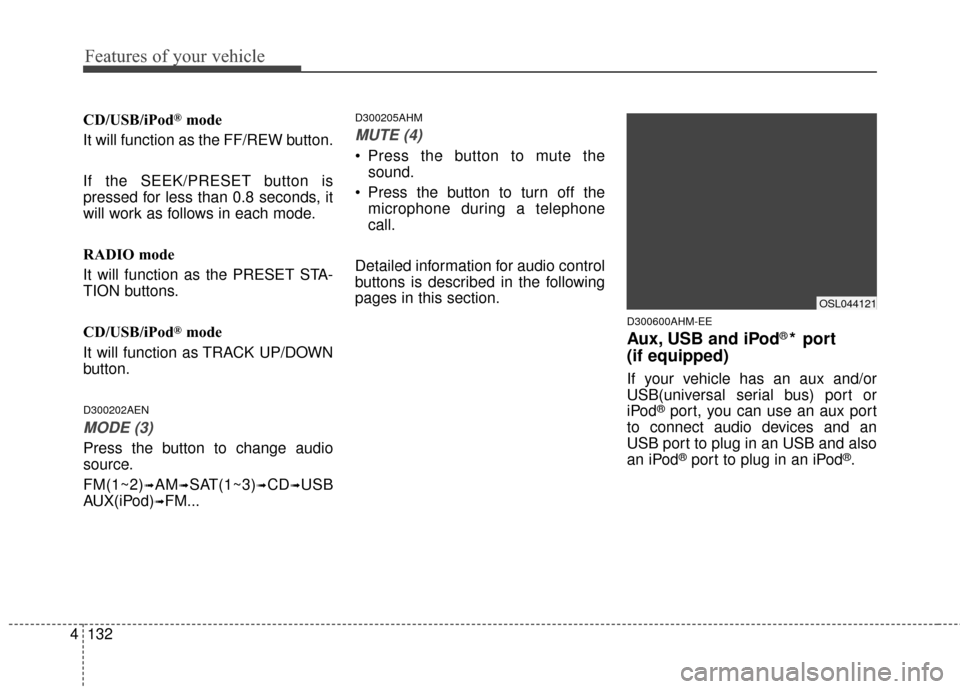
If your vehicle has an aux and/or
USB(universal serial bus) port or
iPod
®port, you can use an aux port
to connect audio devices and an
USB port to plug in an USB and also
an iPod
®port to plug in an iPod®.
OSL044121
Page 235 of 499
Features of your vehicle
148
4
SYSTEM CONTROLLERS
AND FUNCTIONS
❈ Display and settings may differ
depending on the selected audio.
Audio Head Unit
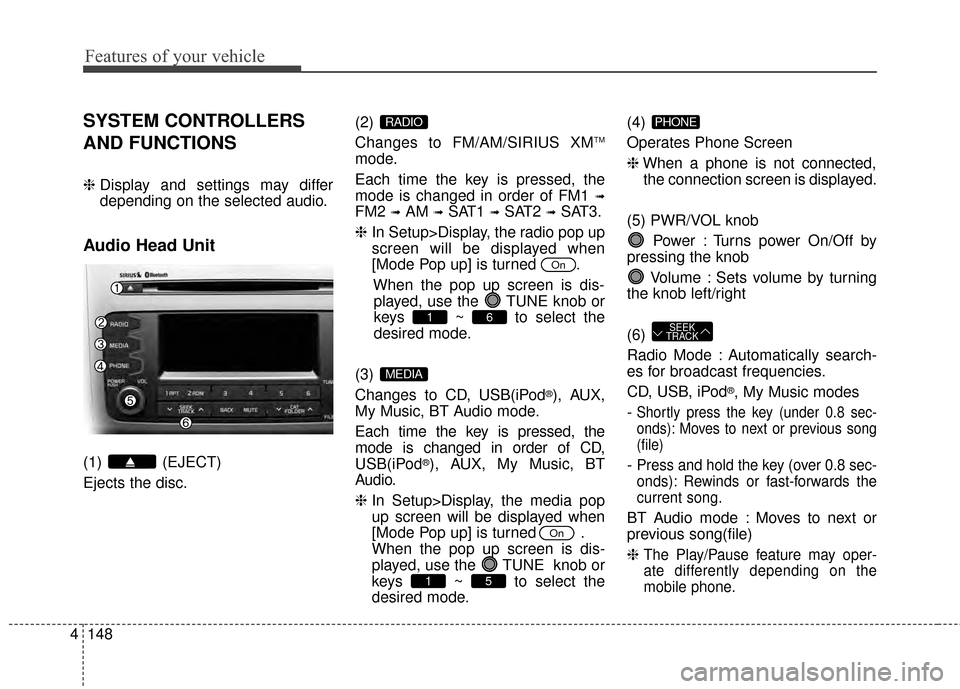
(1) (EJECT)
Ejects the disc. (2)
Changes to FM/AM/SIRIUS XM
TM
mode.
Each time the key is pressed, the
mode is changed in order of FM1
➟
FM2 ➟AM ➟SAT1 ➟SAT2 ➟SAT3.
❈ In Setup>Display, the radio pop up
screen will be displayed when
[Mode Pop up] is turned .
When the pop up screen is dis-played, use the TUNE knob or
keys ~ to select the
desired mode.
(3)
Changes to CD, USB(iPod
®), AUX,
My Music, BT Audio mode.
Each time the key is pressed, the
mode is changed in order of CD,
USB(iPod
®), AUX, My Music, BT
Audio.
❈ In Setup>Display, the media pop
up screen will be displayed when
[Mode Pop up] is turned .
When the pop up screen is dis-
played, use the TUNE knob or
keys ~ to select the
desired mode. (4)
Operates Phone Screen
❈
When a phone is not connected,
the connection screen is displayed.
(5) PWR/VOL knob Power : Turns power On/Off by
pressing the knob
Volume : Sets volume by turning
the knob left/right
(6)
Radio Mode : Automatically search-
es for broadcast frequencies.
CD, USB, iPod
®, My Music modes
-
Shortly press the key (under 0.8 sec-
onds): Moves to next or previous song
(file)
- Press and hold the key (over 0.8 sec-
onds): Rewinds or fast-forwards the
current song.
BT Audio mode : Moves to next or
previous song(file)
❈
The Play/Pause feature may oper-
ate differently depending on the
mobile phone.
SEEK
TRACK
PHONE
51
On
MEDIA
61
On
RADIO
Page 247 of 499
Features of your vehicle
160
4
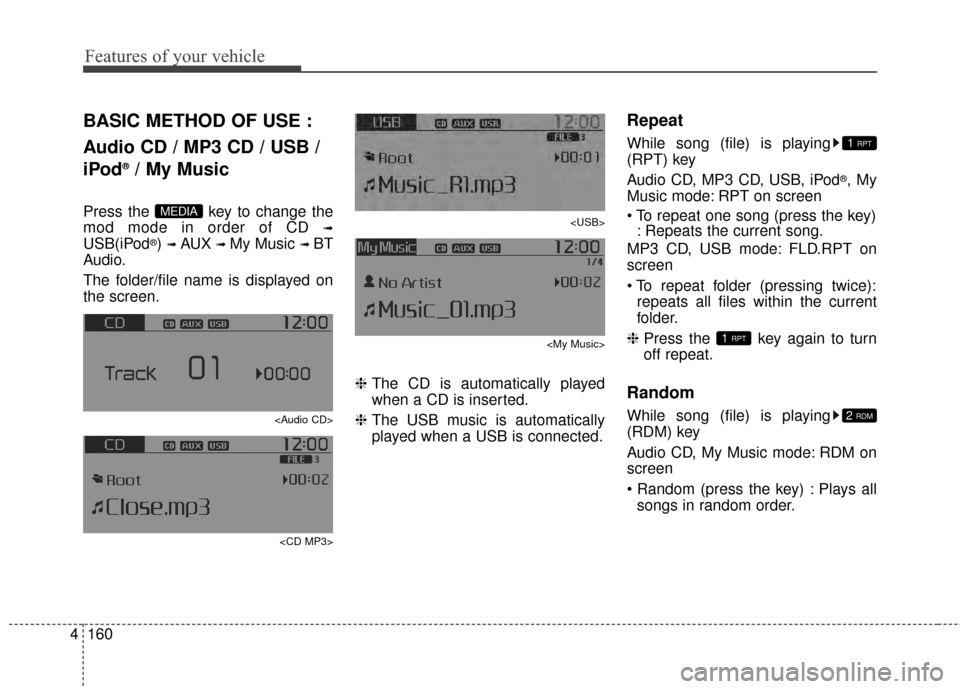
BASIC METHOD OF USE :
Audio CD / MP3 CD / USB /
iPod
®/ My Music
Press the key to change the
mod mode in order of CD
➟
USB(iPod®) ➟ AUX ➟ My Music ➟ BT
Audio.
The folder/file name is displayed on
the screen.
Page 250 of 499
4163
Features of your vehicle
Folder Random
Press the key Set [ F.RDM]
through the
TUNEknob or
key to randomly play songs within the
current folder.
❈ Press F.RDM again to turn off.
Folder Repeat
Press the key Set [ F.RPT]
through the
TUNEknob or
key to repeat songs within the cur-
rent folder.
❈ Press F.RPT again to turn off.
All Random
Press the key Set [ A.RDM]
through the
TUNEknob or key
to randomly play all songs within the
CD.
❈ Press A.RDM again to turn off.
Information
Press the key Set [ Info]
through the
TUNEknob or
key to display information of the cur-
rent song.
❈ Press the key to turn off
info display.
Copy
Press the key Set [
Copy] through the
TUNEknob
or key.
This is used to copy the current
song into My Music. You can play
the copied Music in My Music
mode.
❈ If another key is pressed while
copying is in progress, a pop up
asking you whether to cancel
copying is displayed.
❈ If another media is connected or
inserted (USB, CD, iPod
®, AUX)
while copying is in progress, copy-
ing is canceled.
❈ Music will not be played while
copying is in progress.
6
MENU
MENU
5
MENU
4
MENU
3
MENU
2 RDM
MENU
Page 253 of 499
Features of your vehicle
166
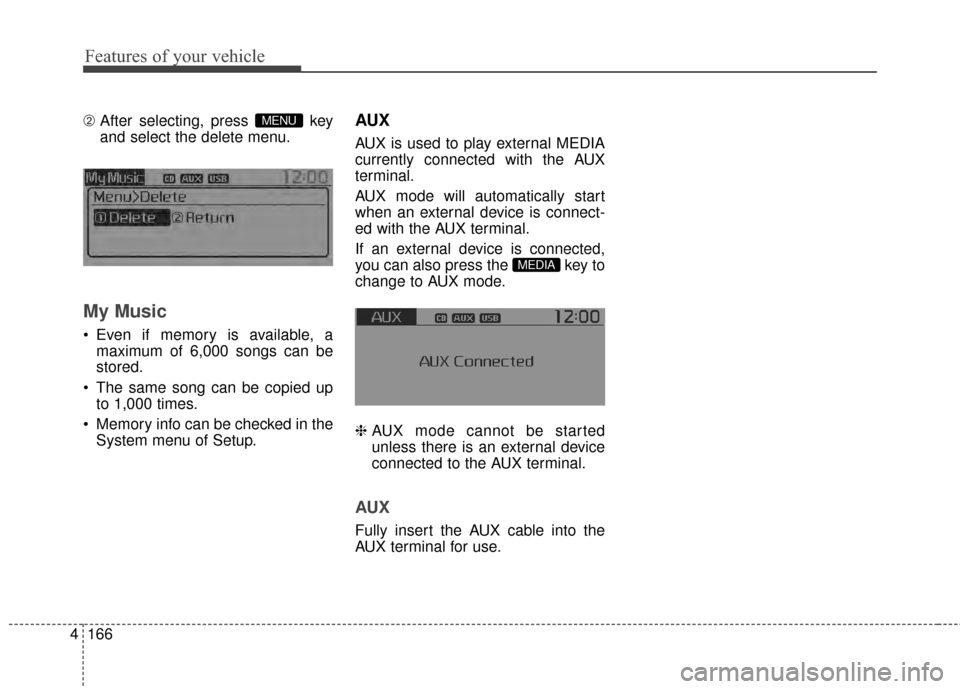
4
\b After selecting, press key
and select the delete menu.
My Music
Even if memory is available, a
maximum of 6,000 songs can be
stored.
The same song can be copied up to 1,000 times.
Memory info can be checked in the System menu of Setup.
AUX
AUX is used to play external MEDIA
currently connected with the AUX
terminal.
AUX mode will automatically start
when an external device is connect-
ed with the AUX terminal.
If an external device is connected,
you can also press the key to
change to AUX mode.
❈ AUX mode cannot be started
unless there is an external device
connected to the AUX terminal.
AUX
Fully insert the AUX cable into the
AUX terminal for use.
MEDIA
MENU
Page 255 of 499
Features of your vehicle
168
4
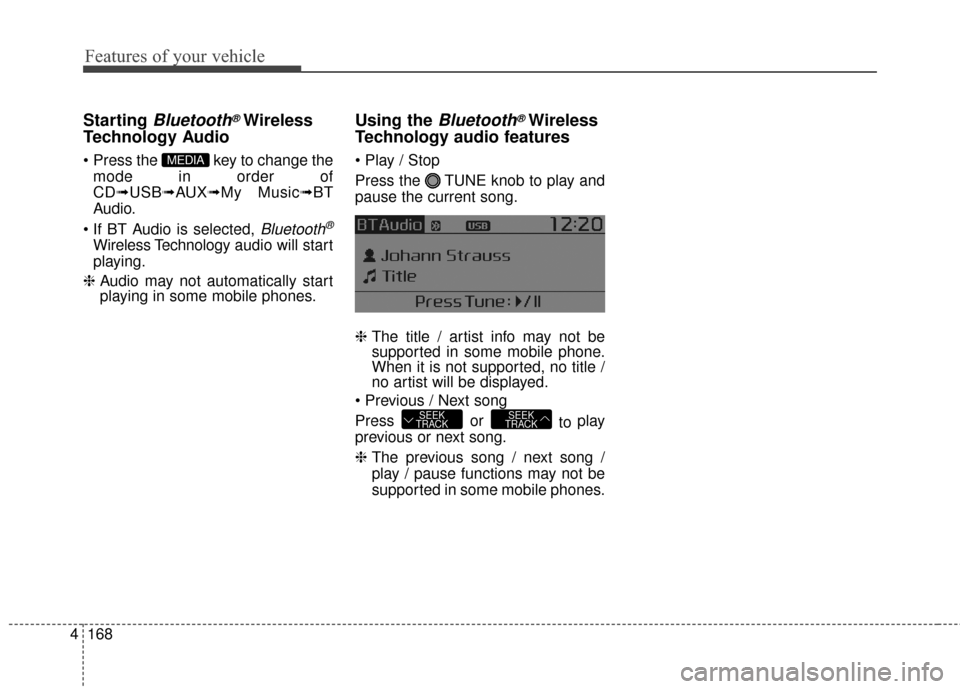
Starting Bluetooth®Wireless
Technology Audio
key to change the
mode in order of
CD➟ USB➟ AUX➟My Music➟ BT
Audio.
Bluetooth®
Wireless Technology audio will start
playing.
❈ Audio may not automatically start
playing in some mobile phones.
Using the Bluetooth®Wireless
Technology audio features
Press the TUNE knob to play and
pause the current song.
❈ The title / artist info may not be
supported in some mobile phone.
When it is not supported, no title /
no artist will be displayed.
Press or to play
previous or next song.
❈ The previous song / next song /
play / pause functions may not be
supported in some mobile phones.
SEEK
TRACKSEEK
TRACK
MEDIA
Page 274 of 499
4187
Features of your vehicle
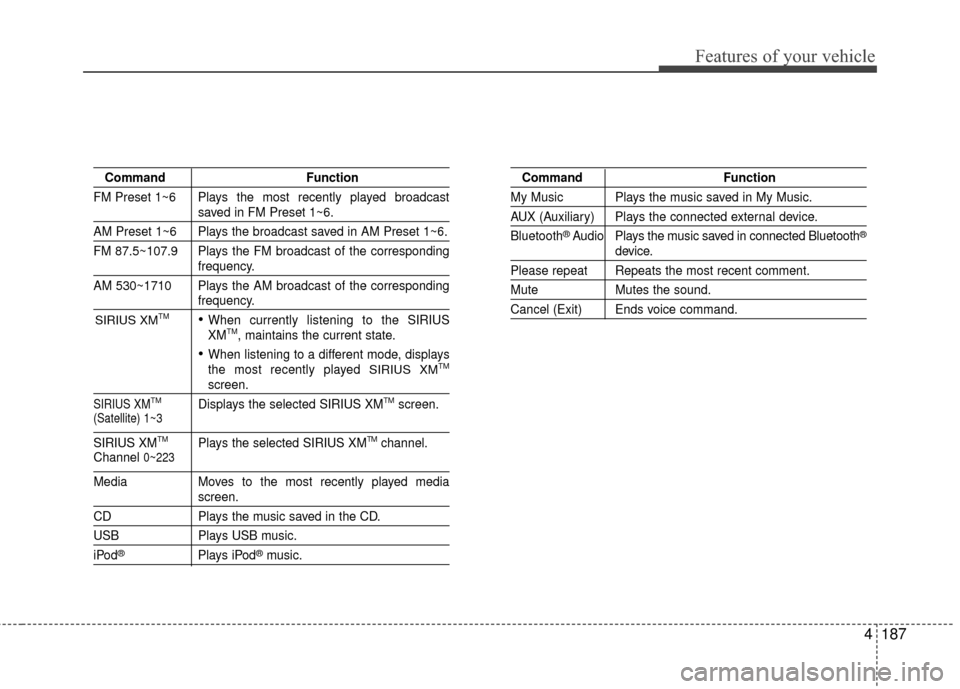
CommandFunction
FM Preset 1~6 Plays the most recently played broadcast
saved in FM Preset 1~6.
AM Preset 1~6 Plays the broadcast saved in AM Preset 1~6.
FM 87.5~107.9 Plays the FM broadcast of the corresponding
frequency.
AM 530~1710 Plays the AM broadcast of the corresponding
frequency.
When currently listening to the SIRIUS
XMTM, maintains the current state.
When listening to a different mode, displays
the most recently played SIRIUS XMTM
screen.
SIRIUS XMTMDisplays the selected SIRIUS XMTMscreen.
SIRIUS XMTMPlays the selected SIRIUS XMTMchannel.
Media Moves to the most recently played mediascreen.
CD Plays the music saved in the CD.
USBPlays USB music.
iPod®Plays iPod®music.
Command Function
My Music Plays the music saved in My Music.
AUX (Auxiliary) Plays the connected external device.
Bluetooth
®Audio Plays the music saved in connected Bluetooth®
device.
Please repeat Repeats the most recent comment.
Mute Mutes the sound.
Cancel (Exit) Ends voice command.
Channel 0~223
(Satellite) 1~3
SIRIUS XMTM
Page 280 of 499
4193
Features of your vehicle
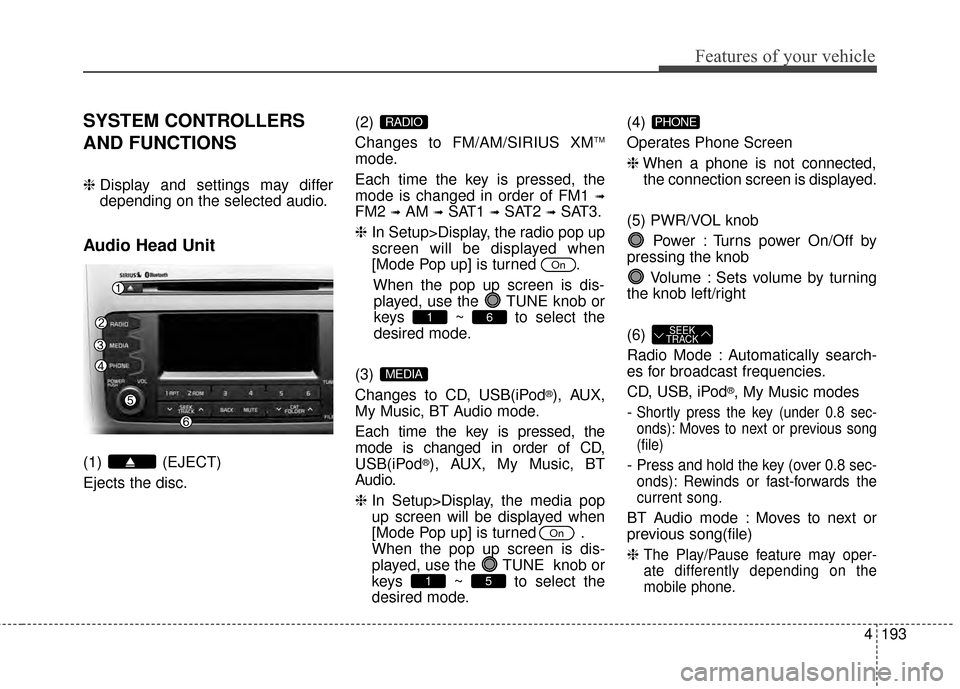
SYSTEM CONTROLLERS
AND FUNCTIONS
❈Display and settings may differ
depending on the selected audio.
Audio Head Unit
(1) (EJECT)
Ejects the disc. (2)
Changes to FM/AM/SIRIUS XM
TM
mode.
Each time the key is pressed, the
mode is changed in order of FM1
➟
FM2 ➟AM ➟SAT1 ➟SAT2 ➟SAT3.
❈ In Setup>Display, the radio pop up
screen will be displayed when
[Mode Pop up] is turned .
When the pop up screen is dis-played, use the TUNE knob or
keys ~ to select the
desired mode.
(3)
Changes to CD, USB(iPod
®), AUX,
My Music, BT Audio mode.
Each time the key is pressed, the
mode is changed in order of CD,
USB(iPod
®), AUX, My Music, BT
Audio.
❈ In Setup>Display, the media pop
up screen will be displayed when
[Mode Pop up] is turned .
When the pop up screen is dis-
played, use the TUNE knob or
keys ~ to select the
desired mode. (4)
Operates Phone Screen
❈
When a phone is not connected,
the connection screen is displayed.
(5) PWR/VOL knob Power : Turns power On/Off by
pressing the knob
Volume : Sets volume by turning
the knob left/right
(6)
Radio Mode : Automatically search-
es for broadcast frequencies.
CD, USB, iPod
®, My Music modes
-
Shortly press the key (under 0.8 sec-
onds): Moves to next or previous song
(file)
- Press and hold the key (over 0.8 sec-
onds): Rewinds or fast-forwards the
current song.
BT Audio mode : Moves to next or
previous song(file)
❈
The Play/Pause feature may oper-
ate differently depending on the
mobile phone.
SEEK
TRACK
PHONE
51
On
MEDIA
61
On
RADIO
![KIA Sportage 2015 QL / 4.G Owners Manual 4163
Features of your vehicle
Folder Random
Press the key Set [ F.RDM]
through the
TUNEknob or
key to randomly play songs within the
current folder.
❈ Press F.RDM again to turn off.
Folder Repea](/manual-img/2/2970/w960_2970-249.png "KIA Sportage 2015 QL / 4.G Owners Manual 4163
Features of your vehicle
Folder Random
Press the key Set [ F.RDM]
through the
TUNEknob or
key to randomly play songs within the
current folder.
❈ Press F.RDM again to turn off.
Folder Repea")