Page 224 of 499
4137
Features of your vehicle
Depending on the type of CD-R/CD-RW CDs, certain CDs may
not operate normally according to
the manufacturing companies. In
such circumstances, continued
use may cause malfunctions to
your audio system.
✽ ✽ NOTICE
-
Playing an Incompatible
Copy Protected Audio CD
Some copy protected CDs, which do
not comply with international audio
CD standards (Red Book), may not
play on your car audio. Please note
that inabilities to properly play a
copy protected CD may indicate
that the CD is defective, not the CD
player.
NOTE:
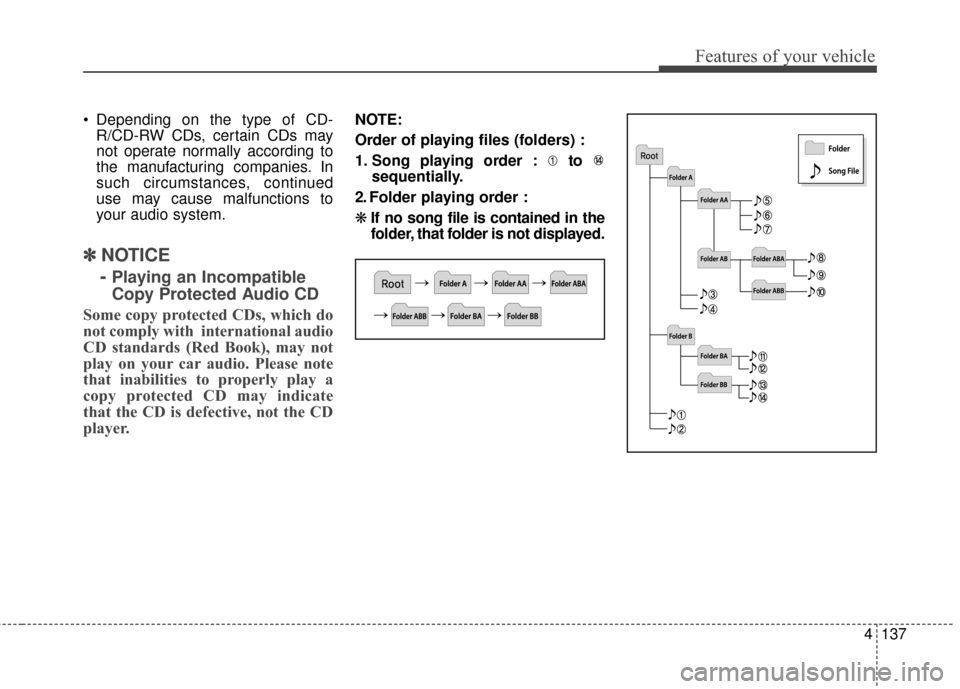
Order of playing files (folders) :
1. Song playing order : to sequentially.
2. Folder playing order :
❋ If no song file is contained in the
folder, that folder is not displayed.
Page 235 of 499
Features of your vehicle
148
4
SYSTEM CONTROLLERS
AND FUNCTIONS
❈ Display and settings may differ
depending on the selected audio.
Audio Head Unit
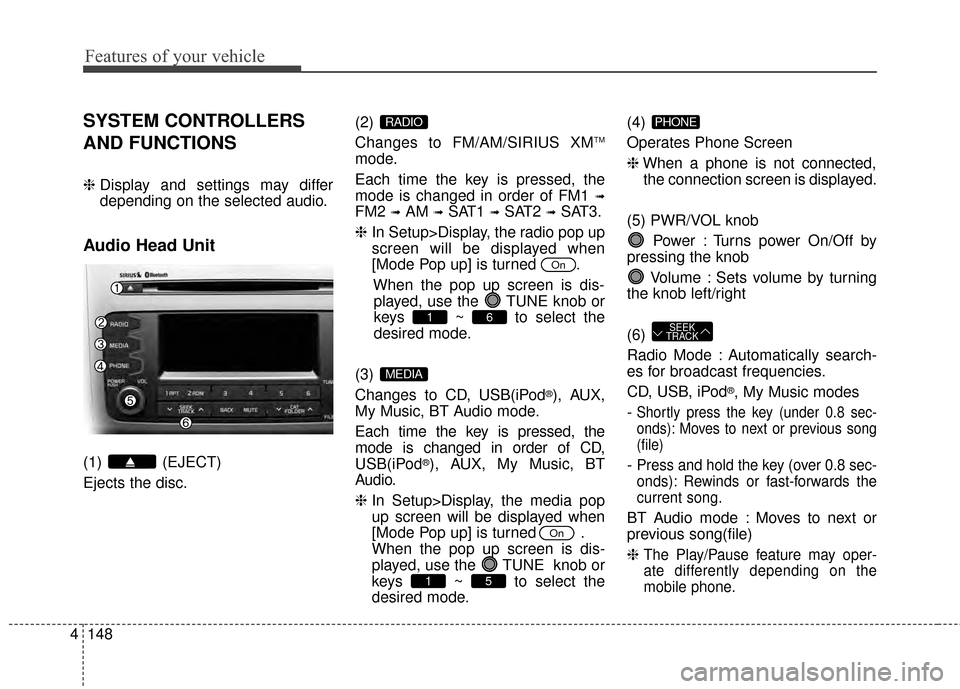
(1) (EJECT)
Ejects the disc. (2)
Changes to FM/AM/SIRIUS XM
TM
mode.
Each time the key is pressed, the
mode is changed in order of FM1
➟
FM2 ➟AM ➟SAT1 ➟SAT2 ➟SAT3.
❈ In Setup>Display, the radio pop up
screen will be displayed when
[Mode Pop up] is turned .
When the pop up screen is dis-played, use the TUNE knob or
keys ~ to select the
desired mode.
(3)
Changes to CD, USB(iPod
®), AUX,
My Music, BT Audio mode.
Each time the key is pressed, the
mode is changed in order of CD,
USB(iPod
®), AUX, My Music, BT
Audio.
❈ In Setup>Display, the media pop
up screen will be displayed when
[Mode Pop up] is turned .
When the pop up screen is dis-
played, use the TUNE knob or
keys ~ to select the
desired mode. (4)
Operates Phone Screen
❈
When a phone is not connected,
the connection screen is displayed.
(5) PWR/VOL knob Power : Turns power On/Off by
pressing the knob
Volume : Sets volume by turning
the knob left/right
(6)
Radio Mode : Automatically search-
es for broadcast frequencies.
CD, USB, iPod
®, My Music modes
-
Shortly press the key (under 0.8 sec-
onds): Moves to next or previous song
(file)
- Press and hold the key (over 0.8 sec-
onds): Rewinds or fast-forwards the
current song.
BT Audio mode : Moves to next or
previous song(file)
❈
The Play/Pause feature may oper-
ate differently depending on the
mobile phone.
SEEK
TRACK
PHONE
51
On
MEDIA
61
On
RADIO
Page 236 of 499
4149
Features of your vehicle
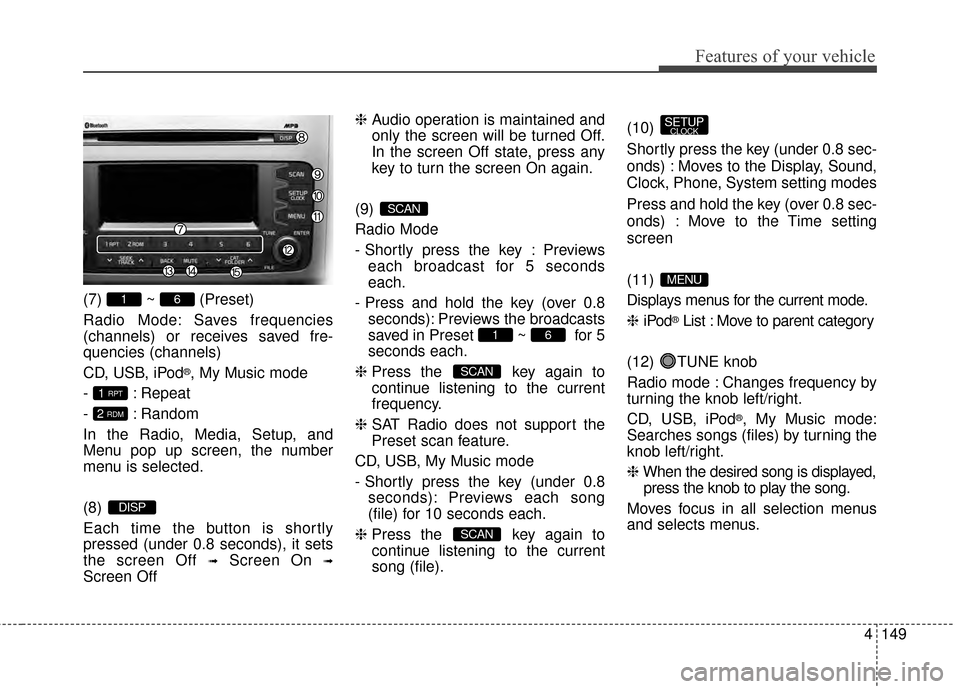
(7) ~ (Preset)
Radio Mode: Saves frequencies
(channels) or receives saved fre-
quencies (channels)
CD, USB, iPod
®, My Music mode
- : Repeat
- : Random
In the Radio, Media, Setup, and
Menu pop up screen, the number
menu is selected.
(8)
Each time the button is shortly
pressed (under 0.8 seconds), it sets
the screen Off
➟Screen On ➟
Screen Off ❈
Audio operation is maintained and
only the screen will be turned Off.
In the screen Off state, press any
key to turn the screen On again.
(9)
Radio Mode
- Shortly press the key : Previews each broadcast for 5 seconds
each.
- Press and hold the key (over 0.8 seconds): Previews the broadcasts
saved in Preset ~ for 5
seconds each.
❈ Press the key again to
continue listening to the current
frequency.
❈ SAT Radio does not support the
Preset scan feature.
CD, USB, My Music mode
- Shortly press the key (under 0.8 seconds): Previews each song
(file) for 10 seconds each.
❈ Press the key again to
continue listening to the current
song (file). (10)
Shortly press the key (under 0.8 sec-
onds) : Moves to the Display, Sound,
Clock, Phone, System setting modes
Press and hold the key (over 0.8 sec-
onds) : Move to the Time setting
screen
(11)
Displays menus for the current mode.
❈
iPod
®List : Move to parent category
(12) TUNE knob
Radio mode : Changes frequency by
turning the knob left/right.
CD, USB, iPod
®, My Music mode:
Searches songs (files) by turning the
knob left/right.
❈ When the desired song is displayed,
press the knob to play the song.
Moves focus in all selection menus
and selects menus.
MENU
SETUPCLOCK
SCAN
SCAN
61
SCAN
DISP
2 RDM
1 RPT
61
Page 237 of 499
Features of your vehicle
150
4
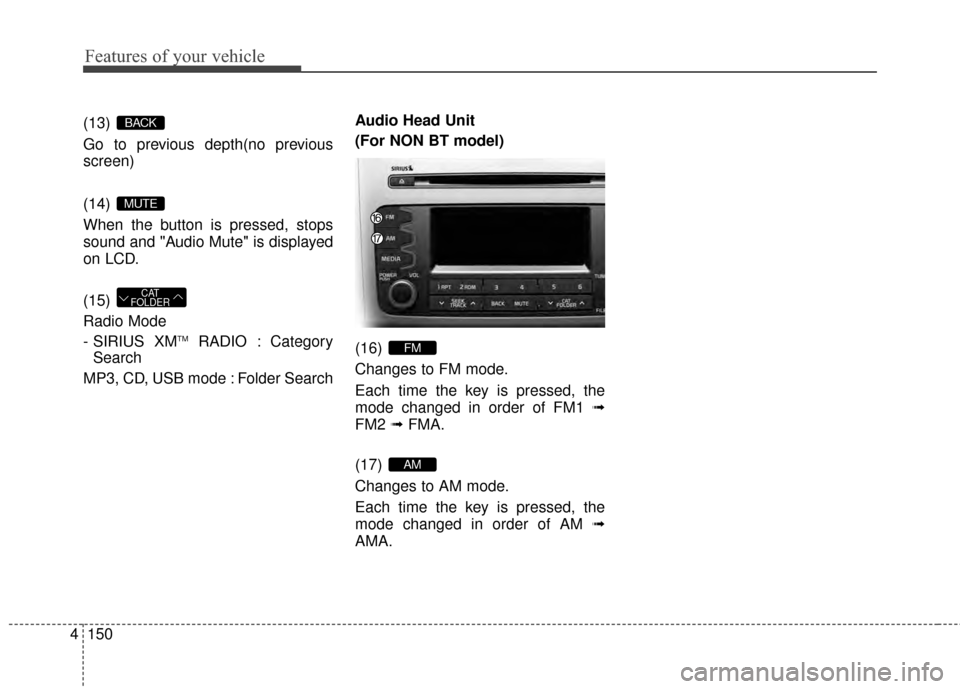
(13)
Go to previous depth(no previous
screen)
(14)
When the button is pressed, stops
sound and "Audio Mute" is displayed
on LCD.
(15)
Radio Mode
- SIRIUS XM
TMRADIO : Category
Search
MP3, CD, USB mode : Folder Search Audio Head Unit
(For NON BT model)
(16)
Changes to FM mode.
Each time the key is pressed, the
mode changed in order of FM1
➟
FM2 ➟FMA.
(17)
Changes to AM mode.
Each time the key is pressed, the
mode changed in order of AM ➟
AMA.
AM
FM
CAT
FOLDER
MUTE
BACK
Page 238 of 499
4151
Features of your vehicle
SETUP
Display Settings
Press the key Select [Display]
through TUNE knob or key
Select menu through TUNE knob
Mode Pop up
[Mode Pop up] Changes /
selection mode
or key to display the mode
change pop up screen.
Media Display
When playing an MP3 file, select the
desired display info from ‘Folder/File’
or ‘Album/Artist/Song’.
MEDIA
RADIO
OffOn
1
SETUPCLOCK
Page 240 of 499
4153
Features of your vehicle
CLOCK SETTINGS
Press the key Select [Clock]
through TUNE knob or key
Select menu through TUNE knob
Clock Settings
This menu is used to set the time.
Select [Clock Settings] Set throughTUNE knob Press TUNE knob
❈Adjust the number currently in
focus to set the [hour] and press
the tune knob to set the [minute]
and [AM/PM].
Calendar Settings
This menu is used to set the date
(MM/DD/YYYY).
Select [Calendar Settings] Set through
TUNE knob Press TUNE knob
❈Adjust the number currently in
focus to make the settings and
press the tune knob to move to the
next setting. (Set in order of
Year/Month/Day)
Time Format
This function is used to set the
12/24 hour time format of the
audio system. Select [Time
Format] Set 12Hr / 24Hr through
TUNEknob
Clock Display when Power is OFF
Select [Clock Disp.(Pwr Off) Set
/through TUNEknob
: Displays time/date on screen
: Turn off.Off
On
OffOn
3
SETUPCLOCK
Page 241 of 499
![KIA Sportage 2015 QL / 4.G Owners Manual Features of your vehicle
154
4
SYSTEM SETTINGS
Press the key Select
[System] Select menu through
TUNE knob
Memory Information
Displays currently used memory and
total system memory.
Select [Memory](/manual-img/2/2970/w960_2970-240.png "KIA Sportage 2015 QL / 4.G Owners Manual Features of your vehicle
154
4
SYSTEM SETTINGS
Press the key Select
[System] Select menu through
TUNE knob
Memory Information
Displays currently used memory and
total system memory.
Select [Memory")
Features of your vehicle
154
4
SYSTEM SETTINGS
Press the key Select
[System] Select menu through
TUNE knob
Memory Information
Displays currently used memory and
total system memory.
Select [Memory Information] OK
The currently used memory is dis-
played on the left side while the total
system memory is displayed on the
right side.
Prompt Feedback
This feature is used to change voice
command feedback between Normal
and Expert modes.
Select [Prompt Feedback] Set
through
TUNEknob
: This mode is for beginner
users and provides detailed instruc-
tions during voice command opera-
tion. : This mode is for expert users
and omits some information during
voice command operation. (When
using Expert mode, guidance
instructions can be heard through
the [Help] or [Menu] commands.
Language
This menu is used to set the display
and voice recognition language.
Select [Language]
Set through TUNE knob
❈ The system will reboot after the
language is changed.
❈ Language support by region
- English, Francais, Espanol
SETUPCLOCK
Page 245 of 499
Features of your vehicle
158
4
SIRIUS XMTMRADIO
Using SIRIUS XM
TMSatellite
Radio
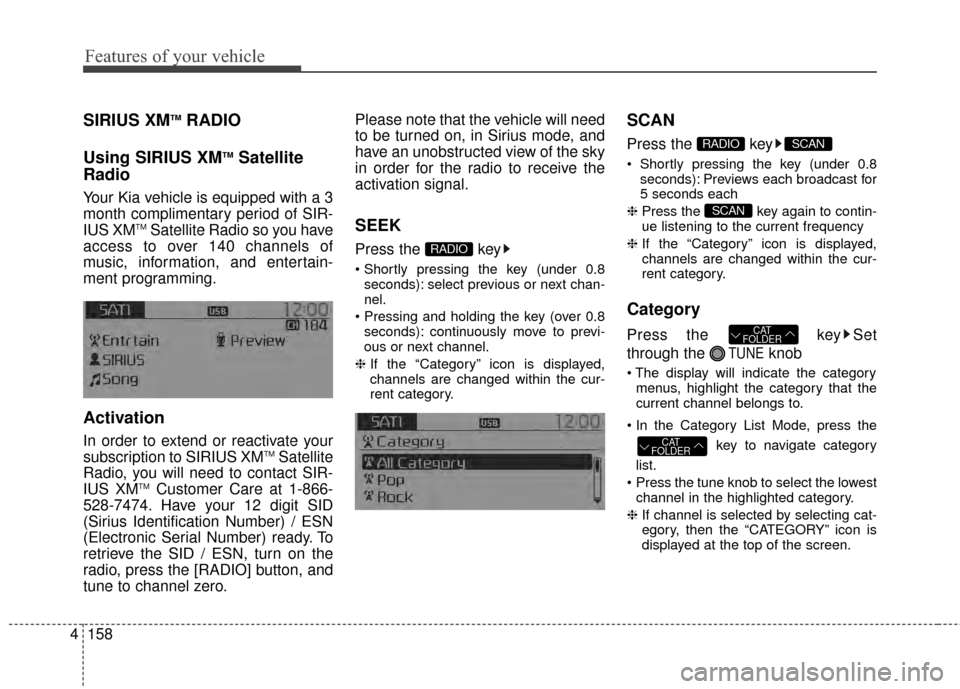
Your Kia vehicle is equipped with a 3
month complimentary period of SIR-
IUS XM
TMSatellite Radio so you have
access to over 140 channels of
music, information, and entertain-
ment programming.
Activation
In order to extend or reactivate your
subscription to SIRIUS XMTMSatellite
Radio, you will need to contact SIR-
IUS XM
TMCustomer Care at 1-866-
528-7474. Have your 12 digit SID
(Sirius Identification Number) / ESN
(Electronic Serial Number) ready. To
retrieve the SID / ESN, turn on the
radio, press the [RADIO] button, and
tune to channel zero. Please note that the vehicle will need
to be turned on, in Sirius mode, and
have an unobstructed view of the sky
in order for the radio to receive the
activation signal.
SEEK
Press the key
seconds): select previous or next chan-
nel.
seconds): continuously move to previ-
ous or next channel.
❈ If the “Category” icon is displayed,
channels are changed within the cur-
rent category.
SCAN
Press the key
seconds): Previews each broadcast for
5 seconds each
❈ Press the key again to contin-
ue listening to the current frequency
❈ If the “Category” icon is displayed,
channels are changed within the cur-
rent category.
Category
Press the key Set
through the
TUNEknob
menus, highlight the category that the
current channel belongs to.
key to navigate category
list.
Press the tune knob to select the lowest channel in the highlighted category.
❈ If channel is selected by selecting cat-
egory, then the “CATEGORY” icon is
displayed at the top of the screen.
CAT
FOLDER
CAT
FOLDER
SCAN
SCANRADIO
RADIO
![KIA Sportage 2015 QL / 4.G Owners Manual 4151
Features of your vehicle
SETUP
Display Settings
Press the key Select [Display]
through TUNE knob or key
Select menu through TUNE knob
Mode Pop up
[Mode Pop up] Changes /
selection mode
or k](/manual-img/2/2970/w960_2970-237.png "KIA Sportage 2015 QL / 4.G Owners Manual 4151
Features of your vehicle
SETUP
Display Settings
Press the key Select [Display]
through TUNE knob or key
Select menu through TUNE knob
Mode Pop up
[Mode Pop up] Changes /
selection mode
or k")
![KIA Sportage 2015 QL / 4.G Owners Manual 4153
Features of your vehicle
CLOCK SETTINGS
Press the key Select [Clock]
through TUNE knob or key
Select menu through TUNE knob
Clock Settings
This menu is used to set the time.
Select [Clock Set](/manual-img/2/2970/w960_2970-239.png "KIA Sportage 2015 QL / 4.G Owners Manual 4153
Features of your vehicle
CLOCK SETTINGS
Press the key Select [Clock]
through TUNE knob or key
Select menu through TUNE knob
Clock Settings
This menu is used to set the time.
Select [Clock Set")