Page 209 of 508

Features of your vehicle118
4Map lamp Press the lens (1) to turn the map
lamp on or off
ROOM (2) :
- The map lamp and room lampstays on at all times.
- To turn off the ROOM mode, press the ROOM button (2) once
again (not pressed.) DOOR (3) :
- The map lamp and room lampcomes on when a door is opened.
The lamps go out after approxi-
mately 30 seconds.
- The map lamp and room lamp comes on for approximately 30
seconds when doors are unlocked
with a transmitter or smart key as
long as the doors are not opened.
- The map lamp and room lamp will stay on for approximately 20 min-
utes if a door is opened with the
ignition switch in the ACC or
LOCK/OFF position.
- The map lamp and room lamp will stay on continuously if the door is
opened with the ignition switch in
the ON position.
- The map lamp and room lamp will go out immediately if the ignition
switch is changed to the ON posi-
tion or all doors are locked.
- To turn off the DOOR mode, press the DOOR button (3) once
again (not pressed).
✽ ✽ NOTICE• The DOOR mode and ROOM
mode can not be selected at the
same time.
• When the lamp is turned on by pressing the lens (1), the lamp does
not turn off even if the DOOR
mode or ROOM mode is not
selected (not pressed).
OXM043013
XM(FL) CAN(ENG) 4a(~158).QXP 1/23/2013 3:51 PM Page 118
Page 237 of 508

Features of your vehicle146
4These compartments can be used to
store small items.
Center console storage
(if equipped)To open the center console storage,
pull up the lever.
Glove boxThe glove box can be locked and
unlocked with a master key. (if
equipped)
To open the glove box, pull the han-
dle and the glove box will automati-
cally open. Close the glove box after
use.
STORAGE COMPARTMENTS
WARNING -
Flammable
materials
Do not store cigarette lighters,
propane cylinders, or other
flammable/explosive materials
in the vehicle. These items may
catch fire and/or explode if the
vehicle is exposed to hot tem-
peratures for extended periods.
CAUTION
To avoid possible theft, do not leave valuables in the storagecompartment.
Always keep the storage com- partment covers closed whiledriving. Do not attempt toplace so many items in thestorage compartment that thestorage compartment covercannot close securely.
OXM049174L
OXM049212
XM(FL) CAN(ENG) 4a(~158).QXP 1/23/2013 3:56 PM Page 146
Page 260 of 508

4 169
Features of your vehicle
(Continued)
Some USB flash memory read-ers (such as CF, SD, micro SD,
etc.) or external-HDD type
devices can be unrecognizable.
Music files protected by DRM (DIGITAL RIGHTS MANAGE-
MENT) are not recognizable.
The data in the USB memory may be lost while using this
audio. Always back up important
data on a personal storage
device.
Please avoid using USB memory prod-
ucts which can be
used as key chains or
cellular phone acces-
sories as they could cause dam-
age to the USB jack. Please
make certain only to use plug
type connector products.
(Continued)
If you use devices such as a USBhub purchased separately, the
vehicle’s audio system may not
recognize the USB device. In that
case, connect the USB device
directly to the multimedia terminal
of the vehicle.
If the USB device is divided by log- ical drives, only the music files on
the highest-priority drive are rec-
ognized by car audio.
Devices such as MP3 Player/ Cellular phone/Digital camera can
be unrecognizable by standard
USB I/F can be unrecognizable.
Charging through the USB may not be supported in some mobile
devices.
USB HDD or USB types liable to connection failures due to vehicle
vibrations are not supported.
(i-stick type)
Some non-standard USB devices (METAL COVER TYPE USB) can
be unrecognizable.
(Continued)
XM(FL) CAN(ENG) 4b(AUDIO).qxp 1/23/2013 3:42 PM Page 169
Page 264 of 508

4 173
Features of your vehicle
Voice Recognition When using the voice recognitionfeature, only commands listed with-
in the user's manual are supported.
Be aware that during the operation of the voice recognition system,
pressing any key other than the key terminate voice recognition
mode.
For superior voice recognition per- formance, position the microphone
used for voice recognition above
the head of the driver’s seat and
maintain a proper position when
saying commands.
Within the following situations, voice recognition may not function
properly due to external sound.
- When the windows and sunroof are open
- When the wind of the cooling / heating device is strong
- When entering and passing through tunnels
(Continued)(Continued)
- When driving on rugged and uneven roads
- During severe rain (heavy rains, windstorms)
Phone related voice commands can be used only when a
Bluetooth
®
Wireless Technology device is con-
nected.
When making calls by stating a name, the corresponding contact
must be downloaded and stored
within the audio system.
After downloading the
Bluetooth
®
Wireless Technology phone book, it
takes some times to convert the
phone book data into voice infor-
mation. During this time, voice
recognition may not properly oper-
ate.
Pronounce the voice commands naturally and clearly as if in a nor-
mal conversation.
XM(FL) CAN(ENG) 4b(AUDIO).qxp 1/23/2013 3:42 PM Page 173
Page 266 of 508

4 175
Features of your vehicle
SYSTEM CONTROLLERS
AND FUNCTIONS❈Display and settings may differ
depending on the selected audio.Audio Head Unit(1) (EJECT)
Ejects the disc. (2)
Changes to FM/AM/SIRIUS mode.
Each time the key is pressed, the
mode is changed in order of FM1
➟
FM2
➟AM
➟SAT1
➟SAT2
➟SAT3.
❈ In Setup>Display, the radio pop up
screen will be displayed when
[Mode Pop up] is turned .
When the pop up screen is dis-played, use the TUNE knob or
keys ~ to select the
desired mode.
(3)
Changes to CD, USB(iPod), AUX, My
Music, BT Audio mode.
Each time the key is pressed, the
mode is changed in order of CD,
USB(iPod), AUX, My Music, BT Audio.
❈ In Setup>Display, the media pop
up screen will be displayed when
[Mode Pop up] is turned .
When the pop up screen is dis-
played, use the TUNE knob or
keys ~ to select the
desired mode. (4)
Operates Phone Screen
❈
When a phone is not connected,
the connection screen is displayed.
(5) PWR/VOL knob Power : Turns power On/Off by
pressing the knob
Volume : Sets volume by turning
the knob left/right
(6)
Radio Mode : Automatically search-
es for broadcast frequencies.
CD, USB, iPod, My Music modes
-
Shortly press the key (under 0.8 sec-
onds): Moves to next or previous song
(file)- Press and hold the key (over 0.8 sec-
onds): Rewinds or fast-forwards the
current song.BT Audio mode : Moves to next or
previous song(file)
❈
The Play/Pause feature may oper-
ate differently depending on the
mobile phone.
SEEK
TRACKPHONE
5
1
On
MEDIA
6
1
On
RADIO
XM(FL) CAN(ENG) 4b(AUDIO).qxp 1/23/2013 3:42 PM Page 175
Page 267 of 508
Features of your vehicle176
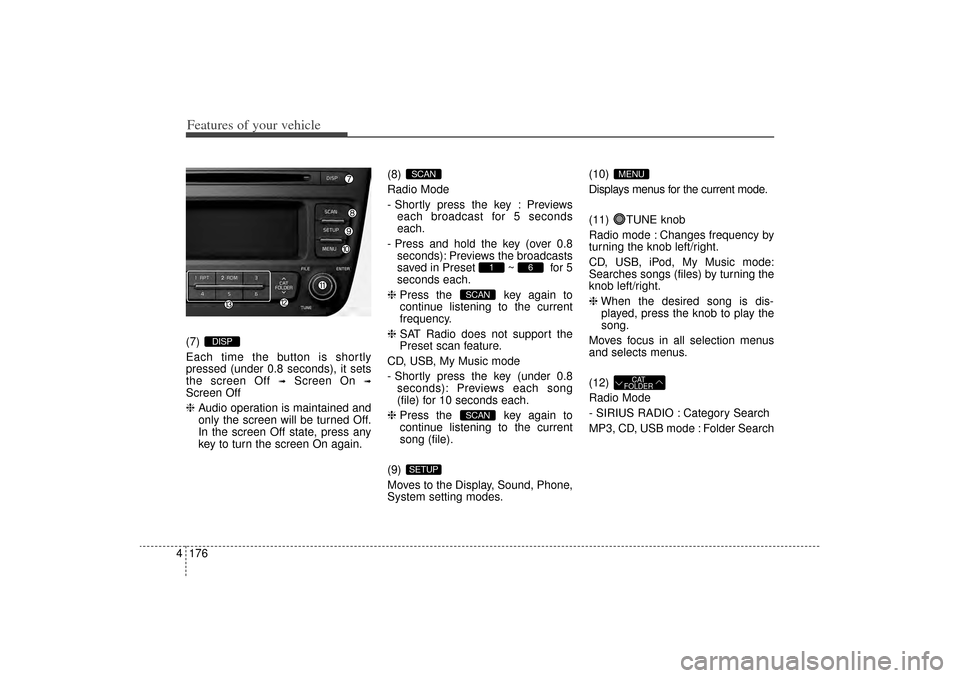
4(7)
Each time the button is shortly
pressed (under 0.8 seconds), it sets
the screen Off
➟
Screen On
➟
Screen Off
❈ Audio operation is maintained and
only the screen will be turned Off.
In the screen Off state, press any
key to turn the screen On again. (8)
Radio Mode
- Shortly press the key : Previews
each broadcast for 5 seconds
each.
- Press and hold the key (over 0.8 seconds): Previews the broadcasts
saved in Preset ~ for 5
seconds each.
❈ Press the key again to
continue listening to the current
frequency.
❈ SAT Radio does not support the
Preset scan feature.
CD, USB, My Music mode
- Shortly press the key (under 0.8 seconds): Previews each song
(file) for 10 seconds each.
❈ Press the key again to
continue listening to the current
song (file).
(9)
Moves to the Display, Sound, Phone,
System setting modes. (10)
Displays menus for the current mode.
(11) TUNE knob
Radio mode : Changes frequency by
turning the knob left/right.
CD, USB, iPod, My Music mode:
Searches songs (files) by turning the
knob left/right.
❈
When the desired song is dis-
played, press the knob to play the
song.
Moves focus in all selection menus
and selects menus.
(12)
Radio Mode
- SIRIUS RADIO : Category Search
MP3, CD, USB mode : Folder Search
CAT
FOLDER
MENU
SETUP
SCANSCAN
6
1
SCAN
DISP
XM(FL) CAN(ENG) 4b(AUDIO).qxp 1/23/2013 3:42 PM Page 176
Page 269 of 508
Features of your vehicle178
4SETUP
Display SettingsPress the key Select [Display]
through TUNE knob or key
Select menu through TUNE knob
Mode Pop up[Mode Pop up] Changes /
selection mode
During On state, press the
or key to display the mode
change pop up screen.Text Scroll[Text Scroll] Set /
: Maintains scroll
: Scrolls only one (1) time.Media DisplayWhen playing an MP3 file, select the
desired display info from ‘Folder/File’
or ‘Album/Artist/Song’.
OffOn
Off
On
MEDIA
RADIO
Off
On
1
SETUP
XM(FL) CAN(ENG) 4b(AUDIO).qxp 1/23/2013 3:42 PM Page 178
Page 270 of 508
4 179
Features of your vehicle
SOUND SETTINGSPress the key Select [Sound]
through TUNE knob or key
Select menu through TUNE knob
Sound SettingsThis menu allows you to set the ‘Bass,
Middle, Treble’ and the Sound Fader and
Balance.Select [Sound Settings] Select
menu through
TUNE knob
Tu r n
TUNE knob
left/right to set
Bass, Middle, Treble : Selects the sound tone.
Fader, Balance : Moves the sound fader and balance.
Default : Restores default settings.
❈ Back : While adjusting values,
pressing the TUNE knob will
restore the parent menu. Speed Dependent Volume Control
This feature is used to automatically
control the volume level according to
the speed of the vehicle.
Select [Speed Dependent Vol.] Set
in 4 levels [Off/Low/Mid/High] of
TUNE
knob
Voice Recognition VolumeAdjusts voice recognition volume.
Select [Voice Recognition Vol.] Set
volume of
TUNE
knob
2
SETUP
XM(FL) CAN(ENG) 4b(AUDIO).qxp 1/23/2013 3:42 PM Page 179
![KIA Sorento 2015 3.G Owners Manual Features of your vehicle178
4SETUP
Display SettingsPress the key Select [Display]
through TUNE knob or key
Select menu through TUNE knob
Mode Pop up[Mode Pop up] Changes /
selection mode
During](/manual-img/2/2967/w960_2967-268.png "KIA Sorento 2015 3.G Owners Manual Features of your vehicle178
4SETUP
Display SettingsPress the key Select [Display]
through TUNE knob or key
Select menu through TUNE knob
Mode Pop up[Mode Pop up] Changes /
selection mode
During")
![KIA Sorento 2015 3.G Owners Manual 4 179
Features of your vehicle
SOUND SETTINGSPress the key Select [Sound]
through TUNE knob or key
Select menu through TUNE knob
Sound SettingsThis menu allows you to set the ‘Bass,
Middle, Treb](/manual-img/2/2967/w960_2967-269.png "KIA Sorento 2015 3.G Owners Manual 4 179
Features of your vehicle
SOUND SETTINGSPress the key Select [Sound]
through TUNE knob or key
Select menu through TUNE knob
Sound SettingsThis menu allows you to set the ‘Bass,
Middle, Treb")