Page 351 of 695

Subtitle Language — If Equipped
Selecting this item allows you to choose a default subtitle
language (effective only if the language is supported by
the disc). You can select a language not listed by scrolling
down and selecting#other.#Enter the country code using
the TUNE/SCROLL control knob to scroll up and down
to select the number and then push to select.
Subtitles — If Equipped
Selecting this item allows you to choose between subtitle
Off or On.
Audio DRC — If Equipped
Selecting this item allows you to limit maximum audio
dynamic range. The default is set to#High,#and under
this setting, dialogues will play at 11 db higher than if the
setting is#Normal.#
Aspect Ratio — If Equipped
Selecting this item allows you to choose between wide
screen, pan scan, and letter box.
AutoPlay — If Equipped
When this is set to On and a DVD video is inserted, it will
bypass the DVD menu screen and automatically play the
movie. In some rare cases, the DVD player may not
auto-play the main title. In such cases, use the MENU
button on the remote control to select desired title to play.
NOTE:The user will have to set these defaults before
loading a disc. If changes are made to these settings after
a disc is loaded, changes will not be effective. Also, the
defaults are effective only if the disc supports the
customer-preferred settings.
AM and FM Buttons
Push the buttons to select AM or FM mode.
4
UNDERSTANDING YOUR INSTRUMENT PANEL 349
Page 352 of 695

SET Button — To Set The Pushbutton Memory
When you are receiving a station that you wish to
commit to pushbutton memory, push the SET button. The
symbol SET 1 will now show in the display window.
Select the button (1-6) you wish to lock onto this station
and push and release that button. If a button is not
selected within five seconds after pushing the SET but-
ton, the station will continue to play but will not be
stored into pushbutton memory.
You may add a second station to each pushbutton by
repeating the above procedure with this exception: Push
the SET button twice and SET 2 will show in the display
window. Each button can be set for SET 1 and SET 2 in both
AM and FM. This allows a total of 12 AM, 12 FM, and 12
Satellite (if equipped) stations to be stored into pushbutton
memory. The stations stored in SET 2 memory can be
selected by pushing the pushbutton twice.
Every time a preset button is used, a corresponding
button number will display.
Buttons1-6
These buttons tune the radio to the stations that you
commit to pushbutton memory {12 AM, 12 FM, and 12
Satellite (if equipped) stations}.
DISC Button
Pushing the DISC button will allow you to switch from
AM/FM modes to Disc modes.
Operation Instructions — DISC Mode For CD And
MP3/WMA Audio Play, DVD – Video
The radio DVD player and many DVD discs are coded by
geographic region. These region codes must match for
the disc to play. If the region code for the DVD disc does
not match the region code for the radio DVD player, it
will not play the disc. Customers may take their vehicle
350 UNDERSTANDING YOUR INSTRUMENT PANEL
Page 355 of 695
Supported Media (Disc Types)
The MP3/WMA file recording media supported by the
radio are CDDA, CD-R, CD-RW, MP3,WMA, DVD Video,
DVD-R, DVD-RW, DVD+R, DVD+RW, and CDDA+MP3.
Supported Medium Formats (File Systems)
The medium formats supported by the radio are ISO 9660
Level 1 and Level 2 and includes the Joliet extension.
When reading discs recorded using formats other than
ISO 9660 Level 1 and Level 2, the radio may fail to read
files properly and may be unable to play the file nor-
mally. UDF and Apple HFS formats are not supported.
The radio uses the following limits for file systems:
•Maximum number of directory levels: 8
•Maximum number of files: 255
•Maximum number of folders: 100
•Maximum number of characters in file/folder names:
•Level 1: 12 (including a separator#.#and a three-
character extension)
•Level 2: 31 (including a separator#.#and a three-
character extension)
Multisession disc formats are supported by the radio.
Multisession discs may contain combinations of normal
CD audio tracks and computer files (including MP3/
WMA files). Discs created with an option such as#keep
disc open after writing#are most likely multisession
discs. The use of multisession for CD audio or MP3/
WMA playback may result in longer disc loading times.
If a disc contains multi-formats, such as CD audio and
MP3/WMA tracks, the radio will only play the MP3/
WMA tracks on that disc.
4
UNDERSTANDING YOUR INSTRUMENT PANEL 353
Page 356 of 695
Supported MP3/WMA File Formats
The radio will recognize only files with the *.MP3/WMA
extension as MP3/WMA files. Non-MP3/WMA files
named with the *.MP3/WMA extension may cause play-
back problems. The radio is designed to recognize the file
as an invalid MP3/WMA and will not play the file.
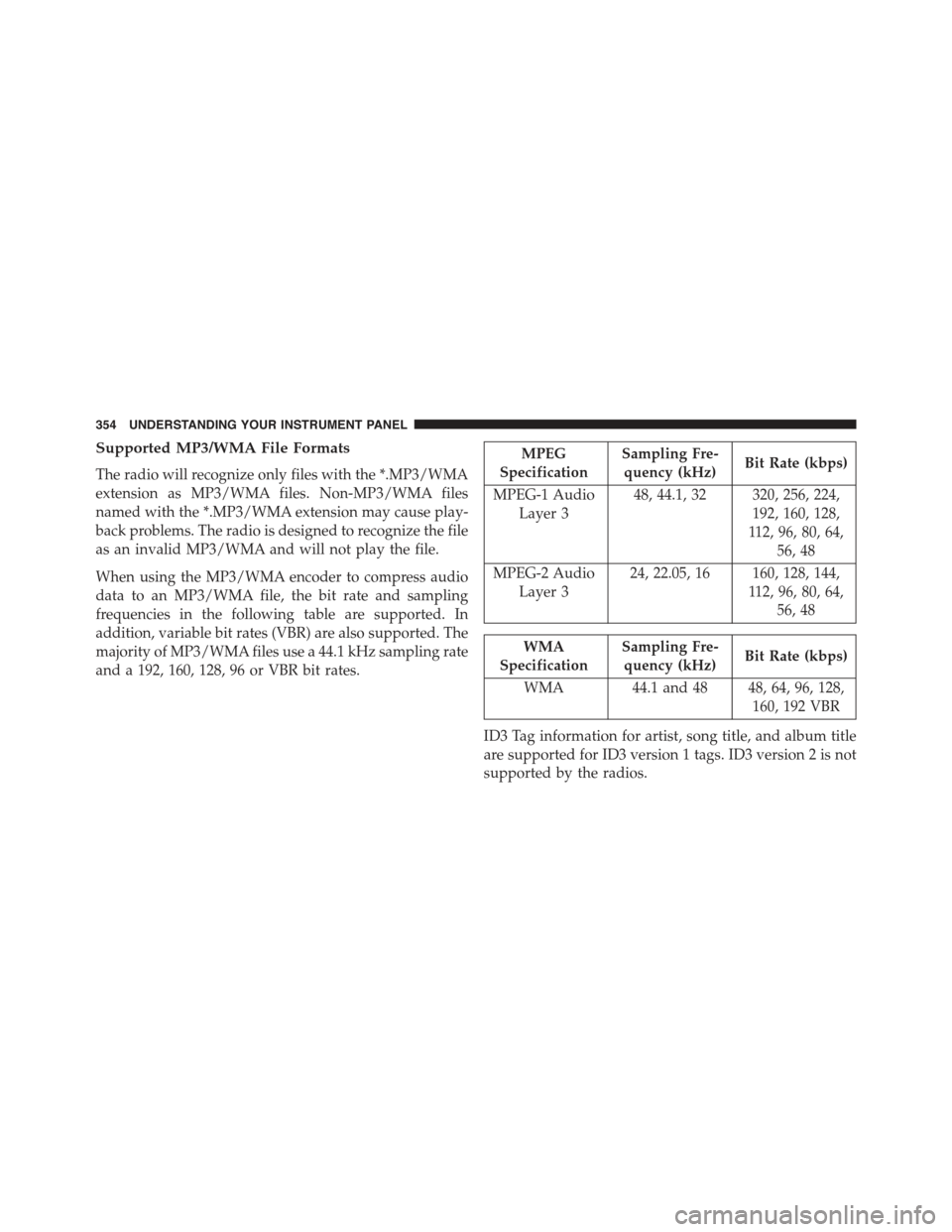
When using the MP3/WMA encoder to compress audio
data to an MP3/WMA file, the bit rate and sampling
frequencies in the following table are supported. In
addition, variable bit rates (VBR) are also supported. The
majority of MP3/WMA files use a 44.1 kHz sampling rate
and a 192, 160, 128, 96 or VBR bit rates.
MPEG
Specification
Sampling Fre-
quency (kHz)Bit Rate (kbps)
MPEG-1 Audio
Layer 3
48, 44.1, 32 320, 256, 224,
192, 160, 128,
112, 96, 80, 64,
56, 48
MPEG-2 Audio
Layer 3
24, 22.05, 16 160, 128, 144,
112, 96, 80, 64,
56, 48
WMA
Specification
Sampling Fre-
quency (kHz)Bit Rate (kbps)
WMA 44.1 and 48 48, 64, 96, 128,
160, 192 VBR
ID3 Tag information for artist, song title, and album title
are supported for ID3 version 1 tags. ID3 version 2 is not
supported by the radios.
354 UNDERSTANDING YOUR INSTRUMENT PANEL
Page 358 of 695

Push the INFO button once more to return to#elapsed
time#priority mode.
Push and hold the INFO button for three seconds or more
and radio will display song titles for each file.
Push and hold the INFO button again for three seconds
to return to#elapsed time#display.
Operation Instructions — Auxiliary Mode
The auxiliary (AUX) jack is an audio input jack which
allows the user to plug in a portable device such as an
MP3/WMA player, an ipod®, or a microphone and
utilize the vehicles audio system to amplify the source
and play through the vehicle speakers.
Pushing the AUX button will change the mode to auxil-
iary device if the AUX jack is connected.
NOTE:The AUX device must be turned on and the
device’s volume set to the proper level. If the AUX audio
is not loud enough, turn the device’s volume up. If the
AUX audio sounds distorted, turn the device’s volume
down.
SEEK Button (Auxiliary Mode)
No function.
SCAN Button (Auxiliary Mode)
No function.
EJECT Button (Auxiliary Mode)
No function.
356 UNDERSTANDING YOUR INSTRUMENT PANEL
Page 360 of 695
Uconnect® (Satellite Radio) — If Equipped
Satellite radio uses direct satellite-to-receiver broadcast-
ing technology to provide clear digital sound, coast to
coast. The subscription service provider is Sirius Satellite
Radio. This service offers over 130 channels of music,
sports, news, entertainment, and programming for chil-
dren, directly from its satellites and broadcasting studios.
NOTE:Sirius service is not available in Hawaii and has
limited coverage in Alaska.
System Activation
Sirius Satellite Radio service is pre-activated, and you
may begin listening immediately to the one year of audio
service that is included with the factory-installed satellite
radio system in your vehicle. Sirius will supply a wel-
come kit that contains general information, including
how to setup your on-line listening account. For further
information, call the toll-free number 888-539-7474, or
visit the Sirius web site atwww.siriusxm.com, or at
www.siriusxm.ca for Canadian residents.
Electronic Serial Number/Sirius Identification
Number (ESN/SID)
Please have the following information available when
calling:
1. The Electronic Serial Number/Sirius Identification
Number (ESN/SID).
2. Your Vehicle Identification Number.
To access the ESN/SID, refer to the following steps:
ESN/SID Access
With the ignition switch in the ON/RUN or ACC posi-
tion and the radio on, push the SETUP button and scroll
using the TUNE/SCROLL control knob until Sirius ID is
selected. Push the TUNE/SCROLL control knob and the
358 UNDERSTANDING YOUR INSTRUMENT PANEL
Page 361 of 695

Sirius ID number will display. The Sirius ID number
display will time out in two minutes. Push any button on
the radio to exit this screen.
Selecting Uconnect® (Satellite) Mode
Push the SAT button until#SAT#appears in the display. A
CD may remain in the radio while in the Satellite radio
mode.
Satellite Antenna
To ensure optimum reception, do not place items on the
roof around the rooftop antenna location. Metal objects
placed within the line of sight of the antenna will cause
decreased performance. Larger luggage items such as
bikes should be placed as far rearward as possible, within
the loading design of the rack. Do not place items directly
on or above the antenna.
Reception Quality
Satellite reception may be interrupted due to one of the
following reasons:
•The vehicle is parked in an underground parking
structure or under a physical obstacle.
•Dense tree coverage may interrupt reception in the
form of short audio mutes.
•Driving under wide bridges or along tall buildings can
cause intermittent reception.
•Placing objects over or too close to the antenna can
cause signal blockage.
Operating Instructions — Uconnect® (Satellite)
Mode
NOTE:The ignition switch must be in the ON/RUN or
ACC position to operate the radio.
4
UNDERSTANDING YOUR INSTRUMENT PANEL 359
Page 363 of 695

Toggle the MUSIC TYPE button again to select the music
type.
By pushing the SEEK button when the Music Type
function is active, the radio will be tuned to the next
channel with the same selected Music Type name.
If a preset button is activated while in the Music Type
(Program Type) mode, the Music Type mode will be
exited and the radio will tune to the preset channel.
SETUP Button
Pushing the SETUP button allows you to select the
following items:
•Display Sirius ID number — Push the AUDIO/
SELECT button to display the Sirius ID number. This
number is used to activate, deactivate, or change the
Sirius subscription.
SET Button — To Set The Pushbutton Memory
When you are receiving a channel that you wish to
commit to pushbutton memory, push the SET button. The
symbol SET 1 will now show in the display window.
Select the button (1-6) you wish to lock onto this channel
and push and release that button. If a button is not
selected within five seconds after pushing the SET but-
ton, the channel will continue to play but will not be
stored into pushbutton memory.
You may add a second channel to each pushbutton by
repeating the above procedure with this exception: Push
the SET button twice and SET 2 will show in the display
window. Each button can be set for SET 1 and SET 2. This
allows a total of 12 Satellite channels to be stored into
pushbutton memory. The channels stored in SET 2
memory can be selected by pushing the pushbutton
twice.
4
UNDERSTANDING YOUR INSTRUMENT PANEL 361