Page 117 of 572

Uconnect® Phone Button
The radio or steering wheel controls (if
equipped) will contain the two control buttons
(Uconnect® Phonebutton and Voice Com-
mandbutton) that will enable you to
access the system. When you push the button you will
hear the word Uconnect® followed by a BEEP. The
beep is your signal to give a command.
Voice Command Button
Actual button location may vary with the ra-
dio. The individual buttons are described in the
“Operation” section.
The Uconnect® Phone can be used with any Hands-Free
Profile certified Bluetooth® mobile phone. See the
Uconnect® website for supported phones. Refer to your
mobile service provider or the phone manufacturer for
details.
The Uconnect® Phone is fully integrated with the vehi-
cle’s audio system. The volume of the Uconnect® Phone
can be adjusted either from the radio volume control
knob or from the steering wheel radio control (right
switch), if equipped.
The radio display will be used for visual prompts from
the Uconnect® Phone such as “CELL” or caller ID on
certain radios.
Operation
Voice commands can be used to operate the Uconnect®
Phone and to navigate through the Uconnect® Phone
menu structure. Voice commands are required after most
Uconnect® Phone prompts. You will be prompted for a
specific command and then guided through the available
options.
3
UNDERSTANDING THE FEATURES OF YOUR VEHICLE 115
Page 169 of 572
LIGHTS
Multifunction Lever
The multifunction lever controls the operation of the
headlights, parking lights, turn signals, headlight beam
selection, instrument panel light dimming, interior lights,
the passing lights, and the fog lights. The multifunction
lever is located on the left side of the steering column.
Multifunction Lever
3
UNDERSTANDING THE FEATURES OF YOUR VEHICLE 167
Page 174 of 572
light off. The lights also come on when a door is opened
or the dimmer control is turned fully upward, past the
second detent.
NOTE:The lights will remain on until the switch is
pushed a second time, so be sure they have been turned
off before leaving the vehicle. They will not turn off
automatically.
WINDSHIELD WIPERS AND WASHERS
The windshield wiper/washer control lever is
located on the right side of the steering column.
The front wipers are operated by rotating a
switch, located on the end of the lever. For information
on the rear wiper/washer, refer to “Rear Window Fea-
tures” in “Understanding The Features Of Your Vehicle”.
Map/Reading Lights
172 UNDERSTANDING THE FEATURES OF YOUR VEHICLE
Page 178 of 572
NOTE:The mist feature does not activate the washer
pump; therefore, no washer fluid will be sprayed on the
windshield. The wash function must be used in order to
spray the windshield with washer fluid.
TILT STEERING COLUMN
This feature allows you to tilt the steering column
upward or downward. The tilt steering column lever is
located on the left side of the steering column, below the
turn signal lever.
Push down on the lever to unlock the steering column.
With one hand firmly on the steering wheel, move the
steering column up or down, as desired. Push the lever
up to lock the steering column firmly in place.
Mist Operation
176 UNDERSTANDING THE FEATURES OF YOUR VEHICLE
Page 179 of 572
WARNING!
Do not adjust the steering column while driving.
Adjusting the steering column while driving or driv-
ing with the steering column unlocked, could cause
the driver to lose control of the vehicle. Failure to
follow this warning may result in serious injury or
death.
ELECTRONIC SPEED CONTROL — IF EQUIPPED
When engaged, the Electronic Speed Control takes over
accelerator operations at speeds greater than 25 mph
(40 km/h).
The Electronic Speed Control buttons are located on the
right side of the steering wheel.
Tilt Steering Column Lever
3
UNDERSTANDING THE FEATURES OF YOUR VEHICLE 177
Page 210 of 572
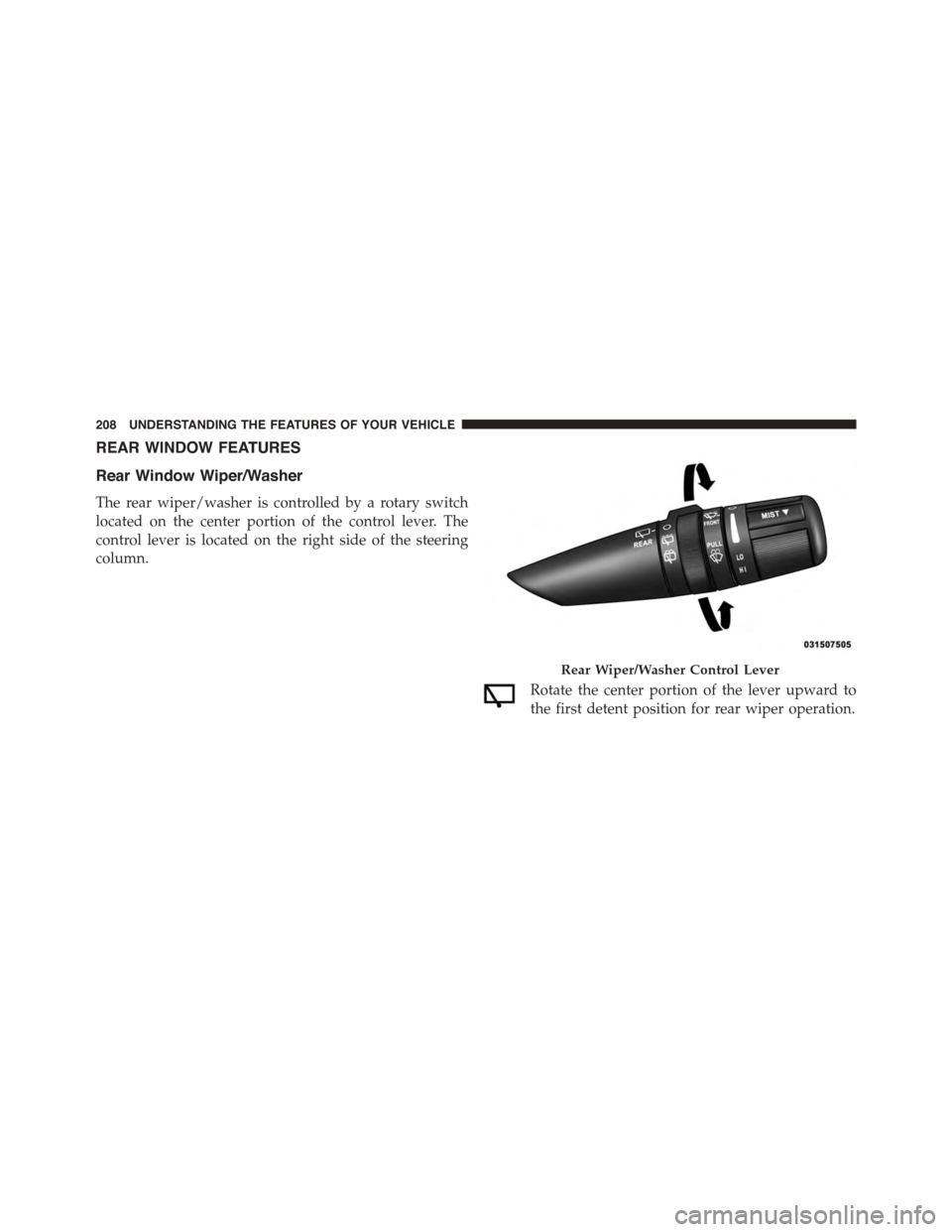
REAR WINDOW FEATURES
Rear Window Wiper/Washer
The rear wiper/washer is controlled by a rotary switch
located on the center portion of the control lever. The
control lever is located on the right side of the steering
column.
Rotate the center portion of the lever upward to
the first detent position for rear wiper operation.
Rear Wiper/Washer Control Lever
208 UNDERSTANDING THE FEATURES OF YOUR VEHICLE
Page 217 of 572
!iPod®/USB/MP3 CONTROL — IF EQUIPPED . .293
▫Connecting The iPod® Or External USB
Device.............................293
▫Using This Feature.....................294
▫Controlling The iPod® Or External USB Device
Using Radio Buttons...................294
▫Play Mode..........................294
▫List Or Browse Mode...................296
▫Bluetooth® Streaming Audio (BTSA).......298
!STEERING WHEEL AUDIO CONTROLS......299
▫Radio Operation......................300
▫CD Player...........................301
!CD/DVD DISC MAINTENANCE...........301
!RADIO OPERATION AND MOBILE PHONES . .302
!CLIMATE CONTROLS...................302
▫Manual Heating And Air Conditioning......303
▫Automatic Temperature Control (ATC) — If
Equipped...........................307
▫Operating Tips.......................313
4
UNDERSTANDING YOUR INSTRUMENT PANEL 215
Page 235 of 572
Control Buttons
STEP Button
Push the STEP button located on the steering wheel to
scroll through sub menus (i.e., Temperature, Trip Func-
tions: Odometer, Trip A, Trip B).
RESET Button
To reset the display shown, turn the ignition switch to the
ON position, then push and hold the RESET button
located on the steering wheel.
The following displays can be reset or changed:
•Trip A
•Trip B
Trip Odometer (ODO)
This display shows the distance traveled since the last
reset. Push and release the STEP button on the instru-
ment cluster to switch from odometer, to Trip A or Trip B.
Trip A
Shows the total distance traveled for Trip A since the last
reset.
Mini-Trip Control Buttons
4
UNDERSTANDING YOUR INSTRUMENT PANEL 233