Page 295 of 772

•If the indicator light stays on constantly, program-
ming is complete and the garage door/device should
activate when the HomeLink® button is pressed.
•To program the remaining two HomeLink® buttons,
repeat each step for each remaining button. DO NOT
erase the channels.
Reprogramming A Single HomeLink® Button
(Non — Rolling Code)
To reprogram a channel that has been previously trained,
follow these steps:
1. Cycle the ignition to the ON/RUN position.
For vehicle’s equipped with Keyless Enter-N-Go, place
the ignition in the RUN position with the Engine ON.
2. Push and hold the desired HomeLink® button until
the indicator light begins to flash after 20 seconds.Do
not release the button.
3.Without releasing the buttonproceed with “Program-
ming A Non-Rolling Code” step 2 and follow all
remaining steps.
Canadian/Gate Operator Programming
For programming transmitters in Canada/United States
that require the transmitter signals to “time-out” after
several seconds of transmission.
Canadian radio frequency laws require transmitter sig-
nals to time-out (or quit) after several seconds of trans-
mission – which may not be long enough for HomeLink®
to pick up the signal during programming. Similar to this
Canadian law, some U.S. gate operators are designed to
time-out in the same manner.
It may be helpful to unplug the device during the cycling
process to prevent possible overheating of the garage
door or gate motor.
1. Cycle the ignition to the ON/RUN position.
3
UNDERSTANDING THE FEATURES OF YOUR VEHICLE 293
Page 296 of 772

2. Place the hand-held transmitter 1 to 3 inches (3 to 8
cm) away from the HomeLink® button you wish to
program while keeping the HomeLink® indicator
light in view.
3. Continue to push and hold the HomeLink® button,
while you press and release (“cycle”) your hand-held
transmitter every two seconds until HomeLink® has
successfully accepted the frequency signal. The indi-
cator light will flash slowly and then rapidly when
fully trained.
4. Watch for the HomeLink® indicator to change flash
rates. When it changes, it is programmed. It may take
up to 30 seconds or longer in rare cases. The garage
door may open and close while you are programming.
5. Push and hold the programmed HomeLink® button
and observe the indicator light.
NOTE:
•If the indicator light stays on constantly, program-
ming is complete and the garage door/device should
activate when the HomeLink® button is pushed.
•To program the two remaining HomeLink® buttons,
repeat each step for each remaining button. DO NOT
erase the channels.
If you unplugged the garage door opener/device for
programming, plug it back in at this time.
Reprogramming A Single HomeLink® Button
(Canadian/Gate Operator)
To reprogram a channel that has been previously trained,
follow these steps:
1. Cycle the ignition to the ON/RUN position.
294 UNDERSTANDING THE FEATURES OF YOUR VEHICLE
Page 297 of 772

2. Push and hold the desired HomeLink® button until
the indicator light begins to flash after 20 seconds.Do
not release the button.
3.Without releasing the buttonproceed with
“Canadian/Gate Operator Programming” step 2 and
follow all remaining steps.
Using HomeLink®
To operate, push and release the programmed
HomeLink® button. Activation will now occur for the
programmed device (i.e., garage door opener, gate opera-
tor, security system, entry door lock, home/office light-
ing, etc.,). The hand-held transmitter of the device may
also be used at any time.
Security
It is advised to erase all channels before you sell or turn
in your vehicle.
To do this, push and hold the two outside buttons for 20
seconds until the red indicator flashes. Note that all
channels will be erased. Individual channels cannot be
erased.
The HomeLink® Universal Transceiver is disabled when
the Vehicle Security Alarm is active.
Troubleshooting Tips
If you are having trouble programming HomeLink®,
here are some of the most common solutions:
•Replace the battery in the original hand-held transmit-
ter.
•Push the LEARN button on the Garage Door Opener
to complete the training for a Rolling Code.
•Did you unplug the device for programming and
remember to plug it back in?
3
UNDERSTANDING THE FEATURES OF YOUR VEHICLE 295
Page 305 of 772
the ignition switch is in the ON or ACC position, while
the outlets labeled with a “battery” are connected directly
to the battery and powered at all times.
NOTE:
•All accessories connected to the “battery” powered
outlets should be removed or turned off when the
vehicle is not in use to protect the battery against
discharge.
•To ensure proper cigar lighter operation, a MOPAR®
knob and element must be used.
CAUTION!
Power outlets are designed for accessory plugs only.
Do not insert any other object in the power outlets as
this will damage the outlet and blow the fuse.
Improper use of the power outlet can cause damage
not covered by your New Vehicle Limited Warranty.
The front power outlet is located inside the storage area
on the center stack of the instrument panel.
In addition to the front power outlet, there is also a power
outlet located in the storage area of the center console.
Front Power Outlet
3
UNDERSTANDING THE FEATURES OF YOUR VEHICLE 303
Page 307 of 772
WARNING!
To avoid serious injury or death:
•Only devices designed for use in this type of outlet
should be inserted into any 12 Volt outlet.
•Do not touch with wet hands.
•Close the lid when not in use and while driving the
vehicle.
•If this outlet is mishandled, it may cause an electric
shock and failure.
Power Outlet Fuse Locations
1—F75Fuse20AYellowFrontPowerOutlet/CigarLighterCon-sole Bin2—F92Fuse20AYellowRearPowerOutlet3—F60Fuse20AYellowPowerOutletCenterConsole
3
UNDERSTANDING THE FEATURES OF YOUR VEHICLE 305
Page 308 of 772
CAUTION!
•Many accessories that can be plugged in draw
power from the vehicle’s battery, even when not in
use (i.e., cellular phones, etc.). Eventually, if
plugged in long enough, the vehicle’s battery will
discharge sufficiently to degrade battery life and/or
prevent the engine from starting.
•Accessories that draw higher power (i.e., coolers,
vacuum cleaners, lights, etc.) will degrade the bat-
tery even more quickly. Only use these intermit-
tently and with greater caution.
•After the use of high power draw accessories, or
long periods of the vehicle not being started (with
accessories still plugged in), the vehicle must be
driven a sufficient length of time to allow the
generator to recharge the vehicle’s battery.
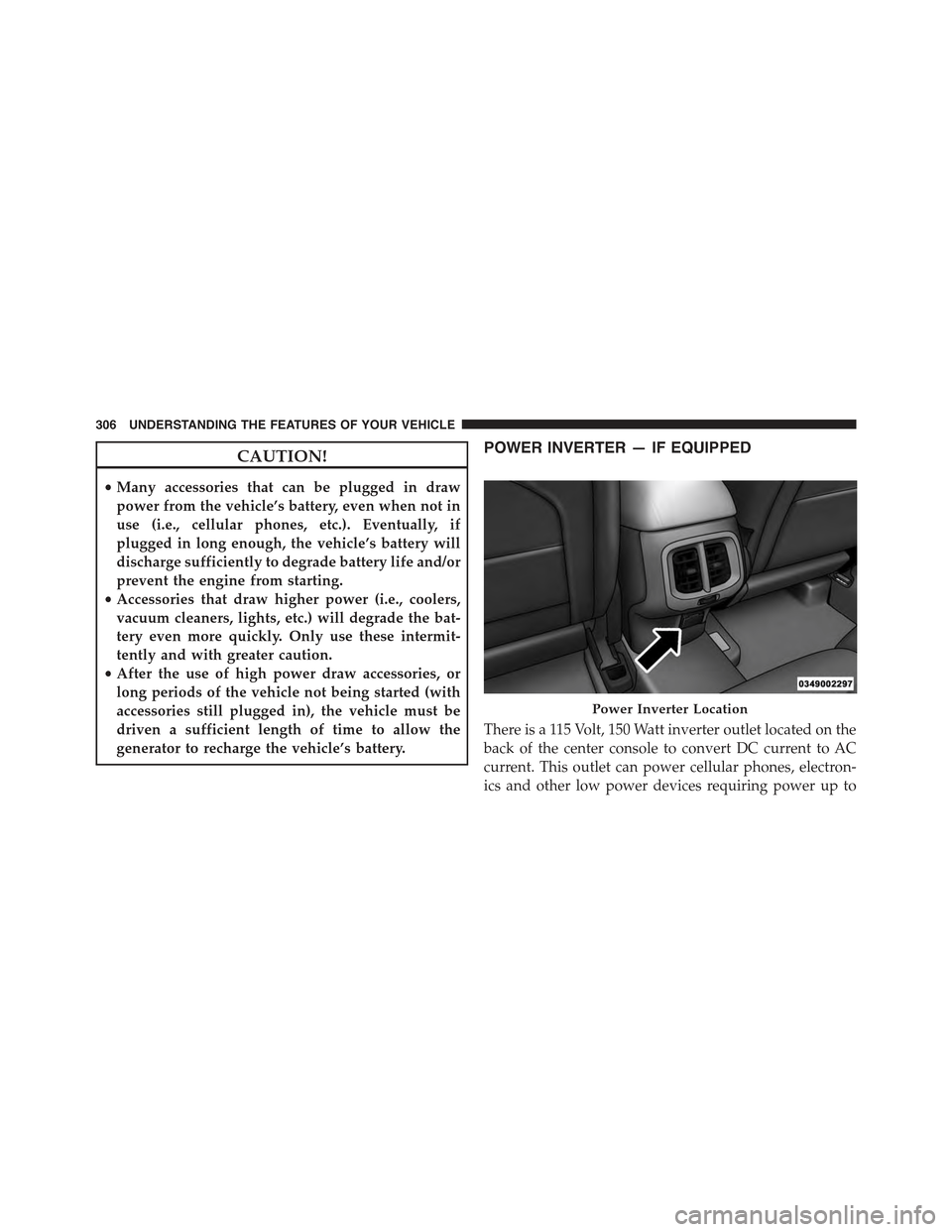
POWER INVERTER — IF EQUIPPED
There is a 115 Volt, 150 Watt inverter outlet located on the
back of the center console to convert DC current to AC
current. This outlet can power cellular phones, electron-
ics and other low power devices requiring power up to
Power Inverter Location
306 UNDERSTANDING THE FEATURES OF YOUR VEHICLE
Page 310 of 772
WIRELESS CHARGING PAD — IF EQUIPPED
Your vehicle may be equipped with a wireless charging
pad located inside the upper portion of the center con-
sole. This charging pad is designed to wirelessly charge
your Qi enabled mobile phone. Qi is a standard that uses
magnetic induction to transfer power to your mobile
device.
Your mobile phone must be designed for Qi wireless
charging, be equipped with an aftermarket sleeve or
equipped with a back plate from your mobile phone
provider, or an online or local electronics retailer.
The wireless charging pad is equipped with an anti-slip
mat, an adjustable cradle to hold your mobile phone in
place and an LED indicator light.
NOTE:VisitUconnectPhone.com for supported mo-
bile phones and compatible aftermarket sleeves.
Wireless Charging Pad
308 UNDERSTANDING THE FEATURES OF YOUR VEHICLE
Page 330 of 772
INSTRUMENT PANEL FEATURES
1 — Air Demister Outlet 5 — Instrument Cluster 9 — Passenger Air Bag 13 — Stop/Start Ignition Button2 — Air Outlet 6 — Electronic Speed Control 10 — Glove Compartment 14 — Liftgate Release Button3—Electronic Vehicle InformationCenter (EVIC)/ Driver InformationDisplay (DID) Controls
7—StorageCompartment 11—LowerSwitchBank 15—DimmerSwitches
4—Horn/DriverAirBag 8—Radio 12—Uconnect® Hard Controls/Climate Controls/Electric StopStart — If Equipped
16 — Headlight Switch
328 UNDERSTANDING YOUR INSTRUMENT PANEL


