2015 HYUNDAI TUCSON ignition
[x] Cancel search: ignitionPage 184 of 653
3-98
Convenient features of your vehicle
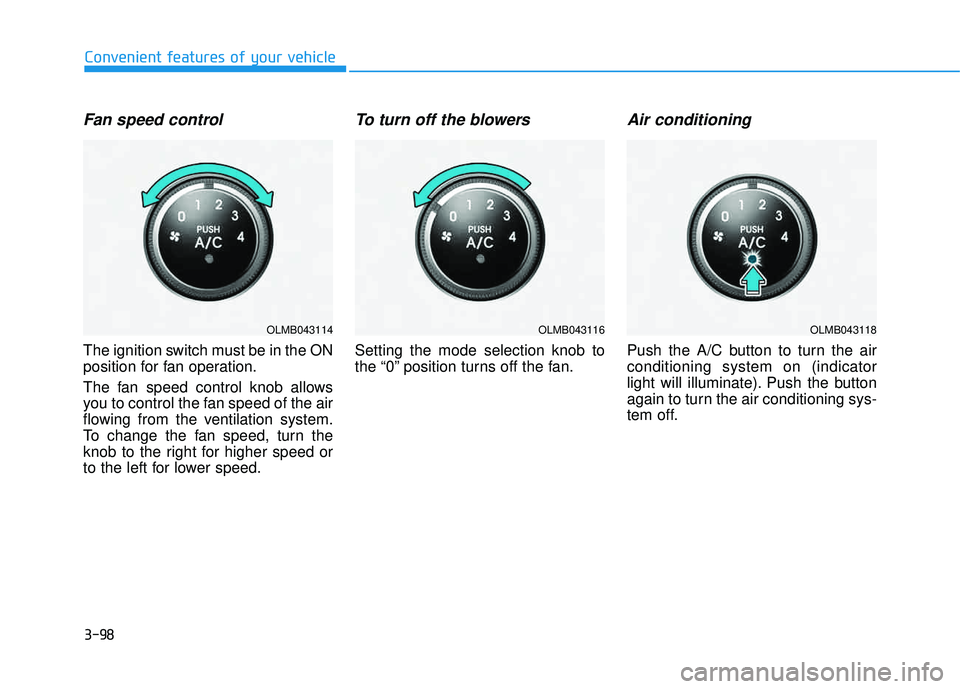
Fan speed control
The ignition switch must be in the ON
position for fan operation.
The fan speed control knob allows
you to control the fan speed of the air
flowing from the ventilation system.
To change the fan speed, turn the
knob to the right for higher speed or
to the left for lower speed.
To turn off the blowers
Setting the mode selection knob to
the “0” position turns off the fan.
Air conditioning
Push the A/C button to turn the airconditioning system on (indicator
light will illuminate). Push the button
again to turn the air conditioning sys-
tem off.
OLMB043114OLMB043116OLMB043118
Page 200 of 653
3-114
Convenient features of your vehicle
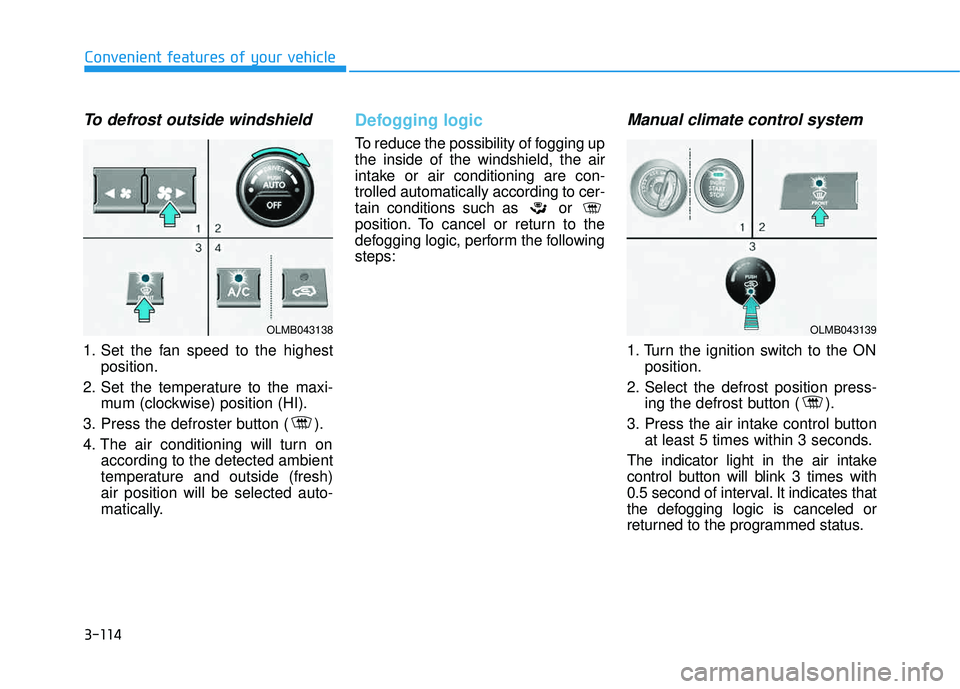
To defrost outside windshield
1. Set the fan speed to the highestposition.
2. Set the temperature to the maxi- mum (clockwise) position (HI).
3. Press the defroster button ( ).
4. The air conditioning will turn on according to the detected ambient
temperature and outside (fresh)air position will be selected auto-
matically.
Defogging logic
To reduce the possibility of fogging up the inside of the windshield, the air
intake or air conditioning are con-trolled automatically according to cer-
tain conditions such as or
position. To cancel or return to the
defogging logic, perform the followingsteps:
Manual climate control system
1. Turn the ignition switch to the ONposition.
2. Select the defrost position press- ing the defrost button ( ).
3. Press the air intake control button at least 5 times within 3 seconds.
The indicator light in the air intake
control button will blink 3 times with
0.5 second of interval. It indicates that
the defogging logic is canceled or
returned to the programmed status.
OLMB043138OLMB043139
Page 201 of 653
3-115
Convenient features of your vehicle
3
If the battery has been discharged or disconnected, the system resets to
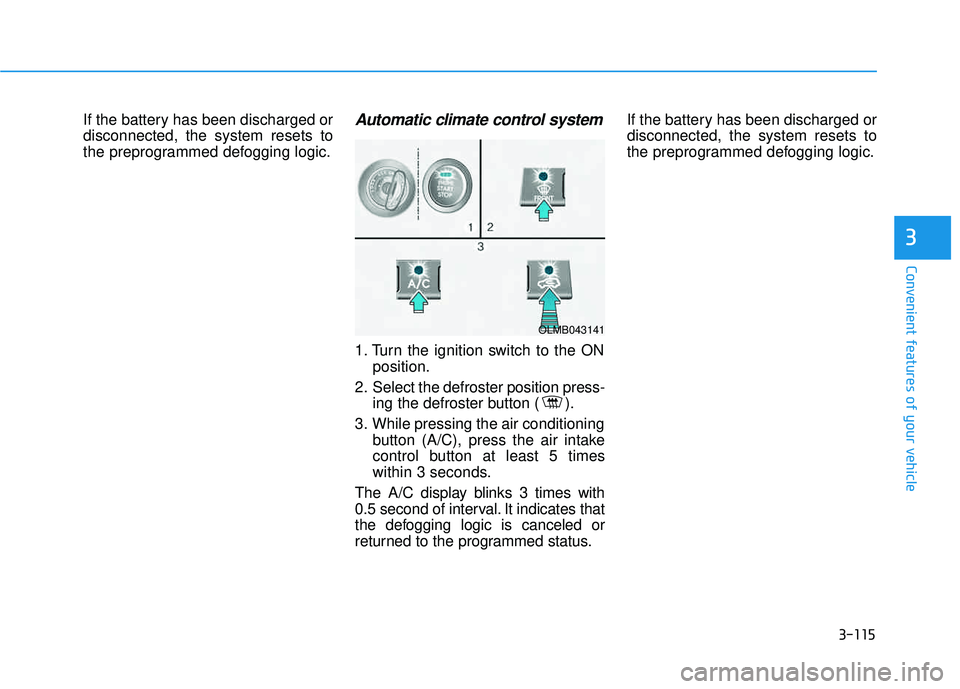
the preprogrammed defogging logic.Automatic climate control system
1. Turn the ignition switch to the ONposition.
2. Select the defroster position press- ing the defroster button ( ).
3. While pressing the air conditioning button (A/C), press the air intake
control button at least 5 times
within 3 seconds.
The A/C display blinks 3 times with
0.5 second of interval. It indicates that
the defogging logic is canceled or
returned to the programmed status. If the battery has been discharged ordisconnected, the system resets to
the preprogrammed defogging logic.
OLMB043141
Page 207 of 653
3-121
Convenient features of your vehicle
3
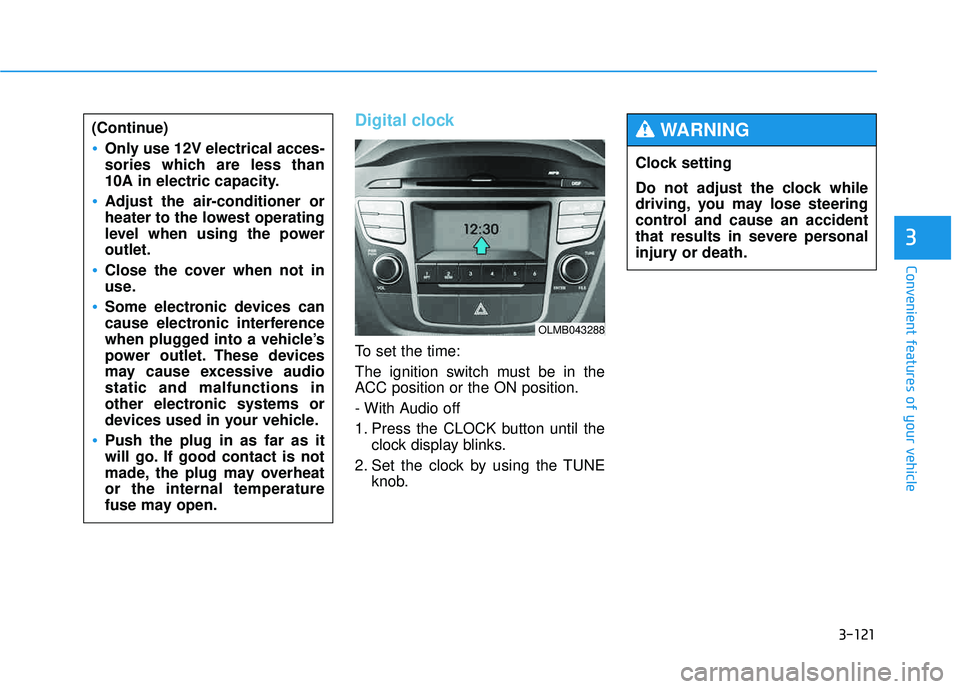
Digital clock
To set the time:
The ignition switch must be in the
ACC position or the ON position.
- With Audio off
1. Press the CLOCK button until theclock display blinks.
2. Set the clock by using the TUNE knob.
(Continue)
Only use 12V electrical acces-
sories which are less than
10A in electric capacity.
Adjust the air-conditioner or
heater to the lowest operating
level when using the poweroutlet.
Close the cover when not in
use.
Some electronic devices can
cause electronic interference
when plugged into a vehicle’s
power outlet. These devices
may cause excessive audiostatic and malfunctions in
other electronic systems or
devices used in your vehicle.
Push the plug in as far as it
will go. If good contact is not
made, the plug may overheator the internal temperature
fuse may open.
OLMB043288
Clock setting
Do not adjust the clock while
driving, you may lose steering
control and cause an accident
that results in severe personal
injury or death.
WARNING
Page 219 of 653
4-8
Multimedia System
(Continued)
Please refrain from use if the
screen is blank or no sound
can be heard as these signs
may indicate product malfunc-
tion. Continued use in suchconditions could lead to acci-
dents(fires, electric shock) or
product malfunctions.
Do not touch the antenna dur- ing thunder or lightening as
such acts may lead to light-
ning induced electric shock.
Do not stop or park in park- ing-restricted areas to operate
the product. Such acts couldlead to traffic accidents.
Use the system with the vehi-
cle ignition turned on.
Prolonged use with the igni- tion turned off could result in
battery discharge.
Do not stare at the screen
while driving. Staring at the
screen for prolonged periodsof time could lead to trafficaccidents.
Do not disassemble, assem-
ble, or modify the audio sys-
tem. Such acts could result in
accidents, fire, or electric
shock.
Using the phone while driving
may lead to a lack of attention oftraffic conditions and increasethe likelihood of accidents.
Use the phone feature after
parking the vehicle.
Heed caution not to spill water
or introduce foreign objects
into the device. Such acts
could lead to smoke, fire, or
product malfunction.(Continued)
WARNING
Operating the device while driving could lead to accidents
due to a lack of attention to
external surroundings. First
park the vehicle before operat-
ing the device.
Adjust the volume to levels that
allow the driver to hear sounds
from outside of the vehicle.
Driving in a state where exter-
nal sounds cannot be heard
may lead to accidents.
Pay attention to the volume setting when turning the
device on. A sudden output of
extreme volume upon turning
the device on could lead to
hearing impairment. (Adjust
the volume to a suitable level
before turning off the device.)(Continued)
CAUTION
Page 220 of 653
4-9
Multimedia System
4
(Continued)
Turn on the car ignition before
using this device. Do not oper-
ate the audio system for longperiods of time with the ignition
turned off as such operations
may lead to battery discharge.
Do not subject the device to
severe shock or impact. Direct
pressure onto the front side of
the monitor may cause dam-
age to the LCD or touchscreen.
When cleaning the device, make sure to turn off the
device and use a dry and
smooth cloth. Never use tough
materials, chemical cloths, or
solvents (alcohol, benzene,
thinners, etc.) as such materi-
als may damage the devicepanel or cause color/quality
deterioration.
(Continued)
(Continued)
Do not place beverages close
to the audio system. Spilling
beverages may lead to systemmalfunction.
In case of product malfunction,
please contact your place of pur-
chase or After Service center.
Placing the audio system with-
in an electromagnetic environ-
ment may result in noise inter-
ference.
Prevent caustic solutions such as perfume and cosmetic oil
from contacting the dashboard
because they may cause dam-
age or discoloration.
✽✽NOTICE - USING THE USB DEVICE
To use an external USB device, make sure the device is not con-
nected when starting up the
vehicle. Connect the device after
starting up.
If you start the engine when the USB device is connected, it may
damage the USB device. (USB
flashdrives are very sensitive to
electric shock.)
If the engine is started up or turned off while the external USB
device is connected, the external
USB device may not work.
The System may not play unau- thenticated MP3 or WMA files.
1) It can only play MP3 files with the compression rate between
8Kbps~320Kbps.
2) It can only play WMA music files with the compression rate
between 8Kbps~320Kbps.
Take precautions for static elec- tricity when connecting or dis-
connecting the external USB
device. (Continued)
Page 224 of 653
4-13
Multimedia System
4
✽✽NOTICE - BEFORE USING THE
Bluetooth®
HANDSFREE
What is Bluetooth ®
?
Bluetooth ®
refers to a short-dis-
tance wireless networking technol-
ogy which uses a 2.4GHz ~
2.48GHz frequency to connect
various devices within a certain
distance.
Supported within PCs, external devices, Bluetooth ®
phones, PDAs,
various electronic devices, and
automotive environments,
Bluetooth ®
allows data to be trans-
mitted at high speeds without hav-
ing to use a connector cable.
Bluetooth ®
Handsfree refers to a
device which allows the user to
conveniently make phone calls
with Bluetooth ®
mobile phones
through the Audio System.
Bluetooth ®
Handsfree may not be sup-
ported in some mobile phones. To
learn more about mobile device com-
patibility, visit www
. hyundaiusa.com.
✽✽ NOTICE - PRECAUTIONS FOR SAFE DRIVING
Bluetooth ®
Handsfree is a feature
that enables drivers to practice
safe driving. Connecting the head
unit with a Bluetooth®
phone
allows the user to conveniently
make and receive calls and use
contacts. Before using Bluetooth®
,
carefully read the contents of this
user’s manual.
Excessive use or operations while driving may lead to negligent driv-
ing practices and result in acci-
dents. Refrain from excessive
operations while driving.
Viewing the screen for prolonged periods of time is dangerous and
may lead to accidents. When driv-
ing, view the screen only for short
periods of time. ✽✽
NOTICE -WHEN CON- NECTING A
Bluetooth®
PHONE
Before connecting the head unit with the mobile phone, check to
see that the mobile phone supports
Bluetooth ®
features.
Even if the phone supports Bluetooth ®
, the phone will not be
found during device searches if the
phone has been set to hidden state
or the Bluetooth ®
power is turned
off. Disable the hidden state or
turn on the Bluetooth®
power
prior to searching/connecting with
the Head unit.
Bluetooth phone is automatically connected when the ignition on.
If you do not want automatic con- nection with your Bluetooth®
device, turn off the Bluetooth®
fea-
ture within your mobile phone.
The Handsfree call volume and quality may differ depending on
the mobile phone. (Continued)
Page 289 of 653
4-78
Multimedia System
✽✽NOTICE - USING THE USB DEVICE
Connect the USB device after turning on the engine. The USB
device may become damaged if
it is already connected when the
ignition is turned on.The USB
device may not operate properly
if the car ignition is turned on or
off with the USB device connect-
ed.
Heed caution to static electricity when connecting/disconnecting
USB devices.
Encoded MP3 Players will not be recognized when connected
as an external device.
When connecting an external USB device, the device may not
properly recognize the USB is in
some states.
Only products formatted with byte/sectors under 64Kbyte will
be recognized.
This device recognizes USB devices formatted in FAT
12/16/32 file formats. This
device does not recognize files in
NTFS file format. (Continued)(Continued)
Some USB devices may not be supported due to compatibility
issues.
Avoid contact between the USB connector with bodily parts or
foreign objects.
Repeated connecting/discon- necting of USB devices within
short periods of time may result
in product malfunction.
A strange noise may occur when disconnecting the USB.
Make sure to connect/discon- nect external USB devices with
the audio power turned off.
The amount of time required to recognize the USB device may
differ depending on the type,
size or file formats stored in the
USB. Such differences in time
are not indications of malfunc-
tions.
The device only supports USB devices used to play music files.
USB images and videos are not supported. (Continued)(Continued)
Do not use the USB I/F to charge batteries or USB acces-
sories that generate heat. Such
acts may lead to worsened per-
formance or damage to the
device.
The device may not recognize the USB device if separately
purchased USB hubs and exten-
sion cables are being used.
Connect the USB directly with
the multimedia terminal of the
vehicle.
When using mass storage USB devices with separate logical
drives, only files saved to the
root drive can be played.
Files may not properly operate if application programs are
installed to the USBs.
The device may not operate nor- mally if MP3 Players, cellular
phones, digital cameras, or
other electronic devices (USB
devices not recognized as
portable disk drives) are con-
nected with the device. (Continued)