Page 333 of 603
4-80
Multimedia System
Connecting a Device
Press the key Select
[Phone] Select [Paired Phone List]
1) Connected Phone : Device that iscurrently connected
2) Paired Phone : Device that is paired but not connected From the paired phone list, select the
device you want to connect and
press the button.
Changing Priority
What is Priority?
It is possible to pair up to five
Bluetooth®Wireless Technology
devices with the car audio system.
The "Change Priority" feature is used
to set the connection priority of
paired phones.
Press the key Select
[Phone] Select [Paired Phone List]
SETUP
ConnectSETUP
Page 334 of 603
4-81
Multimedia System
4
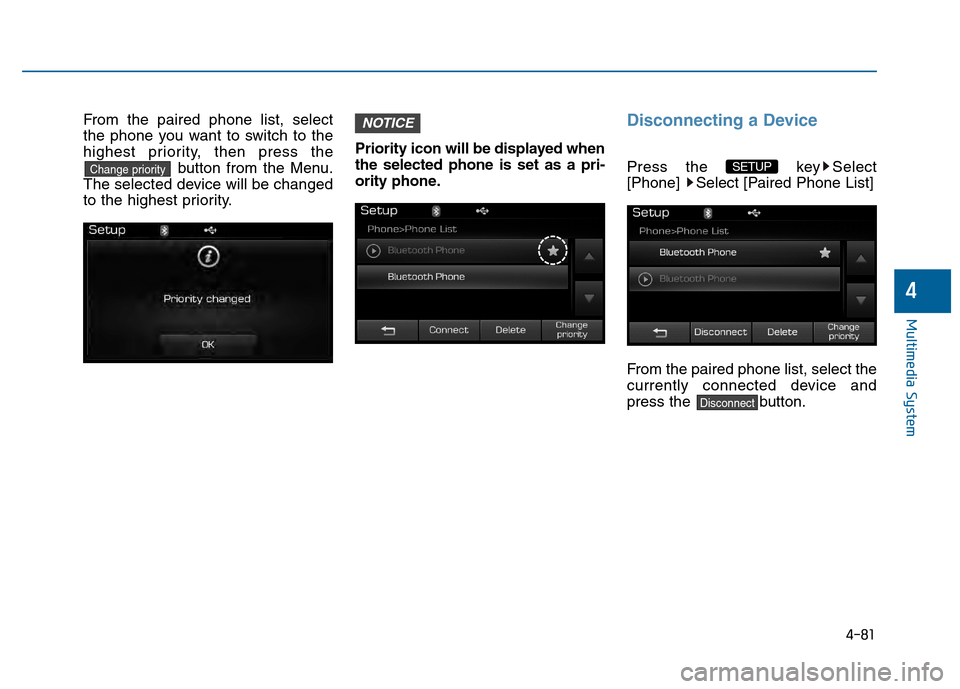
From the paired phone list, select
the phone you want to switch to the
highest priority, then press thebutton from the Menu.
The selected device will be changed
to the highest priority. Priority icon will be displayed when
the selected phone is set as a pri-
ority phone.Disconnecting a Device
Press the key Select
[Phone] Select [Paired Phone List]
From the paired phone list, select the
currently connected device and
press the button.
Disconnect
SETUP
NOTICE
Change priority
Page 335 of 603
4-82
Multimedia System
Deleting a Device
Press the key Select
[Phone] Select [Paired Phone List]
From the paired phone list, select the
device you want to delete and press
the button.
Information
• When deleting the currently con-nected device, the device will auto-
matically be disconnected to pro-
ceed with the deleting process.
• If a paired Bluetooth
®Wireless
Technology device is deleted, the
device’s call history and contacts
data will also be deleted.
• To re-use a deleted device, you must pair the device again.
Phone Menu Screen
Phone Menus
With a Bluetooth®Wireless
Technology device connected, press
the key to display the Phone
menu screen.
(❈ the screen can be different by region.)
1) Favorite : Up to 20 frequently used
contacts saved for easy access
2) Dial Number : Displays the dial screen where numbers can be
dialed to make calls
3) Call History : Device the call histo- ry list screen
PHONE
i
Delete
SETUP
Page 336 of 603
![Hyundai Sonata 2015 Owners Manual 4-83
Multimedia System
4
4) Contacts : Displays the Contactslist screen
5) Setup : Displays Phone related settings
Information
• If you press the [Call History] but-ton but there is no call history](/manual-img/35/16796/w960_16796-335.png "Hyundai Sonata 2015 Owners Manual 4-83
Multimedia System
4
4) Contacts : Displays the Contactslist screen
5) Setup : Displays Phone related settings
Information
• If you press the [Call History] but-ton but there is no call history")
4-83
Multimedia System
4
4) Contacts : Displays the Contactslist screen
5) Setup : Displays Phone related settings
Information
• If you press the [Call History] but-ton but there is no call history data,
a prompt is displayed which asks to
download call history data.
• If you press the [Contacts] button but there is no contacts data stored,
a prompt is displayed which asks to
download contacts data.
• This feature may not be supported in some mobile phones. For more
information on download support,
refer to your mobile phone user’s
manual.
Favorites
Press the key Select
[Favorites]
1) Saved favorite contact : Connects
call upon selection
2) To add favorite : Downloaded con- tacts be saved as favorite.
3) Delete All : Delete all stored favorite contactsInformation
• To save Favorite, contacts should bedownloaded.
• Contact saved in Favorites will not be automatically updated if the contact
has been updated in the phone. To
update Favorites, delete the Favorite
and create a new Favorite.
iPHONE
i
Page 338 of 603
4-85
Multimedia System
4
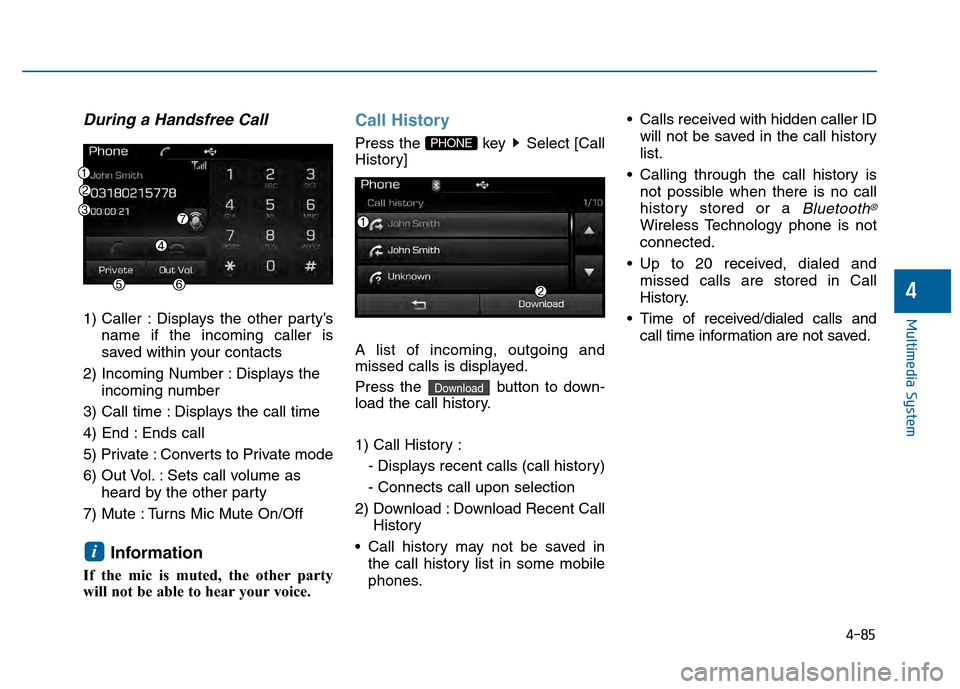
During a Handsfree Call
1) Caller : Displays the other party’sname if the incoming caller is
saved within your contacts
2) Incoming Number : Displays the incoming number
3) Call time : Displays the call time
4) End : Ends call
5) Private : Converts to Private mode
6) Out Vol. : Sets call volume as heard by the other party
7) Mute : Turns Mic Mute On/Off
Information
If the mic is muted, the other party
will not be able to hear your voice.
Call History
Press the key Select [Call
History]
A list of incoming, outgoing and
missed calls is displayed.
Press the button to down-
load the call history.
1) Call History : - Displays recent calls (call history)
- Connects call upon selection
2) Download : Download Recent Call History
Call history may not be saved in the call history list in some mobile
phones. Calls received with hidden caller ID
will not be saved in the call history
list.
Calling through the call history is not possible when there is no call
history stored or a
Bluetooth®
Wireless Technology phone is not
connected.
Up to 20 received, dialed and missed calls are stored in Call
History.
Time of received/dialed calls and call time information are not saved.
Download
PHONE
i
Page 342 of 603
4-89
Multimedia System
4
Information
• The Auto Download feature will down-load mobile contacts entries every time
the phone is connected. The download
time may differ depending on the num-
ber of saved contacts entries and the
communication state.
• Before downloading contacts, first check to see that your mobile phone
supports the contacts download fea-
ture.
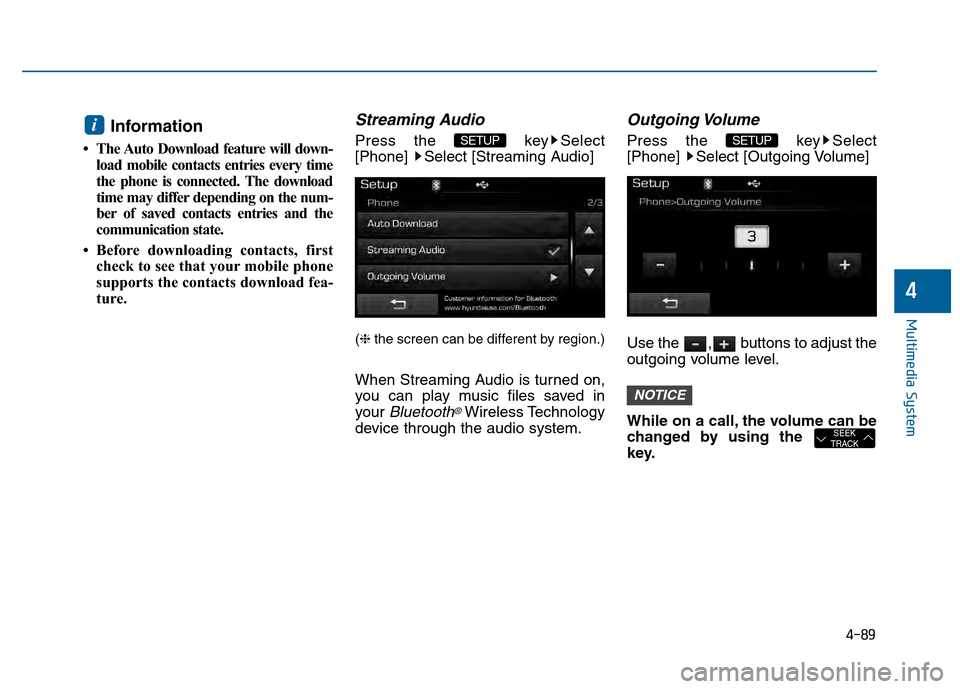
Streaming Audio
Press the key Select
[Phone] Select [Streaming Audio]
(❈ the screen can be different by region.)
When Streaming Audio is turned on,
you can play music files saved in
your
Bluetooth®Wireless Technology
device through the audio system.
Outgoing Volume
Press the key Select
[Phone] Select [Outgoing Volume]
Use the , buttons to adjust the
outgoing volume level.
While on a call, the volume can be
changed by using the
key.
SEEK
TRACK
NOTICE
SETUP SETUP i
Page 350 of 603
4-97
Multimedia System
4
S
SE
E T
T U
U P
P
Starting Mode
Press the key to display the
Setup screen.
You can select and control options
related to [Display], [Sound], [Phone]
and [System].
Display Settings
Adjusting the Brightness
Press the key Select
[Display] Select [Brightness]
Use the , buttons to adjust the
screen brightness or set the
Brightness on Automatic, Day, or
Night mode.
Press the button to reset.
1) Automatic : Adjusts the brightness
automatically
2) Day : Always maintains the bright- ness on high
3) Night : Always maintains the
brightness on low
Pop-up Mode
Press the key Select
[Display] Select [Mode Pop up]
This feature is used to display the
Pop-up Mode screen when entering
radio and media modes.
When this feature is turned on,
pressing the or key
will display the Pop-up Mode screen.
Information
The media Pop-up Mode screen can
be displayed only when two or more
media modes have been connected.
i
MEDIA RADIO
SETUP
Default
SETUP SETUP
Page 352 of 603
4-99
Multimedia System
4
Use the , , , buttons to
adjust the Fader/Balance settings.
Use the , buttons to adjust the
Bass/Middle/Treble settings.
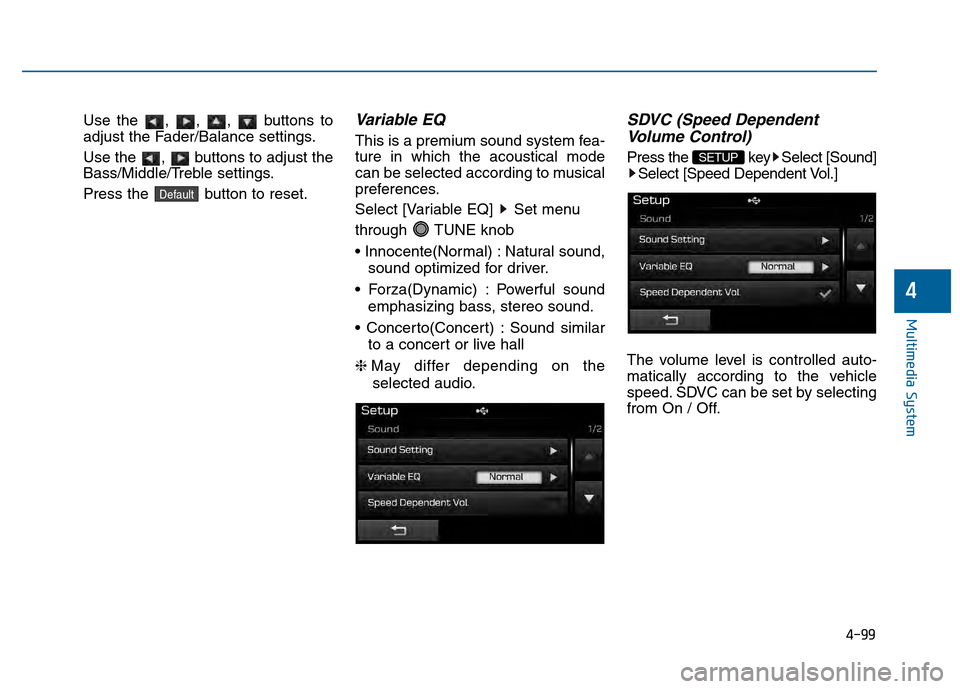
Press the button to reset.Variable EQ
This is a premium sound system fea-
ture in which the acoustical mode
can be selected according to musical
preferences.
Select [Variable EQ] Set menu
through TUNE knob
Natural sound,sound optimized for driver.
Powerful sound emphasizing bass, stereo sound.
Sound similar to a concert or live hall
❈ May differ depending on the
selected audio.
SDVC (Speed Dependent Volume Control)
Press the key Select [Sound]
Select [Speed Dependent Vol.]
The volume level is controlled auto-
matically according to the vehicle
speed. SDVC can be set by selecting
from On / Off.SETUP
Default
![Hyundai Sonata 2015 Owners Manual 4-80
Multimedia System
Connecting a Device
Press the key Select
[Phone] Select [Paired Phone List]
1) Connected Phone : Device that iscurrently connected
2) Paired Phone : Device that is paired but](/manual-img/35/16796/w960_16796-332.png "Hyundai Sonata 2015 Owners Manual 4-80
Multimedia System
Connecting a Device
Press the key Select
[Phone] Select [Paired Phone List]
1) Connected Phone : Device that iscurrently connected
2) Paired Phone : Device that is paired but")
![Hyundai Sonata 2015 Owners Manual 4-82
Multimedia System
Deleting a Device
Press the key Select
[Phone] Select [Paired Phone List]
From the paired phone list, select the
device you want to delete and press
the button.
Information
â](/manual-img/35/16796/w960_16796-334.png "Hyundai Sonata 2015 Owners Manual 4-82
Multimedia System
Deleting a Device
Press the key Select
[Phone] Select [Paired Phone List]
From the paired phone list, select the
device you want to delete and press
the button.
Information
â")
![Hyundai Sonata 2015 Owners Manual 4-97
Multimedia System
4
S
SE
E T
T U
U P
P
Starting Mode
Press the key to display the
Setup screen.
You can select and control options
related to [Display], [Sound], [Phone]
and [System].
Display Se](/manual-img/35/16796/w960_16796-349.png "Hyundai Sonata 2015 Owners Manual 4-97
Multimedia System
4
S
SE
E T
T U
U P
P
Starting Mode
Press the key to display the
Setup screen.
You can select and control options
related to [Display], [Sound], [Phone]
and [System].
Display Se")