Page 291 of 603
4-38
Multimedia System
Deleting a Device
Press the key Select
[Phone] Select [Phone List]
From the paired phone list, select the
device you want to delete and select
[Delete] button.
Information
• When deleting the currently con-nected device, the device will auto-
matically be disconnected to pro-
ceed with the deleting process.
• If a paired Bluetooth
®Wireless
Technology device is deleted, the
device’s call history and contacts
data will also be deleted.
• To re-use a deleted device, you must pair the device again.
Pairing a New Device
Press the key Select
[Phone] Select [Pair Phone]
Bluetooth®Wireless Technology
devices can be paired with the audio
system.
For more information, refer to the
“Pairing through Phone Setup” sec-
tion within
Bluetooth®Wireless
Technology.
SETUP i
SETUP
Page 295 of 603
4-42
Multimedia System
Phone Menu Screen
Phone Menus
With a Bluetooth®Wireless Technology
device connected, press the
key to display the Phone menu screen.
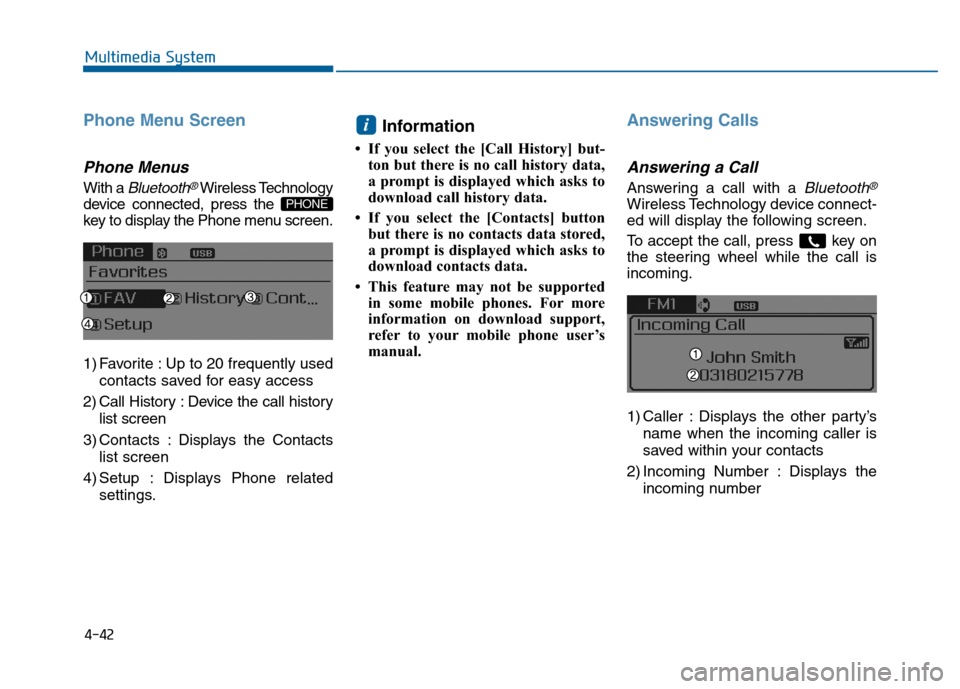
1) Favorite : Up to 20 frequently used
contacts saved for easy access
2) Call History : Device the call history list screen
3) Contacts : Displays the Contacts list screen
4) Setup : Displays Phone related settings.
Information
• If you select the [Call History] but-ton but there is no call history data,
a prompt is displayed which asks to
download call history data.
• If you select the [Contacts] button but there is no contacts data stored,
a prompt is displayed which asks to
download contacts data.
• This feature may not be supported in some mobile phones. For more
information on download support,
refer to your mobile phone user’s
manual.
Answering Calls
Answering a Call
Answering a call with a Bluetooth®
Wireless Technology device connect-
ed will display the following screen.
To accept the call, press key on
the steering wheel while the call is
incoming.
1) Caller : Displays the other party’s
name when the incoming caller is
saved within your contacts
2) Incoming Number : Displays the incoming number
i
PHONE
Page 306 of 603
4-53
Multimedia System
4
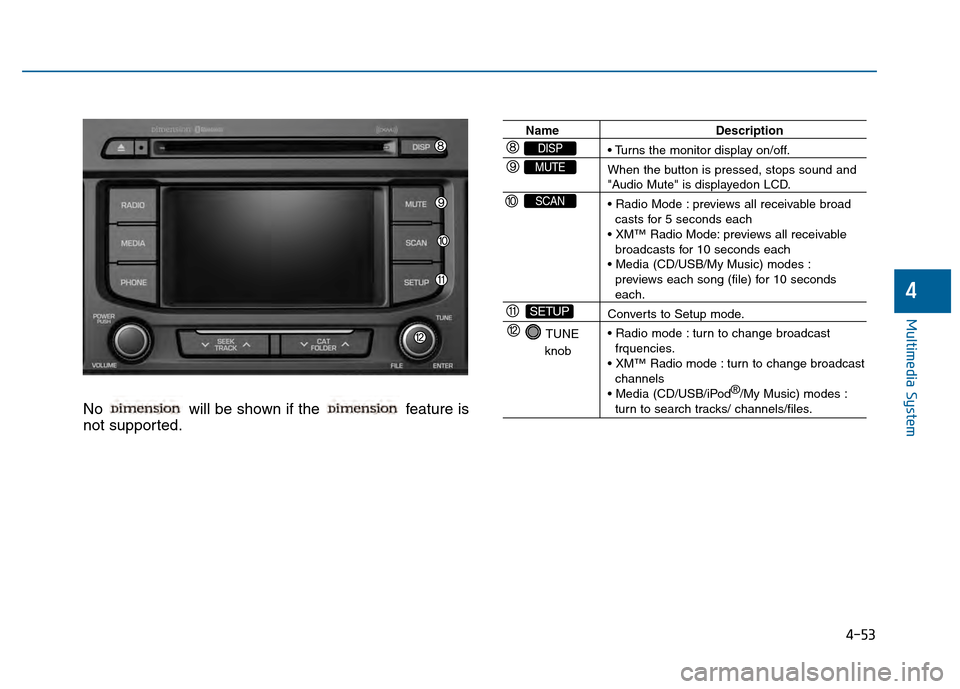
No will be shown if the feature is
not supported.
Name Description
When the button is pressed, stops sound and
"Audio Mute" is displayedon LCD.
previews all receivable broad
casts for 5 seconds each
previews all receivable broadcasts for 10 seconds each
previews each song (file) for 10 seconds
each.
Converts to Setup mode.
turn to change broadcast frquencies.
turn to change broadcast channels
®
/My Music) modes :
turn to search tracks/ channels/files.
TUNE
knob
SETUP
SCAN
MUTE
DISP
Page 309 of 603
4-56
Multimedia System
R
RA
A D
DI
IO
O
M
M O
OD
DE
E
B
Ba
as
si
ic
c
M
M o
od
de
e
S
S c
cr
re
e e
en
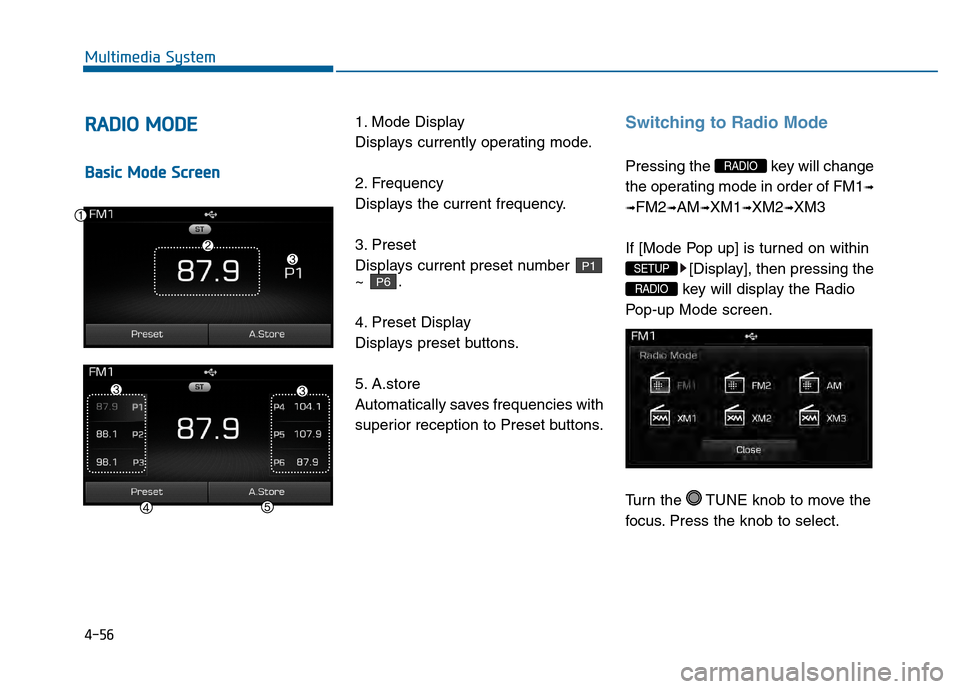
n 1. Mode Display
Displays currently operating mode.
2. Frequency
Displays the current frequency.
3. Preset
Displays current preset number
~ .
4. Preset Display
Displays preset buttons.
5. A.store
Automatically saves frequencies with
superior reception to Preset buttons.
Switching to Radio Mode
Pressing the key will change
the operating mode in order of FM1
➟
➟
FM2➟AM➟XM1➟XM2➟XM3
If [Mode Pop up] is turned on within [Display], then pressing the
key will display the Radio
Pop-up Mode screen.
Turn the TUNE knob to move the
focus. Press the knob to select.
RADIO
SETUP
RADIO
P6
P1
Page 310 of 603
4-57
Multimedia System
4
Searching Radio Frequencies
Using Seek
Press the key to play the
previous/next frequency.
Using TUNE
Turn the TUNE knob to select the
desired frequency.
: Increases/decreased by200kHz
Increased/decreased by 9 (Only GUAM), 10kHz
Using Radio Mode
Selecting Presets/Saving Presets
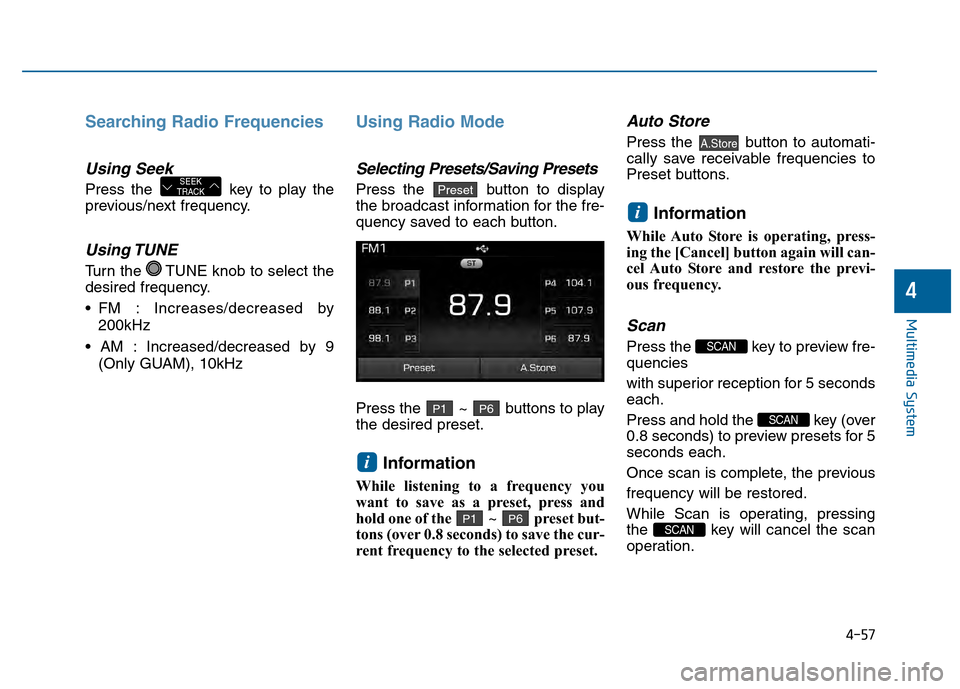
Press the button to display
the broadcast information for the fre-
quency saved to each button.
Press the ~ buttons to play
the desired preset.
Information
While listening to a frequency you
want to save as a preset, press and
hold one of the ~ preset but-
tons (over 0.8 seconds) to save the cur-
rent frequency to the selected preset.
Auto Store
Press the button to automati-
cally save receivable frequencies to
Preset buttons.
Information
While Auto Store is operating, press-
ing the [Cancel] button again will can-
cel Auto Store and restore the previ-
ous frequency.
Scan
Press the key to preview fre-
quencies
with superior reception for 5 seconds
each.
Press and hold the key (over
0.8 seconds) to preview presets for 5
seconds each.
Once scan is complete, the previous
frequency will be restored.
While Scan is operating, pressing
the key will cancel the scan
operation.
SCAN
SCAN
SCAN
i
A.Store
P6P1
i
P6P1
PresetSEEK
TRACK
Page 312 of 603
4-59
Multimedia System
4
SCAN
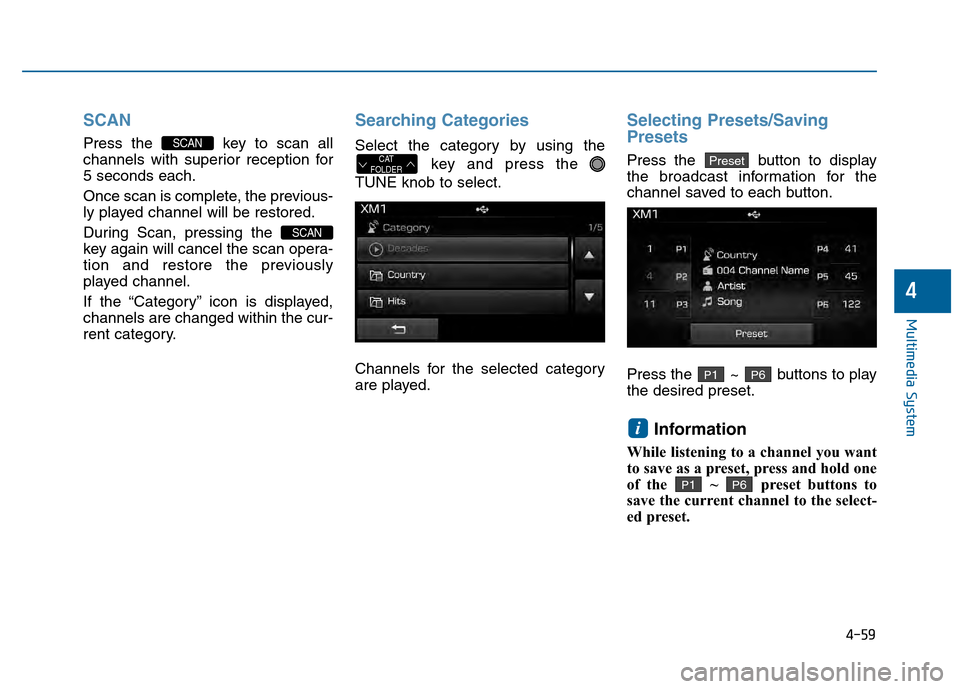
Press the key to scan all
channels with superior reception for
5 seconds each.
Once scan is complete, the previous-
ly played channel will be restored.
During Scan, pressing the
key again will cancel the scan opera-
tion and restore the previously
played channel.
If the “Category” icon is displayed,
channels are changed within the cur-
rent category.
Searching Categories
Select the category by using thekey and press the
TUNE knob to select.
Channels for the selected category
are played.
Selecting Presets/Saving
Presets
Press the button to display
the broadcast information for the
channel saved to each button.
Press the ~ buttons to play
the desired preset.
Information
While listening to a channel you want
to save as a preset, press and hold one
of the ~ preset buttons to
save the current channel to the select-
ed preset.
P6P1
i
P6P1
PresetCAT
FOLDER
SCAN
SCAN
Page 314 of 603
4-61
Multimedia System
4
A
AU
U D
DI
IO
O
C
C D
D
M
M O
OD
DE
E
Using Audio CD Mode
Playing/Pausing CD Tracks
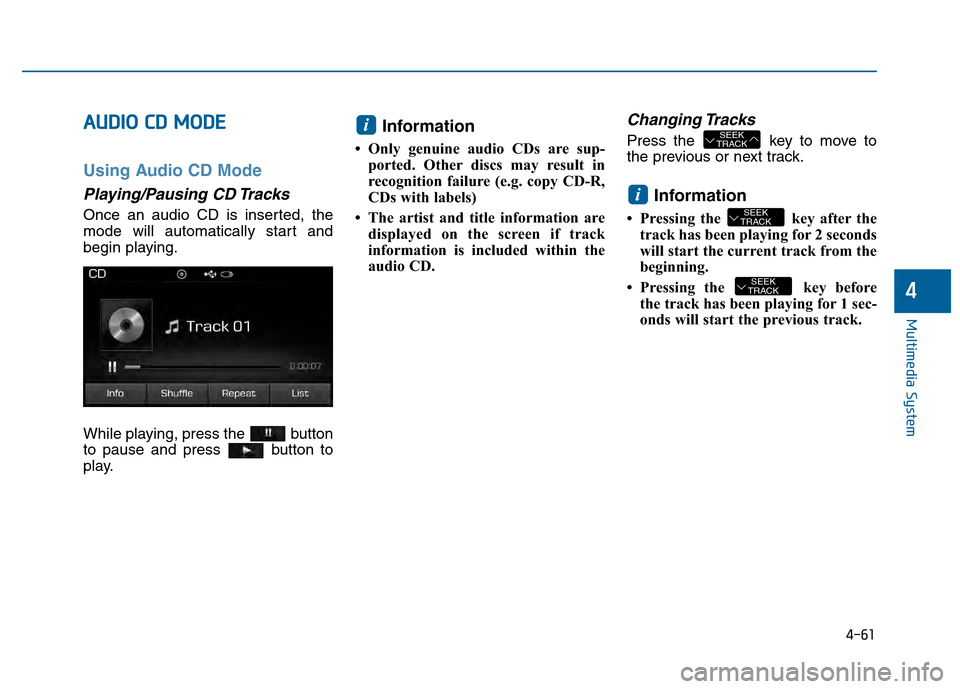
Once an audio CD is inserted, the
mode will automatically start and
begin playing.
While playing, press the button
to pause and press button to
play.
Information
• Only genuine audio CDs are sup-
ported. Other discs may result in
recognition failure (e.g. copy CD-R,
CDs with labels)
• The artist and title information are displayed on the screen if track
information is included within the
audio CD.
Changing Tracks
Press the key to move to
the previous or next track.
Information
• Pressing the key after thetrack has been playing for 2 seconds
will start the current track from the
beginning.
• Pressing the key before the track has been playing for 1 sec-
onds will start the previous track.
SEEK
TRACK
SEEK
TRACKi
SEEK
TRACKi
Page 315 of 603
4-62
Multimedia System
Selecting from the List
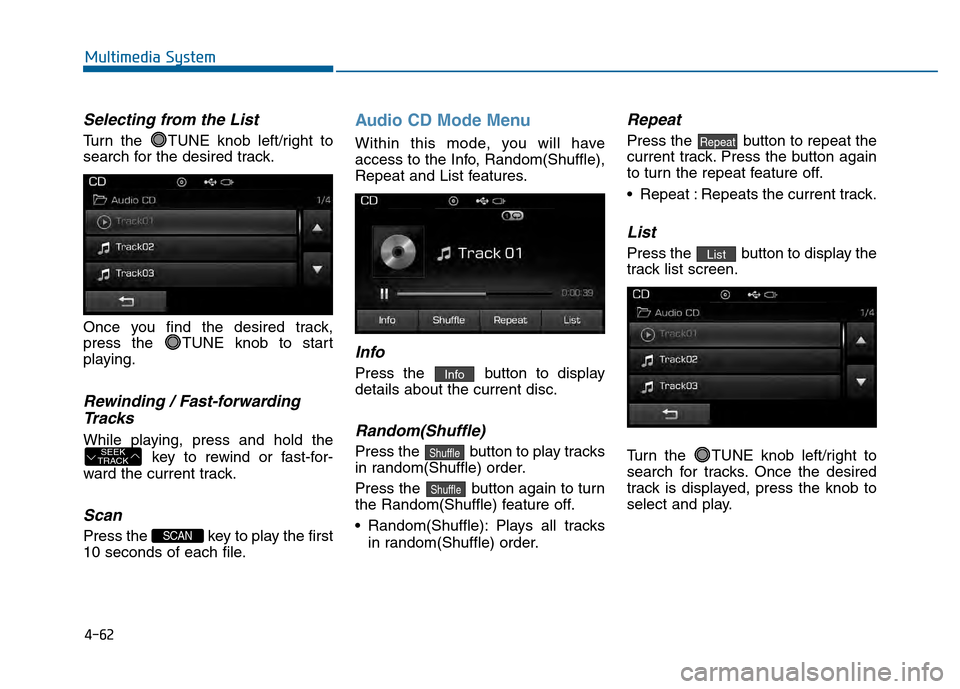
Turn the TUNE knob left/right to
search for the desired track.
Once you find the desired track,
press the TUNE knob to start
playing.
Rewinding / Fast-forwardingTracks
While playing, press and hold the
key to rewind or fast-for-
ward the current track.
Scan
Press the key to play the first
10 seconds of each file.
Audio CD Mode Menu
Within this mode, you will have
access to the Info, Random(Shuffle),
Repeat and List features.
Info
Press the button to display
details about the current disc.
Random(Shuffle)
Press the button to play tracks
in random(Shuffle) order.
Press the button again to turn
the Random(Shuffle) feature off.
Random(Shuffle): Plays all tracks in random(Shuffle) order.
Repeat
Press the button to repeat the
current track. Press the button again
to turn the repeat feature off.
Repeat : Repeats the current track.
List
Press the button to display the
track list screen.
Turn the TUNE knob left/right to
search for tracks. Once the desired
track is displayed, press the knob to
select and play.List
Repeat
Shuffle
Shuffle
Info
SCAN
SEEK
TRACK
![Hyundai Sonata 2015 Owners Manual 4-38
Multimedia System
Deleting a Device
Press the key Select
[Phone] Select [Phone List]
From the paired phone list, select the
device you want to delete and select
[Delete] button.
Information
•](/manual-img/35/16796/w960_16796-290.png "Hyundai Sonata 2015 Owners Manual 4-38
Multimedia System
Deleting a Device
Press the key Select
[Phone] Select [Phone List]
From the paired phone list, select the
device you want to delete and select
[Delete] button.
Information
•")