4-64
Multimedia System
Changing connection sequence(Priority)
This is used to change the order (pri-
ority) of automatic connection for the
paired mobile phones.
Select [Phone List] Select [Priority]
through TUNE knob Select No. 1
Priority mobile phone ➀ Select [Priority].
➁ From the paired phones, select
the phone desired for No.1 priority.
➂ The changed priority sequence is
displayed.
❈ Once the connection sequence
(priority) is changed, the new no. 1
priority mobile phone will be con-nected.
-when the no. 1 priority cannot be connected: Automatically attemptsto connect the most recently con-
nected phone.
-Cases when the most recently connected phone cannot be con-
nected: Attempts to connect in theorder in which paired phones arelisted. -The connected phone will auto-
matically be changed to No. 1 pri-
ority.
Select [Phone List] Select mobile
phone through TUNE knobSelect [Delete] ➀ Select the desired mobile phone.
➁ Delete the selected mobile phone.
➂ Deletion completion is displayed.
❈ When attempting to delete a cur-
rently connected phone, thephone is first disconnected.
Information
When you delete a mobile phone, the mobile phone contacts will also
be erased.
For stable Bluetooth®
Wireless
Technology communication, delete
the mobile phone from the audio
and also delete the audio from your
mobile phone.Phone book Download
(for RDS model)
This feature is used to download
phone book and call histories intothe audio system.
Select [Phone book Download]
Select through TUNE knob.
Information
The download feature may not be supported in some mobile phones.
If a different operation is performed while phone book is being down-
loaded, downloading will be discon-
tinued. Phone book already down-
loaded will be saved.
When downloading new phone book, delete all previously saved
phone book before starting down-
load.
Auto Download
When connecting a mobile phone, it
is possible to automatically download
new Contacts and Call Histories.
Select [Auto Download] Set /
through TUNE knob
Off
On
i
i
Page 257 of 473
4-65
Multimedia System
4
Audio Streaming
Songs (files) saved in your
Bluetooth®Wireless Technology
enabled mobile phone can be played through the audio system.
Select [Audio Streaming] Set / through TUNE knob
Information
The Bluetooth ®
Wireless Technology
audio streaming feature may not be
supported in some mobile phones.
Outgoing Volume
This is used to set the volume of your
voice as heard by the other partywhile on a
Bluetooth ®Wireless
Technology enabled handsfree call.
Select [Outgoing Volume] Set vol-
ume through TUNE knob ❈ While on a call, the volume can be
changed by using the key.
Bluetooth®Wireless
Technology System Off
This feature is used when you do not wish to use the
Bluetooth ®Wireless
Technology system.
Select [Bluetooth System Off] Set
through TUNE knob ❈ If a phone is already connected, disconnect the currently connect-
ed phone and turn the
Bluetooth ®
Wireless Technology system off.
Using the Bluetooth®Wireless
Technology System
To use Bluetooth ®Wireless
Technology when the system is cur-
rently off, follow these next steps.
Turning On
Bluetooth ®Wireless
Technology through the
Key
Press the key ScreenGuidance ❈ Moves to the screen where
Bluetooth ®Wireless Technology
functions can be used and dis-
plays guidance. Turning On
Bluetooth
®Wireless
Technology through the
Key
Press the key Select[Phone] ➀ A screen asking whether to turn on
Bluetooth ®Wireless Technology will
be displayed.
➁ On the screen, select to turn on
Bluetooth ®Wireless Technology
and display guidance.
❈ If the
Bluetooth ®Wireless
Technology system is turned on,
the system will automatically try toconnect the most recently con-nected
Bluetooth ®Wireless
Technology mobile phone. YES
SETUP
CLOCK
SETUP
CLOCK
PHONE
PHONE
SEEK
TRACK
i
Off
On
Page 260 of 473
4-68
Multimedia System
BBAA SSIICC MM EETT HH OO DD OO FF UU SSEE ::
A
A uuddiioo CC DD // MM PP33 CC DD // UU SSBB //
i
i PP oodd®®// MM yy MM uussiicc
Press the key to change the mod mode in order of CD ➟ USB(iPod®)
➟ AUX ➟ My Music ➟ BT Audio.
The folder/file name is displayed on the screen.
Page 262 of 473
4-70
Multimedia System
Folder Search : MP3 CD, USB Mode
While file is playing /(Folder Up) key
Searches the next folder.
While file is playing / (Folder Down) key
❈ If a folder is selected by pressing
the TUNE knob, the first file
within the selected folder will be
played.
Searching Songs (File)
Turning TUNE knob : Searches for songs (files)
Pressing TUNE knob : Plays selected song (file).
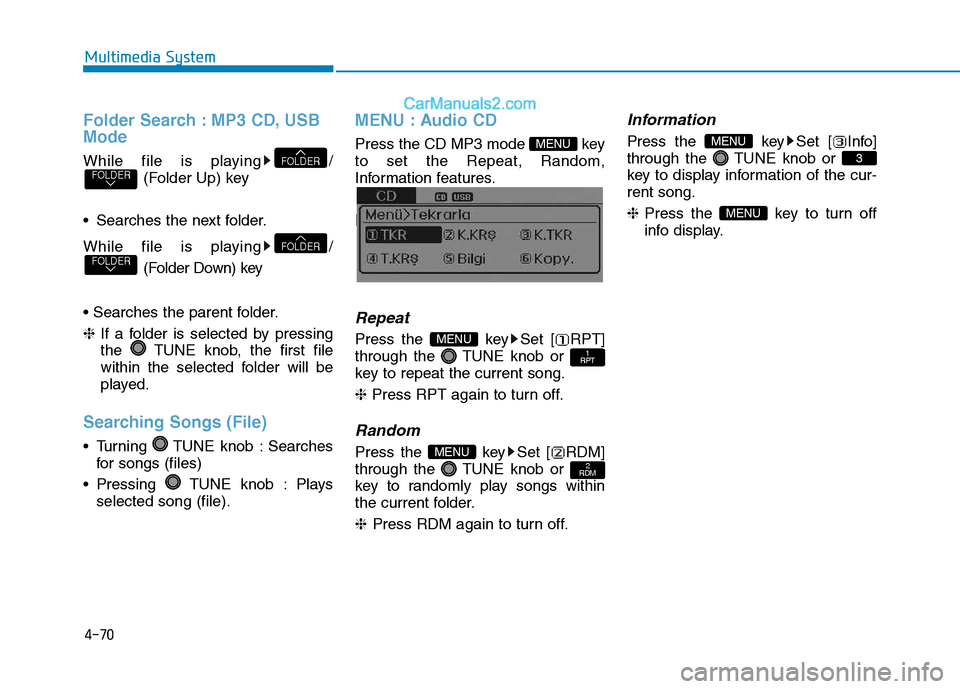
MENU : Audio CD
Press the CD MP3 mode key to set the Repeat, Random,
Information features.
Information features.
Repeat
Press the key Set [ RPT]
through the TUNE knob or
key to repeat the current song. ❈ Press RPT again to turn off.
Random
Press the key Set [ RDM]
through the TUNE knob or
key to randomly play songs within
the current folder. ❈ Press RDM again to turn off.
Information
Press the key Set [ Info]
through the TUNE knob or
key to display information of the cur-rent song. ❈Press the key to turn off
info display.
MENU
3
MENU
2
RDMMENU
1
RPTMENU
MENU
FOLDERFOLDER
FOLDERFOLDER
Page 263 of 473
4-71
Multimedia System
4
MENU : MP3 CD / USB
Press the CD MP3 mode key
to set the Repeat, Folder Random,
Folder Repeat, All Random,
Information, and Copy features.
Information, and Copy features.
Repeat
Press the key Set [ RPT]
through the TUNE knob or
key to repeat the current song. ❈ Press RPT again to turn off.
Folder Random
Press the key Set [
F.RDM] through the TUNE knob or
key to randomly play songs
within the current folder. ❈ Press F.RDM again to turn off.
Folder Repeat
Press the key Set [ F.RPT]
through the TUNE knob or
key to repeat songs within the cur-
rent folder. ❈Press F.RPT again to turn off.
All Random
Press the key Set [
A.RDM] through the TUNE knob
or key to randomly play all
songs within the CD. ❈ Press A.RDM again to turn off.
Information
Press the key Set [ Info]
through the TUNE knob or
key to display information of the cur-rent song. ❈ Press the key to turn off
info display.
MENU
5
MENU
4
MENU
3
MENU
2 RDM
MENU
1 RPT
MENU
MENU
Page 264 of 473
4-72
Multimedia System
Copy
Press the key Set [ Copy]
through the TUNE knob or
key.This is used to copy the currentsong into My Music. You can playthe copied Music in My Music
mode.
❈ If another key is pressed while
copying is in progress, a pop up
asking you whether to cancel
copying is displayed.
❈ If another media is connected or
inserted (USB, CD, iPod
®, AUX)
while copying is in progress, copy- ing is canceled.
❈ Music will not be played while
copying is in progress.
MENU : iPod®
In iPod®mode, press the key to
set the Repeat, Random, Information
and Search features.
Repeat
Press the key Set [ RPT]
through the TUNE knob or
key to repeat the current song. ❈ Press RPT again to turn repeat
off.
Random
Press the key Set [ RDM]
through the TUNE knob or
key.
Plays all songs within the currently
playing category in random order. ❈Press RDM again to turn off.
Information
Press the key Set [ Info]
through the TUNE knob or
key.
Displays information of the current song. ❈Press the key to turn off
info display.
Search
Press the key Set [
Search] through the TUNE knob
or key.
Displays iPod
®category list.
❈ Searching iPod
®category is
key pressed, move to par-
ent category.
MENU
4
MENU
MENU
3
MENU
2 RDM
MENU
1 RPT
MENU
MENU6
MENU
Page 265 of 473
4-73
Multimedia System
4
MENU : My Music Mode (if equipped)
In My Music mode, press the
key to set the Repeat, Random,
Information, Delete, Delete All, and
Delete Selection features.
Repeat
Press the key Set [ RPT]
through the TUNE knob or
key.
Repeats the currently playing song.❈Press RPT again to turn repeat off.
Random
Press the key Set [ RDM]
through the TUNE knob or
key.
Plays all songs in random order.❈Press RDM again to turn random
off.
Information
Press the key Set [ Info]
through the TUNE knob or
key.
Displays information of the current song. ❈ Press the key to turn off
info display.
Delete
Press the key Set [ Delete]
through the TUNE knob or
key.
Deletes currently playing file
In the play screen, pressing delete
will delete the currently playingsong.
Deletes file from list
➀ Select the file you wish to delete
by using the TUNE knob.
➁ Press the key and select
the delete menu to delete the
selected file.
MENU
4
MENU
MENU
3
MENU
2
RDMMENU
1
RPTMENU
MENU
Page 268 of 473
4-76
Multimedia System
Using the Bluetooth®Wireless
Technology audio features
Press the TUNE knob to play and pause the current song. ❈ The title / artist info may not be
supported in some mobile phone.
When it is not supported, no title /
no artist will be displayed.
Press of to play previous or
next song. ❈ The previous song / next song /
play / pause functions may not be
supported in some mobile
phones.
PP HH OO NNEE ((iiff ee qq uu iipp pp eedd ))
Before using the Bluetooth®Wireless
Technology
phone features
Bluetooth®Wireless
Technology
phone, you must first
pair and connect the
Bluetooth®
Wireless Technologymobile phone.
connected, it is not possible to
enter Phone mode. Once a phoneis paired or connected, the guid-
ance screen will be displayed.
tion (IGN/ACC ON), the
Bluetooth®
Wireless Technologyphone will be
automatically connected. Even if
you are outside, the
Bluetooth®
Wireless Technologyphone will be
automatically connected once you
are in the vicinity of the vehicle. If you
do not want automatic
Bluetooth®
Wireless Technologyphone connec-
tion, set the
Bluetooth®Wireless
Technology
power to OFF.
Making a call using the Steering
wheel remote controller
1. VOLUME button : Raises or low- ers speaker volume.
2. MUTE button : Mute the micro- phone during a call.
3. button : Places and transfers calls.
4. button : Ends calls or cancels functions.
SEEKTRACK
![Hyundai H350 2015 Owners Manual 4-64
Multimedia System
Changing connection sequence(Priority)
This is used to change the order (pri-
ority) of automatic connection for the
paired mobile phones.
Select [Phone List] Select [Priorit](/manual-img/35/14886/w960_14886-255.png "Hyundai H350 2015 Owners Manual 4-64
Multimedia System
Changing connection sequence(Priority)
This is used to change the order (pri-
ority) of automatic connection for the
paired mobile phones.
Select [Phone List] Select [Priorit")
![Hyundai H350 2015 Owners Manual 4-65
Multimedia System
4
Audio Streaming
Songs (files) saved in your
Bluetooth®Wireless Technology
enabled mobile phone can be played through the audio system.
Select [Audio Streaming] Set / throug](/manual-img/35/14886/w960_14886-256.png "Hyundai H350 2015 Owners Manual 4-65
Multimedia System
4
Audio Streaming
Songs (files) saved in your
Bluetooth®Wireless Technology
enabled mobile phone can be played through the audio system.
Select [Audio Streaming] Set / throug")


![Hyundai H350 2015 Owners Manual 4-72
Multimedia System
Copy
Press the key Set [ Copy]
through the TUNE knob or
key.This is used to copy the currentsong into My Music. You can playthe copied Music in My Music
mode.
❈ If another](/manual-img/35/14886/w960_14886-263.png "Hyundai H350 2015 Owners Manual 4-72
Multimedia System
Copy
Press the key Set [ Copy]
through the TUNE knob or
key.This is used to copy the currentsong into My Music. You can playthe copied Music in My Music
mode.
❈ If another")

