2015 Hyundai H350 display
[x] Cancel search: displayPage 230 of 473
![Hyundai H350 2015 Owners Manual 4-38
Multimedia System
Copy
Press the key Set [ Copy]
through the TUNE knob or
key.This is used to copy the currentsong into My Music. You can playthe copied Music in My Music
mode.
❈ If another](/manual-img/35/14886/w960_14886-229.png "Hyundai H350 2015 Owners Manual 4-38
Multimedia System
Copy
Press the key Set [ Copy]
through the TUNE knob or
key.This is used to copy the currentsong into My Music. You can playthe copied Music in My Music
mode.
❈ If another")
4-38
Multimedia System
Copy
Press the key Set [ Copy]
through the TUNE knob or
key.This is used to copy the currentsong into My Music. You can playthe copied Music in My Music
mode.
❈ If another key is pressed while
copying is in progress, a pop up
asking you whether to cancel
copying is displayed.
❈ If another media is connected or
inserted (USB, CD, iPod
®, AUX)
while copying is in progress, copy- ing is canceled.
❈ Music will not be played while
copying is in progress.
MENU : iPod®
In iPod®mode, press the key to
set the Repeat, Random, Information
and Search features.
Repeat
Press the key Set [ RPT]
through the TUNE knob or
key to repeat the current song. ❈ Press RPT again to turn repeat
off.
Random
Press the key Set [ RDM]
through the TUNE knob or
key.
Plays all songs within the currently
playing category in random order. ❈Press RDM again to turn off.
Information
Press the key Set [ Info]
through the TUNE knob or
key.
Displays information of the current song. ❈Press the key to turn off
info display.
Search
Press the key Set [
Search] through the TUNE knob
or key.
Displays iPod
®category list.
❈ Searching iPod
®category is
key pressed, move to par-
ent category.
MENU
4
MENU
MENU
3
MENU
2 RDM
MENU
1 RPT
MENU
MENU6
MENU
Page 231 of 473

4-39
Multimedia System
4
MENU : My Music Mode (if equipped)
In My Music mode, press the
key to set the Repeat, Random,
Information, Delete, Delete All, and
Delete Selection features.
Repeat
Press the key Set [ RPT]
through the TUNE knob or
key.
Repeats the currently playing song.❈Press RPT again to turn repeat off.
Random
Press the key Set [ RDM]
through the TUNE knob or
key.
Plays all songs in random order.❈Press RDM again to turn random
off.
Information
Press the key Set [ Info]
through the TUNE knob or
key.
Displays information of the current song. ❈ Press the key to turn off
info display.
Delete
Press the key Set [ Delete]
through the TUNE knob or
key.
Deletes currently playing file
In the play screen, pressing delete
will delete the currently playingsong.
Deletes file from list
➀ Select the file you wish to delete
by using the TUNE knob.
➁ Press the key and select
the delete menu to delete the
selected file.
MENU
4
MENU
MENU
3
MENU
2
RDMMENU
1
RPTMENU
MENU
Page 234 of 473
4-42
Multimedia System
Using the Bluetooth®Wireless
Technology audio features
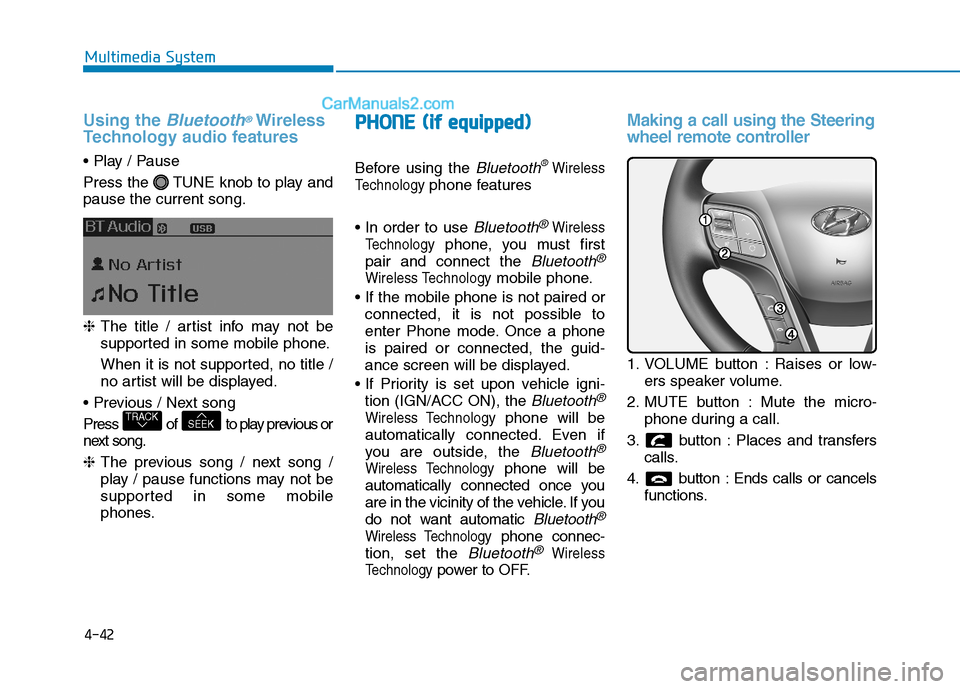
Press the TUNE knob to play and pause the current song. ❈ The title / artist info may not be
supported in some mobile phone.
When it is not supported, no title /
no artist will be displayed.
Press of to play previous or
next song. ❈ The previous song / next song /
play / pause functions may not be
supported in some mobile
phones.
PP HH OO NNEE ((iiff ee qq uu iipp pp eedd ))
Before using the Bluetooth®Wireless
Technology
phone features
Bluetooth®Wireless
Technology
phone, you must first
pair and connect the
Bluetooth®
Wireless Technologymobile phone.
connected, it is not possible to
enter Phone mode. Once a phoneis paired or connected, the guid-
ance screen will be displayed.
tion (IGN/ACC ON), the
Bluetooth®
Wireless Technologyphone will be
automatically connected. Even if
you are outside, the
Bluetooth®
Wireless Technologyphone will be
automatically connected once you
are in the vicinity of the vehicle. If you
do not want automatic
Bluetooth®
Wireless Technologyphone connec-
tion, set the
Bluetooth®Wireless
Technology
power to OFF.
Making a call using the Steering
wheel remote controller
1. VOLUME button : Raises or low- ers speaker volume.
2. MUTE button : Mute the micro- phone during a call.
3. button : Places and transfers calls.
4. button : Ends calls or cancels functions.
SEEKTRACK
Page 235 of 473
4-43
Multimedia System
4
➀Shortly press (under 0.8 seconds)
the key on the steering
remote controller.
➁ The call history list will be dis-
played on the screen.
➂ Press the key again to con-
nect a call to the selected number.
number
➀ Press and hold (over 0.8 seconds)
the key on the steering
remote controller.
➁ The most recently called numberis redialed.Phone MENU (for RDS model)
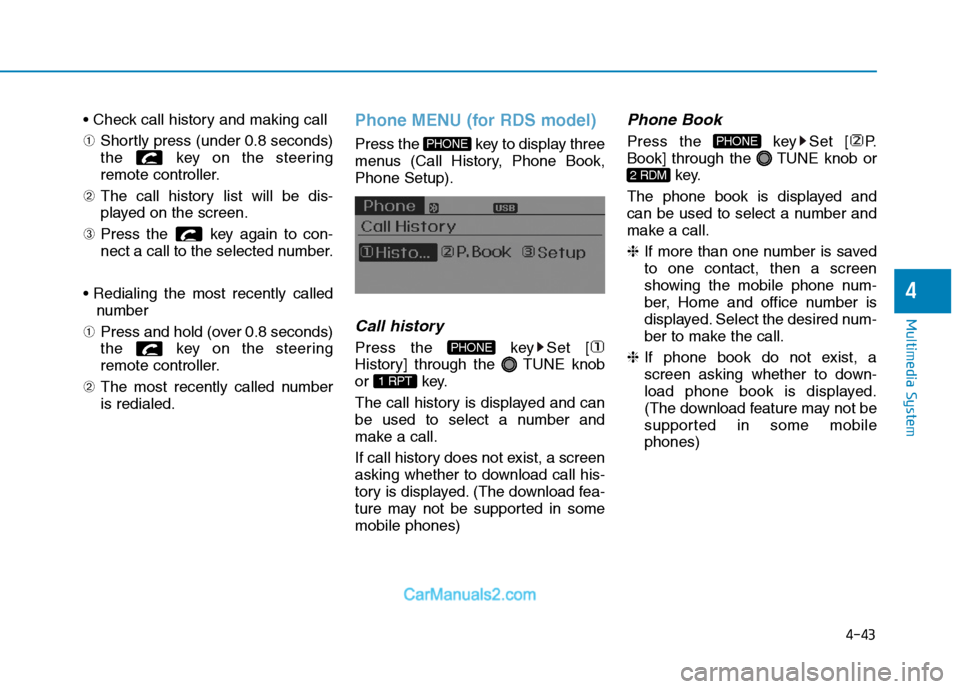
Press the key to display three
menus (Call History, Phone Book,Phone Setup).
Call history
Press the key Set [
History] through the TUNE knob
or key.
The call history is displayed and can
be used to select a number and
make a call.
If call history does not exist, a screen
asking whether to download call his-
tory is displayed. (The download fea-
ture may not be supported in somemobile phones)
Phone Book
Press the key Set [ P.
Book] through the TUNE knob or
key.
The phone book is displayed and
can be used to select a number and
make a call. ❈ If more than one number is saved
to one contact, then a screen
showing the mobile phone num-
ber, Home and office number is
displayed. Select the desired num-
ber to make the call.
❈ If phone book do not exist, a
screen asking whether to down-
load phone book is displayed.
(The download feature may not be
supported in some mobilephones)
2 RDM
PHONE
1 RPT
PHONE
PHONE
Page 236 of 473
![Hyundai H350 2015 Owners Manual 4-44
Multimedia System
Phone Setup
Press the key Set [ Setup]
through the TUNE knob or
key. The
Bluetooth®Wireless Technology
mobile phone setup screen is dis-
played. For more information, ref](/manual-img/35/14886/w960_14886-235.png "Hyundai H350 2015 Owners Manual 4-44
Multimedia System
Phone Setup
Press the key Set [ Setup]
through the TUNE knob or
key. The
Bluetooth®Wireless Technology
mobile phone setup screen is dis-
played. For more information, ref")
4-44
Multimedia System
Phone Setup
Press the key Set [ Setup]
through the TUNE knob or
key. The
Bluetooth®Wireless Technology
mobile phone setup screen is dis-
played. For more information, refer to“Phone Setup”.
Phone MENU
Press the key to display three
menus (Call History, Contacts,Phone Setup).
Call history
Press the key Set [
History] through the TUNE knob
or key.
The call history is displayed and can
be used to select a number and
make a call.
If call history does not exist, a screen
asking whether to download call his-
tory is displayed. (The download fea-
ture may not be supported in somemobile phones)
Contacts
Press the key Set [Contacts ] through the TUNE knob
or key.
The Contacts are displayed and can
be used to select a number and
make a call. ❈ If more than one number is saved
to one contact, then a screen
showing the mobile phone num-
ber, Home and office number is
displayed. Select the desired num-
ber to make the call.
❈ If Contacts do not exist, a screen
asking whether to download
Contacts is displayed. (The down-
load feature may not be supportedin some mobile phones)
2 RDM
PHONE
1 RPT
PHONE
PHONE3
PHONE
Page 242 of 473
4-50
Multimedia System
BEEP Control
VOLUME Knob clock-wise/counter-clockwise to the
BEEP sound ON/OFF.
LANGUAGE (Only AM210MDEE)
VOLUME Knob clock- wise/counter-clockwise to the select the desired Language
Language setting are as shown
below - English ➟➟
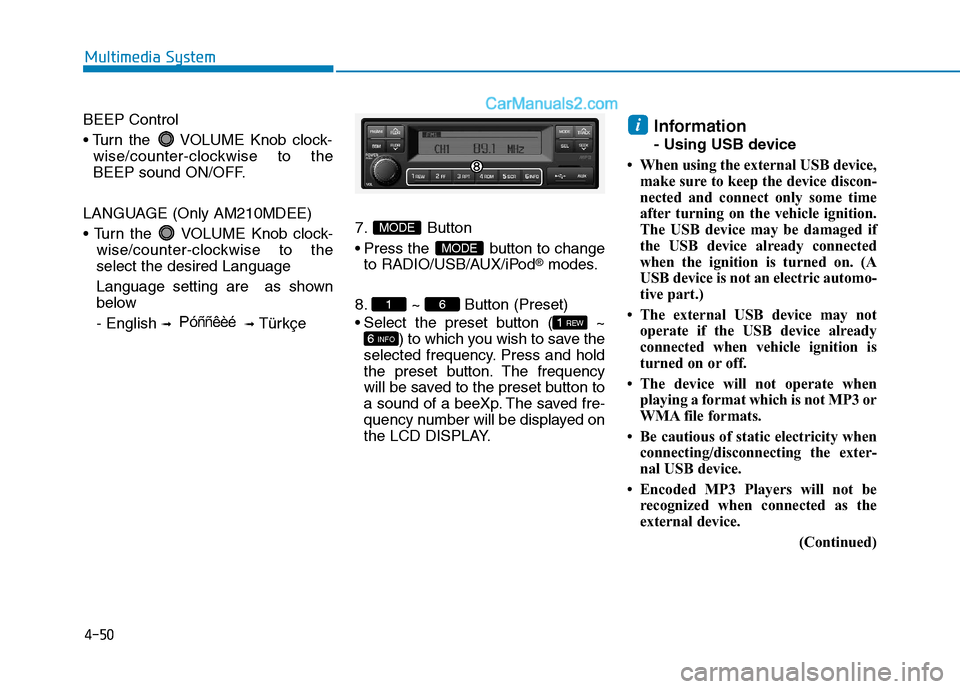
Türkçe7. Button
Press the button to change
to RADIO/USB/AUX/iPod
®modes.
8. ~ Button (Preset)
Select the preset button ( ~ ) to which you wish to save the
selected frequency. Press and hold
the preset button. The frequency
will be saved to the preset button to
a sound of a beeXp. The saved fre-
quency number will be displayed on
the LCD DISPLAY. Information
- Using USB device
When using the external USB device, make sure to keep the device discon-
nected and connect only some time
after turning on the vehicle ignition.
The USB device may be damaged if
the USB device already connected
when the ignition is turned on. (A
USB device is not an electric automo-
tive part.)
The external USB device may not operate if the USB device already
connected when vehicle ignition is
turned on or off.
The device will not operate when playing a format which is not MP3 or
WMA file formats.
Be cautious of static electricity when connecting/disconnecting the exter-
nal USB device.
Encoded MP3 Players will not be recognized when connected as the
external device.
(Continued)
i
6 INFO
1 REW
61
MODE
MODE
P óññêèé
Page 243 of 473

4-51
Multimedia System
4
(Continued)
When connecting an external USBdevice, the device may not be proper-
ly recognize the USB when the USB
is in some states.
When formatting the external USB device, the device may not be proper-
ly recognize a Byte/Sector selection
other than 512Byte or 2048Byte.
The device will only recognize USB devices formatted in FAT 12/16/32.
Some USB devices may not operate properly because of compatibility
issues. Verify that the external device
is supported by the device before
starting use.
Avoid contact between the USB con- nector with bodily parts and foreign
substances.
Repeatedly connecting/disconnecting the USB in a short period of time
may cause damage to the device.
When disconnecting the USB, an abnormal sound may occur occasion-
ally.
(Continued)(Continued)
Abruptly disconnecting the external
USB device while the USB is operat-
ing may cause the device to become
damaged or function abnormally. -
Make sure to disconnect the USB
device only after the audio power is
turned off or when the audio is oper-
ating in a different mode.
The amount of time required to rec- ognize the external USB device may
differ depending on the type, size, or
file formats stored on the USB. Such
differences in the required time are
not indications of malfunction.
The song name (ID3Tag) or com- mand icons (RPT/RDM) may take
time to be displayed on the LCD
DISPLAY depending the complexity
of the USB memory/folder structure.
Please wait the period of time required to recognize the device. The
device supports only USB devices
used to play music files.
(Continued)(Continued)
Do not use the USB I/F to charge bat-
teries or USB accessories which gen-
erate heat. Such acts may lead to
deteriorated performance or damage
to the device.
The device may not recognize the USB device if separately purchased
USB hubs and extension cables are
being used. Connect the USB direct-
ly to the multimedia terminal of the
vehicle.
In the case of high capacity USB devices, there are instances where the
logical drives are partitioned for user
convenience. - In this case, only the
USB music in the top-level logical
drive will be possible to play.
When using partitioned drives, save
the songs desired to play on the
device only in the top-level logical
drive. In addition, certain UBS
devices are configured with a sepa-
rate drive used to install application
programs and songs from such
drives may not be possible to play for
the reasons as described above.
(Continued)
Page 245 of 473
4-53
Multimedia System
4
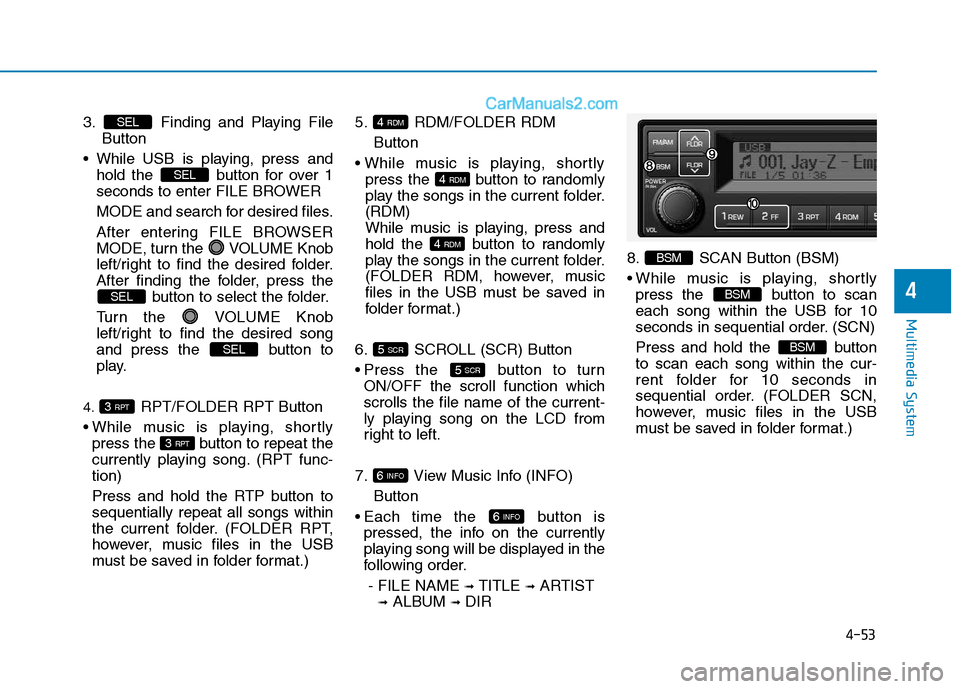
3. Finding and Playing File Button
While USB is playing, press and hold the button for over 1
seconds to enter FILE BROWER
MODE and search for desired files.
After entering FILE BROWSER
MODE, turn the VOLUME Knob
left/right to find the desired folder.
After finding the folder, press the button to select the folder.
Turn the VOLUME Knob
left/right to find the desired song
and press the button to
play.
4. RPT/FOLDER RPT Button
While music is playing, shortly press the button to repeat the
currently playing song. (RPT func-tion)
Press and hold the RTP button to sequentially repeat all songs within
the current folder. (FOLDER RPT,
however, music files in the USB
must be saved in folder format.) 5. RDM/FOLDER RDM
Button
press the button to randomly
play the songs in the current folder.(RDM)
While music is playing, press and
hold the button to randomly
play the songs in the current folder.
(FOLDER RDM, however, music
files in the USB must be saved in
folder format.)
6. SCROLL (SCR) Button
Press the button to turn ON/OFF the scroll function which scrolls the file name of the current-
ly playing song on the LCD from
right to left.
7. View Music Info (INFO) Button
Each time the button is pressed, the info on the currently
playing song will be displayed in the
following order.
- FILE NAME ➟
TITLE ➟ARTIST
➟ ALBUM ➟DIR 8. SCAN Button (BSM)
While music is playing, shortly
press the button to scan
each song within the USB for 10
seconds in sequential order. (SCN)
Press and hold the button to scan each song within the cur-
rent folder for 10 seconds in
sequential order. (FOLDER SCN,
however, music files in the USB
must be saved in folder format.)
BSM
BSM
BSM
6 INFO
6 INFO
5 SCR
5 SCR
4 RDM
4 RDM
4 RDM
3 RPT
3 RPT
SEL
SEL
SEL
SEL