Page 205 of 406

Features of your vehicle
128 4
PHONE
Before using the Bluetooth®Wireless
Technology phone features
In order to use
Bluetooth®Wireless
Technology phone, you must first pair
and connect the
Bluetooth®Wireless
Technology mobile phone.
If the mobile phone is not paired or con-
nected, it is not possible to enter Phone
mode. Once a phone is paired or con-
nected, the guidance screen will be dis-
played.
If Priority is set upon vehicle
ignition(IGN/ACC ON), the
Bluetooth®
Wireless Technology phone will be auto-
matically connected. Even if you are out-
side, the first
Bluetooth® Wireless
Technology phone will be automatically
connected once you are in the vicinity of
the vehicle. If you do not want automatic
Bluetooth®Wireless Technology phone
connection, set the Bluetooth®Wireless
Technology power to OFF.
PHONE
(if equipped model)
Making a call using the Steering
wheel mount controls
❈The actual feature in the vehicle may
differ from the illustration.
1) button : Activates voice
recognition.
2) button : Places and transfers calls.
3) button : Ends calls or cancels func-
tions.
Check call history and making call
➀Shortly press (under 0.8 seconds) the
key on the steering remote con-
troller.
➁The call history list will be displayed on
the screen.
➂Press the key again to connect a
call to the selected number.
Redialing the most recently called
number
➀Press and hold (over 0.8 seconds) the
key on the steering remote con-
troller.
➁The most recently called number is
redialed.
❈ If call history does not exist, a screen
asking whether to download call histo-
ry is displayed. (The download feature
may not be supported in some mobile
phones)
Page 207 of 406

Features of your vehicle
130 4
Pairing Key / Key on
the Steering Remote Controller
When No Devices have been Paired
1. Press the key or the key
on the steering remote controller. The
following screen is displayed.2. Select [OK] button to enter the Pair
Phone screen.
1) Car Name : Name of device as shown
when searching from your
Bluetooth®Wireless Technology device
2) Passkey : Passkey used to pair the
device
3. From your
Bluetooth®Wireless
Technology device (i.e. Mobile Phone),
search and select your car audio sys-
tem.[Non SSP supported device]
(SSP: Secure Simple Pairing)
4. After a few moments, a screen is dis-
played where the passkey is entered.
Hear, enter the passkey “0000” to pair
your
Bluetooth®Wireless Technology
device with the car audio system.
[SSP supported device]
4. After a few moments, a screen is dis-
played 6 digits passkey .
Hear, check the passkey on your
Bluetooth®Wireless Technology device
and confirm.
5. Once pairing is complete, the following
screen is displayed.
PHONE
PHONE
Page 208 of 406

4131
Features of your vehicle
✽ ✽
NOTICE
If Bluetooth®Wireless Technology
devices are paired but none are current-
ly connected, pressing the key
or the key on the steering wheel
displays the following screen. Select
[Pair] button to pair a new device or
select [Connect] to connect a previously
paired device.
Pairing through [PHONE] Setup
Press the key Select
[Phone] Select [Pair Phone] Select
TUNE knob
1. The following steps are the same as
those described in the section "When
No Devices have been Paired" on the
previous page.
✽ ✽
NOTICE
•Bluetooth®Wireless Technology fea-
tures supported within the vehicle are
as follows. Some features may not be
supported depending on your
Bluetooth
®Wireless Technology
device.
- Outgoing/Incoming Handsfree calls
- Operations during a call (Switch to
Private, Switch to call waiting, MIC
on/off)
- Downloading Call History
- Downloading Mobile Contacts
-Bluetooth
®Wireless Technology
device auto connection
- Bluetooth Audio Streaming
• Up to five Bluetooth
®Wireless
Technology devices can be paired to
the Car Handsfree system.
• Only one Bluetooth
®Wireless
Technology device can be connected at
a time.
• Other devices cannot be paired while
a Bluetooth
®Wireless Technology
device is connected.
• Only Bluetooth
®Wireless Technology
Handsfree and Bluetooth audio relat-
ed features are supported.
SETUP
PHONE
Page 209 of 406

Features of your vehicle
132 4
• Bluetooth related operations are pos-
sible only within devices that support
Handsfree or audio features, such as a
Bluetooth
®Wireless Technology
mobile phone or a Bluetooth audio
device.
• If a connected Bluetooth
®Wireless
Technology device becomes discon-
nected due to being out of communi-
cation range, turning the device OFF,
or a Bluetooth
®Wireless Technology
communication error, corresponding
Bluetooth
®Wireless Technology
devices are automatically searched
and reconnected.
• If the system becomes unstable due to
communication errors between the
car Handsfree and the Bluetooth
®
Wireless Technology device, reset the
device by turning off and back on
again. Upon resetting Bluetooth
®
Wireless Technology device, the sys-
tem will be restored.• After pairing is complete, a contacts
download request is sent once to the
mobile phone. Some mobile phones
may require confirmation upon
receiving a download request, ensure
your mobile phone accepts the con-
nection. Refer to your phones user’s
manual for additional information
regarding phone pairing and connec-
tions.
Connecting a Device
Press the key Select
[Phone] Select [Paired Phone List]
1) Connected Phone : Device that is cur-
rently connected
2) Paired Phone : Device that is paired
but not connectedFrom the paired phone list, select the
device you want to connect and select
[Connect].SETUP
Page 210 of 406
4133
Features of your vehicle
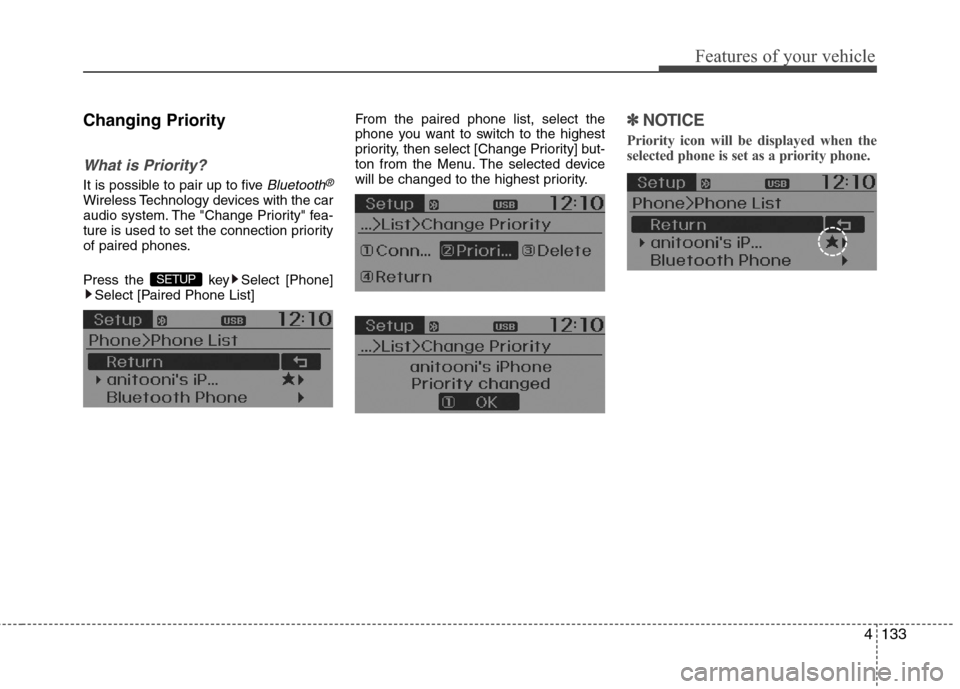
Changing Priority
What is Priority?
It is possible to pair up to five Bluetooth®
Wireless Technology devices with the car
audio system. The "Change Priority" fea-
ture is used to set the connection priority
of paired phones.
Press the key Select [Phone]
Select [Paired Phone List]From the paired phone list, select the
phone you want to switch to the highest
priority, then select [Change Priority] but-
ton from the Menu. The selected device
will be changed to the highest priority.
✽ ✽
NOTICE
Priority icon will be displayed when the
selected phone is set as a priority phone.
SETUP
Page 211 of 406
Features of your vehicle
134 4
Disconnecting a Device
Press the key Select
[Phone] Select [Paired Phone List]
From the paired phone list, select the
currently connected device and select
[Disconnect] button.
Deleting a Device
Press the key Select
[Phone] Select [Paired Phone List]
From the paired phone list, select the
device you want to delete and select
[Delete] button.
✽ ✽
NOTICE
• When deleting the currently connected
device, the device will automatically be
disconnected to proceed with the delet-
ing process.
• If a paired Bluetooth
®Wireless
Technology device is deleted, the
device’s call history and contacts data
will also be deleted.
• To re-use a deleted device, you must
pair the device again.
SETUP SETUP
Page 212 of 406
4135
Features of your vehicle
USING Bluetooth®Wireless
Technology
Phone Menu Screen
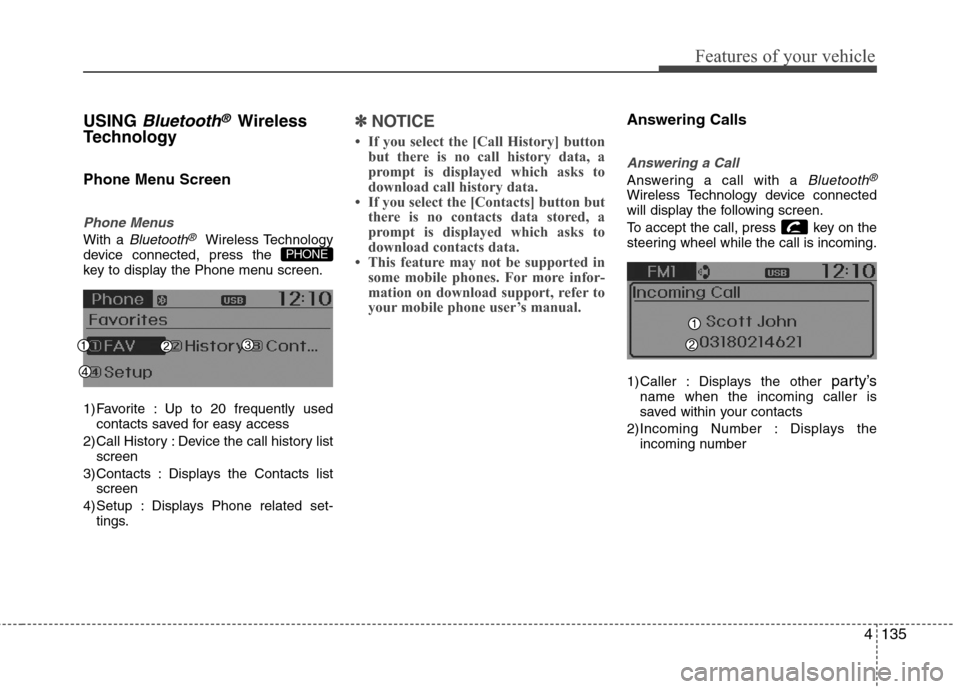
Phone Menus
With a Bluetooth®Wireless Technology
device connected, press the
key to display the Phone menu screen.
1) Favorite : Up to 20 frequently used
contacts saved for easy access
2) Call History : Device the call history list
screen
3) Contacts : Displays the Contacts list
screen
4) Setup : Displays Phone related set-
tings.
✽ ✽
NOTICE
• If you select the [Call History] button
but there is no call history data, a
prompt is displayed which asks to
download call history data.
• If you select the [Contacts] button but
there is no contacts data stored, a
prompt is displayed which asks to
download contacts data.
• This feature may not be supported in
some mobile phones. For more infor-
mation on download support, refer to
your mobile phone user’s manual.
Answering Calls
Answering a Call
Answering a call with a Bluetooth®
Wireless Technology device connected
will display the following screen.
To accept the call, press key on the
steering wheel while the call is incoming.
1) Caller : Displays the other
party’sname when the incoming caller is
saved within your contacts
2)Incoming Number : Displays the
incoming number
PHONE
Page 230 of 406

Driving your vehicle
4 5
Before starting
Close and lock all doors.
Position the seat so that all controls are
easily reached.
Adjust the inside and outside rearview
mirrors.
Be sure that all lights work.
Check all gauges.
Check the operation of warning lights
when the ignition switch is turned to
the ON position.
Release the parking brake and make
sure the brake warning light goes out.
For safe operation, be sure you are famil-
iar with your vehicle and its equipment.WARNING
Always check the surrounding
areas near your vehicle for people,
especially children, before putting a
car into D (Drive) or R (Reverse).
WARNING- Driving under
the influence of alcohol or
drugs
Drinking and driving is dangerous.
Drunk driving is the number one
contributor to the highway death
toll each year. Even a small amount
of alcohol will affect your reflexes,
perceptions and judgment. Driving
while under the influence of drugs
is as dangerous or more dangerous
than driving drunk.
You are much more likely to have a
serious accident if you drink or
take drugs and drive.
If you are drinking or taking drugs,
don’t drive. Do not ride with a driv-
er who has been drinking or taking
drugs. Choose a designated driver
or call a cab.
WARNING
When you intend to park or stop
the vehicle with the engine on, be
careful not to depress the accel-
erator pedal for a long period of
time. It may overheat the engine
or exhaust system and cause fire.
When you make a sudden stop or
turn the steering wheel rapidly,
loose objects may drop on the
floor and it could interfere with
the operation of the foot pedals,
possibly causing an accident.
Keep all things in the vehicle
safely stored.
If you do not focus on driving, it
may cause an accident. Be care-
ful when operating items that
may distract from such as audio
or heater controls. It is the
responsibility of the driver to
always drive safely with full atten-
tion to the task of driving.
WARNING
All passengers must be properly
belted whenever the vehicle is mov-
ing. Refer to “Seat belts” in section
3 for more information on their
proper use.
![Hyundai Accent 2015 Owners Manual Features of your vehicle
134 4
Disconnecting a Device
Press the key Select
[Phone] Select [Paired Phone List]
From the paired phone list, select the
currently connected device and select
[Disconnect]](/manual-img/35/14361/w960_14361-210.png "Hyundai Accent 2015 Owners Manual Features of your vehicle
134 4
Disconnecting a Device
Press the key Select
[Phone] Select [Paired Phone List]
From the paired phone list, select the
currently connected device and select
[Disconnect]")