Page 235 of 453
234
uuCustomized Features u
Features
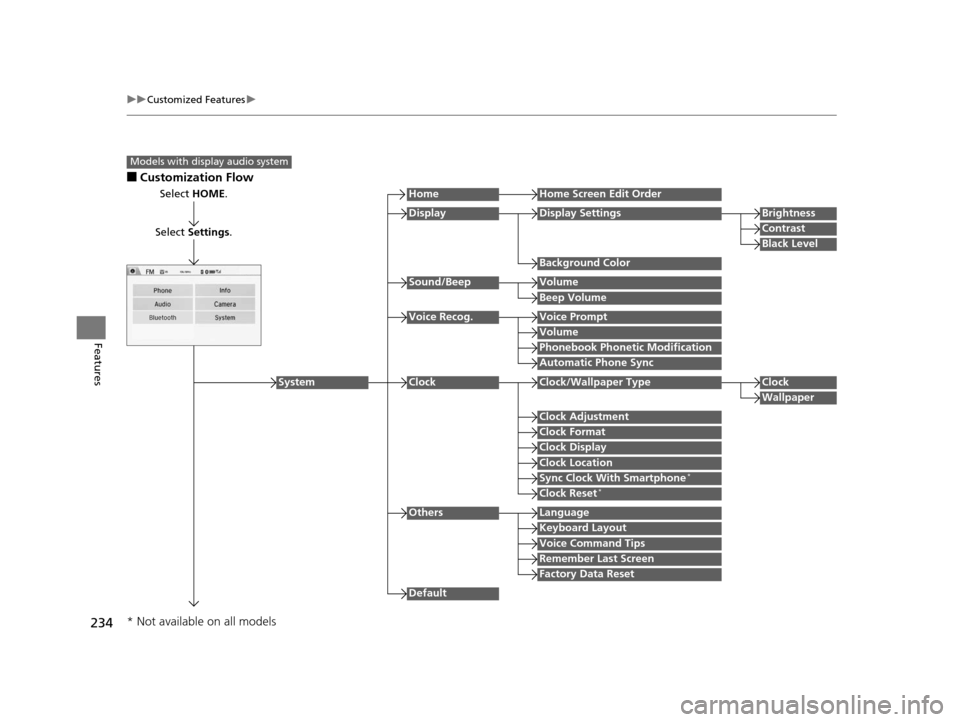
■Customization Flow
Models with display audio system
Select HOME.
Select Settings .
HomeHome Screen Edit Order
Background Color
DisplayDisplay SettingsBrightness
Contrast
Black Level
Beep Volume
Sound/BeepVolume
Volume
Voice Recog.Voice Prompt
Automatic Phone Sync
Phonebook Phonetic Modification
Default
Factory Data Reset
Clock Format
ClockClock/Wallpaper TypeClock
Wallpaper
Clock Adjustment
Clock Display
Clock Location
Sync Clock With Smartphone*
Clock Reset*
Keyboard Layout
OthersLanguage
Remember Last Screen
Voice Command Tips
System
* Not available on all models
15 US FIT-31T5A6000.book 234 ページ 2014年3月6日 木曜日 午後7時5分
Page 238 of 453
237
uuCustomized Features u
Continued
Features
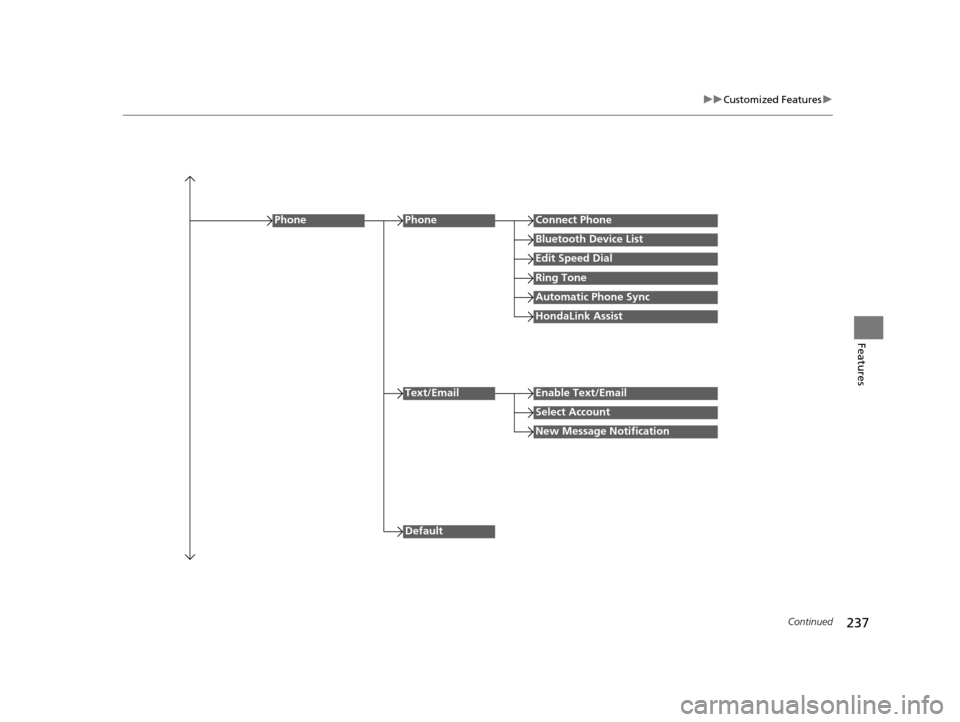
Edit Speed Dial
PhoneConnect Phone
Bluetooth Device List
Ring Tone
Automatic Phone Sync
HondaLink Assist
Phone
Default
Text/EmailEnable Text/Email
Select Account
New Message Notification
15 US FIT-31T5A6000.book 237 ページ 2014年3月6日 木曜日 午後7時5分
Page 241 of 453
240
uuCustomized Features u
Features
*1 : Default Setting
Setup
GroupCustomizable FeaturesDescriptionSelectable Settings
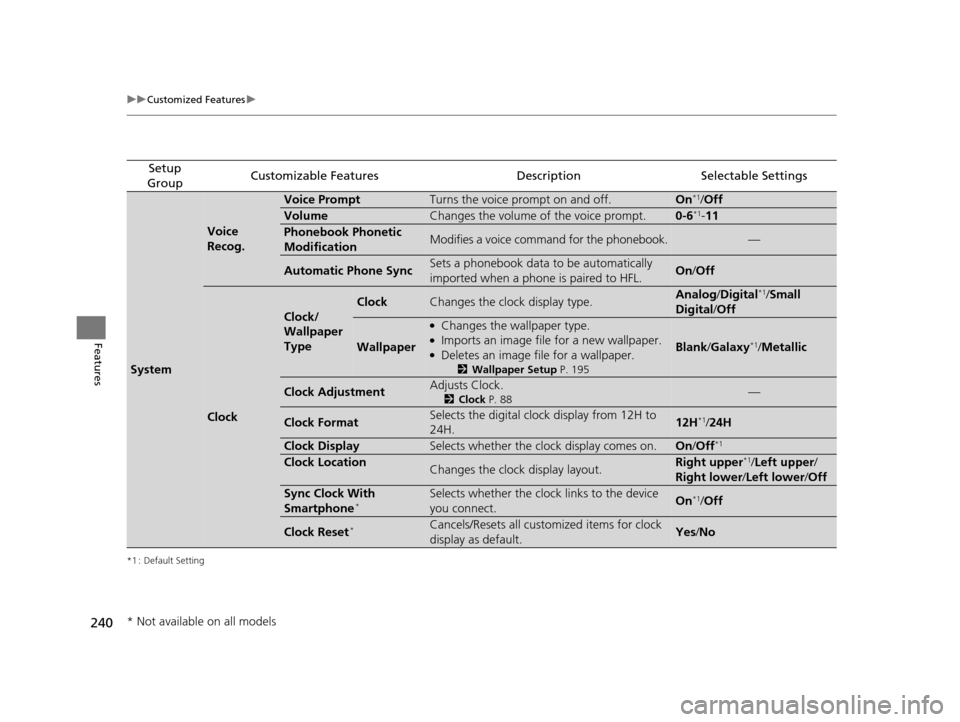
System
Voice
Recog.
Voice PromptTurns the voice prompt on and off.On*1/ Off
VolumeChanges the volume of the voice prompt.0-6*1- 11
Phonebook Phonetic
ModificationModifies a voice command for the phonebook.—
Automatic Phone SyncSets a phonebook data to be automatically
imported when a phone is paired to HFL.On /Off
Clock
Clock/
Wallpaper
Type
ClockChanges the clock display type.Analog /Digital*1/Small
Digital /Off
Wallpaper
●Changes the wallpaper type.●Imports an image file for a new wallpaper.●Deletes an image file for a wallpaper.
2 Wallpaper Setup P. 195
Blank/Galaxy*1/ Metallic
Clock AdjustmentAdjusts Clock.
2 Clock P. 88—
Clock FormatSelects the digital clock display from 12H to
24H.12H*1/24H
Clock DisplaySelects whether the clock display comes on.On /Off*1
Clock LocationChanges the clock display layout.Right upper*1/Left upper /
Right lower /Left lower /Off
Sync Clock With
Smartphone*Selects whether the clock links to the device
you connect. On*1/Off
Clock Reset*Cancels/Resets all customized items for clock
display as default.Yes /No
* Not available on all models
15 US FIT-31T5A6000.book 240 ページ 2014年3月6日 木曜日 午後7時5分
Page 245 of 453
244
uuCustomized Features u
Features
*1 : Default Setting
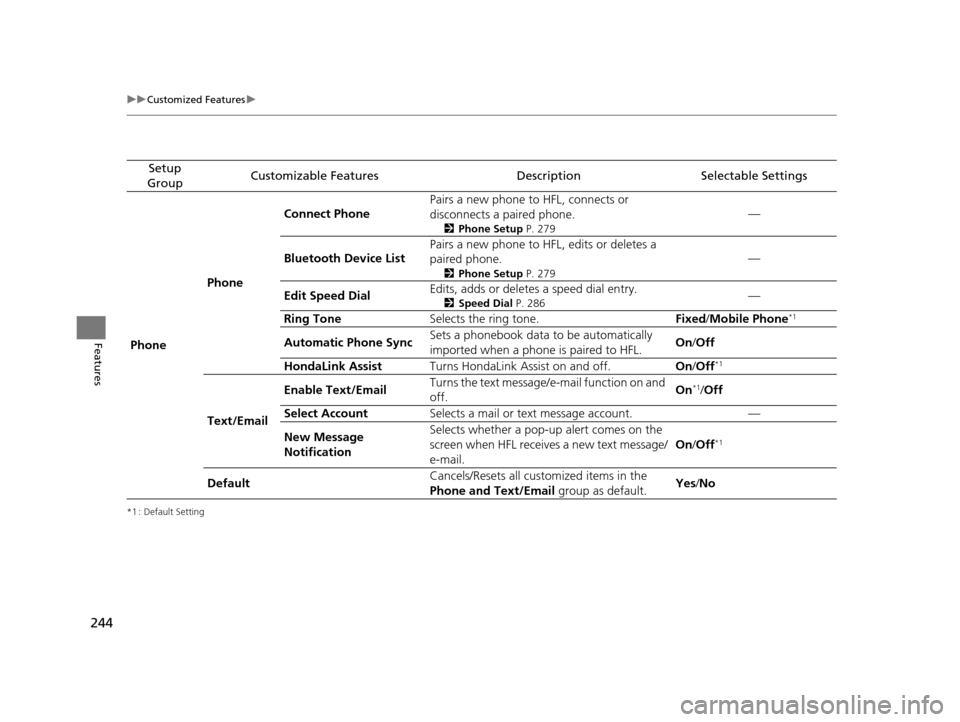
Setup
GroupCustomizable FeaturesDescriptionSelectable Settings
Phone PhoneConnect Phone
Pairs a new phone to HFL, connects or
disconnects a paired phone.
2
Phone Setup P. 279
—
Bluetooth Device List Pairs a new phone to HFL, edits or deletes a
paired phone.
2
Phone Setup P. 279
—
Edit Speed Dial Edits, adds or deletes a speed dial entry.
2
Speed Dial P. 286—
Ring Tone Selects the ring tone. Fixed/Mobile Phone
*1
Automatic Phone Sync Sets a phonebook data to be automatically
imported when a phone is paired to HFL. On
/Off
HondaLink Assist Turns HondaLink Assist on and off. On/Off
*1
Text/Email Enable Text/Email
Turns the text message/
e-mail function on and
off. On
*1/
Off
Select Account Selects a mail or text message account. —
New Message
Notification Selects whether a pop-up
alert comes on the
screen when HFL receives a new text message/
e-mail. On
/Off
*1
Default Cancels/Resets all customized items in the
Phone and Text/Email
group as default.Yes
/No
15 US FIT-31T5A6000.book 244 ページ 2014年3月6日 木曜日 午後7時5分
Page 246 of 453
245
uuCustomized Features u
Continued
Features
*1 : Default Setting
Setup
GroupCustomizable FeaturesDescriptionSelectable Settings
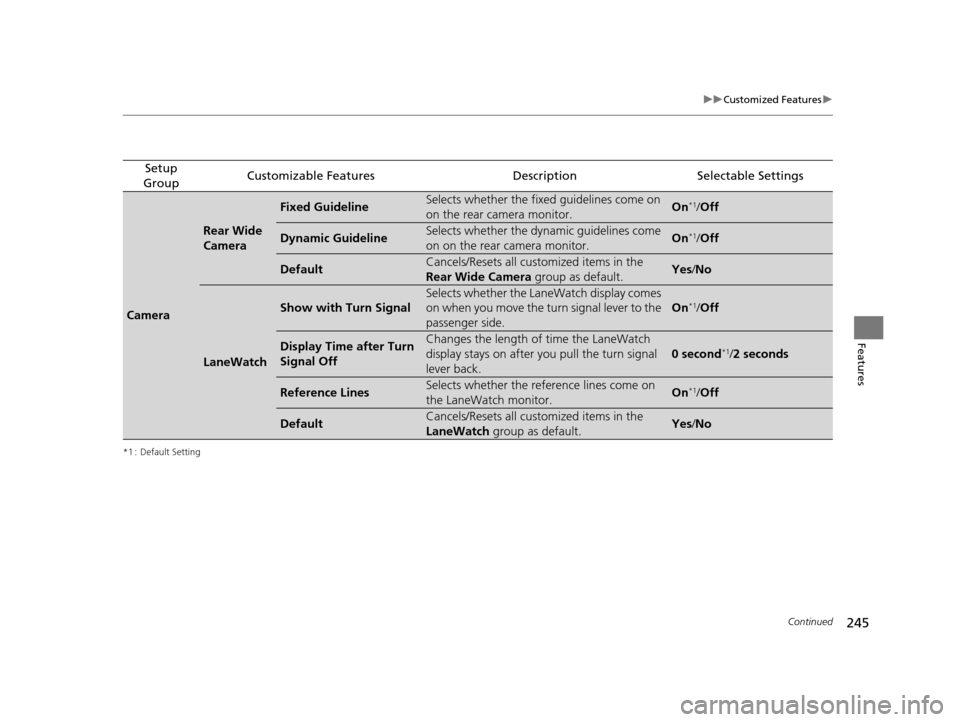
Camera
Rear Wide
Camera
Fixed GuidelineSelects whether the fixed guidelines come on
on the rear camera monitor.On*1/ Off
Dynamic GuidelineSelects whether the dyna mic guidelines come
on on the rear camera monitor.On*1/ Off
DefaultCancels/Resets all customized items in the
Rear Wide Camera group as default.Yes/No
LaneWatch
Show with Turn Signal
Selects whether the LaneWatch display comes
on when you move the turn signal lever to the
passenger side.
On*1/ Off
Display Time after Turn
Signal OffChanges the length of time the LaneWatch
display stays on after you pull the turn signal
lever back.
0 second*1/2 seconds
Reference LinesSelects whether the reference lines come on
the LaneWatch monitor.On*1/ Off
DefaultCancels/Resets all customized items in the
LaneWatch group as default.Yes/No
15 US FIT-31T5A6000.book 245 ページ 2014年3月6日 木曜日 午後7時5分
Page 275 of 453

274
uuBluetooth ® HandsFreeLink ®u HFL Menus
Features
HFL Menus
The ignition switch must be in ACCESSORY (q or ON (w*1 to use HFL.
■Phone settings screen
1.Select HOME .
2. Select Settings .
3. Select Phone Settings.
1HFL Menus
To use HFL, you must first pair your Bluetooth-
compatible mobile phone to the system while the
vehicle is parked.
Some functions are limited while driving. A message
appears on the screen when the vehicle is moving
and the operation is canceled.
*1 : Models with the smart entry system have an ENGINE START/STOP button instead of an ignition switch.
*2 : Appears only when a phone is connected to HFL.
PhoneConnect Phone*2Add Bluetooth Device
(Existing entry list)*2
(Existing entry list)
Disconnect
Edit Device Name
Add Bluetooth Device
Bluetooth Device List
Delete This Device
Pair a phone to the system.
Connect a phone to the system.
Disconnect a paired phone from the system.
Edit a previously paired
phone name.
Pair a phone to the system. Delete a previously paired
phone.
15 US FIT-31T5A6000.book 274 ページ 2014年3月6日 木曜日 午後7時5分
Page 287 of 453
uuBluetooth ® HandsFreeLink ®u HFL Menus
286
Features
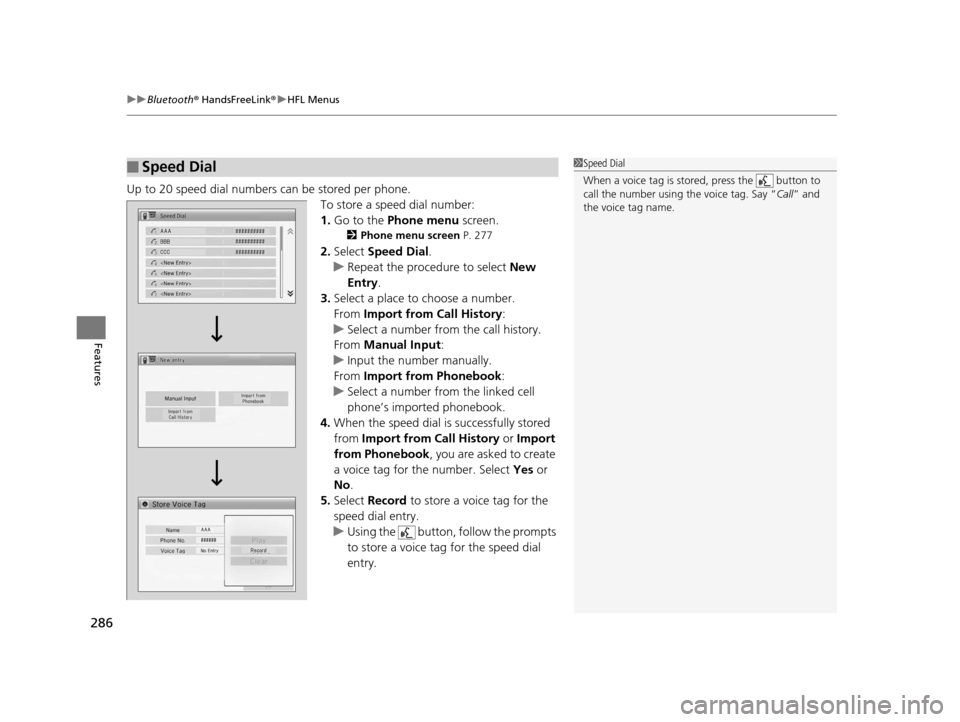
Up to 20 speed dial numbers can be stored per phone.
To store a speed dial number:
1.Go to the Phone menu screen.
2Phone menu screen P. 277
2.Select Speed Dial .
u Repeat the procedure to select New
Entry .
3. Select a place to choose a number.
From Import from Call History:
u Select a number from the call history.
From Manual Input :
u Input the number manually.
From Import from Phonebook :
u Select a number from the linked cell
phone’s imported phonebook.
4. When the speed dial is successfully stored
from Import from Call History or Import
from Phonebook , you are asked to create
a voice tag for the number. Select Yes or
No .
5. Select Record to store a voice tag for the
speed dial entry.
u Using the button, follow the prompts
to store a voice tag for the speed dial
entry.
■Speed Dial1 Speed Dial
When a voice tag is stored, press the button to
call the number using the voice tag. Say “ Call” and
the voice tag name.
15 US FIT-31T5A6000.book 286 ページ 2014年3月6日 木曜日 午後7時5分
Page 288 of 453
Continued287
uuBluetooth ® HandsFreeLink ®u HFL Menus
Features
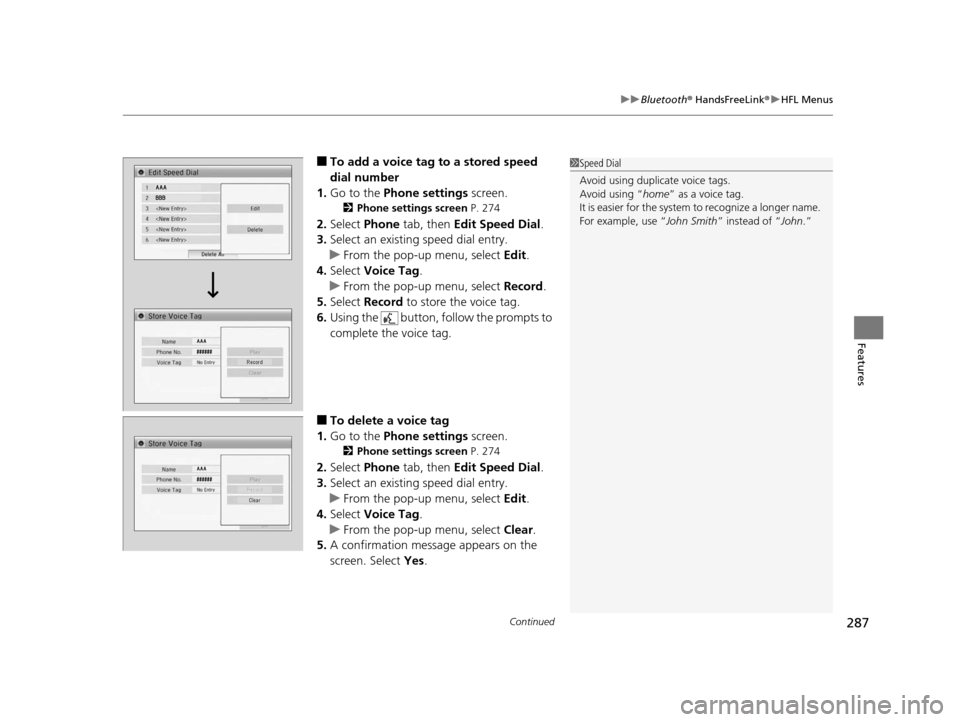
■To add a voice tag to a stored speed
dial number
1. Go to the Phone settings screen.
2Phone settings screen P. 274
2.Select Phone tab, then Edit Speed Dial.
3. Select an existing speed dial entry.
u From the pop-up menu, select Edit.
4. Select Voice Tag .
u From the pop-up menu, select Record.
5. Select Record to store the voice tag.
6. Using the button, follow the prompts to
complete the voice tag.
■To delete a voice tag
1. Go to the Phone settings screen.
2Phone settings screen P. 274
2.Select Phone tab, then Edit Speed Dial.
3. Select an existing speed dial entry.
u From the pop-up menu, select Edit.
4. Select Voice Tag .
u From the pop-up menu, select Clear.
5. A confirmation message appears on the
screen. Select Yes.
1Speed Dial
Avoid using duplicate voice tags.
Avoid using “home ” as a voice tag.
It is easier for the system to recognize a longer name.
For example, use “ John Smith” instead of “John.”
15 US FIT-31T5A6000.book 287 ページ 2014年3月6日 木曜日 午後7時5分