2015 HONDA CIVIC COUPE ESP
[x] Cancel search: ESPPage 235 of 441

uuBluetooth ® HandsFreeLink ®u Using HFL
234Features
The i-MID notifies you when there is an
incoming call.
Certain manual functions are disabled or
inoperable while the vehicle is in motion.
You cannot select a grayed-out option until
the vehicle is stopped.
Only previously stored speed dial entries with
voice tags can be called using voice
commands while the vehicle is in motion.2 Speed Dial P. 250
■
HFL Status Display
1Bluetooth ® HandsFreeLink ®
Bluetooth ® Wireless Technology
The Bluetooth ® word mark and logos are registered
trademarks owned by Bluetooth SIG, Inc., and any
use of such marks by Honda Motor Co., Ltd., is under
license. Other trademarks and trade names are those
of their respective owners.
HFL Limitations
An incoming call on HFL will interrupt the audio
system when it is playing. It will resume when the call
is ended.
John
Signal Strength
HFL Mode Battery Level Status Roam Status
Call Name
Bluetooth IndicatorComes on when your
phone is connected to HFL.■
Limitations for Manual Operation
1 HFL Status Display
The information that appears on the i-MID varies
between phone models.
You can change the system language to English,
French, or Spanish.
2 Customized Features P. 87
Disabled Options
Page 251 of 441

uuBluetooth ® HandsFreeLink ®u HFL Menus
250Features
Up to 15 speed dial numbers can be stored per phone.
To store a speed dial number:
1.Press the PHONE button or the button.
2. Rotate to select Phone Setup, then
press .
u Repeat the procedure to select Speed
Dial, then Add New.
3. Rotate to select a place to choose a
number from, then press .
By Phonebook :
u Select a number from the linked cell
phone’s imported phonebook.
By Call History :
u Select a number from the call history.
By Phone Number :
u Input the number manually.
4. When the speed dial is successfully stored,
you are asked to create a voice tag for the
number. Rotate to select Yes or No,
then press .
5. Using the button, follow the prompts to
say the name for the speed dial entry.■
Speed Dial
1Speed Dial
You can use the audio preset buttons during a call to
store a speed dial number:
1. Press and hold the desired audio preset button
during a call.
2. The contact information for the active call will be stored for the corresponding speed dial.
When a voice tag is stored, press the button to
call the number using the voice tag.
002300
75°
F miles
Phone Number
Page 257 of 441

uuBluetooth ® HandsFreeLink ®u HFL Menus
256Features
■To make a call using the call history
Call history is stored by Dialed Calls, Received Calls, and Missed Calls .
1. Press the PHONE button or the button.
2. Rotate to select Call History, then press
.
3. Rotate to select Dialed Calls, Received
Calls , or Missed Calls, then press .
4. Rotate to select a number, then press
.
u Dialing starts automatically.■To make a call using a speed dial entry
1.Press the PHONE button or the button.
2. Rotate to select Speed Dial, then press
.
3. Rotate to select a number, then press
.
u Dialing starts automatically.
1To make a call using the call history
The call history displays the last 20 dialed, received, or
missed calls.
(Appears only when a phone is connected to HFL.)1To make a call using a speed dial entry
On the Phone screen, the first six speed dials on the
list can be directly selected by pressing the
corresponding audio preset buttons (1-6).
Select More Speed Dial Lists to view another paired
phone’s speed dial list.
When a voice tag is stored, press the button to
call the number using the voice tag. 2 Speed Dial P. 250
Any voice-tagged speed dial entry can be dialed by
voice from any screen.
Press the button and follow the prompts.
Page 266 of 441

265
uuBluetooth ® HandsFreeLink ®u Using HFL
Features
(Pick-up) button: Press to go directly to the Phone screen, or to answer an
incoming call.
(Hang-up/back) button: Press to end a call, go back to the previous
command, or cancel a command.
(Talk) button: Press to call a number with a stored voice tag.
MENU button: Press and hold to display Speed Dial, Call History, or Redial on
the Phone screen.
button: Press to select an item displayed on the Phone screen.
SOURCE button: Press to call a number listed in the selected item on the Phone
screen.
To go to the Phone menu screen:
1. Select Phone to switch the display to the Phone screen.
2. Select MENU .
The audio/information screen notifies you when there is an incoming call.
■
HFL Status Display
1 Bluetooth ® HandsFreeLink ®
Bluetooth ® Wireless Technology
The Bluetooth ® word mark and logos are registered
trademarks owned by Bluetooth SIG, Inc., and any
use of such marks by Honda Motor Co., Ltd., is under
license. Other trademarks and trade names are those
of their respective owners.
HFL Limitations
An incoming call on HFL will interrupt the audio
system when it is playing. It will resume when the call
is ended.1 HFL Status Display
The information that appears on the audio/
information screen varies between phone models.
You can change the system language to English,
French or Spanish.
2 Customized Features
* P. 220
Bluetooth IndicatorComes on when your phone
is connected to HFL.
Signal Strength
HFL Mode Battery Level
Status
Caller’s Name
Caller’s Number
* Not available on all models
Page 305 of 441

304
uuWhen Driving uContinuously Variable Transmission
Driving
Continuously Variable TransmissionThe engine runs at a higher idle speed and creeping increases.
Keep the brake pedal firmly depressed when stopped.
Quickly depressing the accelerator pedal while driving uphill may cause the
transmission to drop to a lower ratio, unexpectedly increasing vehicle speed.
Depress the accelerator pedal carefully, especially on slippery roads and curves.■
Creeping
■
Kickdown
1 Precautions While DrivingNOTICEThe following can damage the under spoiler:•Parking the vehicle by a parking block•Parallel parking along the road shoulder•Driving towards the bottom of a hill•Driving up or down to a different surface level
(such as a road shoulder)•Driving on a rutted or bumpy road•Driving on a road with potholes.2.4 ℓ engine models
Page 310 of 441

Continued
309
uuWhen Driving uShifting
Driving
Use the paddle shifters to change between 1st and 7th speeds without removing
your hands from the steering wheel. The transmission switches to the 7-speed
manual shift mode when you pull a paddle shifter while driving. This mode is useful
when engine braking is needed.■When the shift lever is in
(D
:
The shift mode goes into the 7-speed manual shift mode temporarily, and the
number is displayed in the shift indicator.
The 7-speed manual shift mode is canceled automatically if you drive at constant
speed or accelerate, and the number in the shift indicator goes off.
You can cancel this mode by pulling the
(+
paddle shifter for a few seconds.
The 7-speed manual shift mode is especially useful when reducing the vehicle speed
temporarily before making a turn.
■When the shift lever is in
(S
:
The shift mode goes into the 7-speed manual shift mode. The M indicator and the
speed number are displayed in the shift indicator. As the vehicle speed slows down,
the transmission automatically shifts down accordingly. When the vehicle comes to
a stop, it automatically shifts down into 1st.
If the vehicle speed increases and the engine speed reaches near the tachometer’s
red zone, the transmission automatically shifts up.
You can only pull away in 1st speed.
When canceling the 7-speed manual shift mode, move the shift lever from
(S
to
(D
. When the 7-speed manual shift mode is canceled, the M indicator and shift
indicator go off.
■
7-Speed Manual Shift Mode
1 7-Speed Manual Shift Mode
In the 7-speed manual shift mode, the transmission
shifts up or down by operating either paddle shifter
under the following conditions:
Shift Up: The engine speed reaches the lowest
threshold of the higher speed position.
Shift Down: The engine speed reaches the highest
threshold of the lower speed position.
When the engine speed reaches near the
tachometer’s red zone, the transmission shifts up
automatically.
When the engine speed reaches the lowest threshold
of the selected speed position, the transmission shifts
down automatically.
Operating the paddle shifters on slippery surfaces
may cause the tires to lock up. In this case, the 7-
speed manual shift mode is canceled and goes back
to the normal D driving mode.
Page 319 of 441

318
uuWhen Driving uVehicle Stability Assist (VSA® ), aka Electronic Stability Control (ESC), System
Driving
Vehicle Stability Assist (VSA®), aka Electronic Stability Control (ESC), SystemHelps to stabilize the vehicle during cornering if the vehicle turns more or less than
what was intended. It also assists in maintain ing traction on slippery surfaces. It does
so by regulating engine output and selectively applying the brakes.
When VSA® activates, you may notice that the
engine does not respond to the accelerator.
You may also notice some noise from the
hydraulic system. You will also see the
indicator blink.■
VSA ® Operation
1 Vehicle Stability Assist (VSA ®), aka Electronic Stability Control (ESC), System
VSA ® may not function properly if tire types and sizes
are mixed. Make sure to use the same size and type
of tire, and the air pressures are as specified.
When the VSA ® indicator comes on and stays on
while driving, there may be a problem with the
system. While this may not interfere with normal
driving, have your vehicle checked by a dealer
immediately.
VSA ® cannot enhance stability in all driving situations
and does not control the entire braking system. You
still need to drive and cor ner at speeds appropriate
for the conditions and always leave a sufficient
margin of safety.
The main function of the VSA ® system is generally
known as Electronic Stability Control (ESC). The
system also includes a traction control function.
VSA ® System
Indicator
Page 322 of 441
321
uuWhen Driving uLaneWatch
TM*
Driving
■Customizing the LaneWatch settings
You can customize the following items using the audio/information screen.
• Show with Turn Signal : Selects whether LaneWatch monitor comes on when
you operate the turn signal light lever.
• Display Time after Turn Signal Off : Changes the length of time the LaneWatch
display stays on after you pull the turn signal lever back.
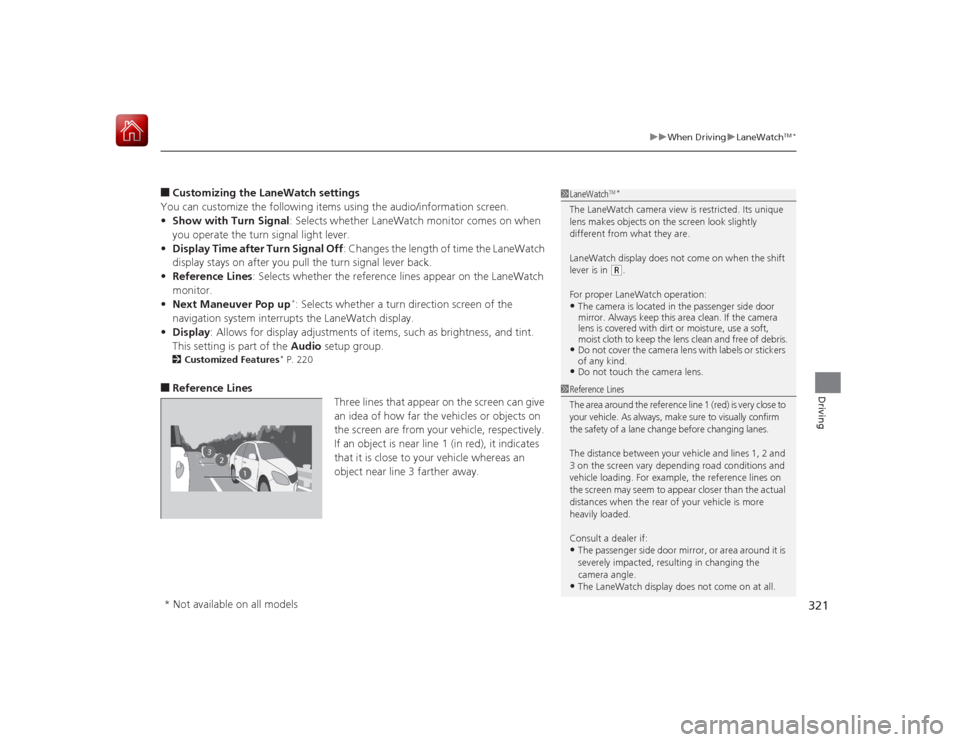
• Reference Lines : Selects whether the reference lines appear on the LaneWatch
monitor.
• Next Maneuver Pop up
*: Selects whether a turn direction screen of the
navigation system interrupts the LaneWatch display.
• Display : Allows for display adjustments of items, such as brightness, and tint.
This setting is part of the Audio setup group.
2Customized Features
* P. 220
■Reference Lines
Three lines that appear on the screen can give
an idea of how far the vehicles or objects on
the screen are from your vehicle, respectively.
If an object is near line 1 (in red), it indicates
that it is close to your vehicle whereas an
object near line 3 farther away.
1 LaneWatch
TM*
The LaneWatch camera view is restricted. Its unique
lens makes objects on the screen look slightly
different from what they are.
LaneWatch display does not come on when the shift
lever is in
(R.
For proper LaneWatch operation:
•The camera is located in the passenger side door
mirror. Always keep this area clean. If the camera
lens is covered with dirt or moisture, use a soft,
moist cloth to keep the lens clean and free of debris.•Do not cover the camera lens with labels or stickers
of any kind.•Do not touch the camera lens.
2
3
1
1 Reference Lines
The area around the reference line 1 (red) is very close to
your vehicle. As always, make sure to visually confirm
the safety of a lane change before changing lanes.
The distance between your vehicle and lines 1, 2 and
3 on the screen vary depending road conditions and
vehicle loading. For example, the reference lines on
the screen may seem to appear closer than the actual
distances when the rear of your vehicle is more
heavily loaded.
Consult a dealer if:•The passenger side door mirror, or area around it is
severely impacted, resulting in changing the
camera angle.•The LaneWatch display does not come on at all.
* Not available on all models