Page 141 of 557
uuInterior Lights/Interior Convenience Items uInterior Convenience Items
140Controls
The accessory power sockets can be used when the ignition switch is in ACCESSORY (q
or ON
(w
*1.
■Accessory power socket (console panel)
Open the cover to use it.■Accessory power socket (console
compartment)
Open the console lid and the cover to use it.
*1: Models with the smart entry system have an ENGINE START/STOP button instead of an
ignition switch.■
Accessory Power Sockets
1 Accessory Power SocketsNOTICEDo not insert an automotive type cigarette lighter
element.
This can overheat the power socket.
The accessory power socket is designed to supply
power for 12-volt DC accessories that are rated 180
watts (15 amps) or less.
To prevent battery drain, only use the power socket
with the engine running.
When both sockets are being used, the combined
power rating of the accessories should not exceed
180 watts (15 amps).
Page 144 of 557

143
uuInterior Lights/Interior Convenience Items uInterior Convenience Items
Controls
The ignition switch must be in ON
(w
*1 to use
the seat heaters. The HI setting heats the seats
faster than the LO setting.
While in HI, the heater cycles on and off.
u The appropriate indicator will be on
while the seat heater is on. Briefly press
the switch on the opposite side to turn
the heater off. The indicator will be off.
When a comfortable temperature is
reached, select LO to keep the seat
warm.
*1: Models with the smart entry system have an ENGINE START/STOP button instead of an
ignition switch.■
Seat Heaters
*
1 Seat Heaters
*
Do not use the seat heaters even in LO when the
engine is off. Under such conditions, the battery may
be weakened, making the engine difficult to start.
In the LO setting, the heater runs continuously and
does not automatically turn off.
3
WARNING
Heat induced burns are possible when
using seat heaters.
Persons with a diminished ability to sense
temperature (e.g., persons with diabetes,
lower-limb nerve damage, or paralysis) or
with sensitive skin sho uld not use seat
heaters.
* Not available on all models
Page 145 of 557

144Controls
Climate Control SystemUsing Automatic Climate ControlThe automatic climate control system maintains the interior temperature you select.
The system also selects the proper mix of heated or cooled air that raises or lowers
the interior temperature to your preference as quickly as possible.
Use the system when the engine is running.
1.Press the AUTO button.
2. Adjust the interior temperature using the driver’s side or passenger’s side control
buttons.
3. Press the (on/off) button to cancel.■Switching between the recirculation and fresh air modes
Press the (recirculation) button and switch the mode depending on
environmental conditions.
Recirculation mode (indicato r on): Recirculates air from the vehicle’s interior through
the system.
Fresh air mode (indicator off): Maintains outside ventilation. Keep the system in
fresh air mode in normal situations.
1 Using Automatic Climate Control
If any buttons are pressed while using the climate
control system in auto, the function of the button
that was pressed will take priority.
The AUTO indicator will go off, but functions
unrelated to the button that was pressed will be
controlled automatically.
To prevent cold air from blowing in from outside, the
fan may not start immediately when the AUTO
button is pressed.
If the interior is very warm, you can cool it down
more rapidly by partially opening the windows,
turning the system on auto, and setting the
temperature to low. Change the fresh mode to
recirculation mode until the temperature cools down.
When you set the temperature to the lower or upper
limit, Lo or Hi is displayed.
Pressing the button switches the climate
control system between on and off. When turned on,
the system returns to your last selection.
Floor and
defroster
vents
Floor vents
Dashboard and floor
vents
Dashboard vents
AUTO Button
Driver’s Side
Temperature
Control Buttons (Recirculation) Button
/ (Fan Control) Buttons
A/C
(Air Conditioning)
Button Passenger’s Side
Temperature
Control Buttons
Page 157 of 557

156Features
Audio System Basic OperationTo use the audio system function, the ignition switch must be in ACCESSORY
(q
or
ON
(w
*1.
Use the selector knob or MENU button to
access some audio functions.
Press to switch between the normal and
extended display for some functions.
Selector knob: Rotate left or right to scroll
through the available choices. Press to set
your selection.
MENU button: Press to select any mode.
The available mode includes Change Source ,
Station List , Save Preset , Radio Text,
Music Search , and play modes. Play modes
can be also selected from Scan, Random/
Repeat , and so on.
BACK button: Press to go back to the
previous display. button: Press to change the audio/
information screen brightness.
Press once and make an adjustment. u Each time you press , the mode
switches between the daytime mode,
nighttime mode and OFF mode.
*1: Models with the smart entry system have an ENGINE START/STOP button instead of an
ignition switch.Models with one display
1 Audio System Basic Operation
These indications are used to show how to operate
the selector knob.
Rotate to select.
Press to enter.
Audio Menu Items
2 Station List P. 164
2 Radio text P. 164
2 Music Search P. 166, 169, 174
2 Scan P. 164, 167, 175
2 Random/Repeat P. 167, 170, 175
This product includes software codes licensed under
the conditions stated by the copyright holder.
For license conditions and the copy of the
corresponding source code, visit: http://
www.hondaopensource1.com/001
Button
Selector Knob
MENU Button
BACK Button
Page 240 of 557
Continued
239
uuAudio System Basic Operation uPlaying Hard Disk Drive (HDD) Audio
Features
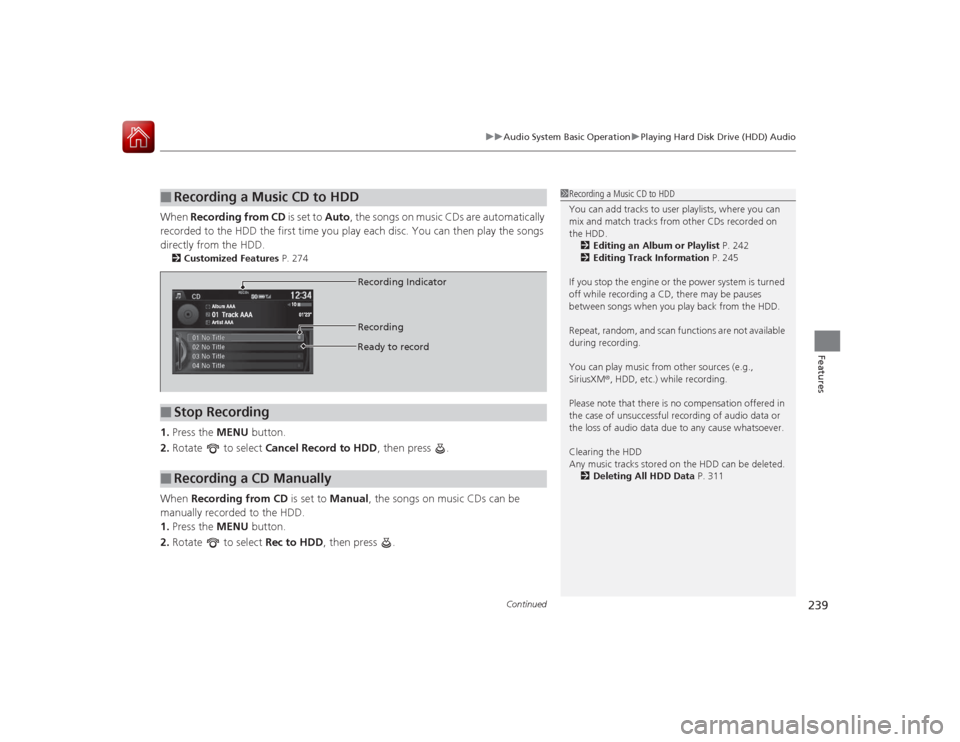
When Recording from CD is set to Auto, the songs on music CDs are automatically
recorded to the HDD the first time you play each disc. You can then play the songs
directly from the HDD.2 Customized Features P. 2741.Press the MENU button.
2. Rotate to select Cancel Record to HDD , then press .
When Recording from CD is set to Manual, the songs on music CDs can be
manually recorded to the HDD.
1. Press the MENU button.
2. Rotate to select Rec to HDD, then press .■
Recording a Music CD to HDD
1Recording a Music CD to HDD
You can add tracks to user playlists, where you can
mix and match tracks from other CDs recorded on
the HDD.
2 Editing an Album or Playlist P. 242
2 Editing Track Information P. 245
If you stop the engine or the power system is turned
off while recording a CD, there may be pauses
between songs when you play back from the HDD.
Repeat, random, and scan functions are not available
during recording.
You can play music from other sources (e.g.,
SiriusXM ®, HDD, etc.) while recording.
Please note that there is no compensation offered in
the case of unsuccessful recording of audio data or
the loss of audio data due to any cause whatsoever.
Clearing the HDD
Any music tracks stored on the HDD can be deleted. 2 Deleting All HDD Data P. 311
■
Stop Recording
■
Recording a CD Manually
Recording Indicator
Recording
Ready to record
Page 275 of 557
274Features
Customized FeaturesUse the audio/information screen to customize certain features.■How to customize
While the vehicle is at a complete stop with the ignition switch in ON
(w
*1, press the
SETTINGS button, rotate to select a setting item, and press .
*1: Models with the smart entry system have an ENGINE START/STOP button instead of an
ignition switch.
1 Customized Features
When you customize settings:•Make sure that the vehicle is at a complete stop.•Shift to
(P.
•Set the parking brake.Automatic transmission/CVT modelsManual transmission models1 How to customize
To customize other features, rotate , and press .
2 List of customizable options P. 281
Models without navigation systemModels with one display
SETTINGS Button
Audio/Information Screen
Page 286 of 557

285
uuCustomized Features u
Continued
Features
*1:Default Setting
*2:Automatic transmission/CVT modelsSetup
Group Customizable Features Description Selectable Settings
Vehicle
Settings Door
SetupAuto Door Lock
Changes the setting for when the doors
automatically lock. With Vehicle Speed
*1/
Shift from P
*2/ Off
Auto Door Unlock Changes the setting for when the doors
automatically unlock. All Doors When
Driver’s Door Opens
*1/
All Doors When
Shifted to Park
*2/ All
Doors When Ignition
Switched Off /Off
Key And Remote Unlock
Mode Sets up either the driver's door or both doors to
unlock on the first push of the remote. Driver Door
*1/
All
Doors
Keyless Lock Answer Back LOCK/UNLOCK- The exterior lights flash.
LOCK (2nd push)- The beeper sounds.
On
*1/
Off
Security Relock Timer Changes the time it takes for the doors to relock
and the security system to set after you unlock
the vehicle without opening either door. 90seconds
/
60seconds /
30seconds
*1
Mainte-
nance
Info. Maintenance Reset
Resets the engine oil life display when you have
performed the maintenance service. —
Default Cancels/Resets all customized items in the
Vehicle Settings group as default. Yes
/No
Page 304 of 557
303
uuCustomized Features u
Continued
Features
*1:Default SettingSetup
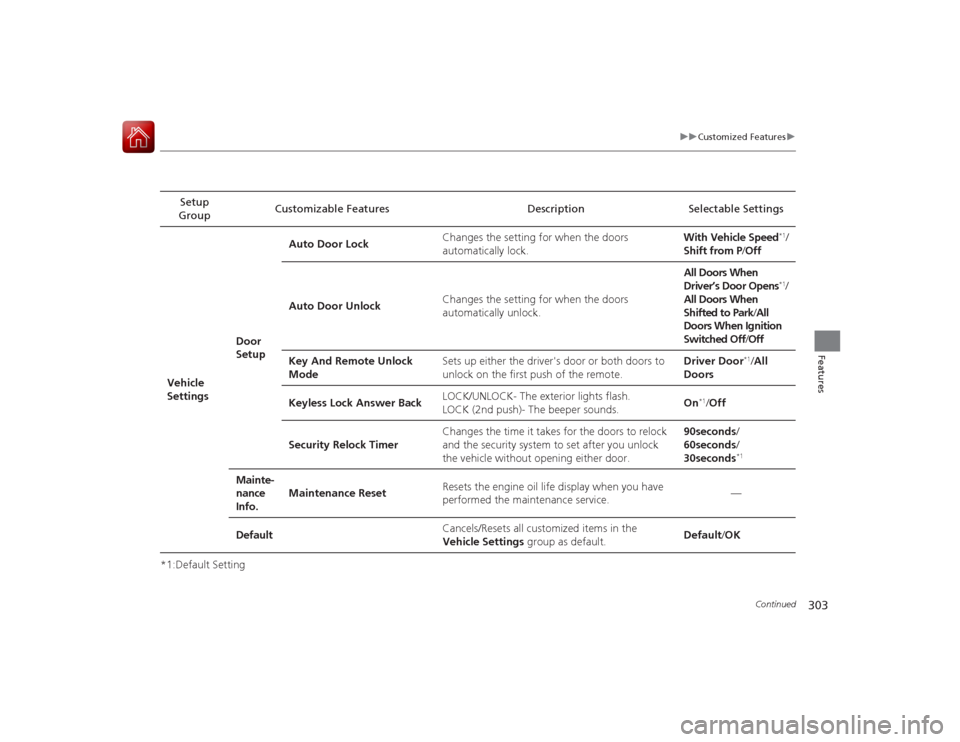
Group Customizable Features Description Selectable Settings
Vehicle
Settings Door
SetupAuto Door Lock
Changes the setting for when the doors
automatically lock. With Vehicle Speed
*1/
Shift from P /Off
Auto Door Unlock Changes the setting for when the doors
automatically unlock. All Doors When
Driver’s Door Opens*1/
All Doors When
Shifted to Park /All
Doors When Ignition
Switched Off /Off
Key And Remote Unlock
Mode Sets up either the driver's door or both doors to
unlock on the first push of the remote. Driver Door
*1/
All
Doors
Keyless Lock Answer Back LOCK/UNLOCK- The exterior lights flash.
LOCK (2nd push)- The beeper sounds.
On
*1/
Off
Security Relock Timer Changes the time it takes for the doors to relock
and the security system to set after you unlock
the vehicle without opening either door. 90seconds
/
60seconds /
30seconds
*1
Mainte-
nance
Info. Maintenance Reset
Resets the engine oil life display when you have
performed the maintenance service. —
Default Cancels/Resets all customized items in the
Vehicle Settings group as default. Default/
OK

