2015 GMC CANYON display
[x] Cancel search: displayPage 117 of 433

Black plate (4,1)GMC Canyon Owner Manual (GMNA-Localizing-U.S./Canada-7587000) -
2015 - CRC - 3/17/15
5-4 Instruments and Controls
Wiper Parking
If the ignition is turned to LOCK/
OFF while the wipers are on LO, HI,
or INT, they will immediately stop.
If the windshield wiper lever is then
moved to off before the driver door
is opened or within 10 minutes, the
wipers will restart and move to the
base of the windshield.
If the ignition is turned to LOCK/
OFF while the wipers are performing
wipes due to windshield washing,
the wipers continue to run until they
reach the base of the windshield.
Compass
The vehicle may have a compass
display on the Driver Information
Center (DIC). The compass receives
its heading and other information
from the Global Positioning
System (GPS) antenna,
StabiliTrak
®, and vehicle speed
information. The compass system is designed to
operate for a certain number of
miles or degrees of turn before
needing a signal from the GPS
satellites. When the compass
display shows CAL, drive the
vehicle for a short distance in an
open area where it can receive a
GPS signal. The compass system
will automatically determine when a
GPS signal is restored and provide
a heading again. See
Compass
Messages on page 5-34 for the
messages that may be displayed for
the compass.
Clock
Setting the Time and Date with
Faceplate Controls
To set the time or date:
1. Select SETTINGS from the Home Page, then select Time
and Date.
2. Select the desired function.
3. Turn the MENU knob to increase or decrease the value. 4. Press the MENU knob to go to
the next value. After the last
value is selected, the system will
update and return to the Settings
menu. Press
oBACK to go to
the last menu and save the
changes.
Auto Set requires an active
connection to OnStar.
If auto timing is set, the time
displayed on the clock may not
update immediately when driving
into a new time zone.
To set the clock display:
1. Select SETTINGS from the Home Page, then select Time
and Date.
2. Select Clock Display.
3. Turn the MENU knob to Off or On.
4. Press the MENU knob to select.
Press
oBACK to go to the last
menu and save the changes.
Page 118 of 433

Black plate (5,1)GMC Canyon Owner Manual (GMNA-Localizing-U.S./Canada-7587000) -
2015 - CRC - 3/17/15
Instruments and Controls 5-5
Setting the Time and Date with
Touchscreen Controls
To set the time:
1. Press the SETTINGS screenbutton from the Home Page,
then press Time and Date.
2. Press Set Time and press
«or
ªto increase or decrease
hours, minutes, and AM or PM.
Press 12–24 Hr for 12 or
24 hour clock.
3. Press the
}screen button to go
back to the previous menu.
Auto Set requires an active
connection to OnStar.
If auto timing is set, the time
displayed on the clock may not
update immediately when driving
into a new time zone. To set the date:
1. Press the SETTINGS screen
button from the Home Page,
then press Time and Date.
2. Press Set Date and press
«or
ªto increase or decrease
month, day, or year.
3. Press the
}screen button to go
back to the previous menu.
To set the clock display:
1. Press the SETTINGS screen button and press Time and Date.
2. Press Clock Display and press OFF or ON to turn the clock
display off or on.
3. Press the
}screen button to go
back to the previous menu.
Power Outlets
Accessory power outlets can be
used to plug in electrical equipment,
such as a cell phone, MP3
player, etc.
The vehicle may have accessory
power outlets:
.On the center stack below the
climate control system,
if equipped.
.On the center floor console,
if equipped.
.On the rear of the center storage
console.
Page 125 of 433
Black plate (12,1)GMC Canyon Owner Manual (GMNA-Localizing-U.S./Canada-7587000) -
2015 - CRC - 3/17/15
5-12 Instruments and Controls
Cluster Menu
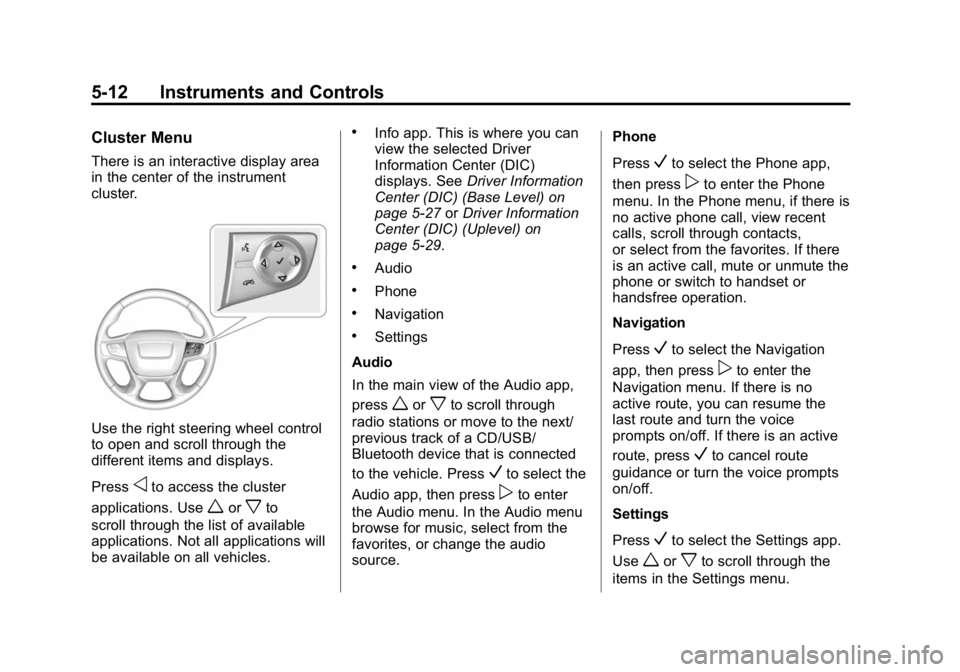
There is an interactive display area
in the center of the instrument
cluster.
Use the right steering wheel control
to open and scroll through the
different items and displays.
Press
oto access the cluster
applications. Use
worxto
scroll through the list of available
applications. Not all applications will
be available on all vehicles.
.Info app. This is where you can
view the selected Driver
Information Center (DIC)
displays. See Driver Information
Center (DIC) (Base Level) on
page 5-27 orDriver Information
Center (DIC) (Uplevel) on
page 5-29.
.Audio
.Phone
.Navigation
.Settings
Audio
In the main view of the Audio app,
press
worxto scroll through
radio stations or move to the next/
previous track of a CD/USB/
Bluetooth device that is connected
to the vehicle. Press
Vto select the
Audio app, then press
pto enter
the Audio menu. In the Audio menu
browse for music, select from the
favorites, or change the audio
source. Phone
Press
Vto select the Phone app,
then press
pto enter the Phone
menu. In the Phone menu, if there is
no active phone call, view recent
calls, scroll through contacts,
or select from the favorites. If there
is an active call, mute or unmute the
phone or switch to handset or
handsfree operation.
Navigation
Press
Vto select the Navigation
app, then press
pto enter the
Navigation menu. If there is no
active route, you can resume the
last route and turn the voice
prompts on/off. If there is an active
route, press
Vto cancel route
guidance or turn the voice prompts
on/off.
Settings
Press
Vto select the Settings app.
Use
worxto scroll through the
items in the Settings menu.
Page 126 of 433

Black plate (13,1)GMC Canyon Owner Manual (GMNA-Localizing-U.S./Canada-7587000) -
2015 - CRC - 3/17/15
Instruments and Controls 5-13
Units:Presspwhile Units is
displayed to enter the Units menu.
Choose U.S. or metric units by
pressing
Vwhile the desired item is
highlighted.
Info Pages: Press
pwhile Info
Pages is displayed to enter the Info
Pages menu and select the items to
be displayed in the Info app. See
Driver Information Center (DIC)
(Base Level) on page 5-27 orDriver
Information Center (DIC) (Uplevel)
on page 5-29.
Speed Warning: The Speed
Warning display allows the driver to
set a speed that they do not want to
exceed. To set the Speed Warning,
press
pwhen Speed Warning is
displayed. Press
worxto adjust
the value. Press
Vto set the speed.
Once the speed is set, this feature
can be turned off by pressing
V
while viewing this page. If the
selected speed limit is exceeded, a
pop-up warning is displayed with a
chime.
Speedometer
The speedometer shows the
vehicle's speed in either kilometers
per hour (km/h) or miles per
hour (mph).
Odometer
The odometer shows how far the
vehicle has been driven, in either
kilometers or miles.
Trip Odometer
The trip odometer shows how far
the vehicle has been driven since
the trip odometer was last reset.
The trip odometer is accessed and
reset through the Driver Information
Center (DIC). See Driver
Information Center (DIC) (Base
Level) on page 5-27 orDriver
Information Center (DIC) (Uplevel)
on page 5-29.
Tachometer
The tachometer displays the engine
speed in revolutions per
minute (rpm).
{Caution
If there is a shaded warning area
at the high end of the tachometer
and the engine is operated with
the rpm’s in the warning area, the
vehicle could be damaged, and
the damage would not be covered
by the vehicle warranty. Do not
operate the engine with the rpm’s
in the warning area.
Page 131 of 433

Black plate (18,1)GMC Canyon Owner Manual (GMNA-Localizing-U.S./Canada-7587000) -
2015 - CRC - 3/17/15
5-18 Instruments and Controls
a check to show the light is working.
It should go out when the engine is
started.
If the light stays on or comes on
while driving, there may be a
problem with the electrical charging
system. Have it checked by your
dealer. Driving while this light is on
could drain the battery.
When this light comes on, the Driver
Information Center (DIC) also
displays a message.
SeeBattery Voltage and Charging
Messages on page 5-33.
If a short distance must be driven
with the light on, be sure to turn off
all accessories, such as the radio
and air conditioner.
Malfunction
Indicator Lamp
A computer system called OBD II
(On-Board Diagnostics-Second
Generation) monitors the operation
of the vehicle to ensure emissions
are at acceptable levels, helping to maintain a clean environment. The
malfunction indicator lamp comes
on when the vehicle is placed in
ON/RUN, as a check to show it is
working. If it does not, have the
vehicle serviced by your dealer. See
Ignition Positions on page 9-22.
If the malfunction indicator lamp
comes on while the engine is
running, this indicates that the
OBD II system has detected a
problem and diagnosis and service
might be required.
Malfunctions often are indicated by
the system before any problem is
apparent. Being aware of the light
can prevent more serious damage
to the vehicle. This system also
assists the service technician in
correctly diagnosing any
malfunction.
{Caution
If the vehicle is continually driven
with this light on, the emission
controls might not work as well,
the vehicle fuel economy might
not be as good, and the engine
might not run as smoothly. This
could lead to costly repairs that
might not be covered by the
vehicle warranty.
{Caution
Modifications made to the engine,
transmission, exhaust, intake,
or fuel system of the vehicle or
the replacement of the original
tires with other than those of the
same Tire Performance Criteria
(TPC) can affect the vehicle's
emission controls and can
cause this light to come on.
Modifications to these systems
(Continued)
Page 135 of 433
Black plate (22,1)GMC Canyon Owner Manual (GMNA-Localizing-U.S./Canada-7587000) -
2015 - CRC - 3/17/15
5-22 Instruments and Controls
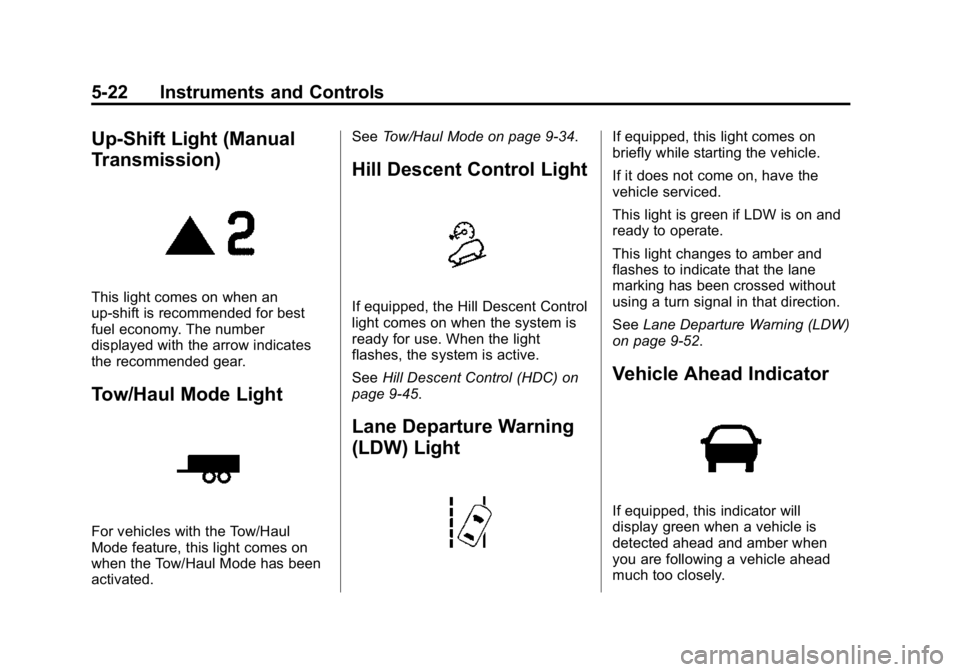
Up-Shift Light (Manual
Transmission)
This light comes on when an
up-shift is recommended for best
fuel economy. The number
displayed with the arrow indicates
the recommended gear.
Tow/Haul Mode Light
For vehicles with the Tow/Haul
Mode feature, this light comes on
when the Tow/Haul Mode has been
activated.See
Tow/Haul Mode on page 9-34.
Hill Descent Control Light
If equipped, the Hill Descent Control
light comes on when the system is
ready for use. When the light
flashes, the system is active.
SeeHill Descent Control (HDC) on
page 9-45.
Lane Departure Warning
(LDW) Light
If equipped, this light comes on
briefly while starting the vehicle.
If it does not come on, have the
vehicle serviced.
This light is green if LDW is on and
ready to operate.
This light changes to amber and
flashes to indicate that the lane
marking has been crossed without
using a turn signal in that direction.
See Lane Departure Warning (LDW)
on page 9-52.
Vehicle Ahead Indicator
If equipped, this indicator will
display green when a vehicle is
detected ahead and amber when
you are following a vehicle ahead
much too closely.
Page 136 of 433

Black plate (23,1)GMC Canyon Owner Manual (GMNA-Localizing-U.S./Canada-7587000) -
2015 - CRC - 3/17/15
Instruments and Controls 5-23
SeeForward Collision Alert (FCA)
System on page 9-48.
Traction Off Light
This light comes on briefly while
starting the engine. If it does not,
have the vehicle serviced by your
dealer. If the system is working
normally, the indicator light then
turns off.
The traction off light comes on when
the Traction Control System (TCS)
has been turned off by pressing and
releasing the TCS/StabiliTrak
button.
This light and the StabiliTrak OFF
light come on when StabiliTrak is
turned off.
If the TCS is off, wheel spin is not
limited. Adjust driving accordingly. See
Traction Control/Electronic
Stability Control on page 9-43.
StabiliTrak®OFF Light
This light comes on briefly while
starting the engine. If it does not,
have the vehicle serviced by your
dealer.
This light comes on when the
StabiliTrak system is turned off.
If StabiliTrak is off, the Traction
Control System (TCS) is also off.
If the StabiliTrak and TCS are off,
the system does not assist in
controlling the vehicle. Turn on the
TCS and the StabiliTrak systems
and the warning light turns off.
See Traction Control/Electronic
Stability Control on page 9-43.
Traction Control System
(TCS)/StabiliTrak®Light
This light comes on briefly when the
engine is started.
If the light does not come on, have
the vehicle serviced by your dealer.
If the system is working normally,
the indicator light turns off.
If the light is on and not flashing, the
TCS and potentially the StabiliTrak
system have been disabled. A DIC
message may display. Check the
DIC messages to determine which
feature(s) is no longer functioning
and whether the vehicle requires
service.
If the light is on and flashing, the
TCS and/or the StabiliTrak system
is actively working.
Page 137 of 433

Black plate (24,1)GMC Canyon Owner Manual (GMNA-Localizing-U.S./Canada-7587000) -
2015 - CRC - 3/17/15
5-24 Instruments and Controls
SeeTraction Control/Electronic
Stability Control on page 9-43.
Tire Pressure Light
For vehicles with the Tire Pressure
Monitor System (TPMS), this light
comes on briefly when the engine is
started. It provides information
about tire pressures and the TPMS.
When the Light Is On Steady
This indicates that one or more of
the tires are significantly
underinflated.
A Driver Information Center (DIC)
tire pressure message may also
display. See Tire Messages on
page 5-38. Stop as soon as
possible, and inflate the tires to the pressure value shown on the Tire
and Loading Information label. See
Tire Pressure on page 10-49.
When the Light Flashes First and
Then Is On Steady
If the light flashes for about a minute
and then stays on, there may be a
problem with the TPMS. If the
problem is not corrected, the light
will come on at every ignition cycle.
See
Tire Pressure Monitor
Operation on page 10-51.
Engine Oil Pressure Light
{Caution
Lack of proper engine oil
maintenance can damage the
engine. Driving with the engine oil
low can also damage the engine.
The repairs would not be covered
by the vehicle warranty. Check
the oil level as soon as possible.
Add oil if required, but if the oil
(Continued)
Caution (Continued)
level is within the operating range
and the oil pressure is still low,
have the vehicle serviced. Always
follow the maintenance schedule
for changing engine oil.
This light should come on briefly as
the engine is started. If it does not
come on, have the vehicle serviced
by your dealer.
If the light comes on and stays on, it
means that oil is not flowing through
the engine properly. The vehicle
could be low on oil and might have
some other system problem. See
your dealer.