2015 FORD TRANSIT CONNECT wheel
[x] Cancel search: wheelPage 245 of 428

3. Open the cap in the rear of the vehicle
and insert the end of the lug wrench
into the guide hole.
4. Turn the handle counterclockwise and
lower the spare tire until it rests on the
ground and the cable is slack.
5. Detach the first cable by pulling the cap up and sliding it away from the
wheel. Then turn the end of the cable
so it fits through the slot and remove
the cable and bracket.
6. Detach the second cable by unscrewing the bolt. 7. Block the diagonally opposite wheel.
8.
Insert the wrench end between the rim
and the wheel cover through the gaps
and carefully remove the cover.
9. Loosen each wheel lug nut one-half turn counterclockwise but do not
remove them until the wheel is raised
off the ground.
242
Transit Connect (CHC) Canada/United States of America, enUSA, First Printing Wheels and TiresE166367
3
4
5
6 E142551 E166369
Page 246 of 428

10. Arrows on the sill panel cover show
the location of the jacking points (A). 11. Align the slot on top of the jack with
the sheet metal flange indicated by
the jack locator triangle next to the
tire you are changing. Turn the jack
handle clockwise until the wheel is
completely off the ground.
Note: Passengers should not remain in the
vehicle when the vehicle is being jacked.
12. Remove the lug nuts with the lug wrench.
13. Replace the flat tire with the spare tire, making sure the valve stem is
facing outward. Reinstall the lug nuts
until the wheel is snug against the
hub. Do not fully tighten the lug nuts
until the wheel has been lowered.
14. Lower the wheel by turning the jack handle counterclockwise. 15.
Remove the jack and fully tighten the
lug nuts in the order shown. Tighten
the lug nuts to the correct
specification. See Technical
Specifications (page 244).
16. Fit the wheel cover onto the rim making sure the valve stem aligns
with the indent in the ring on the back
of the cover. Tap it with the palm of
your hand to lock it into place.
Stowing the Flat or Spare Tire
Do not raise the spare wheel carrier
without the wheel attached. Damage can
occur to the winch mechanism if lowered
without a wheel attached.
Note: Failure to follow spare tire stowage
instructions may result in failure of cable or
loss of spare tire.
Note: Do not lay alloy wheels face down
on the ground, this will damage the paint.
When stowing the flat tire use a sheet or
mat under the wheel to protect the paint.
1. Stow the flat or spare tire with the valve stem facing downward.
243
Transit Connect (CHC) Canada/United States of America, enUSA, First Printing Wheels and TiresE188744 E142553 12
3
4
5
E75442
Page 247 of 428

2. Slide the wheel partially under the
vehicle and install the retainer through
the wheel center. Pull on the cables to
align the components at the end of the
cables.
3. Attach the second cable by screwing the bolt into one of the holes in the
wheel.
4. Turn the end of the first cable so it fits through the slot and install the cable.
Then slide the cap over the retainer.
5. Turn the jack handle clockwise to raise
the tire to its stowed position
underneath the vehicle. The effort to
turn the jack handle increases
significantly when the tire is raised to
the maximum tightness. Tighten to the
best of your ability. 6. Check that the tire is flat against the
frame and is fully tight. Try to push or
pull, then turn the tire to be sure it will
not move. Loosen and retighten, if
necessary. Failure to properly stow the
spare tire may result in failure of the
winch cable and loss of the tire.
7. Repeat this tightness check procedure
when servicing the spare tire pressure
(every six months, per scheduled
maintenance information), or at any
time that the spare tire is disturbed
through service of other components.
Return the jack and tools to the storage
position in the cargo area.
TECHNICAL SPECIFICATIONS
Wheel Lug Nut Torque Specifications WARNING
When a wheel is installed, always remove any corrosion, dirt or foreign materials
present on the mounting surfaces of the wheel or the surface of the wheel hub,
brake drum or brake disc that contacts the wheel. Make sure that any fasteners
that attach the rotor to the hub are secured so they do not interfere with the mounting
surfaces of the wheel. Installing wheels without correct metal-to-metal contact at the
wheel mounting surfaces can cause the wheel nuts to loosen and the wheel to come off
while your vehicle is in motion, resulting in loss of control. Ib-ft (Nm)
*
Bolt size
100 (135)
M12 x 1.5
* Torque specifications are for nut and bolt threads free of dirt and rust. Use only Ford
recommended replacement fasteners.
Retighten the lug nuts to the specified torque within 100 miles (160 kilometers) after any
wheel disturbance (such as tire rotation, changing a flat tire, wheel removal).
244
Transit Connect (CHC) Canada/United States of America, enUSA, First Printing Wheels and Tires
Page 248 of 428
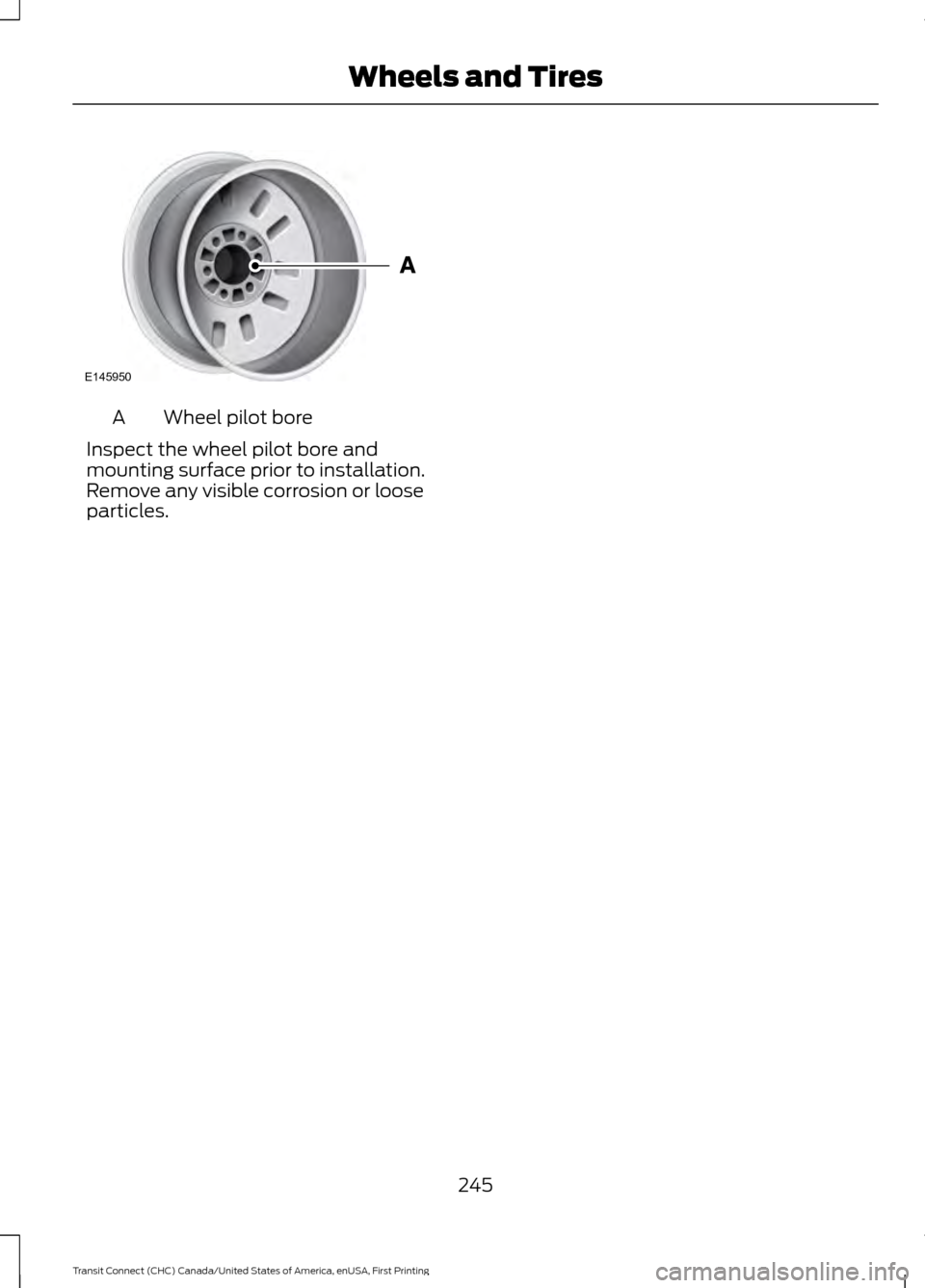
Wheel pilot bore
A
Inspect the wheel pilot bore and
mounting surface prior to installation.
Remove any visible corrosion or loose
particles.
245
Transit Connect (CHC) Canada/United States of America, enUSA, First Printing Wheels and TiresE145950
Page 272 of 428

System data cannot be accessed without
special equipment and access to the
vehicle's SYNC module. Ford Motor
Company and Ford of Canada will not
access the system data for any purpose
other than as described absent consent, a
court order, or where required by law
enforcement, other government
authorities, or other third parties acting
with lawful authority. Other parties may
seek to access the information
independently of Ford Motor Company and
Ford of Canada. For further privacy
information, see the sections on 911 Assist,
Vehicle Health Report, and Traffic,
Directions and Information.
USING VOICE RECOGNITION
This system helps you control many
features using voice commands. This
allows you to keep your hands on the
wheel and focus on what is in front of you.
Helpful Hints
•
Make sure the interior of your vehicle is
as quiet as possible. Wind noise from
open windows and road vibrations may
prevent the system from correctly
recognizing spoken commands.
• After pressing the voice button, wait
until after the tone sounds and
Listening appears before saying a
command. Any command spoken
before this does not register with the
system.
• Speak naturally, without long pauses
between words.
• At any time, you can interrupt the
system while it is speaking by pressing
the voice button.
Initiating a Voice Session Initiate a voice session by
pressing the voice button on the
steering wheel controls. See
Voice Control (page 62).
You can say any of the following: If you want the system to carry out the following
Voice command
Stream audio from your phone.
Bluetooth audio
Cancel the requested action.
(cancel | stop | exit)
Access the device connected to the auxiliary input jack.
((line | AV | audio video)
in | AUX | audio video)
Access mobile applications.
mobile (apps | applica-
tions)
Make calls.
(phone | Blackberry |
iPhone | Mobile)
Access the device connected to your USB port.
(USB [stick] | iPod | MP3
[player])
Run a vehicle health report.
vehicle [health] report
269
Transit Connect (CHC) Canada/United States of America, enUSA, First Printing SYNC™E142599
Page 273 of 428

If you want the system to carry out the following
Voice command
Adjust the level of voice interaction and feedback.
voice settings
Hear a list of voice commands available in the current mode.
[main menu] help
You can say any of the voice commands that appear within open and close brackets that
are separated by |. For example, where (cancel | stop | exit) appears you say; cancel or
stop or exit.
You must say any of the voice commands that appear outside of open and close brackets.
For example, where mobile (apps | applications) appears, you must say mobile followed
by either apps or applications.
You do not need to say words that appear within square brackets. For example, for where
(USB [stick] | iPOD | MP3 [player]) appears, you can say USB or USB stick.
Note: Mobile Applications, Services and Vehicle health report, is only available in the United
States of America.
System Interaction and Feedback
The system provides feedback through
audible tones, prompts, questions and
spoken confirmations depending on the
situation and the chosen level of
interaction (voice settings). You can
customize the voice recognition system to
provide more or less instruction and
feedback.
The default setting is to a higher level of
interaction in order to help you learn to use
the system. You can change these settings
at any time. Adjusting the Interaction Level Initiate a voice session by
pressing the voice button on the
steering wheel controls. See
Voice Control (page 62).
A tone sounds and the following
message appears in the information
display. Message
Listen
When prompted say the following: If you want the system to carry out the following
Voice command
voice settings
Followed by either of the following: Provide more detailed interaction and guidance.
interaction mode novice
Provide less audible interaction and more tone prompts.
interaction mode
advanced
The system defaults to the standard interaction mode.
270
Transit Connect (CHC) Canada/United States of America, enUSA, First Printing SYNC™E142599
Page 289 of 428

Setting 911 Assist On or Off
1. Press the phone button to enter the
phone menu.
2. Scroll to select 911 Assist.
3. Press OK to confirm and enter the 911
Assist menu.
4. Scroll to select between On or Off.
5. Press
OK when the desired option
appears in the radio display. Set On or
Set Off
appears in the display as
confirmation.
Off selections include:
• Off with reminder: Provides a display
and voice reminder at phone
connection at vehicle start.
• Off without reminder: Provides a
display reminder only without a voice
reminder at phone connection.
To make sure that 911 Assist works
properly:
• SYNC must be powered and working
properly at the time of the incident and
throughout feature activation and use.
• The 911 Assist feature must be set on
before the incident.
• You must pair and connect a
Bluetooth-enabled and compatible
cell phone to SYNC.
• A connected Bluetooth-enabled phone
must have the ability to make and
maintain an outgoing call at the time
of the incident.
• A connected Bluetooth-enabled phone
must have adequate network coverage,
battery power and signal strength.
• The vehicle must have battery power
and be located in the U.S., Canada or
in a territory in which 911 is the
emergency number. In the Event of a Crash
Not all crashes will deploy an airbag or
activate the fuel pump shut-off (the
triggers for 911 Assist). If a connected cell
phone sustains damage or loses its
connection to SYNC during a crash, SYNC
will search for and try to connect to a
previously paired cell phone; SYNC will
then attempt to call the emergency
services.
Before making the call:
•
SYNC provides a short window of time
(about 10 seconds) to cancel the call.
If you fail to cancel the call, SYNC
attempts to dial 911.
• SYNC says the following, or a similar
message: "SYNC will attempt to call
911, to cancel the call, press Cancel on
your screen or press and hold the
phone button on your steering wheel."
If you do not cancel the call, and SYNC
makes a successful call, a pre-recorded
message plays for the 911 operator, and
then the occupant(s) in your vehicle is able
to talk with the operator. Be prepared to
provide your name, phone number and
location immediately, because not all 911
systems are capable of receiving this
information electronically.
911 Assist May Not Work If
• Your cellular phone or 911 Assist
hardware sustains damage in a crash.
• The vehicle's battery or the SYNC
system has no power.
• The phone(s) previously paired or
connected to the system are thrown
from your vehicle.
286
Transit Connect (CHC) Canada/United States of America, enUSA, First Printing SYNC™
Page 293 of 428
Receiving Turn-by-Turn Directions
1. When connected to SYNC Services,
say "Directions" or "Business search".
To find the closest business or type of
business to your current location, just
say "Business search" and then
"Search near me". If you need further
assistance in finding a location you can
say "Operator" at any time within a
Directions or Business search to speak
with a live operator. The system may
prompt you to speak with an operator
when it has difficulty matching your
voice request. The live operator can
assist you by searching for businesses
by name or by category, residential
addresses by street address or by
name or specific street intersections.
Operator Assist is a feature of your
SYNC Services subscription. For more
information on Operator Assist, visit
www.SYNCMyRide.com/support. 2.
Follow the voice prompts to select your
destination. Once you select your
destination, the system uploads your
current vehicle location, calculates a
route based on current traffic
conditions and sends it back to your
vehicle. After the route download is
complete, the phone call automatically
ends. You then receive audible and
visual driving instructions as you travel
toward your destination.
3. While on an active route, you can select
or say "Route summary" or "Route
status" to view the Route Summary
turn list or the Route Status ETA. You
can also turn voice guidance on or off,
cancel the route or update the route.
If you miss a turn, SYNC automatically asks
if you want the route updated. Just say,
"Yes" when prompted and the system
sends a new route to your vehicle.
Disconnecting from SYNC Services
1. Press and hold the phone button on the steering wheel.
2. Say "Goodbye" from the SYNC Services main menu. SYNC Services quick tips
You can personalize your Services feature to provide
quicker access to your most used or favorite information.
You can save address points such as work or home. You
can also save favorite information like sports teams or a
news category. You can learn more about personalization
by logging onto www.SYNCMyRide.com.
Personalizing
Press the voice button at any time (while connected to
SYNC Services) to interrupt a voice prompt or an audio
clip (such as a sports report) and say your voice command.
Push to interrupt
Your subscription is associated with your Bluetooth-
enabled cellular phone number, not your VIN (Vehicle
Identification Number). You can pair and connect your
phone to any vehicle equipped with SYNC Services and
continue enjoying your personalized services.
Portable
290
Transit Connect (CHC) Canada/United States of America, enUSA, First Printing SYNC™