2015 FORD TRANSIT CONNECT transmission
[x] Cancel search: transmissionPage 244 of 428

•
Use commercial car washing
equipment.
• Use snow chains on the end of the
vehicle with the dissimilar spare wheel
and tire assembly.
The usage of a full-size dissimilar spare
wheel and tire assembly can lead to
impairment of the following:
• Handling, stability and braking
performance.
• Comfort and noise.
• Ground clearance and parking at curbs.
• Winter weather driving capability.
• Wet weather driving capability.
• All-wheel driving capability.
When driving with the full-size dissimilar
spare wheel and tire assembly additional
caution should be given to:
• Towing a trailer.
• Driving vehicles equipped with a
camper body.
• Driving vehicles with a load on the
cargo rack.
Drive cautiously when using a full-size
dissimilar spare wheel and tire assembly
and seek service as soon as possible.
Changing a Road Wheel WARNINGS
When one of the front wheels is off
the ground, the transmission alone
will not prevent the vehicle from
moving or slipping off the jack, even if the
transmission selector lever is in park (P). To help prevent your vehicle from
moving when you change a tire, be
sure to place the transmission
selector lever in park (P), set the parking
brake and block (in both directions) the
wheel that is diagonally opposite (other
side and end of the vehicle) to the tire
being changed. WARNINGS
Never get underneath a vehicle that
is supported only by a jack. If your
vehicle slips off the jack, you or
someone else could be seriously injured. Do not attempt to change a tire on
the side of the vehicle close to
moving traffic. Pull far enough off the
road to avoid the danger of being hit when
operating the jack or changing the wheel. Always use the jack provided as
original equipment with your vehicle.
If using a jack other than the one
provided as original equipment with your
vehicle, make sure the jack capacity is
adequate for the vehicle weight, including
any vehicle cargo or modifications. Note:
The jack and tools are located behind
a cover in the sidewall at the left rear of the
cargo area. Remove the retention straps and
wing nut before removing the jack.
The jack and tools are located behind a
cover in the left rear of the cargo area.
Remove the wing nut to remove the jack.
Remove the lug nut wrench from the clips
by pulling straight out.
1. Park on a level surface, set the parking
brake and activate the hazard flashers.
2. Move the transmission selector lever to the park (P) position and switch the
ignition off.
241
Transit Connect (CHC) Canada/United States of America, enUSA, First Printing Wheels and Tires
Page 253 of 428

TRANSMISSION CODE
DESIGNATION
The transmission code is on the Safety
Compliance Certification Label. The
following table shows the transmission
code along with the transmission
description.
Description
Code
Six-speed automatic trans-mission 6F35
6
250
Transit Connect (CHC) Canada/United States of America, enUSA, First Printing Capacities and SpecificationsE142806
Page 275 of 428

Pairing a Cell Phone for the First
Time
Note:
SYNC can support downloading up
to approximately 1000 entries per
Bluetooth-enabled cell phone.
Note: Make sure to switch on the ignition
and the radio. Put the transmission in
position park (P) (automatic transmission)
or neutral with the parking brake applied
(manual transmission). Note:
To scroll through the menus, press
the up and down arrows on your audio
system.
Wirelessly pairing your cell phone with
SYNC allows you to make and receive
hands-free calls.
Press the phone button. When the display indicates there is no cell phone paired,
do the following: Action and Description
Message
Press the
OK button. When the following message appears
in the display.
No Phone Paired
Find SYNC
1. Press the
OK button.
2. Put your cell phone into Bluetooth discovery mode. See your device's manual if necessary.
3. When prompted on your cell phone's display, enter the six-digit PIN provided by SYNC in the radio display. The
display indicates when the pairing is successful.
Depending on your cell phone's capability
and your market, the system may prompt
you with questions, such as setting the
current cell phone as the primary cell
phone (the cell phone SYNC automatically
tries to connect with first upon vehicle
start-up) and downloading your
phonebook.
272
Transit Connect (CHC) Canada/United States of America, enUSA, First Printing SYNC™
Page 276 of 428

Pairing Subsequent Cell Phones
Press the phone button, then scroll to:
Action
Message
Press the OK button.
Phone settings
Press the
OK button.
Bluetooth Devices
Press the
OK button. When the following message appears
in the display.
Add Device
Find SYNC
1. Press the
OK button.
2. Put your cell phone into Bluetooth discovery mode. See your device's manual if necessary.
3. When prompted on your cell phone's display, enter the six-digit PIN provided by SYNC in the radio display. The
display indicates when the pairing is successful.
The system then prompts with questions, such as if you would like to set the current cell
phone as the primary cell phone (the cell phone SYNC automatically tries to connect
with first upon vehicle start-up) or download your phonebook.
Note: Make sure to switch on the ignition and the radio. Put the transmission in position
park (
P) (automatic transmission) or neutral with the parking brake applied (manual
transmission).
Note: To scroll through the menus, press the up and down arrows on your audio system.
Phone Voice Commands Action
Voice Command
You do not need to preceed this command by saying; phone.
call (someone |
[[a] name]) This command is not available until your cell phone information is
completely downloaded using Bluetooth.
You do not need to preceed this command by saying; phone.
Call ___ at Home
This command is not available until your cell phone information is
completely downloaded using Bluetooth.
You do not need to preceed this command by saying; phone.
Call ___ at Work
This command is not available until your cell phone information is
completely downloaded using Bluetooth.
You do not need to preceed this command by saying; phone.
Call ___ in Office
This command is not available until your cell phone information is
completely downloaded using Bluetooth.
273
Transit Connect (CHC) Canada/United States of America, enUSA, First Printing SYNC™
Page 350 of 428
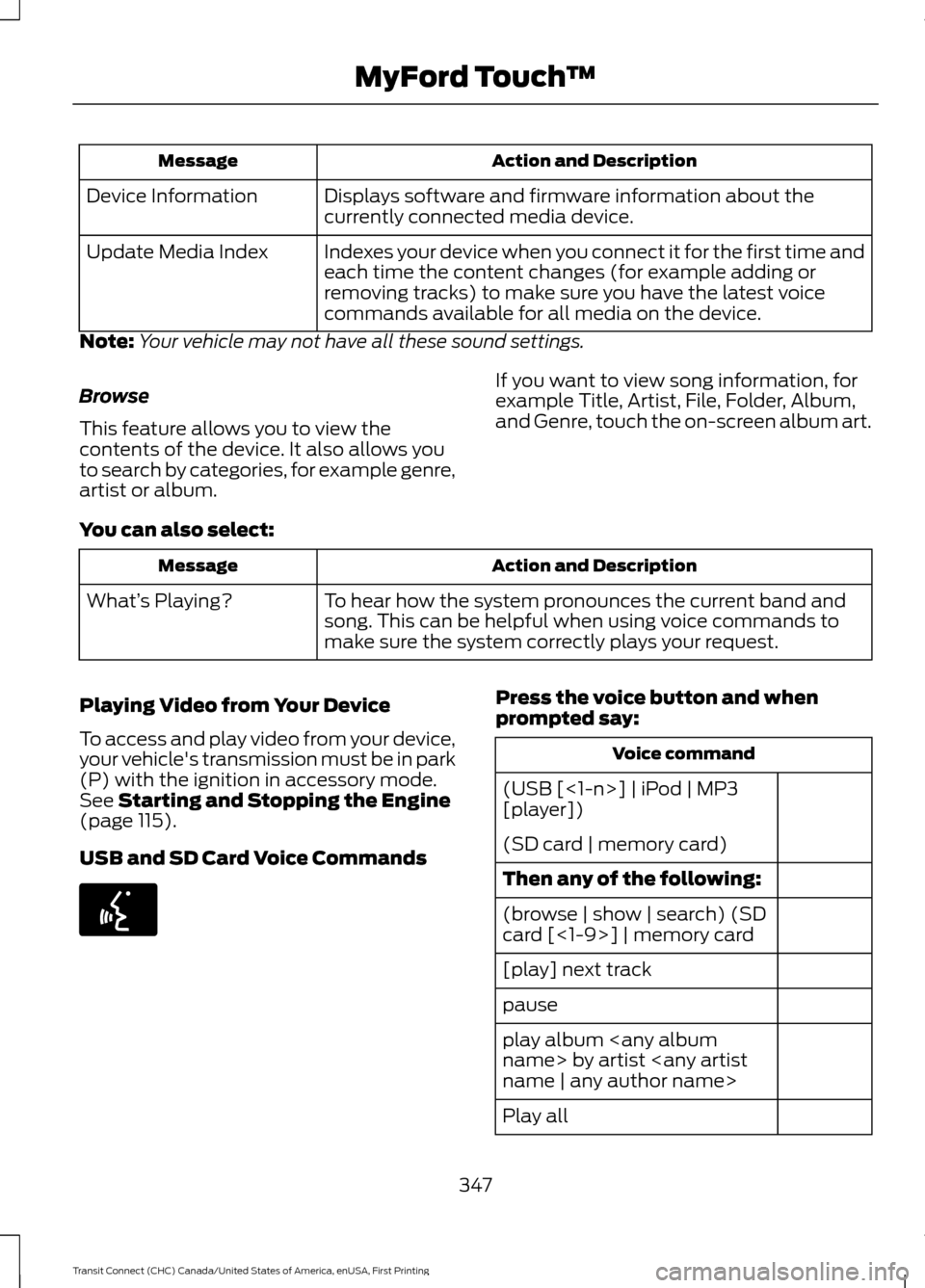
Action and Description
Message
Displays software and firmware information about the
currently connected media device.
Device Information
Indexes your device when you connect it for the first time and
each time the content changes (for example adding or
removing tracks) to make sure you have the latest voice
commands available for all media on the device.
Update Media Index
Note: Your vehicle may not have all these sound settings.
Browse
This feature allows you to view the
contents of the device. It also allows you
to search by categories, for example genre,
artist or album. If you want to view song information, for
example Title, Artist, File, Folder, Album,
and Genre, touch the on-screen album art.
You can also select: Action and Description
Message
To hear how the system pronounces the current band and
song. This can be helpful when using voice commands to
make sure the system correctly plays your request.
What’
s Playing?
Playing Video from Your Device
To access and play video from your device,
your vehicle's transmission must be in park
(P) with the ignition in accessory mode.
See Starting and Stopping the Engine
(page 115).
USB and SD Card Voice Commands Press the voice button and when
prompted say:
Voice command
(USB [<1-n>] | iPod | MP3
[player])
(SD card | memory card)
Then any of the following:
(browse | show | search) (SD
card [<1-9>] | memory card
[play] next track
pause
play album
Play all
347
Transit Connect (CHC) Canada/United States of America, enUSA, First Printing MyFord Touch
™E142599
Page 355 of 428

Pairing Your Cell Phone for the
First Time
WARNING
Driving while distracted can result in
loss of vehicle control, crash and
injury. We strongly recommend that
you use extreme caution when using any
device that may take your focus off the
road. Your primary responsibility is the safe
operation of your vehicle. We recommend
against the use of any handheld device
while driving and encourage the use of
voice-operated systems when possible.
Make sure you are aware of all applicable
local laws that may affect the use of
electronic devices while driving. The first thing you must do to use the
phone features of SYNC is to pair your
Bluetooth-enabled cell phone with SYNC.
This allows you to use your cell phone in a
hands-free manner.
Note:
Put the transmission in position P.
Turn on your vehicle ignition and the radio.
Touch the upper left corner of the touchscreen: Action and Description
Message
Add phone Follow the on-screen instructions.
Find SYNC Begin the
Pairing Process fromyour
Device and PIN Option
will Appear. Make sure that Bluetooth is set to On
and that your cell phone
is in the correct mode. See your cell phone ’s manual if
necessary.
Select
SYNC and a six-digit PIN appears on your device.
If you are prompted to enter a PIN on your device, it does not
support Secure Simple Pairing. To pair, enter the PIN
displayed on the touchscreen. Skip the next step.
When prompted on your cell phone ’s display, confirm that
the PIN provided by SYNC matches the PIN displayed on your
cell phone.
The display indicates when the pairing is successful.
SYNC may prompt you with more cell phone options. For
more information on your cell phone's capability, see your
cell phone's manual and visit the website.
Pairing Subsequent Cell Phones
Note: Move the gearshift lever to park (
P).
Switch your vehicle ignition and the radio
on. Make sure that Bluetooth is set to
On and
that your cell phone is in the correct mode.
See your device's manual if necessary.
352
Transit Connect (CHC) Canada/United States of America, enUSA, First Printing MyFord Touch
™
Page 388 of 428

•
Links to Third Party Sites: The MS
SOFTWARE may provide you with the
ability to link to third party sites through
the use of the SOFTWARE. The third
party sites are not under the control of
MS, Microsoft Corporation, their
affiliates and/or their designated
agent. Neither MS nor Microsoft
Corporation nor their affiliates nor their
designated agent are responsible for
(i) the contents of any third party sites,
any links contained in third party sites,
or any changes or updates to third
party sites, or (ii) webcasting or any
other form of transmission received
from any third party sites. If the
SOFTWARE provides links to third
party sites, those links are provided to
you only as a convenience, and the
inclusion of any link does not imply an
endorsement of the third party site by
MS, Microsoft Corporation, their
affiliates and/or their designated
agent.
• Obligation to Drive Responsibly:
You recognize your obligation to drive
responsibly and keep attention on the
road. You will read and abide with the
DEVICE operating instructions
particularly as they pertain to safety
and assumes any risk associated with
the use of the DEVICE.
UPGRADES AND RECOVERY MEDIA:
If the SOFTWARE is provided by FORD
MOTOR COMPANY separate from the
DEVICE on media such as a ROM chip, CD
ROM disk(s) or via web download or other
means, and is labeled "For Upgrade
Purposes Only" or "For Recovery Purposes
Only" you may install one (1) copy of such
SOFTWARE onto the DEVICE as a
replacement copy for the existing
SOFTWARE, and use it in accordance with
this EULA, including any additional EULA
terms accompanying the upgrade
SOFTWARE. INTELLECTUAL PROPERTY RIGHTS:
All title and intellectual property rights in
and to the SOFTWARE (including but not
limited to any images, photographs,
animations, video, audio, music, text and
"applets" incorporated into the
SOFTWARE), the accompanying printed
materials, and any copies of the
SOFTWARE, are owned by MS, Microsoft
Corporation, FORD MOTOR COMPANY, or
their affiliates or suppliers. The
SOFTWARE is licensed, not sold. You may
not copy the printed materials
accompanying the SOFTWARE. All title
and intellectual property rights in and to
the content which may be accessed
through use of the SOFTWARE is the
property of the respective content owner
and may be protected by applicable
copyright or other intellectual property
laws and treaties. This EULA grants you no
rights to use such content. All rights not
specifically granted under this EULA are
reserved by MS, Microsoft Corporation,
FORD MOTOR COMPANY, third party
software and service providers, their
affiliates and suppliers. Use of any on-line
services which may be accessed through
the SOFTWARE may be governed by the
respective terms of use relating to such
services. If this SOFTWARE contains
documentation that is provided only in
electronic form, you may print one copy of
such electronic documentation.
EXPORT RESTRICTIONS:
You
acknowledge that the SOFTWARE is
subject to U.S. and European Union export
jurisdiction. You agree to comply with all
applicable international and national laws
that apply to the SOFTWARE, including
the U.S. Export Administration Regulations,
as well as end-user, end-use and
destination restrictions issued by U.S. and
other governments. For additional
information, see
http://www.microsoft.com/exporting/.
385
Transit Connect (CHC) Canada/United States of America, enUSA, First Printing Appendices
Page 405 of 428

Multi-Point inspection
Hazard warning system operation
Accessory drive belt(s)
Horn operation
Battery performance
Radiator, cooler, heater and air conditioninghoses
Engine air filter
Suspension components for leaks ordamage
Exhaust system
Steering and linkage
Exterior lamps operation
Tires (including spare) for wear and properpressure**
Fluid levels *
; fill if necessary
Windshield for cracks, chips or pits
For oil and fluid leaks
Washer spray and wiper operation
Half-shaft dust boots
* Brake, coolant recovery reservoir, automatic transmission and window washer
** If your vehicle is equipped with a temporary mobility kit, check the tire sealant expiration
Use By date on the canister. Replace as needed.
Be sure to ask your dealership service
advisor or technician about the multi-point
vehicle inspection. It is a comprehensive
way to perform a thorough inspection of
your vehicle. Your checklist gives you
immediate feedback on the overall
condition of your vehicle.
NORMAL SCHEDULED
MAINTENANCE - VEHICLES
BUILT FROM: 01-09-2014
Intelligent Oil-Life Monitor®
Your vehicle is equipped with an Intelligent
Oil-Life Monitor that determines when you
should change the engine oil based on how
your vehicle is used. By using several
important factors in its calculations, the
monitor helps reduce the cost of owning
your vehicle and reduces environmental
waste at the same time. This means you do not have to remember
to change the oil on a mileage-based
schedule. Your vehicle lets you know when
an oil change is due by displaying ENGINE
OIL CHANGE DUE or OIL CHANGE
REQUIRED in the information display.
The following table provides examples of
vehicle use and its impact on oil change
intervals. It is a guideline only. Actual oil
change intervals depend on several factors
and generally decrease with severity of
use.
402
Transit Connect (CHC) Canada/United States of America, enUSA, First Printing Scheduled Maintenance