2015 FORD TAURUS audio system
[x] Cancel search: audio systemPage 452 of 558
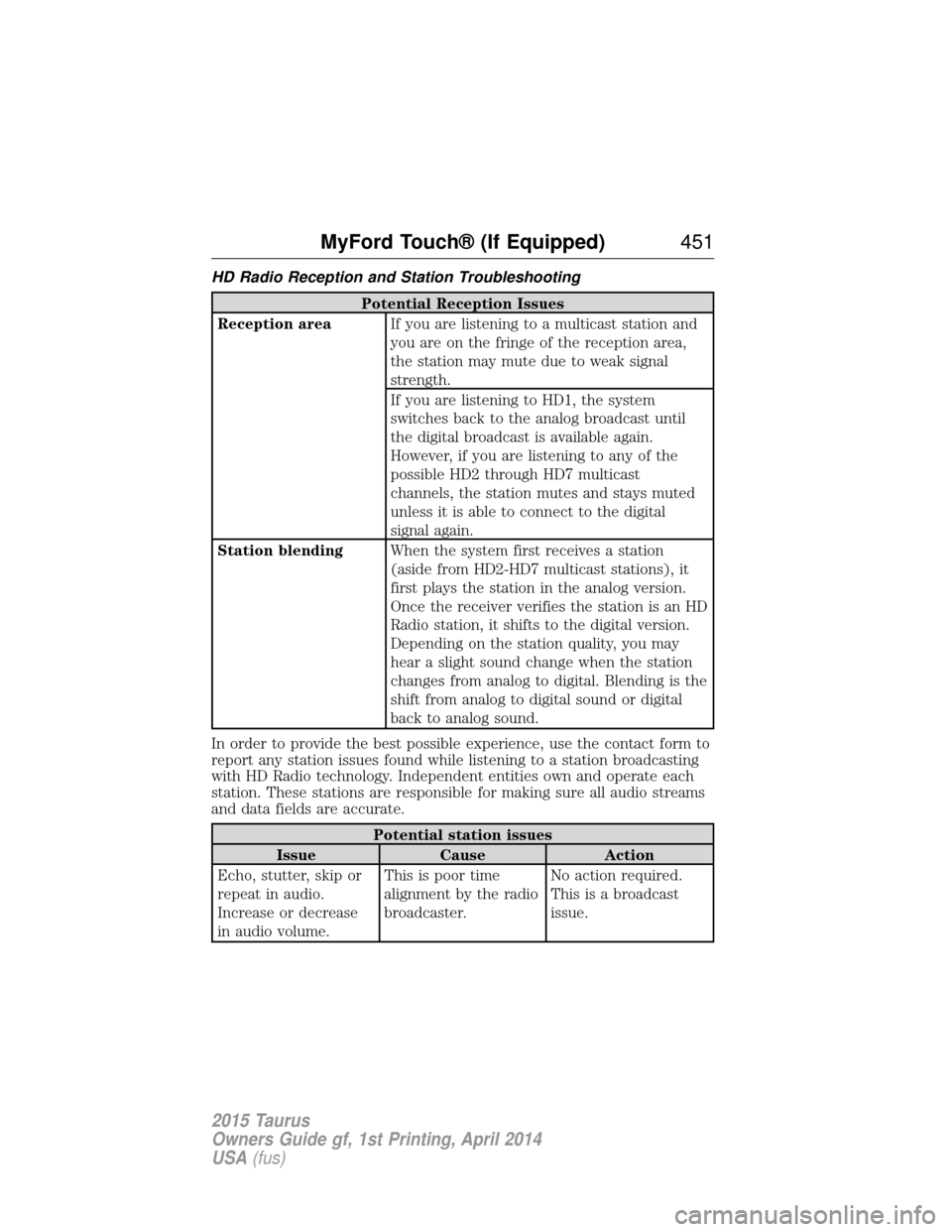
HD Radio Reception and Station Troubleshooting
Potential Reception Issues
Reception area If you are listening to a multicast station and
you are on the fringe of the reception area,
the station may mute due to weak signal
strength.
If you are listening to HD1, the system
switches back to the analog broadcast until
the digital broadcast is available again.
However, if you are listening to any of the
possible HD2 through HD7 multicast
channels, the station mutes and stays muted
unless it is able to connect to the digital
signal again.
Station blending When the system first receives a station
(aside from HD2-HD7 multicast stations), it
first plays the station in the analog version.
Once the receiver verifies the station is an HD
Radio station, it shifts to the digital version.
Depending on the station quality, you may
hear a slight sound change when the station
changes from analog to digital. Blending is the
shift from analog to digital sound or digital
back to analog sound.
In order to provide the best possible experience, use the contact form to
report any station issues found while listening to a station broadcasting
with HD Radio technology. Independent entities own and operate each
station. These stations are responsible for making sure all audio streams
and data fields are accurate.
Potential station issues
Issue Cause Action
Echo, stutter, skip or
repeat in audio.
Increase or decrease
in audio volume. This is poor time
alignment by the radio
broadcaster.
No action required.
This is a broadcast
issue.
MyFord Touch® (If Equipped)
451
2015 Taurus
Owners Guide gf, 1st Printing, April 2014
USA(fus)
Page 455 of 558
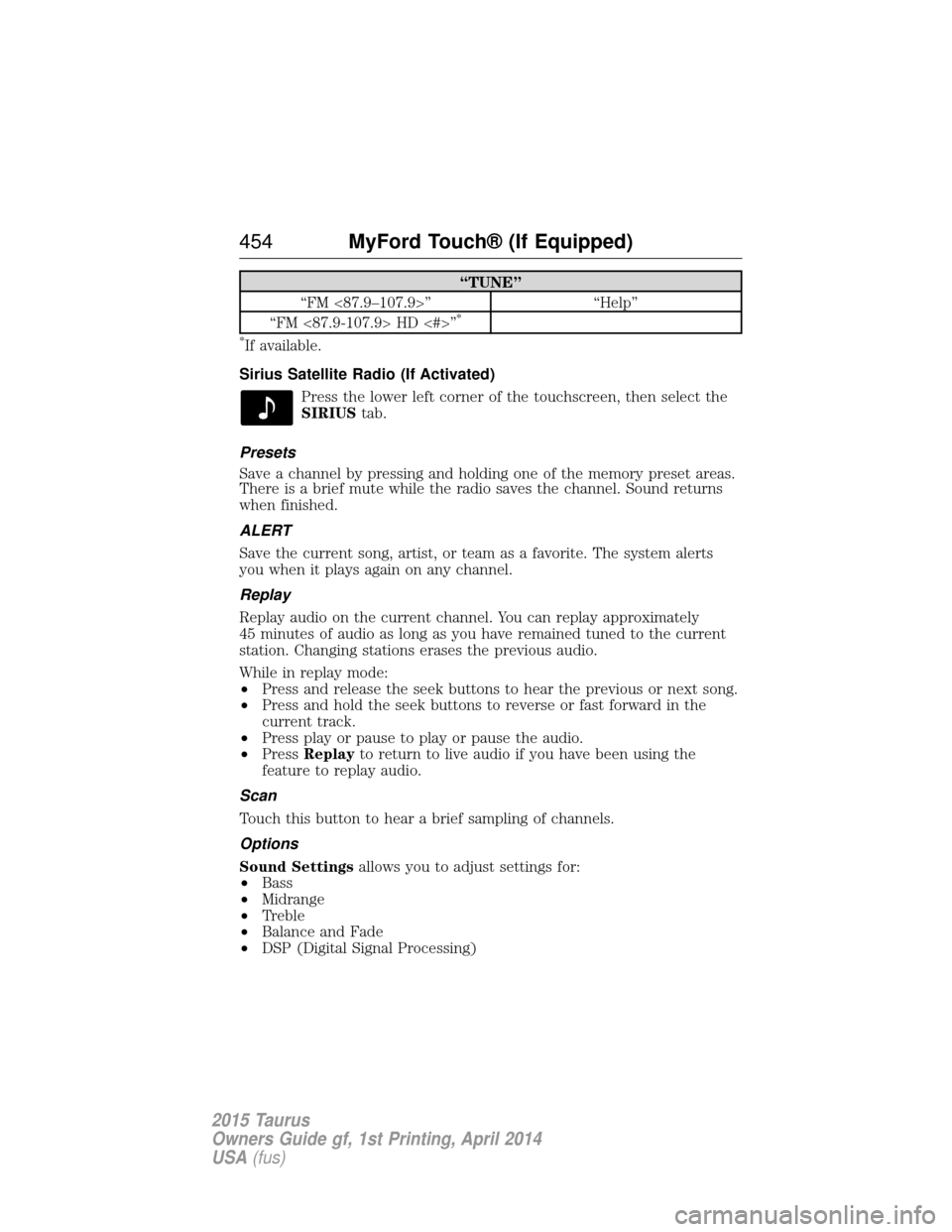
“TUNE”
“FM <87.9–107.9>” “Help”
“FM <87.9-107.9> HD <#>”
*
*
If available.
Sirius Satellite Radio (If Activated) Press the lower left corner of the touchscreen, then select the
SIRIUStab.
Presets
Save a channel by pressing and holding one of the memory preset areas.
There is a brief mute while the radio saves the channel. Sound returns
when finished.
ALERT
Save the current song, artist, or team as a favorite. The system alerts
you when it plays again on any channel.
Replay
Replay audio on the current channel. You can replay approximately
45 minutes of audio as long as you have remained tuned to the current
station. Changing stations erases the previous audio.
While in replay mode:
• Press and release the seek buttons to hear the previous or next song.
• Press and hold the seek buttons to reverse or fast forward in the
current track.
• Press play or pause to play or pause the audio.
• Press Replay to return to live audio if you have been using the
feature to replay audio.
Scan
Touch this button to hear a brief sampling of channels.
Options
Sound Settings allows you to adjust settings for:
• Bass
• Midrange
• Treble
• Balance and Fade
• DSP (Digital Signal Processing)
454 MyFord Touch® (If Equipped)
2015 Taurus
Owners Guide gf, 1st Printing, April 2014
USA(fus)
Page 459 of 558

Potential satellite radio reception issues
Station overload When you pass a ground-based
broadcast-repeating tower, a stronger signal
may overtake a weaker one and the audio
system may mute.
Satellite radio signal
interference Your display may show ACQUIRIN
G...to
indicate the interference and the audio
system may mute.
Sirius troubleshooting tips
Radio display Condition Possible action
Acquiring... Radio requires more than two seconds to
produce audio for the
selected channel.No action required.
This message should
disappear shortly.
Sat Fault/SIRIUS
system failure. There is an internal
module or system
failure present.If this message does
not clear shortly, or
with an ignition key
cycle, your receiver
may have a fault. See
your authorized dealer
for service.
Invalid Channel. The channel is no longer available.Tune to another
channel or choose
another preset.
Unsubscribed Channel. Your subscription does not include this
channel.Contact Sirius at
1–888–539–7474 to
subscribe to the
channel, or tune to
another channel.
No Signal. The signal is lost from the Sirius satellite or
Sirius tower to your
vehicle antenna.The signal is blocked.
When you move into
an open area, the
signal should return.
458
MyFord Touch® (If Equipped)
2015 Taurus
Owners Guide gf, 1st Printing, April 2014
USA(fus)
Page 464 of 558
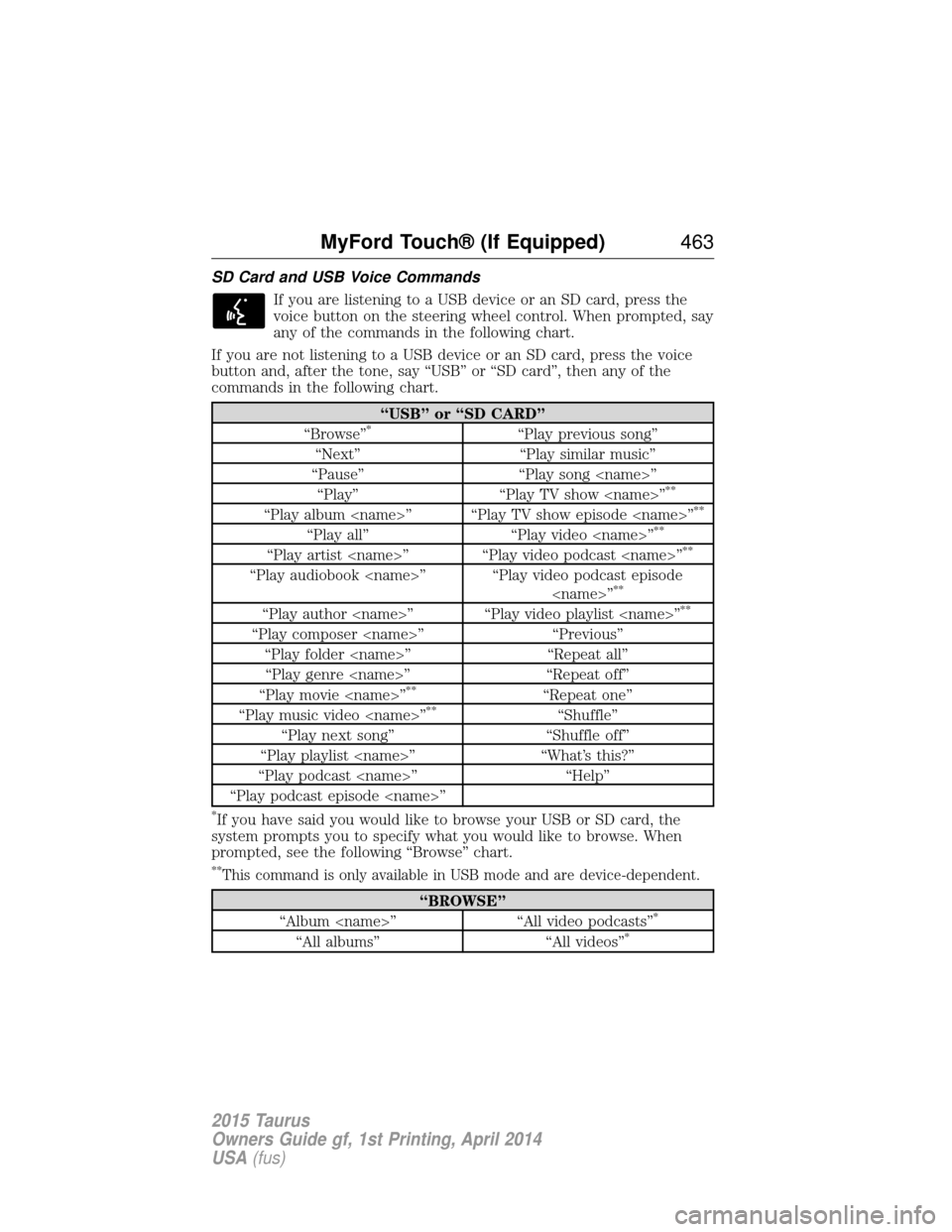
SD Card and USB Voice CommandsIf you are listening to a USB device or an SD card, press the
voice button on the steering wheel control. When prompted, say
any of the commands in the following chart.
If you are not listening to a USB device or an SD card, press the voice
button and, after the tone, say “USB” or “SD card”, then any of the
commands in the following chart.
“USB” or “SD CARD”
“Browse”*“Play previous song”
“Next” “Play similar music”
“Pause” “Play song
**
“Play album
“Play all” “Play video
“Play artist
“Play audiobook
“Play author
“Play composer
“Play folder
“Play genre
“Play movie
**“Repeat one”
“Play music video
“Play next song” “Shuffle off”
“Play playlist
“Play podcast
“Play podcast episode
*If you have said you would like to browse your USB or SD card, the
system prompts you to specify what you would like to browse. When
prompted, see the following “Browse” chart.
**This command is only available in USB mode and are device-dependent.
“BROWSE”
“Album
“All albums” “All videos”*
MyFord Touch® (If Equipped) 463
2015 Taurus
Owners Guide gf, 1st Printing, April 2014
USA(fus)
Page 466 of 558
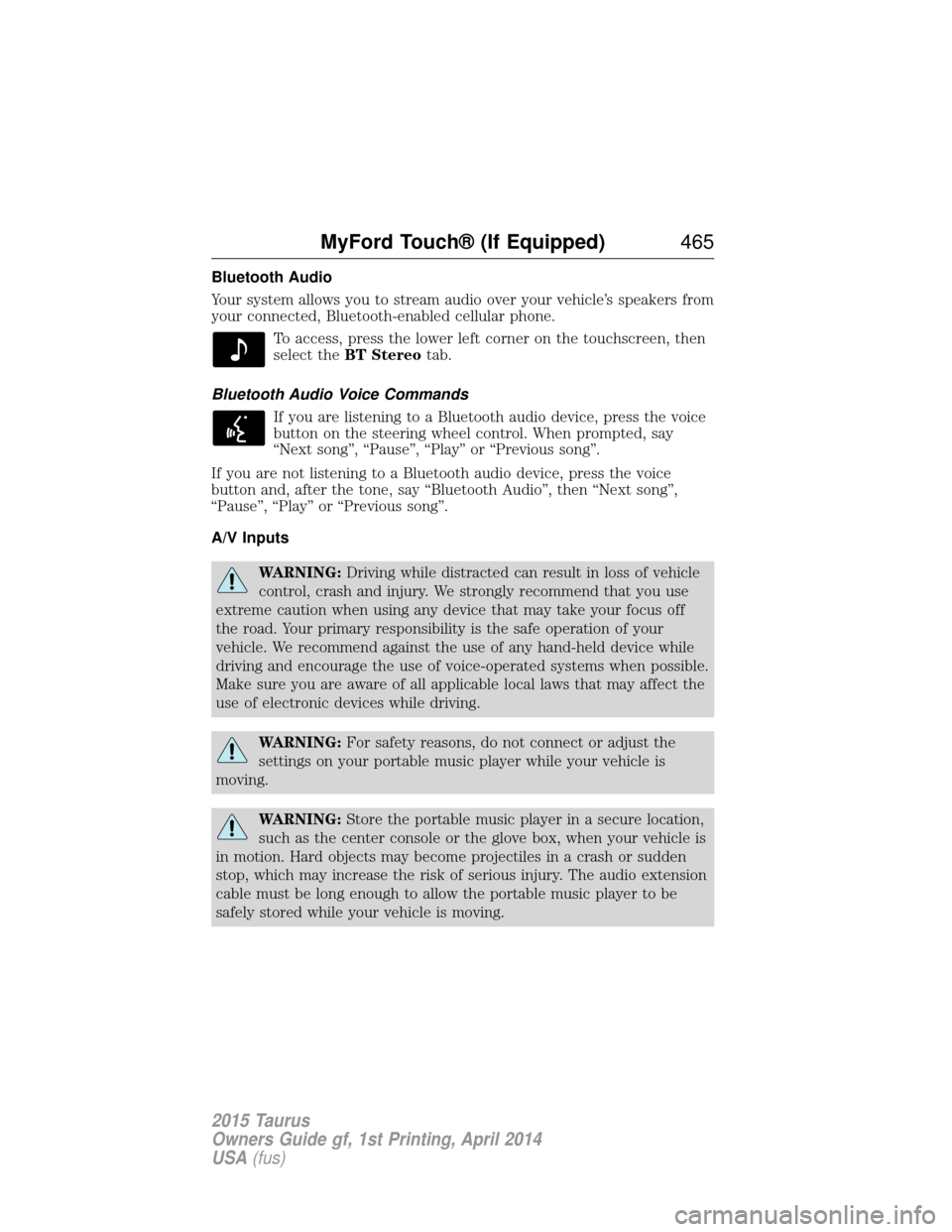
Bluetooth Audio
Your system allows you to stream audio over your vehicle’s speakers from
your connected, Bluetooth-enabled cellular phone.To access, press the lower left corner on the touchscreen, then
select the BT Stereo tab.
Bluetooth Audio Voice Commands If you are listening to a Bluetooth audio device, press the voice
button on the steering wheel control. When prompted, say
“Next song”, “Pause”, “Play” or “Previous song”.
If you are not listening to a Bluetooth audio device, press the voice
button and, after the tone, say “Bluetooth Audio”, then “Next song”,
“Pause”, “Play” or “Previous song”.
A/V Inputs
WARNING: Driving while distracted can result in loss of vehicle
control, crash and injury. We strongly recommend that you use
extreme caution when using any device that may take your focus off
the road. Your primary responsibility is the safe operation of your
vehicle. We recommend against the use of any hand-held device while
driving and encourage the use of voice-operated systems when possible.
Make sure you are aware of all applicable local laws that may affect the
use of electronic devices while driving.
WARNING: For safety reasons, do not connect or adjust the
settings on your portable music player while your vehicle is
moving.
WARNING: Store the portable music player in a secure location,
such as the center console or the glove box, when your vehicle is
in motion. Hard objects may become projectiles in a crash or sudden
stop, which may increase the risk of serious injury. The audio extension
cable must be long enough to allow the portable music player to be
safely stored while your vehicle is moving.
MyFord Touch® (If Equipped) 465
2015 Taurus
Owners Guide gf, 1st Printing, April 2014
USA(fus)
Page 467 of 558
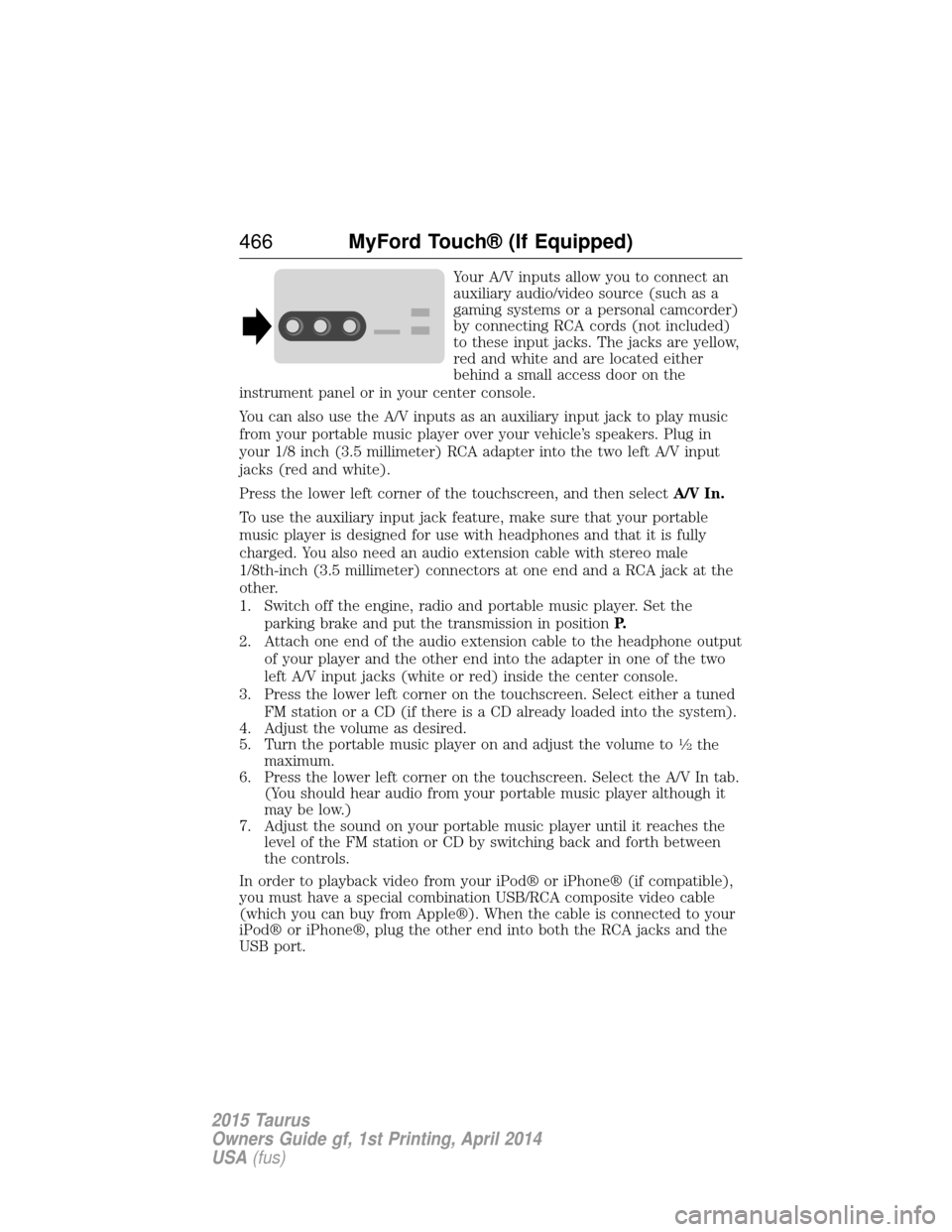
Your A/V inputs allow you to connect an
auxiliary audio/video source (such as a
gaming systems or a personal camcorder)
by connecting RCA cords (not included)
to these input jacks. The jacks are yellow,
red and white and are located either
behind a small access door on the
instrument panel or in your center console.
You can also use the A/V inputs as an auxiliary input jack to play music
from your portable music player over your vehicle’s speakers. Plug in
your 1/8 inch (3.5 millimeter) RCA adapter into the two left A/V input
jacks (red and white).
Press the lower left corner of the touchscreen, and then select A/V In.
To use the auxiliary input jack feature, make sure that your portable
music player is designed for use with headphones and that it is fully
charged. You also need an audio extension cable with stereo male
1/8th-inch (3.5 millimeter) connectors at one end and a RCA jack at the
other.
1. Switch off the engine, radio and portable music player. Set the parking brake and put the transmission in position P.
2. Attach one end of the audio extension cable to the headphone output of your player and the other end into the adapter in one of the two
left A/V input jacks (white or red) inside the center console.
3. Press the lower left corner on the touchscreen. Select either a tuned FM station or a CD (if there is a CD already loaded into the system).
4. Adjust the volume as desired.
5. Turn the portable music player on and adjust the volume to
12the
maximum.
6. Press the lower left corner on the touchscreen. Select the A/V In tab. (You should hear audio from your portable music player although it
may be low.)
7. Adjust the sound on your portable music player until it reaches the level of the FM station or CD by switching back and forth between
the controls.
In order to playback video from your iPod® or iPhone® (if compatible),
you must have a special combination USB/RCA composite video cable
(which you can buy from Apple®). When the cable is connected to your
iPod® or iPhone®, plug the other end into both the RCA jacks and the
USB port.
466 MyFord Touch® (If Equipped)
2015 Taurus
Owners Guide gf, 1st Printing, April 2014
USA(fus)
Page 479 of 558

If you miss a turn, SYNC automatically asks if you want the route
updated. Just say, “Yes” when prompted and the system delivers a new
route to your vehicle.
If your vehicle is equipped with Navigation, SYNC Services downloads
your requested destination to the navigation system. The navigation
system then calculates the route and provides driving instructions. See
theNavigation system section for more information.
Disconnecting from SYNC Services
1. Press and hold the phone button on the steering wheel.
2. Say “Good-bye” from the SYNC Services main menu.
SYNC Services quick tips
Personalizing You can personalize your Services feature to
provide quicker access to your most used or
favorite information. You can save address
points, such as work or home. You can also
save favorite information like sports teams,
such as Detroit Lions, or a news category. You
can learn more about personalization by
logging onto www.SYNCMyRide.com.
Push to interrupt Press the voice button at any time (while
connected to SYNC Services) to interrupt a
voice prompt or an audio clip (such as a
sports report) and say your voice command.
Portable Your subscription is associated with your
Bluetooth-enabled cellular phone number, not
your VIN (Vehicle Identification Number). You
can pair and connect your phone to any
vehicle equipped with SYNC Services and
continue enjoying your personalized services.
478MyFord Touch® (If Equipped)
2015 Taurus
Owners Guide gf, 1st Printing, April 2014
USA(fus)
Page 492 of 558
System
Touch Panel Button
Beep Select to have the system beep to confirm
button choices made through the climate or
audio system.
Keyboard Layout Have the touchscreen keyboard display in
QWERTY or ABC format.
Install Applications Install any downloaded applications or view
the current software licenses.
Master Reset Select to restore factory defaults. This erases
all personal settings and personal data.
Voice Control Press the Settings icon > Settings>Voice Control, then
select from the following:
Voice control
Interaction Mode Standard interaction mode provides more
detailed interaction and guidance. Advanced
mode has less audible interaction and more tone
prompts.
Confirmation Prompts Have the system ask you short questions if it
has not clearly heard or understood your
request.
Note:Even with confirmation prompts turned
off, the system may occasionally ask you to
confirm settings.
Media Candidate Lists Candidate lists are possible results from your
voice commands. The system simply makes a
best guess at your request with these turned off.
Phone Candidate Lists Candidate lists are possible results from your
voice commands. The system simply makes a
best guess at your request with these turned off.
Voice Control Volume This allows you to adjust the system’s voice
volume level.
MyFord Touch® (If Equipped) 491
2015 Taurus
Owners Guide gf, 1st Printing, April 2014
USA(fus)