2015 FORD MUSTANG sat nav
[x] Cancel search: sat navPage 287 of 441
•
MP3 and WMA folder mode represents
a folder structure consisting of one
level of folders. The CD player numbers
all MP3 and WMA tracks on the disc
(noted by the MP3 or WMA file
extension) and all folders containing
MP3 and WMA files, from F001 (folder)
T001 (track) to F253 T255.
• Creating discs with only one level of
folders helps with navigation through
the disc files.
If you are burning your own MP3 and WMA
discs, it is important to understand how
the system reads the structures you create.
While various files may be present, (files
with extensions other than MP3 and
WMA), only files with the MP3 and WMA
extension are played; other files are
ignored by the system. This enables you to
use the same MP3 and WMA disc for a
variety of tasks on your work computer,
home computer and your in-vehicle
system.
In track mode, the system displays and
plays the structure as if it were only one
level deep (all MP3 and WMA files play,
regardless of being in a specific folder). In
folder mode, the system only plays the
MP3 and WMA files in the current folder. AUDIO UNIT - VEHICLES WITH:
AM/FM/CD/SYNC/SATELLITE
RADIO WARNING
Driving while distracted can result in
loss of vehicle control, crash and
injury. We strongly recommend that
you use extreme caution when using any
device that may take your focus off the
road. Your primary responsibility is the safe
operation of your vehicle. We recommend
against the use of any hand-held device
while driving and encourage the use of
voice-operated systems when possible.
Make sure you are aware of all applicable
local laws that may affect the use of
electronic devices while driving. Note:
Depending on your vehicle option
package, your system may look different
from what you see here.
Note: Some features, such as Sirius satellite
radio, may not be available in your location.
Check with an authorized dealer.
284
Mustang (), enUSA, First Printing Audio System
Page 343 of 441
Available voice commands
"Audio list of commands"
"Bluetooth audio list of commands" "Browse list of commands""CD list of commands"
"Climate control list of commands" "List of commands"
"Navigation list of commands" *
"Phone list of commands" "Radio list of commands"
"SD card list of commands"
"Sirius satellite list of commands" **
"Travel link list of commands" *
"USB list of commands"
"Voice instructions list of commands" "Voice settings list of commands" "Help"
* This command is only available when
your vehicle is equipped with the
navigation system, and the navigation
system SD card is in the card slot.
** This command is only available when
you have an active SIRIUS satellite radio
subscription.
Voice Settings
Voice settings allow you to customize the
level of system interaction, help and
feedback. The system defaults to standard
interaction that uses candidate lists and
confirmation prompts as these provide the
highest level of guidance and feedback. •
Interaction Mode: Novice mode
provides detailed interaction and
guidance while the advanced mode
has less audible interaction and more
tone prompts.
• Confirmation Prompts:
The system
uses these short questions to confirm
your voice request. If turned off, the
system simply makes a best guess as
to what you requested. The system
may still occasionally ask you to
confirm settings.
• Phone and Media Candidate Lists:
Candidate lists are lists of possible
results from your voice commands. The
system creates these lists when it has
the same confidence level of several
options based on your voice command.
To access these settings using the
touchscreen:
1. Press the Settings icon >
Settings >
Voice Control.
2. Select from:
• Interaction Mode
• Confirmation Prompts
• Media Candidate Lists
• Phone Candidate Lists
• Voice Control Volume.
To access these settings using voice
commands:
1. Press the voice icon. Wait for the prompt "Please say a command".
Another tone sounds to let you know
the system is listening.
2. Say any of the following commands: Voice settings using voice commands
"Confirmation prompts off""Confirmation prompts on"
"Interaction mode advanced"
340
Mustang (), enUSA, First Printing MyFord Touch
™
(If Equipped)
Page 353 of 441
The Wi-Fi CERTIFIED Logo is a certification
mark of the Wi-Fi Alliance.
Help
Press the Settings icon > Help,
then select from the following: Help
View your vehicle's current location if your vehicle is
equipped with navigation. If your vehicle is not equipped
with navigation, you do not see this button.
Where Am I?
Touchscreen system serial number
System Information
Your vehicle identification number (VIN)
Touchscreen system software version
Navigation system version
Map database version
Sirius satellite radio ESN
Gracenote Database Information and Library version
View the licenses for any software and applications
installed on your system.
Software Licenses
Certain features are not accessible when your vehicle is
moving.
Driving Restrictions
Switch on and switch off the 911 Assist feature. See
Information
(page 374).
911 Assist
In Case of Emergency (ICE) Quick Dial: allows you to
save up to two numbers as ICE contacts for quick access
if there is an emergency. Select
Edit to access your
phonebook and then select the desired contacts. The
numbers then appear as options on this screen for the ICE
1 and ICE 2 buttons. The ICE contacts you select appear
at the end of the 911 Assist call process.
View categorized lists of voice commands.
Voice Command List
350
Mustang (), enUSA, First Printing MyFord Touch
™
(If Equipped)E142626 E142607
Page 395 of 441
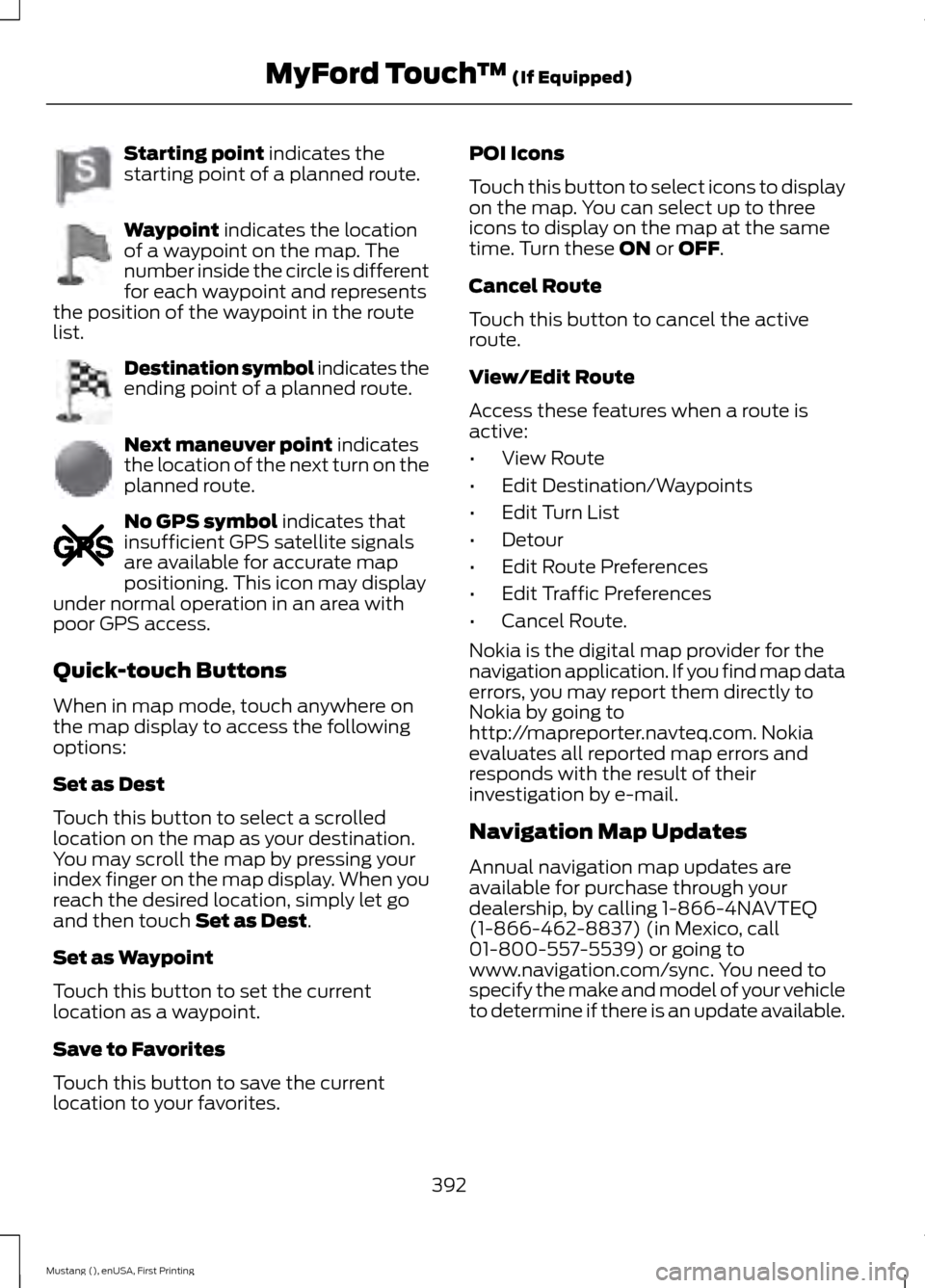
Starting point indicates the
starting point of a planned route. Waypoint
indicates the location
of a waypoint on the map. The
number inside the circle is different
for each waypoint and represents
the position of the waypoint in the route
list. Destination symbol indicates the
ending point of a planned route.
Next maneuver point
indicates
the location of the next turn on the
planned route. No GPS symbol
indicates that
insufficient GPS satellite signals
are available for accurate map
positioning. This icon may display
under normal operation in an area with
poor GPS access.
Quick-touch Buttons
When in map mode, touch anywhere on
the map display to access the following
options:
Set as Dest
Touch this button to select a scrolled
location on the map as your destination.
You may scroll the map by pressing your
index finger on the map display. When you
reach the desired location, simply let go
and then touch
Set as Dest.
Set as Waypoint
Touch this button to set the current
location as a waypoint.
Save to Favorites
Touch this button to save the current
location to your favorites. POI Icons
Touch this button to select icons to display
on the map. You can select up to three
icons to display on the map at the same
time. Turn these
ON or OFF.
Cancel Route
Touch this button to cancel the active
route.
View/Edit Route
Access these features when a route is
active:
• View Route
• Edit Destination/Waypoints
• Edit Turn List
• Detour
• Edit Route Preferences
• Edit Traffic Preferences
• Cancel Route.
Nokia is the digital map provider for the
navigation application. If you find map data
errors, you may report them directly to
Nokia by going to
http://mapreporter.navteq.com. Nokia
evaluates all reported map errors and
responds with the result of their
investigation by e-mail.
Navigation Map Updates
Annual navigation map updates are
available for purchase through your
dealership, by calling 1-866-4NAVTEQ
(1-866-462-8837) (in Mexico, call
01-800-557-5539) or going to
www.navigation.com/sync. You need to
specify the make and model of your vehicle
to determine if there is an update available.
392
Mustang (), enUSA, First Printing MyFord Touch
™
(If Equipped)E142651 E142652 E142653 E142654 E142655