2015 FORD MUSTANG key fob
[x] Cancel search: key fobPage 53 of 441
PRINCIPLE OF OPERATION
MyKey allows you to program keys with
restricted driving modes to promote good
driving habits. All but one of the keys
programmed to the vehicle can be
activated with these restricted modes.
Any keys that have not been programmed
are referred to as administrator keys or
admin keys. These can be used to:
•
Create a MyKey.
• Program configurable MyKey settings.
• Clear all MyKey features.
When you have programmed a MyKey, you
can access the following information using
the information display:
• How many admin keys and MyKeys are
programmed to your vehicle.
• The total distance your vehicle has
traveled using a MyKey.
Note: All MyKeys are programmed to the
same settings. You cannot program them
individually.
Note: For vehicles with intelligent access
with push-button start, when both a MyKey
and an admin intelligent access key fob are
present, the admin fob will be recognized
by the vehicle while switching the ignition
on to start the vehicle.
Non-configurable Settings
The following settings cannot be changed
by an admin key user:
• Belt-Minder. You cannot disable this
feature. The audio system will mute
when the front seat occupants’ safety
belts are not fastened.
• Early low fuel. The low-fuel warning
activates earlier, giving the MyKey user
more time to refuel. •
Driver assist features, if equipped on
your vehicle, are forced on: parking aid,
blind spot information system (BLIS)
with cross traffic alert, lane departure
warning and forward collision warning
system.
• Track Mode, if your vehicle is equipped
with this feature, will be disabled.
Configurable Settings
With an admin key, you can configure
certain MyKey settings when you first
create a MyKey and before you recycle the
key or restart the vehicle. You can also
change the settings afterward with an
admin key.
• A vehicle speed limit can be set.
Warnings will be shown in the display
followed by an audible tone when your
vehicle reaches the set speed. You
cannot override the set speed by fully
depressing the accelerator pedal or by
setting cruise control.
• Vehicle speed minders of 45 mph
(75 km/h), 55 mph (90 km/h) or
65 mph (105 km/h). Once you select
a speed, it will be shown in the display,
followed by an audible tone when the
preselected vehicle speed is exceeded.
• Audio system maximum volume of
45%. A message will be shown in the
display when you attempt to exceed
the limited volume. Also, the
speed-sensitive or compensated
automatic volume control will be
disabled.
• Always on setting. When this is
selected, you will not be able to turn
off Advance Trac, Emergency Assist
and Do Not Disturb (if your vehicle is
equipped with these features), and
Sport Mode will not be available to
MyKey drivers.
50
Mustang (), enUSA, First Printing MyKey
™
Page 54 of 441
CREATING A MYKEY
Use the information display to create a
MyKey:
1. Insert the key you want to program into
the ignition. If your vehicle is equipped with
a push-button start, place the intelligent
access key fob into the backup slot. The
location of your backup slot is in another
chapter. See Starting and Stopping the
Engine (page 121).
2. Switch the ignition on.
3. Access the main menu on the
information display controls, and select
Settings
then MyKey by pressing OK or
the > button.
4. Press
OK or the > button to select
Create MyKey.
5. When prompted, hold the
OK button
until you see a message informing you to
label this key as a MyKey. The key will be
restricted at the next start.
MyKey is successfully created. Make sure
you label it so you can distinguish it from
the admin keys.
You can also program configurable
settings for the key(s). See
Programming/Changing Configurable
Settings
. Programming/Changing
Configurable Settings
Use the information display to access your
configurable MyKey settings.
1. Switch the ignition on using an admin
key or fob.
2. Access the main menu on the information display controls, and select
Settings
, then MyKey by pressing OK
or > button.
3. Use the arrow buttons to get to a feature.
4. Press
OK or > to make a selection.
Note: You can clear or change your MyKey
settings at any time during the same key
cycle as you created the MyKey. Once you
have switched the vehicle off, however, you
will need an admin key to change or clear
your MyKey settings.
CLEARING ALL MYKEYS
You can clear or change your MyKey
settings using the information display
control on the steering wheel. See
Information Displays
(page 83).
Switch the ignition on using an admin key
or fob.
To clear all MyKeys of all MyKey settings, press the left arrow button to access
the main menu and scroll to: Action and Description
Message
Press the
OK button.
Settings
Press the
OK button.
MyKey
Press and hold the
OK button until the following message
displays.
Clear MyKey
51
Mustang (), enUSA, First Printing MyKey
™
Page 115 of 441
Note:
A preset memory position can only
be recalled when the ignition is off, or when
the transmission is in park (P) or neutral (N)
if the ignition is on.
You can also recall a preset memory
position by:
• Pressing the unlock button on your
intelligent access key fob if it is linked
to a preset position.
• Unlocking the intelligent driver door
handle if a linked key fob is present.
• Entering a personal entry code on the
Securicode keypad. See Locks (page
56).
Note: Using a linked key fob to recall your
memory position when the ignition is off will
move the seat to the Easy Entry position.
Note: Pressing any seat or mirror
adjustment control (or any memory button)
during a memory recall cancels the
operation.
Seat recall movement will also stop if you
drive your vehicle.
Linking a PreSet Position to your
Remote Control or Intelligent
Access Key Fob
Your vehicle can save the preset memory
positions for up to three remote controls
or intelligent access (IA) keys.
1. With the ignition on, move the memory
positions to the desired positions.
2. Press and hold the desired preset button for about five seconds. A tone
will sound after about two seconds.
Continue holding until a second tone
is heard.
3. Within three seconds, press the lock button on the remote control you are
linking.
To unlink a remote control, follow the
same procedure – except in step 3, press
the unlock button on the remote control. Note:
If more than one linked remote
control or intelligent access key is in range,
the memory function will move to the
settings of the first key stored.
Easy Entry and Exit Feature
If you enable the easy entry and exit
feature, it automatically moves the driver
seat position rearward up to two inches
(five centimeters) when you switch the
ignition off.
The driver seat will return to the previous
position when you switch the ignition on.
You can enable or disable this feature in
the information display. See Information
Displays
(page 83).
REAR SEATS
Note: Your vehicle may have split
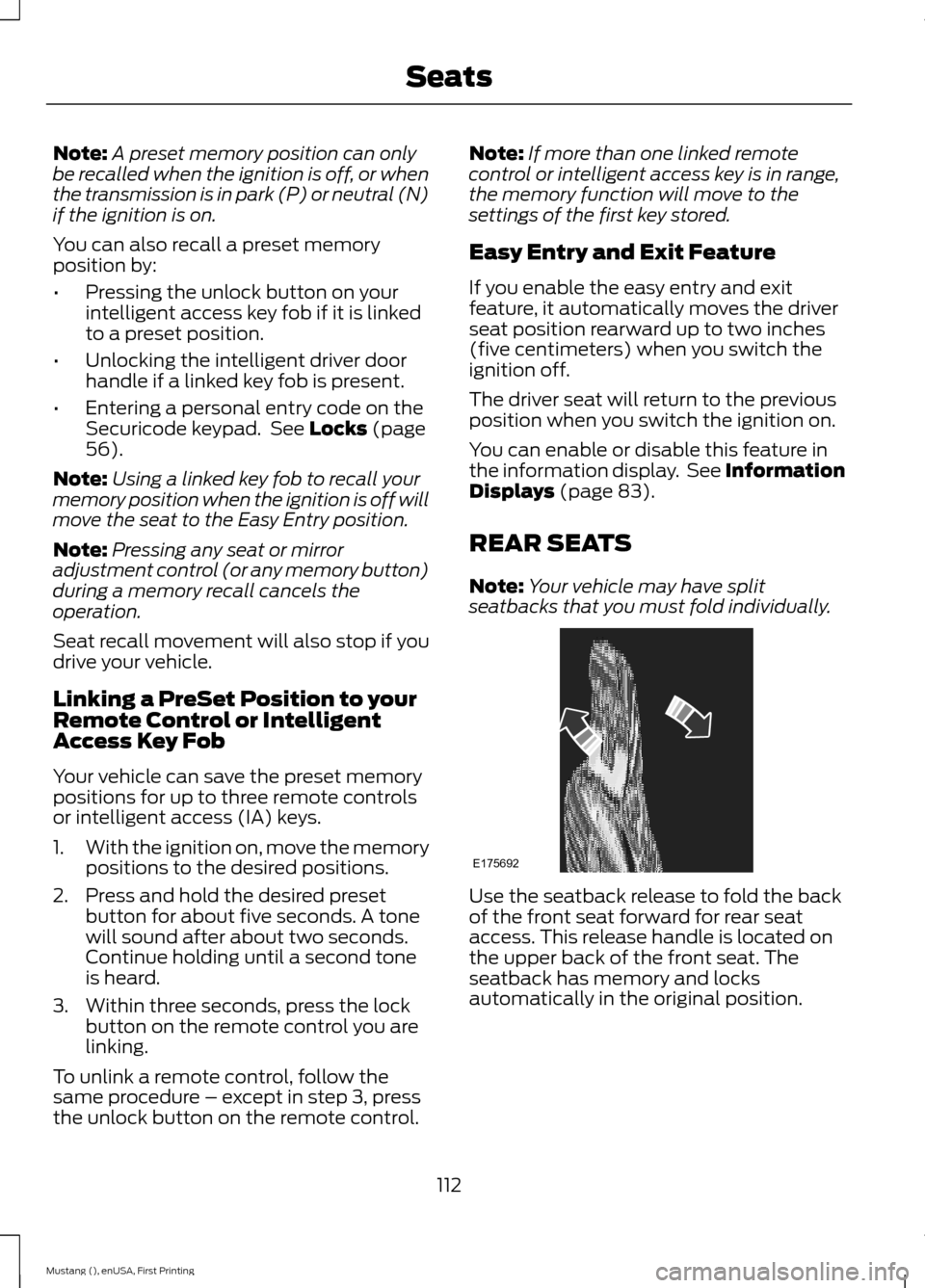
seatbacks that you must fold individually. Use the seatback release to fold the back
of the front seat forward for rear seat
access. This release handle is located on
the upper back of the front seat. The
seatback has memory and locks
automatically in the original position.
112
Mustang (), enUSA, First Printing SeatsE175692
Page 437 of 441
M
Maintenance..................................................210
General Information.......................................... 210
Manual Climate Control.............................101
Manual Seats..................................................110
Manual Transmission Fluid Check.........219
Manual Transmission
..................................134
Parking Your Vehicle.......................................... 135
Recommended Shift Speeds......................... 134
Reverse................................................................... 135
Using the Clutch.................................................. 134
Media Hub......................................................294
Memory Function
............................................111
Easy Entry and Exit Feature............................. 112
Linking a PreSet Position to your Remote Control or Intelligent Access Key
Fob........................................................................\
112
Saving a PreSet Position.................................... 111
Message Center See: Information Displays................................. 83
Mirrors See: Heated Windows and Mirrors..............106
See: Windows and Mirrors................................ 73
Mobile Communications Equipment.......13
Motorcraft Parts
..........................................268
MyFord Touch ™...........................................334
General Information......................................... 334
MyKey Troubleshooting
...............................54
MyKey ™............................................................50
Principle of Operation........................................ 50
N
Navigation
......................................................386
cityseekr................................................................ 388
Map Mode............................................................ 390
Navigation Map Updates................................ 392
Navigation Voice Commands....................... 393
Point of Interest (POI) Categories...............387
Quick-touch Buttons........................................ 392
Setting a Destination....................................... 386
Setting Your Navigation Preferences.........389
Normal Scheduled Maintenance............417 Intelligent Oil-Life Monitor®........................... 417
Normal Maintenance Intervals..................... 418O
Oil Check
See: Engine Oil Check....................................... 214
Opening and Closing the Hood
...............210
Opening the Convertible Top...................185 Using the Tonneau Caps................................. 186
Ordering Additional Owner's Literature.....................................................200
Obtaining a French Owner ’s Manual.........200
P
Parking Aid
.......................................................147
Rear Sensing System......................................... 147
Parking Aids
....................................................147
Parking Brake.................................................140
Passive Anti-Theft System.........................62 SecuriLock.............................................................. 62
PATS See: Passive Anti-Theft System..................... 62
Perchlorate.........................................................11
Personal Safety System ™
..........................35
How Does the Personal Safety System
Work?.................................................................. 35
Phone..............................................................368 Making Calls........................................................ 370
Pairing Subsequent Phones.......................... 370
Pairing Your Phone for the First Time.................................................................. 369
Phone Menu Options....................................... 370
Phone Settings.................................................... 372
Phone Voice Commands................................ 373
Receiving Calls.................................................... 370
Text Messaging.................................................... 371
Post-Crash Alert System...........................195
Power Door Locks See: Locking and Unlocking............................. 56
Power Seats
....................................................110
Power Lumbar........................................................ 111
Power Steering Fluid Check......................219
Power Windows
..............................................73
Accessory Delay.................................................... 73
Bounce-Back.......................................................... 73
One-Touch Down................................................. 73
One-Touch Up....................................................... 73
434
Mustang (), enUSA, First Printing Index