2015 FORD MUSTANG steering
[x] Cancel search: steeringPage 319 of 441

SYNC Mobile App Voice Commands
The following voice commands are always
available:
•
"Mobile apps": SYNC prompts you to
say the name of an app to start it on
SYNC.
• "List mobile apps": SYNC lists all of the
currently available mobile apps.
• "Find new apps": searches your
connected mobile device for
SYNC-compatible mobile apps.
• "
you can say the name of a mobile app
to start the mobile app on SYNC.
• "
lists the available voice commands for
the specified app if the app is running
on SYNC.
App Permissions
App permissions are organized by groups.
You can grant these group permissions
individually. You can change a permission
group status any time when not driving, by
using the settings menu.
When you launch an app using SYNC, the
system may ask you to grant certain
permissions, for example:
• To allow your vehicle to provide vehicle
information to the app such as, but not
limited to: Fuel level, fuel economy, fuel
consumption, engine speed, rain
sensor, odometer, VIN, external
temperature, gear position, tire
pressure, and head lamp status.
• To allow your vehicle to provide driving
characteristic information such as, but
not limited to: MyKey, seat belt status,
engine revolutions per minute, gear
position, braking events, steering wheel
angle, and accelerator pedal position. •
To allow your vehicle to provide
location information, including: GPS
and speed.
• To allow the app to send push
notifications using the vehicle display
and voice capabilities while running in
a background state. Push notifications
may be particularly useful for news or
location based apps.
Note: You only need to grant permissions
the first time you use an app with SYNC.
Note: Ford is not responsible or liable for
any damages or loss of privacy relating to
usage of an app, or dissemination of any
vehicle data that you approve Ford to
provide to an app.
Enabling and Disabling App
Permissions Using the SYNC Menu
1. Press the MENU button to access the
SYNC menu.
2. Select
SyncApplications > Mobile
Apps > App Settings.
3. Select the specific app or
All Apps.
4. If push notifications are supported, this
setting is listed. Select to enable or
disable the feature as required.
Enabling SYNC Mobile Apps
In order to enable mobile apps, SYNC
requires user consent to send and receive
app authorization information and updates
using the data plan associated with the
connected device.
Data is sent to Ford in the United States
through the connected device. The
information is encrypted and includes your
VIN, SYNC module number, anonymous
usage statistics and debugging
information. Updates may take place
automatically.
Note: You must enable mobile apps for
each connected device the first time you
select a mobile app using the system.
316
Mustang (), enUSA, First Printing SYNC™
(If Equipped)
Page 339 of 441
Press to select any of the following:
•
AM
• FM
• SIRIUS
• CD
• USB
• BT Stereo
• SD Card
• Line In
Cleaning the Touchscreen Display
Use a clean, soft cloth such as one used
for cleaning glasses. If dirt or fingerprints
are still visible, apply a small amount of
alcohol to the cloth. Do not pour or spray
alcohol onto the display. Do not use
detergent or any type of solvent to clean
the display.
Using Your Bezel Controls
Depending on your vehicle and option
package, you may also have these controls
on your bezel:
• Power: Switch the media or climate
features off and on.
• VOL:
Control the volume of playing
media.
• Climate:
Control the temperature, fan
speed or settings of the climate control
system.
• Seek buttons and Tune knob: Use as
you normally would in media modes. •
Eject:
Eject a CD from the
entertainment system.
• Sound:
Touch the musical note icon
to access the Sound menu where you
can adjust settings such as: Bass,
Treble, Midrange, Balance and Fade,
DSP (Digital Signal Processing),
Occupancy Mode and Speed
Compensated Volume. (Your vehicle
may not have all of these sound
options.)
Using Your Steering Wheel
Controls
You can use your steering wheel controls
to interact with the touchscreen system.
• VOL:
Control the volume of audio
output.
• M:
Change the source of playing media.
• Mute:
Mute the audio output.
• Voice:
Press to start a voice session.
Press again to end an active voice
prompt so you can begin speaking.
Press and hold to end a voice session.
• PHONE ACCEPT:
Press to answer a
call, or to switch between calls.
• PHONE REJECT:
Press to end a call
or to reject an incoming call.
See
Steering Wheel (page 64).
Support
The SYNC support team is available to
help you with any questions you are not
able to answer on your own.
Monday-Saturday, 8:30am-9:00pm EST.
Sunday, 10:30am-7:30pm EST.
In the United States, call: 1-800-392-3673.
In Canada, call: 1-800-565-3673.
Times are subject to change due to
holidays.
336
Mustang (), enUSA, First Printing MyFord Touch
™
(If Equipped)
Page 342 of 441
Using Voice Recognition
This system helps you control many
features using voice commands. This
allows you to keep your hands on the
wheel and focus on what is in front of you.
The system provides feedback through
audible tones, prompts, questions and
spoken confirmations depending on the
situation and the chosen level of
interaction (voice settings).
The system also asks short questions
(confirmation prompts) when it is not sure
of your request or when there are multiple
possible responses to your request.
When using voice commands, words and
icons may appear in the lower left status
bar indicating the status of the voice
session (such as Listening, Success, Failed,
Paused or Try Again).
How to Use Voice Commands with Your
System
Press the voice icon. After the
tone, speak your command
clearly.
These commands can be said at any time
during a voice session
"Cancel""Exit"
"Go back"
"List of commands" "Main menu""Next page"
"Previous page"
"What can I say?" "Help" What Can I Say?
To access the available voice commands
for the current session, do one of the
following:
•
During a voice session, press the Help
icon (?) in the lower left status bar of
the screen.
• Say, "What can I say?" for an
on-screen listing of the possible voice
commands associated with your
current voice session.
• Press the voice icon. After the tone, say,
"Help" to hear a list of possible voice
commands.
Helpful Hints
• Make sure the interior of your vehicle is
as quiet as possible. Wind noise from
open windows and road vibrations may
prevent the system from correctly
recognizing spoken commands.
• After pressing the voice icon, wait until
after the tone sounds and Listening
appears before saying a command. Any
command spoken prior to this does not
register with the system.
• Speak naturally, without long pauses
between words.
• At any time, you can interrupt the
system while it is speaking by pressing
the voice icon.
Accessing a List of Available Commands
• If you use the touchscreen, press the
Settings icon >
Help > Voice
Command List.
• If you use the steering wheel control,
press the voice icon. After the tone,
speak your command clearly.
339
Mustang (), enUSA, First Printing MyFord Touch
™
(If Equipped)E142599
Page 345 of 441
Under this menu, you can set
your clock, access and adjust the
display, sound and vehicle
settings as well as access settings for
specific modes or the help feature.
Clock
Note: You cannot manually set the date.
Your vehicle ’s GPS does this for you.
Note: If the battery has been disconnected,
your vehicle needs to acquire a GPS signal
to update the clock. Once your vehicle
acquires the signal, it may take a few
minutes for the update to display the correct
time. 1. Press the Settings icon > Clock.
2. Press
+ and - to adjust the time.
From this screen, you can also make other
adjustments such as 12-hour or 24-hour
mode, activate GPS time synchronization
and have the system automatically update
new time zones.
You can also switch the outside air
temperature display off and on. It appears
at the top center of the touchscreen, next
to the time and date.
The system automatically saves any
updates you make to the settings.
Display
You can adjust the touchscreen display
through the touchscreen or by pressing the
voice button on your steering wheel
controls and when prompted, say, "Display
settings". Press the Settings icon >
Display
, to access and make
adjustments using the
touchscreen. •
Brightness
allows you to make the
screen display brighter or dimmer.
• Auto DIM
, when set to On, lets you use
the Auto Dim Manual Offset feature.
When set to
Off, screen brightness
does not change.
• Mode
allows you to set the screen to
a certain brightness or have the system
automatically change based on the
outside light level, or switch the display
off.
• If you select
AUTO or NIGHT, you
have the options of switching the
display's Auto Dim feature on or off
and changing the Auto Dim Manual
Offset feature.
• Auto Dim Manual Offset
allows you
to adjust screen dimming as the
outside lighting conditions change from
day to night. This feature also allows
you to adjust screen brightness using
the instrument panel dimming control.
• Edit Wallpaper
•You can have your touchscreen
display the default photo or upload
your own.
Uploading Photos for Your Home
Screen Wallpaper
Note: You cannot load photos directly from
your camera. You must access the photos
either from your USB mass storage device
or from an SD card.
Note: Photographs with extremely large
dimensions (such as 2048 x 1536) may not
be compatible and appear as a blank
(black) image on the display.
Your system allows you to upload and view
up to 32 photos. To access, press the Settings
icon >
Display > Edit
Wallpaper, and then follow the
system prompts to upload your
photographs.
342
Mustang (), enUSA, First Printing MyFord Touch
™
(If Equipped)E142607 E142607 E142607 E142607
Page 355 of 441
Press the voice icon on the
steering wheel. When prompted,
you can say:
"BROWSE" within devices
"Browse" *
"Browse
"Browse
"Browse SD card"
"Browse Sirius channel guide" **
"Browse USB" "Help"
* If you only say, "Browse", you can then
say any commands in the following chart.
** This command is only usable if you have
an active subscription to Sirius satellite
radio. "BROWSE"
"
"
"SD card" **
"Sirius Channel Guide" *
"USB" **
"Help"
* This command is only usable if you have
an active subscription to Sirius satellite
radio.
** For more commands in SD card or USB
mode, see the "SD Card and USB Port"
section of this chapter. Your voice system allows you to change
audio sources with a simple voice
command. For example, if you are listening
to music on a USB device, then want to
switch to a satellite radio channel, simply
press the voice button on the steering
wheel controls and say the name of the
Sirius station (such as, "the Highway").
The following voice commands are
available at the top level of the voice
session no matter which current audio
source you are listening to (such as a USB
device or Sirius satellite radio).
Note:
This is only available when your
MyFord Touch system language is set to
North American English. Sample commands
"<87.9-107.9>""<530-1710>"
"
"AM <530-1710>"
"FM <87.9-107.9>"
"Play [album]
"Play [artist]
"Play [genre]
"Play [playlist]
"Play [song]
"Play
"Play
352
Mustang (), enUSA, First Printing MyFord Touch
™ (If Equipped)E142599
Page 359 of 441
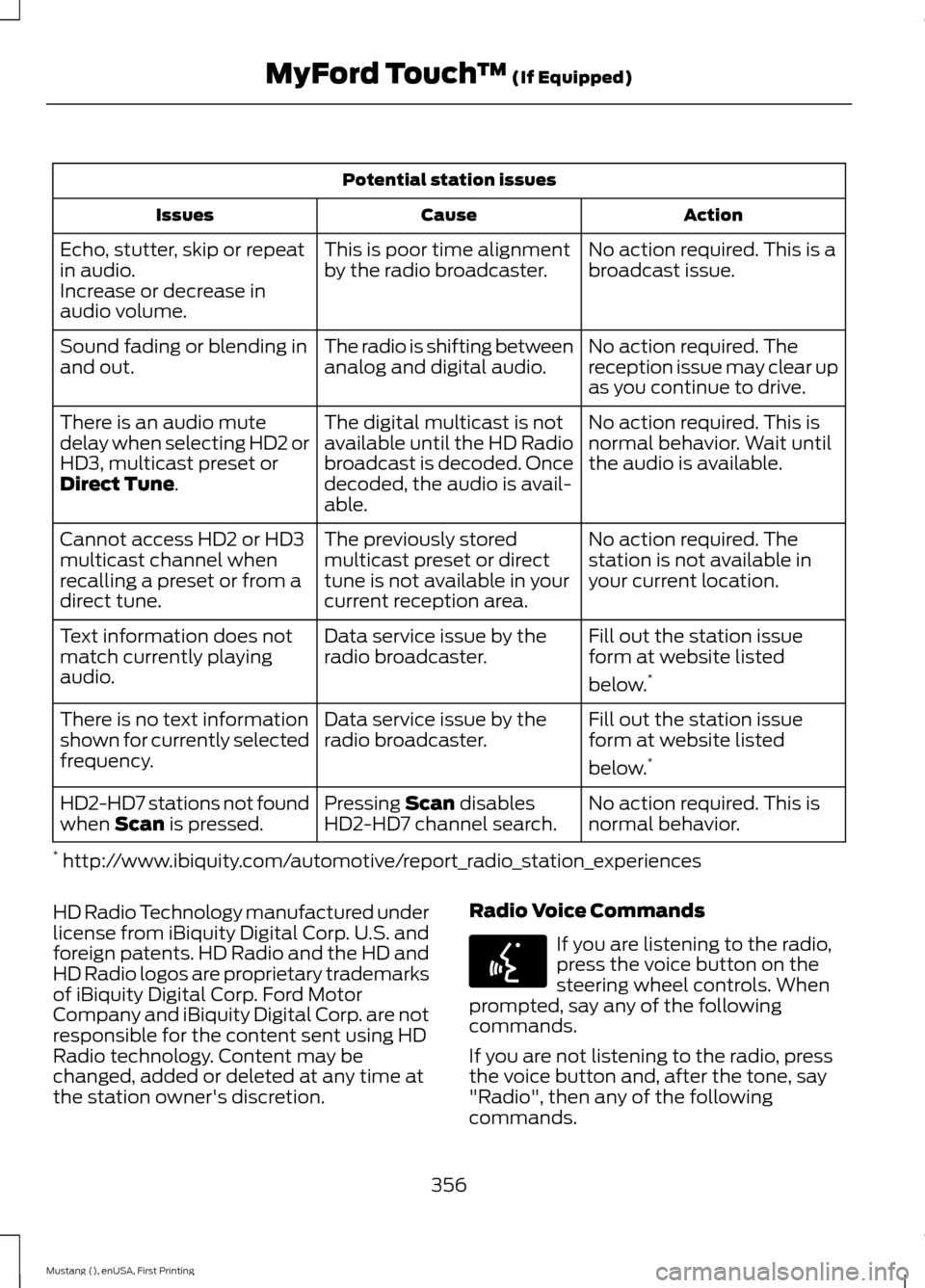
Potential station issues
Action
Cause
Issues
No action required. This is a
broadcast issue.
This is poor time alignment
by the radio broadcaster.
Echo, stutter, skip or repeat
in audio.
Increase or decrease in
audio volume.
No action required. The
reception issue may clear up
as you continue to drive.
The radio is shifting between
analog and digital audio.
Sound fading or blending in
and out.
No action required. This is
normal behavior. Wait until
the audio is available.
The digital multicast is not
available until the HD Radio
broadcast is decoded. Once
decoded, the audio is avail-
able.
There is an audio mute
delay when selecting HD2 or
HD3, multicast preset or
Direct Tune.
No action required. The
station is not available in
your current location.
The previously stored
multicast preset or direct
tune is not available in your
current reception area.
Cannot access HD2 or HD3
multicast channel when
recalling a preset or from a
direct tune.
Fill out the station issue
form at website listed
below.*
Data service issue by the
radio broadcaster.
Text information does not
match currently playing
audio.
Fill out the station issue
form at website listed
below.*
Data service issue by the
radio broadcaster.
There is no text information
shown for currently selected
frequency.
No action required. This is
normal behavior.
Pressing
Scan disables
HD2-HD7 channel search.
HD2-HD7 stations not found
when Scan is pressed.
* http://www.ibiquity.com/automotive/report_radio_station_experiences
HD Radio Technology manufactured under
license from iBiquity Digital Corp. U.S. and
foreign patents. HD Radio and the HD and
HD Radio logos are proprietary trademarks
of iBiquity Digital Corp. Ford Motor
Company and iBiquity Digital Corp. are not
responsible for the content sent using HD
Radio technology. Content may be
changed, added or deleted at any time at
the station owner's discretion. Radio Voice Commands If you are listening to the radio,
press the voice button on the
steering wheel controls. When
prompted, say any of the following
commands.
If you are not listening to the radio, press
the voice button and, after the tone, say
"Radio", then any of the following
commands.
356
Mustang (), enUSA, First Printing MyFord Touch
™
(If Equipped)E142599
Page 364 of 441
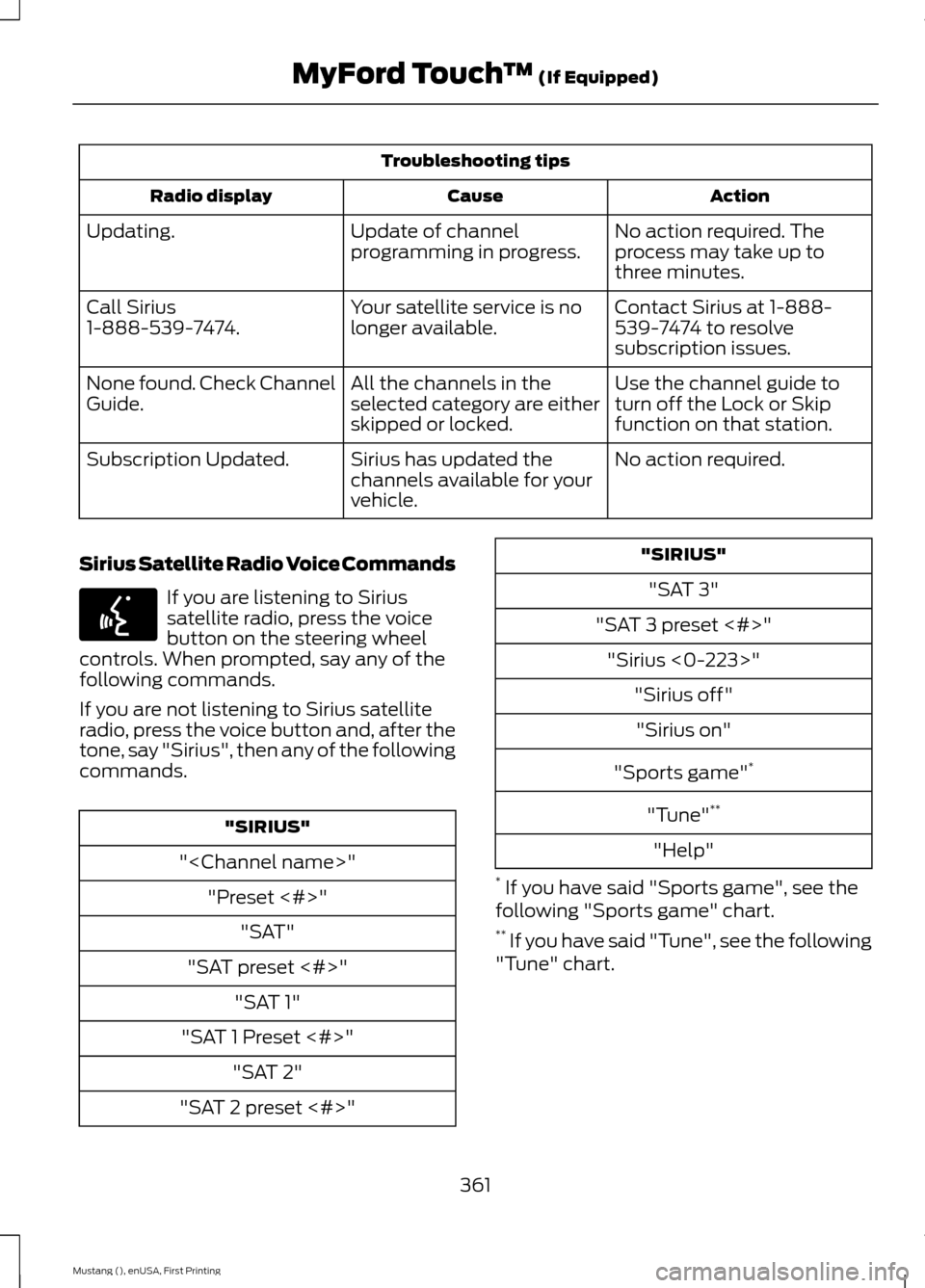
Troubleshooting tips
Action
Cause
Radio display
No action required. The
process may take up to
three minutes.
Update of channel
programming in progress.
Updating.
Contact Sirius at 1-888-
539-7474 to resolve
subscription issues.
Your satellite service is no
longer available.
Call Sirius
1-888-539-7474.
Use the channel guide to
turn off the Lock or Skip
function on that station.
All the channels in the
selected category are either
skipped or locked.
None found. Check Channel
Guide.
No action required.
Sirius has updated the
channels available for your
vehicle.
Subscription Updated.
Sirius Satellite Radio Voice Commands If you are listening to Sirius
satellite radio, press the voice
button on the steering wheel
controls. When prompted, say any of the
following commands.
If you are not listening to Sirius satellite
radio, press the voice button and, after the
tone, say "Sirius", then any of the following
commands. "SIRIUS"
"
"SAT preset <#>" "SAT 1"
"SAT 1 Preset <#>" "SAT 2"
"SAT 2 preset <#>" "SIRIUS"
"SAT 3"
"SAT 3 preset <#>" "Sirius <0-223>" "Sirius off""Sirius on"
"Sports game" *
"Tune" **
"Help"
* If you have said "Sports game", see the
following "Sports game" chart.
** If you have said "Tune", see the following
"Tune" chart.
361
Mustang (), enUSA, First Printing MyFord Touch
™ (If Equipped)E142599
Page 365 of 441
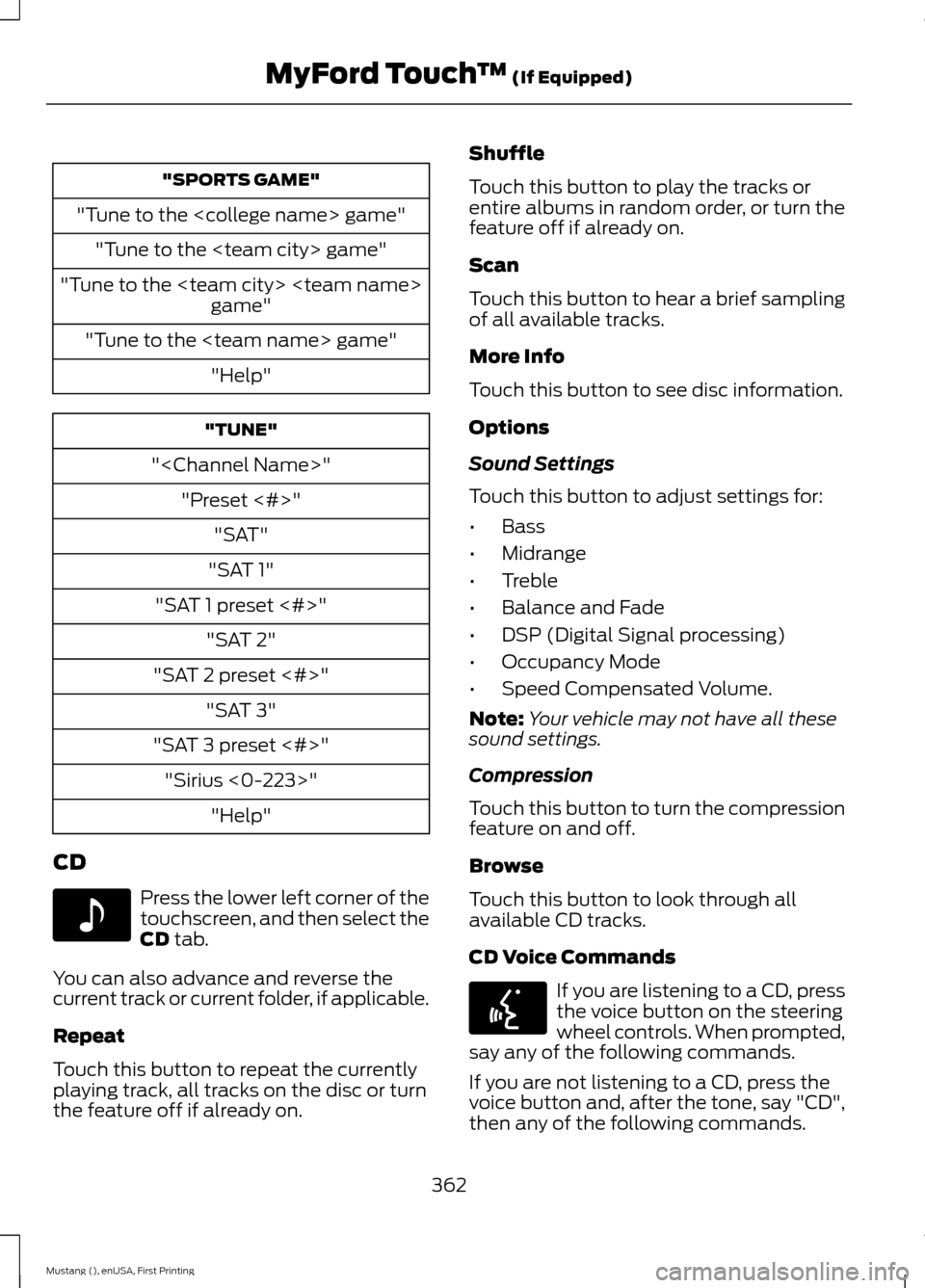
"SPORTS GAME"
"Tune to the
"Tune to the
"Tune to the
"
"SAT 1"
"SAT 1 preset <#>" "SAT 2"
"SAT 2 preset <#>" "SAT 3"
"SAT 3 preset <#>" "Sirius <0-223>" "Help"
CD Press the lower left corner of the
touchscreen, and then select the
CD tab.
You can also advance and reverse the
current track or current folder, if applicable.
Repeat
Touch this button to repeat the currently
playing track, all tracks on the disc or turn
the feature off if already on. Shuffle
Touch this button to play the tracks or
entire albums in random order, or turn the
feature off if already on.
Scan
Touch this button to hear a brief sampling
of all available tracks.
More Info
Touch this button to see disc information.
Options
Sound Settings
Touch this button to adjust settings for:
•
Bass
• Midrange
• Treble
• Balance and Fade
• DSP (Digital Signal processing)
• Occupancy Mode
• Speed Compensated Volume.
Note: Your vehicle may not have all these
sound settings.
Compression
Touch this button to turn the compression
feature on and off.
Browse
Touch this button to look through all
available CD tracks.
CD Voice Commands If you are listening to a CD, press
the voice button on the steering
wheel controls. When prompted,
say any of the following commands.
If you are not listening to a CD, press the
voice button and, after the tone, say "CD",
then any of the following commands.
362
Mustang (), enUSA, First Printing MyFord Touch
™
(If Equipped)E142611 E142599