Page 54 of 441
CREATING A MYKEY
Use the information display to create a
MyKey:
1. Insert the key you want to program into
the ignition. If your vehicle is equipped with
a push-button start, place the intelligent
access key fob into the backup slot. The
location of your backup slot is in another
chapter. See Starting and Stopping the
Engine (page 121).
2. Switch the ignition on.
3. Access the main menu on the
information display controls, and select
Settings
then MyKey by pressing OK or
the > button.
4. Press
OK or the > button to select
Create MyKey.
5. When prompted, hold the
OK button
until you see a message informing you to
label this key as a MyKey. The key will be
restricted at the next start.
MyKey is successfully created. Make sure
you label it so you can distinguish it from
the admin keys.
You can also program configurable
settings for the key(s). See
Programming/Changing Configurable
Settings
. Programming/Changing
Configurable Settings
Use the information display to access your
configurable MyKey settings.
1. Switch the ignition on using an admin
key or fob.
2. Access the main menu on the information display controls, and select
Settings
, then MyKey by pressing OK
or > button.
3. Use the arrow buttons to get to a feature.
4. Press
OK or > to make a selection.
Note: You can clear or change your MyKey
settings at any time during the same key
cycle as you created the MyKey. Once you
have switched the vehicle off, however, you
will need an admin key to change or clear
your MyKey settings.
CLEARING ALL MYKEYS
You can clear or change your MyKey
settings using the information display
control on the steering wheel. See
Information Displays
(page 83).
Switch the ignition on using an admin key
or fob.
To clear all MyKeys of all MyKey settings, press the left arrow button to access
the main menu and scroll to: Action and Description
Message
Press the
OK button.
Settings
Press the
OK button.
MyKey
Press and hold the
OK button until the following message
displays.
Clear MyKey
51
Mustang (), enUSA, First Printing MyKey
™
Page 56 of 441
CHECKING MYKEY SYSTEM
STATUS
You can find information on programmed
MyKey(s) using the information display
control on the steering wheel. See
Information Displays (page 83).
To find information on a programed MyKey(s), press the left arrow button to
access the main menu and scroll to: Description
Message
Press the
OK button.
Settings
Press the
OK button.
MyKey
Select one of the following:
Tracks the distance when drivers use a MyKey. The only way
to delete the accumulated distance is by using an admin key
to clear your MyKey. If the distance does not accumulate as
expected, then the intended user is not using the MyKey, or
an admin key user recently cleared and then recreated a
MyKey.
MyKey Dist.
Indicates the number of MyKeys programed to your vehicle.
Use this feature to detect how many MyKeys you have for
your vehicle and determine when a MyKey has been deleted.
{0} MyKeys
Indicates how many admin keys are programed to your
vehicle. Use this feature to determine how many unrestricted
keys you have for your vehicle, and detect if an additional
MyKey has been programed.
{0} Admin Keys
53
Mustang (), enUSA, First Printing MyKey
™
Page 67 of 441
ADJUSTING THE STEERING
WHEEL
WARNING
Do not adjust the steering wheel
when your vehicle is moving.
Note:
Make sure that you sit in the correct
position. See Sitting in the Correct
Position (page 108). 1. Unlock the steering column.
2.
Adjust the steering wheel to the desired
position. 3. Lock the steering column.
AUDIO CONTROL
(If Equipped)
You can operate the following functions
with the control: Volume up
A
Seek up or next
B
Volume down
C
Seek down or previous
D
Media
E
MEDIA
Press repeatedly to scroll through available
audio sources.
Seek, Next or Previous
Press the seek button to:
• Tune the radio to the next or previous
stored preset.
• Play the next or the previous track.
Press and hold the seek button to:
• Tune the radio to the next station up
or down the frequency band.
• Seek through a track.
64
Mustang (), enUSA, First Printing Steering WheelE176634 E176635 E174583
Page 68 of 441
VOICE CONTROL (If Equipped)
End a call.
A
Answer a call.
B
Voice recognition.
C
Mute.
D
See
SYNC™ (page 295). See MyFord
Touch ™ (page 334).
CRUISE CONTROL INFORMATION DISPLAY
CONTROL
See
Information Displays (page 83).
65
Mustang (), enUSA, First Printing Steering WheelE174584
C
D
B
A E174594 E174595
Page 86 of 441
GENERAL INFORMATION
WARNING
Driving while distracted can result in
loss of vehicle control, crash and
injury. We strongly recommend that
you use extreme caution when using any
device that may take your focus off the
road. Your primary responsibility is the safe
operation of your vehicle. We recommend
against the use of any handheld device
while driving and encourage the use of
voice-operated systems when possible.
Make sure you are aware of all applicable
local laws that may affect the use of
electronic devices while driving. Various systems on your vehicle can be
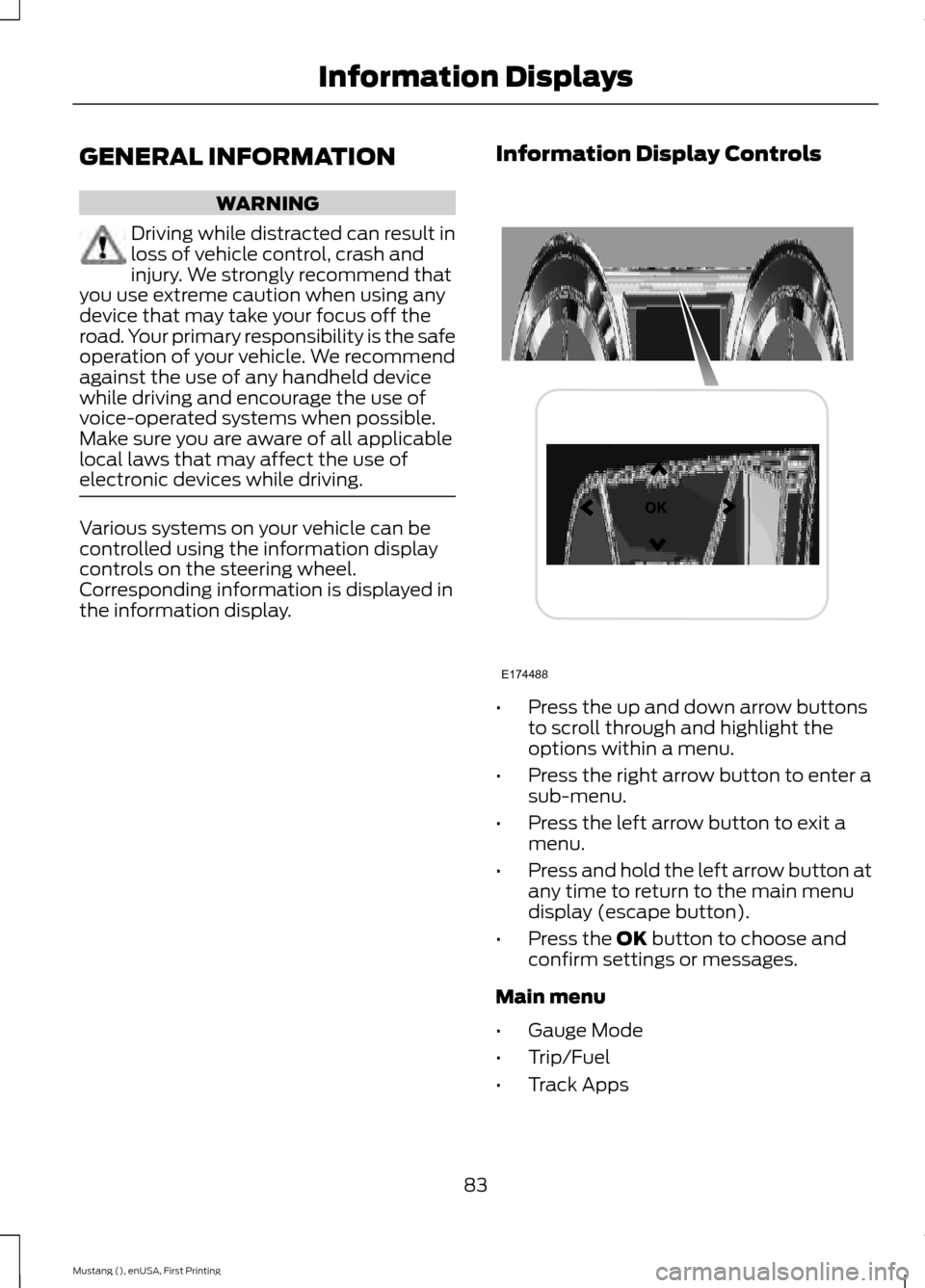
controlled using the information display
controls on the steering wheel.
Corresponding information is displayed in
the information display.
Information Display Controls •
Press the up and down arrow buttons
to scroll through and highlight the
options within a menu.
• Press the right arrow button to enter a
sub-menu.
• Press the left arrow button to exit a
menu.
• Press and hold the left arrow button at
any time to return to the main menu
display (escape button).
• Press the OK button to choose and
confirm settings or messages.
Main menu
• Gauge Mode
• Trip/Fuel
• Track Apps
83
Mustang (), enUSA, First Printing Information DisplaysE174488
Page 91 of 441
Track Apps
Acceleration Timer
VIEW/CLEAR Results
Brake Perform
Brake Perform
Clear Saved Data
Clear All Time Best
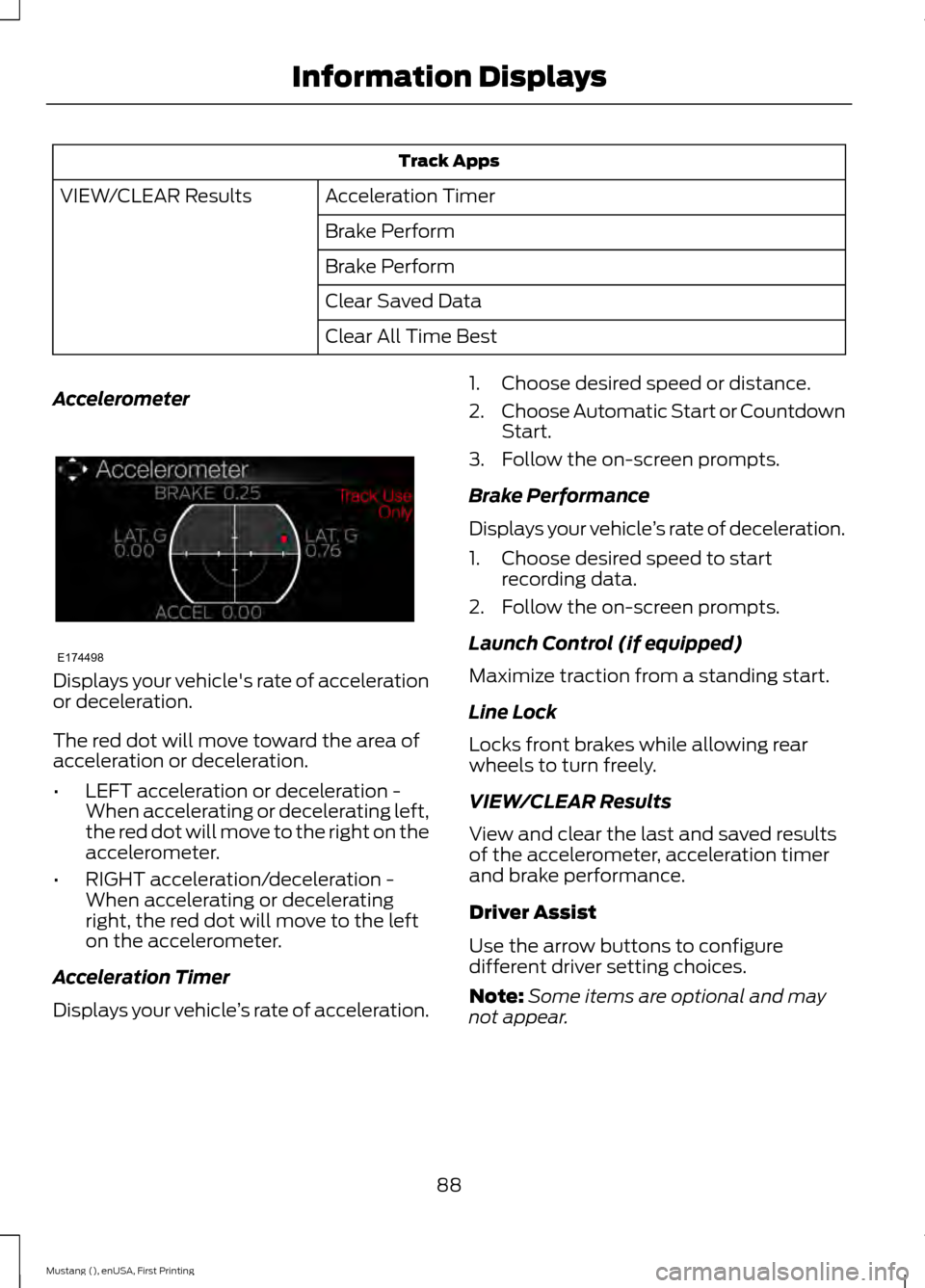
Accelerometer Displays your vehicle's rate of acceleration
or deceleration.
The red dot will move toward the area of
acceleration or deceleration.
•
LEFT acceleration or deceleration -
When accelerating or decelerating left,
the red dot will move to the right on the
accelerometer.
• RIGHT acceleration/deceleration -
When accelerating or decelerating
right, the red dot will move to the left
on the accelerometer.
Acceleration Timer
Displays your vehicle ’s rate of acceleration. 1. Choose desired speed or distance.
2.
Choose Automatic Start or Countdown
Start.
3. Follow the on-screen prompts.
Brake Performance
Displays your vehicle ’s rate of deceleration.
1. Choose desired speed to start recording data.
2. Follow the on-screen prompts.
Launch Control (if equipped)
Maximize traction from a standing start.
Line Lock
Locks front brakes while allowing rear
wheels to turn freely.
VIEW/CLEAR Results
View and clear the last and saved results
of the accelerometer, acceleration timer
and brake performance.
Driver Assist
Use the arrow buttons to configure
different driver setting choices.
Note: Some items are optional and may
not appear.
88
Mustang (), enUSA, First Printing Information DisplaysE174498
Page 101 of 441
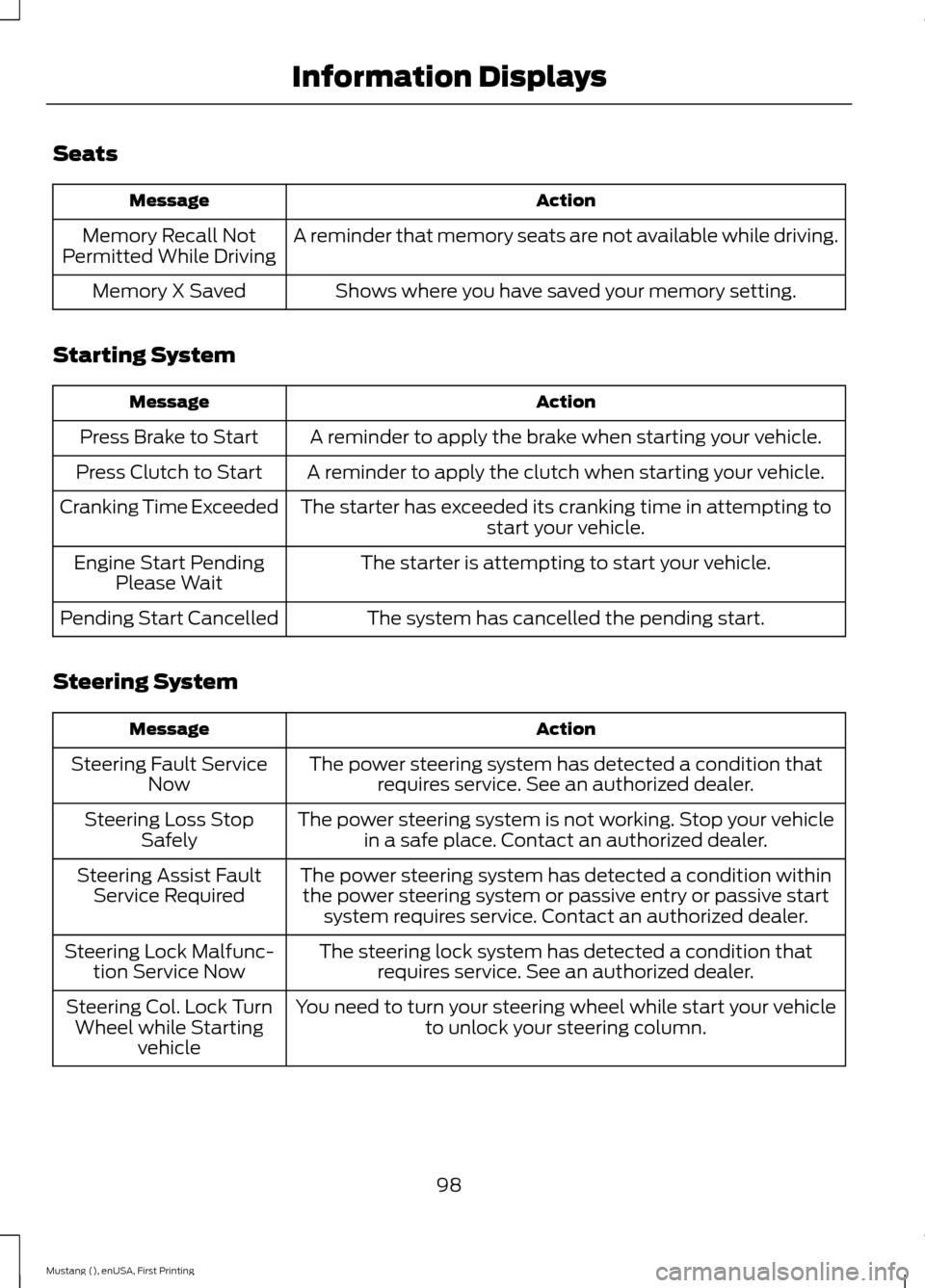
Seats
Action
Message
A reminder that memory seats are not available while driving.
Memory Recall Not
Permitted While Driving
Shows where you have saved your memory setting.
Memory X Saved
Starting System Action
Message
A reminder to apply the brake when starting your vehicle.
Press Brake to Start
A reminder to apply the clutch when starting your vehicle.
Press Clutch to Start
The starter has exceeded its cranking time in attempting tostart your vehicle.
Cranking Time Exceeded
The starter is attempting to start your vehicle.
Engine Start Pending
Please Wait
The system has cancelled the pending start.
Pending Start Cancelled
Steering System Action
Message
The power steering system has detected a condition thatrequires service. See an authorized dealer.
Steering Fault Service
Now
The power steering system is not working. Stop your vehiclein a safe place. Contact an authorized dealer.
Steering Loss Stop
Safely
The power steering system has detected a condition withinthe power steering system or passive entry or passive start system requires service. Contact an authorized dealer.
Steering Assist Fault
Service Required
The steering lock system has detected a condition thatrequires service. See an authorized dealer.
Steering Lock Malfunc-
tion Service Now
You need to turn your steering wheel while start your vehicleto unlock your steering column.
Steering Col. Lock Turn
Wheel while Starting vehicle
98
Mustang (), enUSA, First Printing Information Displays
Page 110 of 441

Note:
Do not clean the housing or glass of
any mirror with harsh abrasives, fuel or other
petroleum-based cleaning products.
The heated mirrors remove ice, mist and
fog when you switch on the heated rear
window.
CABIN AIR FILTER
Your vehicle is equipped with a cabin air
filter. It is located behind the glove box.
The particulate filtration system reduces
the concentration of airborne particles
such as dust, spores and pollen in the air
supplied to the interior of your vehicle.
Note: Make sure you have a cabin air filter
installed at all times. This prevents foreign
objects from entering the system. Running
the system without a filter in place could
result in degradation or damage to the
system.
The particulate filtration system gives you
and your passengers the following
benefits:
• It improves your driving comfort by
reducing particle concentration.
• It improves the interior compartment
cleanliness.
• It protects the climate control
components from particle deposits.
Replace the filter at regular intervals. See
Scheduled Maintenance (page 414).
For additional cabin air filter information,
or to replace the filter, see an authorized
dealer.
REMOTE START
(If Equipped)
The remote start feature allows you to
pre-condition the interior of your vehicle.
The climate control system works to
achieve comfort according to your previous
settings. Note:
You cannot adjust the system during
remote start operation.
Turn the ignition on to return the system
to its previous settings. You can now make
adjustments normally, but you need to turn
certain vehicle-dependent features back
on, such as:
• Heated seats.
• Cooled seats.
• Heated steering wheel.
• Heated mirrors.
• Heated rear window.
You can adjust the default remote start
settings using the information display
controls. See
Information Displays
(page 83).
Automatic Settings
In hot weather, the system is set to 72°F
(22°C). The cooled seats are set to high
(if available, and selected to AUTO in the
information display).
In moderate weather, the system either
heats or cools (based on previous
settings). The rear defroster, heated
mirrors and heated seats do not
automatically turn on.
In cold weather, the system is set to 72°F
(22°C). The heated seats are set to high
(if available, and selected to AUTO in the
information display). The rear defroster
and heated mirrors automatically turn on.
107
Mustang (), enUSA, First Printing Climate Control