2015 FORD MUSTANG CD player
[x] Cancel search: CD playerPage 299 of 441
Times are subject to change due to
holidays.
SYNC Owner Account
Why do I need a SYNC owner account?
•
Required to activate Vehicle Health
Report and to view the reports online.
• Required to activate the
subscription-based SYNC Services and
to personalize your Saved Points and
Favorites.
• Essential for keeping up with the latest
software downloads available for
SYNC.
• Access to customer support for any
questions you may have.
Driving Restrictions
For your safety, certain features are
speed-dependent and restricted when your
vehicle is traveling over 3 mph (5 km/h).
Safety Information WARNING
Driving while distracted can result in
loss of vehicle control, crash and
injury. We strongly recommend that
you use extreme caution when using any
device that may take your focus off the
road. Your primary responsibility is the safe
operation of your vehicle. We recommend
against the use of any hand-held device
while driving and encourage the use of
voice-operated systems when possible.
Make sure you are aware of all applicable
local laws that may affect the use of
electronic devices while driving. When using SYNC:
•
Do not operate playing devices if the
power cords or cables are broken, split
or damaged. Place cords and cables
out of the way, so they do not interfere
with the operation of pedals, seats,
compartments or safe driving abilities.
• Do not leave playing devices in your
vehicle during extreme conditions as it
could cause them damage. See your
device's manual for further information.
• Do not attempt to service or repair the
system. See an authorized dealer.
Privacy Information
When a cellular phone is connected to
SYNC, the system creates a profile within
your vehicle that is linked to that cellular
phone. This profile is created in order to
offer you more cellular features and to
operate more efficiently. Among other
things, this profile may contain data about
your cellular phone book, text messages
(read and unread), and call history,
including history of calls when your cellular
phone was not connected to the system.
In addition, if you connect a media device,
the system creates and retains an index of
supported media content. The system also
records a short development log of
approximately 10 minutes of all recent
system activity. The log profile and other
system data may be used to improve the
system and help diagnose any problems
that may occur.
The cellular profile, media device index,
and development log will remain in the
vehicle unless you delete them and are
generally accessible only in the vehicle
when the cellular phone or media player
is connected. If you no longer plan to use
the system or the vehicle, we recommend
you perform a Master Reset to erase all
stored information.
296
Mustang (), enUSA, First Printing SYNC™ (If Equipped)
Page 320 of 441
Note:
Standard data rates apply. Ford is
not responsible for any additional charges
you may receive from your service provider,
when your vehicle sends or receives data
through the connected device. This includes
any additional charges incurred due to
driving in areas when roaming out of a home
network.
App Status
You can view the current status of an app
in the settings menu.
There are three possible statuses:
• Update Needed: The system has
detected a new app requiring
authorization or a general permissions
update is required.
• Up-To-Date
: No update is required.
• Updating
: The system is trying to
receive an update.
If an update is required and you want to
request this update manually, for example
when in a Wi-Fi hotspot, select
Request
Update in the settings menu.
You can disable automatic updates by
selecting
Disable Updates in the settings
menu. Doing so also disables the use of
Mobile Apps on SYNC.
USING SYNC™ WITH YOUR
MEDIA PLAYER
You can access and play music from your
digital music player over your vehicle's
speaker system using the system's media
menu or voice commands. You can also
sort and play your music by specific
categories, such as artist and album.
Note: The system is capable of indexing up
to 15,000 songs. SYNC is capable of hosting nearly any
digital media player including: iPod, Zune,
plays from device players, and most USB
drives. SYNC also supports audio formats,
such as MP3, WMA, WAV and ACC.
Connecting Your Digital Media
Player to the USB Port
Note:
If your digital media player has a
power switch, make sure you switch it on
before plugging it in.
Using Voice Commands
1. Plug the device into your vehicle's USB
port.
2. Press the voice button and when prompted, say "USB" or "iPod".
3. You can now play music by saying any of the appropriate voice commands.
See the media voice commands.
Using the System Menu
1. Plug the device into your vehicle's USB
port.
2. Press the
AUX button until an
"initializing" message appears in the
display. Depending on how many
media files are on your connected
device, an indexing message may
appear in the display. When indexing
is complete, the screen returns to the
playback menu.
You can browse the files on the USB device
in categories. Choose from the following:
• Play all
• Playlists
• Songs
• Artists
• Albums
• Genres
• Browse USB
• Reset USB
317
Mustang (), enUSA, First Printing SYNC™
(If Equipped)
Page 324 of 441
3. Select Browse USB. If there are no
media files to access, the display
indicates there is no media. If there are media files, you have the following
options: Description and action
Display
Play all indexed media files from your device one at a time
in numerical order.*
Play all
Press the OK button to select. The first track title appears
in the display.
Access your playlists (from formats like ASX, M3U, WPL,
or MTP).*
Playlists
1. Press the OK button to select.
2. Scroll to select the desired playlist, and then press the
OK
button.
Search for and play a specific indexed track. *
Songs
1. Press the
OK button to select.
2. Scroll to select the desired track, and then press the OK
button.
Sort all indexed media files by artist. The system then lists
and plays all artists and tracks alphabetically. *
Artists
1. Press the
OK button to select.
2. Scroll to select the desired artist, and then press the OK
button.
Sort all indexed media files by album. *
Albums
1. Press the
OK button to select.
2. Scroll to select the desired album, and then press the
OK
button.
Sort all indexed media files by genre (category) type. *
Genres
1. Press the
OK button to select.
2. Scroll to select the desired genre, and then press the
OK
button.
Browse all supported media files on your media player
connected to the USB port. You can only view media files
that are compatible with SYNC. (Other files are not
visible.)
Browse USB
1. Press the
OK button to select.
321
Mustang (), enUSA, First Printing SYNC™
(If Equipped)
Page 341 of 441
Restricted features
Editing settings while the rear view camera or active park
assist are active
Editing wireless settings
Wi-Fi and Wireless
Editing the list of wireless networks
Playing video
Videos, Photos and Graphics
Editing the screen's wallpaper or adding new wallpaper
Composing text messages
Text Messages
Viewing received text messages
Editing preset text messages
Using the keyboard to enter a destination
Navigation
Demo navigation route
Adding or editing Address Book entries or Avoid Areas
Privacy Information
When you connect a cellular phone to
SYNC, the system creates a profile within
your vehicle that links to that cellular
phone. This profile helps in offering you
more cellular features and operating more
efficiently. Among other things, this profile
may contain data about your cellular
phone book, text messages (read and
unread), and call history, including history
of calls when your cell phone was not
connected to the system. In addition, if you
connect a media device, the system
creates and retains an index of supported
media content. The system also records a
short development log of approximately
10 minutes of all recent system activity.
The log profile and other system data may
be used to improve the system and help
diagnose any problems that may occur. The cellular profile, media device index,
and development log remain in your
vehicle unless you delete them and are
generally accessible only in your vehicle
when the cellular phone or media player
is connected. If you no longer plan to use
the system or your vehicle, we recommend
you perform a Master Reset to erase all
stored information.
System data cannot be accessed without
special equipment and access to your
vehicle's SYNC module. Ford Motor
Company and Ford of Canada do not
access the system data for any purpose
other than as described absent consent, a
court order, or where required by law
enforcement, other government
authorities, or other third parties acting
with lawful authority. Other parties may
seek to access the information
independently of Ford Motor Company and
Ford of Canada. For further privacy
information, see the sections on 911 Assist,
Vehicle Health Report, and Traffic,
Directions and Information.
338
Mustang (), enUSA, First Printing MyFord Touch
™ (If Equipped)
Page 348 of 441
Voice control
Standard interaction mode provides more detailed inter-
action and guidance. Advanced mode has less audible
interaction and more tone prompts.
Interaction Mode
Have the system ask you short questions if it has not
clearly heard or understood your request. *
Confirmation Prompts
Candidate lists are possible results from your voice
commands. The system simply makes a best guess at
your request with these switched off.
Media Candidate Lists
Candidate lists are possible results from your voice
commands. The system simply makes a best guess at
your request with these switched off.
Phone Candidate Lists
This allows you to adjust the system ’s voice volume level.
Voice Control Volume
* Even with confirmation prompts switched off, the system may occasionally ask you to
confirm settings.
Media Player Press the Settings icon >
Settings > Media Player, then
select from the following: Media player
When this feature is on, the system automatically switches
to the media source upon initial connection. This allows
you to listen to music during the indexing process. When
this feature is off, the system does not automatically
switch to the inserted media source.
Autoplay
Select to connect, disconnect, add or delete a device. You
can also set a device as your favorite so that the system
automatically attempts to connect to that device at every
ignition cycle.
Bluetooth Devices
When this feature is on, the system automatically indexes
media on your connected Bluetooth device.
Index Bluetooth Audio
Devices
345
Mustang (), enUSA, First Printing MyFord Touch
™
(If Equipped)E142607
Page 349 of 441
Media player
This allows you to view the version level of the Gracenote
Database.
Gracenote Database Info
With this feature on, the Gracenote Database supplies
metadata information for your music files. This overrides
information from your device. This feature defaults to off.
Gracenote Management
With this feature on, the Gracenote Database supplied
cover art for your music files. This overrides any art from
your device. This feature defaults to Media Player.
Cover Art Priority
Navigation Press the Settings icon >
Settings > Navigation, then
select from the following: Navigation
Switch breadcrumbs on and off.
Map Preferences
Have the system display your turn list top to bottom or
bottom to top.
Switch the Parking POI notification on and off.
Choose to have the system display the Shortest, Fastest
or most Ecological route first. If you set
Always Use
Preferred Route to Yes, the system uses the selected
route type to calculate only one route to the desired
destination. Always Use Preferred Route
bypasses route
selection in destination programming. The system only
calculates one route based on the preferred route setting.
Eco Time Penalty
allows you to select a low, medium or
high cost for the calculated Eco Route. The higher the
setting, the longer the time allotment is for the route.
Route Preferences
Have the system avoid freeways.
Have the system avoid tollroads.
Have the system avoid ferries or car trains.
Have the system use HOV (high-occupancy vehicle) lanes.
Have the system use guidance prompts.
Navigation Preferences
346
Mustang (), enUSA, First Printing MyFord Touch
™
(If Equipped)E142607
Page 356 of 441
![FORD MUSTANG 2015 6.G Owners Manual Sample commands
"Sirius <0-223>" *
"Sports games" *
* This command is only usable if you have
an active subscription to Sirius satellite
radio.
** The commands that have [ ] around the
word means th](/manual-img/11/5246/w960_5246-355.png "FORD MUSTANG 2015 6.G Owners Manual Sample commands
\"Sirius <0-223>\" *
\"Sports games\" *
* This command is only usable if you have
an active subscription to Sirius satellite
radio.
** The commands that have [ ] around the
word means th")
Sample commands
"Sirius <0-223>" *
"Sports games" *
* This command is only usable if you have
an active subscription to Sirius satellite
radio.
** The commands that have [ ] around the
word means that the word is optional. For
example, if you say, "Play Metallica", this
is the same as the voice command, "Play
[artist]
AM/FM Radio Touch the AM or FM tab to listen
to the radio.
To change between AM and FM presets,
just touch the AM or FM tab.
Memory Presets
Save a station by pressing and holding one
of the memory preset areas. There is a brief
mute while the radio saves the station.
Sound returns when finished.
HD Radio
Touch this button to turn HD Radio on. The
light on the button illuminates when the
feature is on. HD Radio allows you to
receive radio broadcasts digitally, where
available, providing free, crystal-clear
sound. See HD Radio information later in
this chapter.
Scan
Touch this button to go to the next strong
AM or FM radio station. The light on the
button illuminates when the feature is on. Options
Sound Settings
Touch this button to adjust settings for:
•
Bass.
• Midrange.
• Treble.
• Balance and Fade.
• DSP (Digital Signal Processing).
• Occupancy Mode.
• Speed Compensated Volume.
Note: Your vehicle may not have all these
sound settings.
Set PTY for Seek/Scan
This allows you to select a category of
music you would like to search for. You can
then choose to either seek or scan for the
stations playing that category.
RDS Text Display
This allows you to view the information
broadcast by FM stations.
AST
AST (Autostore) allows you to have the
system automatically store the six
strongest stations in your current location.
TAG Button
This feature is available when HD Radio is
on, and allows you to tag a song to
download later. When you select On, TAG
appears on-screen when HD Radio is
active. You can touch
TAG to save the
information of the song that is playing.
When you plug in your portable music
player, the information transfers, if
supported by your device. When you are
connected to iTunes, the tags appear to
remind you of the songs you would like to
download. See HD Radio information later
in this chapter.
353
Mustang (), enUSA, First Printing MyFord Touch
™
(If Equipped)E142611
Page 357 of 441
Direct Tune
Touch this button to manually enter the
desired station number. Touch Enter when
you are done.
HD Radio
™ Information (If Available)
Note: HD Radio broadcasts are not
available in all markets.
HD Radio technology is the digital
evolution of analog AM/FM radio. Your
system has a special receiver that allows
it to receive digital broadcasts (where
available) in addition to the analog
broadcasts, it already receives. Digital
broadcasts provide a better sound quality
than analog broadcasts with free,
crystal-clear audio and no static or
distortion. For more information, and a
guide to available stations and
programming, please visit
www.hdradio.com.
When HD Radio is on and you tune to a
station broadcasting HD Radio technology,
you may notice the following indicators on
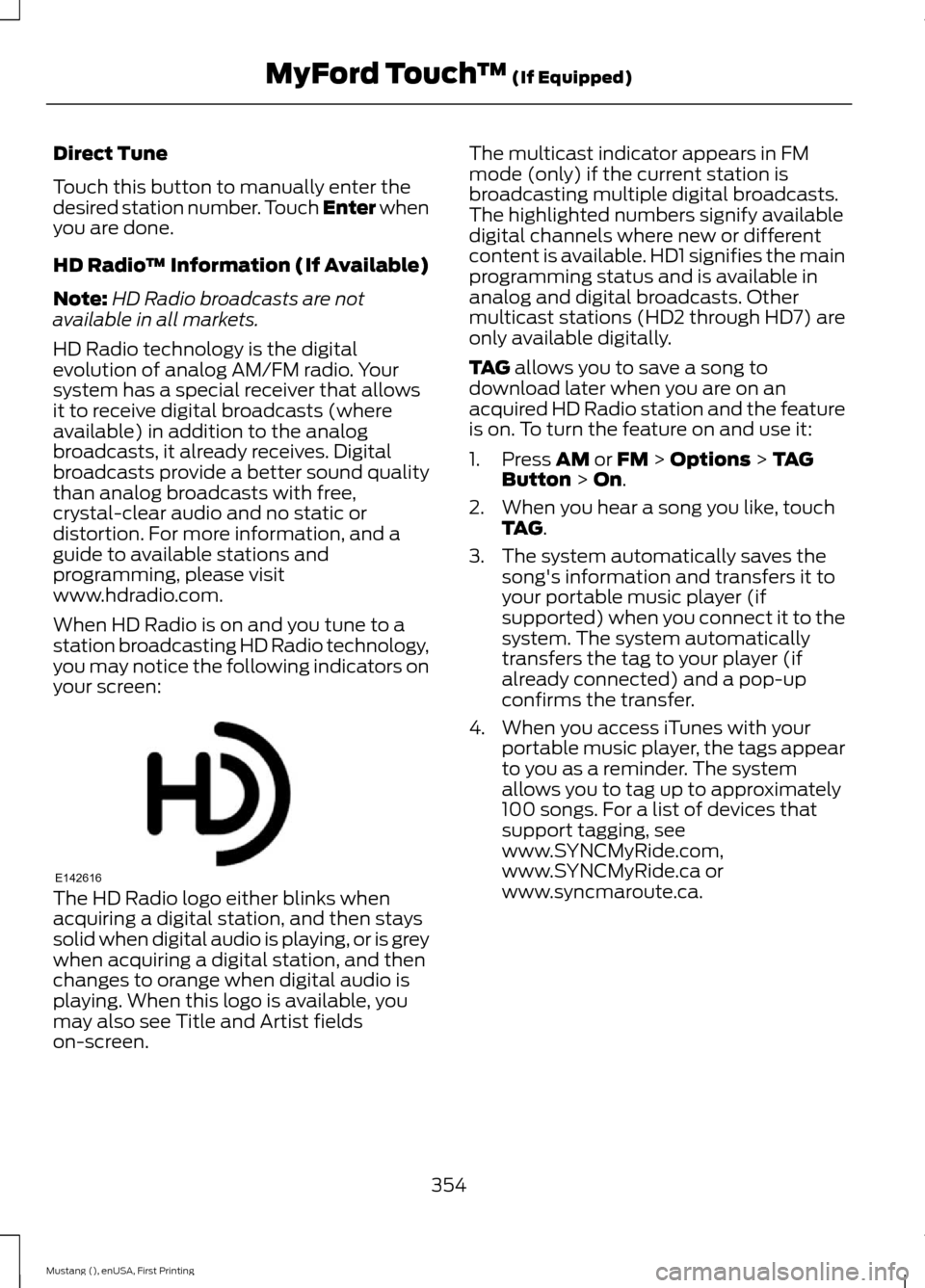
your screen: The HD Radio logo either blinks when
acquiring a digital station, and then stays
solid when digital audio is playing, or is grey
when acquiring a digital station, and then
changes to orange when digital audio is
playing. When this logo is available, you
may also see Title and Artist fields
on-screen. The multicast indicator appears in FM
mode (only) if the current station is
broadcasting multiple digital broadcasts.
The highlighted numbers signify available
digital channels where new or different
content is available. HD1 signifies the main
programming status and is available in
analog and digital broadcasts. Other
multicast stations (HD2 through HD7) are
only available digitally.
TAG allows you to save a song to
download later when you are on an
acquired HD Radio station and the feature
is on. To turn the feature on and use it:
1. Press
AM or FM > Options > TAG
Button > On.
2. When you hear a song you like, touch TAG
.
3. The system automatically saves the song's information and transfers it to
your portable music player (if
supported) when you connect it to the
system. The system automatically
transfers the tag to your player (if
already connected) and a pop-up
confirms the transfer.
4. When you access iTunes with your portable music player, the tags appear
to you as a reminder. The system
allows you to tag up to approximately
100 songs. For a list of devices that
support tagging, see
www.SYNCMyRide.com,
www.SYNCMyRide.ca or
www.syncmaroute.ca.
354
Mustang (), enUSA, First Printing MyFord Touch
™
(If Equipped)E142616